
How to send Images, Video, Audio and Document via WhatsApp
How to Send Images, Video, Audio and Documents via WhatsApp
Send media messages from a workflow using the WhatsApp Media action
Table of Contents
Note: WhatsApp media messages can only be sent inside the 24-hour customer service window — the period that opens after a customer sends a message and closes 24 hours after their last message. Outside this window, only approved message templates can be sent.
How to Send Images, Video, Audio and Documents via WhatsApp
Go to the Automation tab in your dashboard.
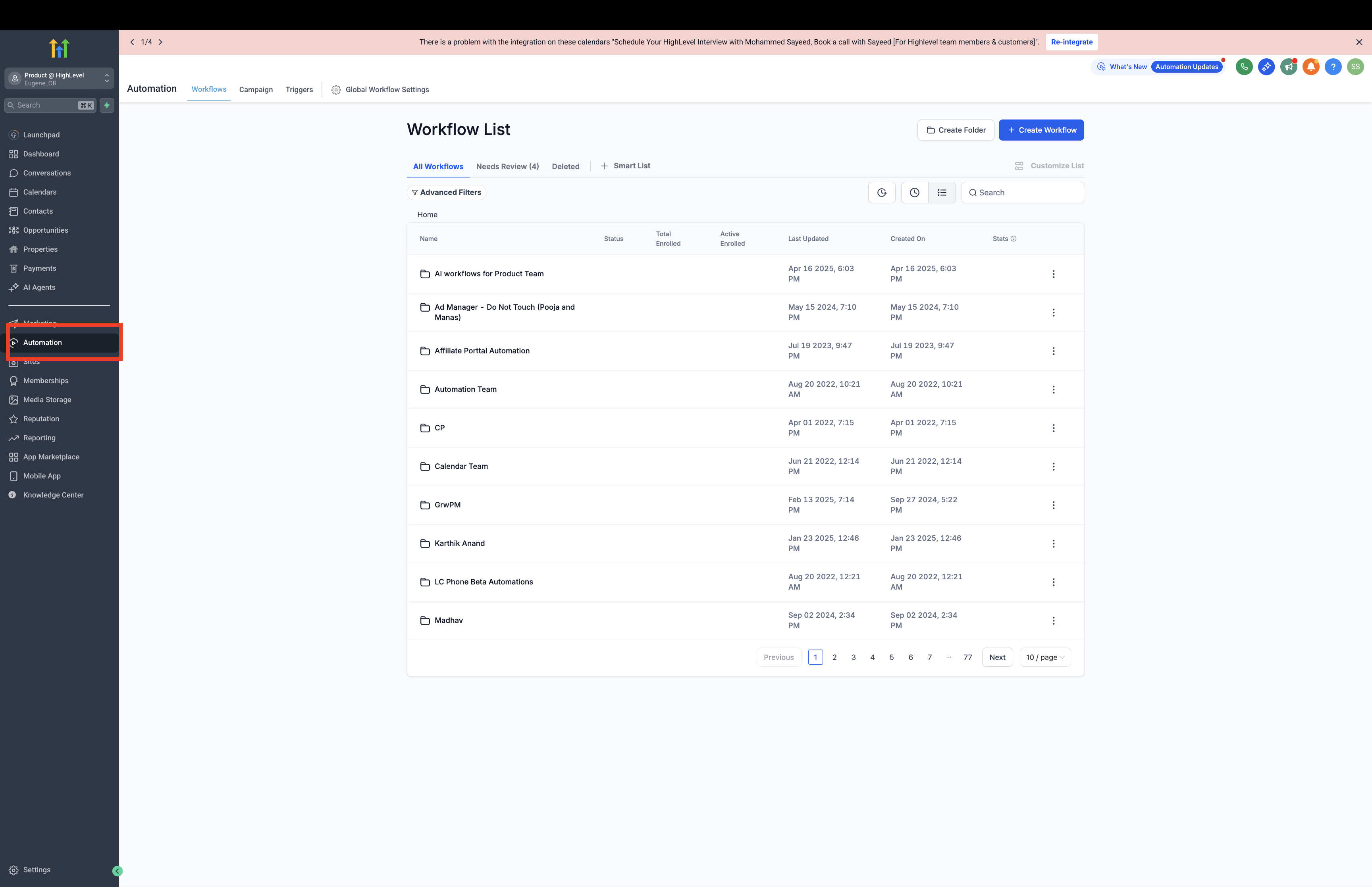
Click on Create Workflow, then select Start from Scratch.
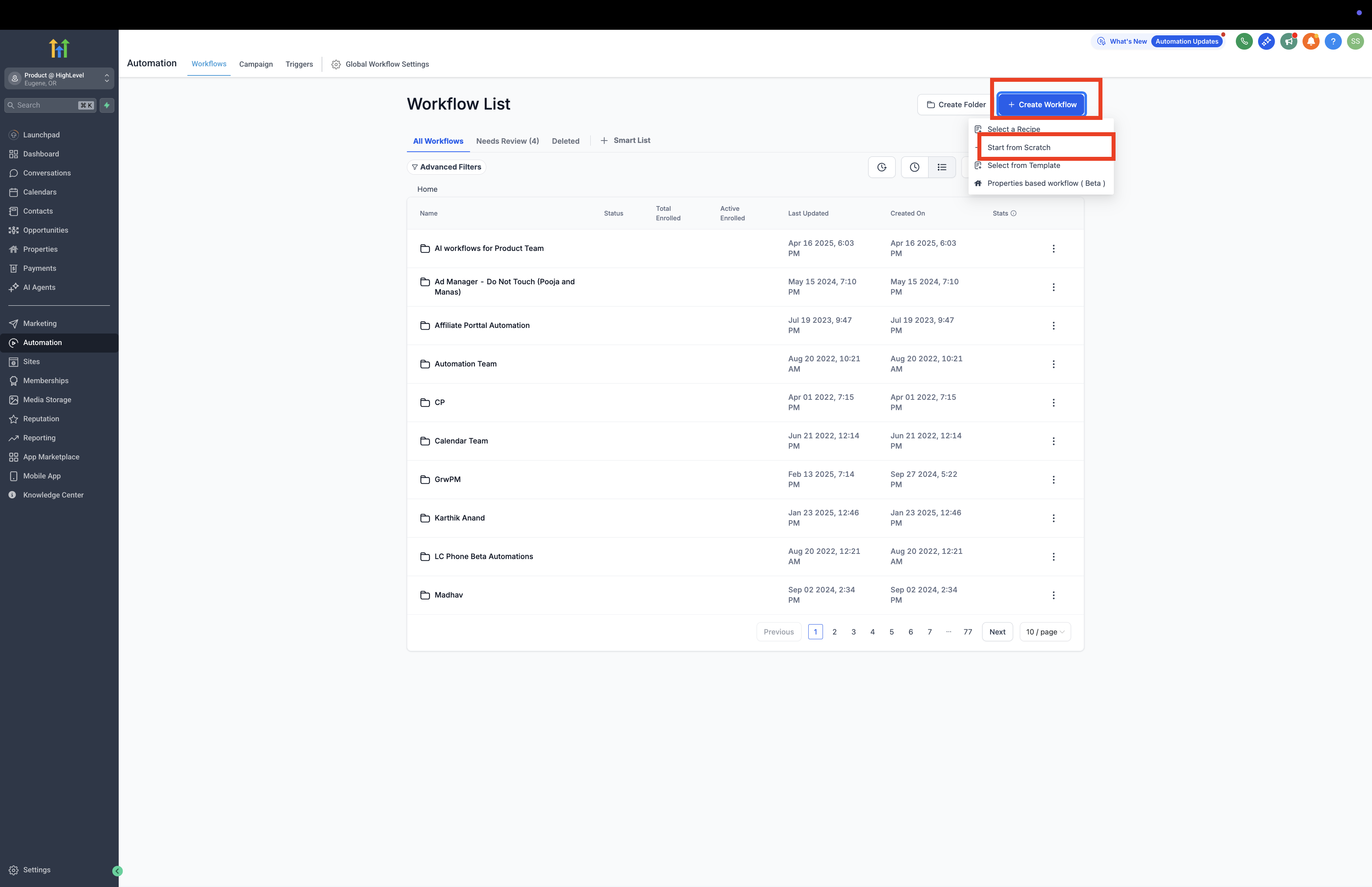
Click on the "+" icon to add a new workflow step.
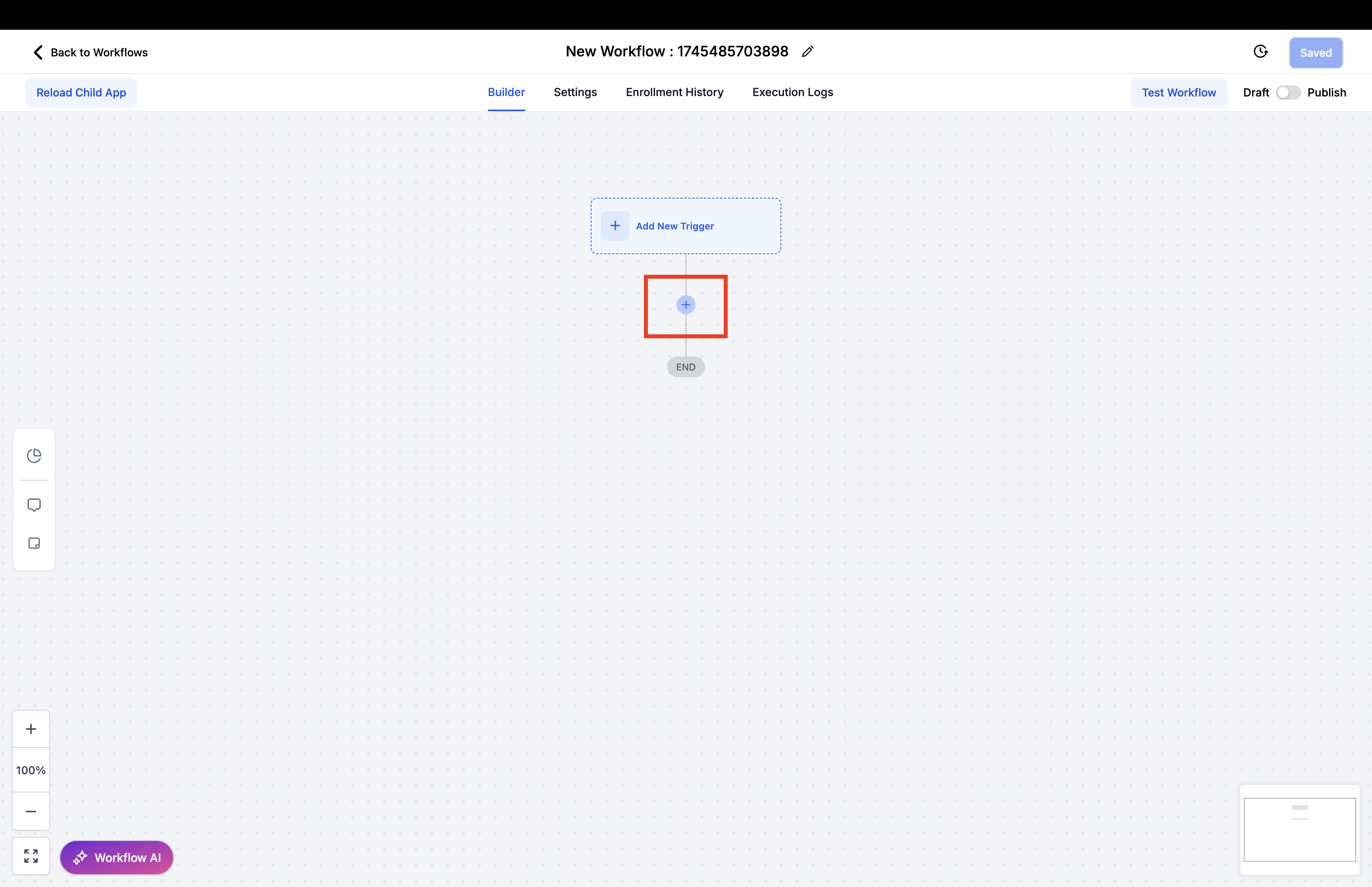
Search for "WhatsApp: Customer Service Window Check" and select it. This step confirms the message will only send while the 24-hour window is open.
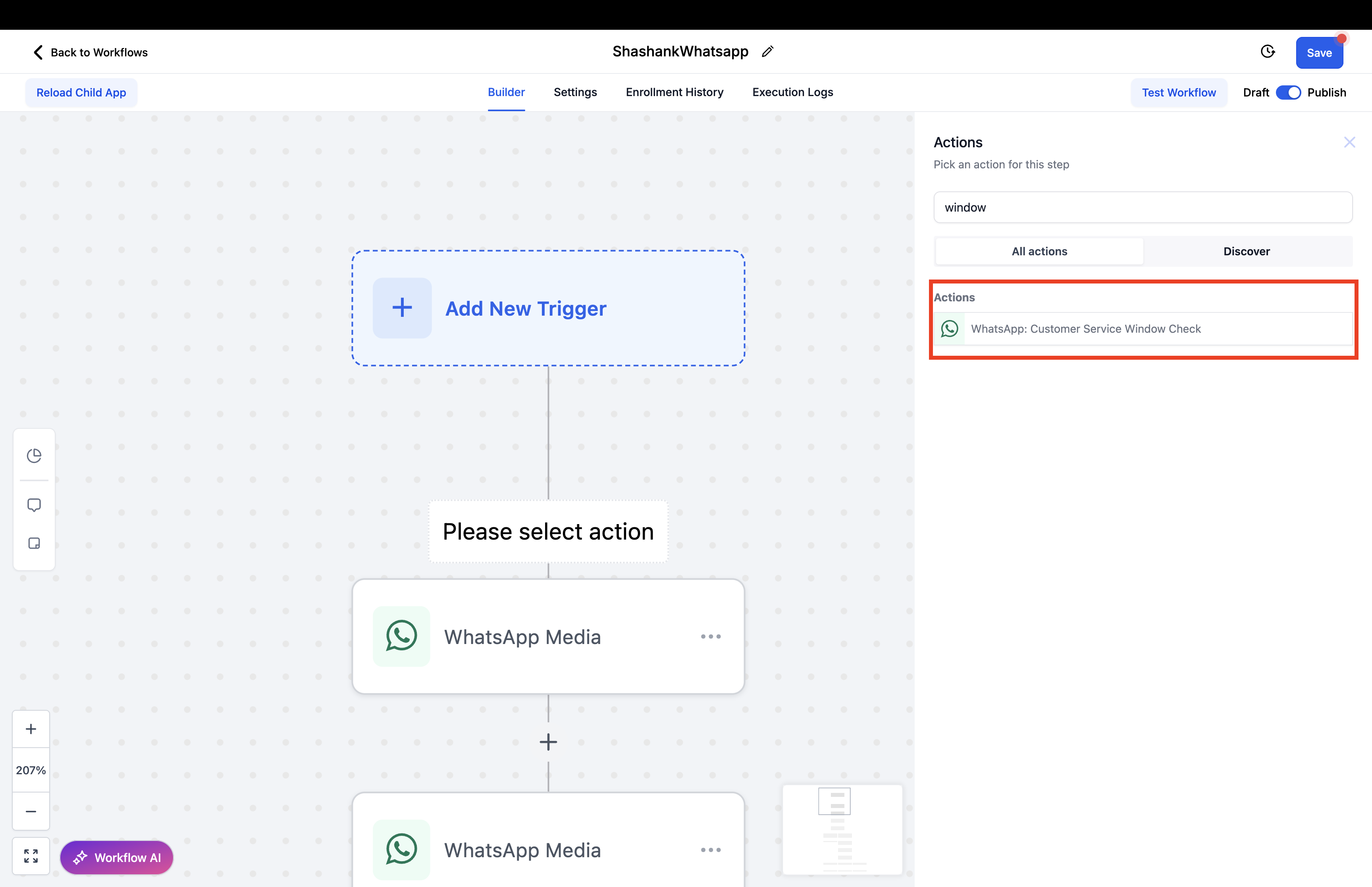
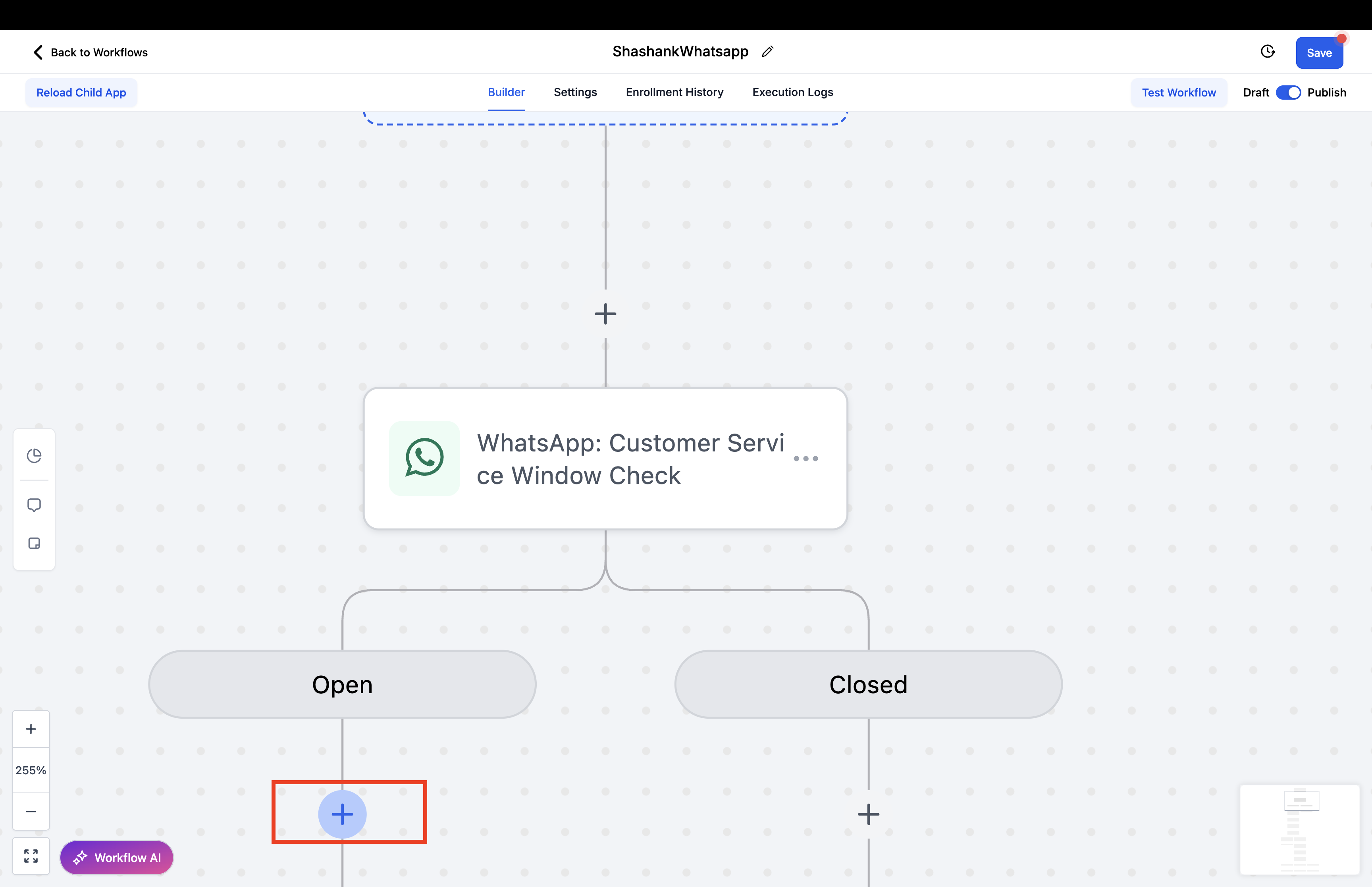
Under the Open branch, click the "+" icon to add the next step.
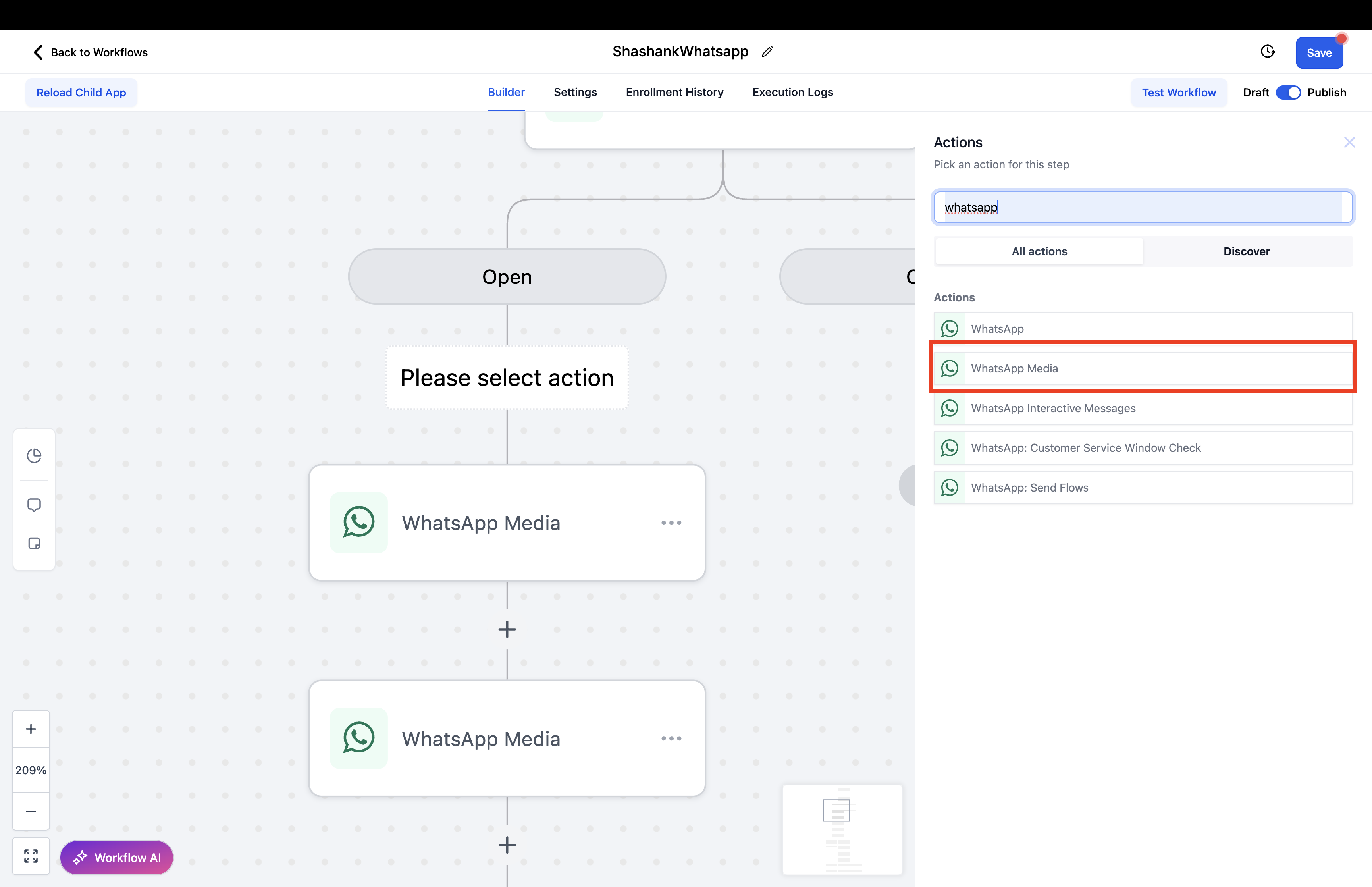
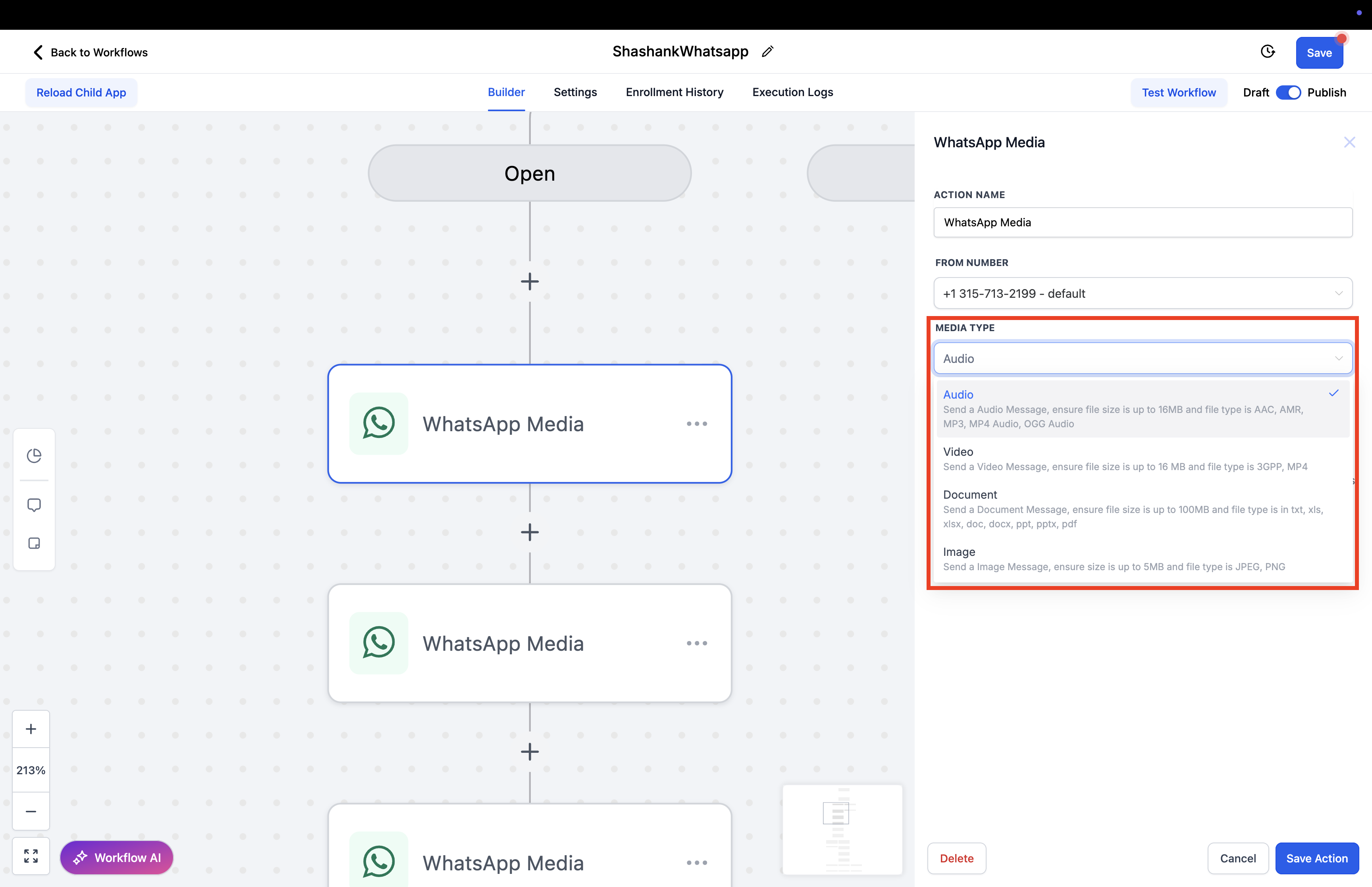
Select the WhatsApp Media action, choose the From Number, and specify the Media Type — Audio, Image, Video, or Document.
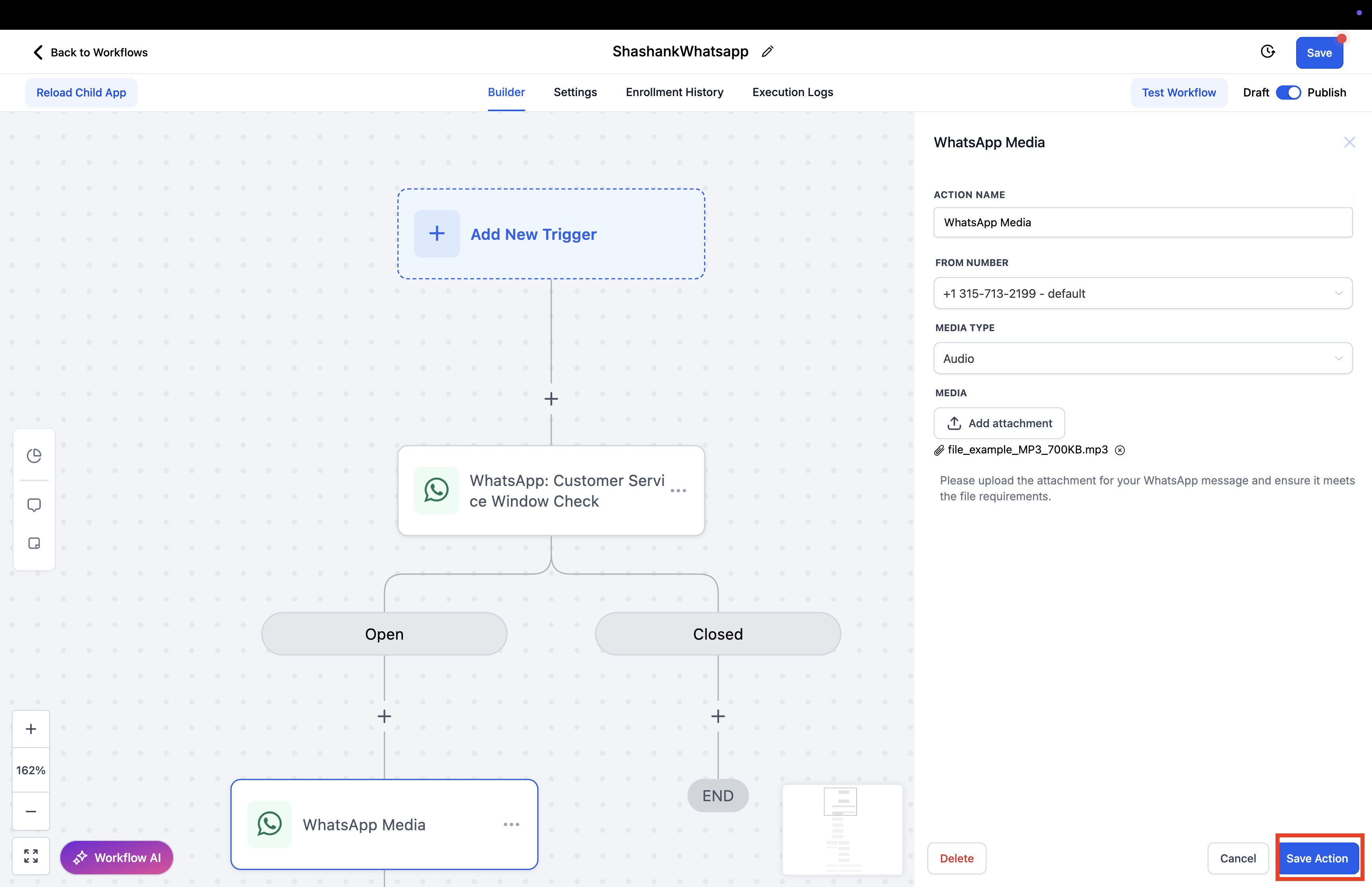
Click Save Action to complete the step.
FAQ
Q: How do I ensure the workflow is within the active customer window?
After starting your workflow, click the "+" icon and search for "WhatsApp: Customer Service Window Check." This step ensures the message is only sent while the customer's 24-hour response window is open.
Q: Can I test the media message in real time?
Yes. Once your workflow is set up and published, you can trigger it under test conditions to confirm the media sends correctly.
Q: What media options can I send via WhatsApp?
You can send audio files, images, videos, documents, and other supported file types through the Media Type dropdown in the action settings.
Q: How do I choose the sending number for the media message?
In the WhatsApp Media action, select the From Number that's already connected to your account.