
How to Connect a Chat To Clients CRM Sub-Account with Zapier
Connect your Chat To Clients CRM sub-account to Zapier (via the Chat To Clients CRM Zapier app) to automate lead capture, contact updates, and handoffs without code. This guide explains what the integration is, prerequisites, and how to connect/disconnect a sub-account.
TABLE OF CONTENTS
- What is Connecting a Sub-Account with Zapier?
- Key Benefits Connecting a Sub-Account with Zapier
- How To Connect a Sub-Account to Zapier
- How to Disconnect Chat To Clients CRM from Zapier
- Frequently Asked Questions
- Related Articles
Connecting a Sub-Account with Zapier
Zapier lets Chat To Clients CRM exchange data with thousands of apps. Using the Chat To Clients CRM Zapier app, you authenticate with your Chat To Clients CRM CRM login, then choose which sub-account to connect so Zaps can create/update contacts, move data, and trigger actions.
Key Benefits Connecting a Sub-Account with Zapier
These advantages help you decide when to connect Zapier for process automation.
Fast automation: Trigger actions across thousands of apps without custom code.
Sub-account scoped: Choose the specific sub-account to keep data clean and separated.
Simple auth: Use your Chat To Clients CRM CRM login—no API keys required for this connection.
Easy maintenance: Manage or disconnect the Chat To Clients CRM connection from Zapier’s App Connections page.
How To Connect a Sub-Account with Zapier
Follow these steps in Zapier to connect the right sub-account via Chat To Clients CRM.
- Log in to your Zapier account.
- On the home screen, click Create > Zaps.
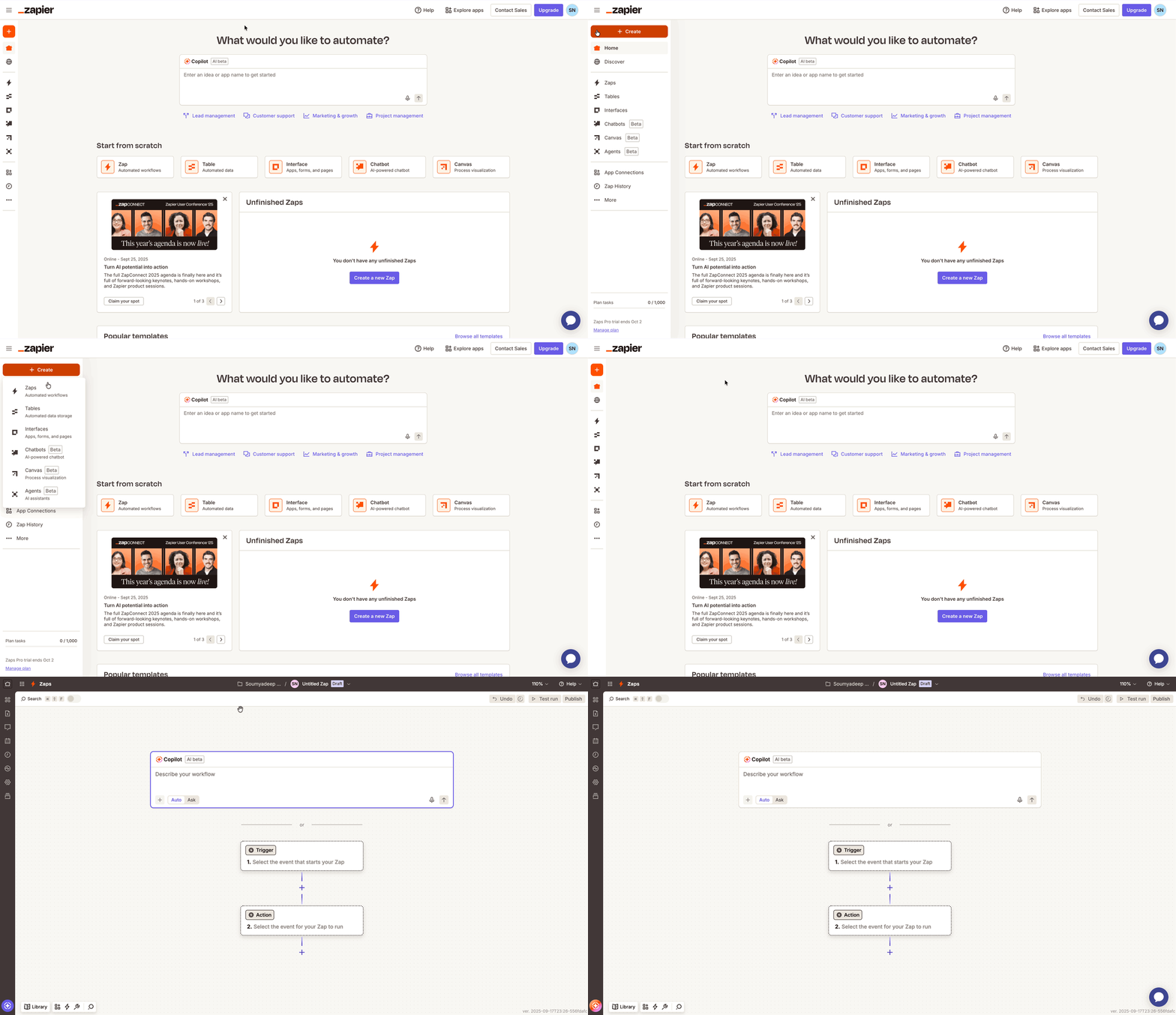
- In the Zap editor, click on the Trigger block and select Chat To Clients CRM from the list of apps.
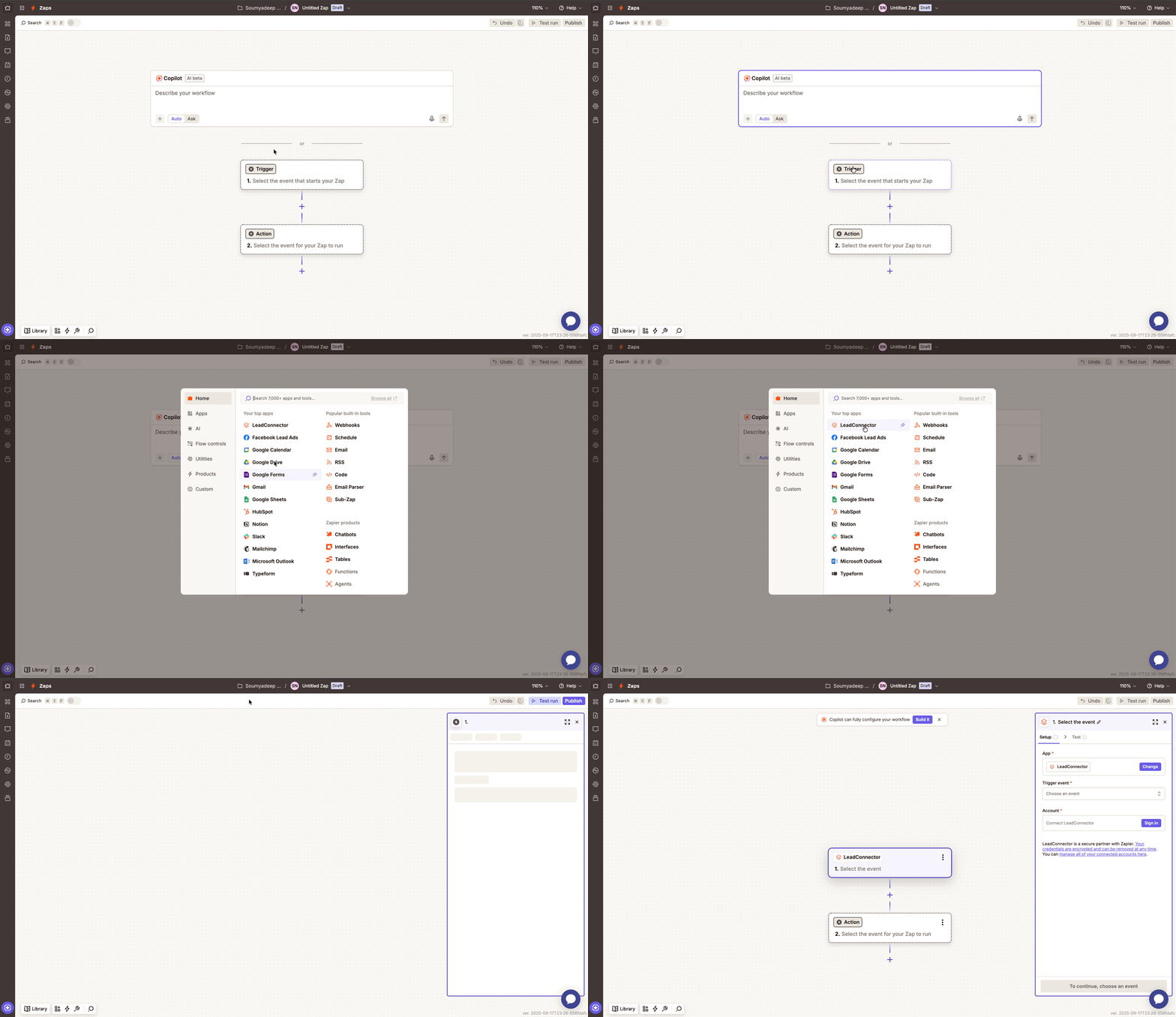
- Select a TriggerEvent like PipelineStageChanged.
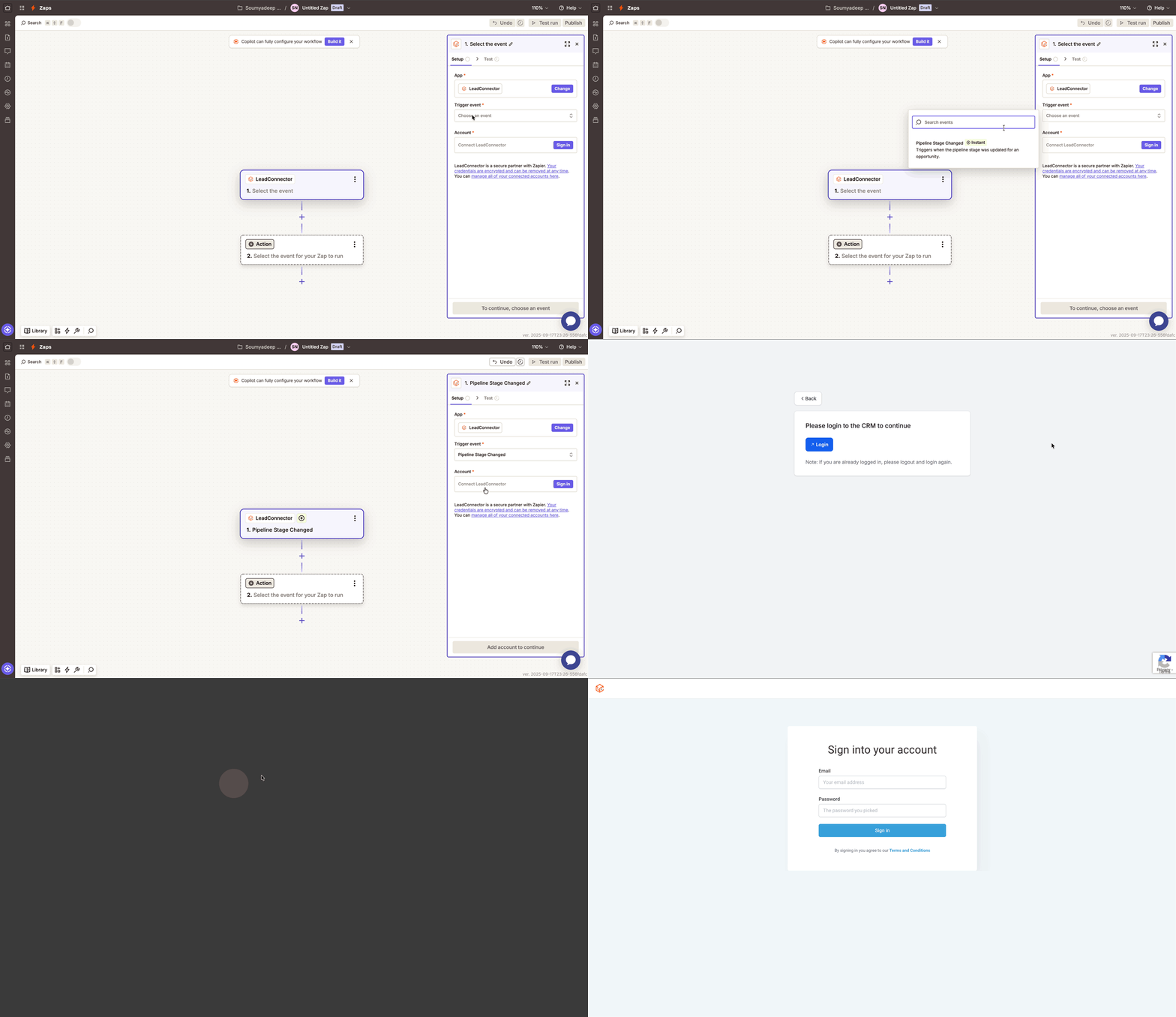
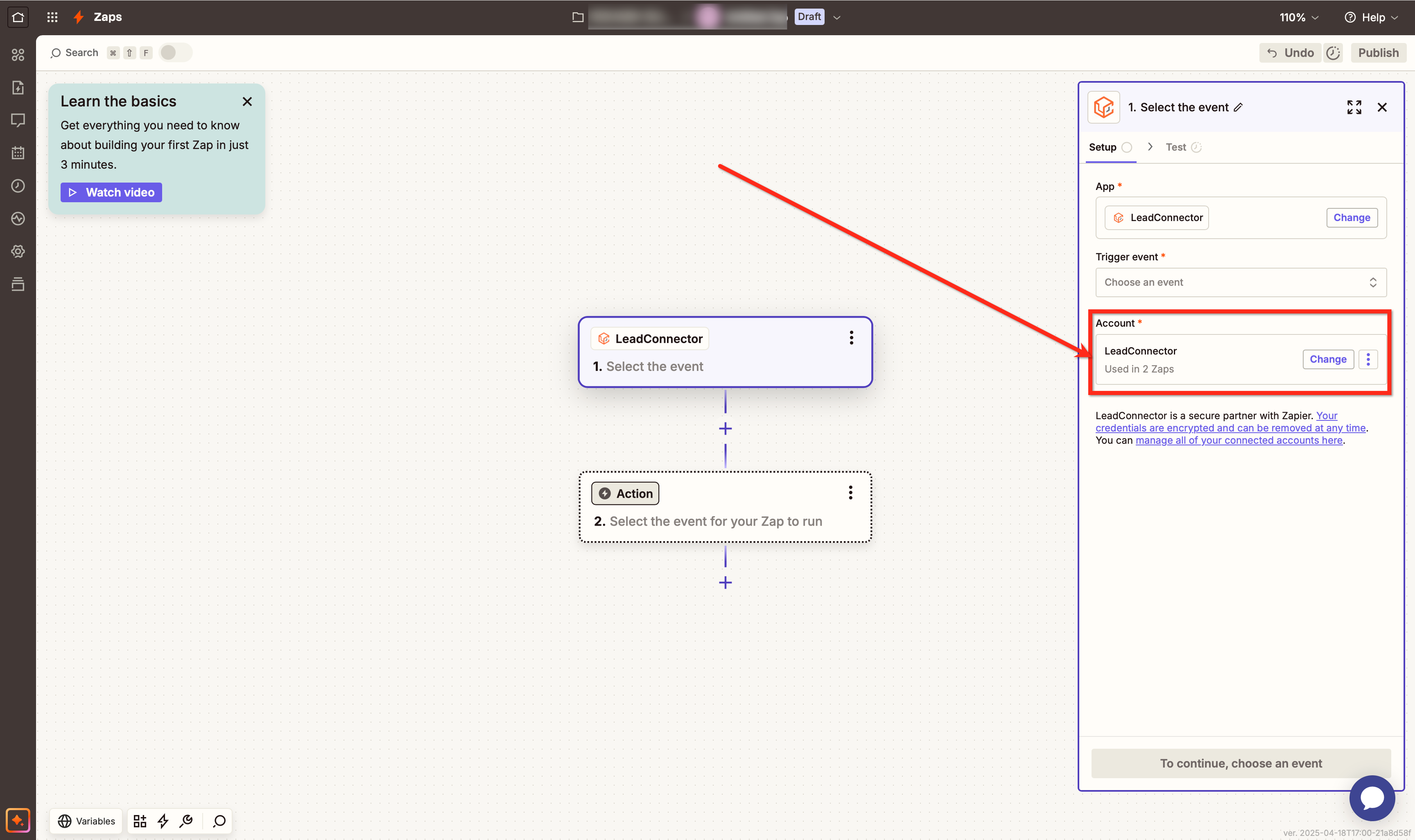
- Under the Account section of the trigger setup, click on the Sign In button.
- You will be redirected to the Chat To Clients CRM login screen. Enter your email and password to proceed.
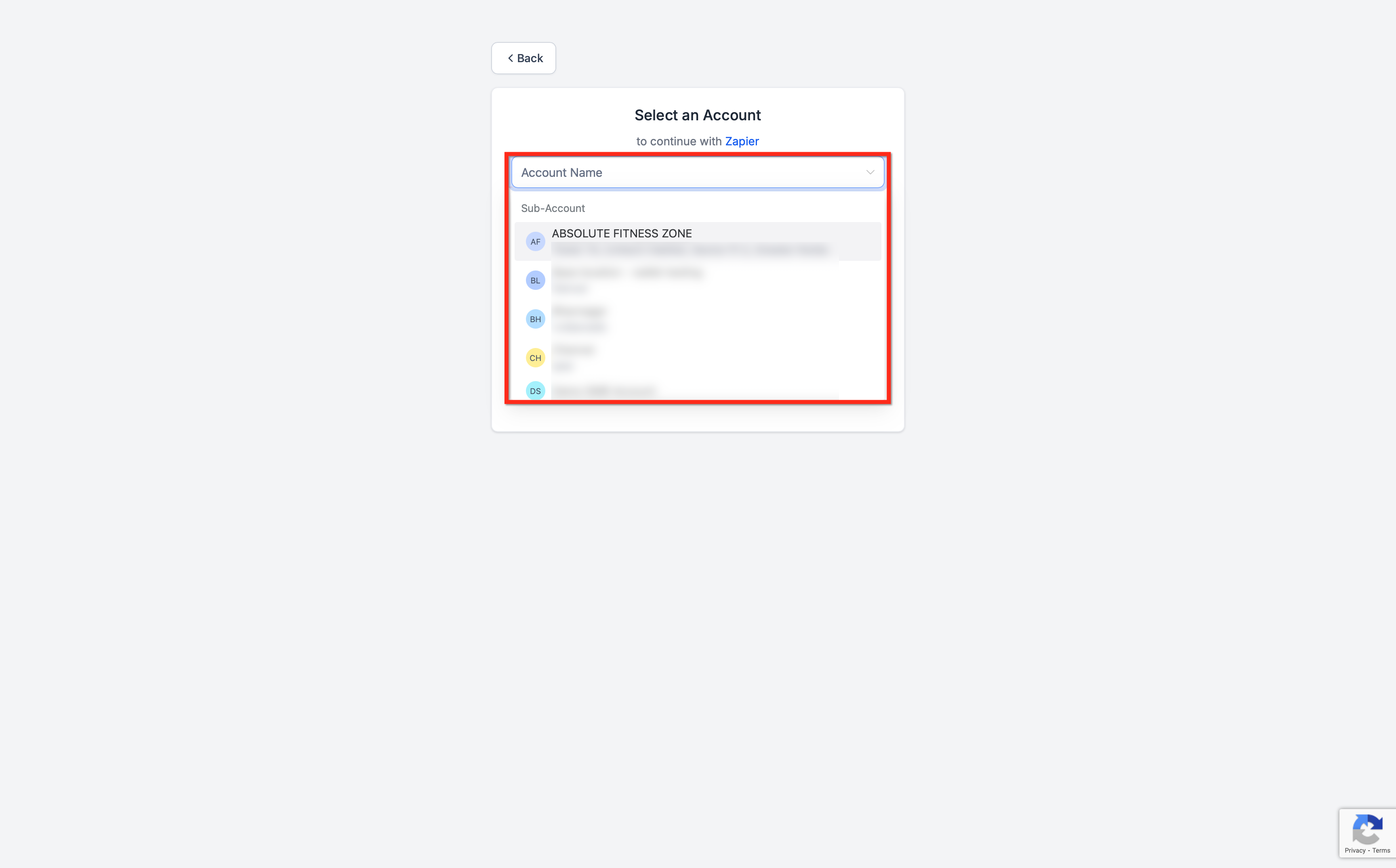
- After logging in, you’ll be prompted to select the sub-account you want to connect with Zapier.
- Once completed, your Zapier account will be successfully connected to the sub-account. You’ll see Chat To Clients CRM listed under “Accounts” in your Zap setup, confirming the integration is active.
How to Disconnect Chat To Clients CRM from Zapier
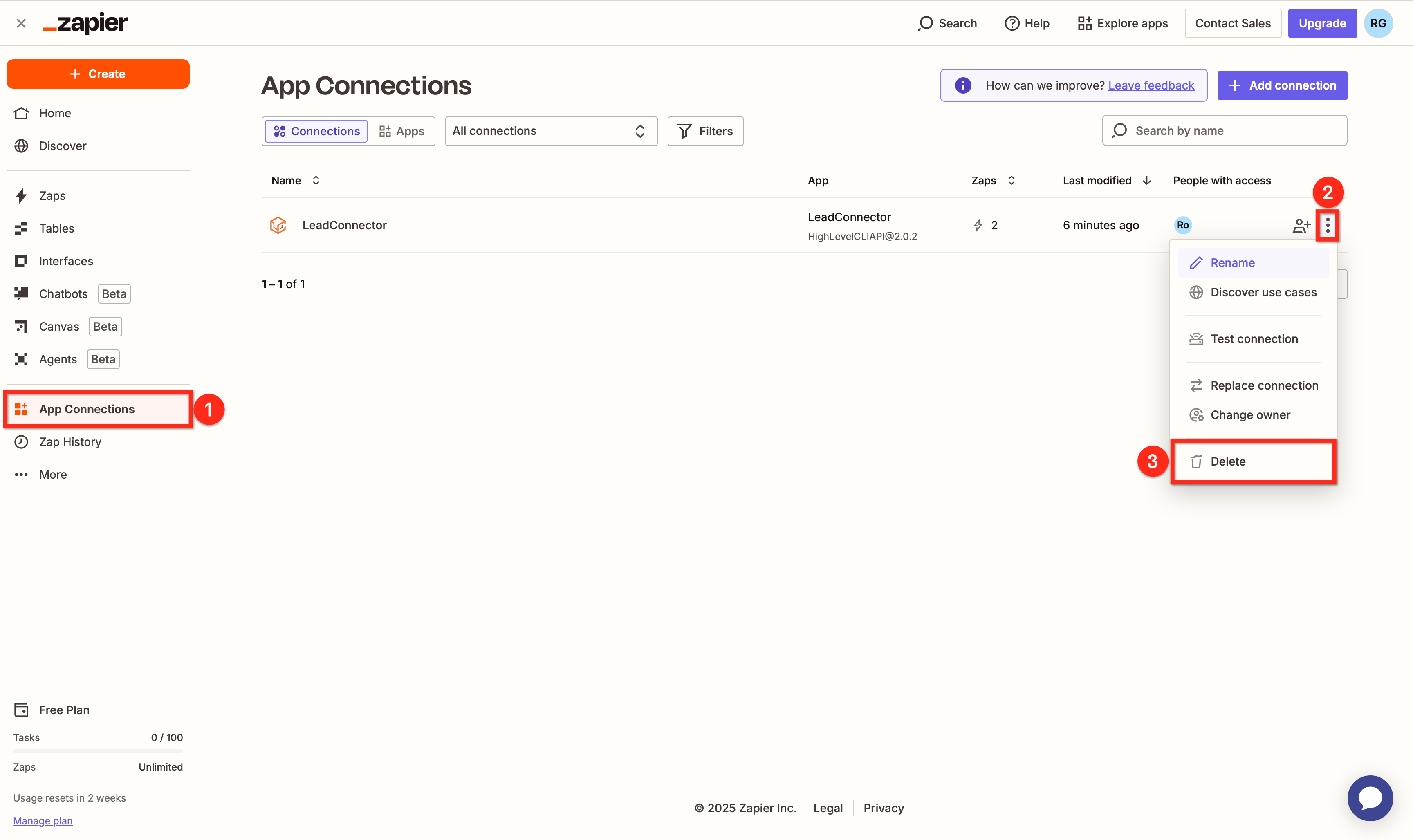
On the Zapier home page, click on App Connections in the left-hand menu.
Click the three-dot menu (•••) next to Chat To Clients CRM.
Select Delete to remove the connection.
Frequently Asked Questions
Q: Is the Zapier app named “Chat To Clients CRM”?
In Zapier, use Chat To Clients CRM—it’s the official, whitelabeled Chat To Clients CRM connection.
Q: Can I change the connected sub-account later?
Yes—add a new Chat To Clients CRM account connection in Zapier and select the other sub-account, then switch the account used in your Zaps.
Q: How do I fully disconnect?
In Zapier → Apps → App Connections, locate Chat To Clients CRM, open the ••• menu, and Delete the connection.
Q: Do I need API keys for this?
Not for the standard Chat To Clients CRM connection flow; you sign in with your CRM credentials.
Q: Why can't I see all my Chat To Clients CRM sub-accounts when connecting to Zapier?
The Chat To Clients CRM connection lets you select a Chat To Clients CRM sub-account during authorization. If an expected sub-account is missing, check that you're using the correct Chat To Clients CRM login and confirm your access to that sub-account. If it still doesn't appear, contact Chat To Clients CRM Support.