
Getting Started - Setup Facebook and Instagram Messenger
Ever feel overwhelmed jumping between different platforms to answer messages from your customers? Let's simplify things! By connecting Facebook and Instagram Messenger directly to your CRM, you'll have all your conversations in one spot. You'll streamline your responses, engage with your customers faster, and ultimately create a smoother communication experience for everyone involved.
TABLE OF CONTENTS
- Integrate Facebook & Instagram
- How Facebook and Instagram messages create contacts
- Link Instagram to Facebook
- Test Your Facebook & Instagram Messenger Connection
- Test Facebook Messenger
- Test Instagram Messaging
- What Does a Successful Connection Look Like?
- Test the Reply
- What If the Test Message Doesn't Appear?
Integrate Facebook & Instagram
First, let's get Facebook and Instagram working together within your CRM. This integration will be a game changer in how quickly and effectively you communicate with customers.
- Head over to Settings > Integrations.
- Click on Connect under Facebook & Instagram.
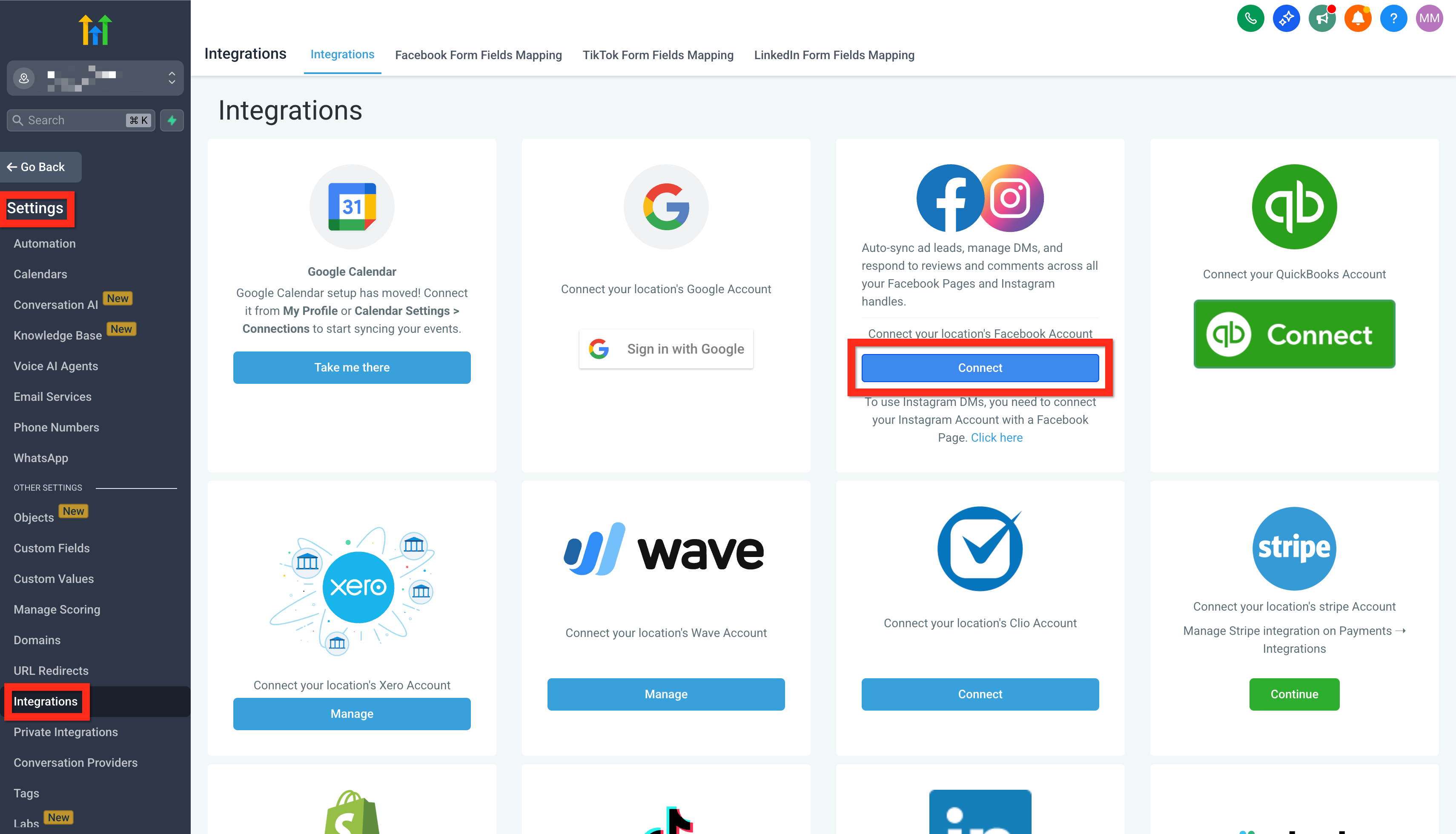
- Log in to Facebook and choose your Facebook page (make sure it's the one connected to Instagram).
- Click Connect Facebook & Instagram.
- Lastly, hit Sync Leads.
How Facebook and Instagram messages create contacts
When someone messages your business on Facebook or Instagram for the first time, Chat To Clients CRM creates or updates a contact based on your Contact Deduplication Preferences.
- If the person later shares an email or phone number that matches an existing contact and Allow Duplicate Contact is turned off, Chat To Clients CRM automatically merges the messenger contact into that existing record so you keep one complete profile.
- If Allow Duplicate Contact is turned on, the automatic merge does not run and separate contact records may exist for the same person.
Learn More
- Facebook Troubleshooting - Integration Issues
- Facebook Multi page Troubleshoot
- Facebook Pages missing in Manage Pages during integration
- Connect Instagram Business or Creator to Facebook (allows posting to IG)
- Allow Duplicate Contacts (Contact Deduplication Preferences)
Link Instagram to Facebook
Now, let's ensure Instagram and Facebook are fully linked so your messages flow seamlessly into one inbox. Trust us—this step will save you tons of time!
- Navigate to your Facebook account and log in to your page.
- Click on Account > Settings.
- Use the search bar to find Linked Accounts.
- Select Instagram and click Connect.
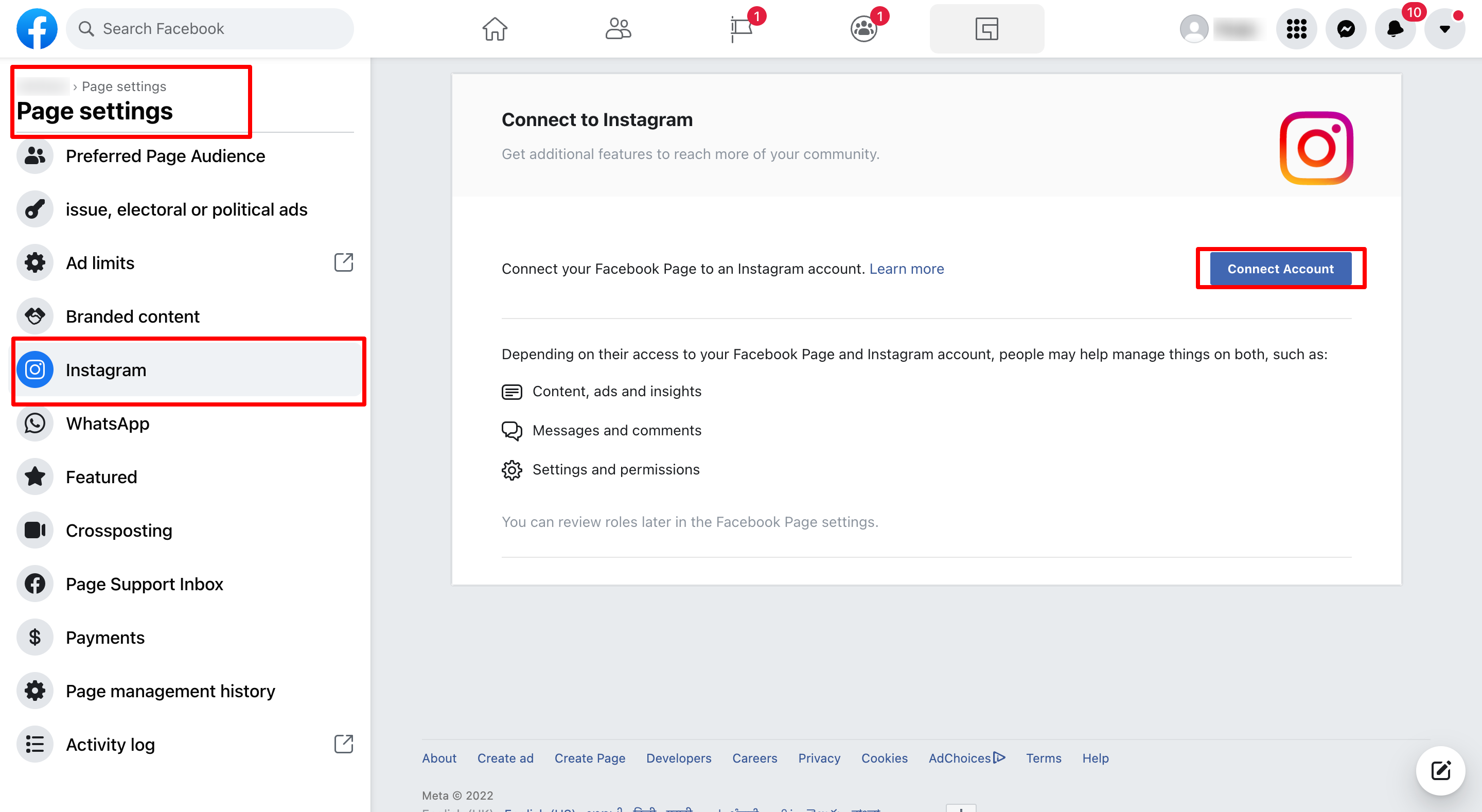
- Keep the toggle on to enable Instagram messages to appear in your inbox.
- Authenticate your Instagram login credentials.
Fantastic job! You're now set up to effortlessly handle your social interactions. Next, consider testing the integration by sending a test message to confirm everything is working smoothly.
Test Your Facebook & Instagram Messenger Connection
After connecting your Facebook Page and Instagram account, send a test message to confirm that incoming messages are reaching Chat To Clients CRM correctly.
Tip: Send the test message from a different Facebook or Instagram account—not the business account you connected to Chat To Clients CRM. This provides a more accurate test of the customer messaging experience.
Test Facebook Messenger
From a different Facebook account, open the connected business's Facebook Page.
Click Message and send a test message to the Page.
In Chat To Clients CRM, open the appropriate Sub-Account.
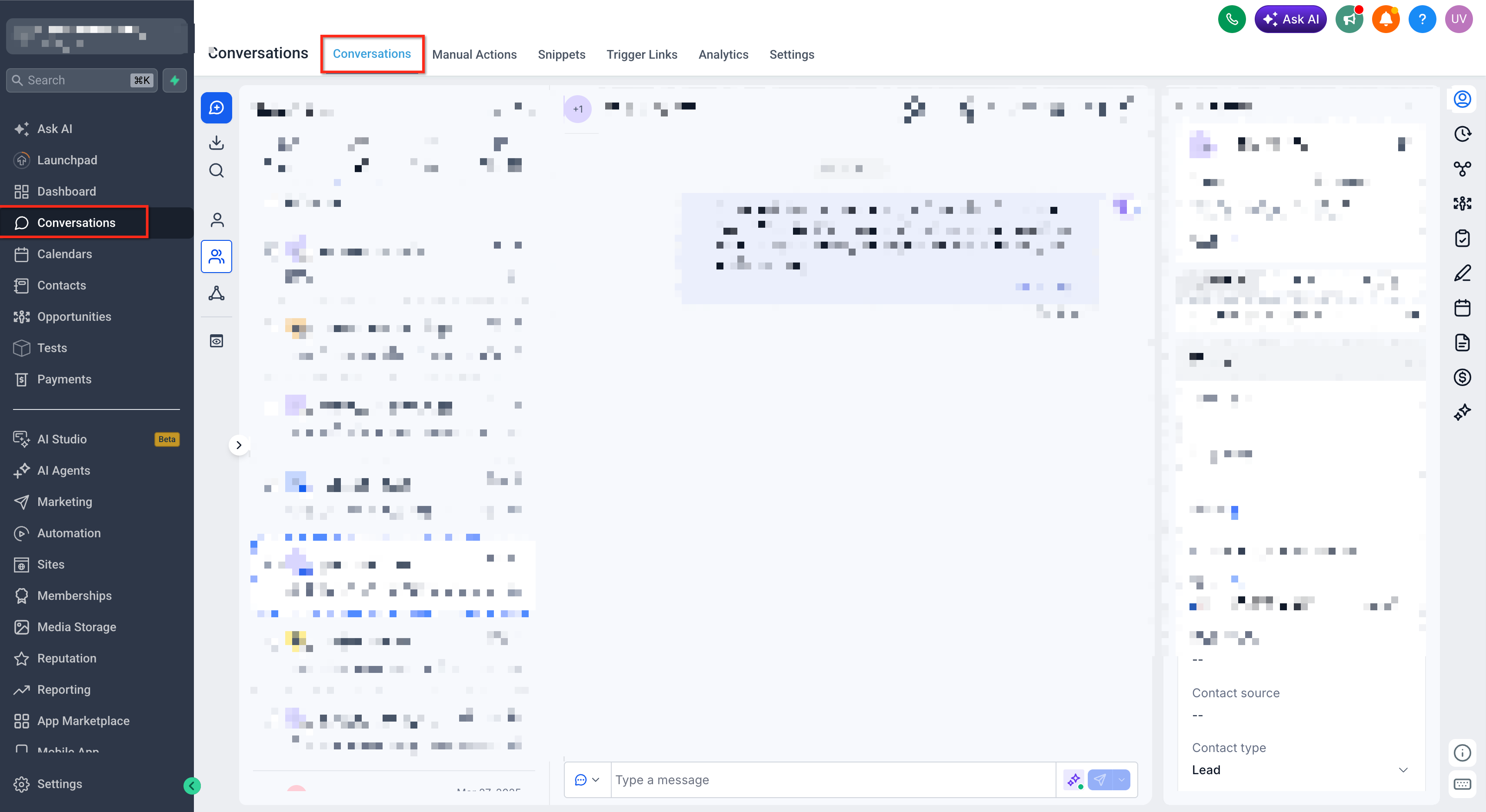
Go to Conversations.
Locate the new conversation in the Conversations inbox.
Open the conversation and confirm that the Facebook Messenger test message appears in the message history.
Test Instagram Messaging
From a different Instagram account, open the connected business's Instagram profile.
Send a new direct message (DM) to the account.
In Chat To Clients CRM, open the appropriate Sub-Account.
Go to Conversations.
Locate the new conversation in the Conversations inbox.
Open the conversation and confirm that the Instagram test message appears in the message history.
What Does a Successful Connection Look Like?
Your integration is working correctly when:
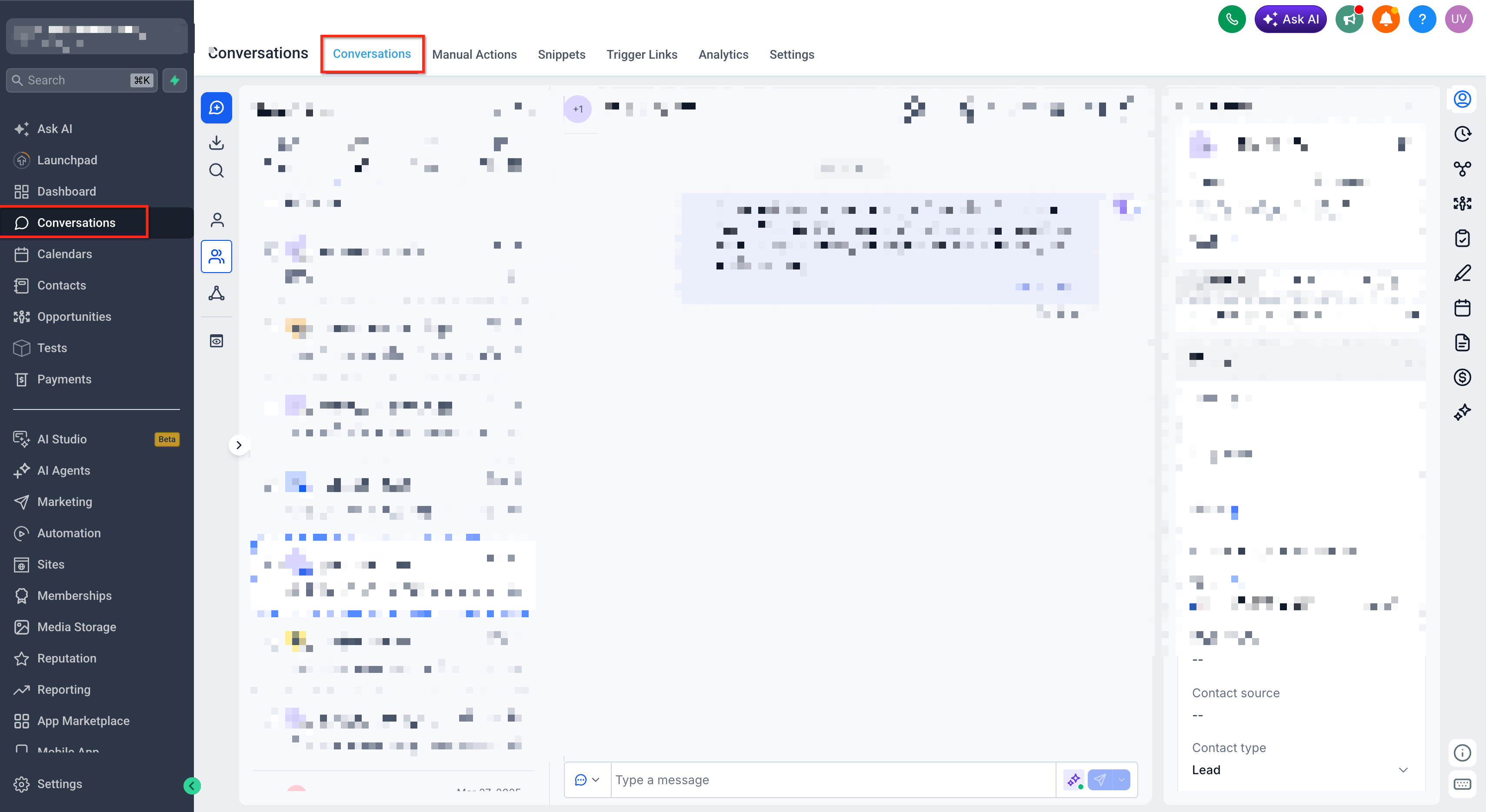
The test message appears in Chat To Clients CRM → Conversations.
The message appears under the correct contact/conversation.
You can open the conversation and view the incoming Facebook Messenger or Instagram message.
When someone messages your business through Facebook or Instagram for the first time, Chat To Clients CRM creates or updates their contact based on your Contact Deduplication Preferences.
Test the Reply
For an end-to-end verification, reply to the test message from within Chat To Clients CRM → Conversations. Then, return to the Facebook Messenger or Instagram account you used for testing and confirm that the reply was received.
If both the incoming message and your reply are delivered successfully, your messaging connection is working as expected.
What If the Test Message Doesn't Appear?
If the test message doesn't appear in Conversations:
Go to Settings → Integrations and confirm that the correct Facebook Page and Instagram account are connected.
Confirm that messaging access is enabled for the connected account.
Verify that the appropriate Facebook/Instagram permissions have been granted.
For Instagram, confirm that the Instagram account is correctly linked to the Facebook Page.
Send another test message after verifying the connection and permissions.
If messages still aren't appearing, see Messaging Setup & Troubleshoot for additional Facebook and Instagram messaging checks.