
Getting Started - Set Up a Live Chat Widget
Chat To Clients CRM’s Chat Widget lets you add different chat experiences to your website. In this guide, you’ll create a Live Chatwidget that allows website visitors to start real-time conversations with your team or Conversation AI. You’ll also learn how to customize the widget and add it to a Chat To Clients CRM website or funnel.
TABLE OF CONTENTS
Create Live Chat Widget
To add Live Chat to your website, create a new widget from the Chat Widget section and select Live Chat as the chat type.
- Navigate to Sites > Chat Widget
- Click New where you can choose one of the following: All-in-one chat, SMS / Email chat, Live chat, WhatsApp.
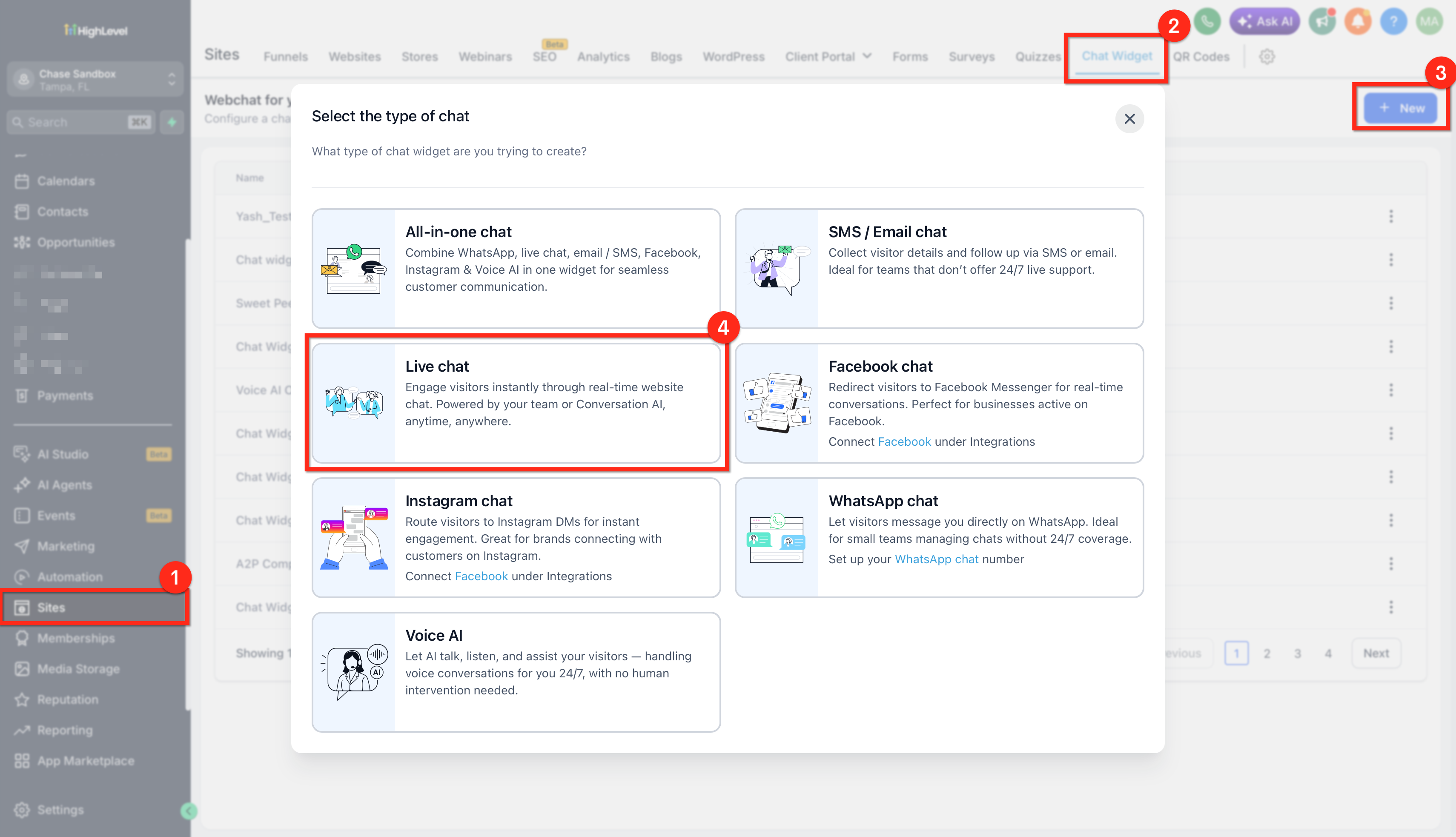
- Select Live Chat
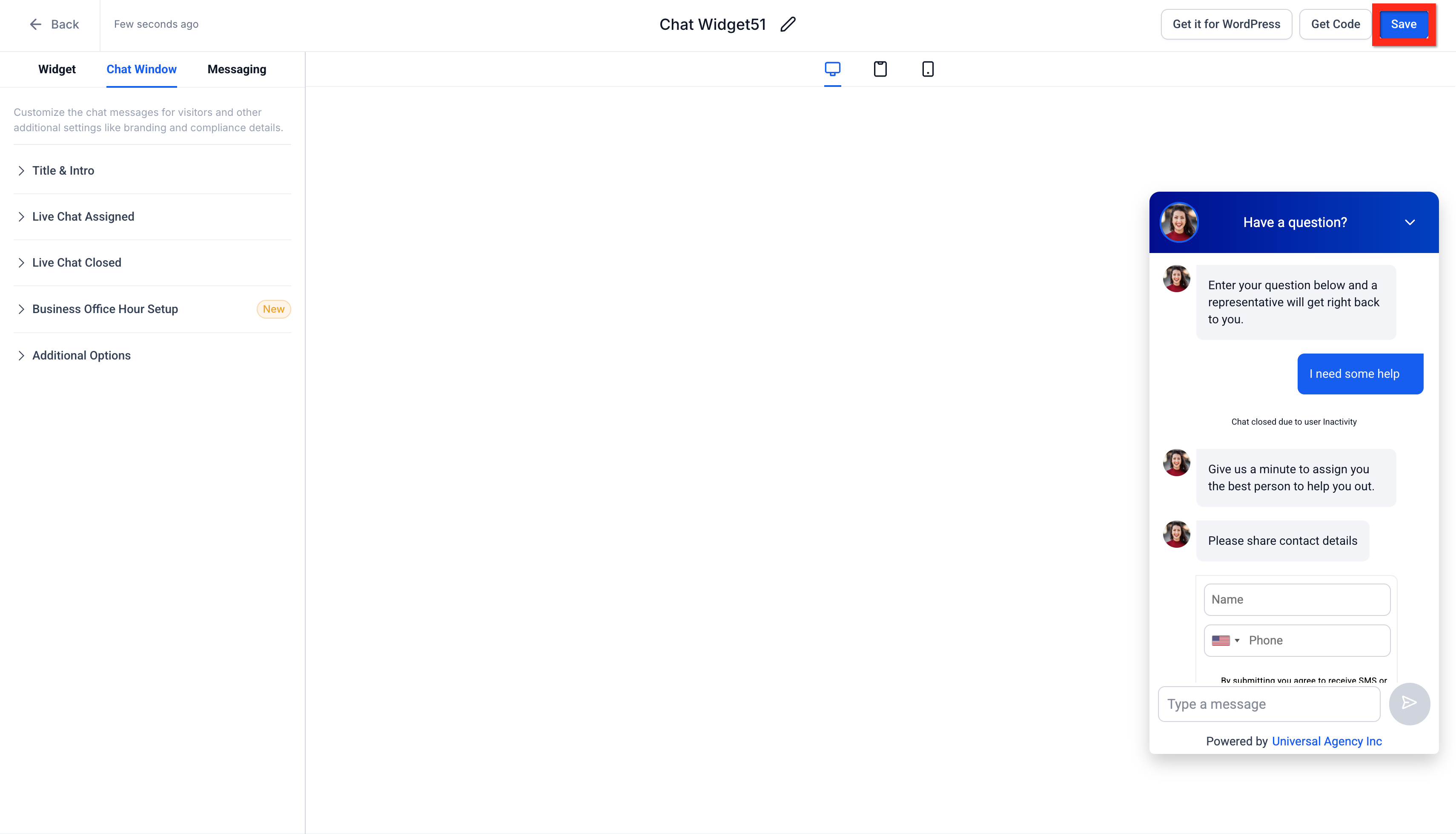
- Customize your widget to fit your brand
- Click Save
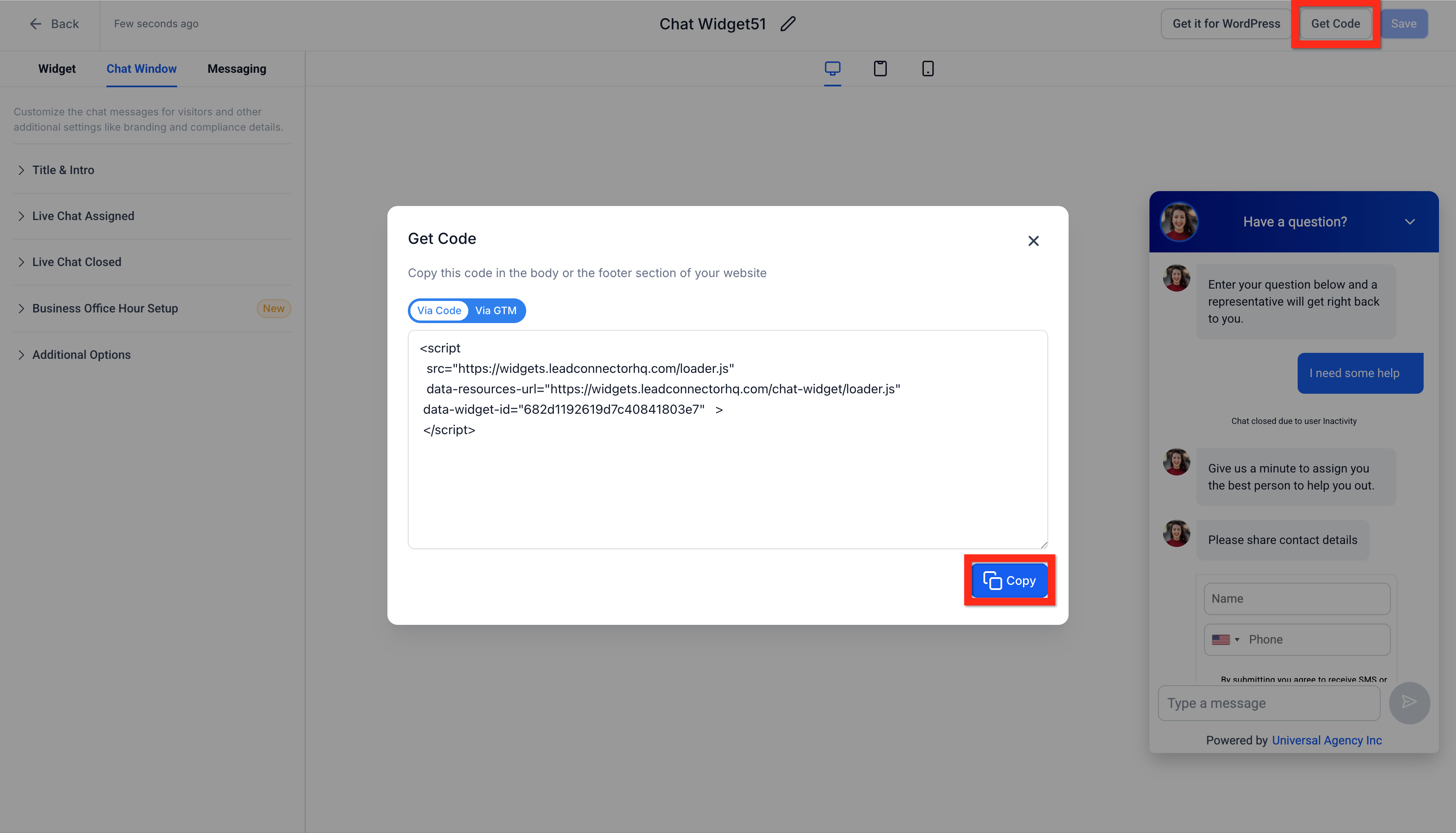
- Click Get Code > Copy
- Copy the provided embed code
Learn More
- Live Chat - Learn how Live Chat conversations are routed to and managed inside Chat To Clients CRM Conversations.
- Overview of Chat Widget Customizations - Explore additional options for customizing the appearance and behavior of your Chat Widget.
- Getting Started with Chat Widget - Learn about all available Chat Widget types, setup options, and customization settings.
Next, you can decide how you'd like to deploy your new widget! Let's explore your options.
Deploy Live Chat Widget via Embed Code
Already familiar with adding scripts directly into your website or funnel? Perfect! Embedding the chat widget directly into your site editor couldn't be simpler. Follow these quick steps:
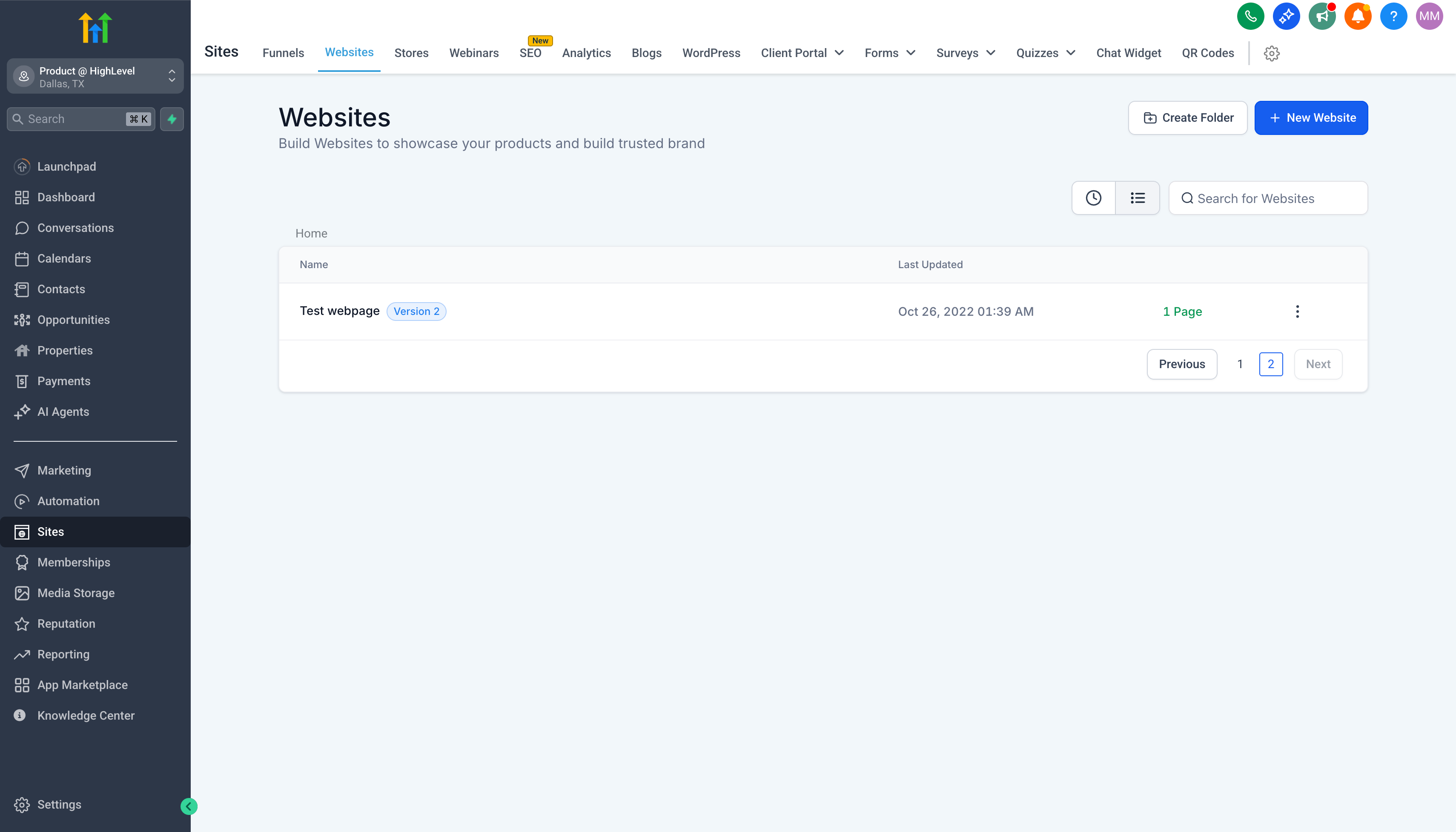
- Navigate to Sites > Websites OR Sites > Funnels
- Find your desired website or funnel and open it for editing
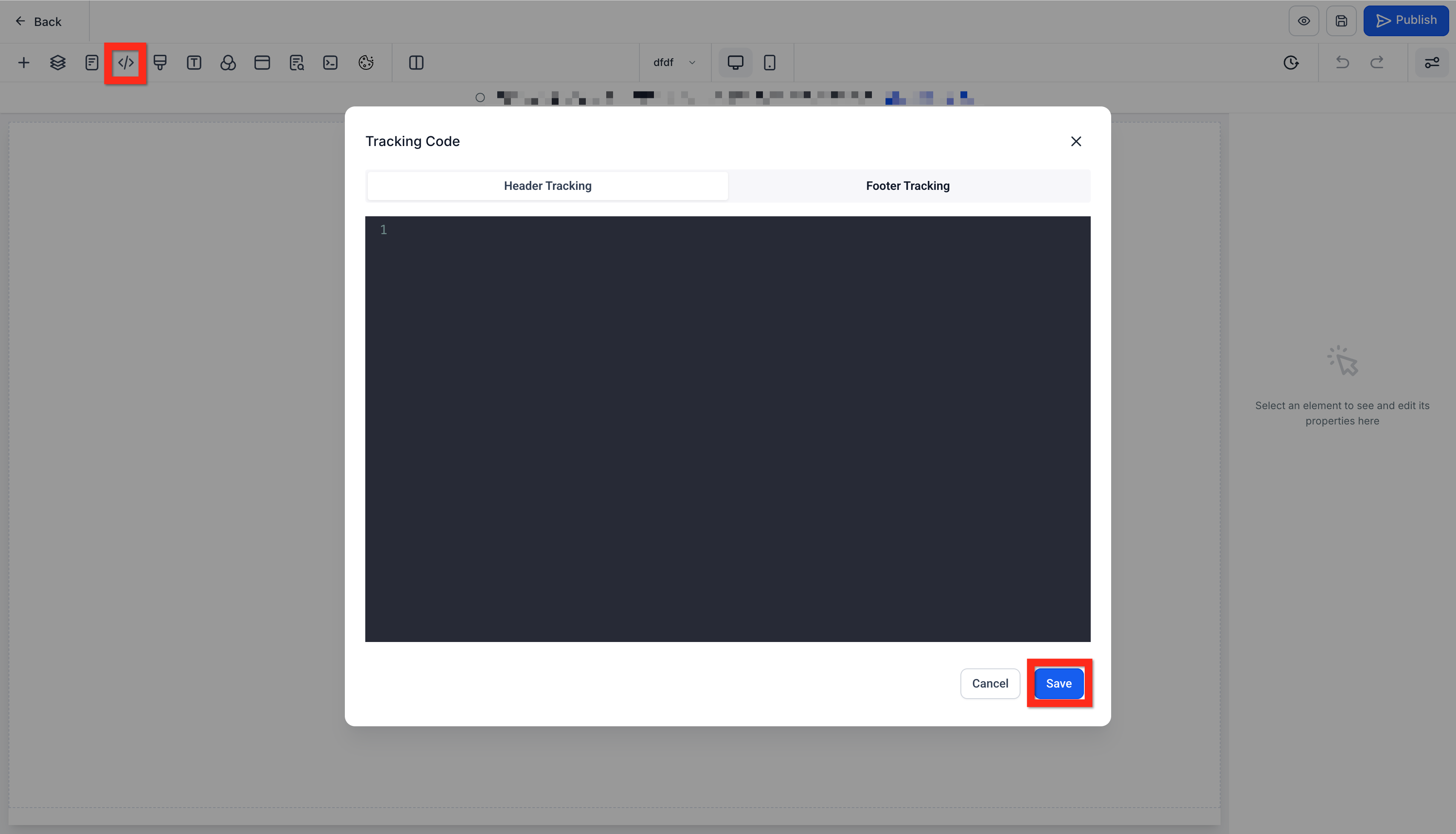
- In the editor, click the Tracking Code icon (
</>) - Paste the copied chat widget code
- Click Save
Learn More
Great job! Next, you might consider testing your widget to ensure it's functioning seamlessly.
Deploy Live Chat Widget via Settings
Prefer to keep things even simpler? Deploying your widget directly through your website settings is super convenient, especially if you're less comfortable dealing directly with code. Let’s walk through it:
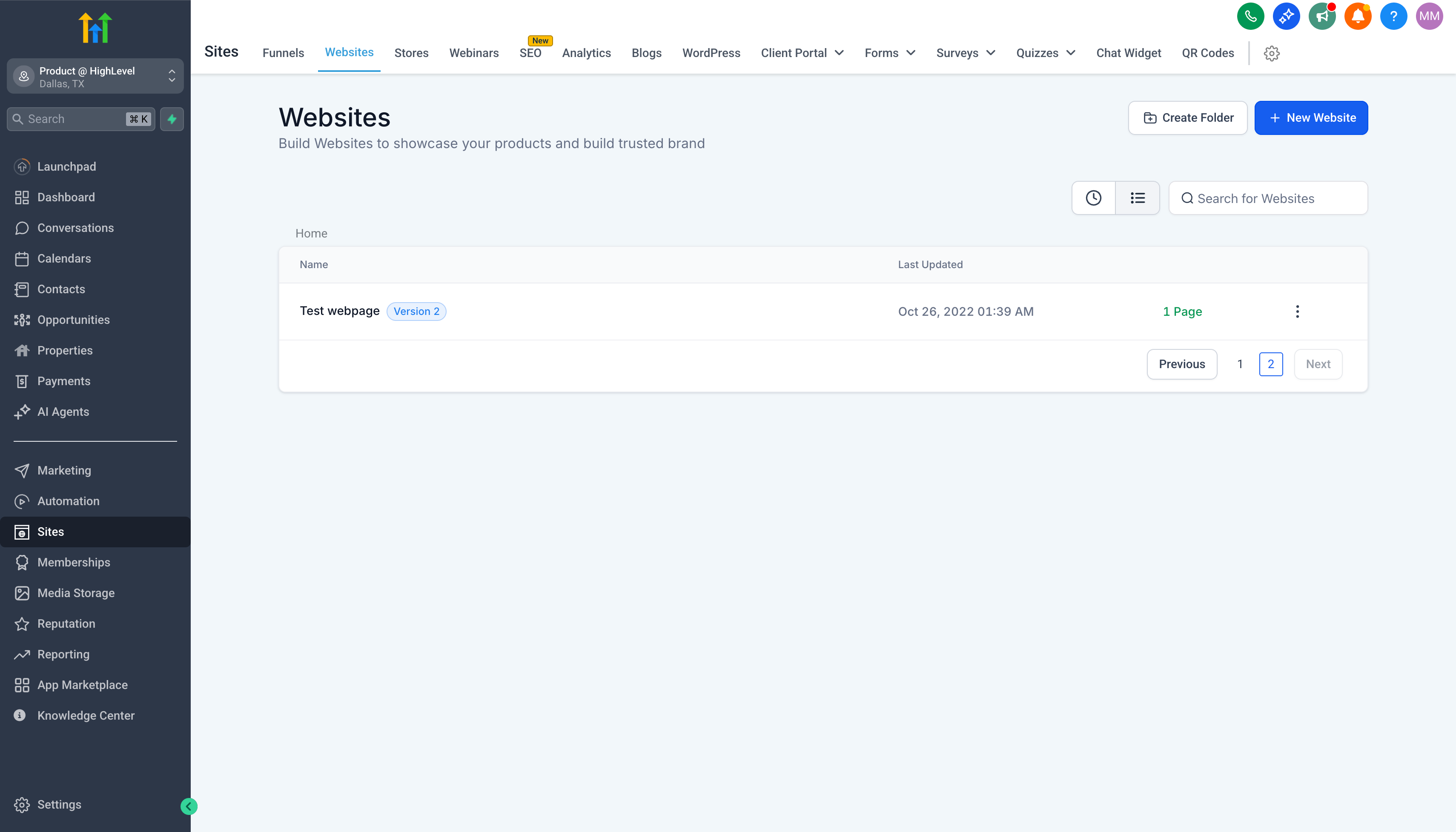
- Navigate to Sites > Websites OR Sites > Funnels
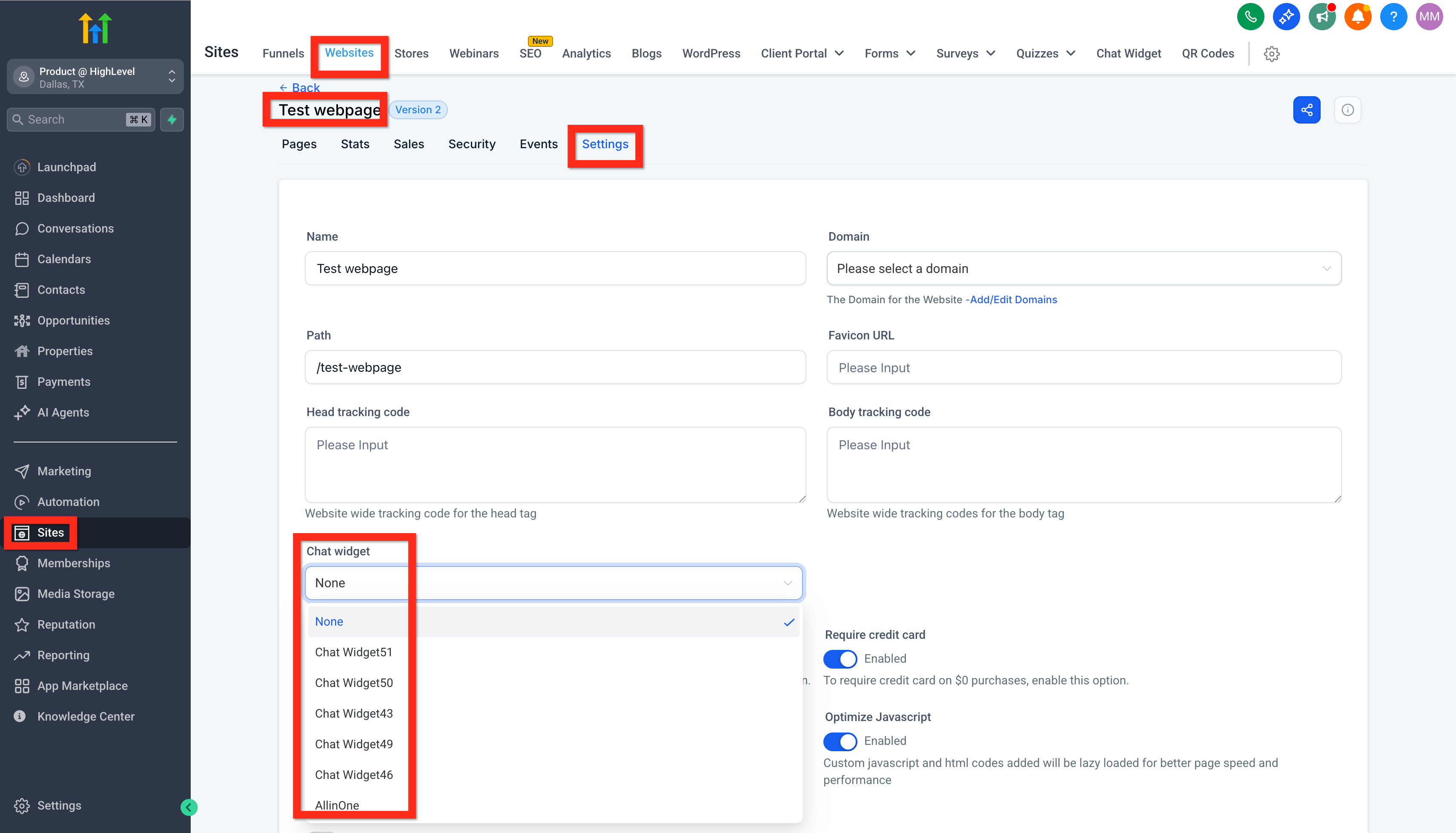
- Find your desired website or funnel and open its settings
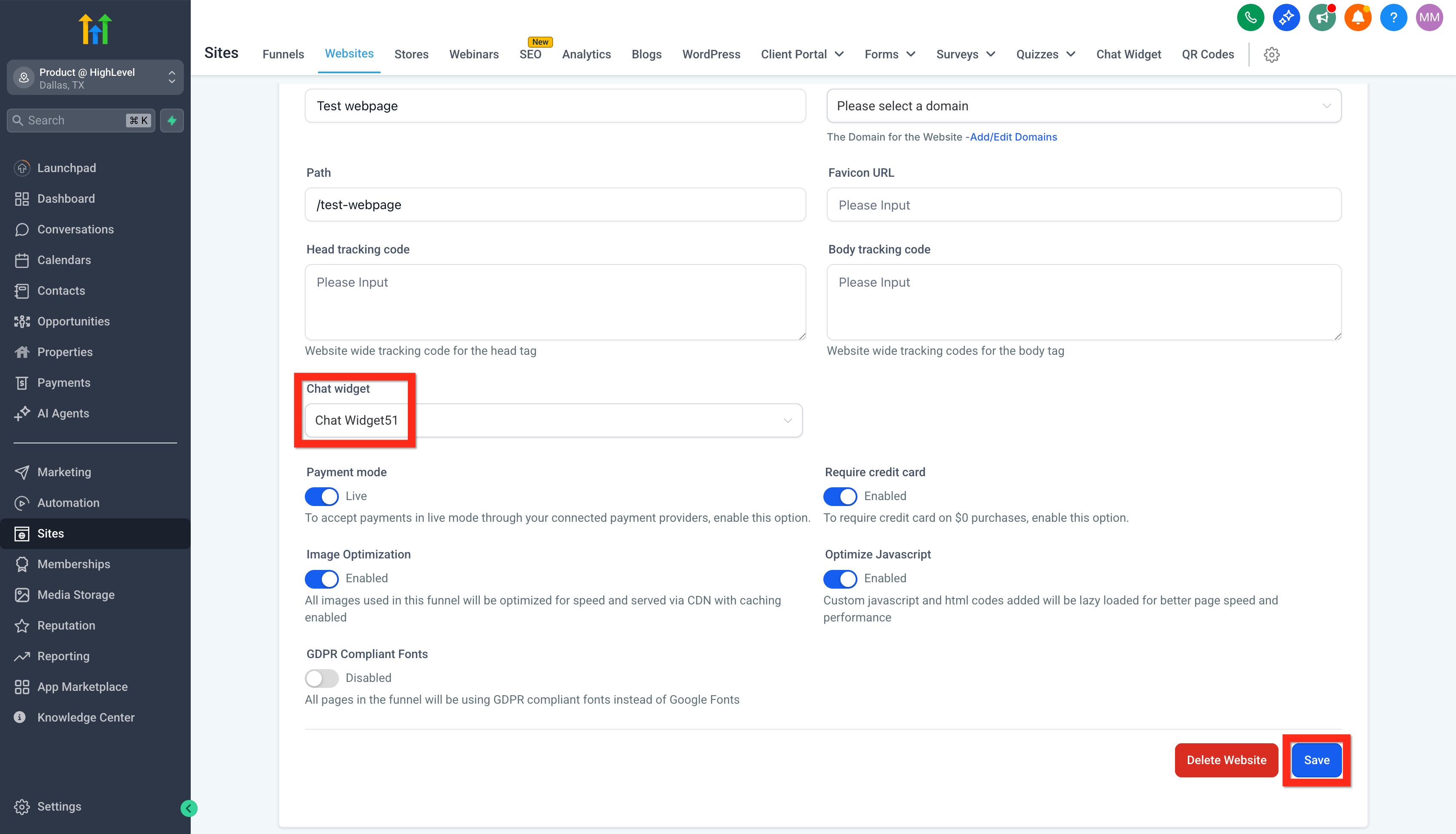
- Under the Chat Widget section, select your live chat widget
- Click Save
Fantastic! You're all set. Next, why not explore advanced customization options to really make the chat experience unique to your brand?