
Getting Started - Connect Personal Inbox
Keeping track of client conversations can be tricky when you're juggling multiple inboxes. But don't worry, we've made it super easy to sync your Gmail or Outlook inbox right into Chat To Clients CRM. This means you'll see all your customer interactions in one unified place, so you'll never miss an important follow-up again.
TABLE OF CONTENTS
- Connect Gmail or Outlook
- Want some extra tips? Check out these helpful guides:
- Use Your Connected Email
- Related Articles
Connect Gmail or Outlook
Ready to streamline your email management? Here's how you can quickly connect your inbox:
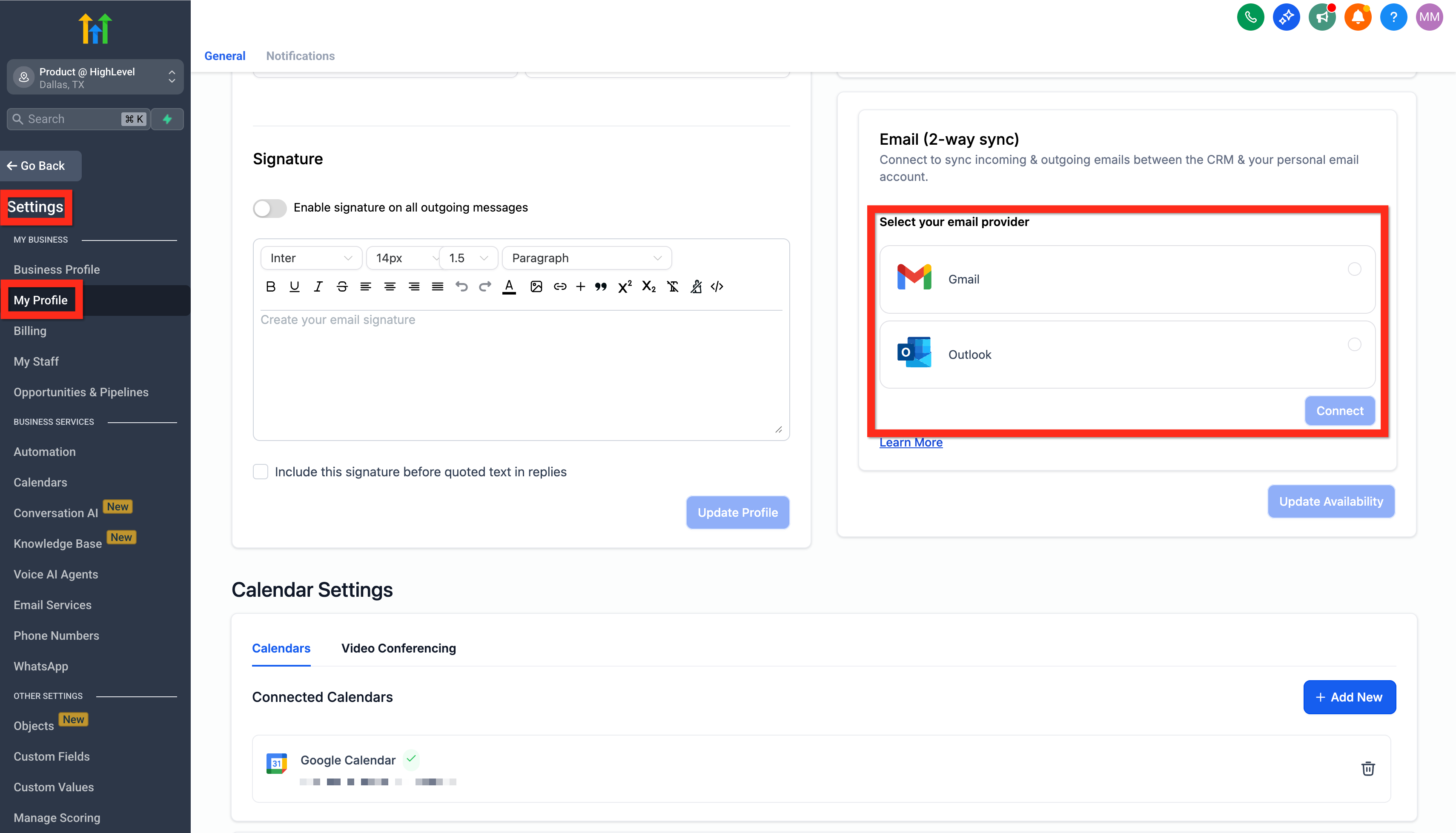
- Go to Settings > My Profile > Email (2-way sync).
- Choose Gmail or Outlook, then click Connect.
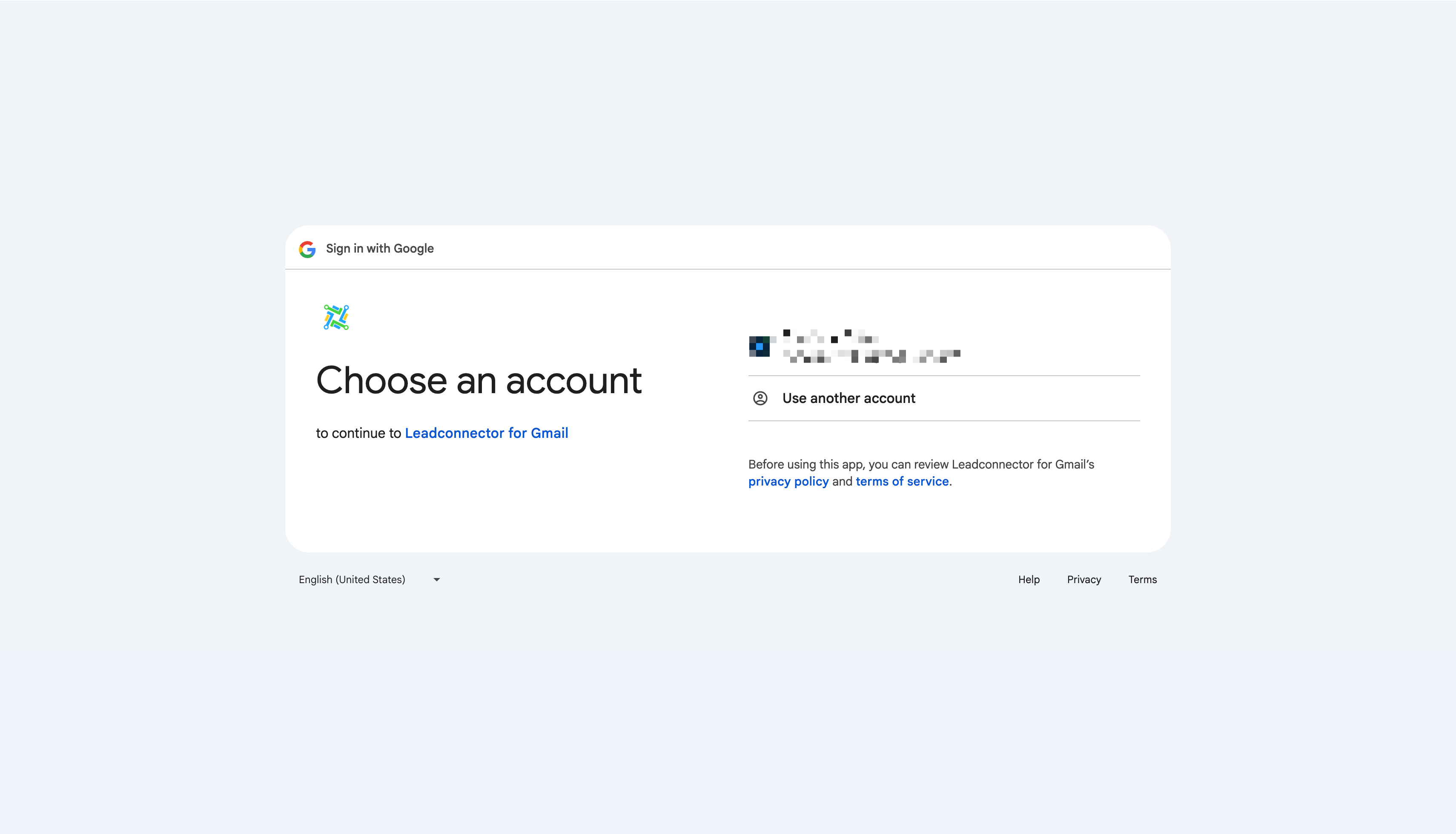
- Follow the prompts to accept permissions. It's safe and secure!
Want some extra tips? Check out these helpful guides:
Next, you can start sending messages directly from within Chat To Clients CRM to make your workflow even smoother.
Need help troubleshooting? Check out Email Failure: Insufficient Permission for 2-Way Sync
Use Your Connected Email
Now that you've got your inbox connected, you're all set to manage your emails directly from Chat To Clients CRM. Here's how simple it is to start sending emails:
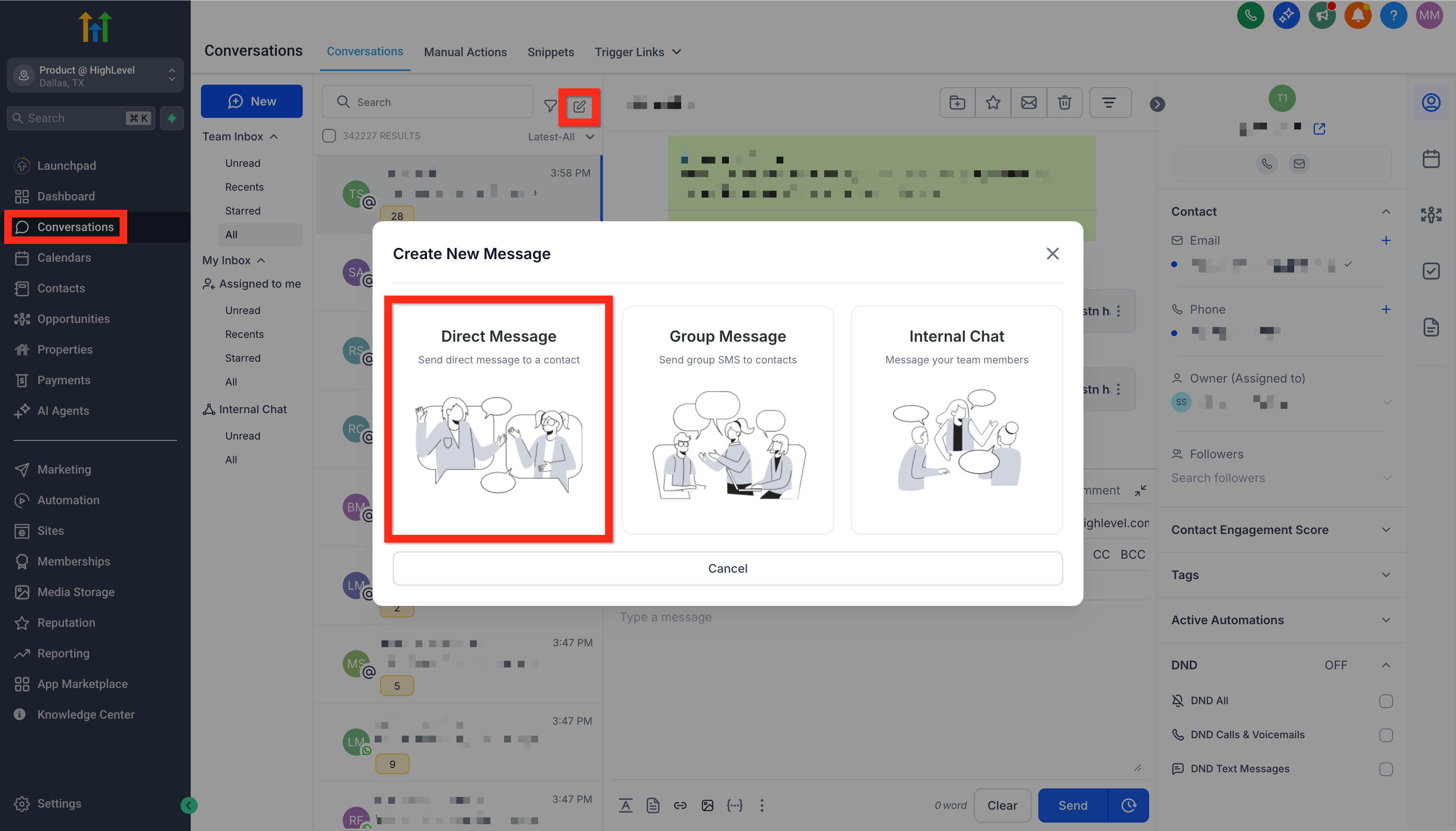
- Navigate to Conversations.
- Click on Create New Message (the pencil-on-paper icon).
- Select Direct Message.
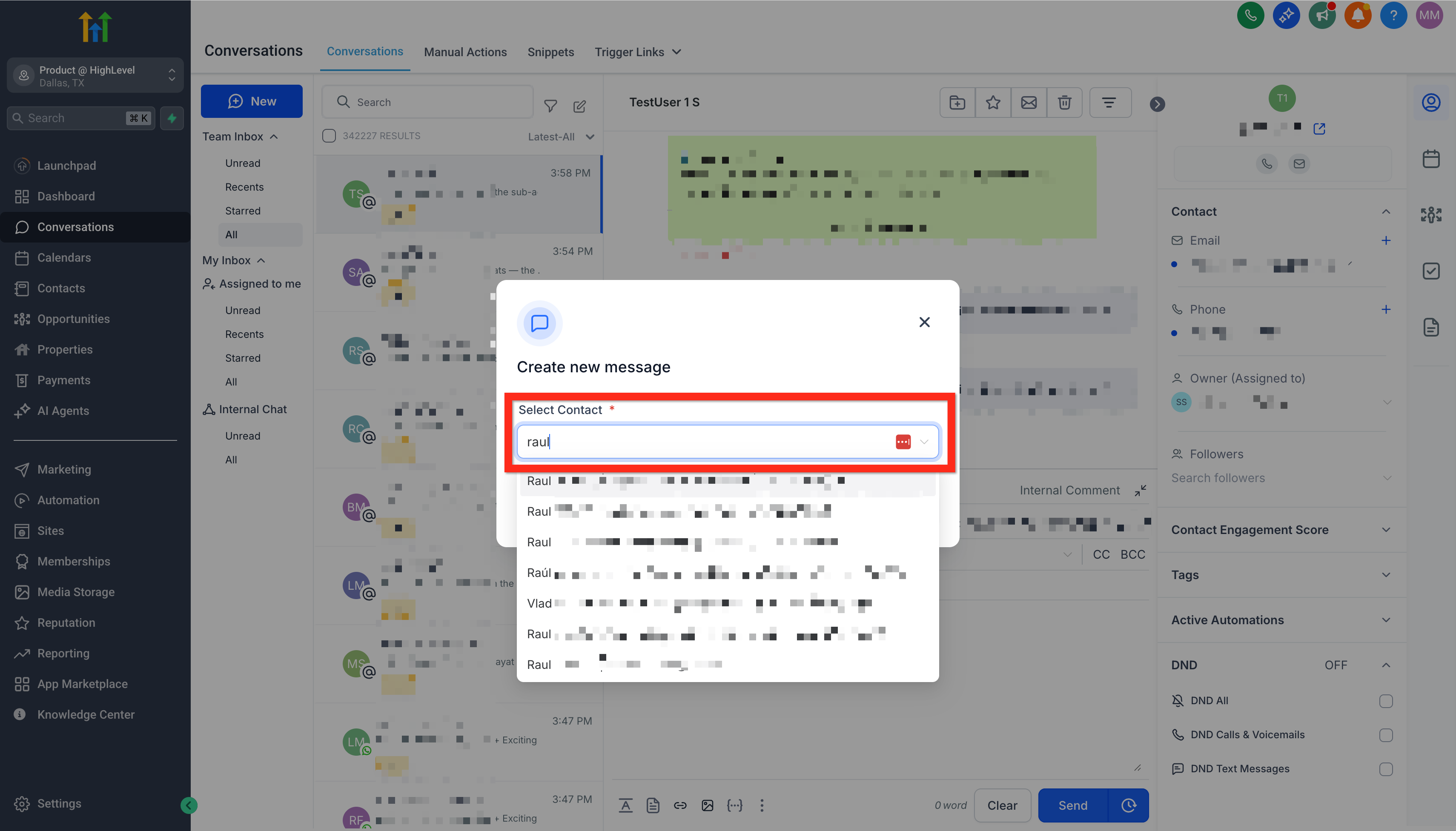
- Choose your contact and click Continue.
- Your connected email address will automatically populate in the "From" field.
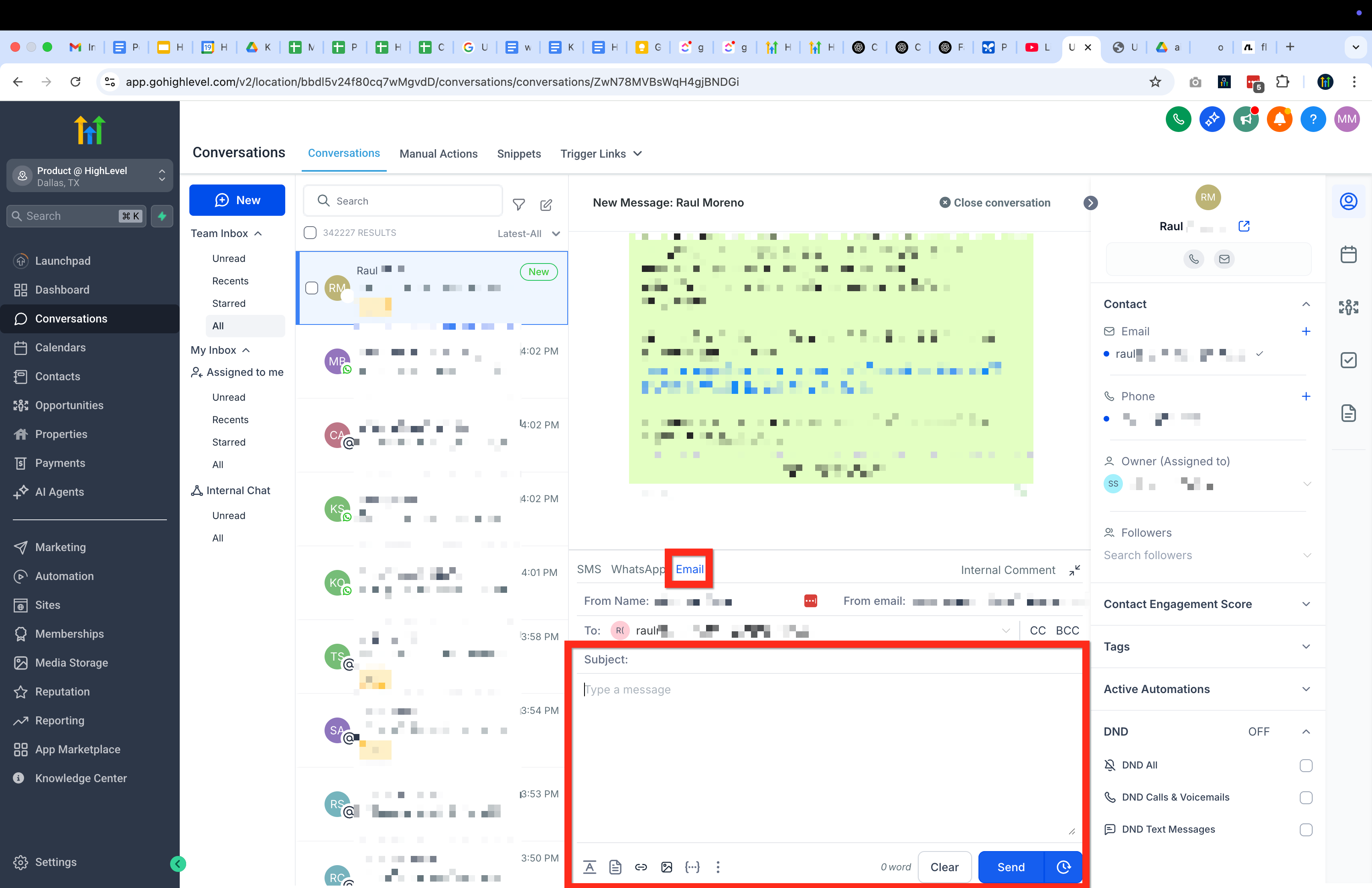
Your emails will seamlessly sync both ways—from Chat To Clients CRM to your personal inbox and back again—so you're always in sync.
Next, explore how you can automate responses and workflows to make client communication even easier!