
How to create Customer List Custom Audience
This article explains the steps to create a Customer List Custom Audience in Ad Manager and how to use it during campaign creation, including the option to make audiences static or dynamic when using Smart Lists.
TABLE OF CONTENTS
- Where to find the option to create custom audiences
- What is a Customer List Custom Audience?
- How to create a Customer List Custom Audience
- Important Notes
Where to find the option to create custom audiences
Custom audiences can be created in two ways in Ad Manager:
During Campaign Creation
At the ad set level > under Audience Controls, go to the Intended Audience section.
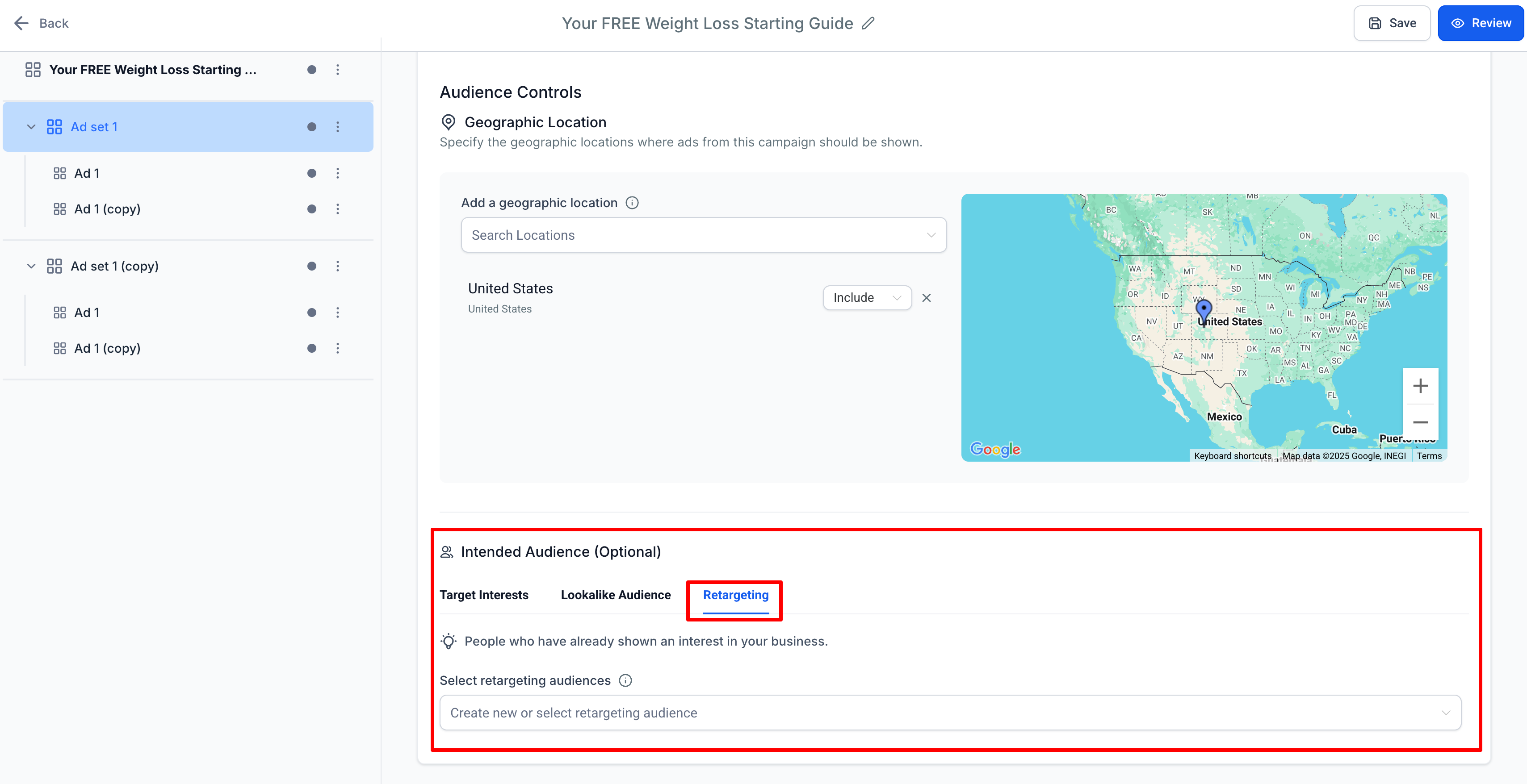
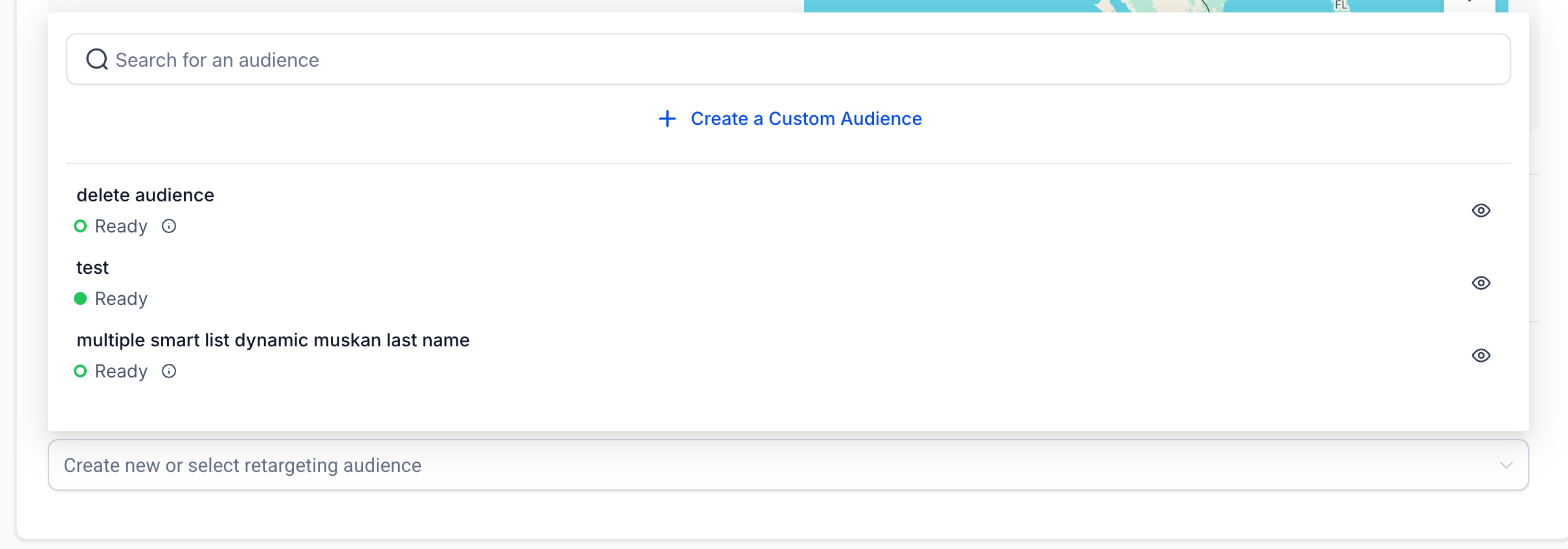
Under the Retargeting tab, click the dropdown for “Create new or select retargeting audience” and choose Create a Custom Audience.
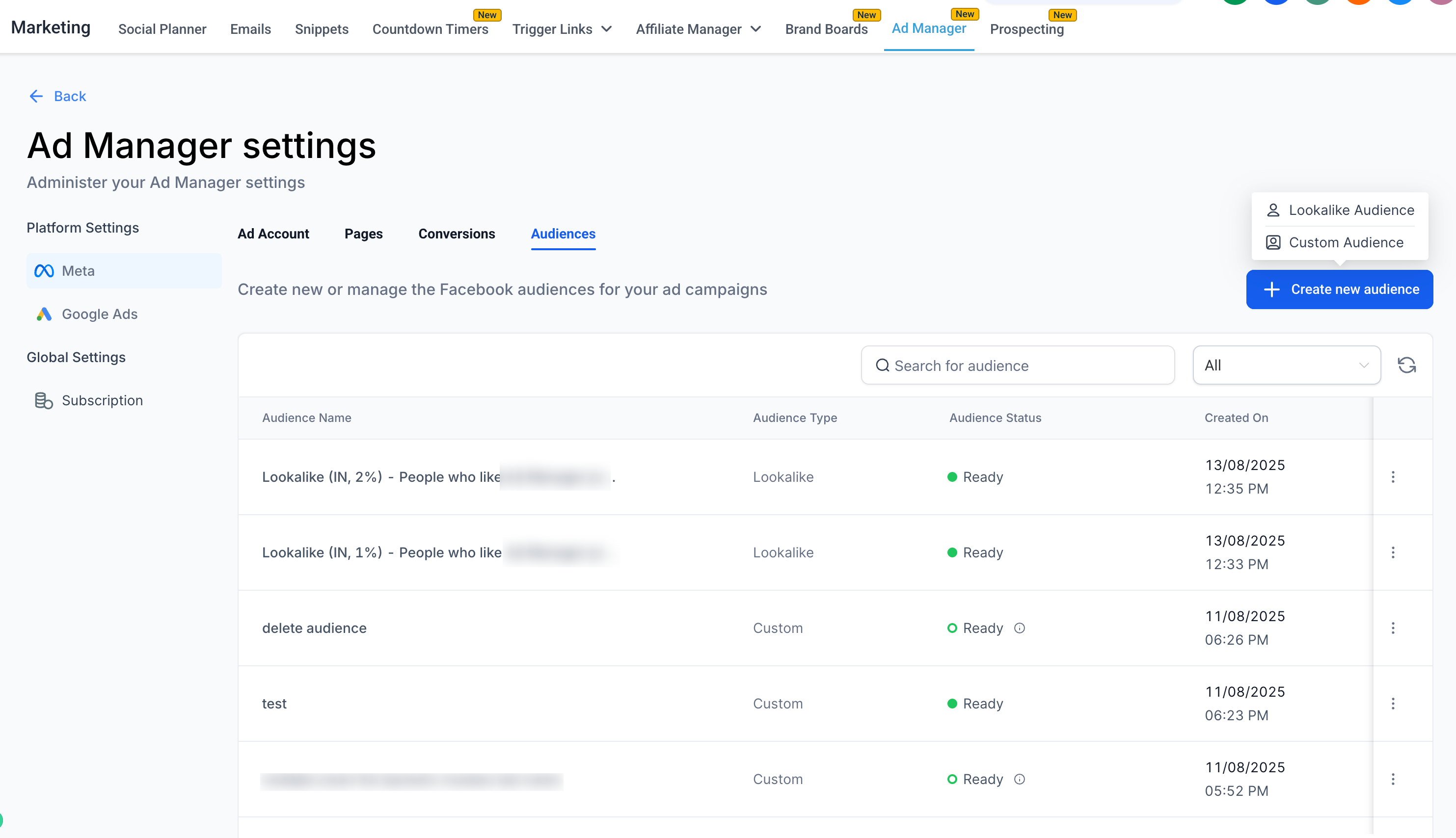
From Ad Manager Settings
Navigate to Ad Manager Settings > Meta Audiences tab to create audiences in advance for future campaigns.
What is a Customer List Custom Audience?
Overview
A Meta Customer List Custom Audience lets you use your own customer data (emails, phone numbers, etc.) in Ad Manager to reach specific individuals on Facebook and Instagram. The data is matched to user profiles so you can deliver targeted ads.
Key Offerings
Audience Creation: Build a list from your own customer data sources such as website sign-ups, CRM records, or purchase history.
Data Matching: Meta matches your data with its user profiles.
Ad Targeting: Deliver highly relevant ads to matched customers.
Privacy & Compliance: Fully compliant with privacy regulations like GDPR.
Audience Segmentation: Target groups like recent buyers or high-value customers.
Lookalike Audiences: Reach new people similar to your existing customers.
Customer List Format: Requires CSV format with valid identifiers.
Benefits
Precisely target existing customers.
Improve ad relevance and campaign performance.
Re-engage past customers and encourage repeat business.
How to create a Customer List Custom Audience
Creating a Customer List Custom Audience is a two-step process:
Click Create a Custom Audience (in the campaign flow or from the Audiences tab).
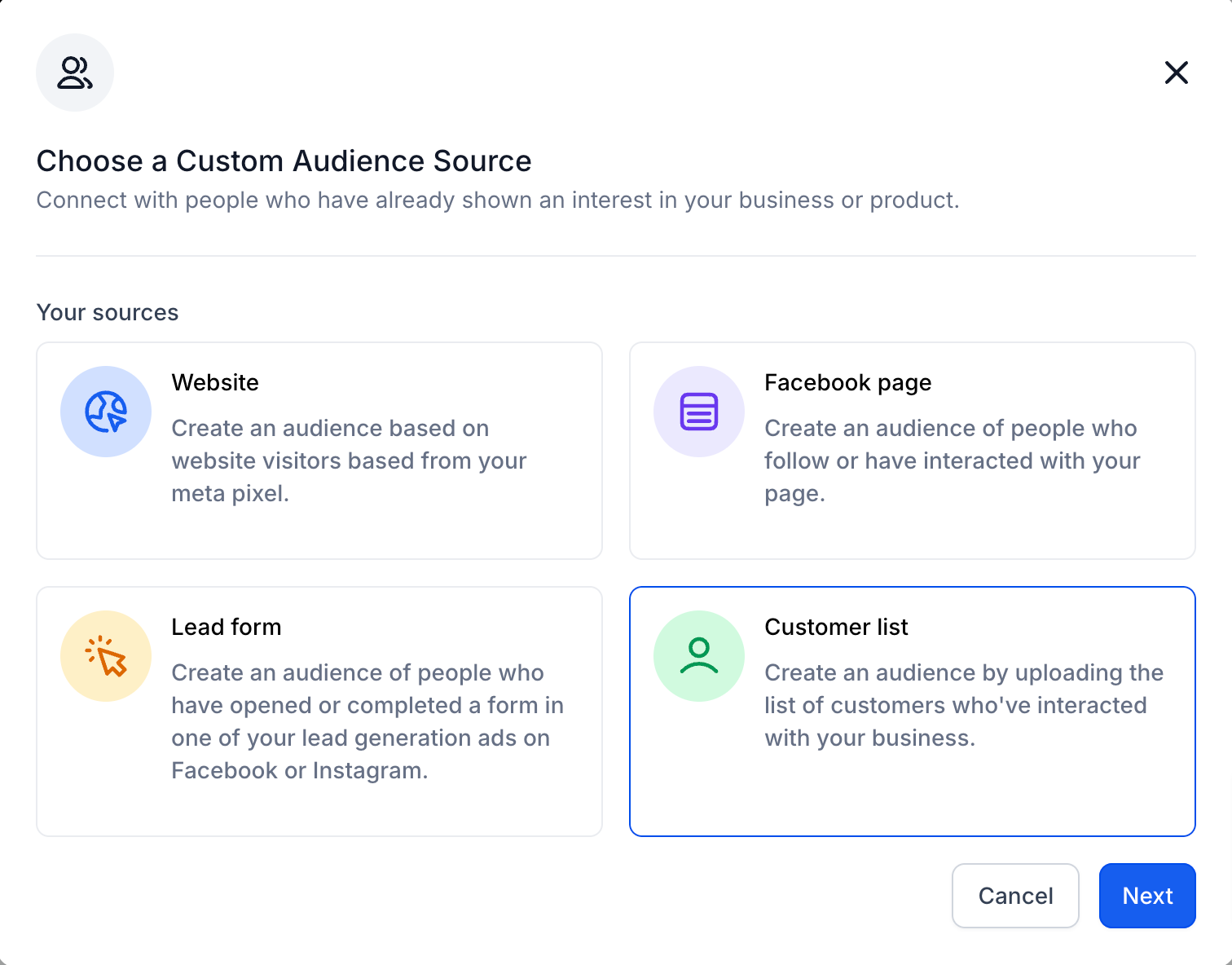
Select Customer List as the source and proceed.
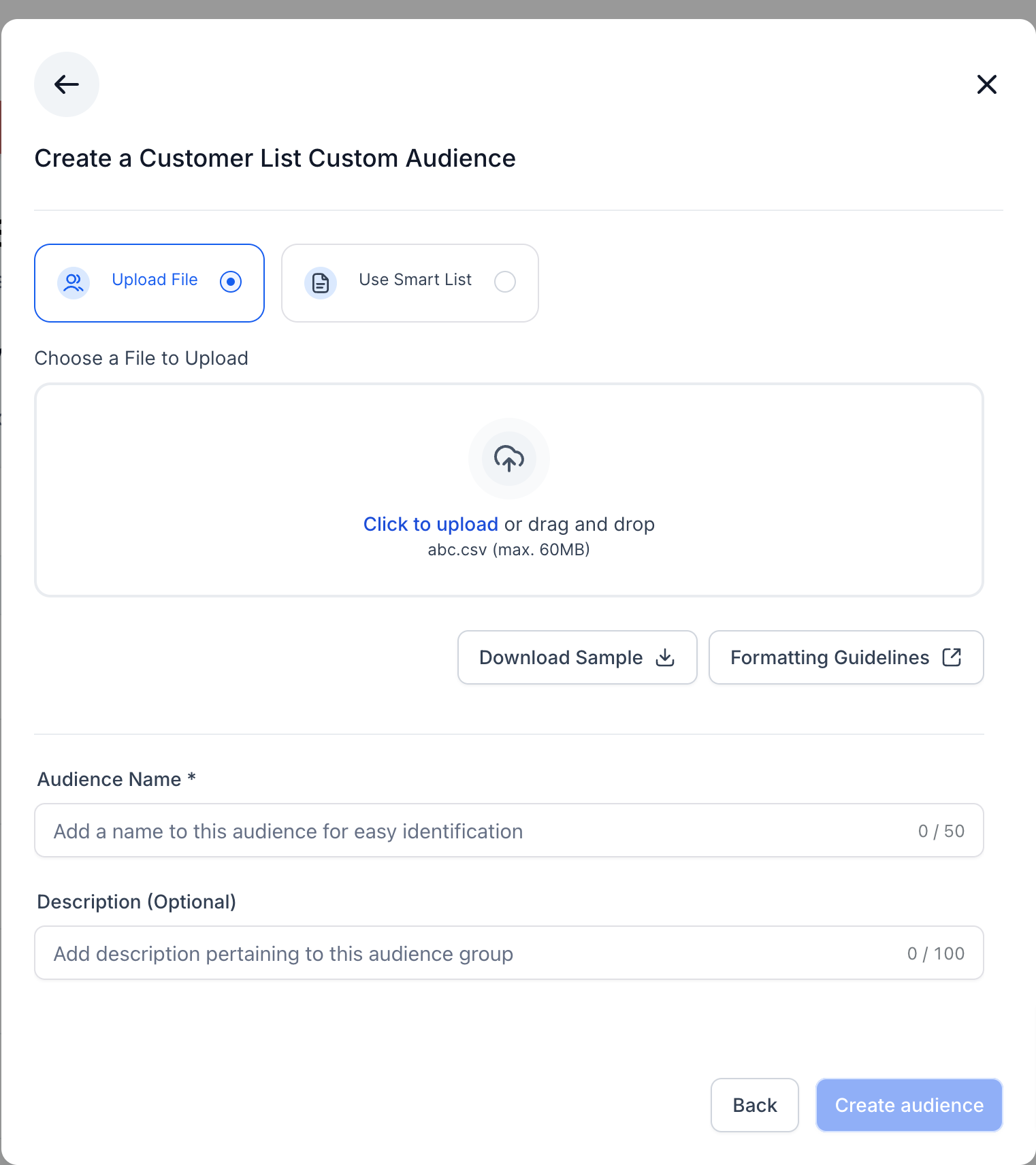
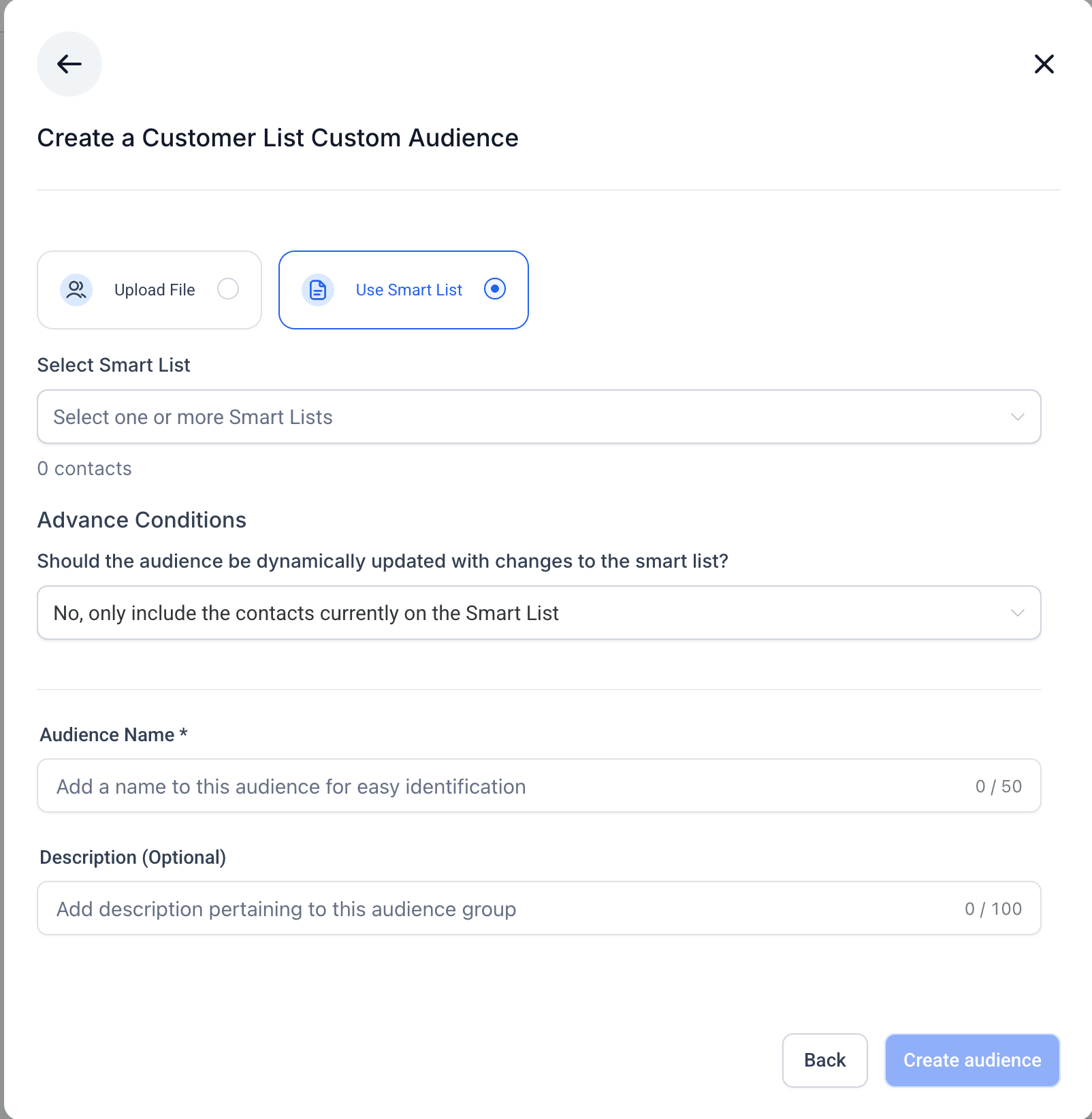
You have two methods to add customers to the audience:
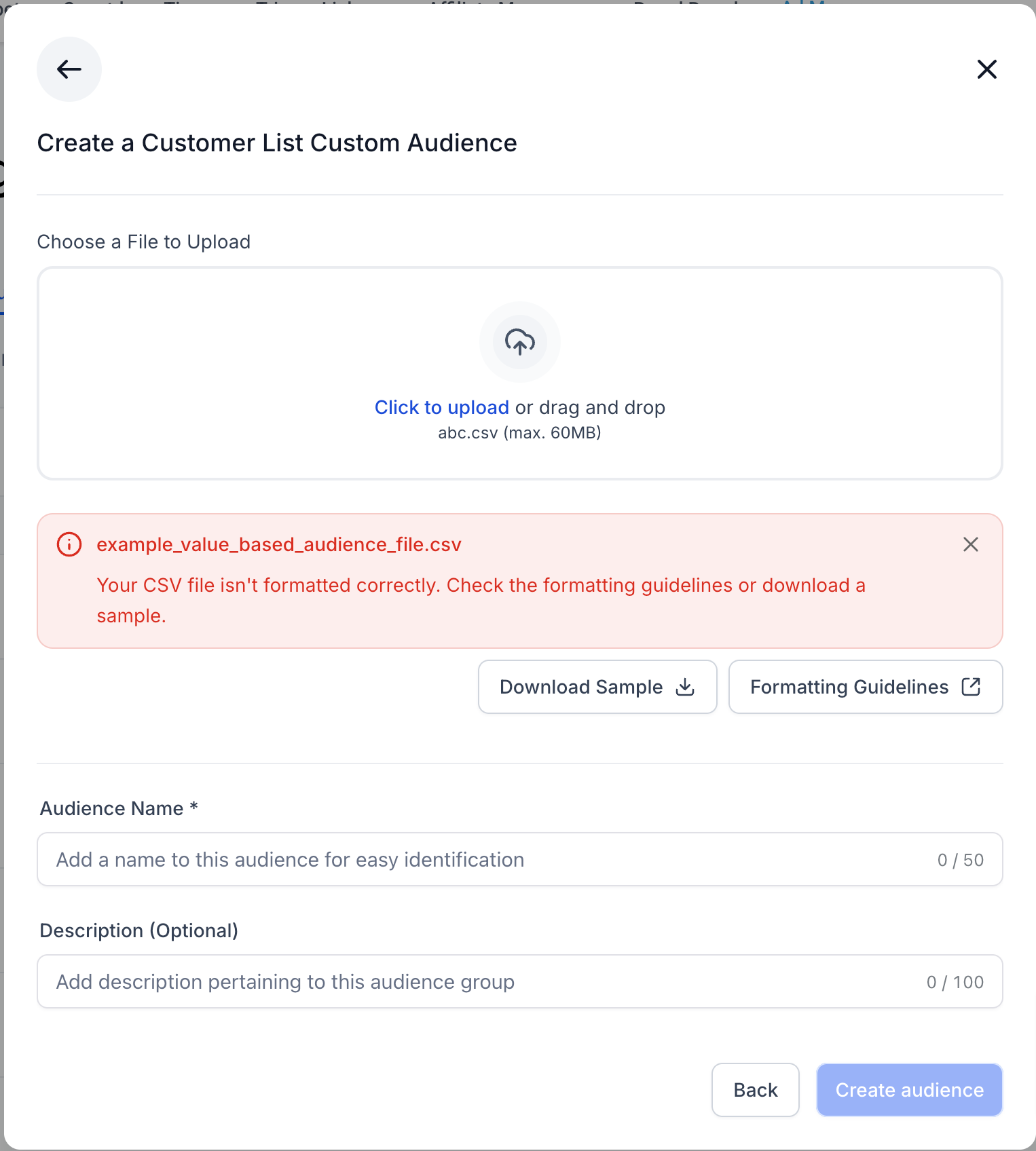
1. CSV Upload
Upload your CSV file containing customer data.
Follow Meta’s formatting guidelines.
Use the provided sample file to prepare your data correctly.
2. Use Smart Lists (Static vs Dynamic)
When creating a Customer List Custom Audience from Smart Lists, you can choose whether the audience should remain fixed at creation time (static) or update automatically when the Smart List changes (dynamic).
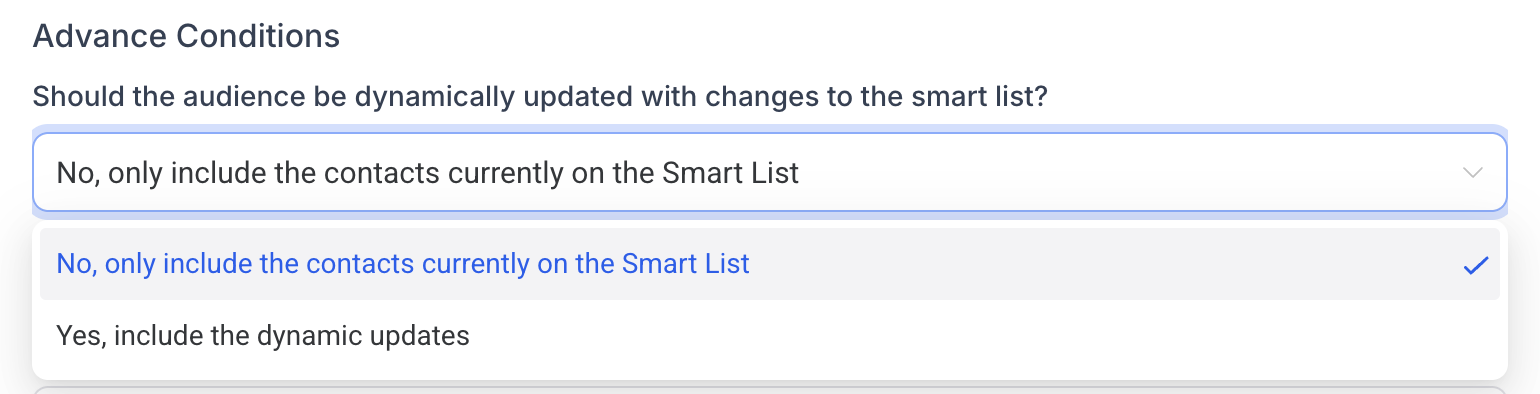
Static Audience
Includes only the contacts present in the selected Smart List(s) at the time of audience creation.
Does not update if contacts are added or removed later.
Ideal for controlled targeting or scenarios where you need a fixed audience.
Dynamic Audience
Automatically reflects changes to the Smart List(s).
New contacts added to the Smart List are included, and removed contacts are excluded.
Ideal for keeping audiences continuously up to date.
Steps:
Select Use Smart List.
Choose one or more Smart Lists from the dropdown (only pre-created lists from the Contacts section are available).
In Advanced Conditions, choose:
No, only include the contacts currently on the Smart List (Static)
Yes, include the dynamic updates (Dynamic)
Review the total contacts count.
Add an audience name and optional description.
Click Create Audience, the summary will display whether the audience is static or dynamic.
Important Notes
Minimum audience size requirements apply for campaign use.
For CSV uploads, incorrect formatting will cause an upload error.
For Smart List audiences, the static/dynamic choice determines how the audience behaves after creation.
Before creating an audience, you must accept Meta’s Customer List Custom Audience Terms of Service.
Once created and ready, the audience appears in the Retargeting Audience dropdown and in the Audiences tab.