
Call Forwarding to Your Chat To Clients CRM Phone Number
This guide explains how to set up call forwarding from your personal phone—whether it’s a cell phone or landline—to your Chat To Clients CRM phone number. This allows you to use Chat To Clients CRM's Voice AI without changing your existing branded phone number on business cards, websites, or online directories. Follow the step-by-step instructions below based on your phone carrier.
TABLE OF CONTENTS
- Why Forward Calls Into Chat To Clients CRM?
- How Call Forwarding Works
- Setting Up Call Forwarding for Major Carriers
- Frequently Asked Questions
Why Forward Calls Into Chat To Clients CRM?
Call forwarding allows you to seamlessly connect your personal or business phone number with Chat To Clients CRM's Voice AI system. By forwarding calls to your Chat To Clients CRM phone number, you can:
- Leverage Voice AI: Enhance customer communication with AI-powered call handling and transcription.
- Maintain Your Existing Number: Keep your current phone number visible to customers without needing to update it on marketing materials or directories.
- Streamline Operations: Ensure all incoming calls are managed through your Chat To Clients CRM account for better tracking and management.
How Call Forwarding Works
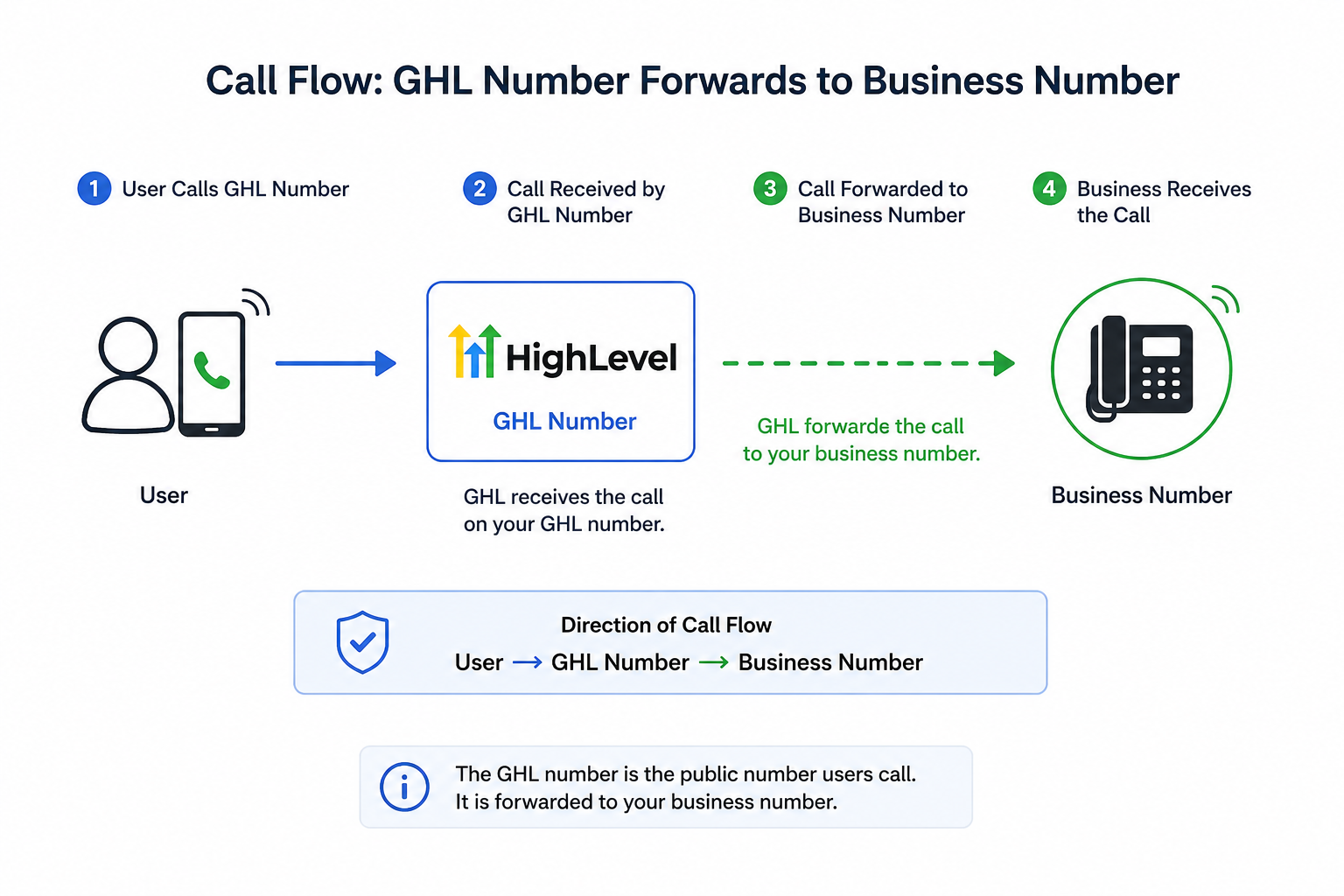
When call forwarding is enabled, incoming calls to your personal number (cell or landline) will be automatically redirected to your Chat To Clients CRM phone number. Chat To Clients CRM then handles the calls using its advanced Voice AI capabilities.
Avoid Call Forwarding Loops
Before enabling call forwarding, make sure your phone routing will not send the call back to the original number.
Warning: Avoid a Call Redirect Loop

A redirect loop can occur when Number A forwards to Number B, and Number B is configured to route or forward calls back to Number A. This can cause calls to repeatedly redirect between the two numbers.

Before completing your setup, verify that your Chat To Clients CRM phone number, forwarding number, user phone number, and Business Profile phone number do not create a path that routes the call back to the original forwarding number.
Test Your Setup
After enabling call forwarding:
Use a different phone to call the original number you configured to forward.
Confirm that the call successfully reaches your Chat To Clients CRM phone number and follows the expected inbound call flow.
Make sure the call does not repeatedly reconnect, replay the same audio, or create multiple inbound calls in Conversations.
If you experience repeated calls or unexpected routing, disable call forwarding and review your phone configuration before testing again.
If calls repeatedly redirect between numbers, follow the troubleshooting steps in How To Fix - Phone Call Redirect Loop.
Setting Up Call Forwarding for Major Carriers
Follow the steps below based on your carrier. If you don’t see your carrier, refer to their specific support page for detailed instructions.
Verizon Wireless
- There are a few ways to forward calls from your Verizon Wireless phone to your Chat To Clients CRM phone number:
- To Forward ALL CALLS: dial *72 followed by your Chat To Clients CRM phone number (e.g.,
*72 555-555-5555). - To Forward MISSED CALLS (unanswered calls or calls that receive a busy signal): Dial *71 followed by your Chat To Clients CRM phone number (e.g.,
*71 555-555-5555).
- To Forward ALL CALLS: dial *72 followed by your Chat To Clients CRM phone number (e.g.,
- Press Call.
- Wait for a confirmation tone or message.
- To deactivate call forwarding, dial *73.
Learn More at Verizon Wireless Support
AT&T (Mobile)
- Dial *21 followed by your Chat To Clients CRM phone number (e.g.,
*21 555-555-5555). - Press Call or Send.
- Wait for the confirmation tone.
- To deactivate, dial #21#.
Learn More at AT&T Wireless Support
AT&T (Business)
- Dial *72 on your landline phone and listen for the dial tone.
- Enter your Chat To Clients CRM phone number (e.g.,
555-555-5555). - Wait for the confirmation tone. The system will then place a call to the number to which calls will be forwarded. If the forward-to party answers the call, the feature is activated.
- To deactivate call forwarding, dial *73.
Learn More at AT&T Business Support
T-Mobile
- There are a few ways to forward calls from your T-Mobile phone to your Chat To Clients CRM phone number:
- To Forward ALL CALLS: dial **21*1 + your Chat To Clients CRM phone number + # (e.g.,
**21*1555-555-5555#) - To Forward MISSED CALLS (unanswered calls or calls that receive a busy signal): Dial **61*1 + your Chat To Clients CRM phone number + # (e.g.,
**61*1555-555-5555#).
- To Forward ALL CALLS: dial **21*1 + your Chat To Clients CRM phone number + # (e.g.,
- Press Call.
- To deactivate call forwarding, dial ##61# or ##21#, respectively.
Learn More at T-Mobile Support
Xfinity Mobile
- There are a few ways to forward calls from your Xfinity Mobile phone to your Chat To Clients CRM phone number:
- To Forward ALL CALLS: dial *72 followed by your Chat To Clients CRM phone number (e.g.,
*72 555-555-5555). - To Forward MISSED CALLS (unanswered calls or calls that receive a busy signal): Dial *71 followed by your Chat To Clients CRM phone number (e.g.,
*71 555-555-5555).
- To Forward ALL CALLS: dial *72 followed by your Chat To Clients CRM phone number (e.g.,
- Press Call.
- Listen for a confirmation tone.
- To turn off call forwarding, dial *73.
Learn More at Xfinity Mobile Support
Spectrum Mobile
- There are a few ways to forward calls from your Spectrum Mobile phone to your Chat To Clients CRM phone number:
- To Forward ALL CALLS: dial *72 followed by your Chat To Clients CRM phone number (e.g.,
*72 555-555-5555). - To Forward MISSED CALLS (unanswered calls or calls that receive a busy signal): Dial *71 followed by your Chat To Clients CRM phone number (e.g.,
*71 555-555-5555).
- To Forward ALL CALLS: dial *72 followed by your Chat To Clients CRM phone number (e.g.,
- Press Call and wait for the confirmation tone.
- To deactivate, dial *73.
Learn More at Spectrum Mobile Support
Other Carriers
If your carrier is not listed above, either reach out to them directly or try the following steps:
- To Forward ALL CALLS:
- Dial *72 on your phone and listen for the dial tone.
- Enter your Chat To Clients CRM phone number (e.g., 555-555-5555).
- Wait for the confirmation tone.
- To deactivate call forwarding, dial *73.
- Dial *72 on your phone and listen for the dial tone.
- To Forward MISSED CALLS(unanswered calls or calls that receive a busy signal):
- Dial *92 on your phone and listen for the dial tone.
- Enter your Chat To Clients CRM phone number (e.g., 555-555-5555).
- Wait for the confirmation tone.
- To deactivate call forwarding, dial *93.
- Dial *92 on your phone and listen for the dial tone.
Frequently Asked Questions
Q: Can I forward calls from multiple numbers to Chat To Clients CRM?
Yes, as long as each number supports call forwarding, you can forward multiple numbers to your Chat To Clients CRM phone number.
Q: Will callers know their calls are being forwarded?
No, call forwarding is seamless, and the caller won’t be notified of the redirection.
Q: Can I still make calls from my personal number after setting up call forwarding?
Yes, call forwarding only affects incoming calls. Outgoing calls from your personal number remain unaffected.
Q: Does call forwarding work internationally?
It depends on your carrier. Contact your carrier to verify if international call forwarding is supported.
Q: What should I do if my forwarded calls keep repeating or looping?
If calls repeatedly reconnect, play the same audio, or appear multiple times in Conversations, you may have created a phone call redirect loop.
Disable call forwarding temporarily and check that your forwarding number, user phone number, and Business Profile phone number are not routing calls back to the original number.