
Multiple Calendar Views in Mobile App
You can link the schedules of multiple users, calendars, or groups under one single mobile calendar view.
- Select multiple users- You can view the schedules of multiple users.
- Select multiple calendars- You can view the schedules of multiple calendars.
- Select multiple groups- You can view the schedules of multiple groups.
How To Use Multiple Calendars on Mobile
Make sure you have your preferred mobile app (Chat To Clients CRM, Chat To Clients CRM, or Whitelablled) on your device.
Head over to the calendars section on the bottom bar of the app. Under the calendar, you will now see a dropdown. Tap on the dropdown to open the selector. | 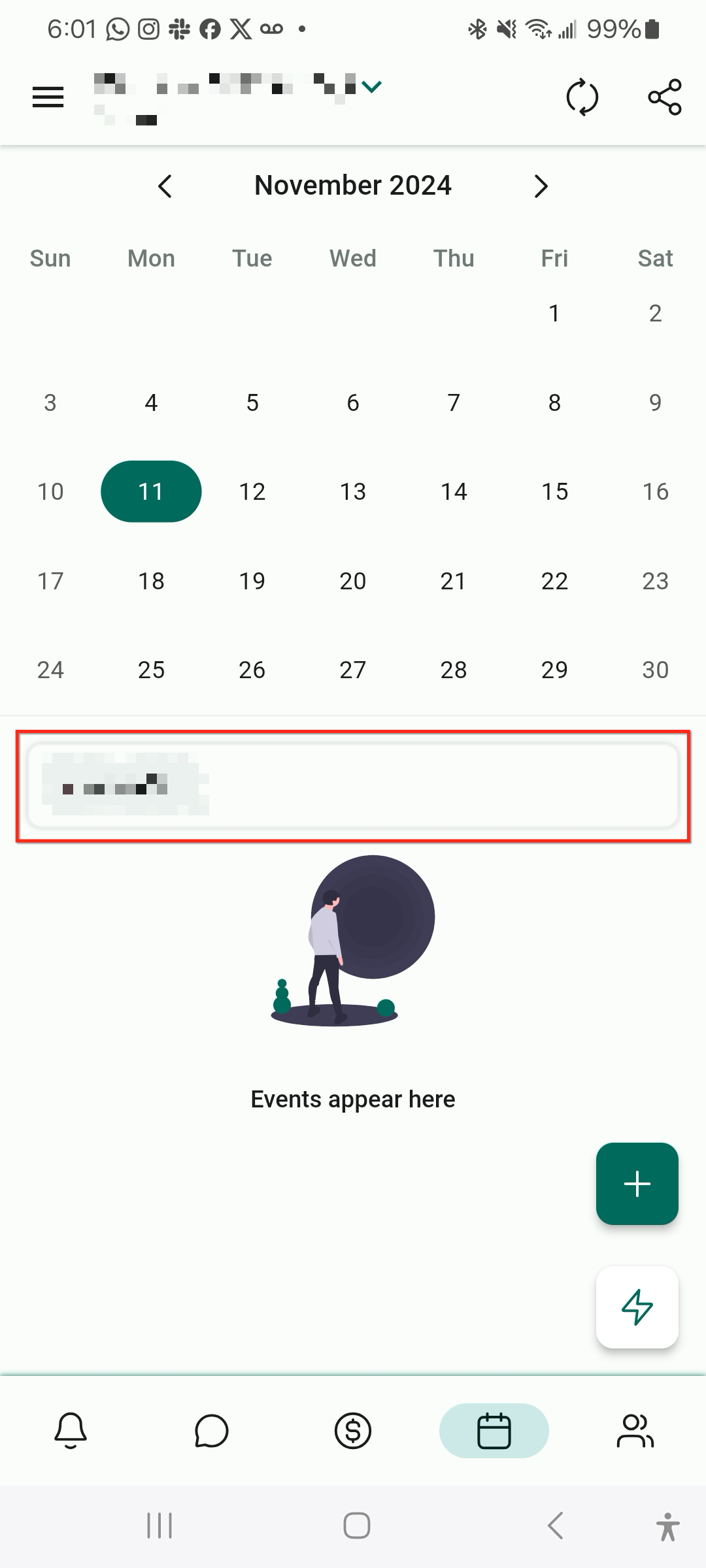 |
From the selector, you can choose to add multiple users, calendars, or groups. | 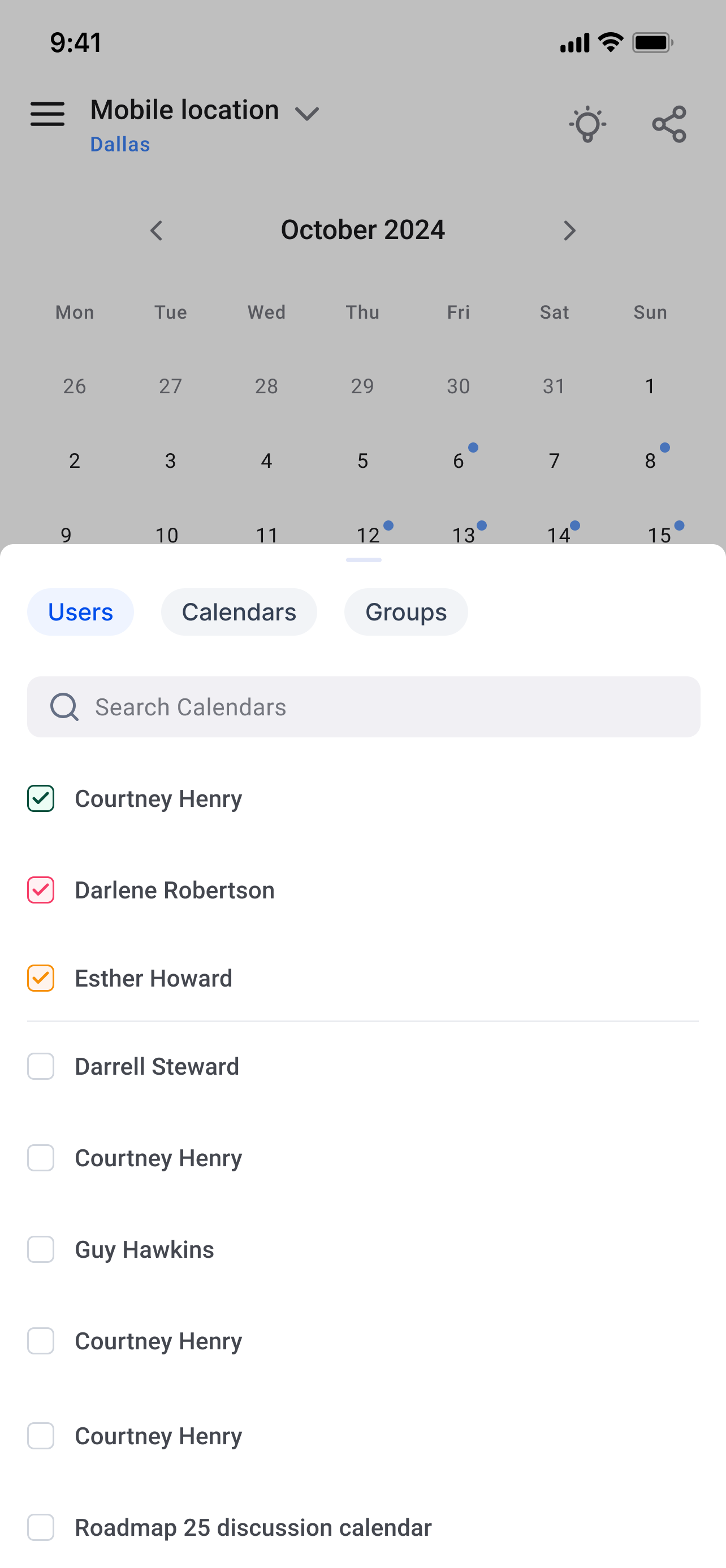 |
Once you have made your selection, you will then be able to see the schedules of all your selections under the events area. Each selection will have a different colour and that will reflect across the events. | 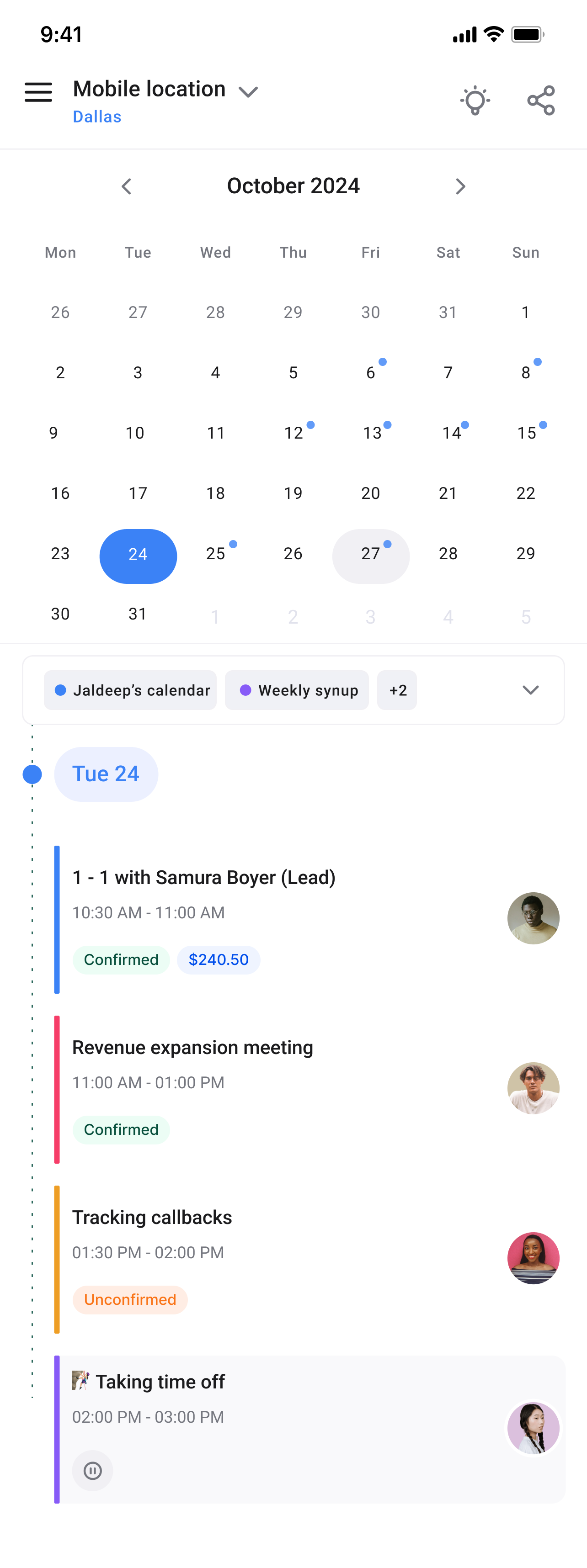 |