
Consolidated Payment Hub in Mobile App
The mobile Point-of-Sale (POS) module is an all-in-one payments hub! Access all three payment products - POS (Tap to Pay, Cash, Cards, and Manual Entry), Invoices, and Estimates from one single module.
- Conventional payment methods- Choose from the list of available payment methods like Tap to Pay, Cash, Cards, and Manual Entry
- Convert to Invoice- Convert a POS transaction into an invoice, whenever a customer would like to receive a detailed invoice and perform the transaction online or at a later time.
- Convert to Estimate- Prepare an estimate from a POS transaction, which can be accepted or rejected by the customer after it is sent to them.
Accepting a payment in the field has never been simpler. With one single module to govern all your payment needs, you can continue to focus on growing your business and let Chat To Clients CRM take care of the rest.
How To Use The Payment Hub
Tap on the "$" icon on the bottom bar of the app to open the POS. Use the Keypad or the Catalog to build the order. | 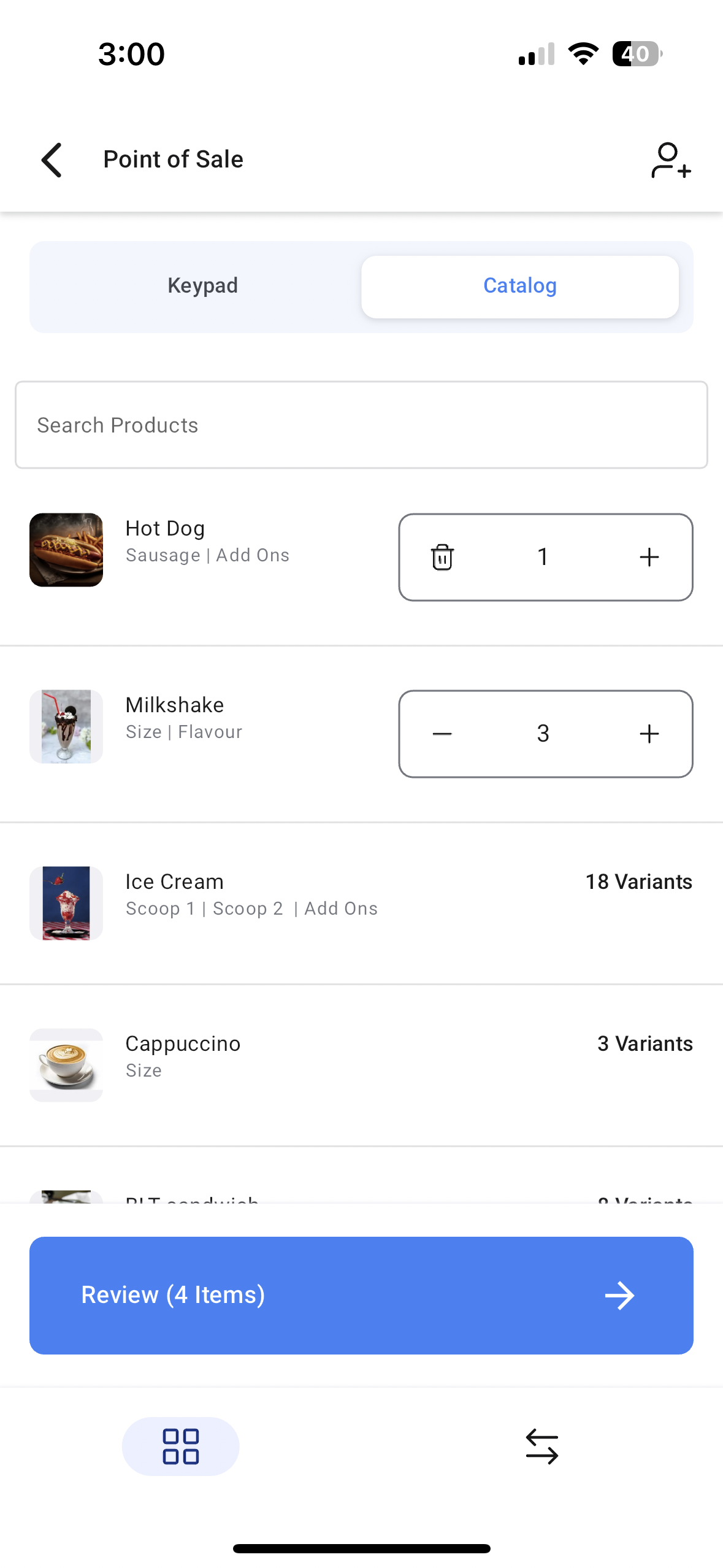 |
Once all the items have been added, move over to the Review page. Link a contact, add discount, and review the details of your transaction. | 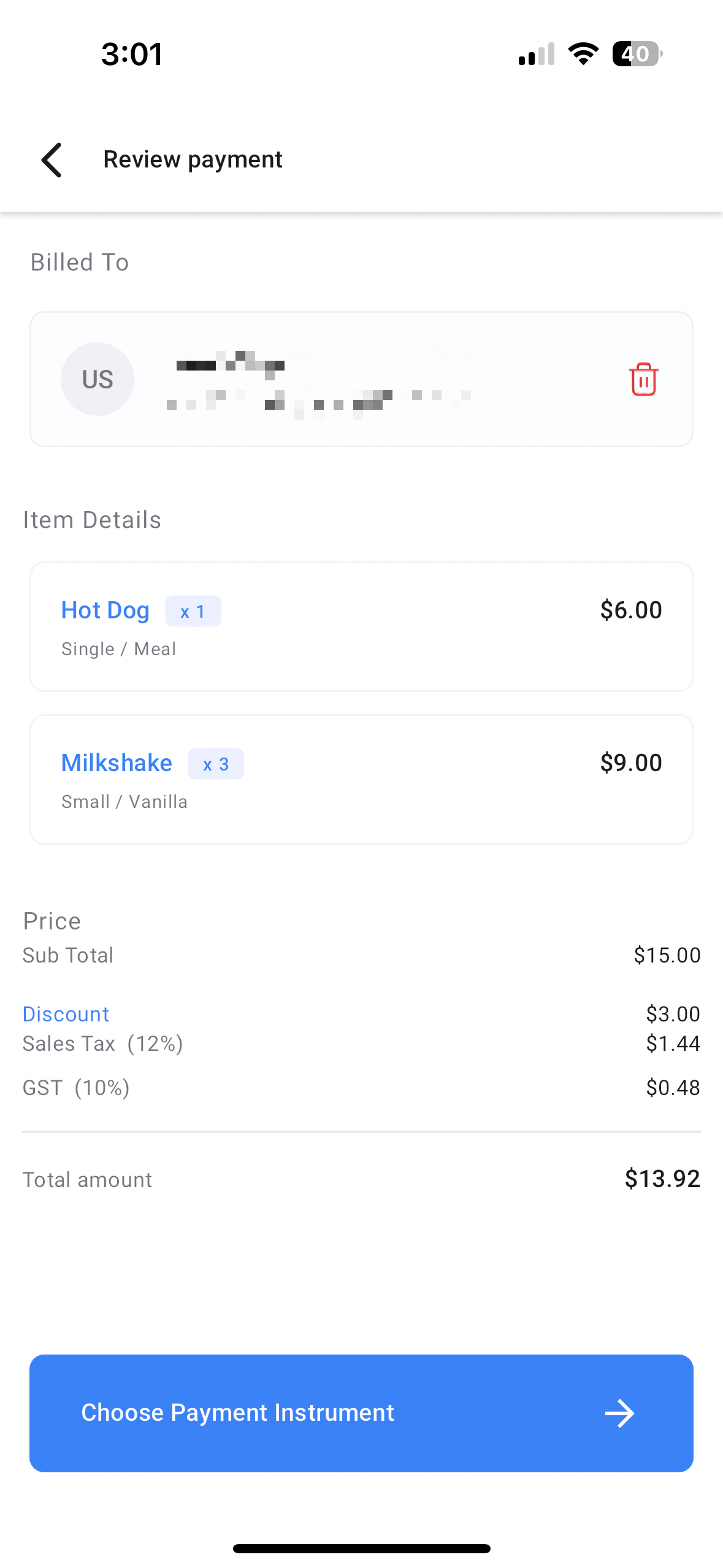 |
Once everything looks good to go, tap on "Choose payment instruments". Choose the right option based on the scenario: payment now, invoice, or estimate. If your customer would like to complete the payment physically, choose from Tap to Pay, Cash, Cards, or Manual Entry. | 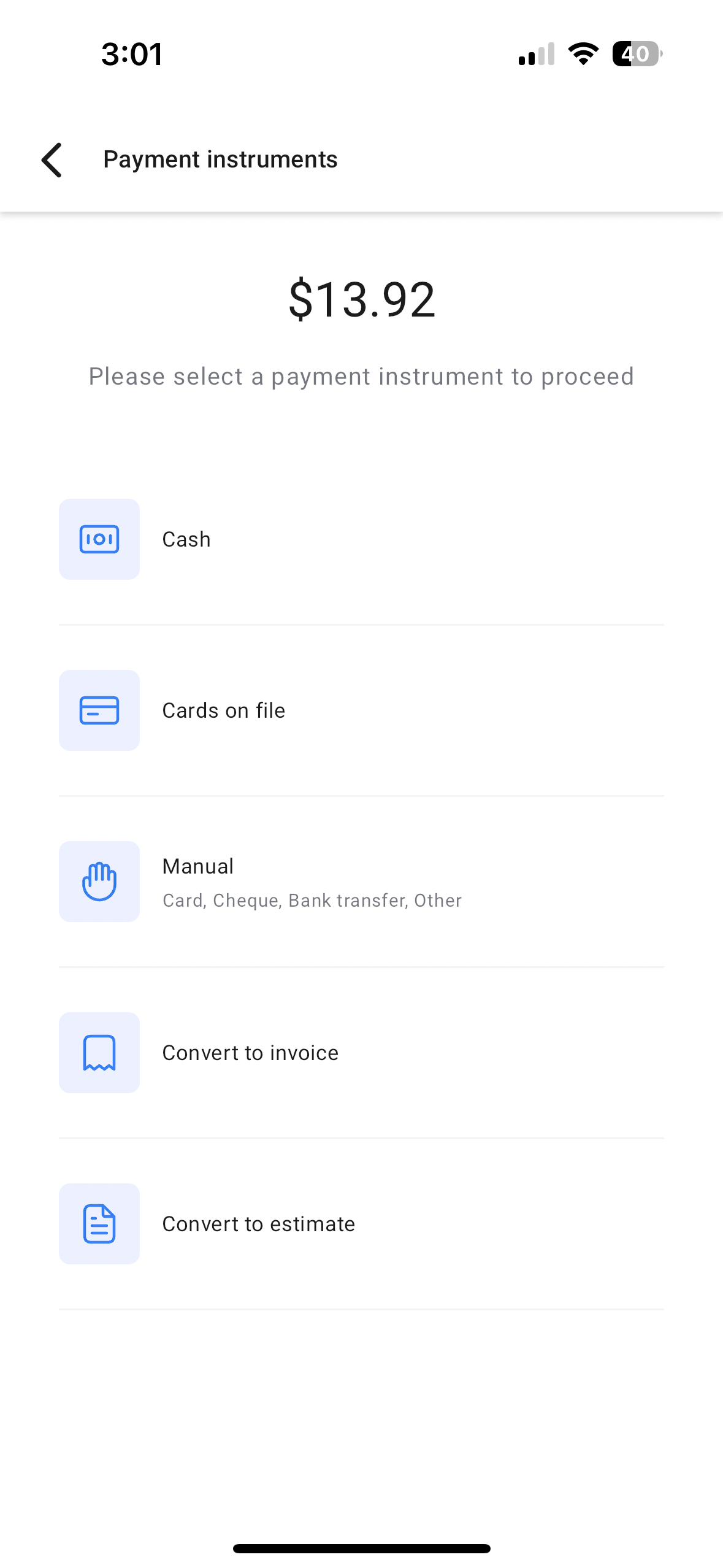 |
| Pay with Tap To Pay | 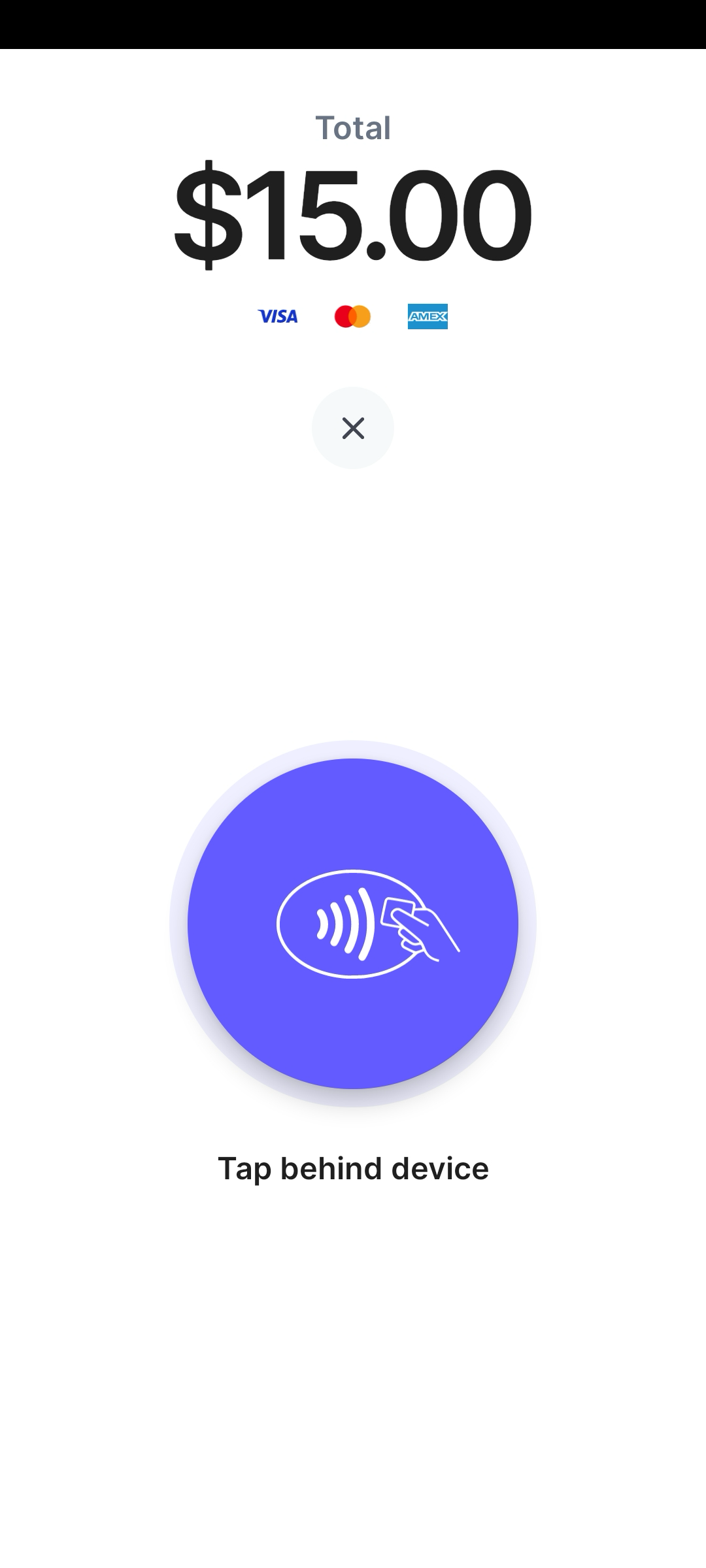 |
| Pay with cash (can also be recorded as a Manual Entry) | 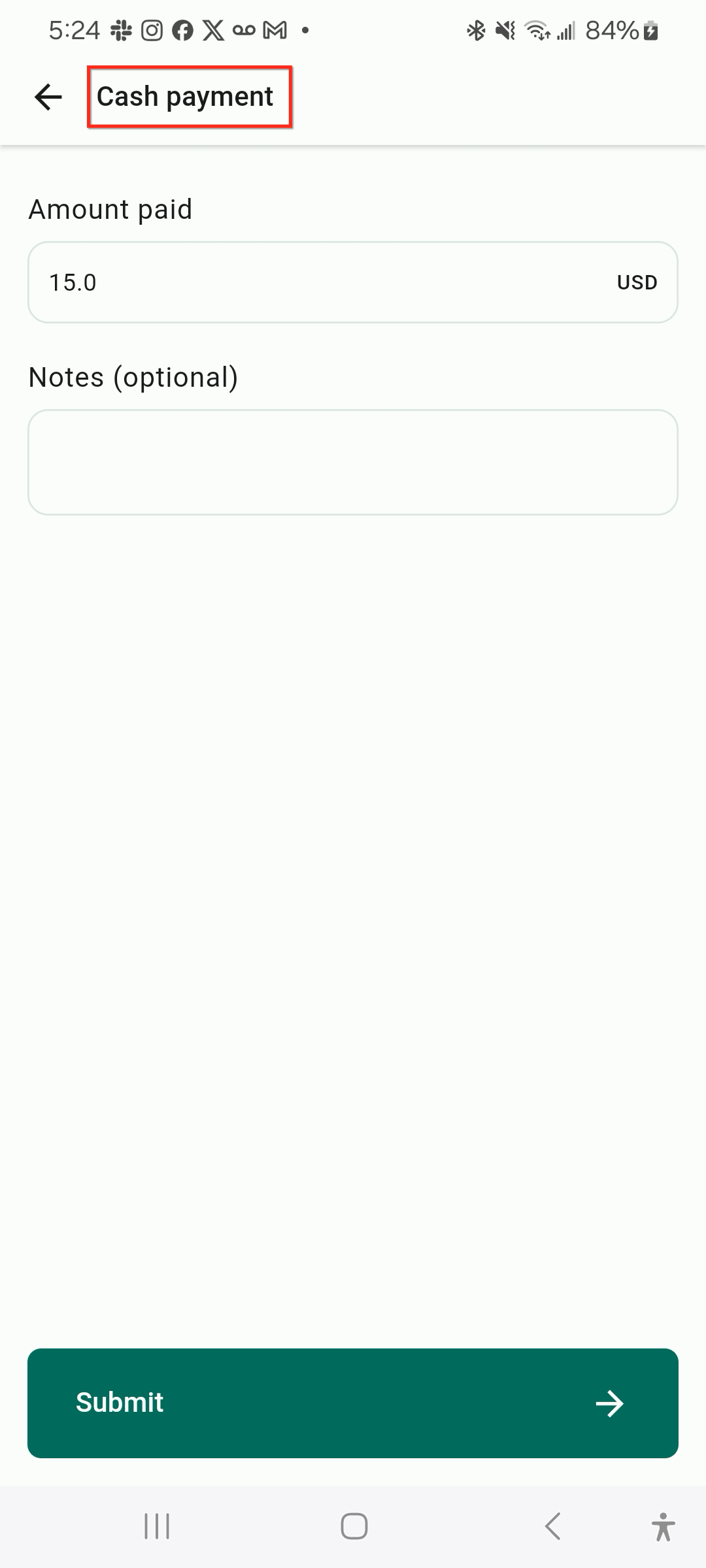 |
| Pay with a credit card | 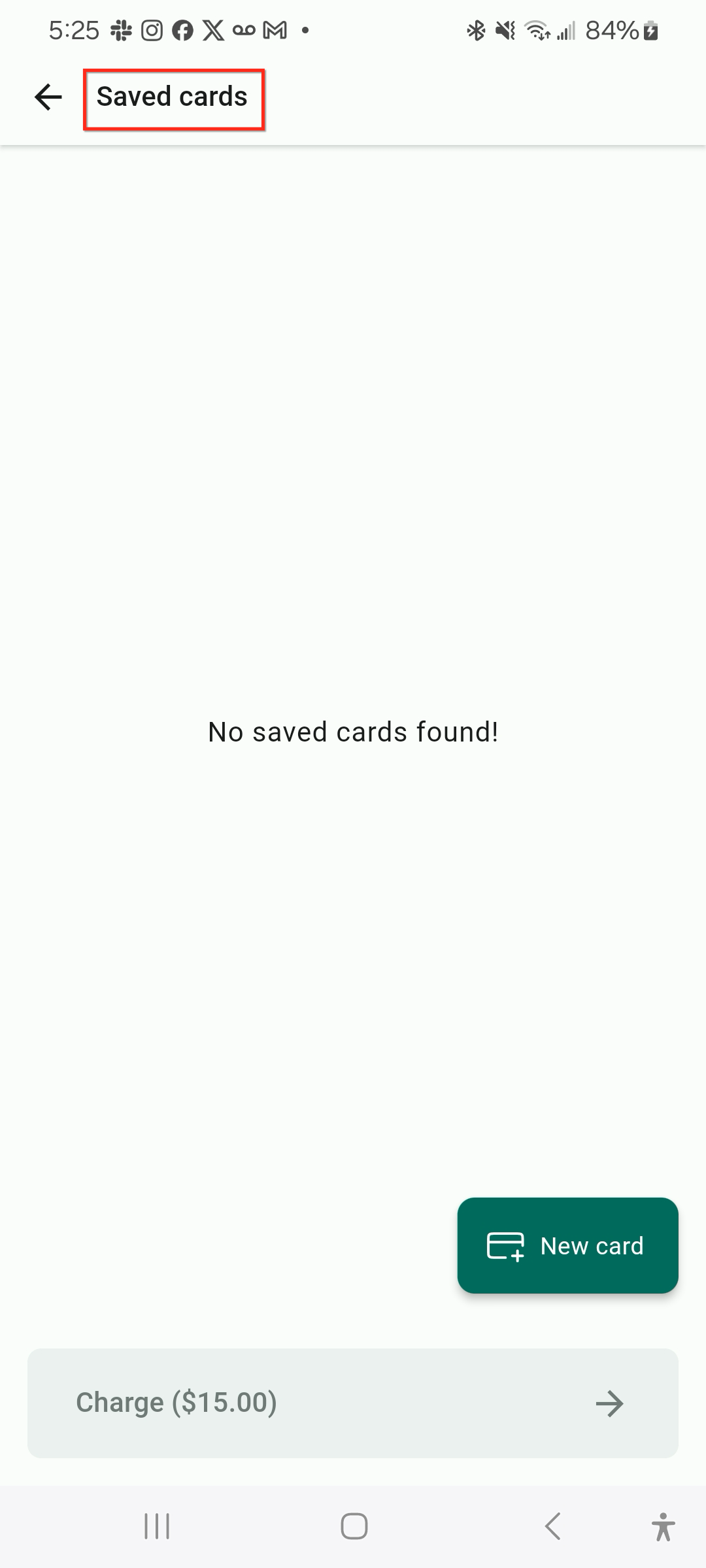 |
| Pay with a method that is not digital, or is not processed through the mobile app, and create a Manual Entry for it. | 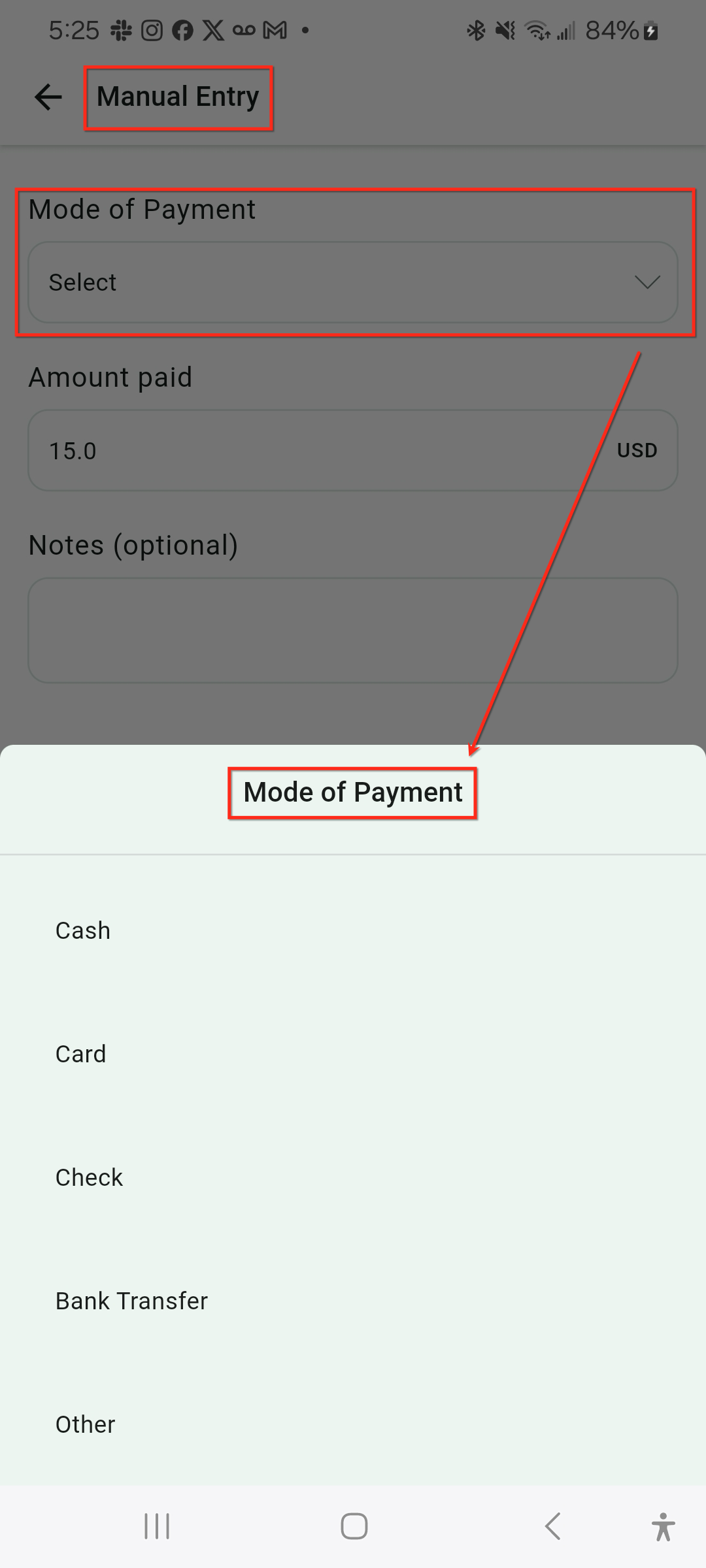 |
If your customer would like to receive a detailed invoice and complete the payment online, select the "Convert to Invoice" option. This will open up the invoice editor with majority of the details already filled out. All you have to do is configure the due date, invoice number (if required), and review the final invoice. | 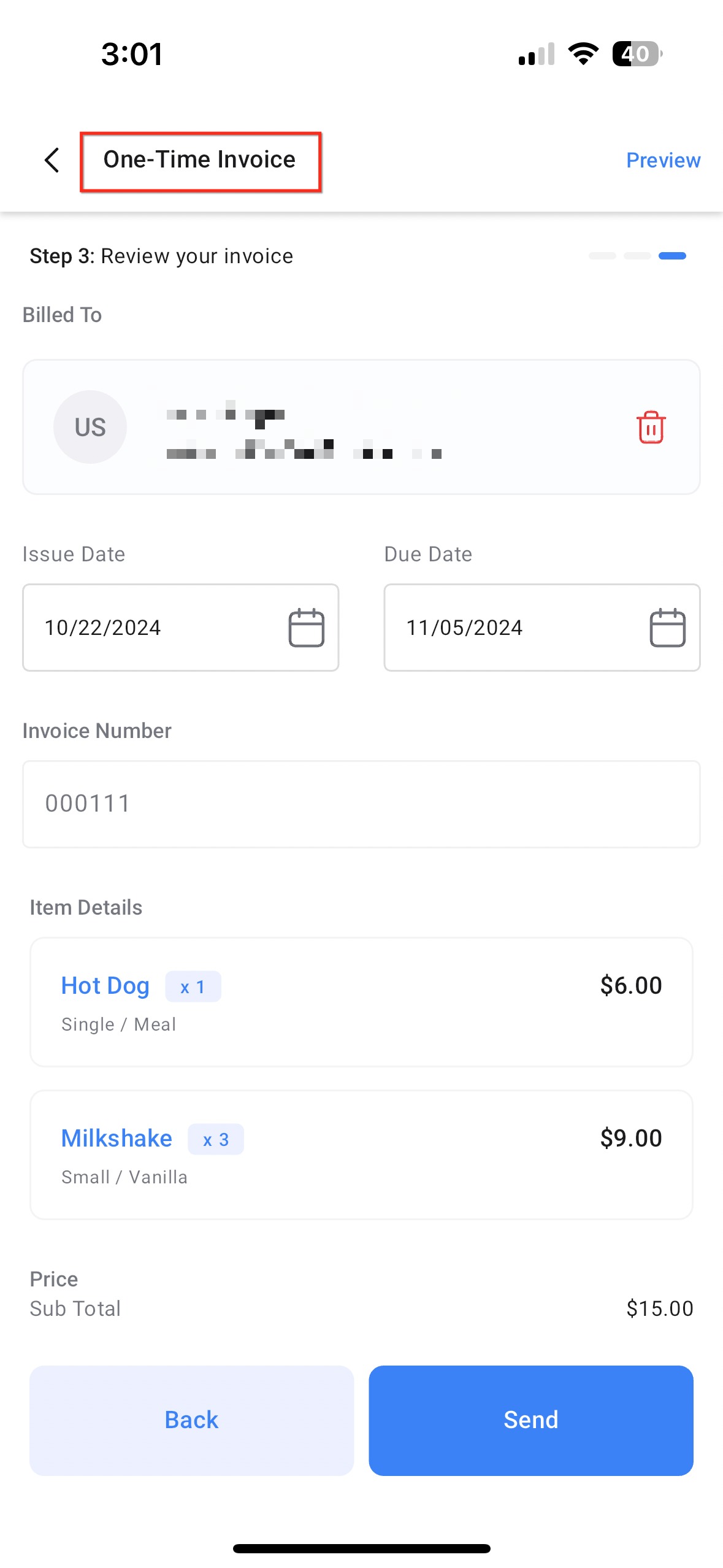 |
If your customer would like to receive a quote instead of going ahead with the transaction, select the "Convert to Estimate" option. This will open up the estimate editor with majority of the details already filled out. All you have to do is configure the due date, estimate number (if required), and review the final estimate. | 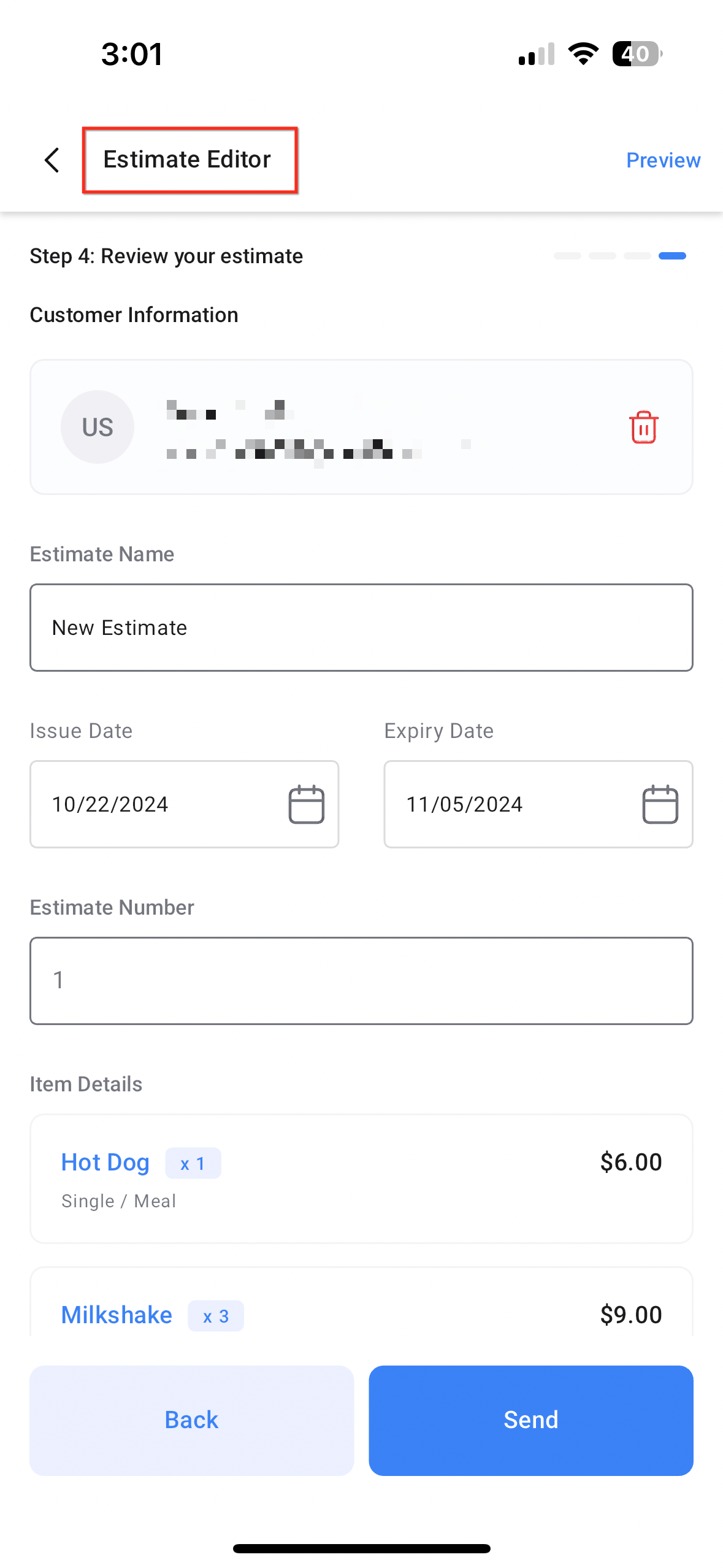 |