
Dynamic Products - Edit Details In Mobile Transaction
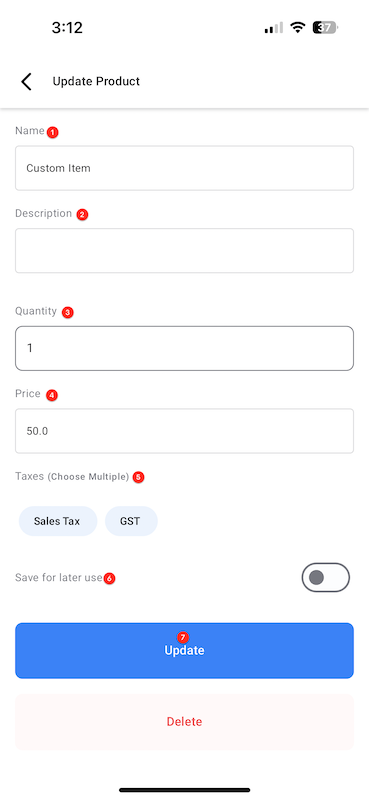
While performing a transaction, you are not restricted to use the existing details that were already configured for the product(s). Feel free to modify every single thing - Name, Description, Taxes, Price, and Quantity. You can even save your changes to the catalogue for reuse later.
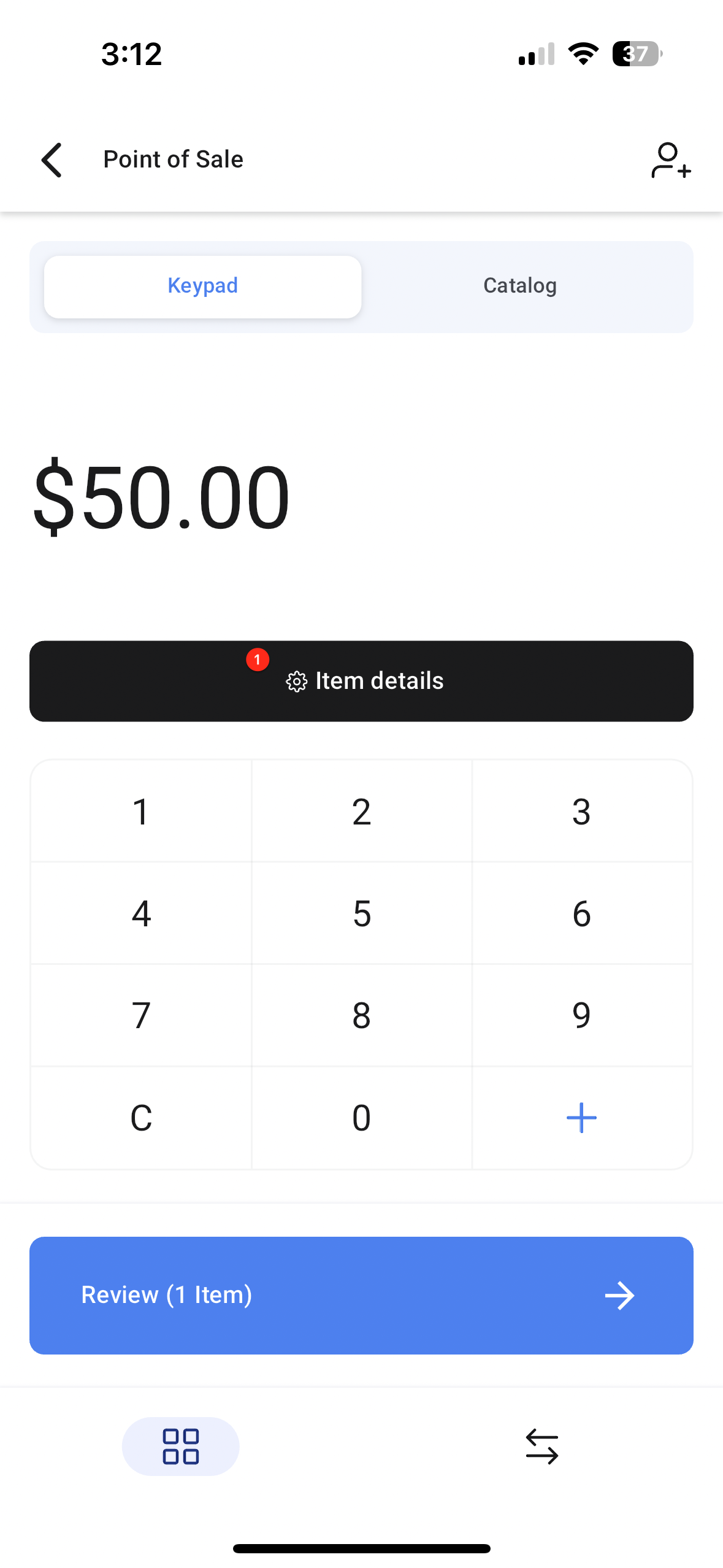
- Custom Item Editor- While adding a custom amount using the POS/Invoice/Estimate using the Keypad, you can change the name from Custom Item to anything you want! This feature is accessible by tapping on the highlighted Item Details button visible right below the amount under the Keypad tab. You can even add a description for that custom item in case you want to include it in the final invoice or receipt.
- Taxes for Custom Items- You can link taxes to custom items added using the keypad. This feature is accessible by tapping on the highlighted Item Details button below the amount under the Keypad tab.
- Save for Later Use- You can save a custom item to your catalog if you would like to use it again in the future. This is accessible by tapping on the highlighted Item Details button below the amount under the Keypad tab and toggling on Save for later use.
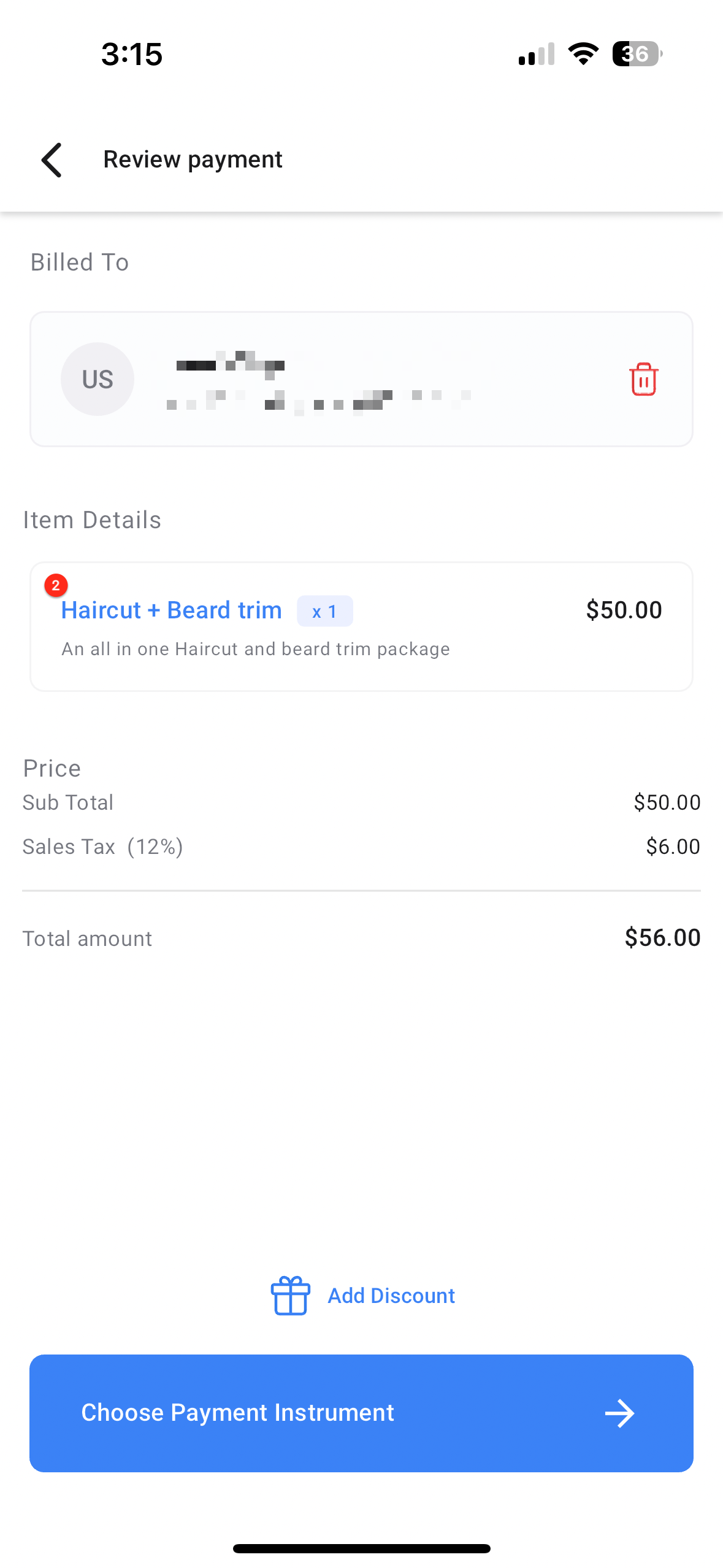
- Edit items on review- All the above mentioned features are available in two different areas - On the keypad page and on the review page. You can also edit the details of Catalog items on the review page by tapping on the item tile and editing all the necessary details.
TABLE OF CONTENTS
- Dynamic Products Overview
- How To Open the Update Products Editor
- Variant Combination Customization
- How To Use Dynamic Products
Dynamic Products Overview
Dynamic Products Page Elements | |
Update Product
|  |
How to open the Update Product editor
There are two ways to open the Update Product editor to change the item details.
- The big black edit details button on the Point of Sale number pad
- The item card in the Review Payment screen
 |  |
Variant Combination Customization
In case you want to add a different variant combination of the same product, you can tap on "+" on the quantity counter on the catalog page, and tap on new customization. | 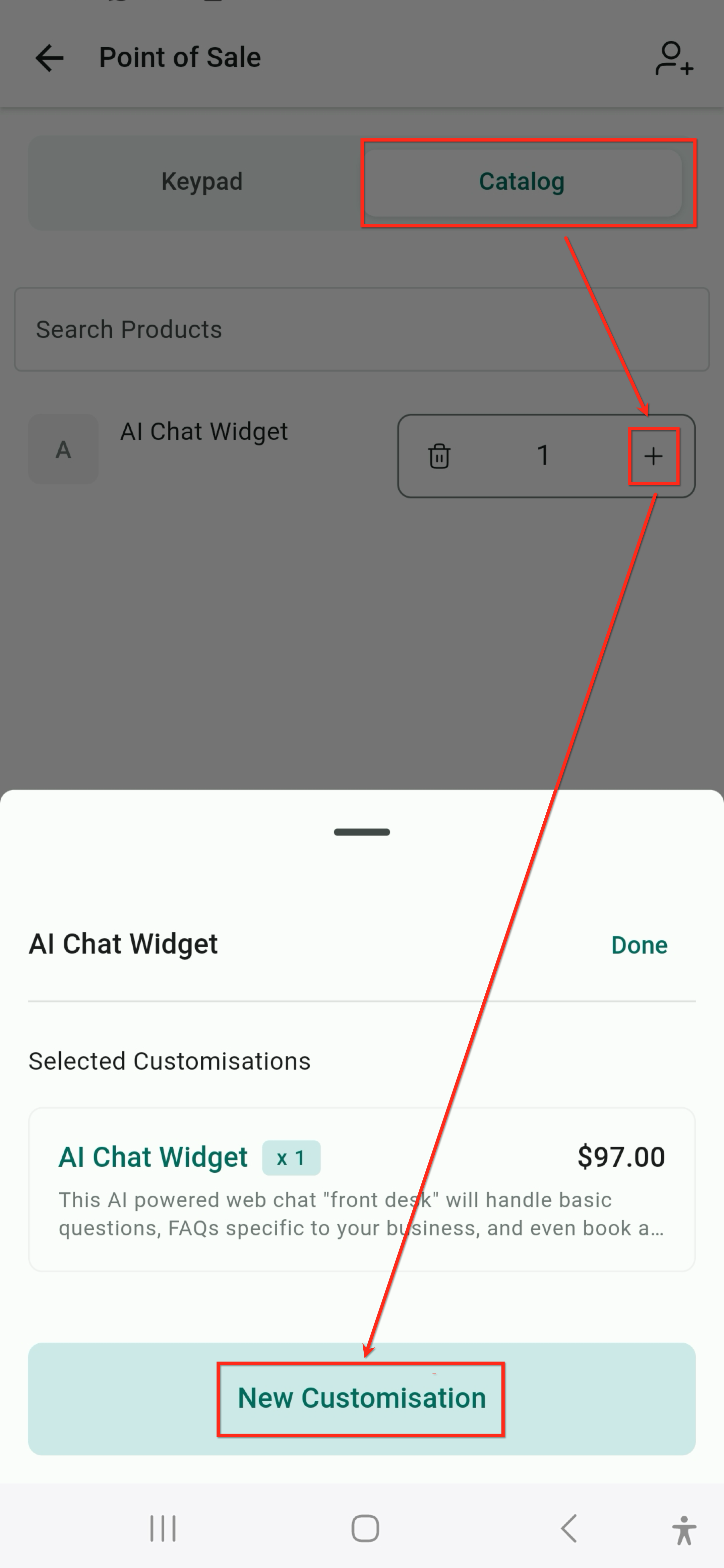 |
How to use Dynamic Produtcs
- Install your preferred mobile app (Chat To Clients CRM, Chat To Clients CRM, or Whitelablled) on your device.
- Head over to the POS section by tapping on the "$" icon on the bottom bar of the app.
- Add items to checkout using the keypad (for custom amounts) or/and using the catalog.
- For amounts added via the keypad, you will now see a highlighted "Item Details" button. Tap on it.
- This opens up a brand new screen where you can change the name of the item from Custom Item to anything you prefer. You can also add a description, link taxes, adjust the quantity, and change the price. You can even the save the item to the catalog for later use.
- If you add a catalog item, you can tap on the item tile to edit the name, description, price, and quantity. In case you have multiple variants, you can select the right variant combination and add it to the checkout step.
- In case you want to add a different variant combination of the same product, you can tap on "+" on the quantity counter on the catalog page, and tap on new customization.
- Once you have added items to checkout, tap on "Charge" to move to the review step.
- You can further make edits to the details of your products by tapping the product tile, which opens up the same screen as before.
- Upon completing the final review of the transaction, you can tap on the "Choose Payment Instruments" button and select a payment method to charge your customer, or convert the transaction into an invoice or estimate.