
Automatically Generate Invoices from Signed Documents & Contracts
TABLE OF CONTENTS
- How to Send Invoice from a New Document
- Configurations
- Direct Payment
- How to Automate 2 in 1 Documents
- Tracking
- Tips & Edge Cases
- Frequently Asked Questions
How to Send Invoice from a New Document
Go to Payments › Documents & Contracts › New Document.
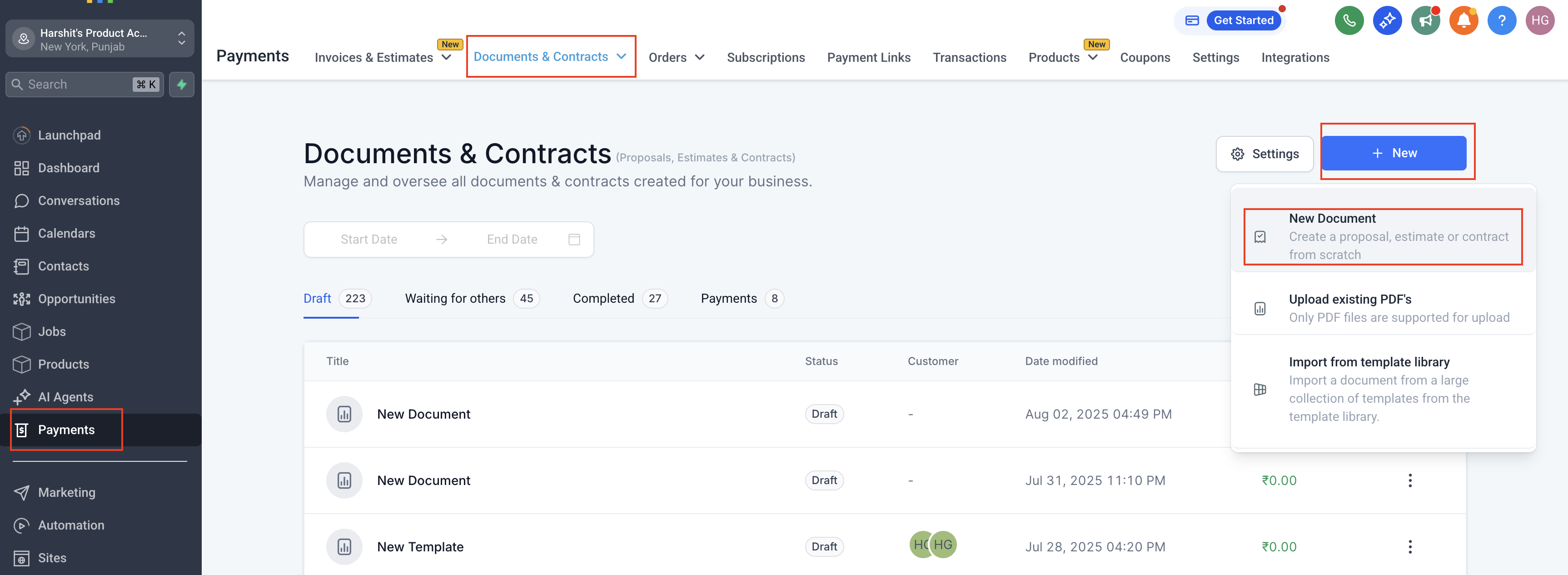
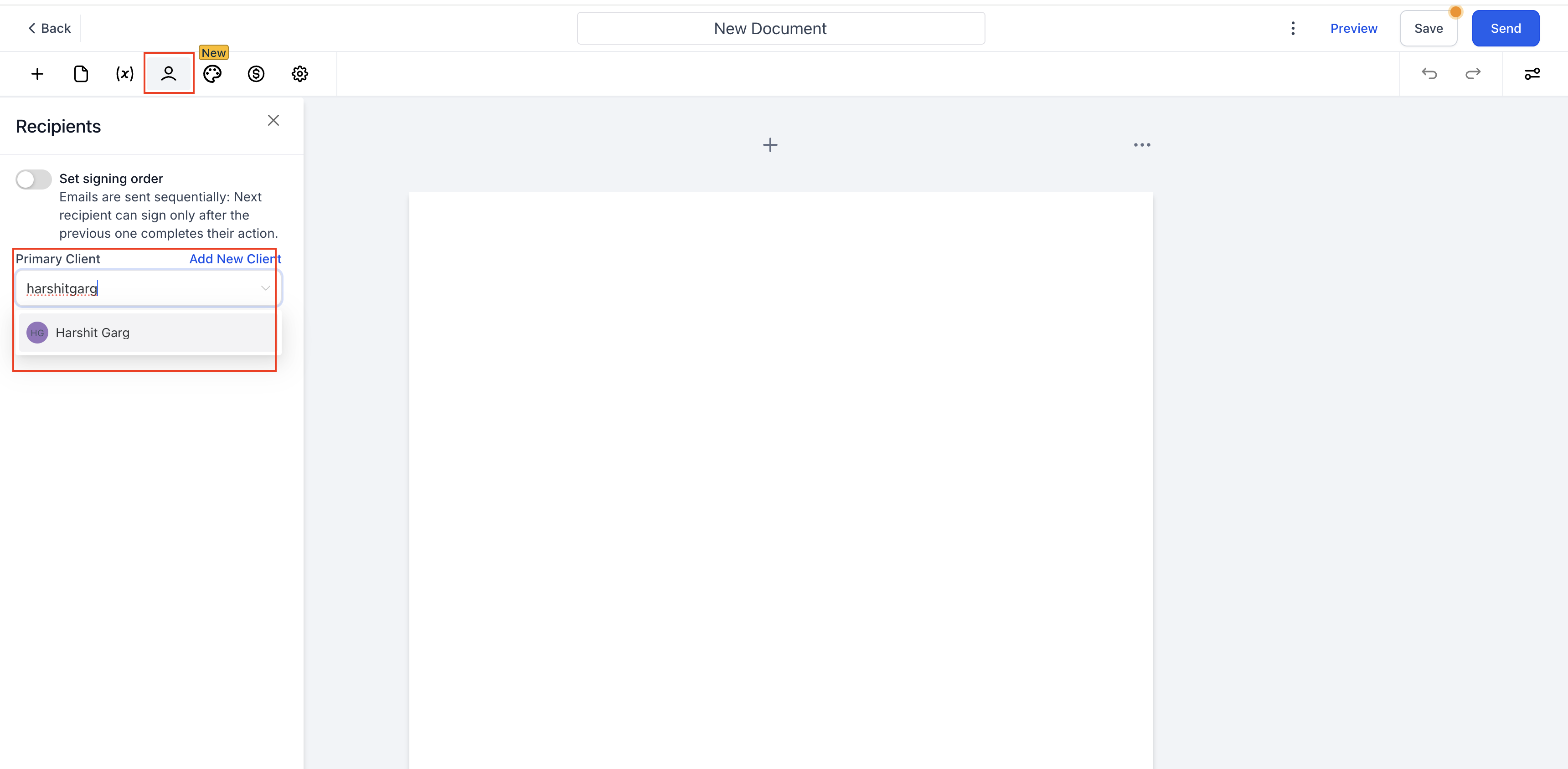
Add a the Primary signer.
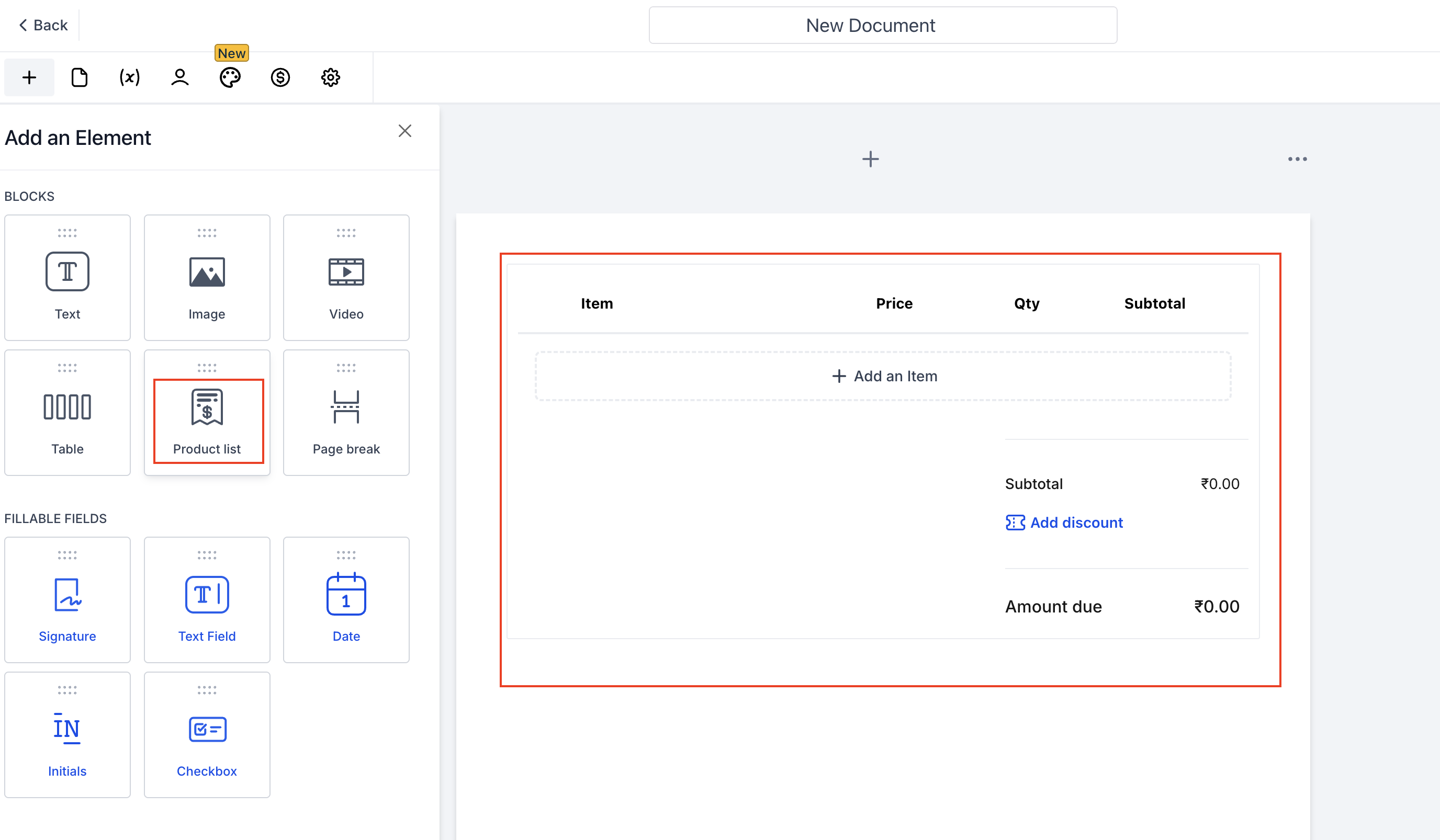
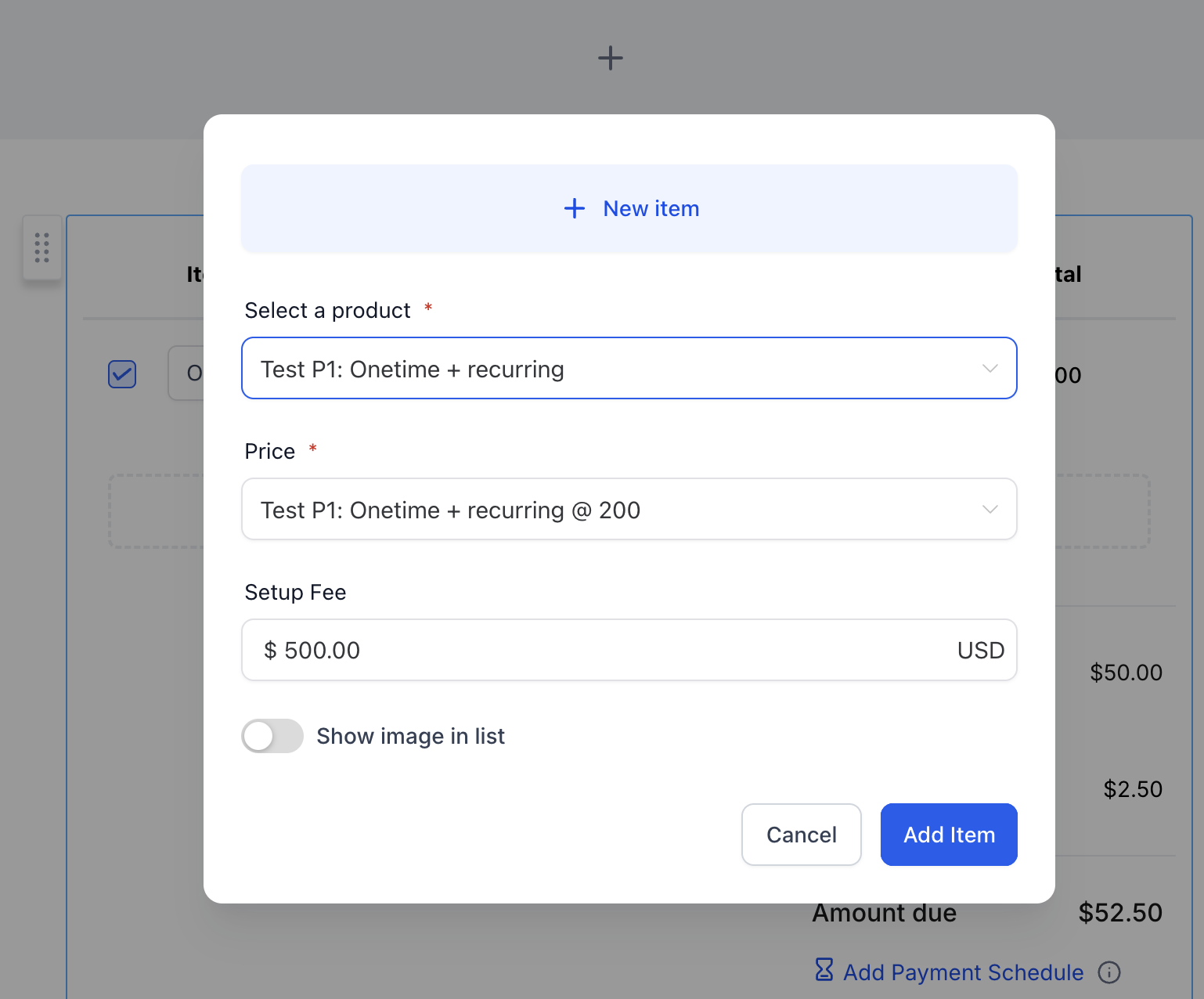
- Add Product List: Add a product list to the document. Product types determine whether the generated invoice is one-time or recurring.
If the selected products are one-time only, the document generates a one-time invoice.
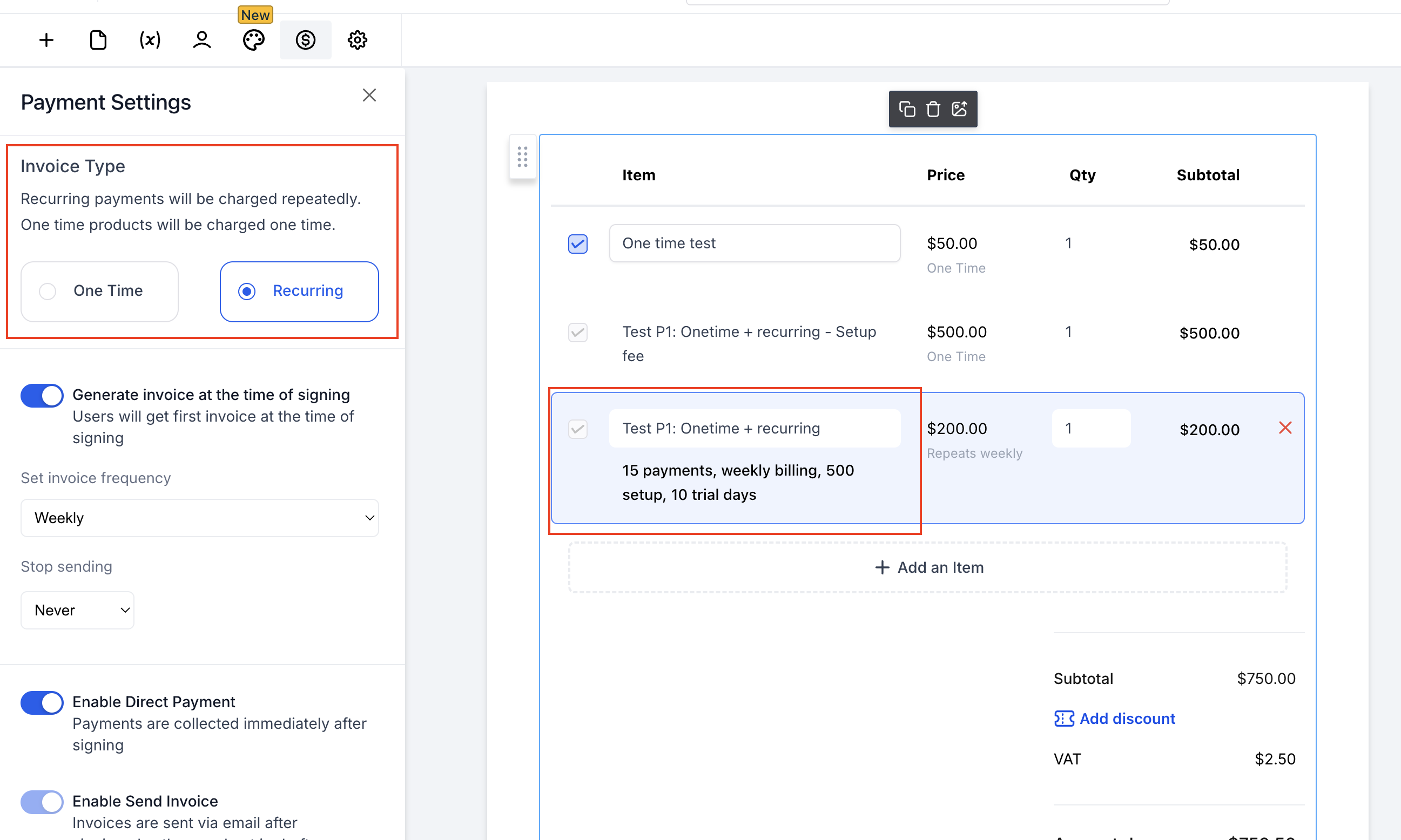
If the selected products include a recurring product, the document generates a recurring invoice.
If the product list contains optional one-time and recurring products, the invoice type is based on the products the recipient selects. Selecting only one-time products generates a one-time invoice.
One document can use only one recurring frequency. Configure the frequency in the invoice settings.
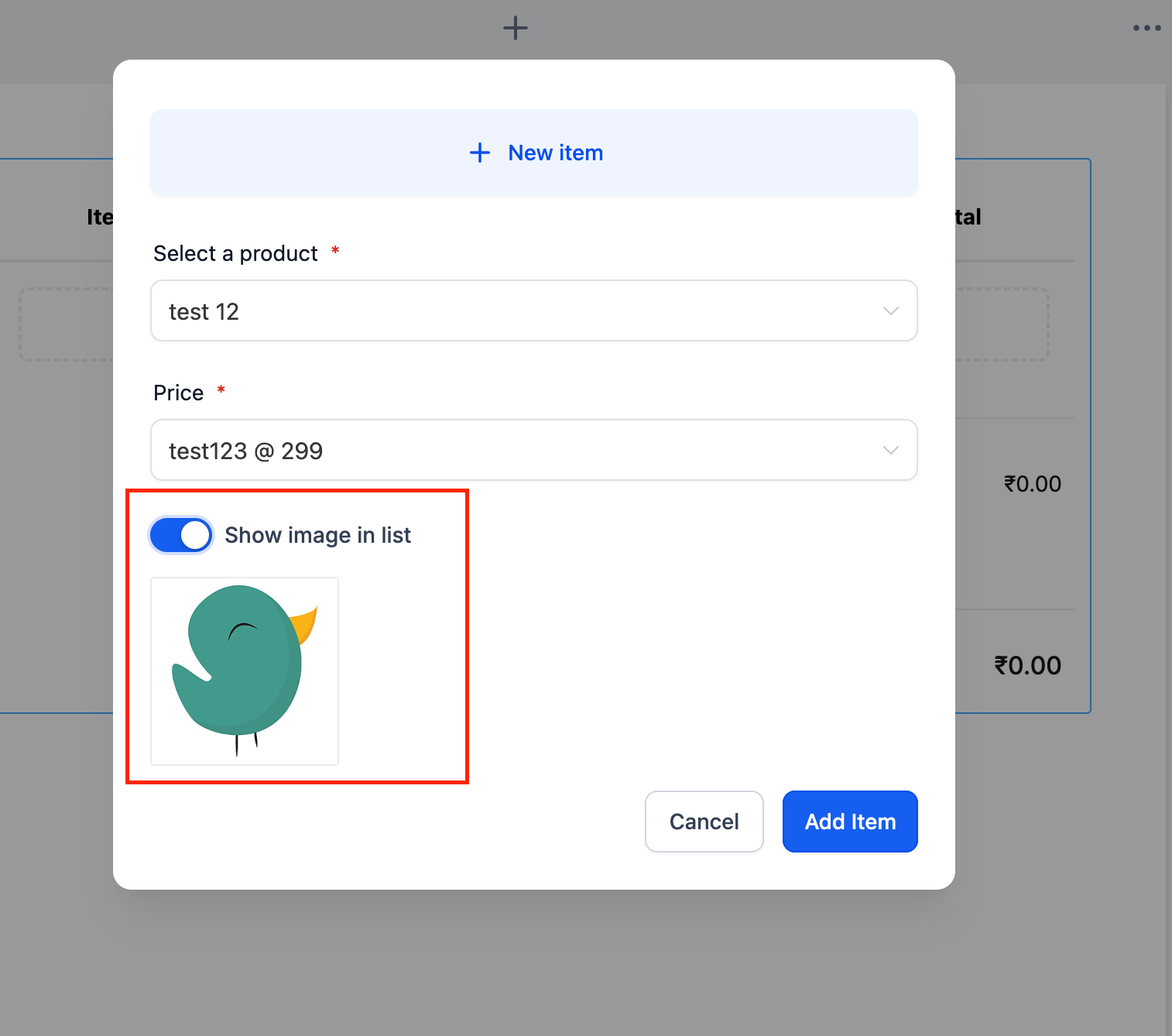
You can also use Show image in list to display or hide the product image. When adding a new product from the document editor, you can upload its image before adding the product to the list.
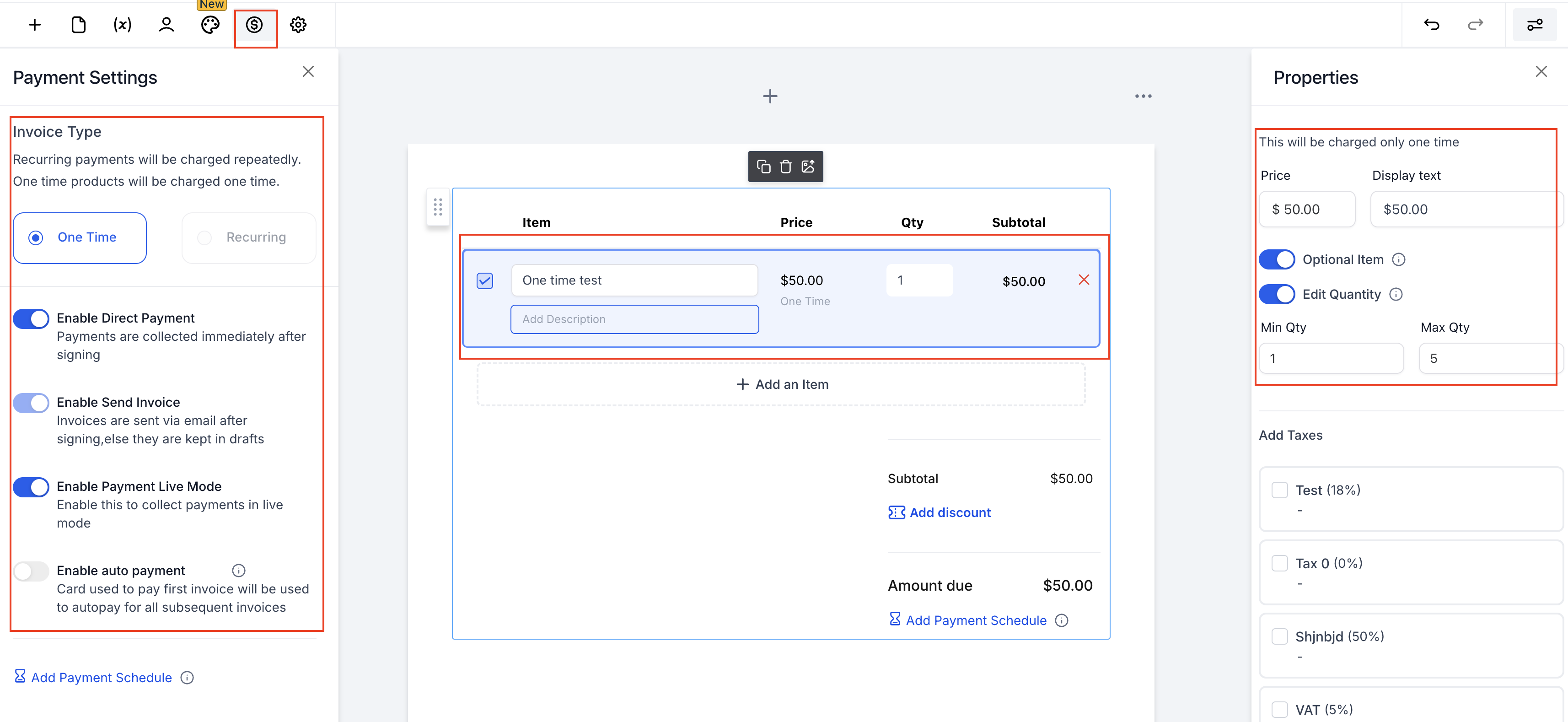
If a One time product is added - The invoice type is set to One time.
- You can select a product and change it to an optional item and make its quantities editable if needed from the properties section in the right.
- From the Payments section in the left side - you can set the configurations as per your need.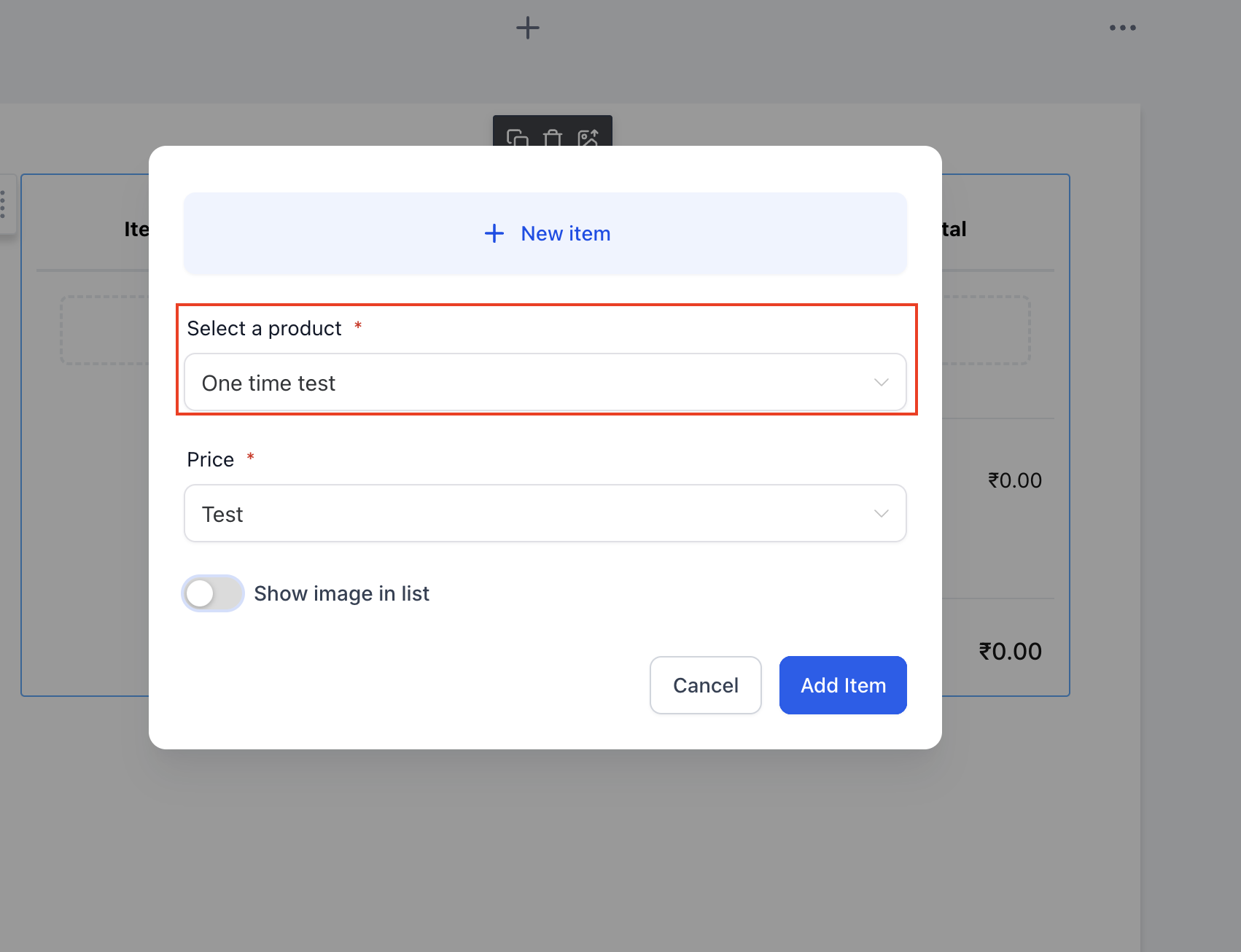
If one or more recurring product is added in the product list -> the invoice type changes to Recurring. One document can only have one recurring frequency which can be chosen from the Invoice frequency settings in the left.
Pick configurations you need (see quick callouts; full details in Configurations below):
Direct Payment — ON: Redirect primary signer to pay after signing if an invoice exists at signing.
Send Invoice — ON: Email the invoice when it’s generated (at signing or on the schedule).
Auto‑Payment — ON: Autocharge future recurring invoices.
Test vs. live payments are controlled by your payment setup (not a Documents & Contracts template setting).
Send the document.
What happens at signing
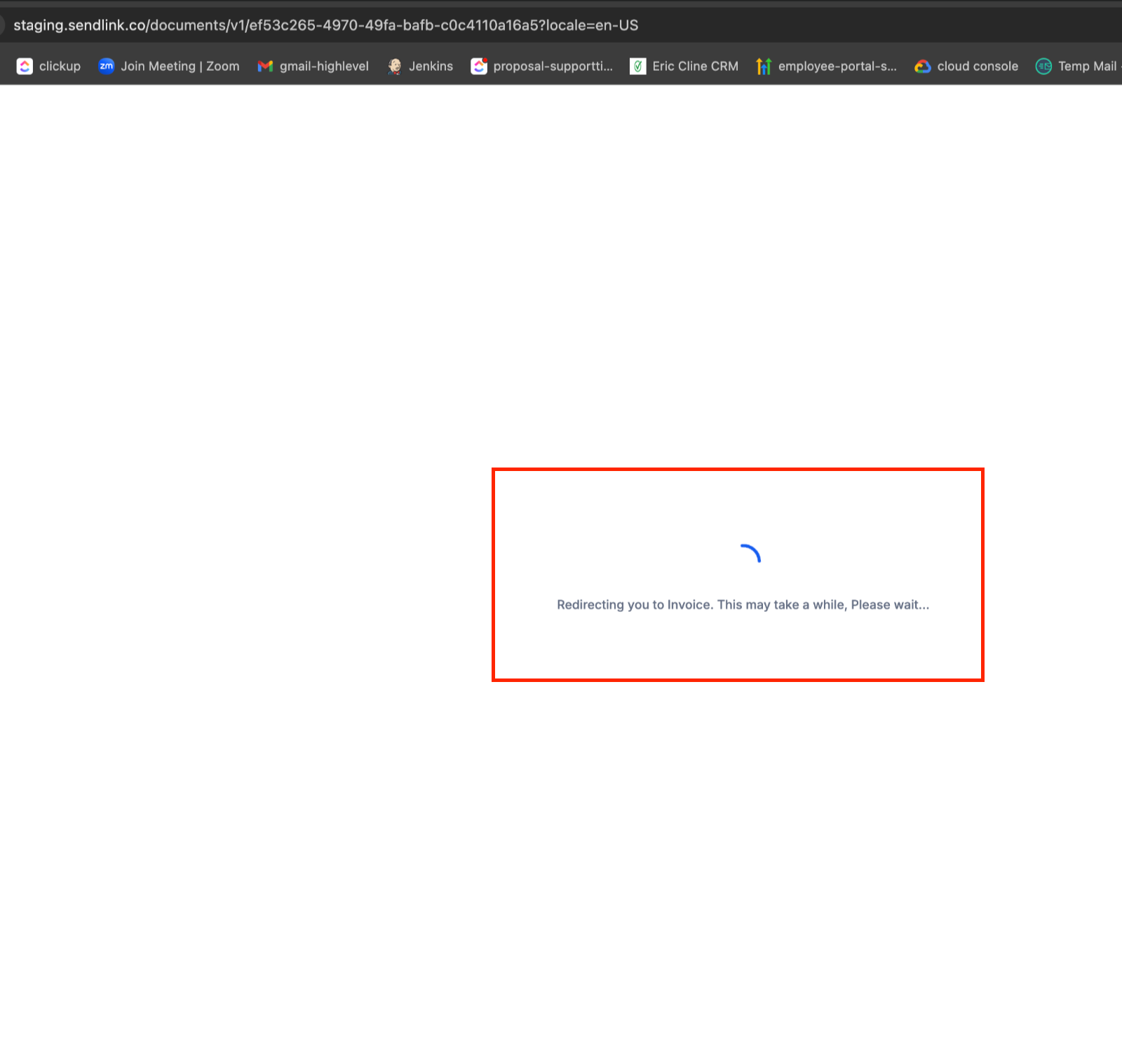
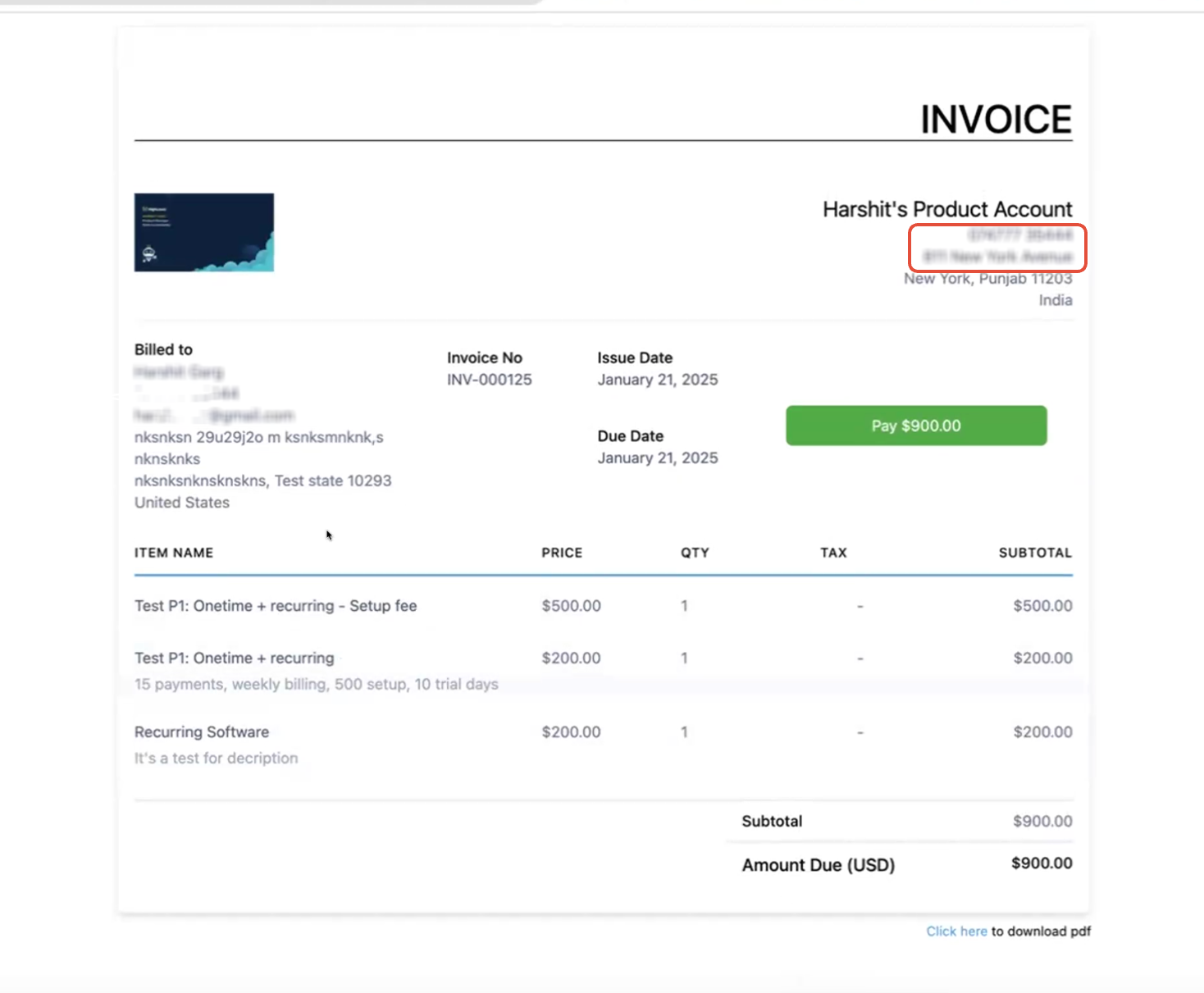
One‑time: Primary signer is redirected to invoice to pay immediately.
Recurring (start = at signing): Primary signer is redirected to pay the first invoice immediately.
Recurring (start = later): No redirect at signing; first invoice is created/sent on the schedule.
Only the primary signer is redirected. Others just sign. An invoice email is also sent when enabled.
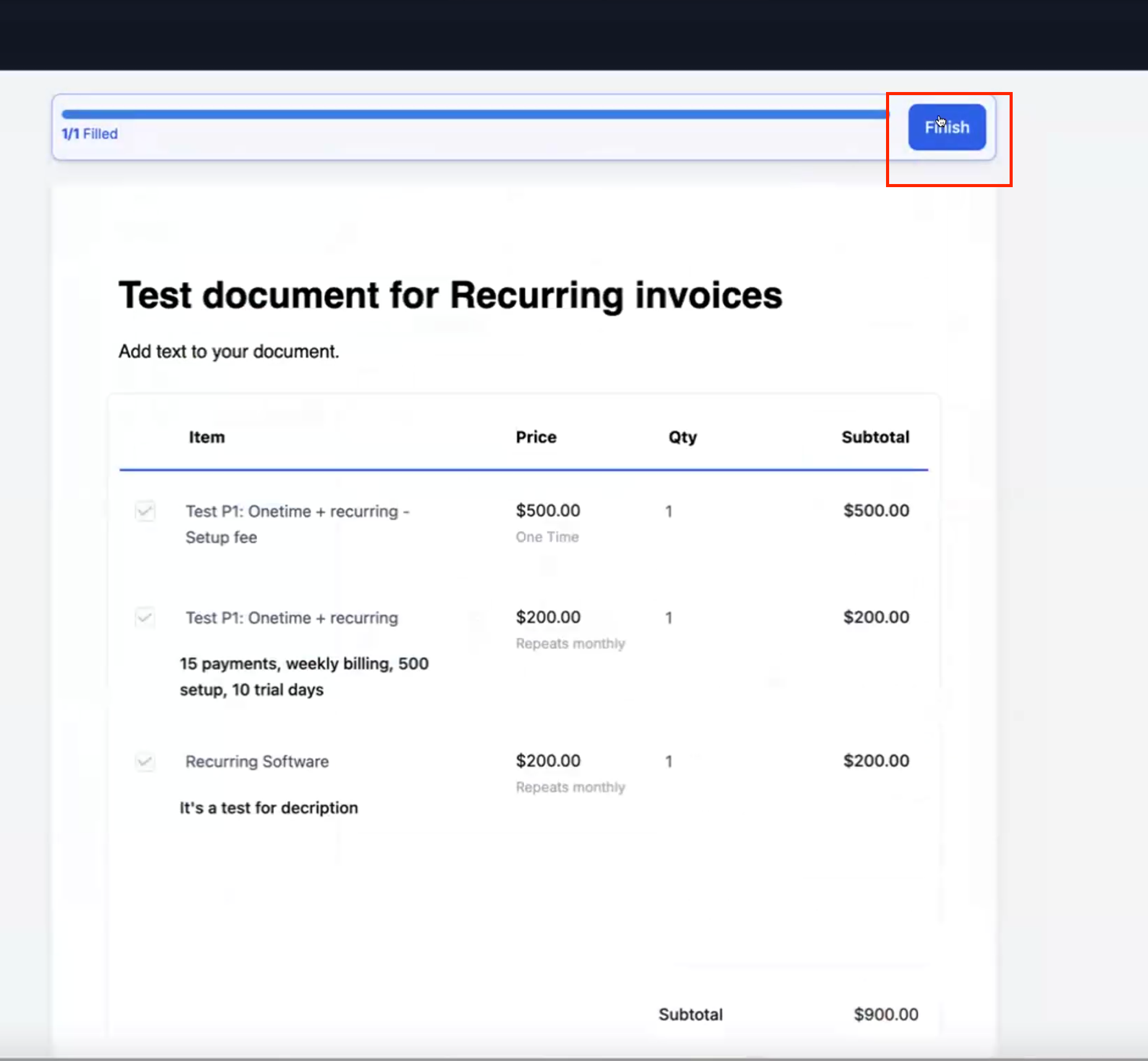
Configurations
Direct Payment
ON: If an invoice exists at signing, the primary signer is redirected to the invoice page immediately after signing; invoice email also goes out.
OFF: No redirect; payer uses the emailed invoice (or you send it later from drafts).
Send Invoice
ON: Automatically emails the invoice when generated (at signing or on schedule).
OFF: Keeps the invoice as draft so you can review and send manually.
Auto‑Payment
ON: Saves card (supported gateways) and auto-charges subsequent invoices in the recurring schedule or ones with payment schedules.
OFF: Payer pays each issued invoice manually.
Auto‑Payment affects recurring schedules. One‑time is paid during the immediate checkout.
Live Mode (true/false)
Documents & Contracts templates do not include a Live Mode toggle. If you need to test, use a payment experience that supports Test/Live mode (for example, invoices or payment links) or your gateway’s test configuration.”
How to Automate 2 in 1 Documents
Go to Payments › Documents & Contracts › Templates › New Template.
Insert Signature fields and Add Product List (types + tags auto).
For recurring, choose when the schedule starts: at signing or on a future date/day.
Configure Direct Payment, Send Invoice, and Auto-Payment as needed.
Save the template.
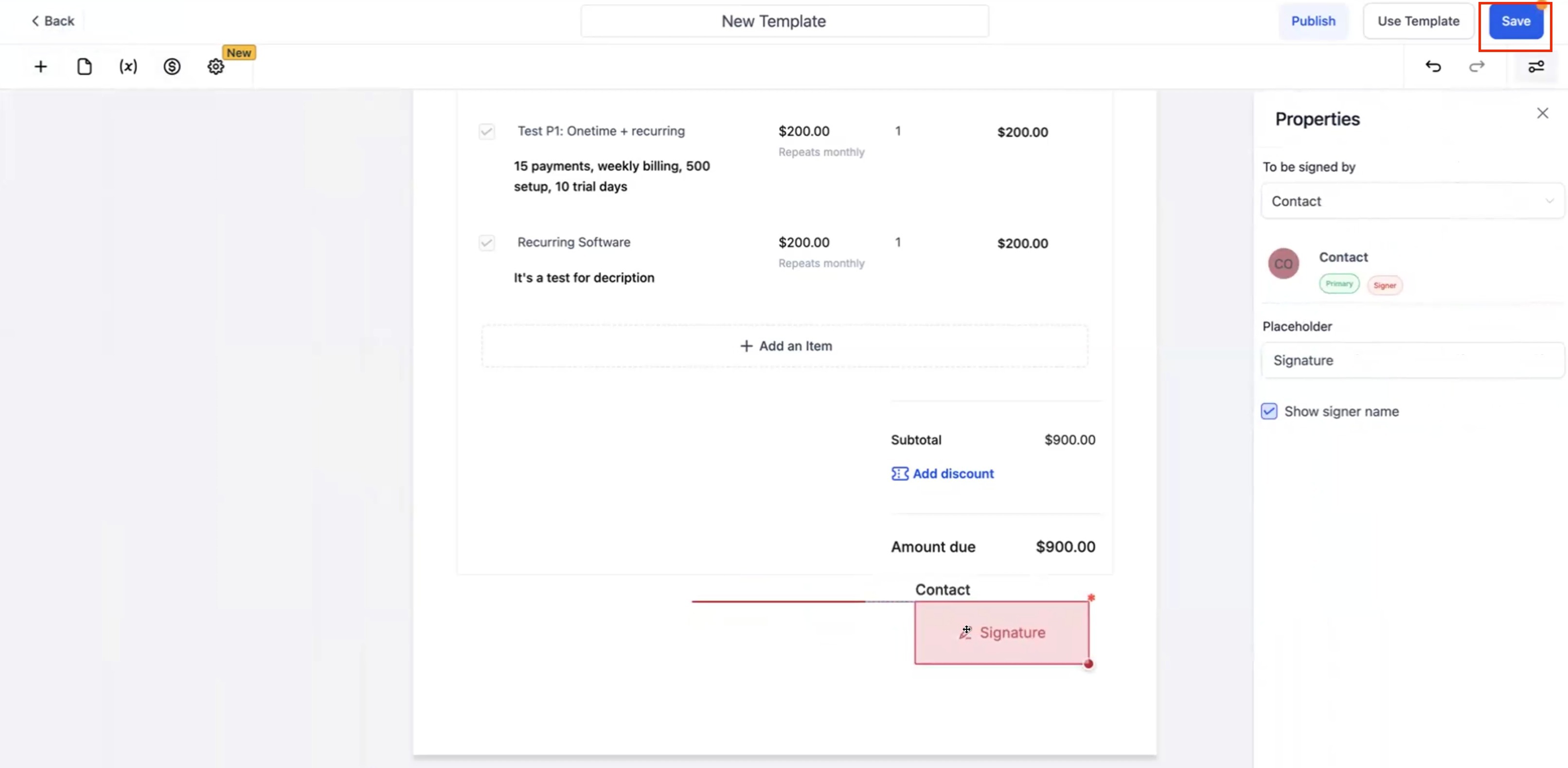
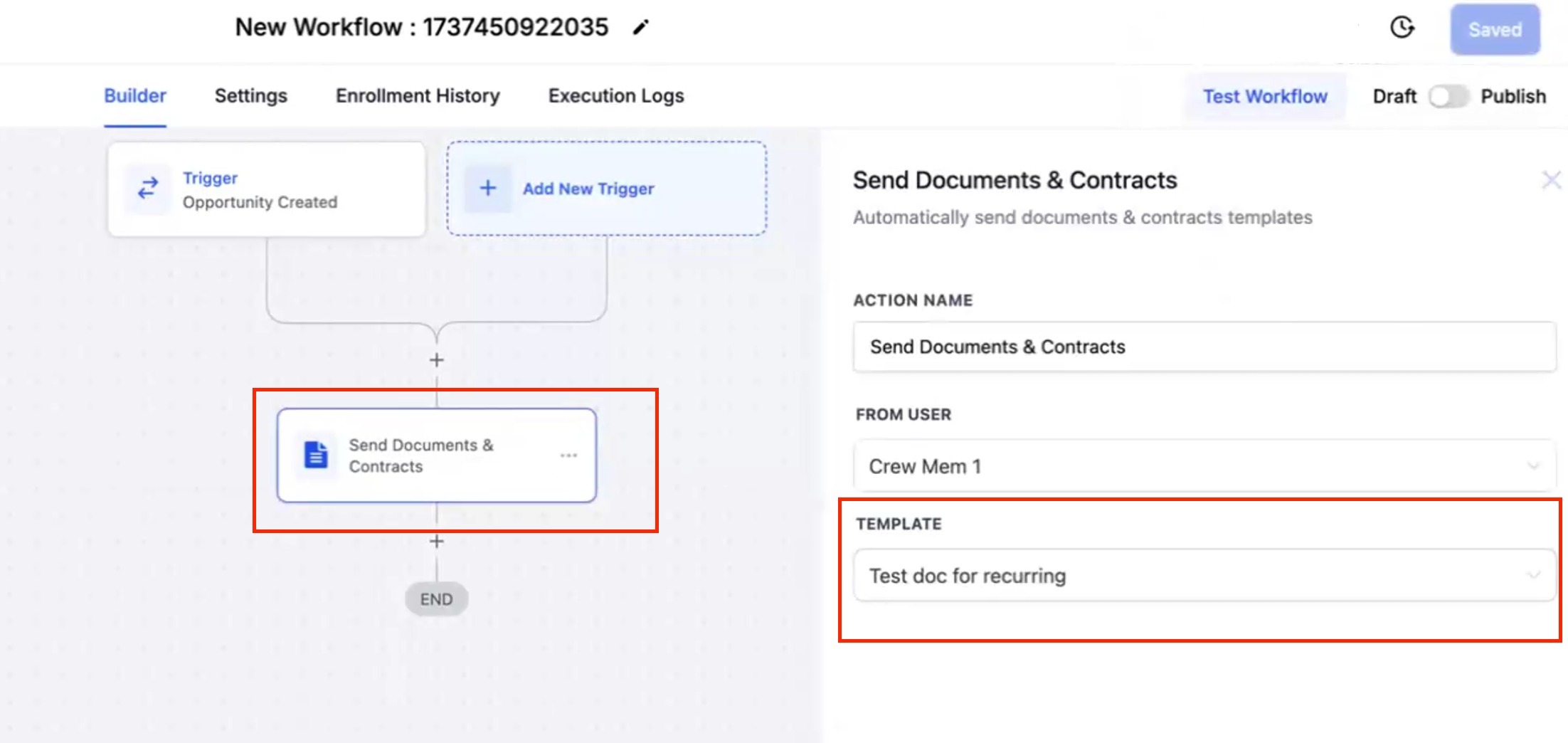
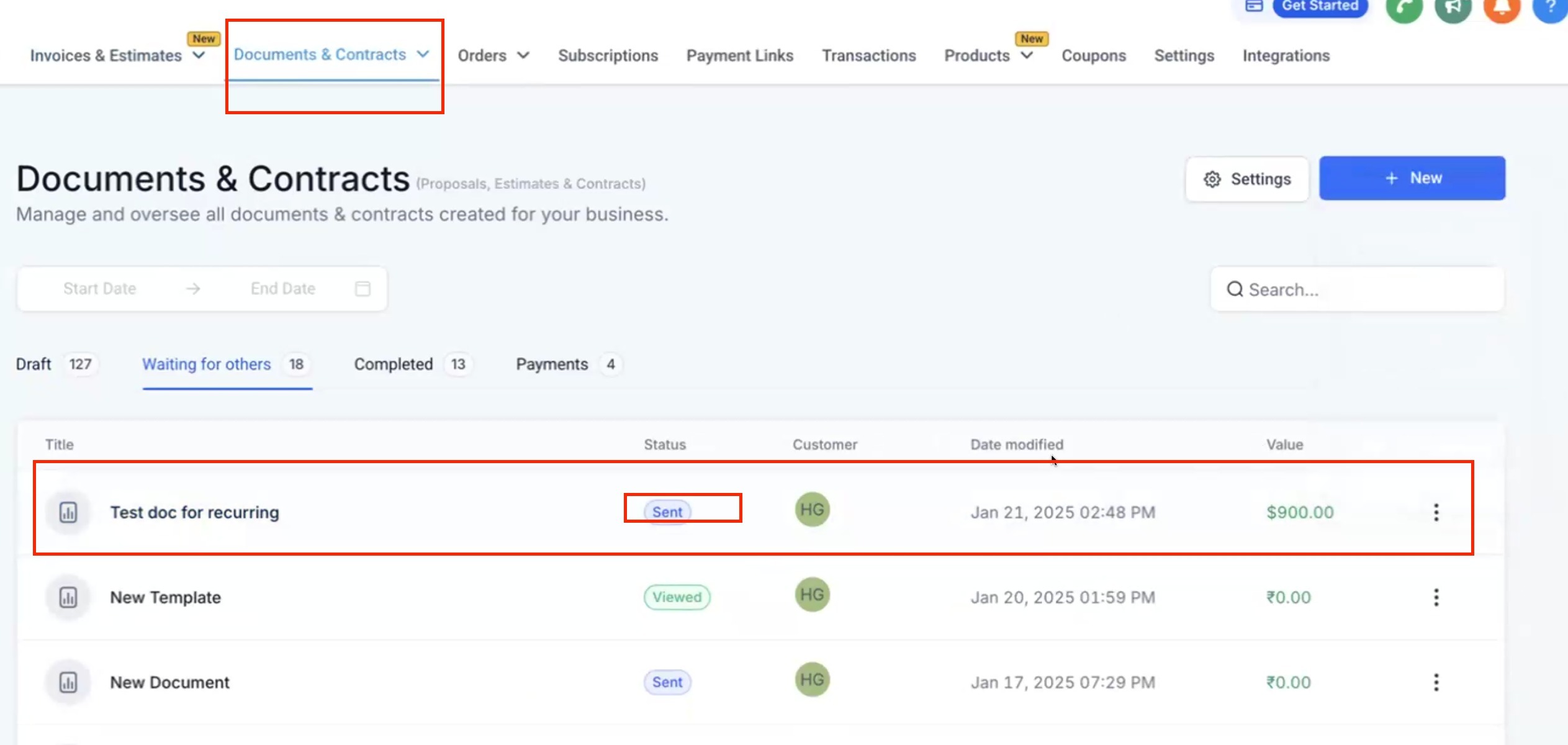
Open Workflows → add Action: Send Documents & Contracts → select your template. Once the workflow is triggered, the signer receives the document. Once Primary user signs the document -> they are redirected to the invoice if direct payments were enabled.
What happens at signing (same rules):
One‑time or Recurring (start = at signing) → redirect primary signer to pay.
Recurring (start = later) → no redirect; first invoice arrives per schedule.
Tracking
Payments › Documents & Contracts: Document + signing + payment status in one place.
Payments › Invoices: Each invoice record and payment status (including recurring schedule progress and auto‑payment results).
Tips & Edge Cases
- Weekly example: If the schedule is every Thursday and signing completes on Thursday, the first invoice is generated immediately → redirect applies. Otherwise, the first invoice is sent on the next Thursday.
Multiple recipients: Only the primary signer is redirected to pay.
If recurring and one-time products are optional, the generated invoice type depends on the products the recipient selects. Selecting only one-time products generates a one-time invoice.
Mixing items: One‑time items bill on the first invoice; recurring items follow the schedule.
Frequently Asked Questions
Q: Why didn’t my client get redirected after signing?
Either Direct Payment is OFF, or there wasn’t an invoice at signing (e.g., recurring starts later). Enable Direct Payment and, for recurring, set start = at signing.
Q: Where do I track progress?
In Documents & Contracts (document-level status) and Invoices (invoice/payment status, schedules, auto‑payment results).
Q: Can I mix one‑time and recurring items?
Yes. The product list tags show types. One‑time bills first; recurring continues as per the schedule.
Q: I had a payment schedule in my document, but the invoice was not generated
This usually happens when one of the payment schedule dates goes past the invoice due date. This often occurs if the first payment was set using a Custom date. To avoid this, set the first payment to “Upon primary signature” so the schedule aligns correctly and the invoice can be generated.
Q: Can I send invoices in “test mode” from a Documents & Contracts template?
Documents & Contracts templates don’t include a “Live Mode” toggle. To run test payments, use a payment flow that supports Test/Live mode (such as Payment Links or invoice sending options) or your gateway’s test configuration.