
Importing Contacts and Opportunities via CSV
Importing contacts and opportunities in bulk using a CSV file is an essential feature in Chat To Clients CRM that helps streamline data entry and organization. You can map fields, create or update records, and monitor the import process seamlessly, ensuring accurate data entry and time-saving for bulk actions. This guide provides a step-by-step walkthrough, from preparing your CSV file to monitoring the import process and fixing errors.
- Prerequisites for Importing Contacts and Opportunities
- Common Mistakes to Avoid
- Importing Contacts and Opportunities
- Monitor Import Status
- Frequently Asked Questions
- Related Articles
Prerequisites for Importing Contacts and Opportunities
Before starting the import process, make sure you meet the following requirements:
- User Permissions: Only users with Admin access can import contacts.
- File Format: The file must be in CSV (.csv) format.
- File Size Limit: The CSV file should be under 30MB. If it's larger, split it into smaller files.
- Single Sheet Requirement: Your CSV file must contain only one sheet/tab.
- CSV Requirement: The first row should NOT be blank! Include a header row in which at least one column header corresponds to a field in the system.
Common Mistakes to Avoid
❌ Mismatched headers: Ensure CSV headers match system fields.
❌ Blank required fields: Every row should have at least one required field (Name, Email, or Phone).
❌ Using special characters in phone numbers: Remove spaces, dashes, or letters.
❌ Duplicate records within CSV: Clean the list before importing.
Importing Contacts and Opportunities
There are two ways to access the Import Contacts and Opportunities feature in Chat To Clients CRM.
- From within the Contacts Tab
- Navigate to Contacts from the left-hand menu, click on the Smart Lists tab, and click the Import Contacts button.
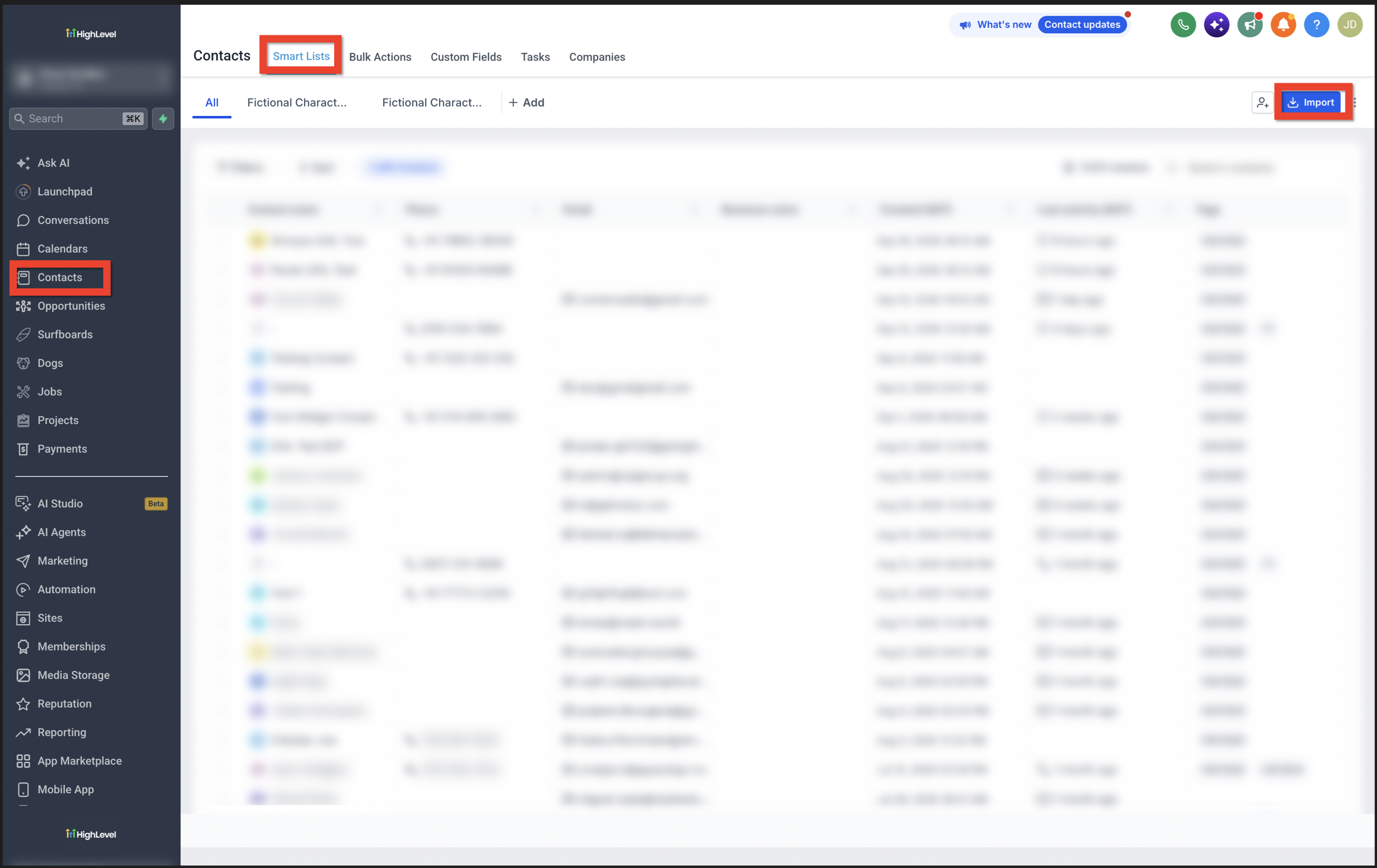
- Navigate to Contacts from the left-hand menu, click on the Smart Lists tab, and click the Import Contacts button.
- From within the Opportunities Tab
- Navigate to Opportunities from the left-hand menu, then Click the Import button in the top-right corner.
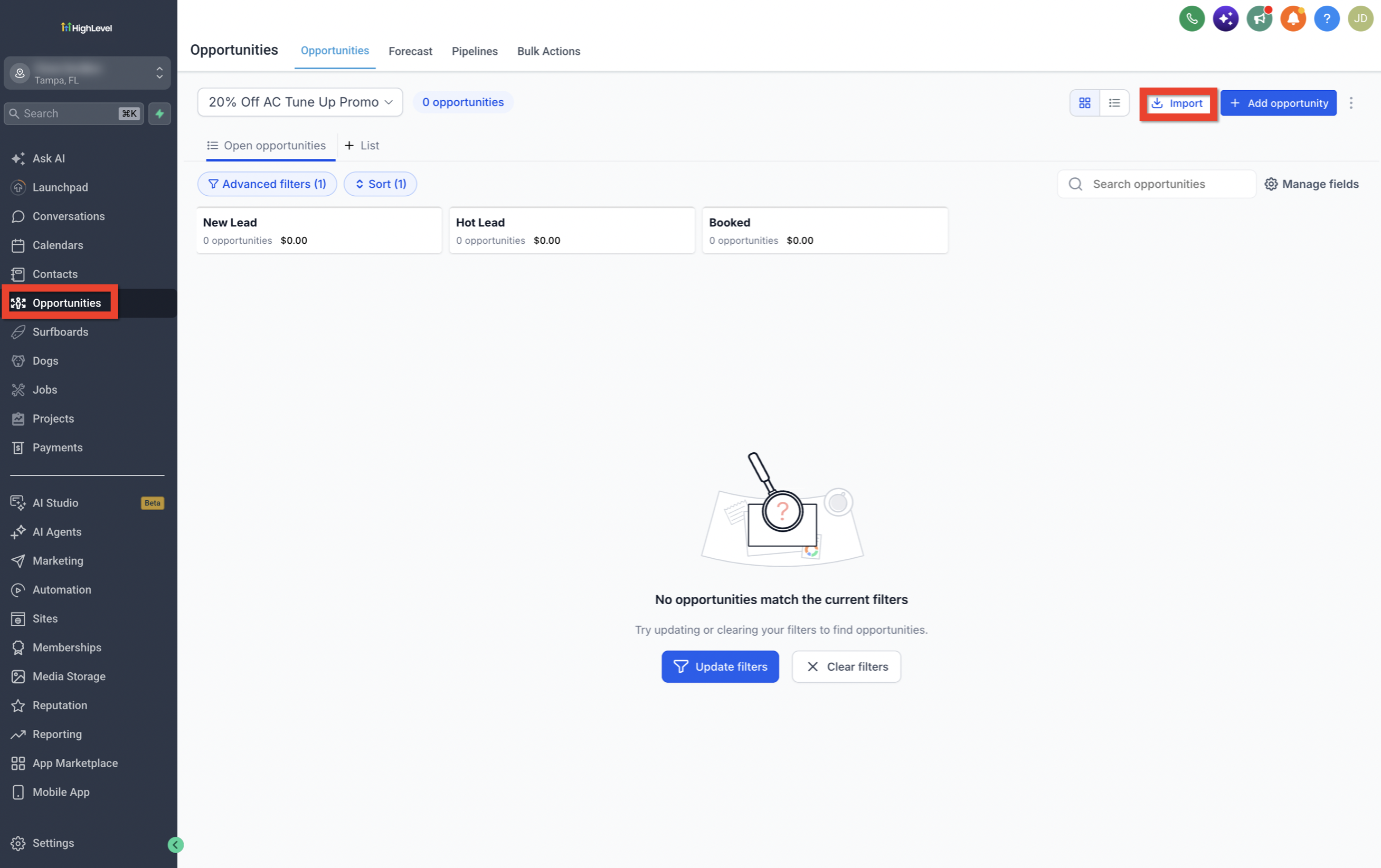
- Navigate to Opportunities from the left-hand menu, then Click the Import button in the top-right corner.
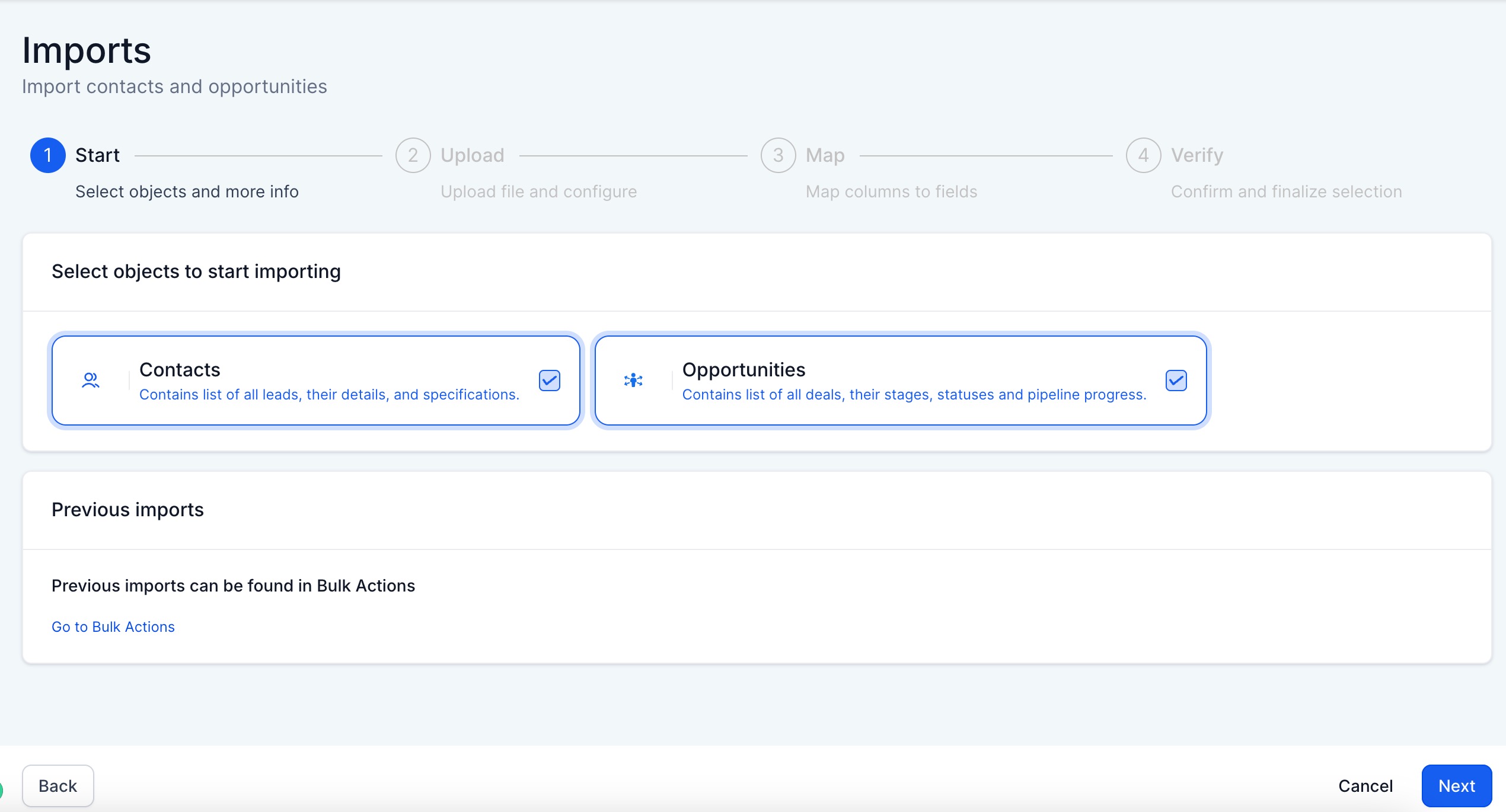
Both methods lead to the same import process, where you can choose to import:
1. Contacts
2. Opportunities
3. Both Contacts & Opportunities at the same time
Choose What To Import
Upload Your CSV File
Step 1: After selecting to import Contacts, Opportunities, or both, click Next, then click Upload File and choose your CSV file from your computer.
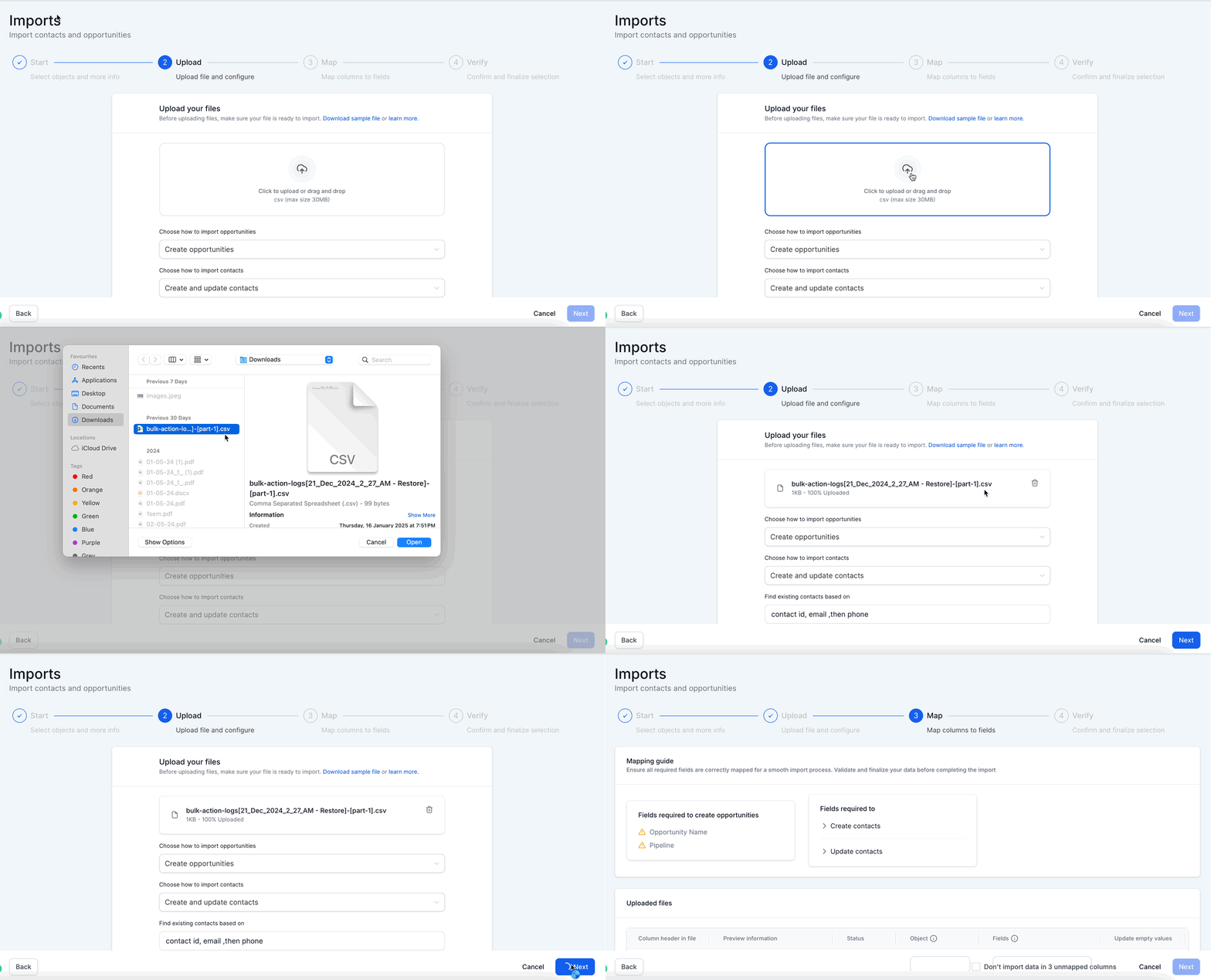
Step 2: Upload the file for importing and then click on "Choose how to import contacts/opportunities" to decide whether you want to create, update, or do both.
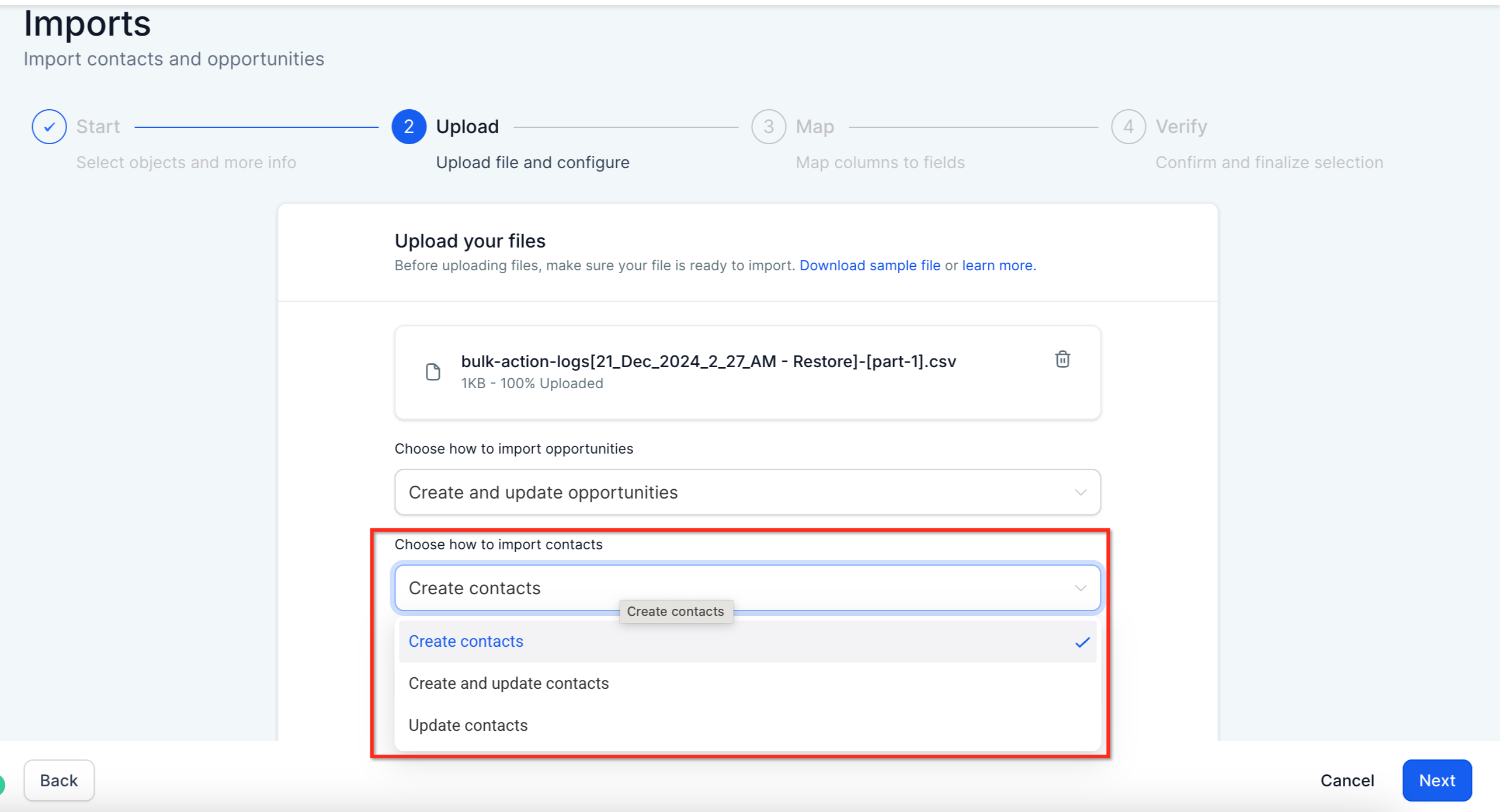
Please Note: Find existing contacts based on Filter by default is set to email ,then phone, which means, Contacts/Opportunities would be filtered by email first and if email not found then phone.Mapping Column to Fields
Ensure each column in your file is correctly mapped to the corresponding field in the system.
A few things to note:
- Checking the "Don't update Empty Values" checkbox will not update any field if the imported file has empty values and the field does have some value for the opportunity.
- If you decide to not import a certain field, you can choose to keep it unmapped and check the box on the bottom to proceed. -"Please ensure all mandatory fields are mapped. To proceed, either map all fields or choose Don't import data for unmapped columns"
- This feature also allows the creation of contacts with multiple email addresses and phone numbers. These additional details will be added automatically during the import process.
- If Contacts and Opportunities are on the same line in the CSV, they will be automatically mapped to each other.
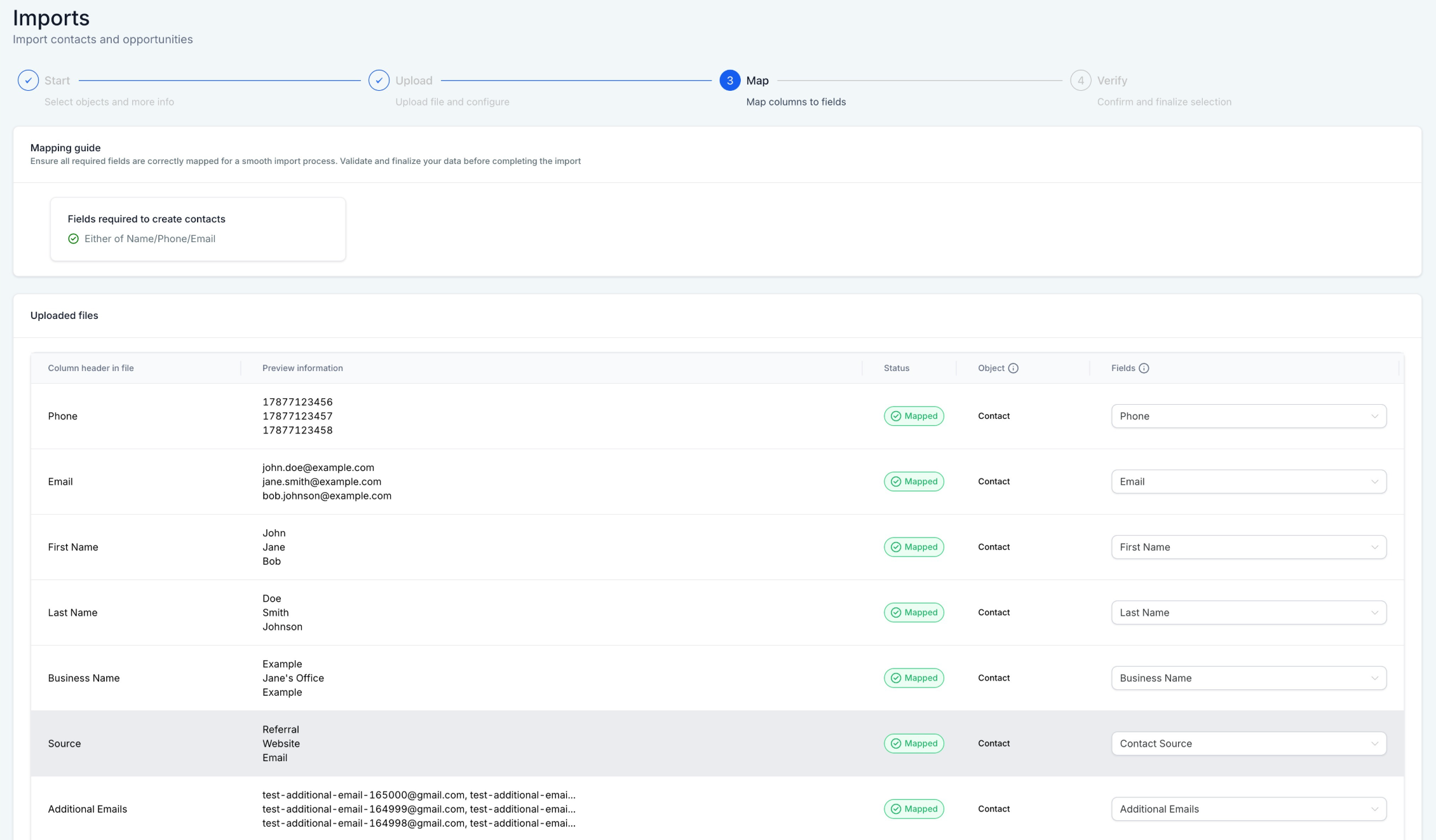
Reviewing and Completing the Import
Review your mappings, then confirm and proceed with the import, you can also choose to Create a Smart list, add contacts to a Workflow, or add a new Tag to the imported contacts.
Create a Smartlist from Imports
Adding contacts to workflows
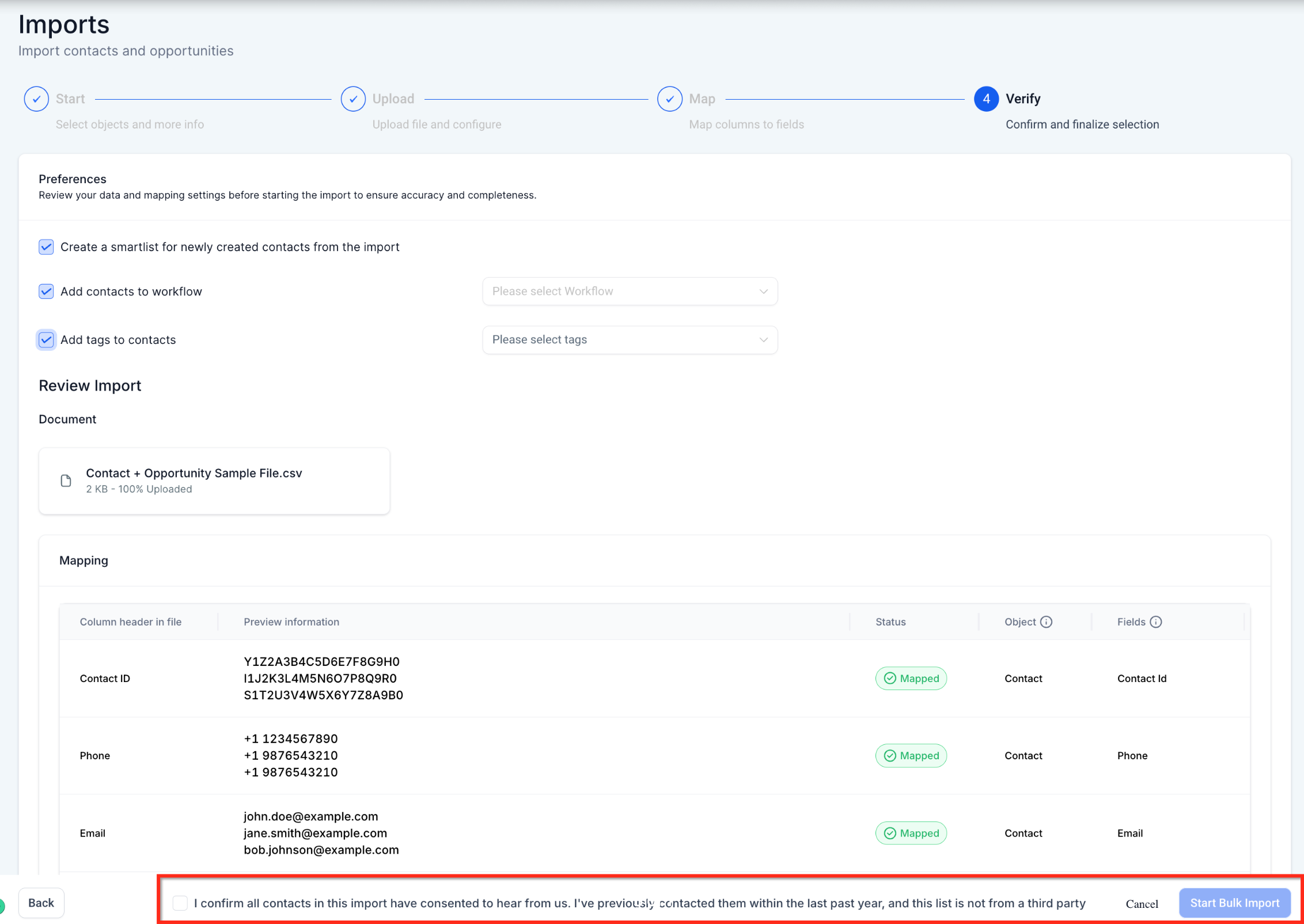
It is mandatory to select the checkbox confirming all the contacts/opportunities for import.Monitor Import Status
- You can monitor the progress and status of the import via the Contacts and Opportunities Bulk Actions Pages.
- Both contacts and opportunities imports will appear in the same place under Bulk Actions.
- Click on the "Show Stats" button to view the Stats of the import - you can also download the error log and view further details about the error and how to fix them in the "Error" tab
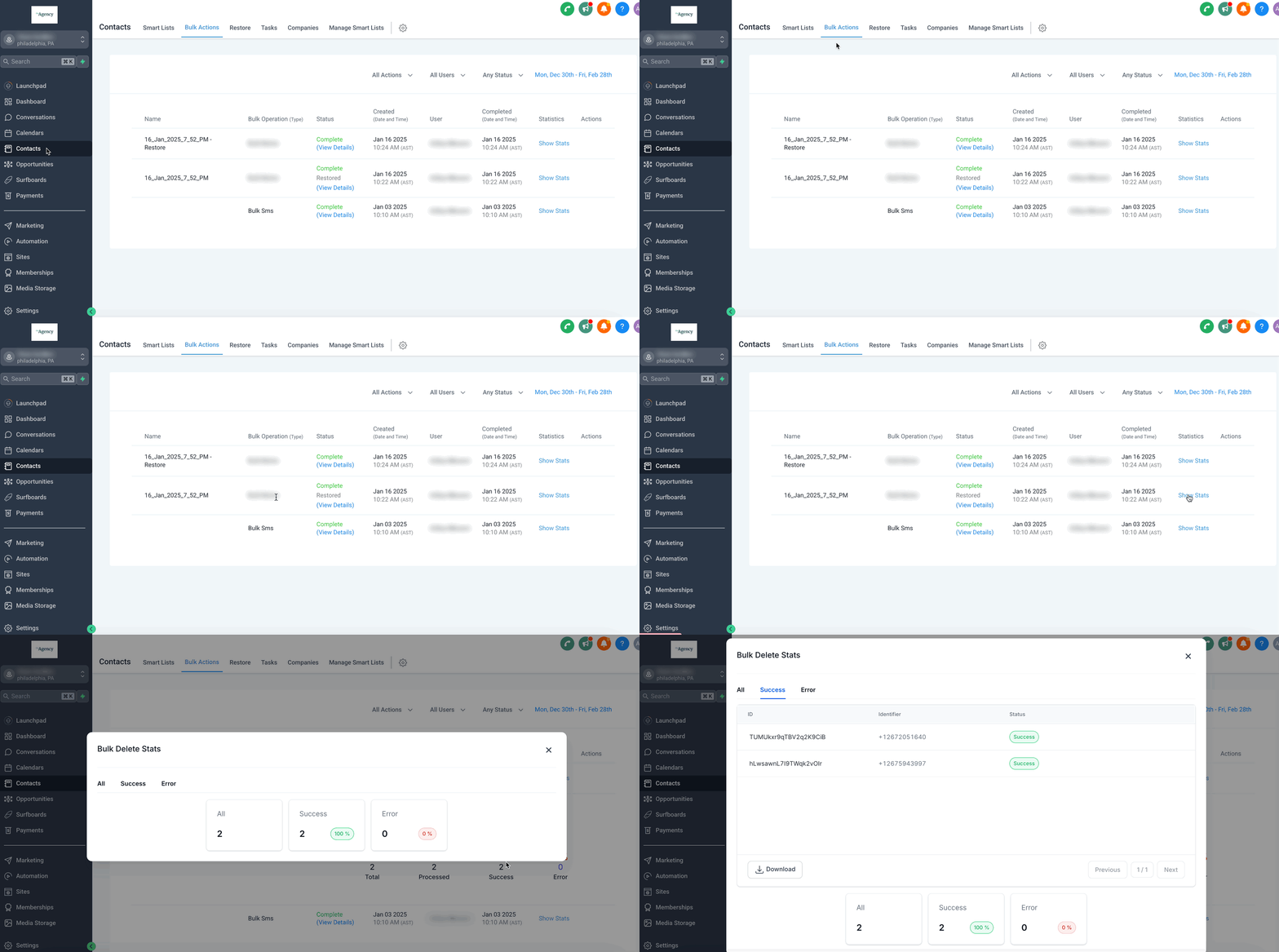
The phone field from the CSV export in Keap is incompatible with Chat To Clients CRM. The parenthesis '()' and dashes '-' make it incompatible. We have to highlight the entire column in the CSV file and ensure it is numbered in, remove any parenthesis and dashes, and then we can import without corrupting the data in the CRM.Common CSV Import Errors and Failure Scenarios
| Error/Scenario | What It Means | Next Step |
|---|---|---|
| ? Duplicate contact or identifier | The same email, phone, Contact ID, or unique value appears more than once. | Remove or combine duplicates, then re-import. |
| ? Invalid email or phone | Chat To Clients CRM cannot validate the value. | Correct the format and retry the affected rows. |
| ? Missing identifying information | Chat To Clients CRM cannot create or match the contact. | Add a valid name, email, phone, or Contact ID. |
| ? Invalid field value | A date, dropdown, checkbox, or custom field value is not accepted. | Match the value to the correct Chat To Clients CRM format or option. |
| ? Owner not found | The assigned owner cannot be matched to a Chat To Clients CRM user. | Use the correct user name or email address. |
| ? Contact not found or update failed | Chat To Clients CRM cannot locate or update the referenced contact. | Verify the Contact ID, email, or phone, then retry. |
| ? Partial or bulk action failure | Some rows imported successfully while others failed. | Correct and re-import only the failed rows. |
| ? Processing error | Chat To Clients CRM could not complete the import because of a file or processing issue. | Review the CSV formatting and retry. |
Frequently Asked Questions
Q. What happens if my CSV file is over 50MB?
Split the file into smaller sections (under 50MB) and import them separately.
Q. Can I import contacts with multiple emails or phone numbers?
Yes! Additional emails and phone numbers are stored as secondary fields instead of replacing primary data.
Q. How does Chat To Clients CRM handle duplicate contacts?
- Chat To Clients CRM automatically merges contacts based on phone number or email.
- If a match is found, the system updates existing records instead of creating duplicates.
Q. Can I update existing contacts via CSV import?
Yes! Choose Update Only or Create & Update during import.
Q. What should I do if my import fails?
- Check error messages in the Import Status Page.
- Download the error log, fix the issue, and re-import the corrected CSV
Q: Why are all my imported contacts set to DND for ALL channels? How can I apply DND for specific channels only?
When importing contacts with a DND (Do Not Disturb) column in your CSV, Chat To Clients CRM automatically applies DND for all communication channels (SMS, Email, Calls, Voicemail, etc.).
If you want to set DND for specific channels only, you need to use a workflow and tags instead of the DND column.
Q. I'm trying to import a CSV with Notes, and I cannot generate more than one note per contact record.
When importing contact notes, you may only have one note per contact record with a limit of 5000 characters.