
How to Use the Affiliate Portal: A Comprehensive Guide for Affiliates
The Affiliate Portal (also referred to as the Client Portal) is a dedicated platform designed to help affiliates easily track and manage their performance, commissions, payouts, and customer interactions. This user-friendly and secure interface fosters better communication and streamlined operations between your business and its affiliates.
TABLE OF CONTENTS
- What is the Affiliate Portal?
- How to Get Started with the Affiliate Portal
- What Can Affiliates See in the Portal?
- Configuring Affiliate Portal
- What You Can Configure
- How to Enable or Disable a Setting
- Best Practices
- Related Articles
What is the Affiliate Portal?
The Affiliate Portal is a centralized platform where affiliates can manage various aspects of their affiliate marketing efforts. It provides access to performance statistics, commission information, customer data, and more. By logging into the portal, affiliates can track their leads, payments, and campaign success, all while easily accessing their referral links and important affiliate program details.
Key Benefits of the Affiliate Portal
The Affiliate Portal gives affiliates a central place to access the information and resources available for their assigned campaigns.
- Campaign Visibility: Review assigned campaigns and available campaign-level commission information.
- Referral Link Access: Copy referral links directly from campaign cards.
- Referral Tracking: Review attributed leads, customers, and supported referral activity.
- Commission Visibility: Review commissions, payout information, and applicable payout terms.
- Sub-Affiliate Access: Review or recruit sub-affiliates when the campaign supports multi-tier enrollment.
- Campaign Resources: Access media that account admins make available for eligible campaigns.
How To Set Up and Access the Affiliate Portal
Step 1: Add the Affiliate to a Campaign
An account admin adds the affiliate to the appropriate campaign in Affiliate Manager.
Affiliate onboarding can also be automated with the Affiliate Enrolled In Campaign workflow trigger. That workflow can provide affiliate-related campaign and portal information during onboarding.
You can also automate welcome emails or SMS messages with details on how affiliates can get started. Click here to learn more.
Step 2: Access the Affiliate Portal
Affiliates use the Client Portal access information, invitation, login email, or supported login link provided during onboarding.
Once inside the affiliate area, affiliates can review their available campaigns and portal features.
Do not assume every affiliate receives a traditional username and password in the original invitation. Chat To Clients CRM also supports Client Portal login and Magic Link workflows.
What Can Affiliates See in the Portal?
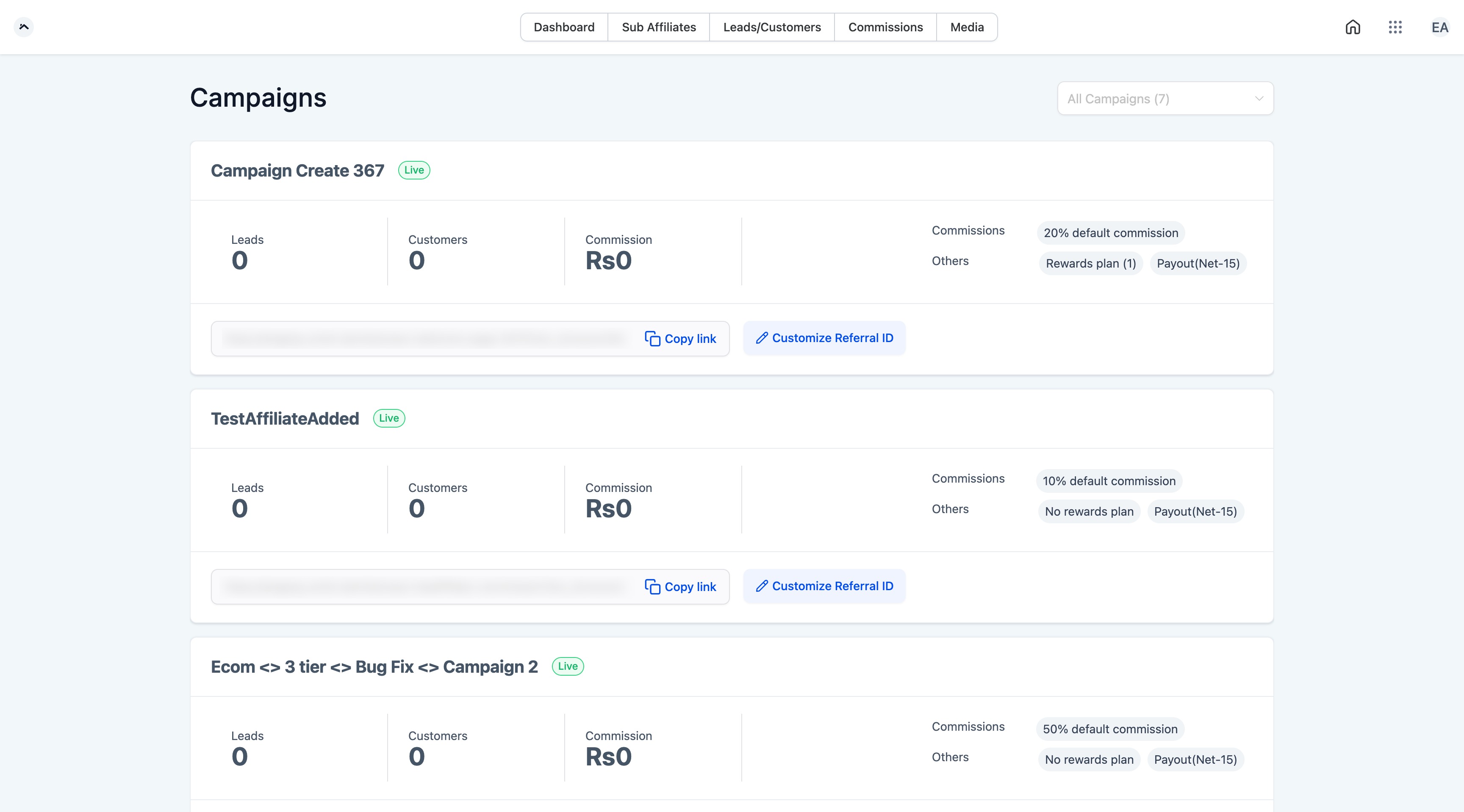
Dashboard Screen
Affiliates can view all the campaigns they are part of and see key metrics such as leads, customers, clicks, and commissions. They also have quick access to their referral links.
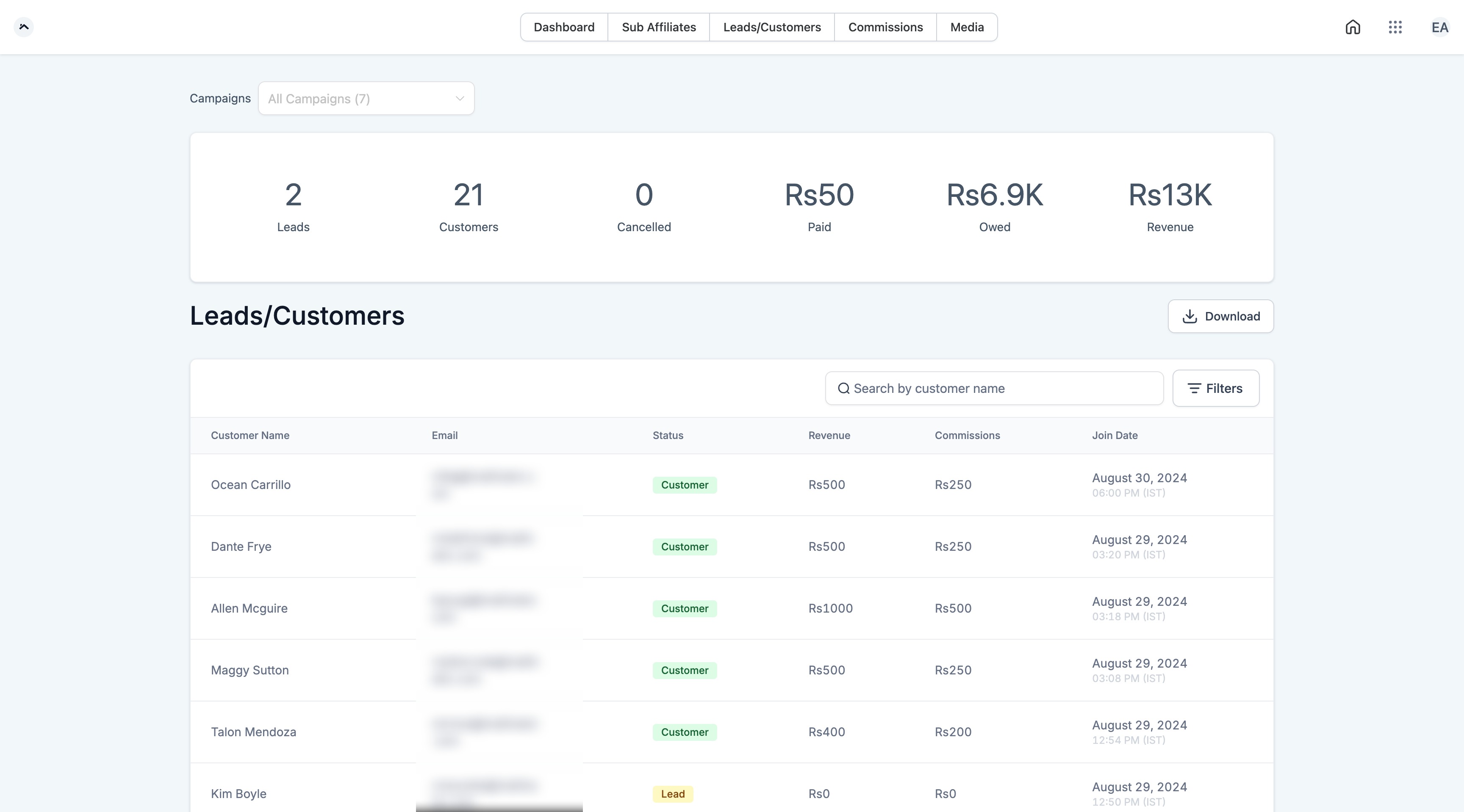
Leads/Customers Screen
This screen provides detailed insights into the leads and customers who signed up or purchased a product through the affiliate’s referral links, allowing them to track the effectiveness of their promotional efforts.
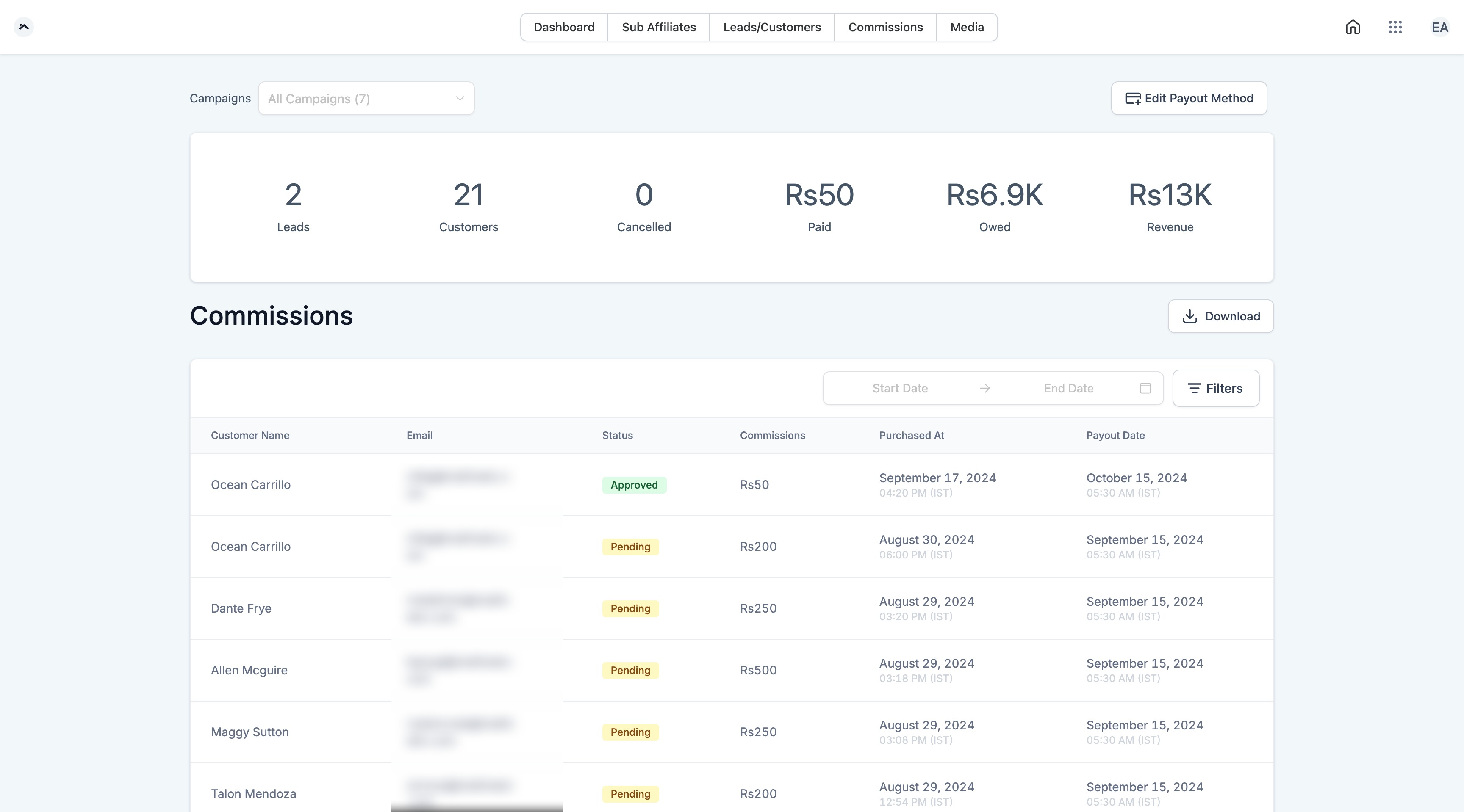
Commission Screen
Affiliates can view the commissions they’ve earned, the total revenue generated, and the status of their payouts.
Affiliates can also view the applicable Payout Term, which shows when commissions are scheduled to become due based on the payout settings configured for the campaign.
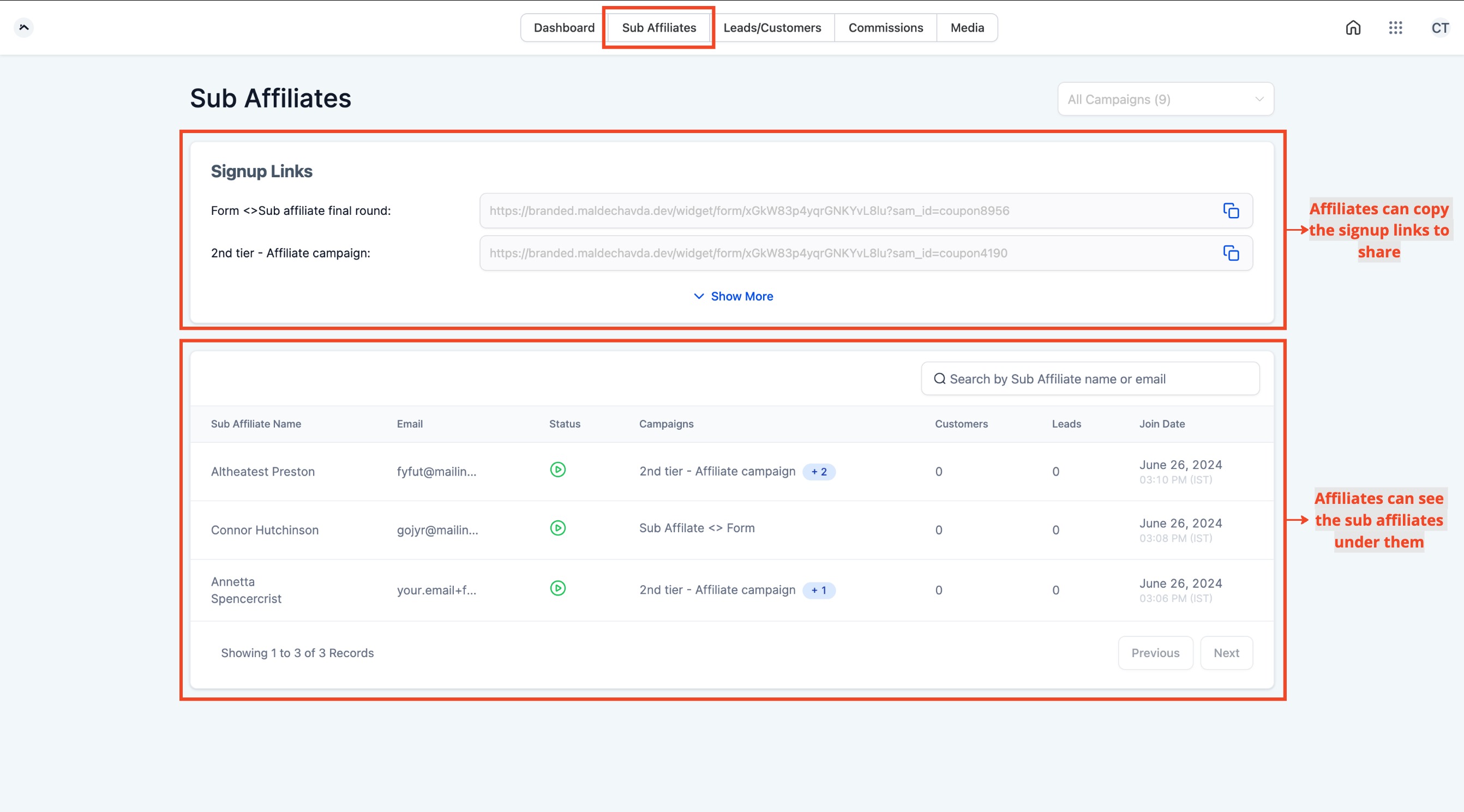
Sub-Affiliate Page
If the affiliate program includes sub-affiliates, the affiliate can see their sub-affiliates listed here. If sub-affiliate sign-up is enabled, affiliates will also see a form URL they can share to onboard others as sub-affiliates.
Media
The Media area gives affiliates access to campaign resources made available by the account admin.
Media can be assigned to specific affiliate campaigns or made available across campaigns. Affiliates can use supported copy or download actions for the assets available to them.
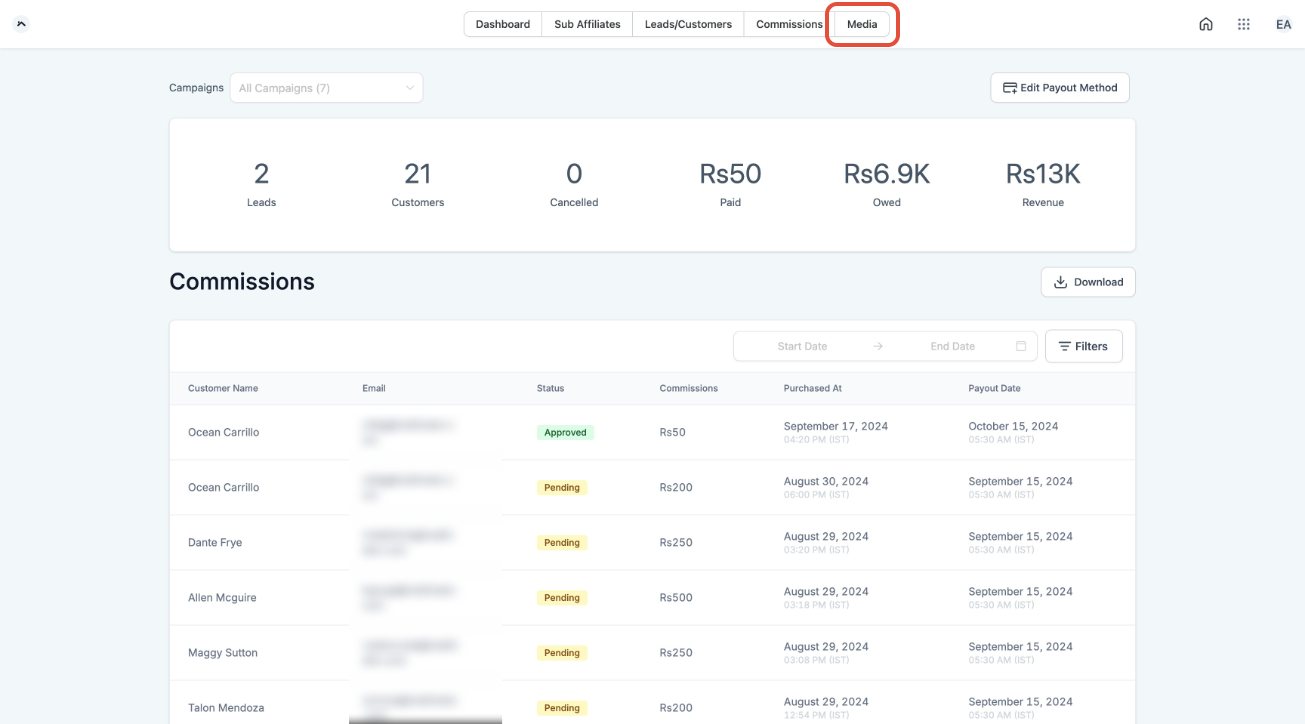
By utilizing the Affiliate Portal, affiliates can effectively monitor their progress, strategize future campaigns, and maintain clear communication with your business. This streamlined experience allows for better engagement and performance across your affiliate network.
Configuring Affiliate Portal
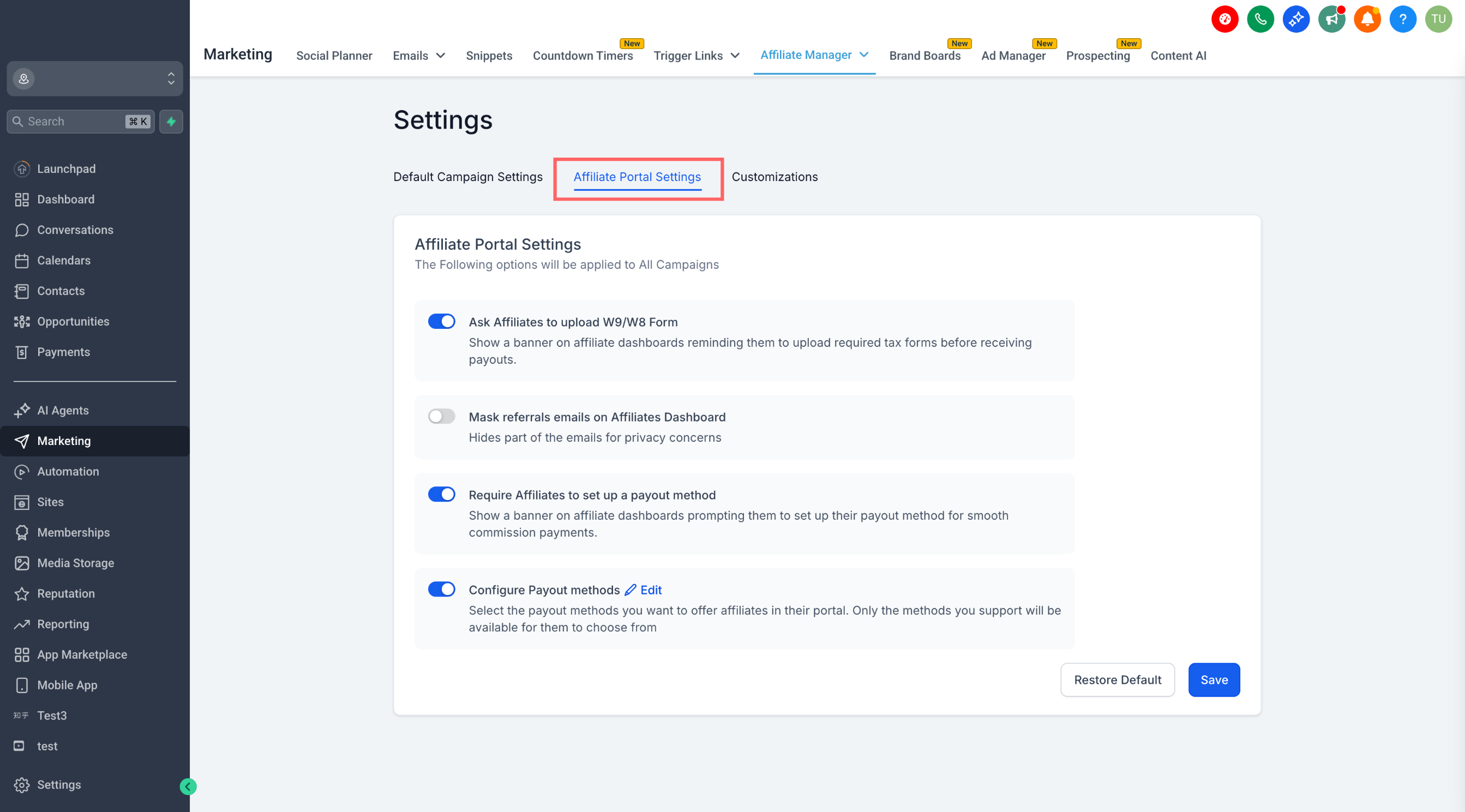
The Affiliate Portal Settings section allows you to control what affiliates see and do inside their dashboard — including uploading tax forms, setting up payout methods, and more. This guide will walk you through how to configure these settings.
Where to Find Affiliate Portal Settings
Navigate to Affiliate Manager from the left-hand menu of your sub-account.
Click on the Settings tab at the top.
Switch to the Affiliate Portal Settings tab.
What You Can Configure
Here are the settings you can toggle ON/OFF based on your needs:
1. Ask Affiliates to Upload W9/W8 Forms
- What it does: Displays a banner on the affiliate dashboard prompting them to upload the required tax form (W9 or W8).
- Why it's important: Ensures tax compliance and prevents payout delays.
2. Require Affiliates to Set Up a Payout Method
- What it does:Shows a banner on the affiliate dashboard nudging them to set up a valid payout method (e.g., PayPal or Banks).
- Why it's important: Reduces manual follow-ups and enables timely payouts.
3. Mask Referral Emails on Affiliate Dashboard
- What it does: Hides a portion of the referral emails (e.g., john****@gmail.com) visible to affiliates.
- Why it's important: Protects customer and lead privacy.
4. Configure Payout Methods
- What it does: Lets you choose which payout methods are available for affiliates to select (only those enabled will be shown in the portal).
- Why it's important: Gives you control over how commissions are paid out.
Important: Always enable at least one payout method to avoid affiliate confusion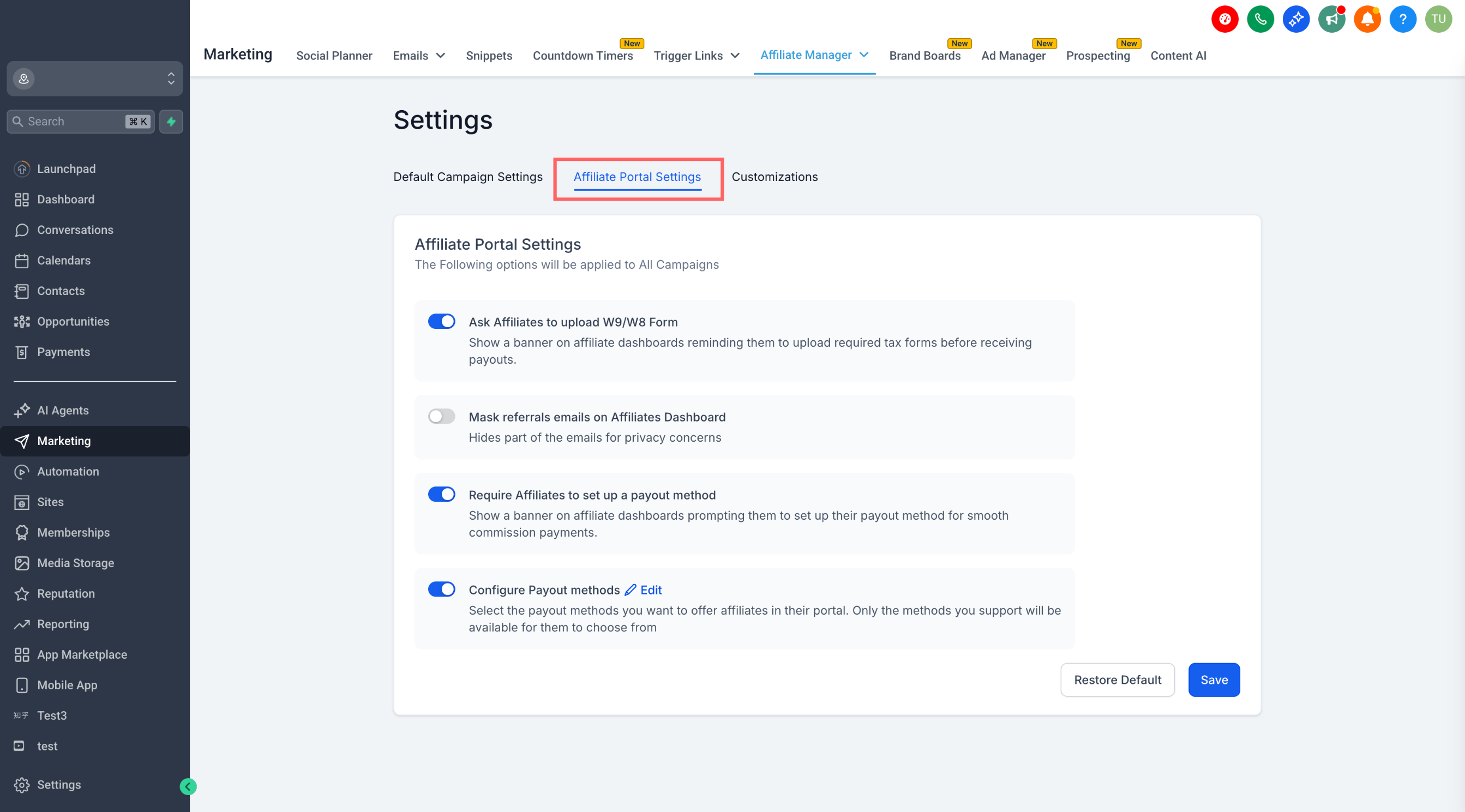
How to Enable or Disable a Setting
In the Affiliate Portal Settings tab, locate the toggle you want to change.
Click the toggle to enable (green) or disable (gray) it.
Once you’ve adjusted your settings, scroll to the bottom and click Save.
Best Practices
Always enable at least one payout method to avoid affiliate confusion.
Use masking if your campaigns are sensitive or you want to limit affiliate access to lead details.
Frequently Asked Questions
Q: Are the Affiliate Portal and Client Portal the same thing?
The affiliate experience appears within Chat To Clients CRM’s Client Portal and is also referred to as the Affiliate Portal.
Q: Where can affiliates find their referral links?
Affiliates can access campaign referral links from their Affiliate Portal Dashboard and use Copy link to copy an available URL.
Q: Can affiliates review the leads and customers attributed to them?
Yes. The Leads/Customers area displays attributed records and available revenue and commission information.
Q: Can account admins hide referral email addresses from affiliates?
Yes. Enable Mask referrals emails on Affiliates Dashboard in Affiliate Portal Settings to hide part of displayed referral email addresses.
Q: Where can affiliates review commissions and payout information?
Affiliates can use the Commissions area to review available commission records, payout dates, statuses, and their applicable Payout Term.
Q: Can affiliates update their payout method?
The current Commissions page provides an Edit Payout Method action. Available options depend on the payout methods enabled by the account admin.
Q: When can an affiliate see Sub Affiliates?
Sub-affiliate functionality requires an eligible multi-tier affiliate campaign. Available signup links depend on how the campaign is configured.
Q: What is the Media tab used for?
The Media tab provides access to media assets that account admins make available to the affiliate’s eligible campaigns.