
How to Add Affiliates in the Affiliate Manager
Affiliate Manager gives you several ways to add people to your affiliate program. You can add an affiliate manually, upload affiliates from a CSV file, import existing CRM contacts, or use workflow actions. Direct add and import options are available from the Affiliate page in Affiliate Manager. This guide explains each method, its current requirements, and where workflow automation fits.
TABLE OF CONTENTS
- What is Adding Affiliates in Affiliate Manager?
- Key Benefits of Adding Affiliates
- How To Add Affiliates in Affiliate Manager
- Frequently Asked Questions
What is Adding Affiliates in Affiliate Manager?
Affiliates are individuals or businesses that promote your products or services and earn commissions based on the sales or leads they generate. Using unique affiliate links, they track their promotions and are commonly referred to as "affiliate marketers" or "publishers." Adding an affiliate creates or enrolls a person in Affiliate Manager so they can participate in your configured affiliate program.
Chat To Clients CRM provides three direct options from the Affiliate page:
- New Affiliate
- Upload Affiliate
- Import from Contacts
You can also use workflow actions to automate affiliate creation, campaign enrollment, status updates, and campaign removal.
Key Benefits of Adding Affiliates
Choose the onboarding method that matches how the affiliate information already exists in Chat To Clients CRM.
- Flexible Onboarding: Add one affiliate manually or onboard multiple affiliates together.
- Use Existing Contacts: Start with CRM contacts when the people already exist in Chat To Clients CRM.
- Bulk Import: Upload multiple affiliate records from a CSV file.
- Campaign Assignment: Assign affiliates to the appropriate affiliate campaign.
- Workflow Automation: Add or update affiliates automatically when workflow conditions are met.
How To Add Affiliates in Affiliate Manager
Start from the Affiliate page, then choose the method that matches how you want to add the affiliate.
Open the Affiliate Page
Use the current Sub-Account navigation to access the affiliate list.
- From the Chat To Clients CRM Sub-Account view, select Marketing.
- Select Affiliate Manager.
- Open Affiliate.
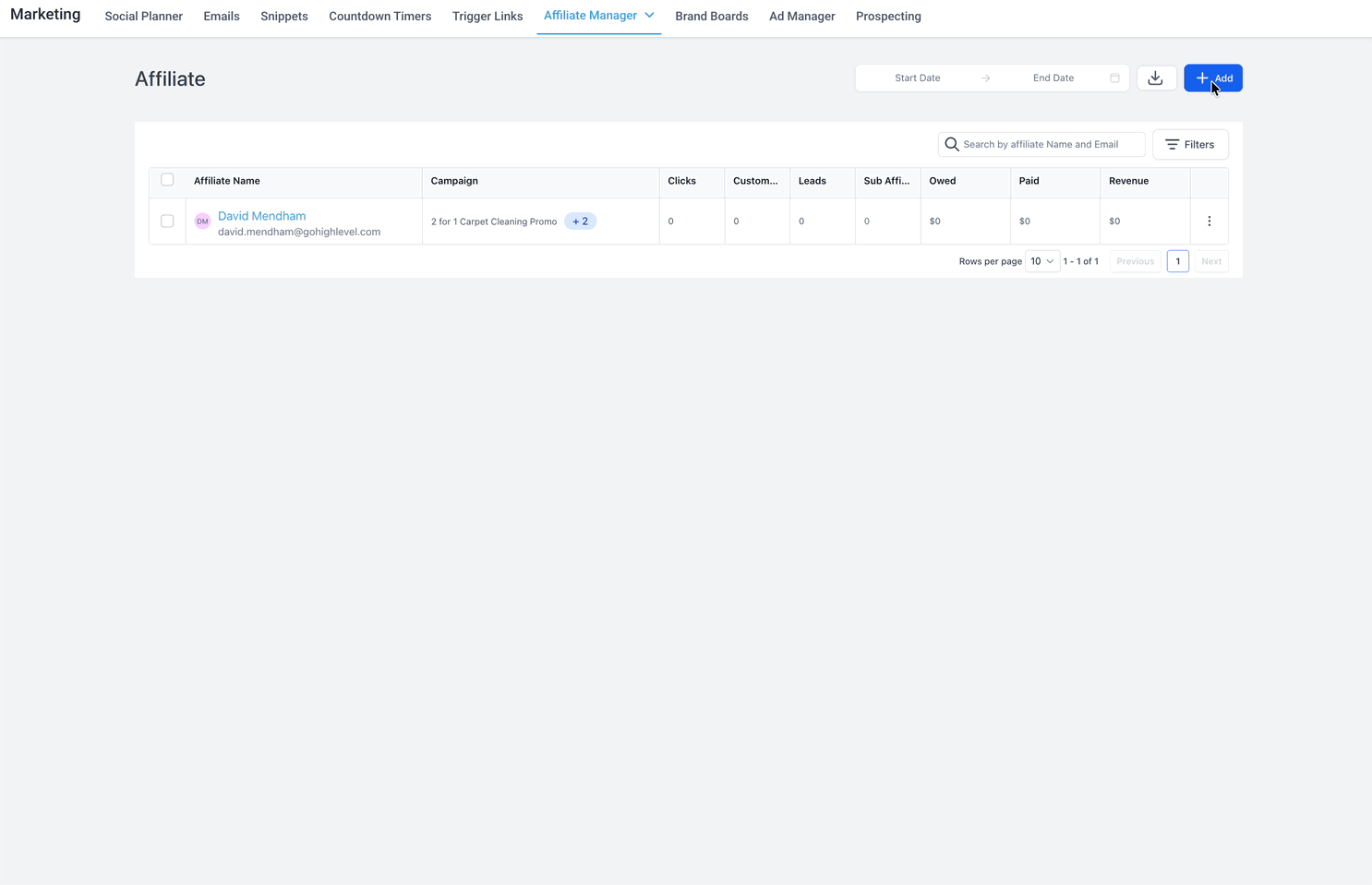
- Click + Add.
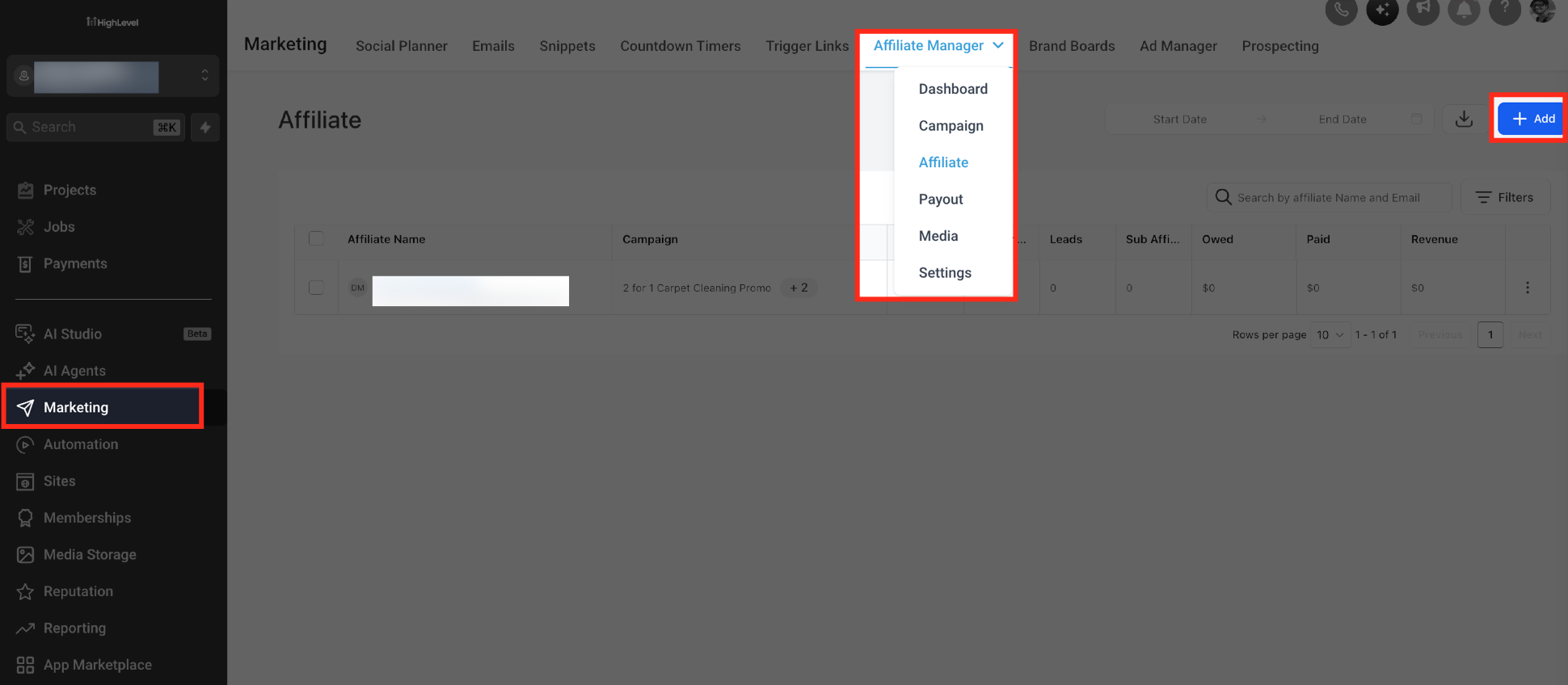
The + Add menu provides three direct options:
- New Affiliate
- Upload Affiliate
- Import from Contacts
Add a New Affiliate Manually
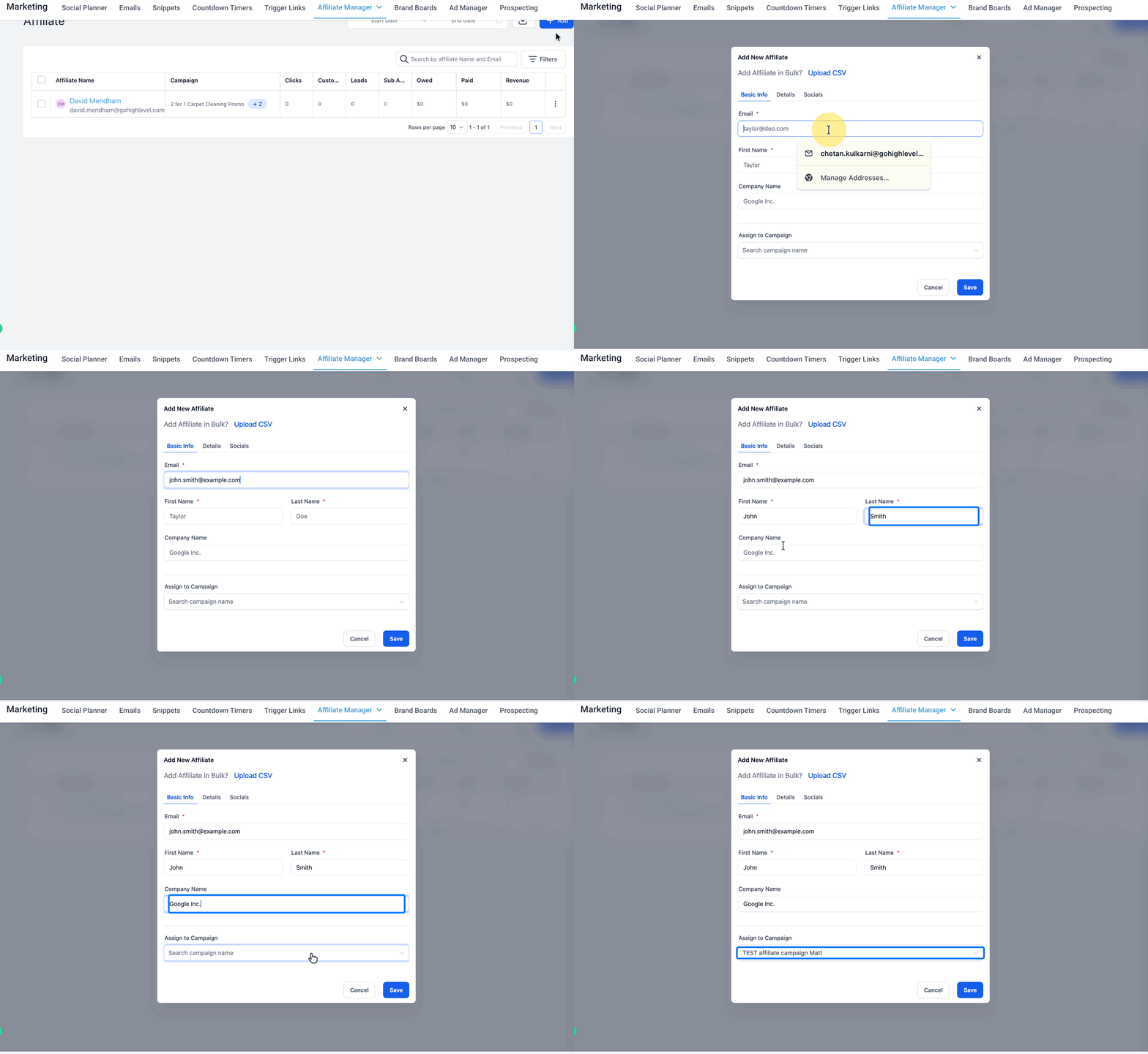
Use New Affiliate when you want to add one affiliate directly from Affiliate Manager.
- From the Chat To Clients CRM Sub-Account view, select Marketing.
- Select Affiliate Manager.
- Open Affiliate.
- Click + Add.
- Select New Affiliate.
- Enter the affiliate's Email.
- Enter the affiliate's First Name.
- Enter the affiliate's Last Name.
- Enter a Company Name when applicable.
- Use Assign to Campaign to select the affiliate campaign.
The current modal also provides:
- Save & Continue to Add More Details
- Save
- Done
- an Upload CSV shortcut.
Upload Affiliates in Bulk
Use Upload Affiliate when you want to add multiple affiliates from a CSV file.
- From the Chat To Clients CRM Sub-Account view, select Marketing.
- Select Affiliate Manager.
- Open Affiliate.
- Click + Add.
- Select Upload Affiliate.
- Select Sample File if you need the current import template.
- Prepare a
.csvfile containing the affiliates you want to import. - Include First Name, Last Name, and Email for each affiliate.
- Keep the file within the current 50 MB upload limit.
- Upload the CSV or drag and drop it into the upload area.
- Click Next.
The wizard then continues through:
Upload → Map → Details
Map the CSV Fields
The Map stage is used after the CSV has been uploaded.
Complete the Import Details
The Details stage completes the remaining configuration for the bulk import.
The Upload screen also provides Add Affiliate Manually if you want to leave the CSV process and use manual entry instead.
Import Affiliates from Contacts
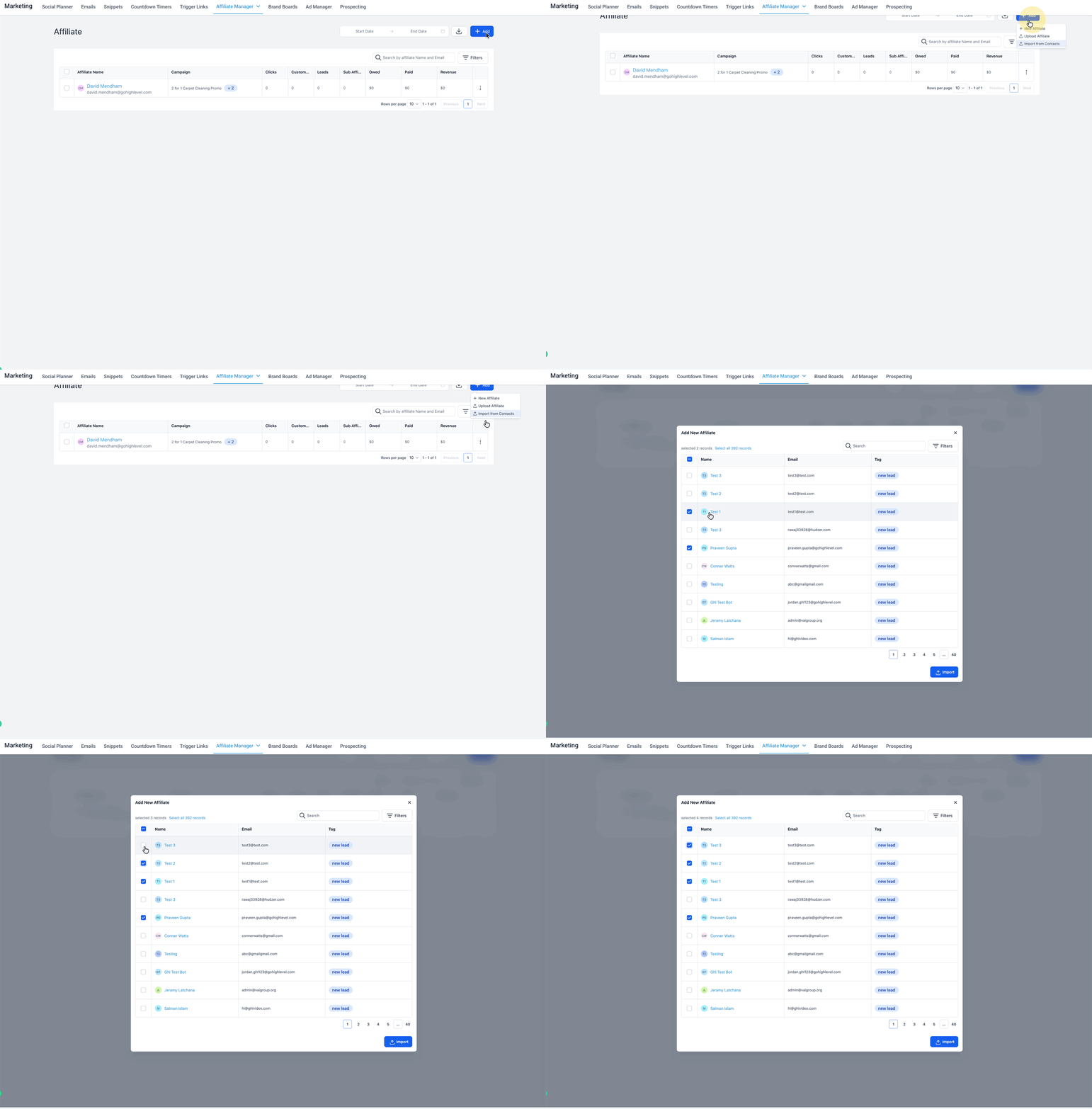
Use Import from Contacts when the people already exist as CRM contacts in the Sub-Account.
- From the Chat To Clients CRM Sub-Account view, select Marketing.
- Select Affiliate Manager.
- Open Affiliate.
- Click + Add.
- Select Import from Contacts.
Important: This workflow is different from importing a CRM contact as a lead under an existing affiliate. This section covers adding contacts through Affiliate → + Add → Import from Contacts.
Automate Affiliate Management With Workflows
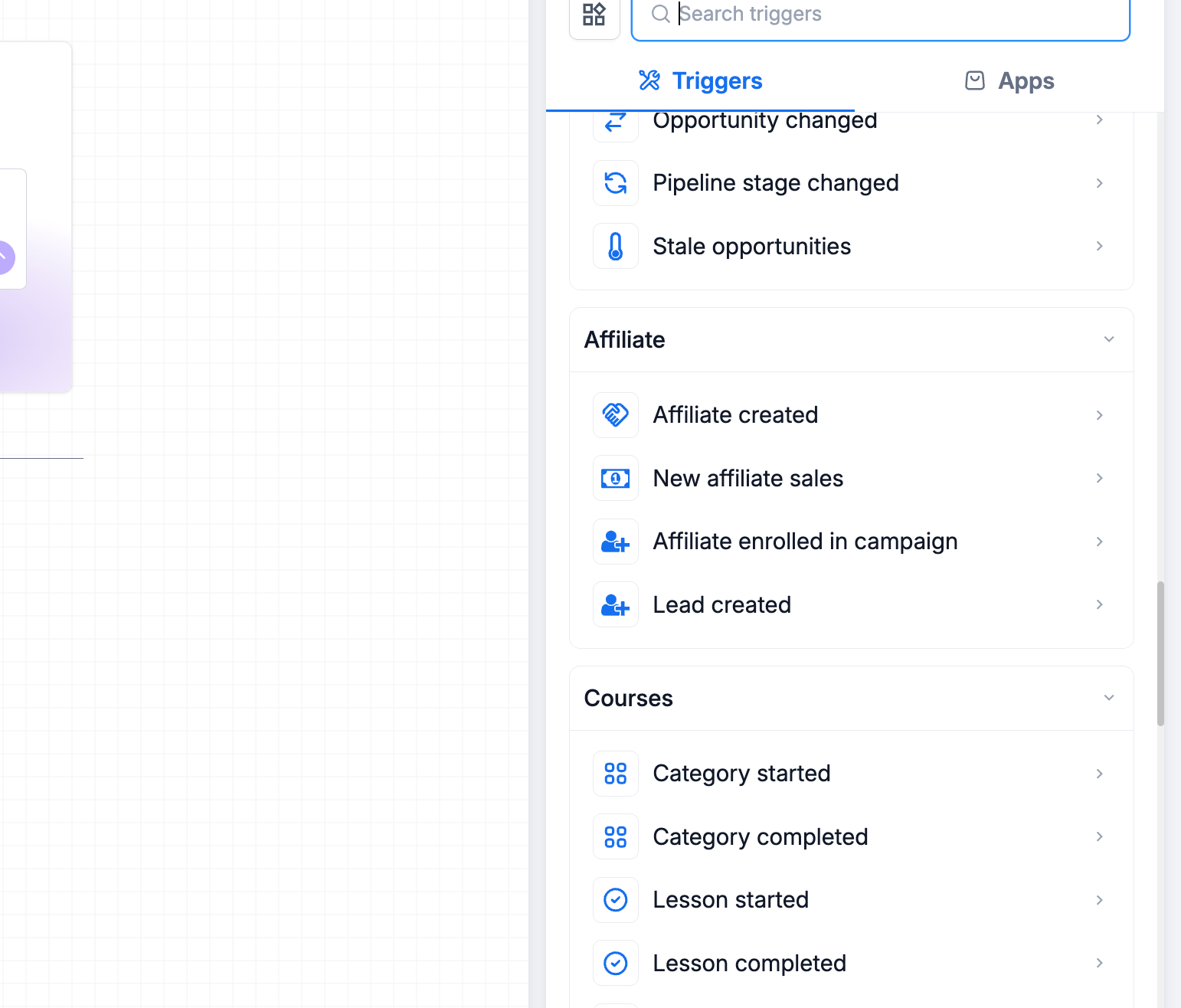
Chat To Clients CRM workflows include Affiliate-specific triggers and actions that can automate affiliate enrollment, campaign assignment, lead attribution, sales activity, and affiliate status changes.
Affiliate Workflow Triggers
- Affiliate created: Starts a workflow when a new affiliate is created.
- New affiliate sales: Starts a workflow when a new affiliate sale is recorded.
- Affiliate enrolled in campaign: Starts a workflow when an affiliate is enrolled in an affiliate campaign.
- Lead created: Starts a workflow when a new affiliate lead is created.
Affiliate Workflow Actions
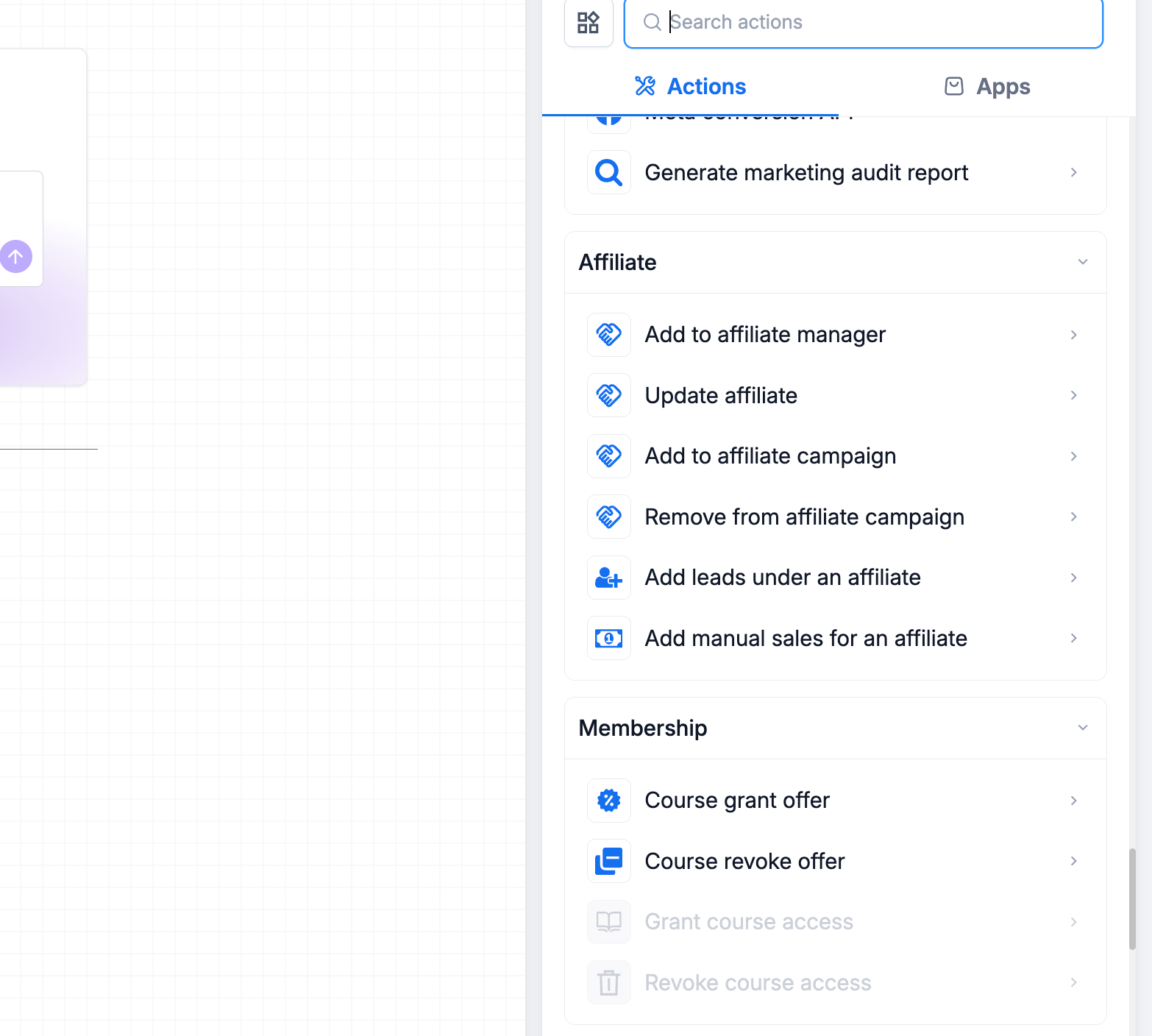
The current workflow builder shows these Affiliate actions:
- Add to affiliate manager: Adds the workflow contact to Affiliate Manager as an affiliate.
- Update affiliate: Updates an existing affiliate’s status or supported affiliate information.
- Add to affiliate campaign: Enrolls the workflow contact in the selected affiliate campaign.
- Remove from affiliate campaign: Removes an affiliate from the selected affiliate campaign.
- Add leads under an affiliate: Associates leads with the selected affiliate.
- Add manual sales for an affiliate: Records a manual sale for the selected affiliate.
Frequently Asked Questions
Q: What are the ways to add affiliates in Chat To Clients CRM?
You can add one affiliate manually, upload affiliates from CSV, import existing contacts, or use Affiliate Manager workflow actions.
Q: What information is required when I add one affiliate manually?
The current Add New Affiliate form marks Email, First Name, Last Name, and Assign to Campaign as required.
Q: What fields are required for a CSV affiliate upload?
The current upload screen requires First Name, Last Name, and Email for each affiliate.
Q: What is the maximum affiliate CSV file size?
The current upload screen supports .csv files up to 50 MB.
Q: Does Add To Affiliate Manager make the contact active?
Yes. The current workflow action adds the contact to Affiliate Manager with Active status.
Q: Do I need to use Add To Affiliate Manager before Add To Affiliate Campaign?
Not necessarily. Add To Affiliate Campaign can convert the workflow contact to an active affiliate and enroll the contact directly in the selected campaign.
Related Articles
- Getting Started with Affiliate Automations
- Workflow Action - Add To Affiliate Manager
- Workflow Action - Add To Affiliate Campaign
- How to Add Sub-Affiliates in the Affiliate Manager
- How to Navigate the Affiliate Profile Page for Efficient Management
- How to Use the Affiliate Portal: A Comprehensive Guide for Affiliates