
How to Set Up Pay-Per-Lead Commissions for Affiliates
Pay-Per-Lead (PPL) commissions in Chat To Clients CRM allow you to reward affiliates for generating leads through forms, surveys, and calendar bookings. Instead of paying commissions only when a sale occurs, you can set a fixed amount for each eligible lead generated through an affiliate campaign. This guide explains how to enable Pay-Per-Lead commissions, configure commission amounts, and review the commissions earned by your affiliates.
TABLE OF CONTENTS
- What Is Pay-Per-Lead in Affiliate Manager?
- Key Benefits of Pay-Per-Lead Commissions
- Supported Lead Sources for Pay-Per-Lead
- Tracking Leads and Commissions
- Related Articles
What Is Pay-Per-Lead in Affiliate Manager?
Pay-Per-Lead (PPL) is a commission model in Chat To Clients CRM's Affiliate Manager that rewards affiliates for generating leads rather than completing sales. When a contact submits a form, completes a survey, or books an appointment through a tracked affiliate referral, the associated affiliate can earn a commission based on the campaign's configuration.
PPL is particularly useful for businesses focused on lead generation, appointment bookings, and building their sales pipeline.
Key Benefits of Pay-Per-Lead Commissions
Pay-Per-Lead commissions help businesses incentivize lead generation while giving them greater control over how affiliates are rewarded.
Reward Lead Generation: Compensate affiliates for eligible leads without requiring a completed purchase.
Flexible Commission Amounts: Define how much an affiliate earns for each eligible lead.
Multiple Lead Sources: Configure commissions for forms, surveys, and calendar bookings.
Commission Visibility: Review earned lead commissions directly in Affiliate Manager.
Affiliate Incentives: Encourage affiliates to drive traffic and generate potential customers for your business.
Supported Lead Sources for Pay-Per-Lead
Pay-Per-Lead commissions can be configured for affiliate campaigns using forms, surveys, or calendars. Selecting the appropriate source ensures that Chat To Clients CRM tracks the intended lead-generation activity and associates it with eligible affiliate referrals.
Supported sources include:
Forms: Reward affiliates when referred contacts submit the selected form.
Surveys: Reward affiliates when referred contacts complete the selected survey.
Calendars: Reward affiliates when referred contacts book an appointment using the selected calendar.
Important: Forms, surveys, and calendars must be added as components within a funnel or webpage for supported lead tracking. Custom code embeds and iframes are not supported for this tracking workflow.

For detailed information about configuring these sources and tracking referrals, see How to Track Leads from an Affiliate Campaign.
Step 1: Create a New Campaign
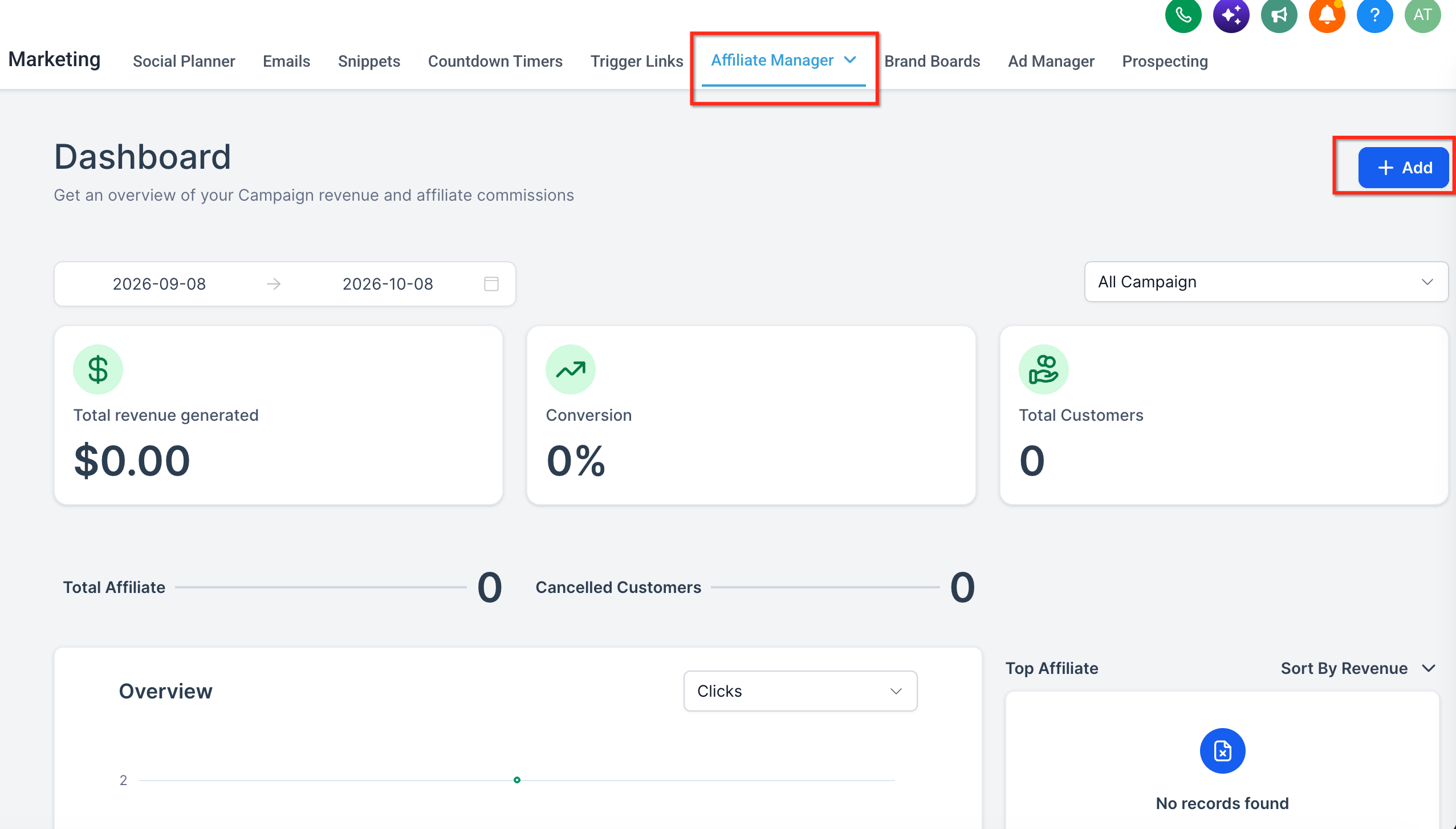
- Navigate to the Affiliate Manager under the Marketing section.
- Click on the "Campaign Page" and then the "+ Add" button to create a new campaign.
Step 2: Select Source Type
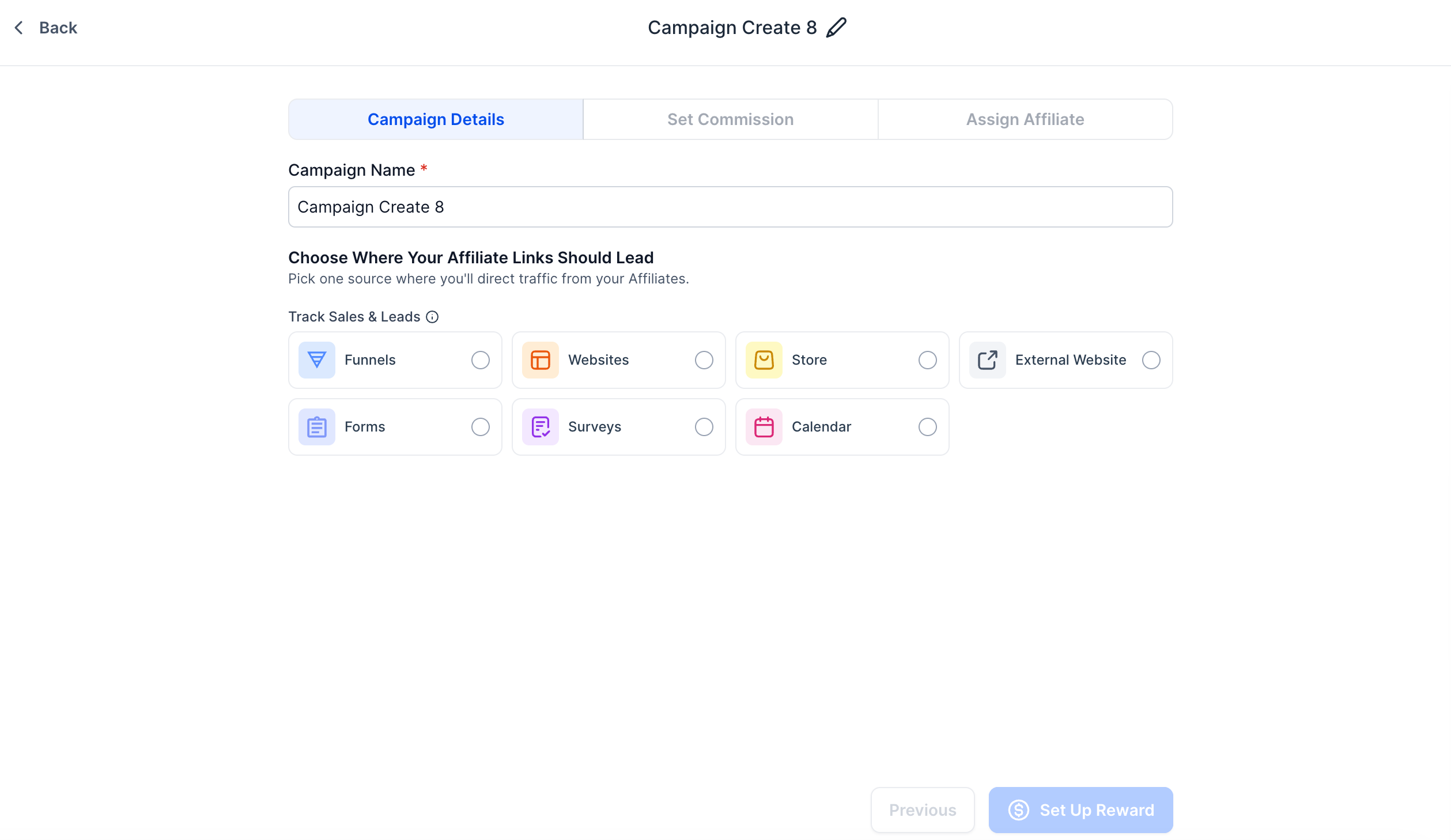
- Choose between Funnels, Websites, Store, External Website, Forms, Surveys or Calendar as the source for your campaign.
- The Pay-Per-Lead model can be enabled for these sources.
Step 3: Enable Pay-Per-Lead
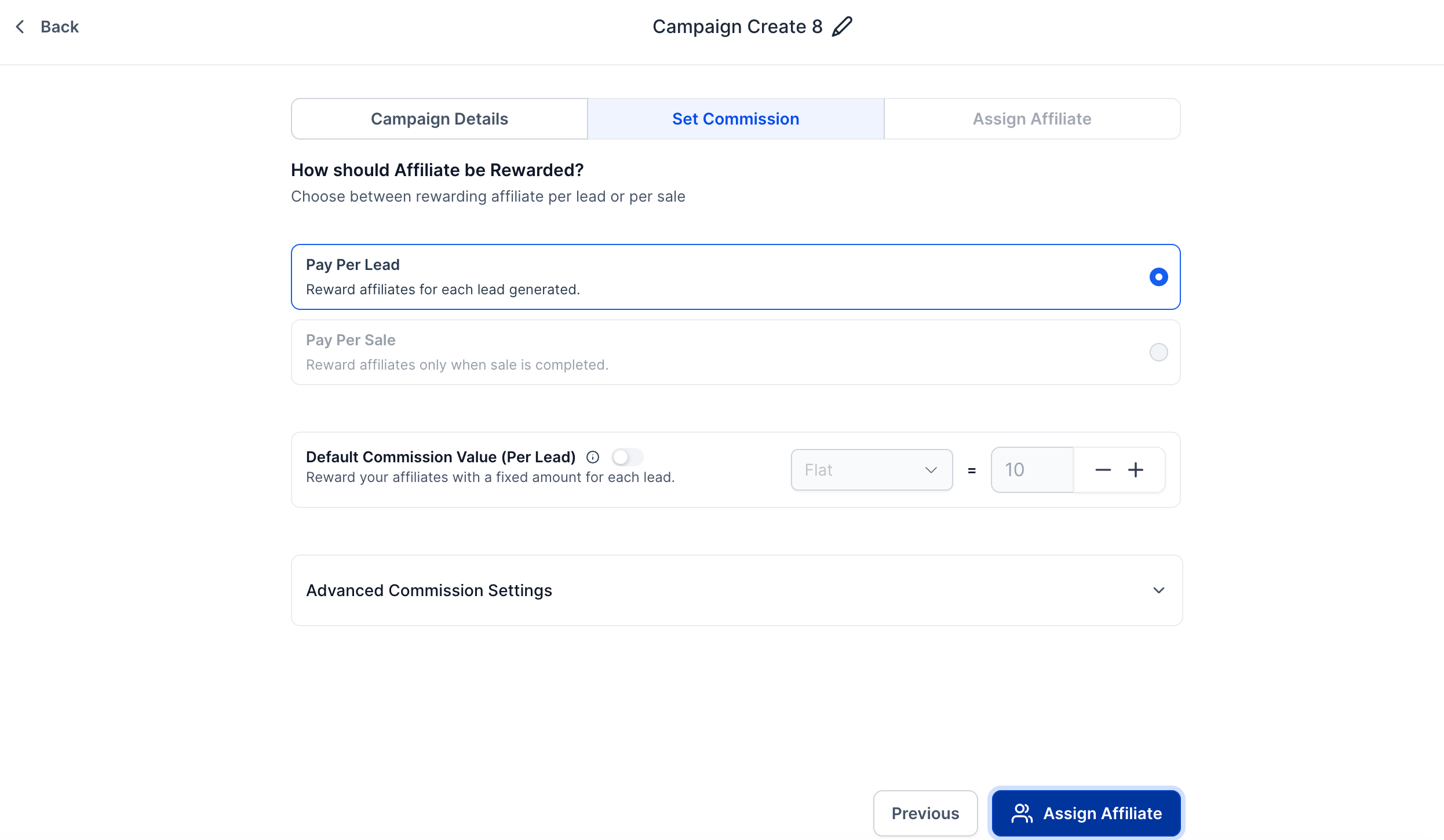
- In the "Commissions" tab, toggle on the "Pay-Per-Lead" option to activate this commission structure.
Step 4: Set Per Lead Commission
- Define the commission amount that affiliates will earn for each lead they generate.
- Configure this under the "Per Lead Commission" settings.
Step 5: Configure Advanced Commission Settings (Optional)
- Set up multiple tiers under the advanced commission settings if needed.
- This allows you to reward affiliates and their sub-affiliates at different levels.
Step 6: Add Campaign Description & Assign Affiliates
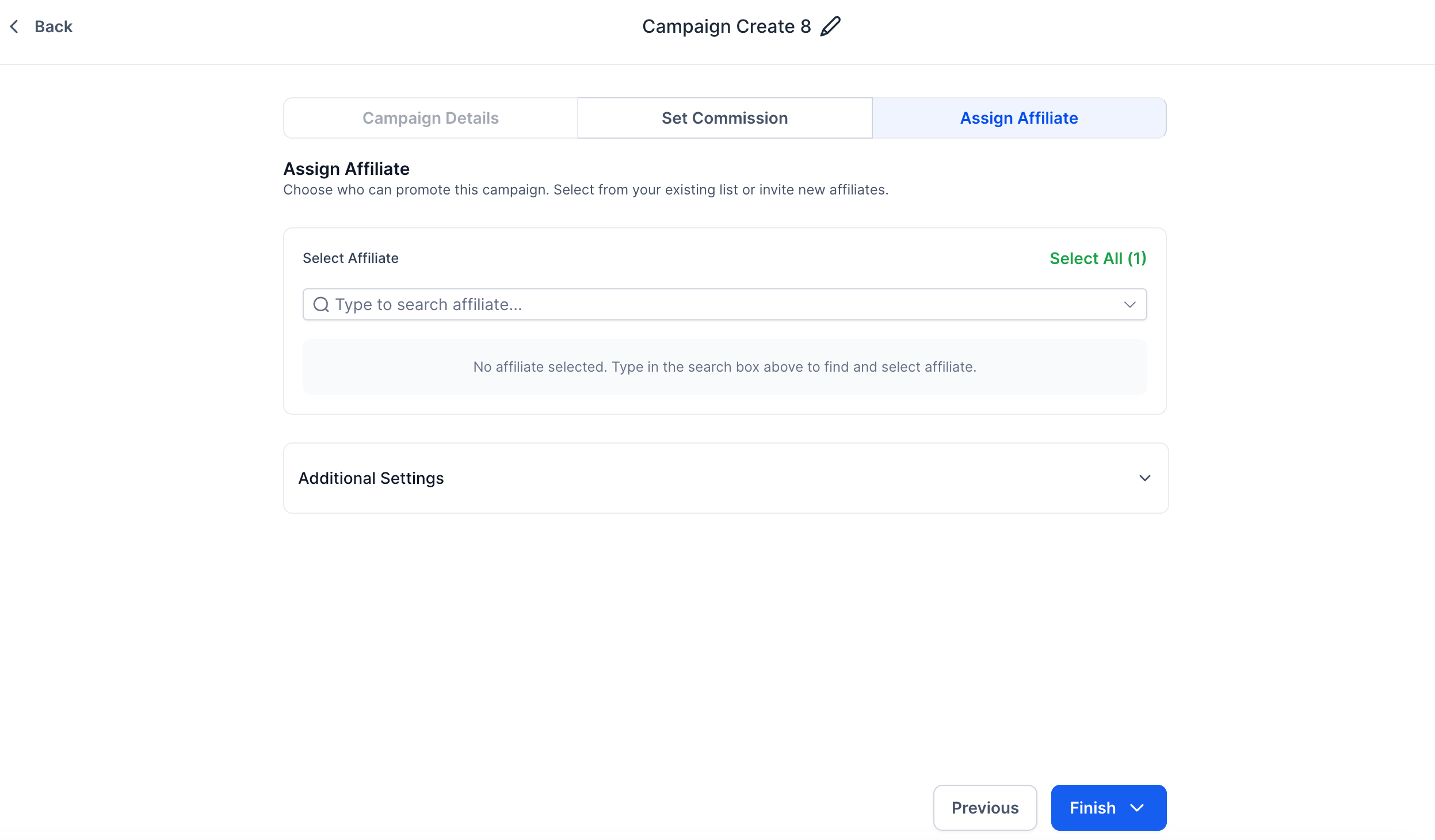
- Add a description to explain the campaign's goals to your affiliates.
- Assign the affiliates who will be part of this campaign.
Step 7: Review & Finalize
- Double-check all settings and make any final adjustments.
- Click 'Publish' to make your campaign live.
Tracking Leads and Commissions
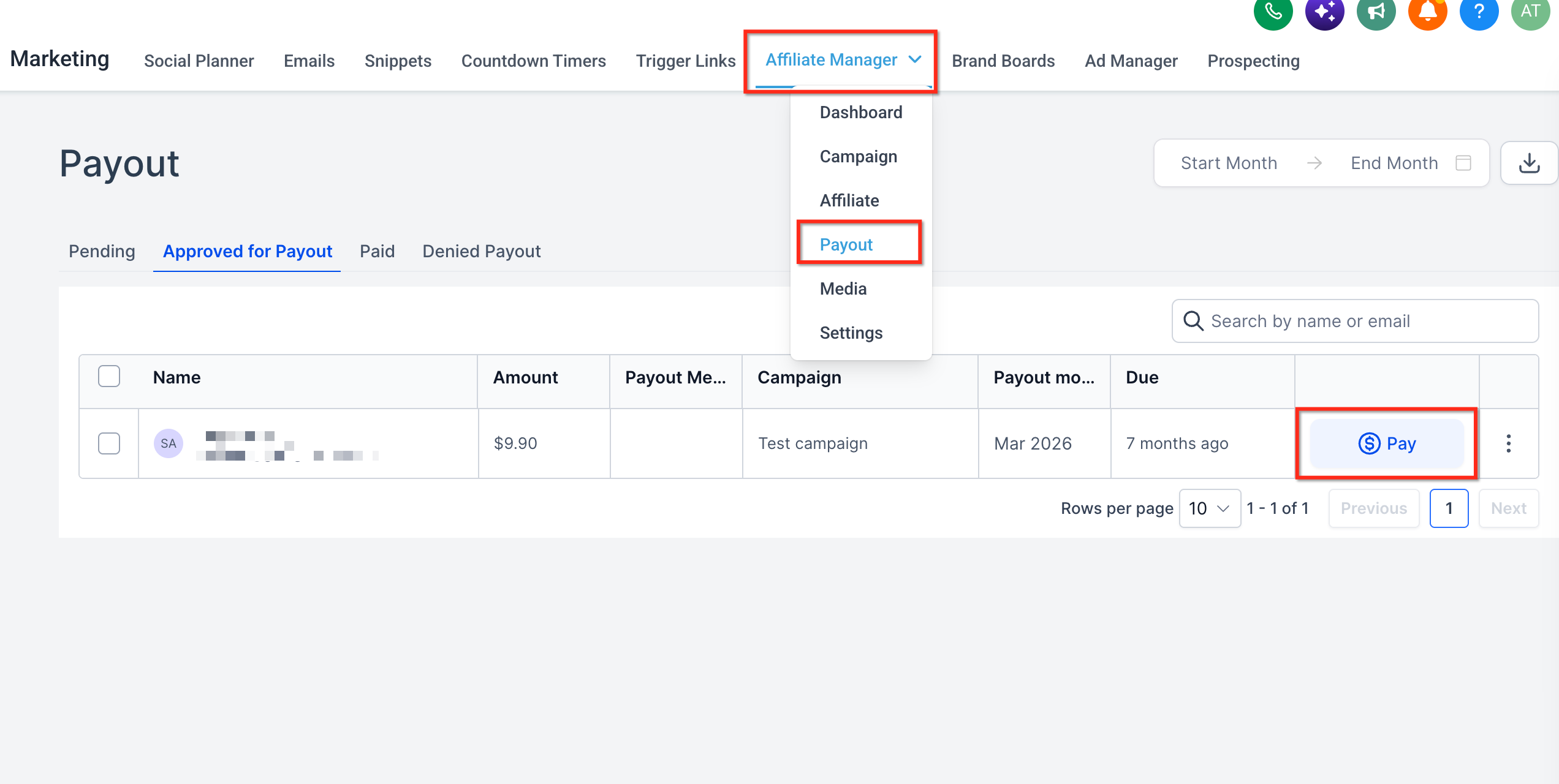
Navigate to the Affiliate Payout Tab for more monitoring and to view Commissions.
- Monitor Leads: Once your campaign is live, you can track leads and their associated commissions directly from the affiliate’s profile page.
- View Commissions: The Commissions tab will show the "Lead Commission" in the Product column, indicating the source of the commission for each lead.
Please Note:
Custom Embeds/Iframes: For accurate tracking, forms, surveys, or calendars must be added as components within a funnel or webpage. Custom code embeds and iframes are not supported for lead tracking.
Related Articles
- How to create an Affiliate Campaign
- How to Set Up Multi-Tier Commissions
- How to track leads from an Affiliate Campaign
- FAQs for Affiliate Campaigns