
Refund Workflow Trigger in Chat To Clients CRM
The Refund Workflow Trigger allows you to automate important tasks whenever a refund is issued. Whether you're notifying customers, assigning internal follow-ups, or handling failed refunds, this trigger streamlines your workflows to save time and enhance the overall customer experience.
TABLE OF CONTENTS
- What is the Refund Workflow Trigger?
- Key Benefits of the Refund Workflow Trigger
- How To Set Up a Refund Workflow Trigger
- Using Filters for Refund Trigger
- Adding Actions to the Refund Trigger Workflow
- Frequently Asked Questions
- Related Articles
What is the Refund Workflow Trigger?
The Refund Workflow Trigger allows you to automatically launch workflows when a refund occurs. This automation can be filtered by refund status, amount, type, and/or source. It enables seamless responses to refund events like sending confirmation messages to customers or assigning internal tasks to team members.
Key Benefits of the Refund Workflow Trigger
Automating actions around refunds helps you deliver better service, respond faster, and minimize manual work. These benefits enhance team efficiency while improving customer experience.
Customer Notifications: Automate refund confirmation messages via SMS or email to reduce support requests.
Team Task Assignment: Create follow-up tasks automatically to ensure your team acts promptly.
Filtered Automation: Launch workflows only when refunds meet specific criteria (amount, type, status, source).
Improved Customer Satisfaction: Deliver timely updates during refund processes to improve trust and retention.
Proactive Handling of Failed Refunds: Trigger alternative workflows when refunds fail, reducing churn risk.
Efficient Operations: Eliminate manual processes and ensure consistent handling of refund scenarios.
How To Set Up a Refund Workflow Trigger
Setting up the Refund Workflow Trigger ensures that your refund processes are automated, timely, and customized to your specific business rules.
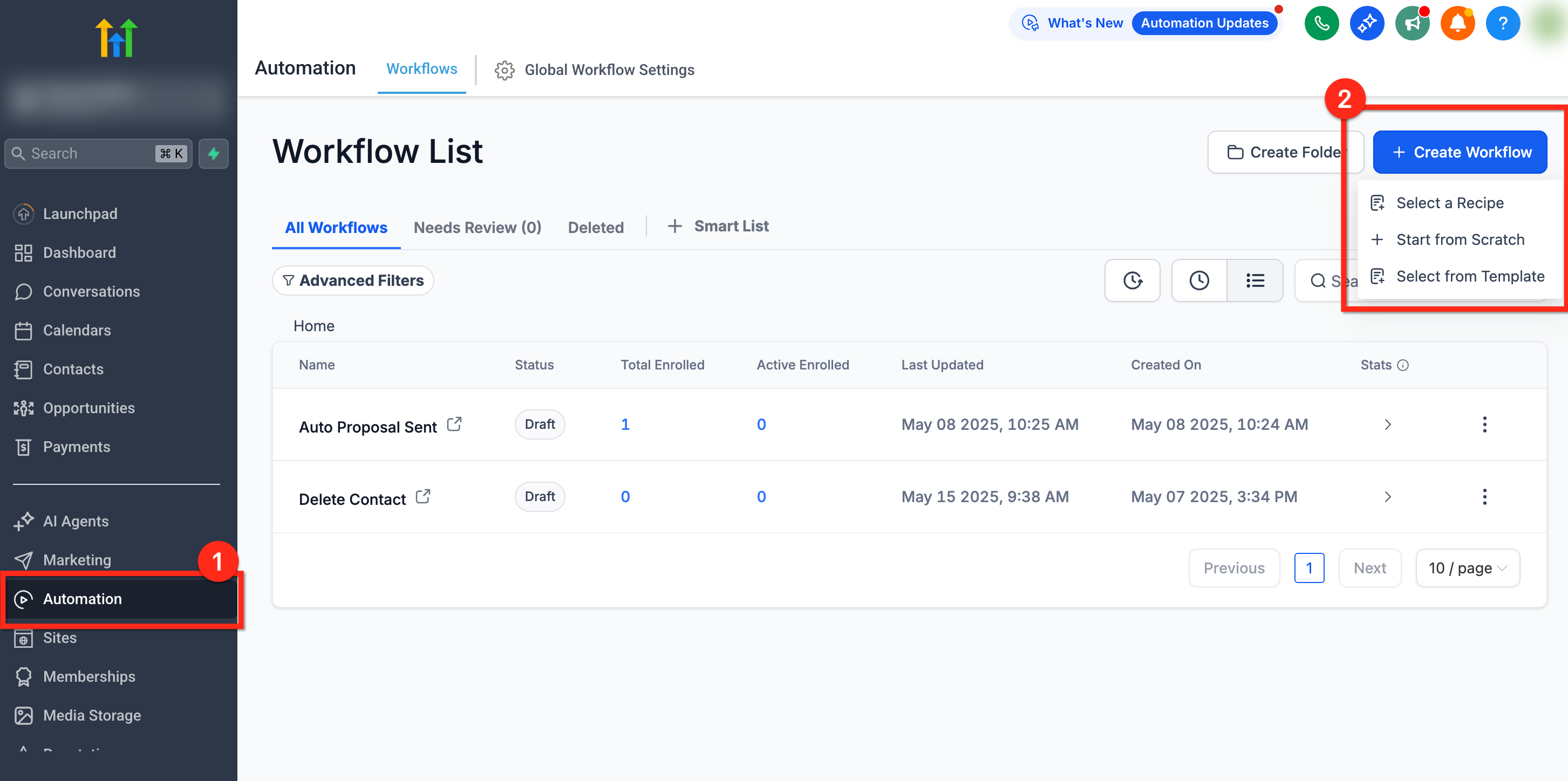
Step 1: Create New Workflow
- Navigate to Automation using the left-hand navigation bar in your sub-account
- Click the + Create Workflow button in the top-right corner to create a new workflow
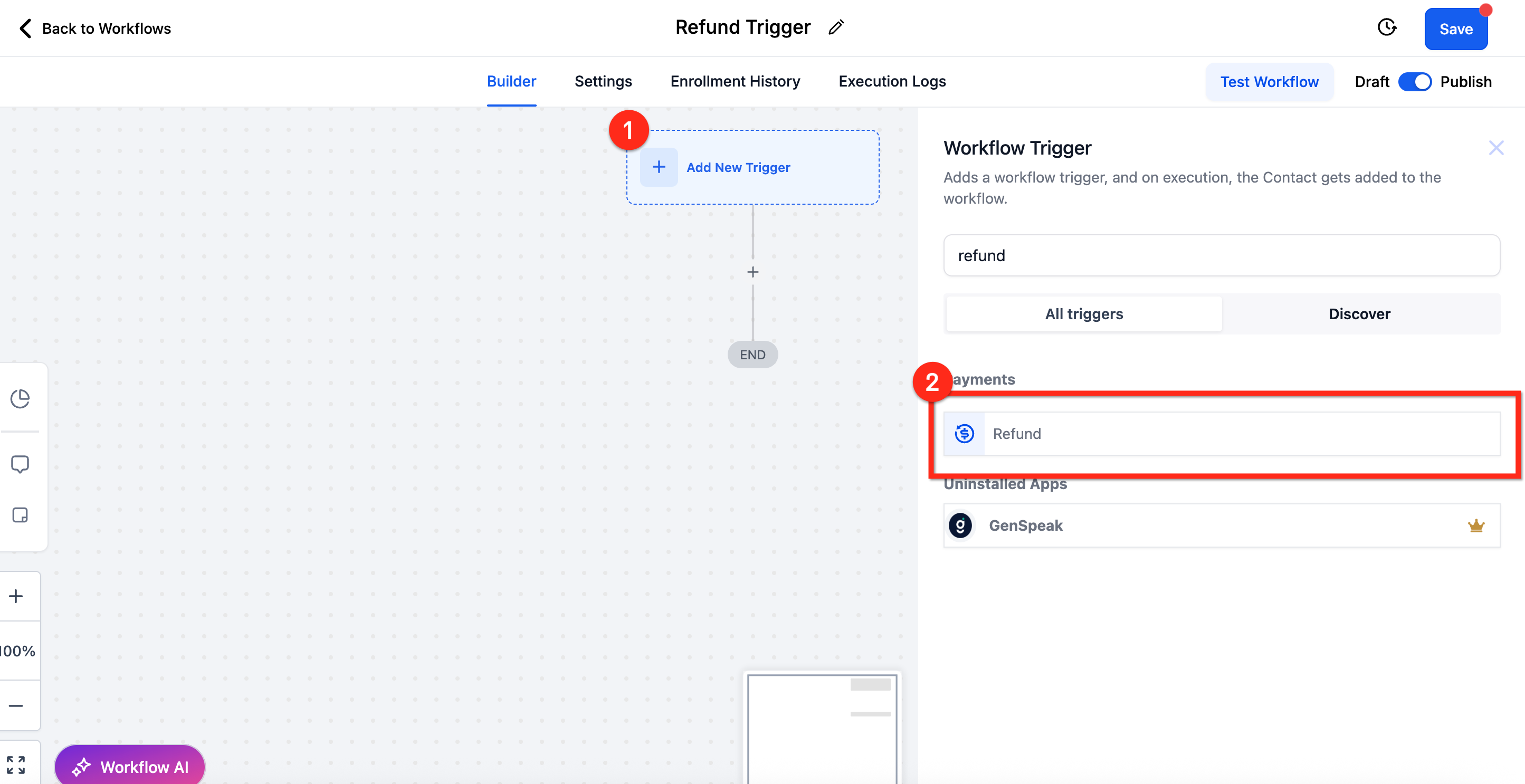
Step 2: Add Refund Trigger
Name your workflow
Click + Add New Trigger
Search for and select the Refund trigger
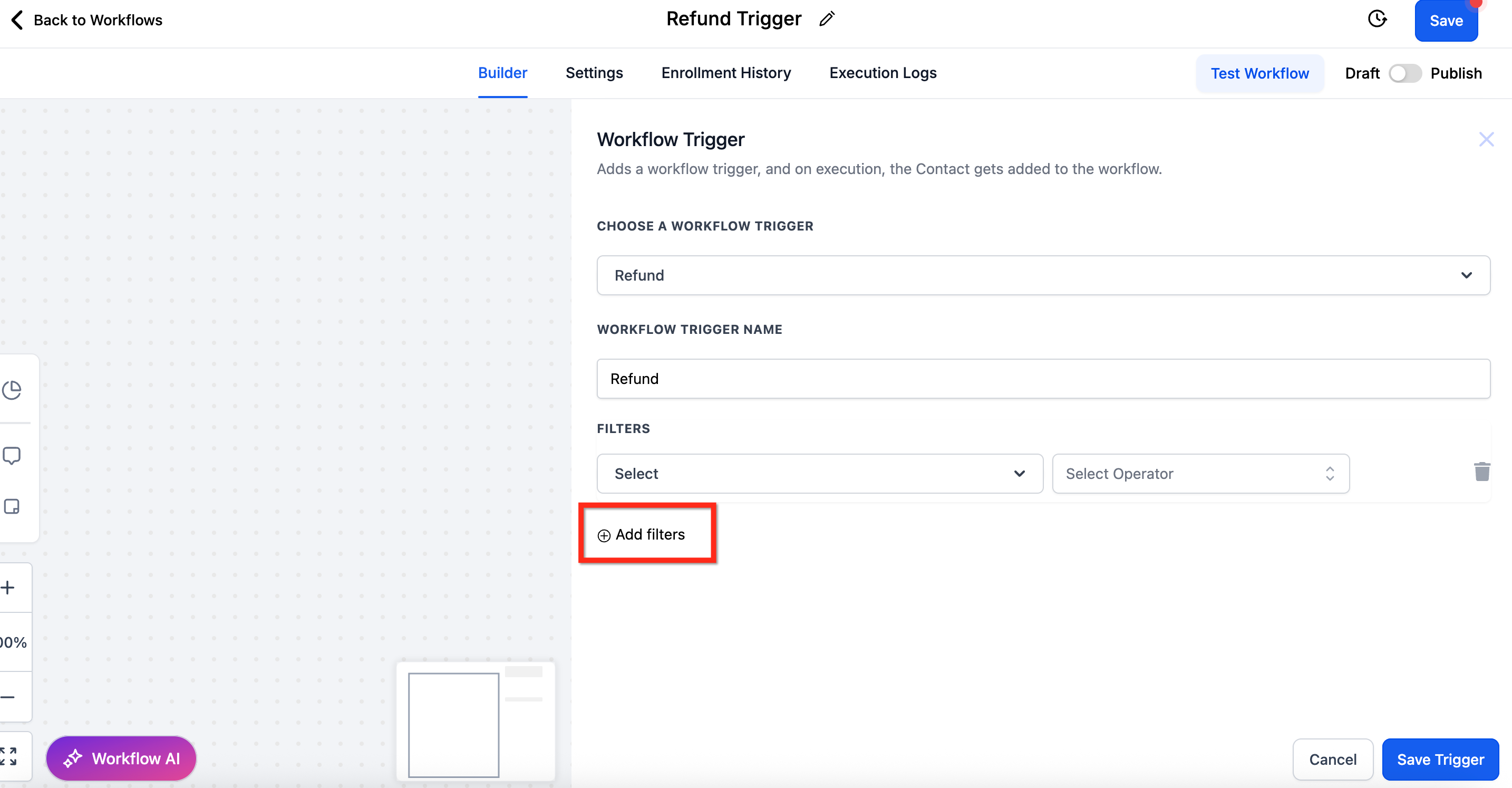
Step 3: Add Trigger Filters
Click + Add Filters at the bottom of the Workflow Trigger page
Apply filters as needed (see next section for details on filter options)
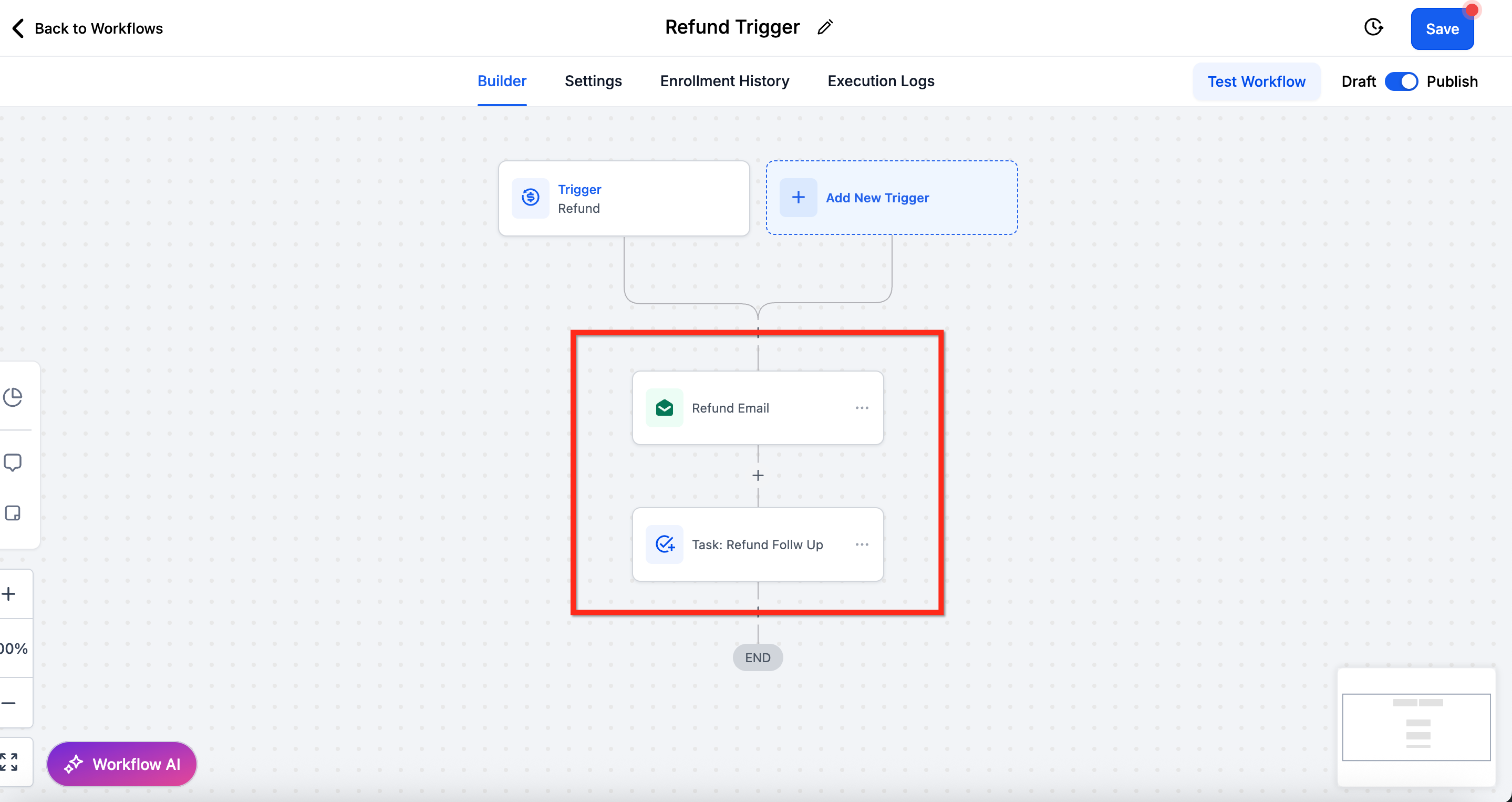
Step 4: Build Out Workflow
Add actions based on your business needs (notifications, task assignments, etc.)
Click Save and Publish the workflow
Using Filters for Refund Trigger
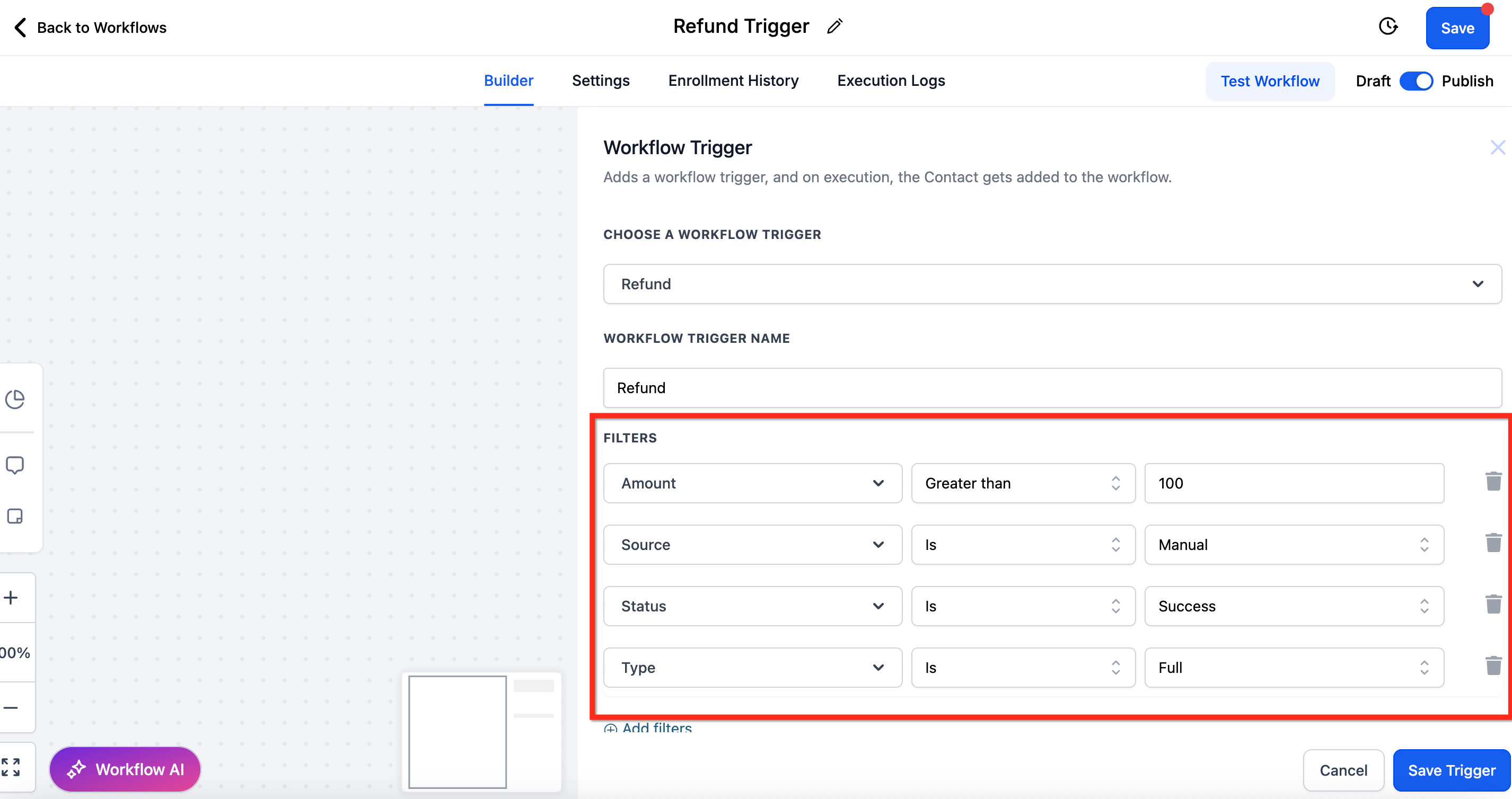
Filters give you control over exactly when the refund workflow will activate, ensuring it's only triggered by relevant refund scenarios. These filters can be used individually or stacked with each other to give you more control.
Status: Filter based on refund status
Successful: Trigger only after a completed refund.
Failed: Trigger when a refund attempt fails.
Amount: Filter based on refund value
Greater than, Less than, or Equal to a specific dollar amount (e.g., refund > $100)
Source: Filter based on where the refund originated
Options include Calendar, Communities, Payment Link, Invoices, Manual, and more.
Type: Filter based on the type of refund
Full Refund or Partial Refund
Adding Actions to the Refund Trigger Workflow
After your trigger and filters are set, you can add various actions based on the desired outcome. These examples highlight common use cases.
Tip: Refund custom values are also available inside the Payments section in Custom Values. This allows you to send include specific refund details within your messages.Example 1: Send a Confirmation Notification
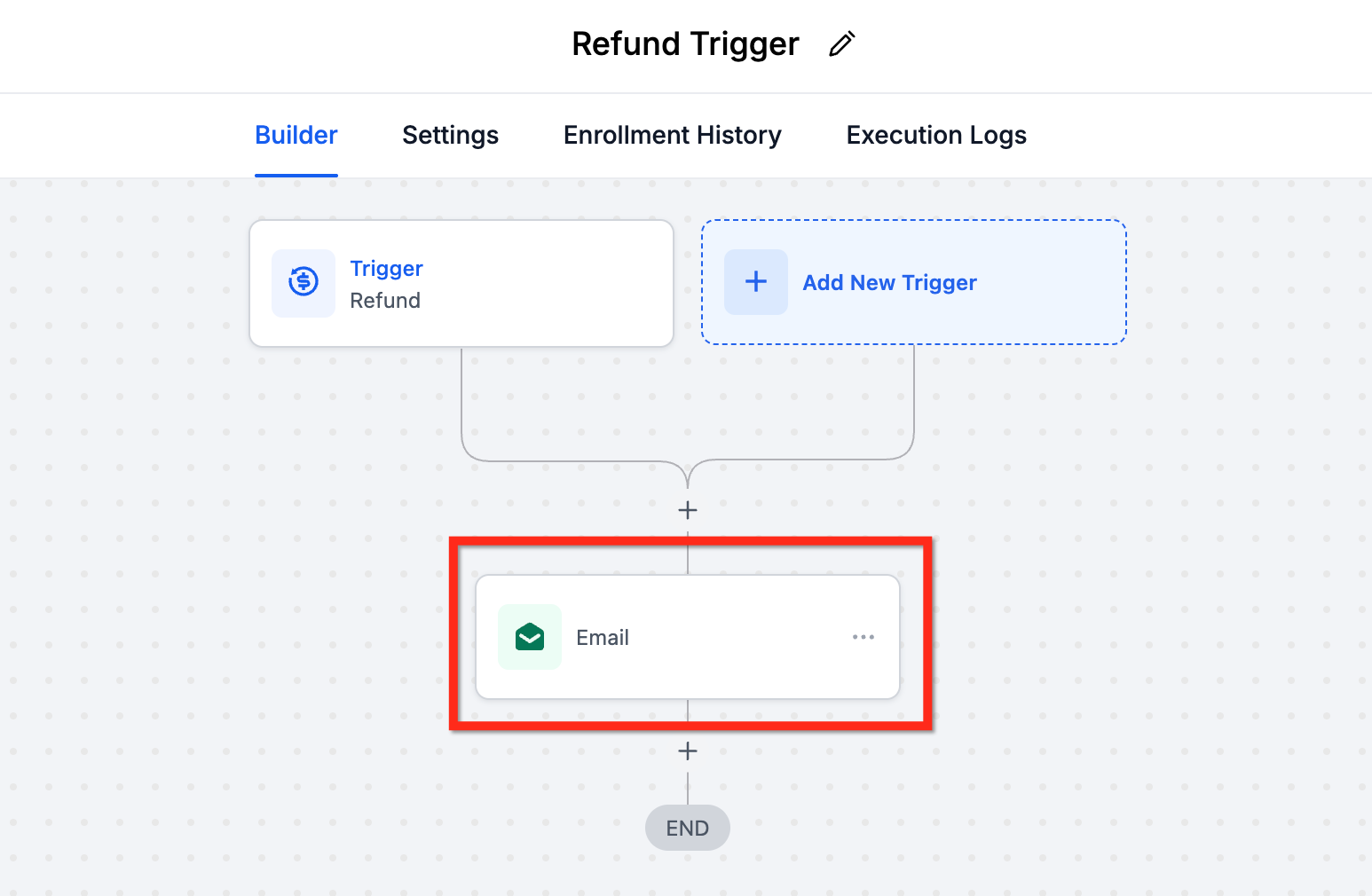
A practical use case for the Refund Trigger is automating customer notifications. For instance, if a refund is processed successfully, an automated email can be sent to inform the customer of the successful transaction. Conversely, if a refund fails, a different automated message can be triggered to notify the customer of the issue and provide further instructions. This ensures timely communication and enhances customer satisfaction during potentially frustrating situations.
Example 2: Assign an Internal Task
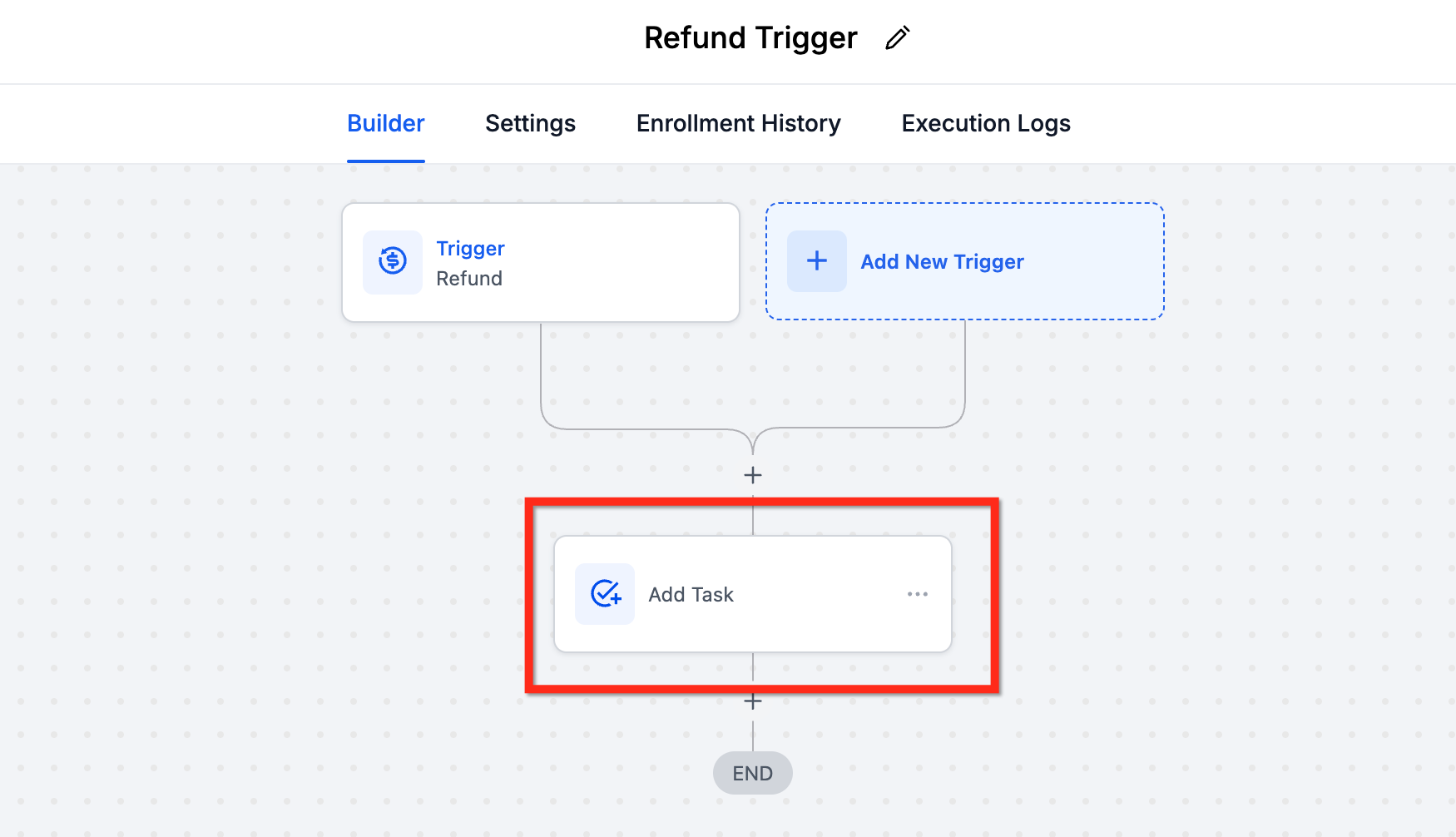
Use the Refund Trigger to create a task for your support or success team to follow up with a customer who received a refund.
Frequently Asked Questions
Q: Can the Refund Trigger handle multiple refunds for the same contact?
Yes. Each refund instance is treated as a new trigger event. By default, each refund event (even for the same customer) will trigger the workflow again.
Q: Will this trigger if I refund through Stripe directly or another external provider?
No. The refund must be issued inside Chat To Clients CRM for the trigger to fire. The payment processors supported in Chat To Clients CRM are Stripe, Authorize.net and NMI. The integration must be set up and the refund must go through Chat To Clients CRM in order for the trigger to fire.
Q: How do I use this trigger for partial refunds only?
Add a condition to the trigger for Refund Type = Partial. You can use multiple conditions (like Refund Type + Refund Failed) to filter events even more accurately.
Q: What happens if the refund fails?
The workflow can still fire based on the selected filters. Use the Refund Failed = True filter to manage cases where the refund fails. This is useful to notify team members of a failed refund.
Q: What if I want to notify internal teams instead of the customer?
You can use internal actions such as tasks or internal emails to notify internal teams of a refund.