
Workflow Trigger - Payment Received
This article will show you how to use Payment Received workflow trigger to automate follow-up actions after any successful payment. Whether it’s a one-time charge, subscription renewal, or invoice payment, you can streamline confirmations, updates, and team notifications, saving time and improving customer experience.
TABLE OF CONTENTS
- What is Payment Received Trigger?
- Key Benefits of Payment Received Trigger
- How to Configure Payment Received Trigger
- Frequently Asked Questions
What is Payment Received Trigger?
The Payment Received trigger allows you to initiate automated workflows when a payment is successfully made through your Chat To Clients CRM account. This includes payments from funnels, invoices, calendars, memberships, forms, and even manual entries. Whether it’s a one-time transaction or a recurring subscription payment, this trigger lets you respond immediately—without lifting a finger.
This is an essential automation tool for reducing manual follow-up, confirming payments, and ensuring consistent communication with customers and internal teams.
Key Benefits of Payment Received Trigger
Leverage automation to eliminate manual payment follow-ups, improve response times, and keep your CRM and team instantly updated. This trigger creates a seamless post-payment experience for both your business and your customers.
- Send Instant Confirmations: Automatically deliver confirmation emails or SMS messages the moment a payment is processed, keeping your customers informed and reassured.
- Update Contact Records: Apply tags, update custom fields, or trigger internal notes to reflect the customer’s payment status in their profile without manual input.
- Notify Your Team Immediately: Alert your sales, support, or fulfillment teams in real-time so they can take timely action after a successful transaction.
- Trigger Upsell or Membership Access: Kick off sequences like upsell offers, bonus content delivery, or grant membership access based on the type of purchase.
- Automate Failed Payment Follow-Up: Set up workflows to respond to failed transactions with retries, alerts, or personalized communication to recover lost revenue.
- Simplify Subscription & Invoice Tracking: Track recurring payments or invoice completions and tie them to specific follow-up actions or CRM updates effortlessly.
How to Configure Payment Received Trigger
Setting up this trigger ensures your system responds to payments instantly. Here’s a clear step-by-step guide to configure it efficiently and accurately.
Start a New Workflow
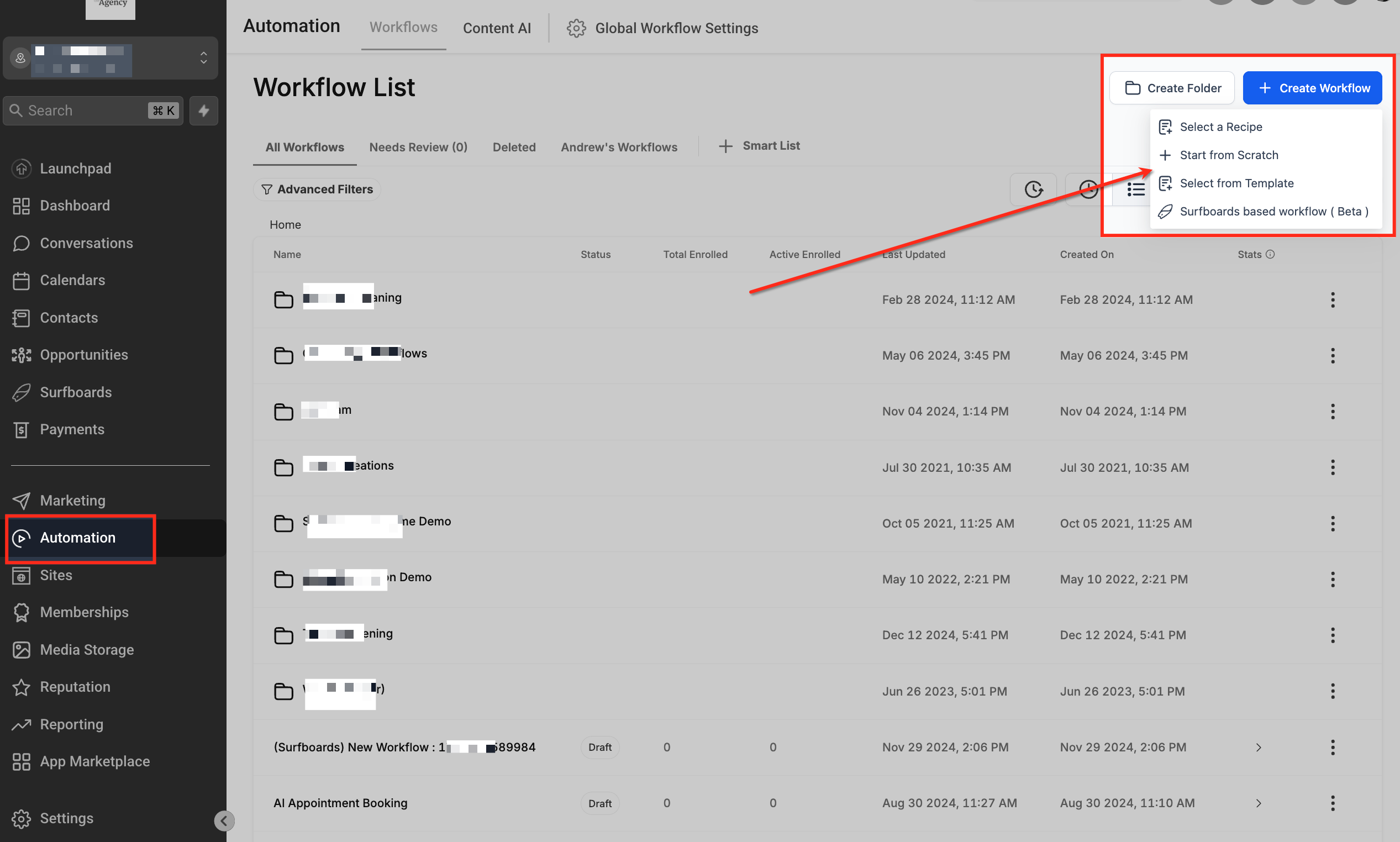
Navigate to Automation > Workflows in the left menu, then click + Create Workflow in the top right. From the dropdown, select Start from Scratch to begin building a custom workflow from the ground up.
Select Trigger Type
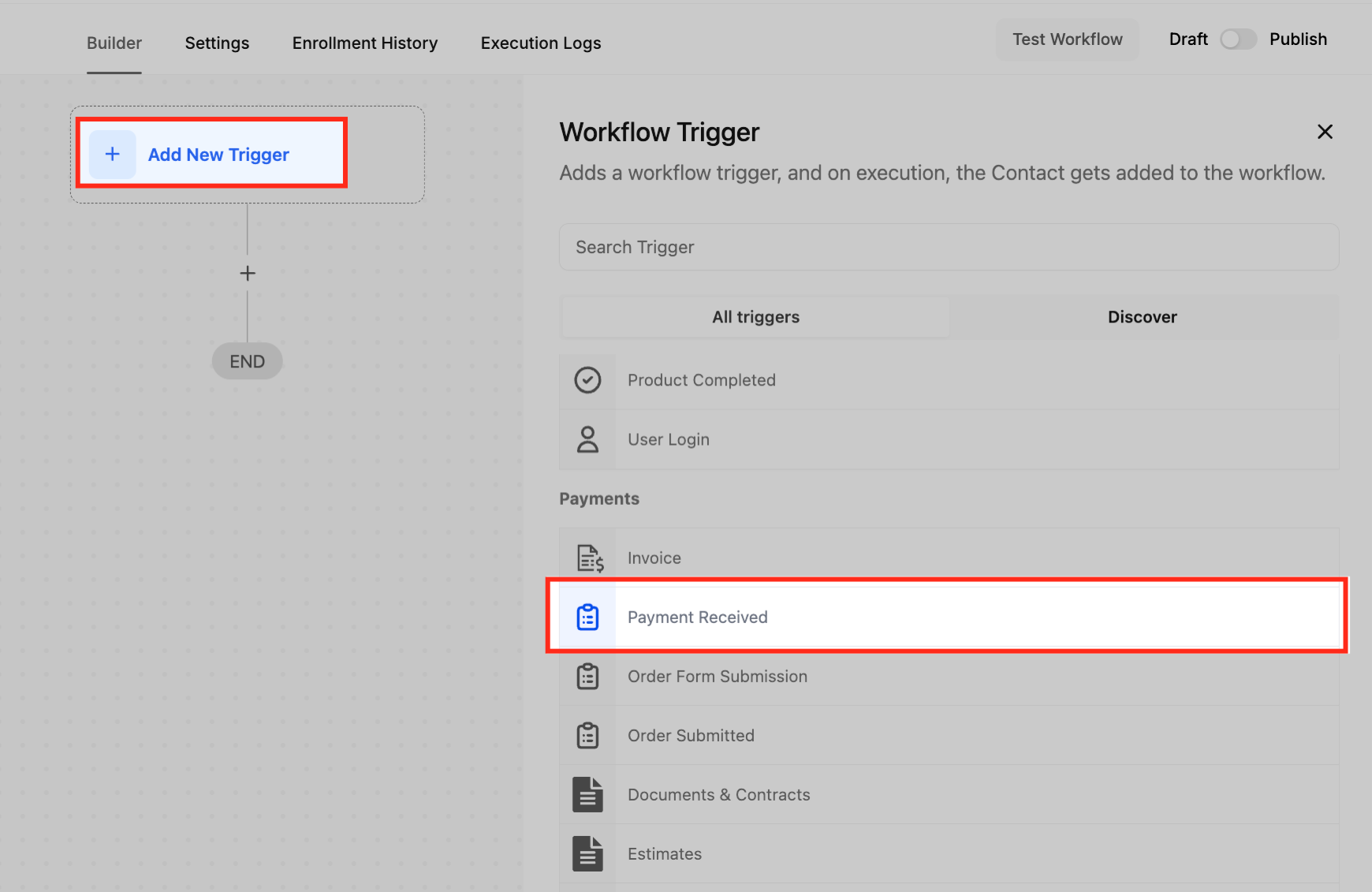
Click + Add New Trigger to open the trigger options. Scroll to the Payments section and choose Payment Received to begin building your payment automation.
Name Your Trigger
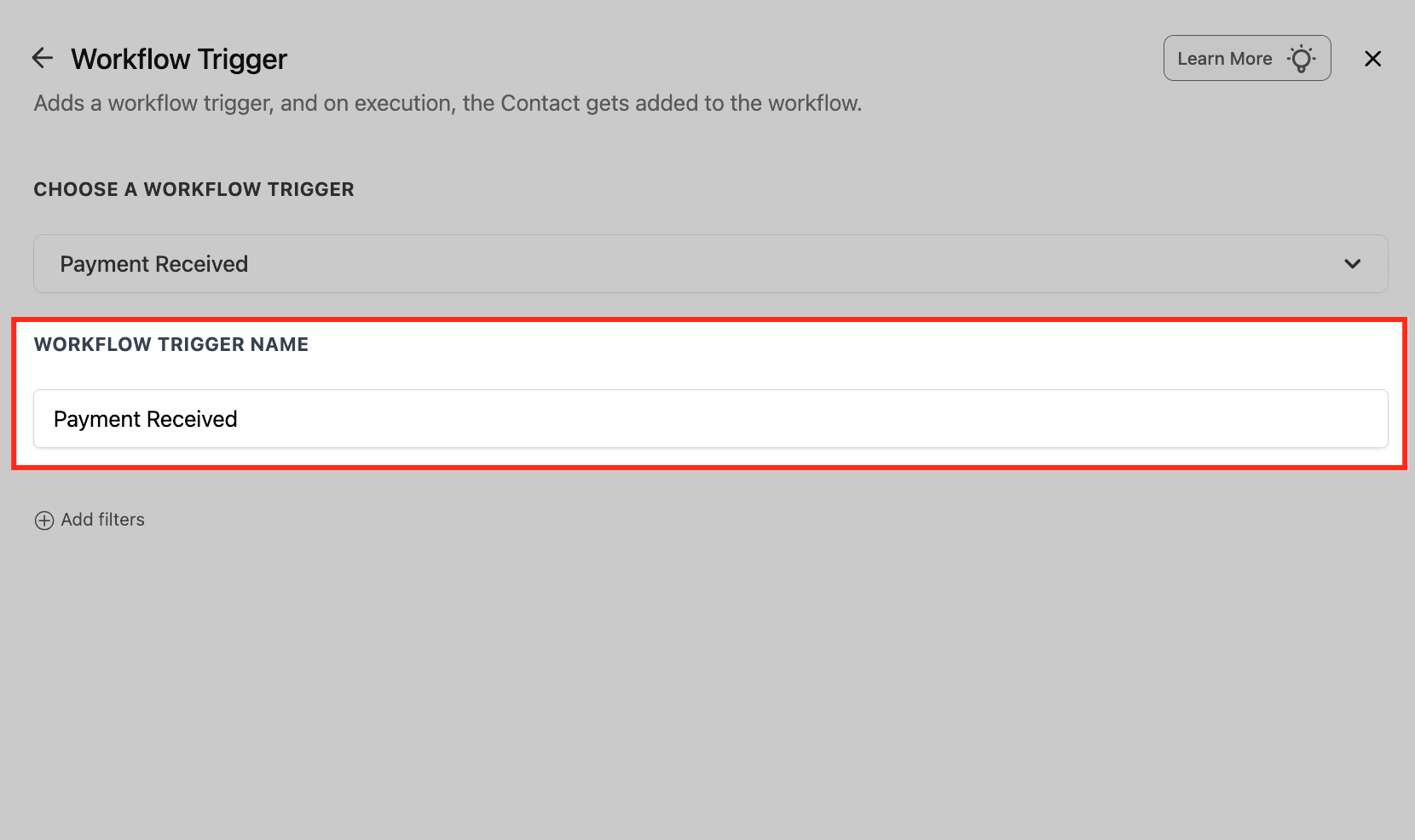
Enter a clear and descriptive name for your trigger (e.g., “Payment for Course Access”). Naming helps keep workflows organized and easily identifiable, especially when using multiple payment triggers.
Add Filters
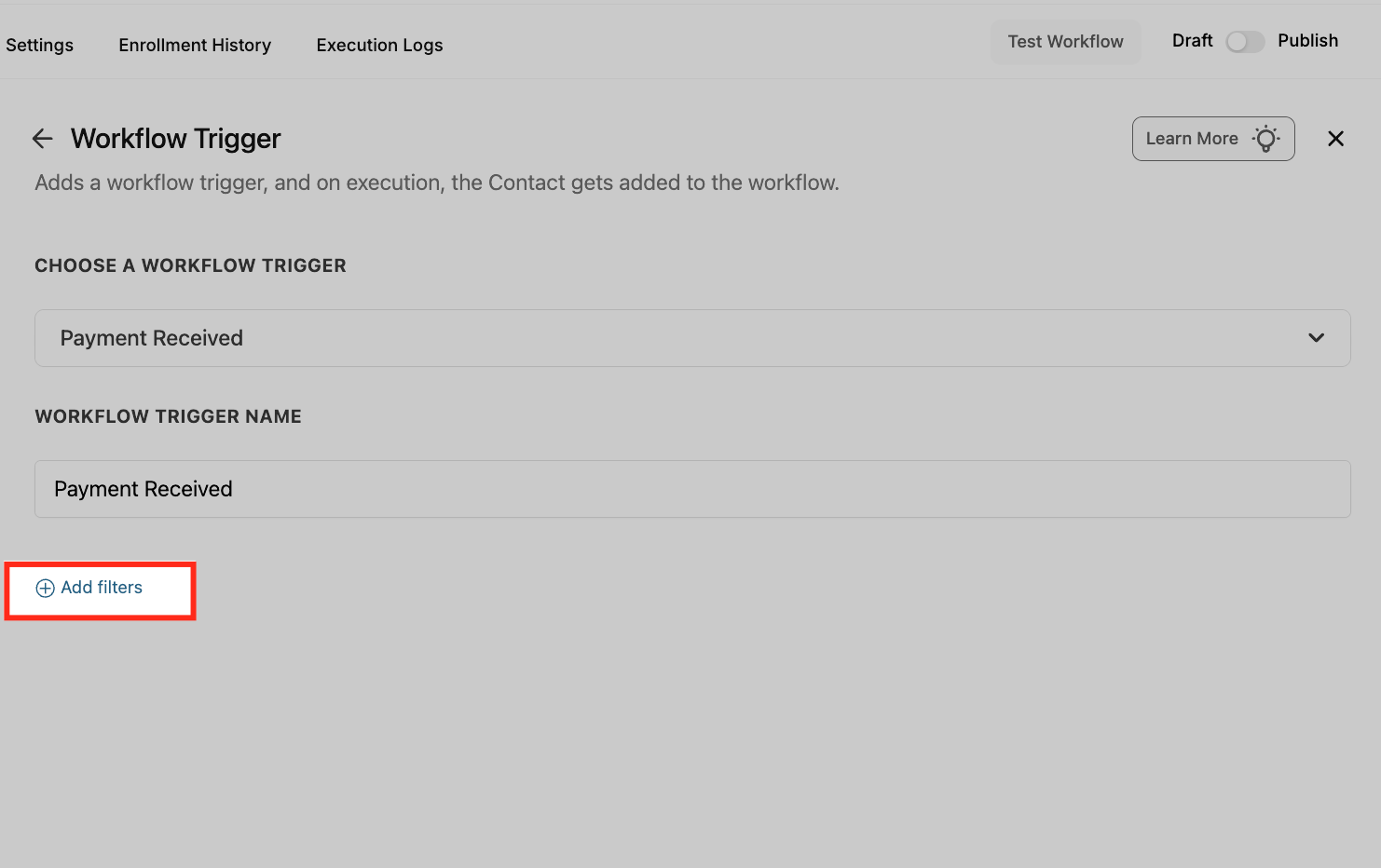
Click + Add filters to narrow down which payment events trigger this workflow. Filters allow you to target specific transaction types, sources, products, or statuses.
- Source Filter: Specify where the payment originated. This helps tailor automation based on the payment channel used.
- Calendar: Payment received from a calendar appointment booking.
- External: Payment made through third-party sources like Stripe, PayPal, or external API integrations.
- Form: Payment submitted through a form that includes a payment element.
- Funnel: Payment made through a funnel page, such as a one-step or two-step order form.
- Invoice: Payment completed via an invoice sent through Chat To Clients CRM’s invoicing feature.
- Manual Payment: A payment recorded manually inside the CRM.
- Memberships: Payment triggered by access to a membership product or course.
- Website: Payment made through the e-commerce Storefront (Products or Subscriptions).
Choose Filter Criteria
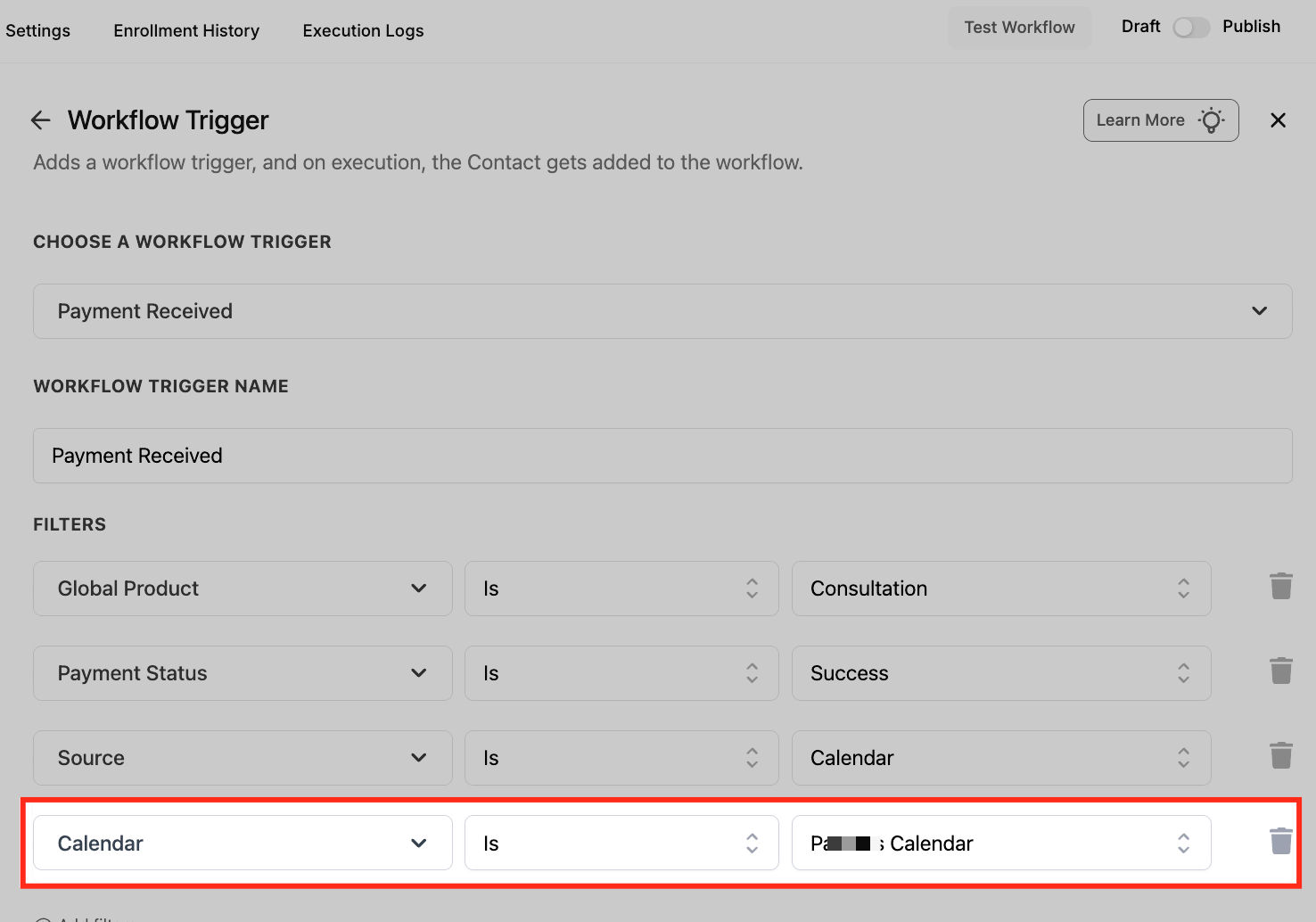
Select from available standard fields like Global Product, Payment Status, or Source. These filters help you target specific types of transactions for precise workflow control.
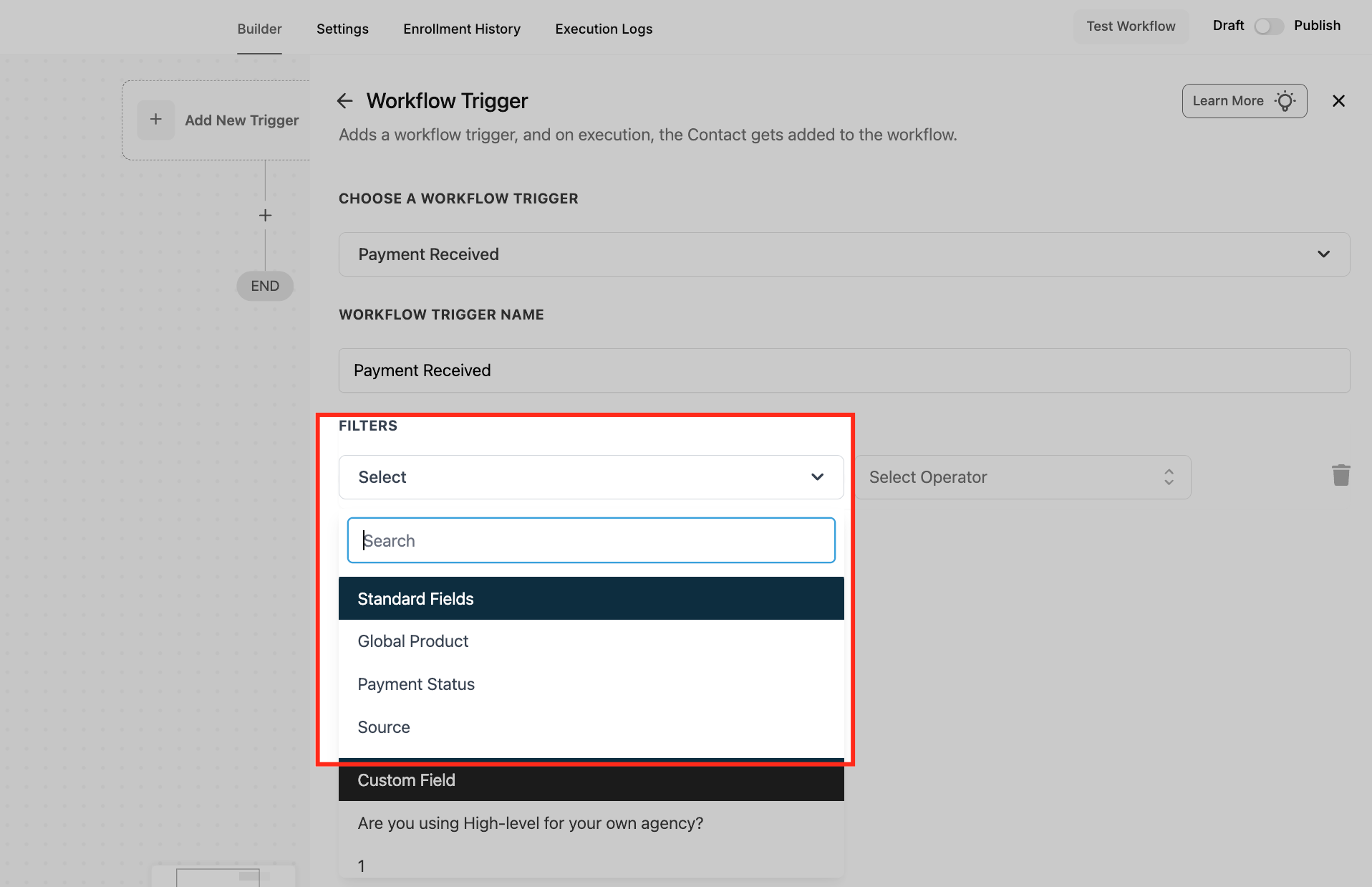
Filter by Product
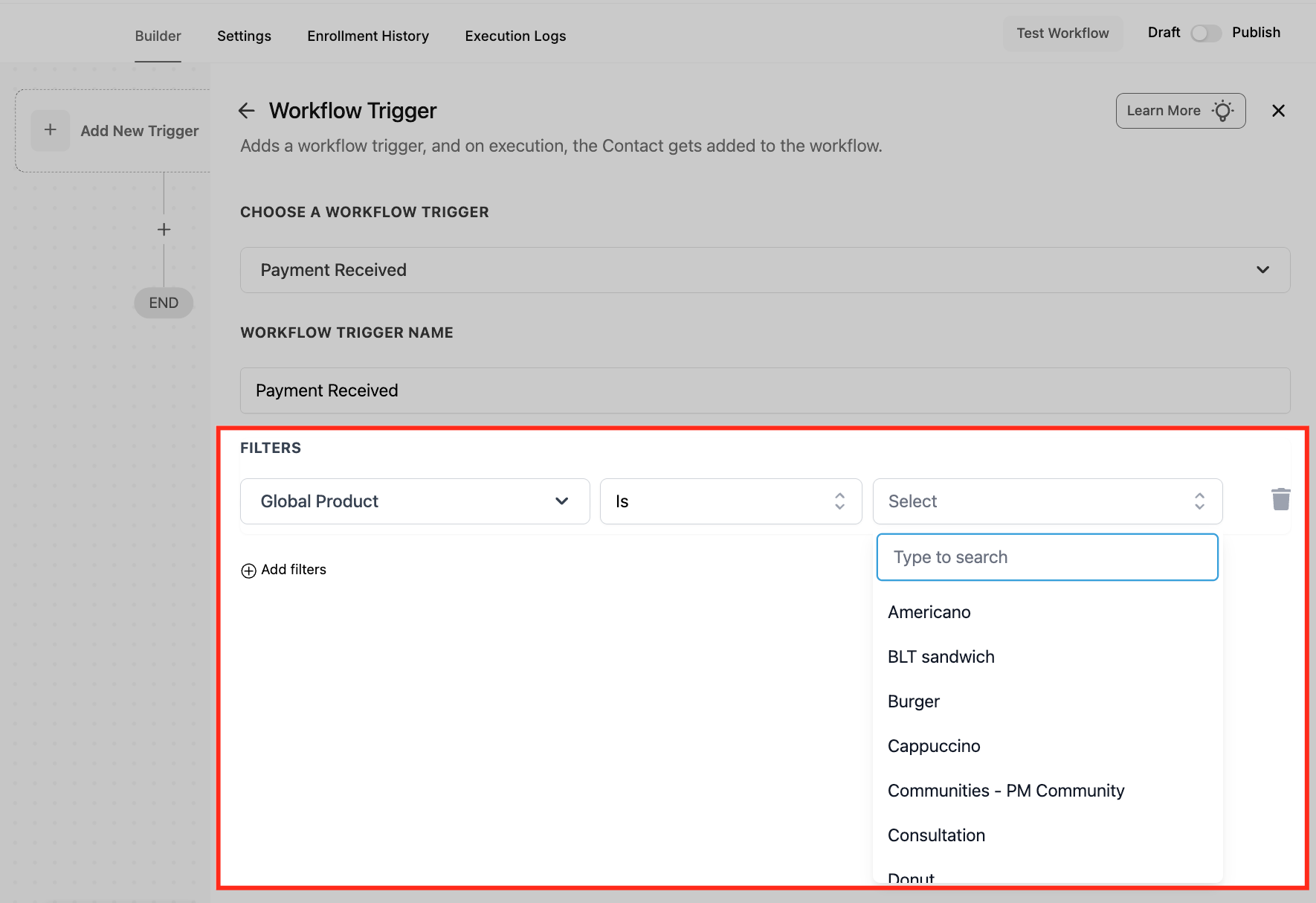
Choose Global Product as your filter type and select the specific product name. This ensures the workflow only triggers when a payment is received for that exact product.
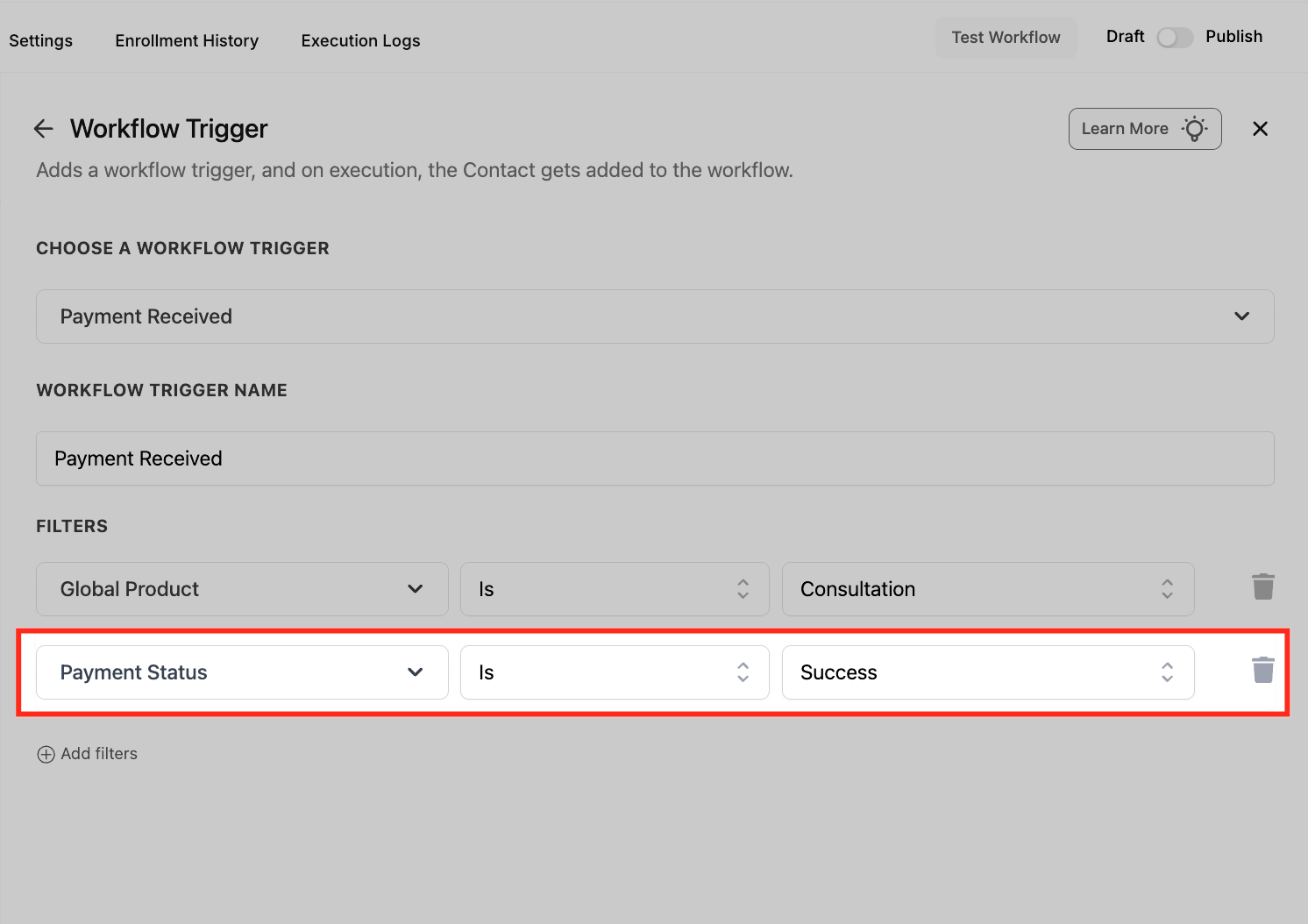
Filter by Payment Status
Add a Payment Status filter and set it to Success. This ensures the workflow only runs when a payment is successfully completed.
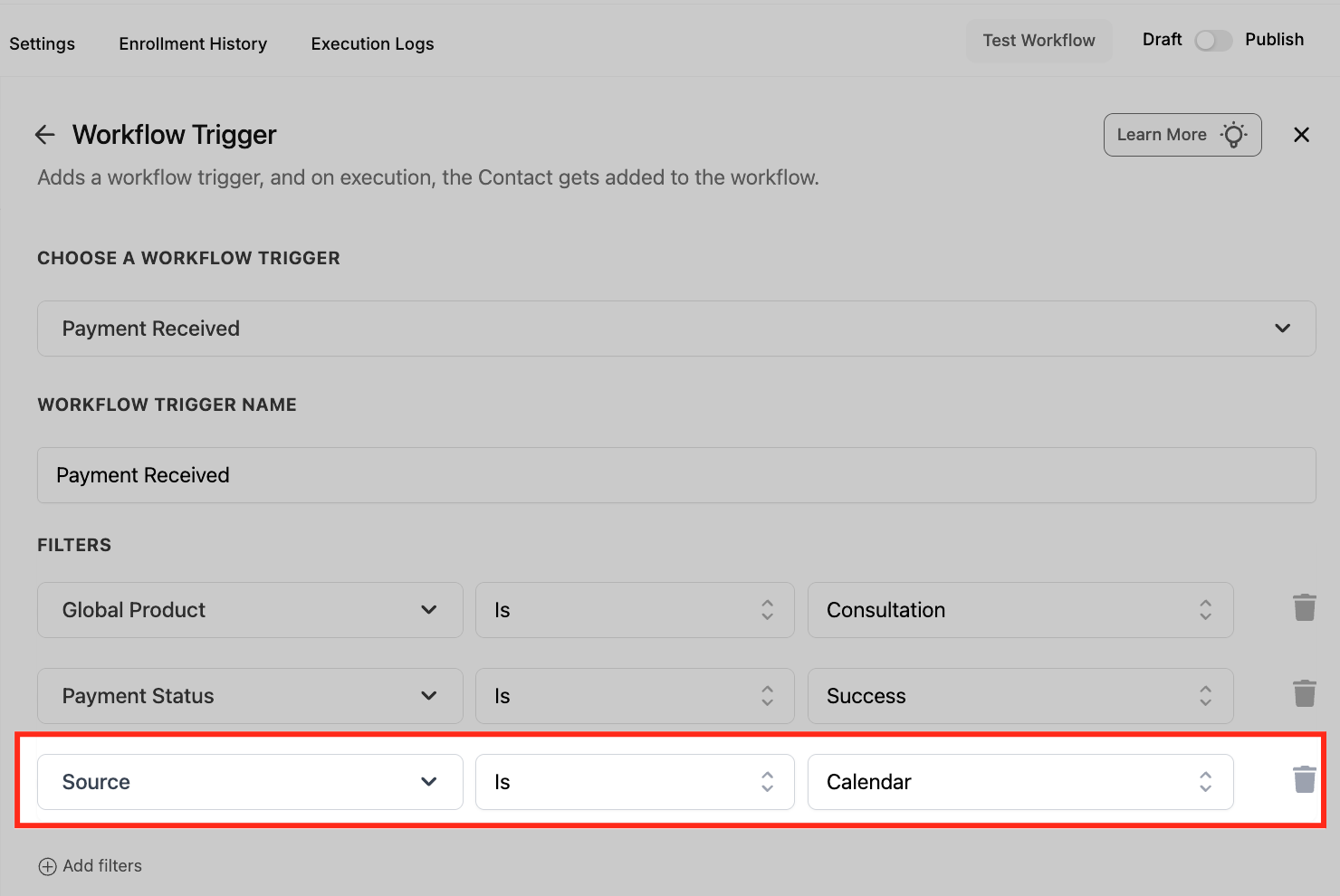
Filter by Source
Add the Source filter and set it to Calendar. This restricts the trigger to only activate for payments made through calendar-based bookings.
Specify Calendar
Use the Calendar filter to select the exact calendar (e.g., “Pat’s Calendar”). This adds another layer of precision by tying the workflow to a specific booking calendar.
Save the Trigger
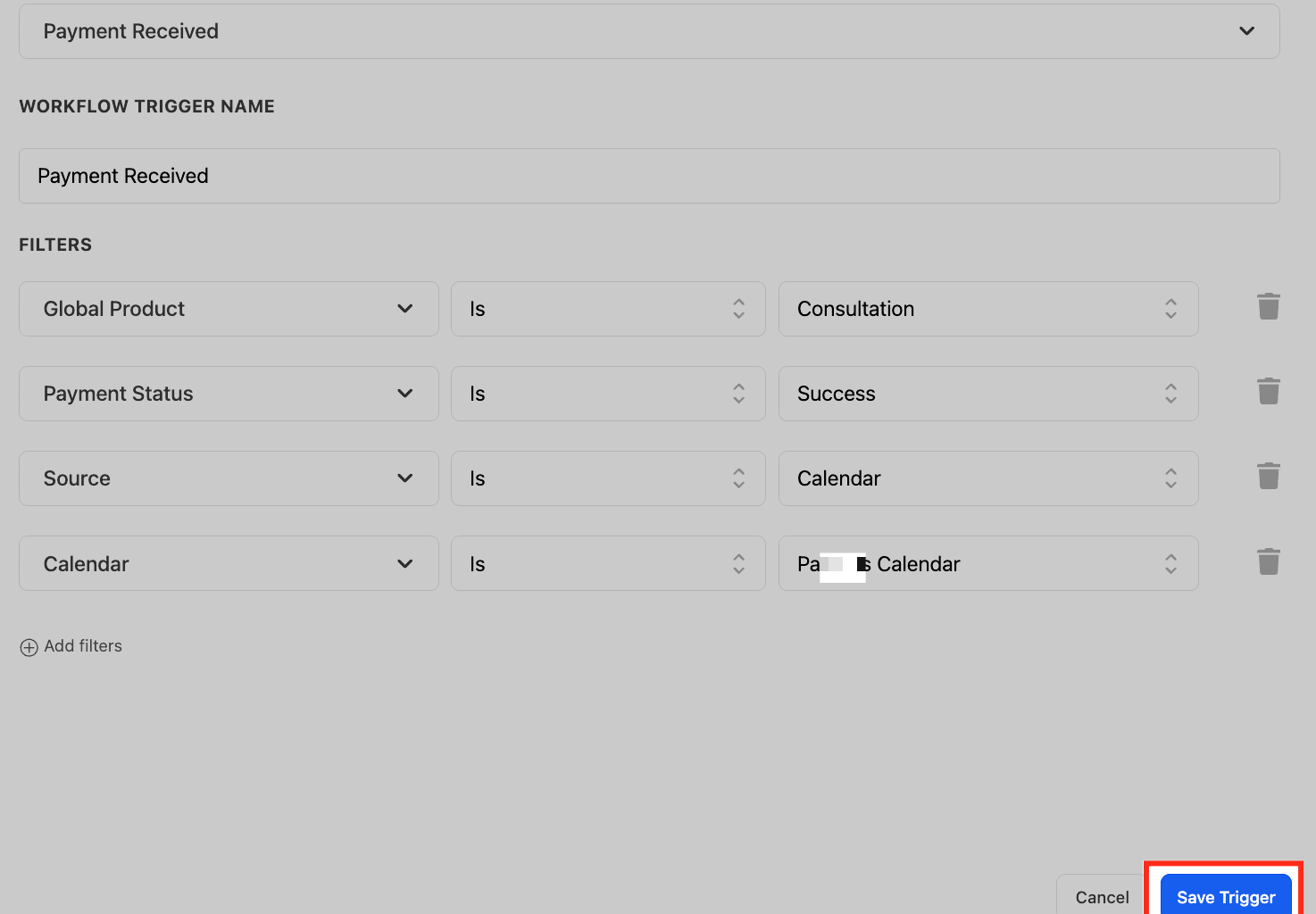
Once all filters are applied, click Save Trigger to finalize your configuration. This locks in your criteria so the workflow only activates under the defined conditions.
Frequently Asked Questions
Q: Can I filter by product or membership plan?
Yes, use the Source and Sub-Source filters to pinpoint payments from specific funnels, calendars, or memberships.
Q: Can this trigger failed payments too?
Absolutely! Use the “Payment Status = Failed” filter to create follow-up workflows for retries or dunning emails.
Q: Can I use Custom Values (like payment amount)?
Yes, you can use dynamic fields like {{Payment Amount}}, {{Transaction ID}}, and others in emails or internal notifications.
Q: How do I test the trigger?
Use sandbox payment environments or process a real payment with test products. Make sure your workflow is activated before testing.
Q: Can I combine this with other triggers?
Yes! You can include multiple triggers in a single workflow or use If/Else branches to split logic based on payment source or result.
Q: Can I combine this with other triggers?
Yes! You can include multiple triggers in a single workflow or use If/Else branches to split logic based on payment source or result.
Q.Is there a stripe recurring payment trigger?
We have no Stripe specific trigger, the architecture is gateway agnostic by design. But recurring Stripe charges are captured by three different triggers, each suited for a different use case.
| Trigger | Fires on recurring charge? | Best for |
| Payment Received | Yes — filter by "Customer not present/subscription transaction" | Most granular control. Gateway-agnostic. Supports failed payments via Payment Status filter. Rich {{payment.*}} custom values (card last4, brand, transaction ID, gateway) |
| Order Submitted | Yes — fires on successful recurring charges | Post-purchase upsells, Shopping Cart email template auto-population, order-level custom values (cart total, products, coupon, gateway). V2 funnels only |
| Subscription | Yes — lifecycle events only (create, update, pause, resume, cancel) | Reacting to subscription state changes, not individual charges |
How to Choose
- Need to act on every recurring charge, including failures? → Payment Received + filter "Customer not present/subscription transaction" + Payment Status filter
- Sending confirmation emails with product details after successful recurring charges? → Order Submitted (the Shopping Cart email element auto-populates line items)
- Reacting to subscription create/pause/cancel? → Subscription trigger
Important Notes
- No native Stripe recurring charge action. The Stripe One-Time Charge action is for one-time charges only. For recurring Stripe billing, set it up in Stripe directly — then use one of the triggers above to react to the charges.
- Order Submitted requires V2 funnels. If you're on V1, use Payment Received.
- All three triggers work across Stripe, PayPal, and any other connected gateway — we normalizes payment events.