
Editing a countdown timer
Editing a Countdown Timer lets you update timer settings without rebuilding the entire campaign experience. Depending on the timer type and where it is being used, changes can affect live funnels, websites, future recurring cycles, or other supported placements. Understanding how edits behave before making changes helps prevent
unintended timing or destination updates.
TABLE OF CONTENTS
- What Does Editing a Countdown Timer Do?
- Key Considerations Before Editing a Countdown Timer
- Editing Fixed Countdown Timers
- Editing Recurring Countdown Timers
- Editing Dynamic Countdown Timers
- What Happens to Timers Already in Use?
- When to Edit vs. Clone a Countdown Timer
- How to Edit a Countdown Timer
- What to Do If Edit Is Unavailable
- Editing Timers Used Across Multiple Channels
- Frequently Asked Questions
- Related Articles
What Does Editing a Countdown Timer Do?
Editing a Countdown Timer allows you to update the timer's configuration after it has been created. Available settings vary by timer type and may include timing, recurrence, appearance, timezone behavior, labels, and destination links.
Edits can affect existing timer placements in Chat To Clients CRM. However, the impact depends on how the timer is being used, whether the timer has already been triggered, and the type of setting being changed.
For example:
A styling change can update the visual appearance of existing timer placements.
A change to a Recurring Timer's Wait Time may take effect during a future cycle rather than immediately.
Editing a Dynamic Timer does not restart a countdown that has already been triggered for a contact.
Timers used in sent emails can have different editing behavior from timers placed on live funnels or websites.
Key Considerations Before Editing a Countdown Timer
Editing an existing timer can affect active campaign experiences, so it is important to understand where the timer is being used and which contacts may already be interacting with it.
Existing placements: Changes can update timers already used in supported funnels, websites, and other Chat To Clients CRM placements.
Timer type: Fixed, Recurring, and Dynamic Timers have different settings and lifecycle behavior.
Active contacts: Some edits do not reset or recalculate timer states that have already started for a contact.
Recurring cycles: Certain changes may apply during the next timer cycle instead of the current one.
Destination changes: Updating an Active or Expired Link can affect where contacts are routed from existing campaign placements.
External embeds: Timers embedded outside Chat To Clients CRM should be tested separately after changes.
Sent emails: Editing behavior for timers already used in sent emails can differ from live funnel and website placements.
Before saving an edit, review the timer's current campaign usage and test the updated behavior where possible.
What Can You Edit?
The available edit options depend on the timer type and the features enabled for that timer. Using the current field names helps ensure the settings you change match the behavior you expect.
Common editable settings can include:
Timer name: Update the internal name used to identify the timer.
Appearance and styling: Change fonts, colors, labels, sizing, and other available design settings.
Active Link: Change the destination contacts should reach while the timer is active.
Expired Link: Change the destination contacts should reach after the timer expires.
Timezone settings: Update the configured timezone or timezone adaptation where supported.
Timer labels: Customize the text displayed with timer units.
Timer-type-specific settings: Update fields such as end date, duration, recurrence, wait time, loop behavior, or trigger settings depending on the timer type.
Editing Fixed Countdown Timers
Fixed Timers count down toward a specific date and time, so edits usually affect the shared deadline associated with the timer. Changing these settings can alter the experience for every placement using that timer.
Depending on the current configuration, editable Fixed Timer settings can include:
End date and time
Timezone
Adapt to Contact Time Zone
Active Link
Expired Link
Timer name
Appearance and labels
If a Fixed Timer is already placed on a funnel or website, changing the timer configuration can update the existing placement without requiring you to create a new timer.
After editing, verify the live countdown and destination behavior before relying on the updated timer in an active campaign.
Editing Recurring Countdown Timers
Recurring Timers repeat according to a configured schedule and can include wait periods between active countdown cycles. Editing these timers requires additional attention because some changes may affect future cycles instead of the cycle currently in progress.
Editable settings can include:
Countdown duration
Recurrence settings
Wait Time
Loop Events
Active Link
Expired Link
Appearance and labels
For example, if you change Wait Time while the timer is already in an active lifecycle, the updated wait duration can apply the next time the timer enters its wait state rather than modifying the current cycle immediately.
Changes to supported Recurring Timer settings can propagate to existing timer placements.
Editing Dynamic Countdown Timers
Dynamic Timers create contact-specific countdown experiences based on an individual trigger, such as when an email is sent or opened. Editing the timer configuration does not necessarily reset a countdown that has already started for a contact.
Depending on the Dynamic Timer configuration, editable settings can include:
Duration
Trigger
End-time behavior
Timezone
Timezone adaptation
Active Link
Expired Link
Appearance and labels
A Dynamic Timer is triggered once per contact. Editing the underlying timer does not give a previously triggered contact a new countdown window.
If you want to use a Dynamic Timer again for the same contact in a separate campaign, cloning the timer is generally safer than reusing the already-triggered timer.
What Happens to Timers Already in Use?
Existing timer placements can behave differently depending on the channel, timer type, and setting being edited. Understanding these differences helps you decide whether to edit, clone, or create a new timer.
Funnels and Websites
Countdown Timers placed in supported funnels and websites can update when you edit the original timer configuration.
For supported changes, the updated timer can automatically appear wherever that timer is already placed.
After making edits:
Open the live page.
Confirm the updated countdown appears.
Test the Active and Expired destinations.
Verify behavior in both active and expired states.
Recurring Timer Cycles
A configuration change can update the timer while still following the current lifecycle rules.
For example, changing Wait Time may affect the next wait period rather than altering a wait period or countdown already in progress.
Dynamic Timers Already Triggered by Contacts
A contact-specific countdown that has already started does not automatically restart because the timer was edited.
Use a cloned timer for a new campaign when the same contact needs a fresh Dynamic Timer experience.
Sent Emails
Timers used in sent emails can behave differently from timers placed on live web pages. Email content may already be delivered, cached, or associated with a previously triggered timer state. For this reason, do not assume that editing the source timer will recreate or restart an already-sent email experience.
When changing a timer used in email campaigns, test the behavior carefully and use a cloned or new timer when you need a separate campaign deadline.
External Embeds
Timers embedded outside Chat To Clients CRM using Copy Code should be tested separately after editing. External implementations can depend on the embed configuration, platform behavior, and Dynamic Timer parameters. Confirm that the timer and any associated redirection behavior still work correctly after making changes.
When to Edit vs. Clone a Countdown Timer
Editing works best when you want existing supported placements to continue using the same timer with updated settings. Cloning is useful when you need a separate timer lifecycle without affecting an existing campaign.
Edit the Existing Timer When:
You want to update styling or labels.
You need to change an Active or Expired Link.
You want existing funnel or website placements to reflect the new configuration.
You are updating a Recurring Timer for future cycles.
The existing campaign should continue using the same timer.
Clone the Timer When:
You are creating a separate campaign with a different deadline.
You want to preserve the current live timer configuration.
You are reusing a Dynamic Timer for contacts who may have already triggered it.
You want to test new timing behavior without changing the existing campaign.
You need a separate timer lifecycle for another promotion or audience.
How to Edit a Countdown Timer
Editing from the Countdown Timers dashboard lets you update the timer's available configuration while preserving its existing Chat To Clients CRM placements where supported.
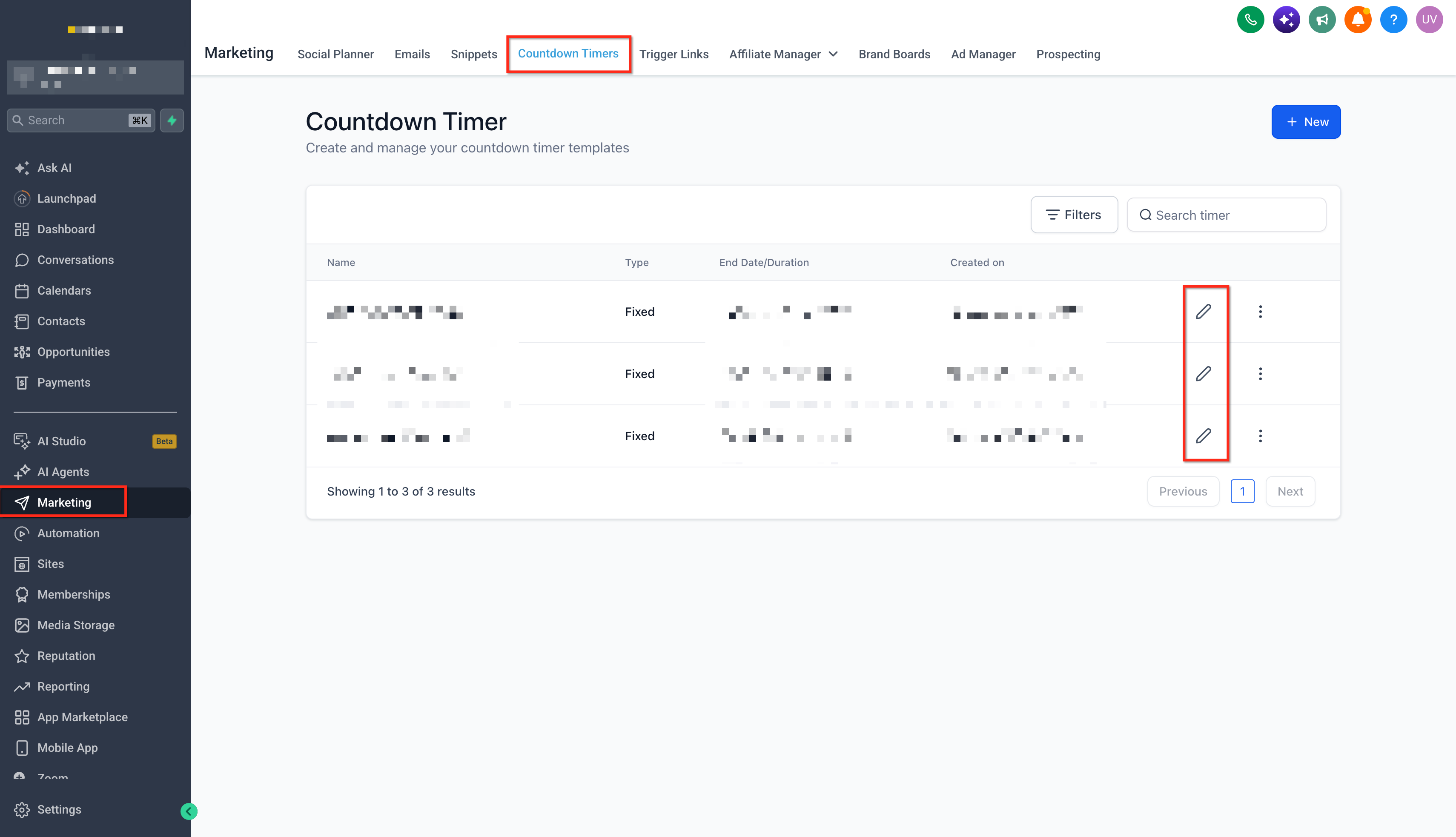
Navigate to Marketing > Countdown Timers.
Locate the Countdown Timer you want to update.
Open the available actions for the timer and select Edit.
Review the timer type before making changes. The available settings differ between Fixed, Recurring, and Dynamic Timers.
Update the required settings. Depending on the timer type, you may be able to change:
Timing or duration
End date and time
Trigger
Recurrence
Wait Time
Loop Events
Timezone
Active Link
Expired Link
Styling
Labels
Timer name
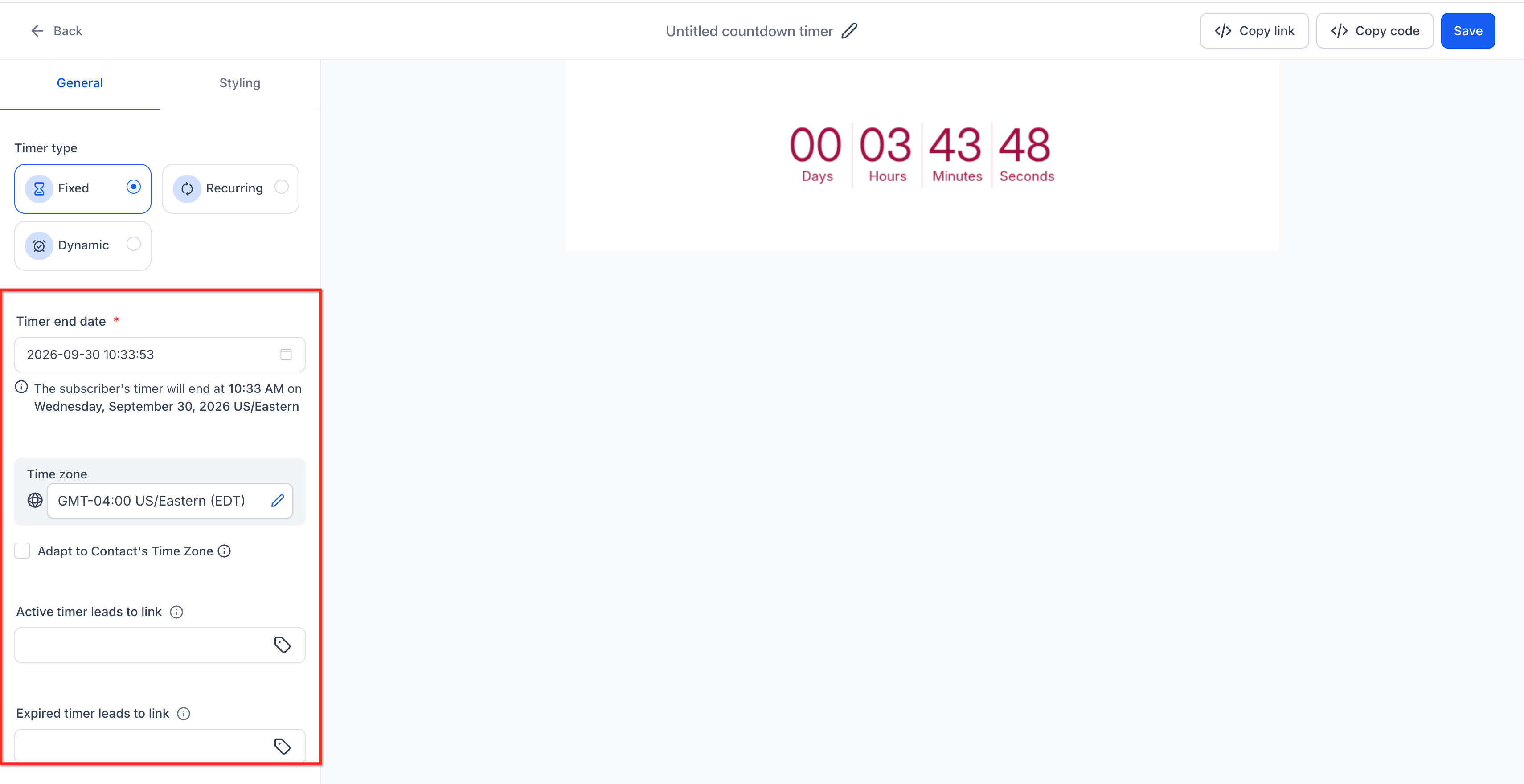
Review any settings that can affect live contacts or existing campaign placements.
Save your changes.
Open the channel where the timer is being used and verify the updated behavior.
What to Do If Edit Is Unavailable
An unavailable Edit action can indicate that the timer or its current usage has restrictions that make direct editing inappropriate. In those cases, creating a separate timer can help preserve the existing campaign behavior.
If you cannot edit the timer:
Check whether an Archive action is available.
Look for a Clone option if you need a similar timer with new settings.
Create a new timer when a fresh timing lifecycle is required.
Replace the old timer in future campaigns with the new or cloned version.
Do not remove or replace a timer from an active campaign without first checking how it is being used.
Editing Timers Used Across Multiple Channels
A single Countdown Timer can be reused in more than one supported Chat To Clients CRM experience. Editing that timer can therefore affect more than one campaign placement.
Before editing a timer, check whether it is being used in:
Emails
Funnels
Websites
WhatsApp templates
External embeds
For example, a timer may appear in both an email and its destination funnel. Updating the timer can affect the funnel placement while the already-sent email may continue to follow email-specific rendering or trigger behavior.
Testing each channel separately is the safest way to confirm the final customer experience.
Frequently Asked Questions
Q: Can I edit a Countdown Timer after it has been placed on a funnel or website?
Yes. Supported timer edits can update existing funnel and website placements that use the same timer. Test the live page after saving to confirm the updated behavior.
Q: Do I need to replace a timer on every funnel after editing it?
For supported Chat To Clients CRM placements, changes to the timer can automatically reflect wherever the same timer is used. You should still test the live page after editing.
Q: Can I edit a Dynamic Timer after a contact has triggered it?
You can edit the timer configuration, but editing does not restart a contact-specific countdown that has already been triggered.
Q: Should I reuse or clone a Dynamic Timer for another campaign?
Clone the timer when the same contacts may have already triggered the original Dynamic Timer and need a new countdown experience.
Q: Can I change Wait Time on a live Recurring Timer?
Yes. The updated Wait Time can apply the next time the timer enters the wait state rather than changing the current timer cycle immediately.
Q: Can I change the Active and Expired Links?
Yes, when those fields are available for the timer. Changing these destinations can affect existing placements using the same timer, so test both active and expired states afterward.
Q: Will editing a timer change an email that has already been sent?
Do not assume that an already-sent email will behave like a live funnel placement. Sent emails can have channel-specific rendering, caching, and trigger behavior. Use a cloned or new timer when a separate campaign lifecycle is required.
Q: Do external timer embeds update automatically after editing?
External implementations should be tested separately. Behavior can depend on how the timer was embedded and which platform is displaying it.
Q: Can I change the timer type after creating a timer?
Available edit fields depend on the timer type. If the timer type itself cannot be changed in the edit screen, create or clone the appropriate timer type instead.
Q: What should I do if the Edit option is unavailable?
Use the available Archive, Clone, or create-new-timer workflow depending on whether you need to preserve the existing timer or start a new timer lifecycle.