Pay For Service Appointments In The Mobile App POS
We're thrilled to announce our latest update to Mobile payments - integration of our POS with service calendars. For all service appointments with a deposit payment being recorded, the balance amount can be collected by the business owner using Tap to Pay and the POS as a whole in an extremely seamless manner! This update is available on Chat To Clients CRM, Chat To Clients CRM, and Whitelabelled apps (update needs to be requested).
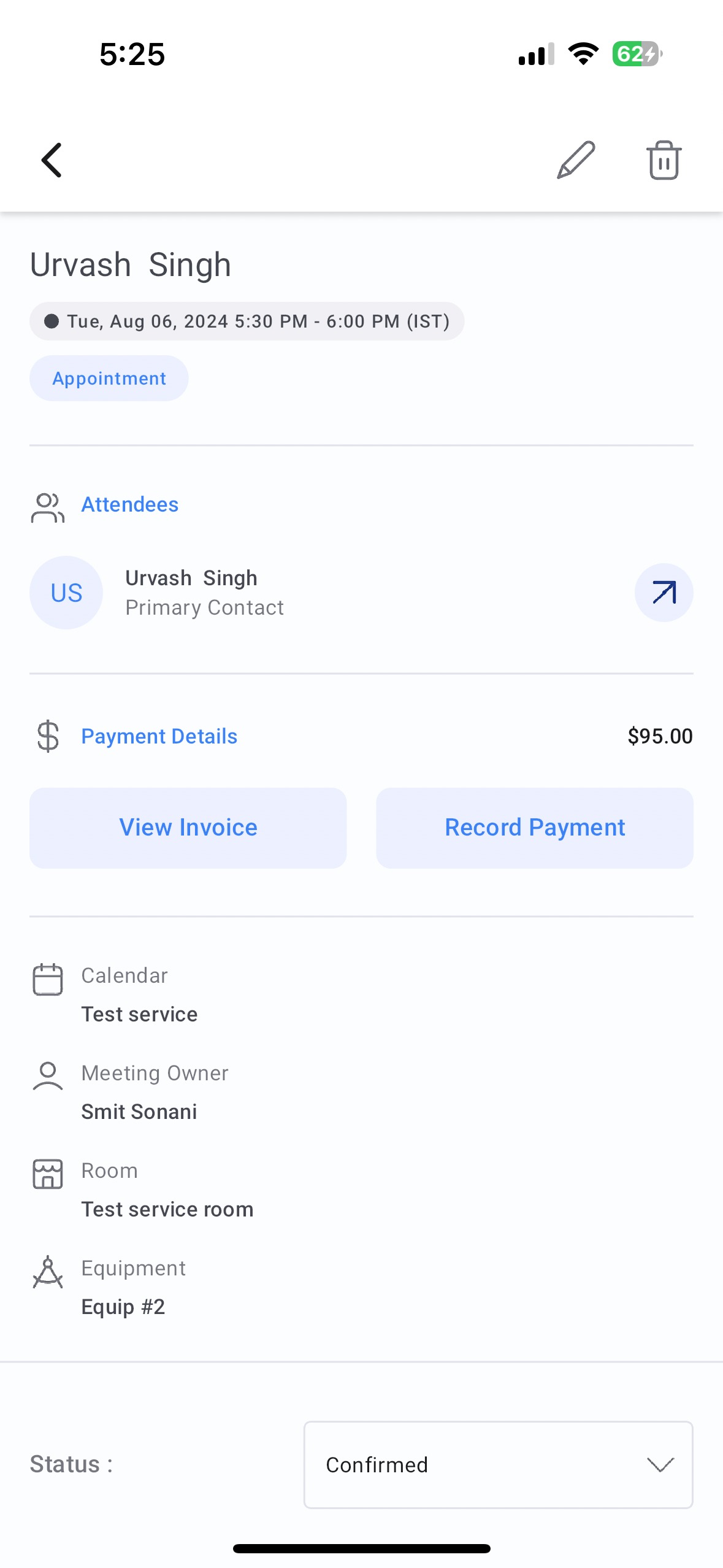
- View amount inside calendar events - Head over to the Appointments section on the mobile app and tap on the event card of a service appointment. You will be able to see the amount due for that particular service.
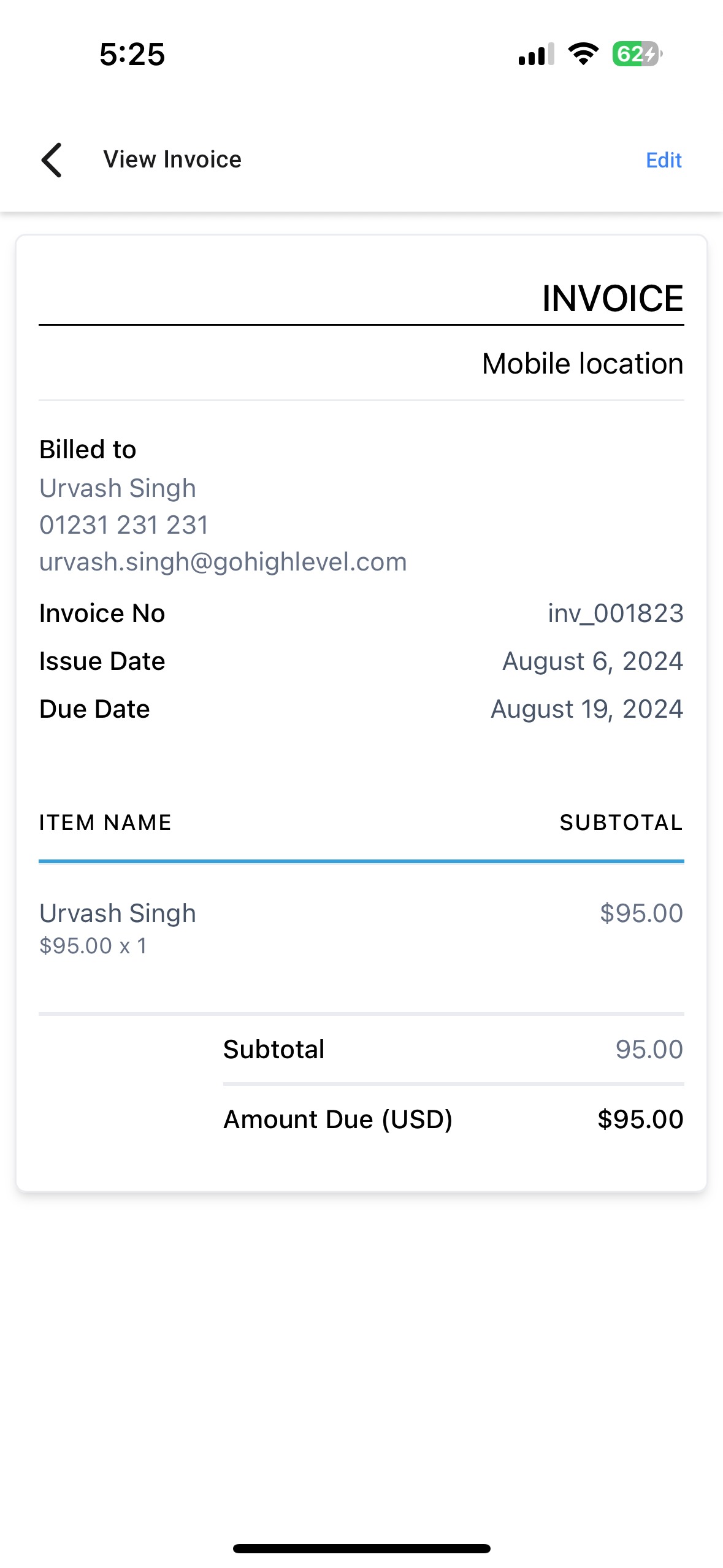
- View invoice: You can now view the associated invoice of the service inside the event card. You can also edit the invoice to add the cost of additional items that may have been used or if the service time went past the alloted time.
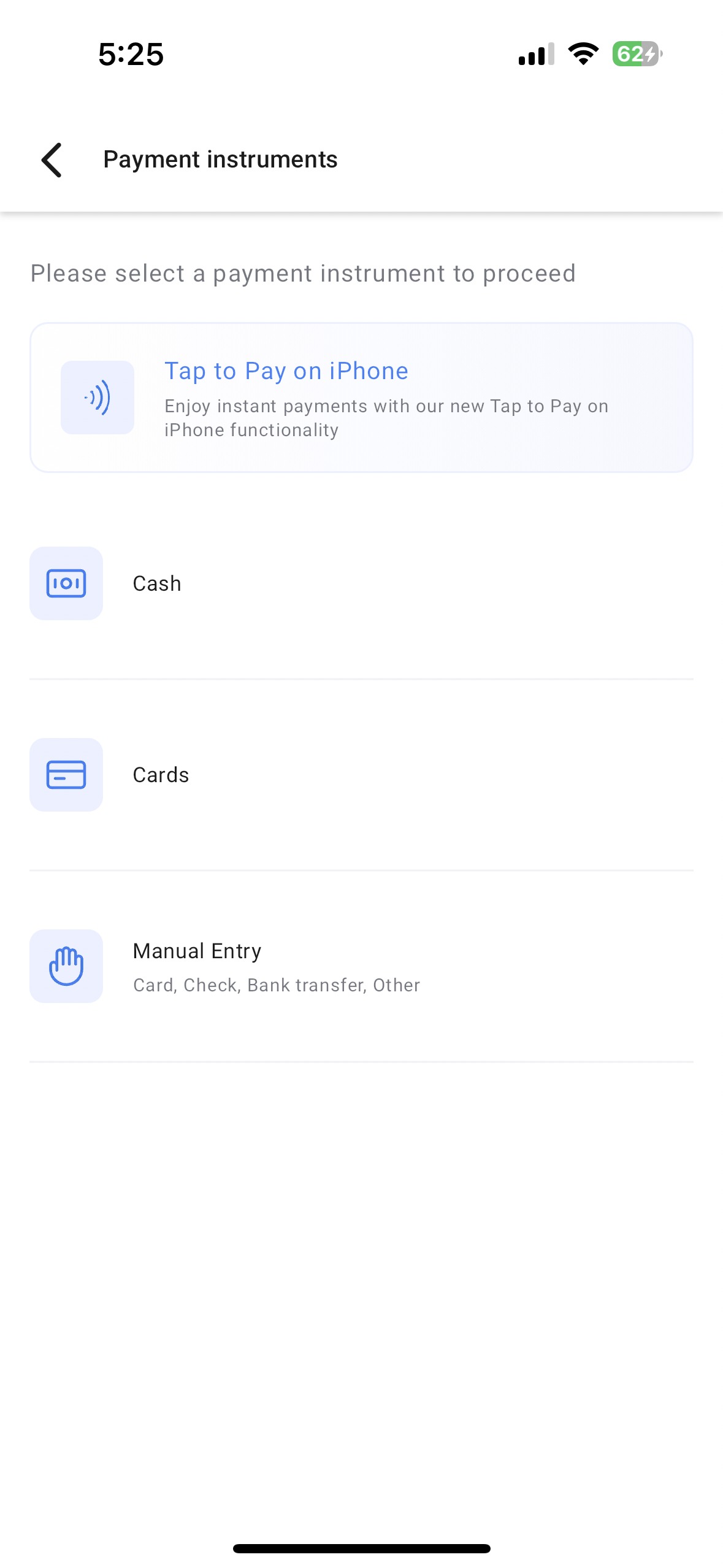
- Record payment: Record payment for that service directly from the appointment event using Tap to Pay, Card, Cash, or Manual Entry.
How It Works
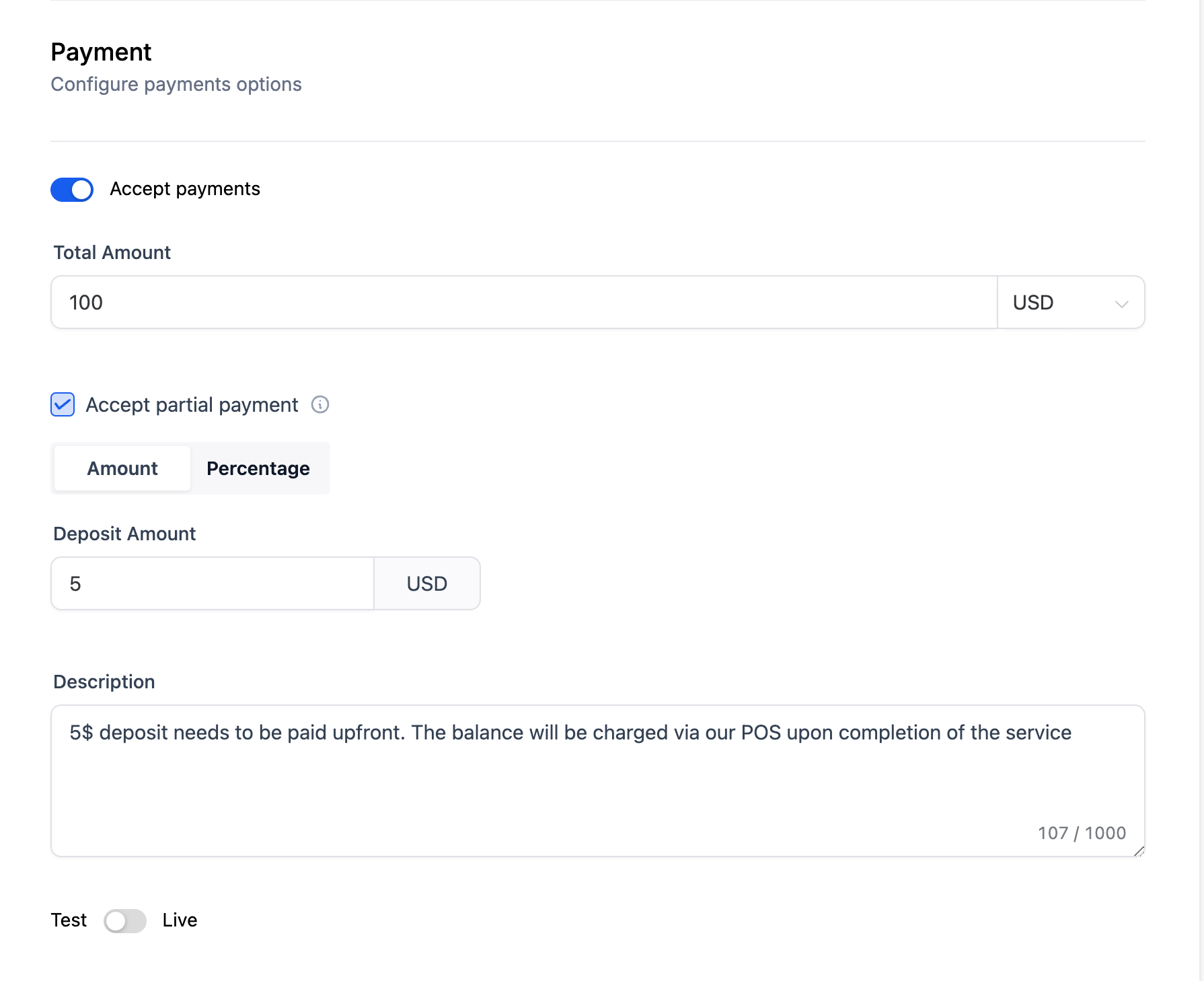
- Head over to the calendars section on Chat To Clients CRM web and make sure that you turn on the "Accept Payments" toggle under the Forms and Payments section of your service calendar. Do not forget to set the Payment mode as "Live"
- Define your payments settings under your calendar and hit save.
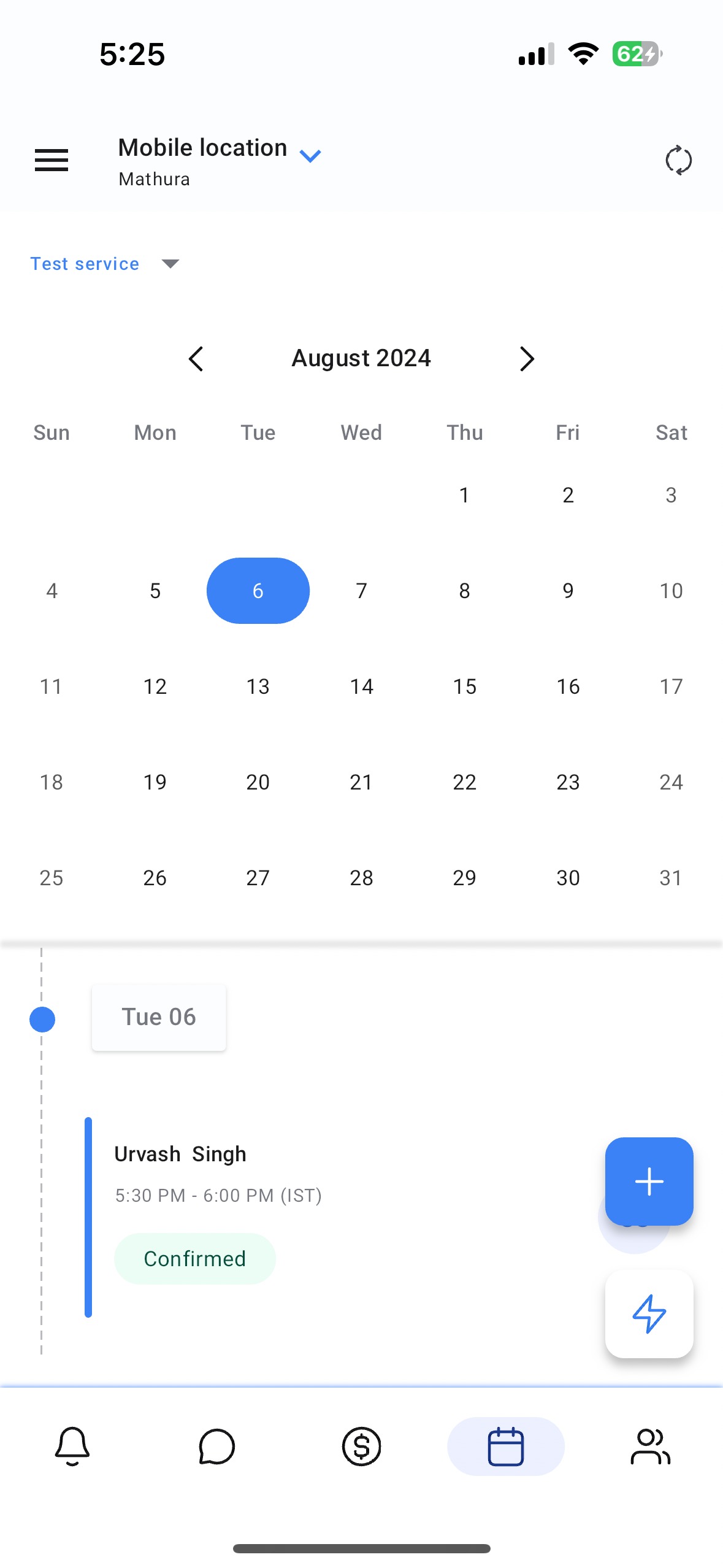
- Now everytime a customer books an appointment, you will be able to see the event on your mobile app under the Calendars section.
- Open the mobile app with the same subaccount selected.
- Tap on the event.
- You will see the amount that is due for this service along with two buttons - View Invoice and Record Payment.
- Tapping on view invoice will open up the invoice with an option to make edits.
- Tapping on record payment will open up the payments instruments screen.
- Select Tap to Pay or your preferred method to record payment and you're good to go!
Why it Matters
This update ties up two of the biggest modules on the mobile app - calendars and POS - to ensure that you have a straightforward and seamless payment collection flow.
Availability
- Chat To Clients CRM v3.78.3
- Chat To Clients CRM v3.78.3