
ConvertKit to Chat To Clients CRM (Migration Guide)
This comprehensive guide is intended to help you migrate your email marketing, subscriber management, and automation workflows from ConvertKit to Chat To Clients CRM. The goal is to ensure a smooth transition while leveraging Chat To Clients CRM’s integrated CRM and advanced automation features.
IMPORTANT: Make sure you migrate all of the following components when switching over from ConvertKit to Chat To Clients CRM.

1. Visual Automations
2. Subscribers (Contacts)
3. Forms
4. Landing Pages
5. Email Broadcasts
6. Commerce
7. Additional Data
TABLE OF CONTENTS
- Migrate Visual Automations
- Migrate Subscribers (Contacts)
- Migrate Forms
- Migrate Landing Pages
- Migrate Email Broadcasts
- Migrate Commerce Features
- Export Data from ConvertKit
- Additional Considerations
- Frequently Asked Questions
Migrate Visual Automations
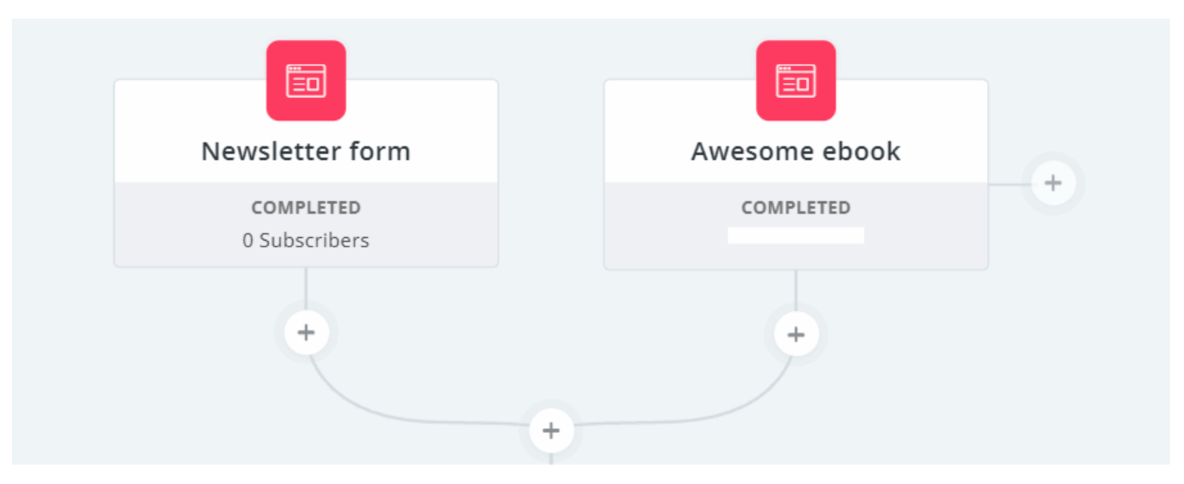
ConvertKit uses Visual Automations to create email funnels and automated workflows. In Chat To Clients CRM, these are managed through the Workflows feature, which offers similar, if not more advanced, automation capabilities.
Step 1: Document Visual Automations
- List Automations: In ConvertKit, document each visual automation, including the entry points (triggers), actions, events, and conditions.
- Capture Automation Flow: Take screenshots or notes on the specific flow of each automation to ensure accuracy when recreating it in Chat To Clients CRM.
Step 2: Recreate Automations in Chat To Clients CRM
- Access Workflows: In Chat To Clients CRM, go to Automation > Workflows.
- Create New Workflow: Click Create New Workflow and start setting up the workflow to replicate the automation from ConvertKit.
- Set Entry Points (Triggers): Use Chat To Clients CRM’s trigger options to match the entry points from ConvertKit (e.g., form submission, tag added, purchase made).
- Add Actions and Conditions: Recreate the actions and conditions (e.g., send email, wait steps, if/else branches) to mirror the original automation flow.
- Test the Workflow: Once built, test the workflow in Chat To Clients CRM to ensure all triggers, actions, and conditions work as expected.
Step 3: Post-Migration Check
- Run a Test: Set up a test contact to run through the workflow and verify that all steps function correctly, including email sends, tagging, and conditional branches.
Migrate Subscribers (Contacts)
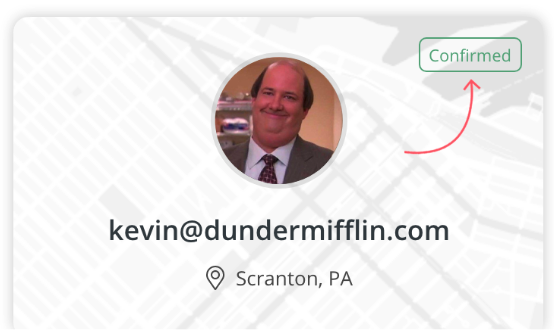
Subscribers in ConvertKit are equivalent to contacts in Chat To Clients CRM. Migrating subscribers involves exporting them from ConvertKit and importing them into Chat To Clients CRM, including their tags and segmentation.
Step 1: Export Subscribers from ConvertKit
- Navigate to Subscribers: In ConvertKit, go to Subscribers > Grow.
- Select All Subscribers: Click the checkbox at the top to select all subscribers. If you have more than 30 subscribers, make sure to confirm by clicking the link in the blue bar that appears.
- Export Subscribers: Choose Bulk Actions > Export to initiate the export. The file will be emailed to the account owner or can be downloaded directly from ConvertKit.
Step 2: Import Subscribers into Chat To Clients CRM
- Navigate to Contacts: In Chat To Clients CRM, go to Contacts > Import Contacts.
- Upload CSV File: Upload the CSV file you exported from ConvertKit.
- Map Fields: Map the fields from the CSV to the appropriate fields in Chat To Clients CRM (e.g., First Name, Last Name, Email, Tags).
- Segment and Tag Contacts: Use the tagging and segmentation information from ConvertKit to recreate similar segments and tags in Chat To Clients CRM.
Step 3: Post-Migration Check
- Verify Import: Review the imported contacts in Chat To Clients CRM to ensure that all data has been correctly mapped and segmented.
Migrate Forms
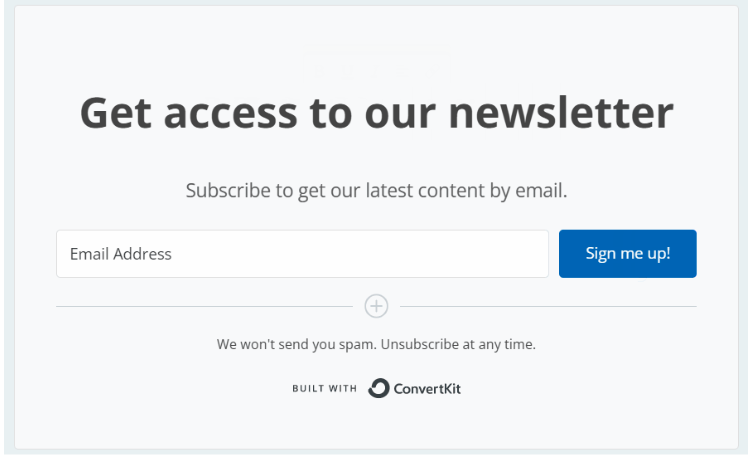
Forms in ConvertKit are used for lead capture and subscriber management. Chat To Clients CRM’s form builder allows you to recreate these forms with additional integration into your CRM and automation workflows.
Step 1: Document Form Details
- List Forms: In ConvertKit, document the forms you have created, including their fields, design, and settings such as redirect URLs, incentive emails, and reCAPTCHA.
- Capture Custom Fields: Note any custom fields used in the forms for data collection.
Step 2: Recreate Forms in Chat To Clients CRM
- Access Form Builder: In Chat To Clients CRM, navigate to Sites > Forms.
- Create New Form: Click Create New Form and start by adding the fields used in your ConvertKit forms.
- Customize Design: Adjust the design elements such as background colors, fonts, and button styles to match the original forms.
- Set Form Actions: Configure form actions like redirecting after submission, sending a confirmation email, and applying tags.
- Integrate with Workflows: If the form triggers a workflow, ensure it is integrated with the corresponding Chat To Clients CRM workflow.
Step 3: Post-Migration Check
- Test Form Submissions: Submit a test entry through each form to verify that the data is correctly captured and triggers the appropriate workflows.
Migrate Landing Pages
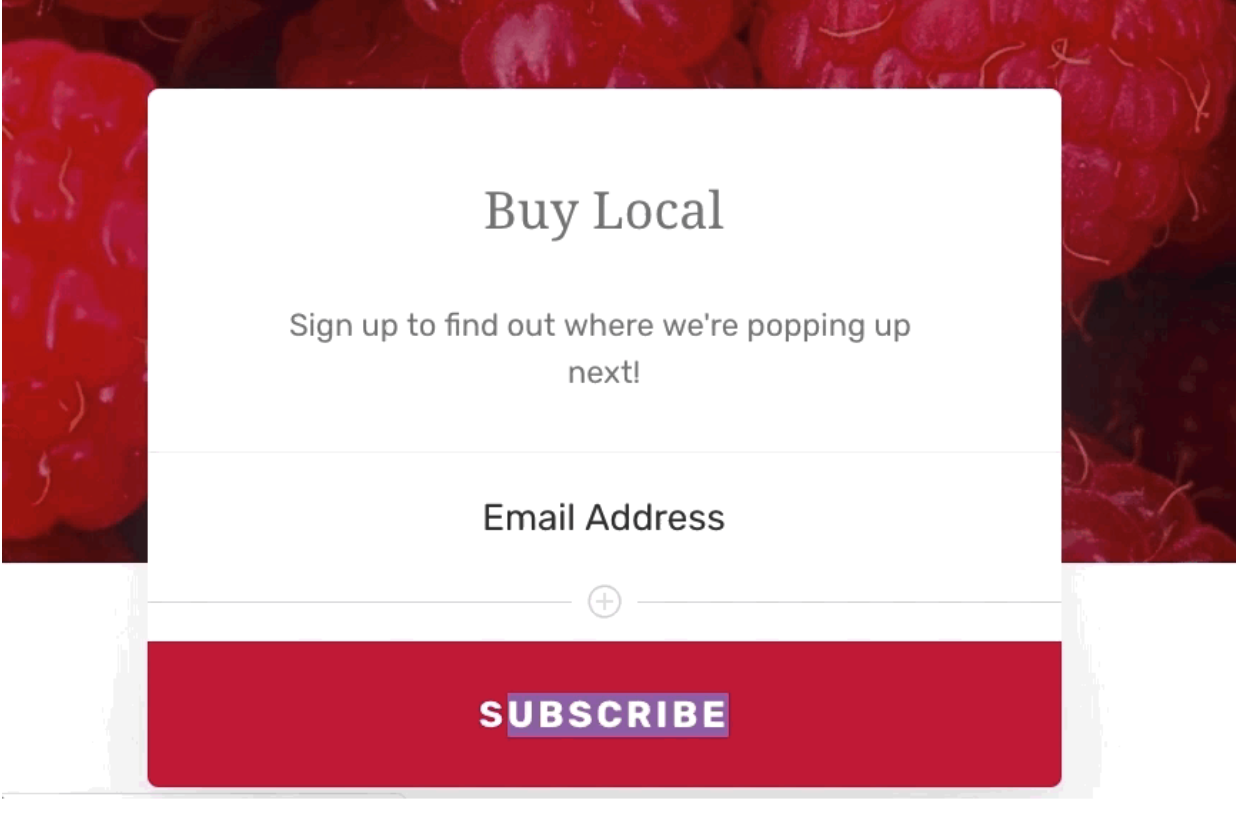
ConvertKit’s landing pages are standalone pages used for lead generation. Chat To Clients CRM allows you to recreate these landing pages with enhanced integration into your overall marketing strategy.
Step 1: Document Landing Page Details
- List Landing Pages: In ConvertKit, document each landing page, including the template used, content, custom images, and any integration with forms or automations.
- Capture Custom Domain Settings: Note if any landing pages use a custom domain or subdomain.
Step 2: Recreate Landing Pages in Chat To Clients CRM
- Access Landing Page Builder: In Chat To Clients CRM, go to Sites > Funnels/Websites and choose Create New Landing Page.
- Select Template: Choose a template that matches the layout and style of your ConvertKit landing page.
- Rebuild Content: Recreate the content, images, and design elements on the Chat To Clients CRM landing page.
- Set Up Forms: Embed the forms created in Chat To Clients CRM into the landing page and ensure they are correctly linked to workflows and contact lists.
- Configure Domain Settings: If you used a custom domain in ConvertKit, configure the same domain or subdomain in Chat To Clients CRM.
Step 3: Post-Migration Check
- Preview and Test: Preview the landing page and run a test to ensure that all elements work as expected, including form submissions and redirects.
Migrate Email Broadcasts
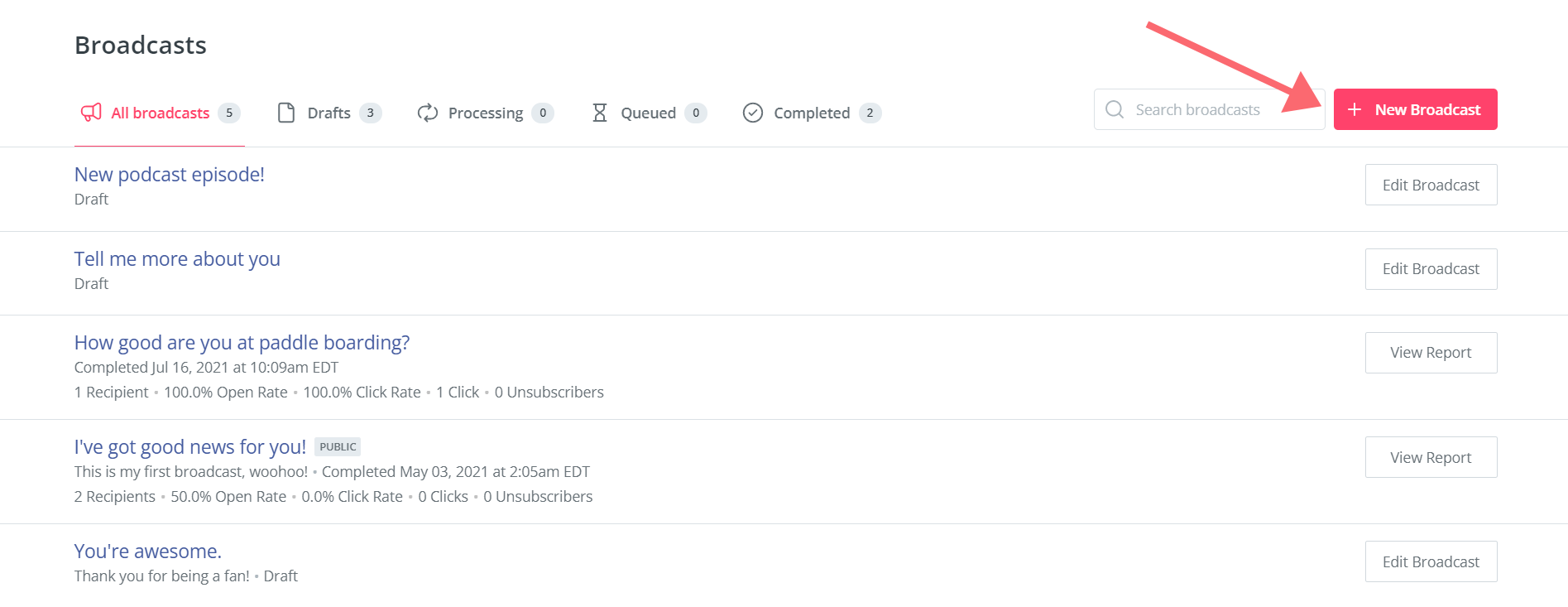
Email broadcasts in ConvertKit are similar to Chat To Clients CRM’s email campaigns. You can recreate these broadcasts in Chat To Clients CRM to continue your email marketing efforts.
Step 1: Document Email Broadcasts
- List Broadcasts: Document the email broadcasts you have sent in ConvertKit, including the subject lines, email content, and recipient segments.
- Capture Email Templates: Save copies of any email templates used in ConvertKit broadcasts.
Step 2: Recreate Email Broadcasts in Chat To Clients CRM
- Access Email Campaigns: In Chat To Clients CRM, go to Marketing > Email Campaigns.
- Create New Campaign: Click Create New Campaign and set up the email broadcast, replicating the content and design from ConvertKit.
- Segment Recipients: Use the imported tags and segments to define the recipient list for the broadcast.
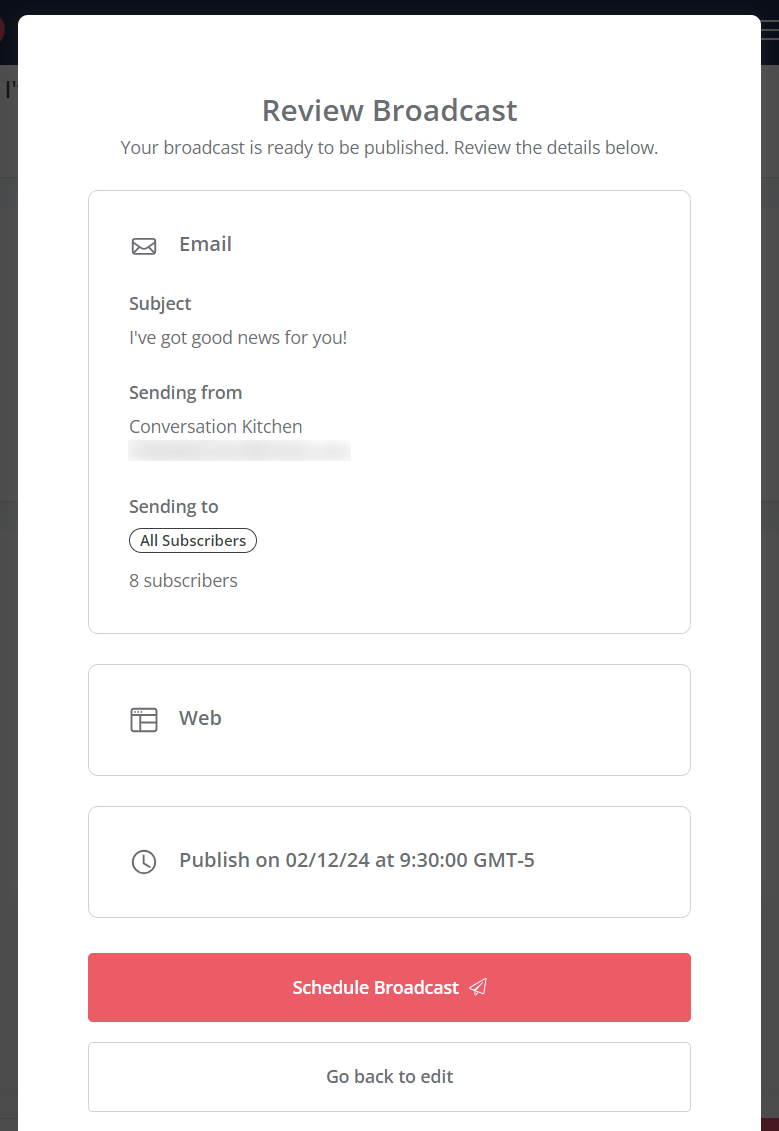
- Schedule or Send: Choose whether to send the broadcast immediately or schedule it for a later time.
Step 3: Post-Migration Check
- Send Test Email: Send a test email to verify the design and content, ensuring it renders correctly across different email clients.
Migrate Commerce Features
ConvertKit offers tools for managing digital products and subscription payments. Chat To Clients CRM’s payment integration features allow for similar functionality, integrated with its broader marketing and CRM capabilities.
Step 1: Document Commerce Products
- List Products: Document all digital products or subscriptions you have set up in ConvertKit, including pricing, fulfillment methods, and any associated automations.
- Capture Product Details: Record the URLs, custom domains, and settings for each product.
Step 2: Recreate Commerce Products in Chat To Clients CRM
- Access Payments & Order Forms: In Chat To Clients CRM, navigate to Sites > Order Forms to set up new product pages or order forms.
- Set Product Pricing: Recreate the pricing models used in ConvertKit, including one-time payments, subscriptions, and payment plans.
- Configure Fulfillment: Set up digital product delivery or subscription management, ensuring customers receive their products automatically upon purchase.
- Integrate with Workflows: Link the product purchase to workflows for follow-up emails, upsells, or customer segmentation.
Step 3: Post-Migration Check
- Test Purchase Flow: Perform a test purchase to ensure the payment is processed correctly, and the product is delivered as intended.
Export Data from ConvertKit
Before fully transitioning, it’s essential to export any critical data from ConvertKit, such as subscriber lists and engagement metrics, for reference or import into Chat To Clients CRM.
Step 1: Export Subscriber List
- Navigate to Export: In ConvertKit, go to Subscribers > Grow and select Export under the Bulk Actions menu.
- Receive Export File: The export file will be sent via email or can be downloaded directly from your ConvertKit account.
Step 2: Review Exported Data
- Verify Data Integrity: Open the exported CSV file to ensure all necessary information has been captured accurately, including subscriber details, tags, engagement metrics, and any custom fields. This data can be used to inform your strategy within Chat To Clients CRM or for backup purposes.
Step 3: Import Data into Chat To Clients CRM (Optional)
- Import Additional Data: If necessary, you can import additional data (beyond subscribers) into Chat To Clients CRM, such as tags, engagement scores, or custom field data that was exported from ConvertKit.
- Set Up Additional Data Fields: Ensure that any custom fields or unique data types from ConvertKit are correctly mapped and recreated within Chat To Clients CRM.
Step 4: Post-Migration Check
- Cross-Check Data: After the import, cross-check the data within Chat To Clients CRM to ensure that all subscriber information and tags have been accurately imported and that there are no discrepancies.
Additional Considerations
Training and Support
- Internal Training: Provide training sessions for your team on how to use Chat To Clients CRM effectively, with a focus on features that differ from ConvertKit. This may include understanding Chat To Clients CRM’s CRM capabilities, multi-channel marketing options, and automation workflows.
- Access Support: Ensure your team knows how to access Chat To Clients CRM’s support resources and documentation to assist with any issues that may arise during or after the migration.
Ongoing Monitoring
- Monitor Performance: Regularly monitor the performance of your email campaigns, automations, and landing pages within Chat To Clients CRM to ensure they meet your expectations and perform as well or better than in ConvertKit.
- Optimize Settings: Use Chat To Clients CRM’s reporting and analytics tools to identify areas for improvement, such as email deliverability, automation effectiveness, and lead conversion rates.
Backup and Data Retention
- Keep Backups: Retain a backup of your ConvertKit data even after the migration is complete. This ensures that you have access to historical data in case of discrepancies or for future reference.
- Data Retention Policies: Review your data retention policies in Chat To Clients CRM to ensure they align with your business needs and compliance requirements.
Frequently Asked Questions
How do I migrate my Visual Automations from ConvertKit to Chat To Clients CRM?
Document each visual automation in ConvertKit, including entry points (triggers), actions, events, and conditions. Take screenshots or notes on the specific flow. In Chat To Clients CRM, go to Automation > Workflows, create new workflows that replicate your ConvertKit automations, set up matching triggers, add actions and conditions, and test to ensure all steps function correctly.
How do I export subscribers from ConvertKit?
In ConvertKit, go to Subscribers > Grow, click the checkbox at the top to select all subscribers (if you have more than 30 subscribers, confirm by clicking the link in the blue bar), then choose Bulk Actions > Export. The file will be emailed to the account owner or can be downloaded directly from ConvertKit.
How do I import ConvertKit subscribers into Chat To Clients CRM?
In Chat To Clients CRM, go to Contacts > Import Contacts, upload the CSV file exported from ConvertKit, map the fields from the CSV to the appropriate fields in Chat To Clients CRM (e.g., First Name, Last Name, Email, Tags), and use the tagging information to recreate similar segments in Chat To Clients CRM. After importing, verify that all data has been correctly mapped and segmented.
How do I recreate my ConvertKit forms in Chat To Clients CRM?
Document your ConvertKit forms, including fields, design, settings, and custom fields. In Chat To Clients CRM, navigate to Sites > Forms, create new forms by adding the same fields, customize the design to match your original forms, configure form actions (redirects, confirmation emails, tags), and integrate with corresponding workflows. Test each form to verify data capture and workflow triggers.
How do I migrate landing pages from ConvertKit to Chat To Clients CRM?
Document each landing page in ConvertKit, including templates, content, images, and domain settings. In Chat To Clients CRM, go to Sites > Funnels/Websites, create new landing pages using similar templates, rebuild the content and design elements, embed your Chat To Clients CRM forms, and configure any custom domain settings. Preview and test each landing page to ensure all elements work correctly.
How do I recreate my email broadcasts in Chat To Clients CRM?
Document your ConvertKit email broadcasts, including subject lines, content, and recipient segments. Save copies of any email templates. In Chat To Clients CRM, go to Marketing > Email Campaigns, create new campaigns replicating the content and design, use imported tags to define recipient lists, and schedule or send. Send test emails to verify proper rendering across email clients.
How do I migrate my digital products and commerce features?
Document all digital products or subscriptions from ConvertKit, including pricing, fulfillment methods, and associated automations. In Chat To Clients CRM, navigate to Sites > Order Forms to set up new product pages, recreate pricing models, configure digital product delivery or subscription management, and link product purchases to workflows. Test the purchase flow to ensure correct processing and delivery.
What data should I export from ConvertKit before completing the migration?
Export your full subscriber list from ConvertKit (Subscribers > Grow > Export under Bulk Actions). Verify the exported CSV includes all necessary information: subscriber details, tags, engagement metrics, and custom fields. This data can inform your Chat To Clients CRM strategy and serve as a backup. Consider exporting any other relevant data like campaign performance metrics for historical reference.
What post-migration checks should I perform to ensure everything is working properly?
Test contacts running through workflows to verify all automation steps function correctly. Review imported contacts to ensure data mapped properly. Submit test entries through forms to verify data capture. Preview landing pages and test functionality. Send test emails to check rendering. Test product purchases to confirm correct processing and delivery. Cross-check all data in Chat To Clients CRM against your ConvertKit exports.
What ongoing considerations should I keep in mind after migrating to Chat To Clients CRM?
Provide training for your team on Chat To Clients CRM's features, especially those different from ConvertKit. Ensure your team knows how to access Chat To Clients CRM's support resources. Regularly monitor the performance of emails, automations, and landing pages. Use Chat To Clients CRM's reporting tools to identify improvement areas. Retain backups of your ConvertKit data for historical reference. Review data retention policies in Chat To Clients CRM for business needs and compliance.