
Hubspot to Chat To Clients CRM (Migration Guide)
This is a comprehensive guide for migrating your business processes, data, and workflows from HubSpot to Chat To Clients CRM. The goal is to ensure a smooth transition, minimizing disruptions while maximizing the advantages of Chat To Clients CRM’s features.
TABLE OF CONTENTS
- Preparation for Migration
- Migrate CRM Data
- Migrate Workflows and Automations
- Migrate Marketing Campaigns
- Migrate Communication Tools
- Final Checks and Training
- Decommissioning HubSpot
- Frequently Asked Questions
Preparation for Migration
Step 1: Review Current HubSpot Setup
- Identify Key Features: List all key features used in HubSpot, such as CRM, automation workflows, marketing campaigns, calling, SMS messaging, and e-commerce tools.
- Document Existing Workflows: Record details of existing workflows, pipelines, and campaigns that need to be replicated in Chat To Clients CRM.
- Assess Data Volume: Evaluate the amount of data (e.g., contacts, deals, emails) to be migrated, ensuring you have adequate storage and resources in Chat To Clients CRM.
Step 2: Define Migration Goals
- Set Clear Objectives: Define what you aim to achieve with the migration, such as improved automation, better CRM integration, or cost savings.
- Prioritize Features: Prioritize which features and data sets are most critical to migrate first.
Step 3: Prepare Backup
- Export Data from HubSpot: Export all necessary data from HubSpot, including contacts, companies, deals, tickets, workflows, and other essential records.
- Backup Data: Ensure you have a secure backup of all data before beginning the migration process.
Migrate CRM Data
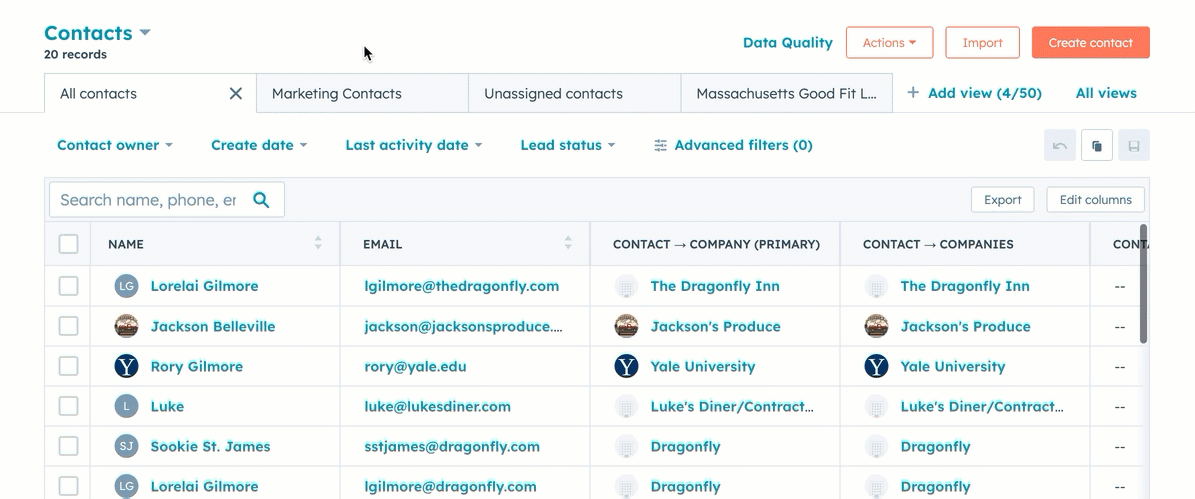
Step 1: Export Data from HubSpot
- Contacts and Companies: Navigate to Contacts > Contacts and CRM > Companies. Export data as CSV files.
- Deals and Pipelines: Go to Sales > Deals. Export your pipelines and associated deals.
- Marketing Assets: Export emails, landing pages, forms, and workflows.
- Products and Invoices: Export your product catalog and any invoices generated through HubSpot’s payment tool.
Step 2: Import Data into Chat To Clients CRM
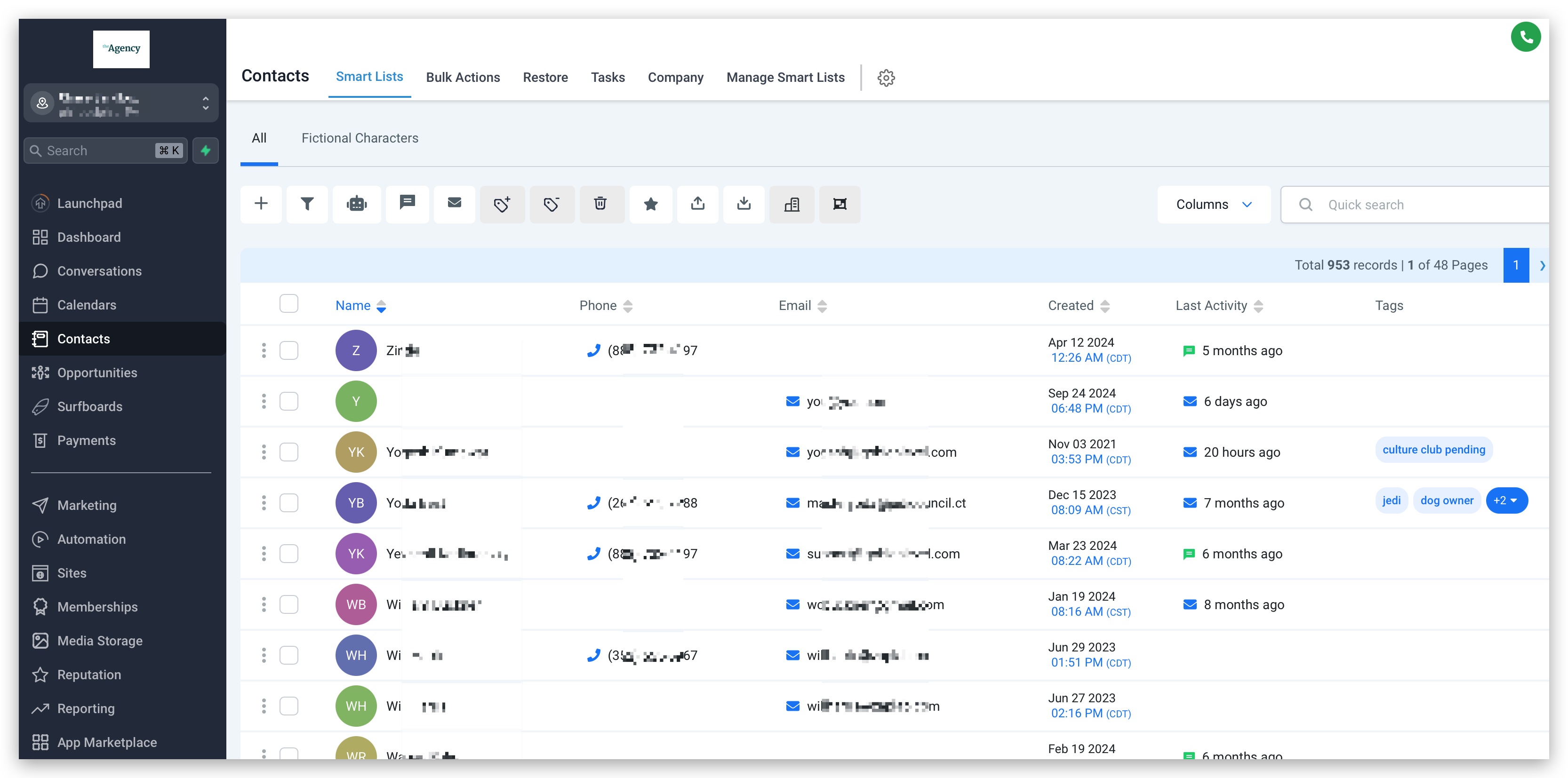
- Import Contacts and Companies:
- In Chat To Clients CRM, navigate to Contacts > Import Contacts.
- Upload the CSV files exported from HubSpot, mapping fields appropriately (e.g., first name, last name, email).
- Recreate Deals and Pipelines:
- Set up new pipelines in Chat To Clients CRM under Opportunities > Pipelines.
- Manually recreate deals or import them if necessary.
- Migrate Products and Invoices:
- Recreate product listings in Chat To Clients CRM under Payments > Products.
- Set up invoices and payment links using Chat To Clients CRM’s invoicing tool.
Migrate Workflows and Automations
Step 1: Review Existing HubSpot Workflows
- List Active Workflows: Identify and document all active workflows in HubSpot, including triggers, actions, and delays.
- Evaluate Workflow Complexity: Assess the complexity of each workflow to determine the best approach for replicating it in Chat To Clients CRM.
Step 2: Recreate Workflows in Chat To Clients CRM
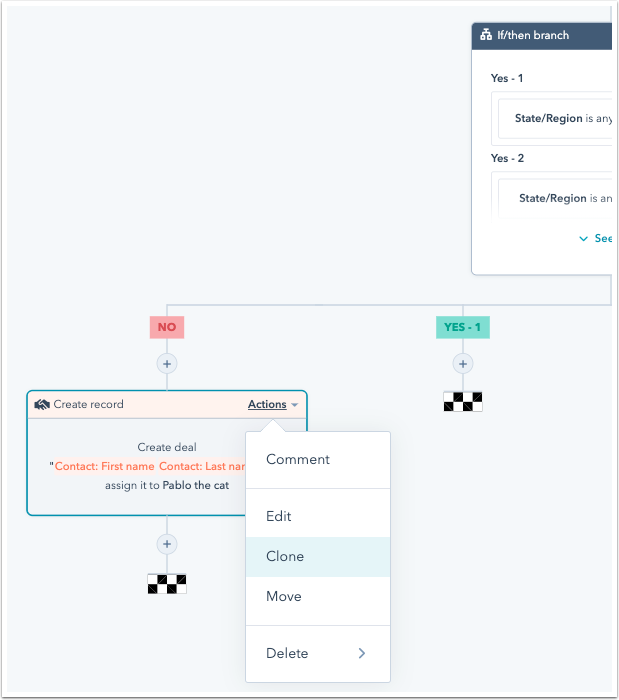
- Create Automation Triggers:
- In Chat To Clients CRM, navigate to Automation > Workflows.
- Set up triggers equivalent to those in HubSpot (e.g., form submissions, contact updates).
- Rebuild Actions and Delays: Recreate actions such as sending emails, SMS, tagging contacts, or updating deal stages. Configure any necessary delays and conditional logic within workflows.
Step 3: Test Workflows
- Run Tests: Before activating workflows, run tests to ensure they function as intended.
- Adjust Settings: Make necessary adjustments based on test results to ensure smooth operation.
Migrate Marketing Campaigns
Step 1: Export and Recreate Email Campaigns
- Export Email Templates: Save HTML copies of your HubSpot email templates.
- Import or Rebuild in Chat To Clients CRM:
- Navigate to Marketing > Email Campaigns in Chat To Clients CRM.
- Recreate or import your email templates and configure them to match your existing designs.
Step 2: Rebuild Landing Pages and Forms
- Export Landing Pages: Download the HTML for HubSpot landing pages.
- Rebuild in Chat To Clients CRM:
- Use Chat To Clients CRM’s Sites > Landing Pages builder to recreate landing pages.
- Ensure all forms and CTA buttons are linked to your Chat To Clients CRM workflows.
Step 3: Campaign Settings
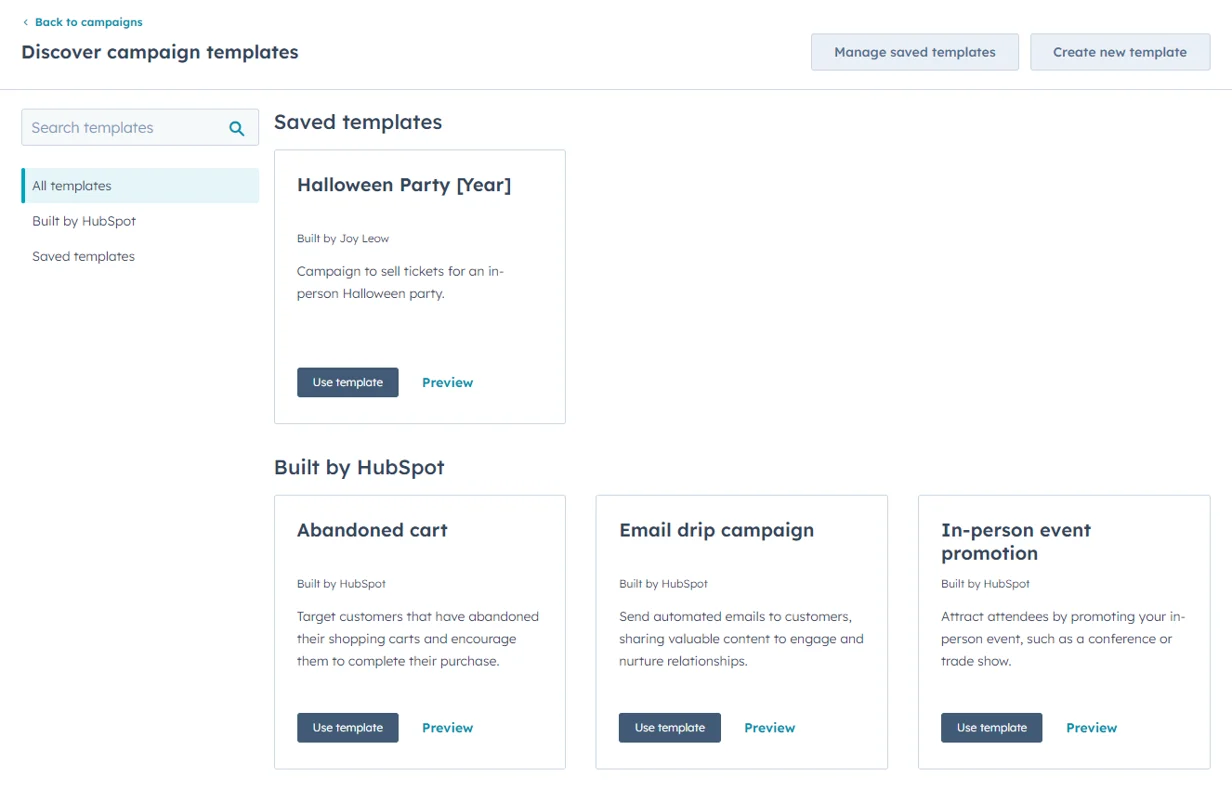
- Configure Campaigns: Set up your campaigns in Chat To Clients CRM, ensuring that all assets (emails, landing pages, forms) are linked. Assign specific goals, budgets, and tracking settings as needed.
Migrate Communication Tools
Step 1: Migrate Calling and SMS
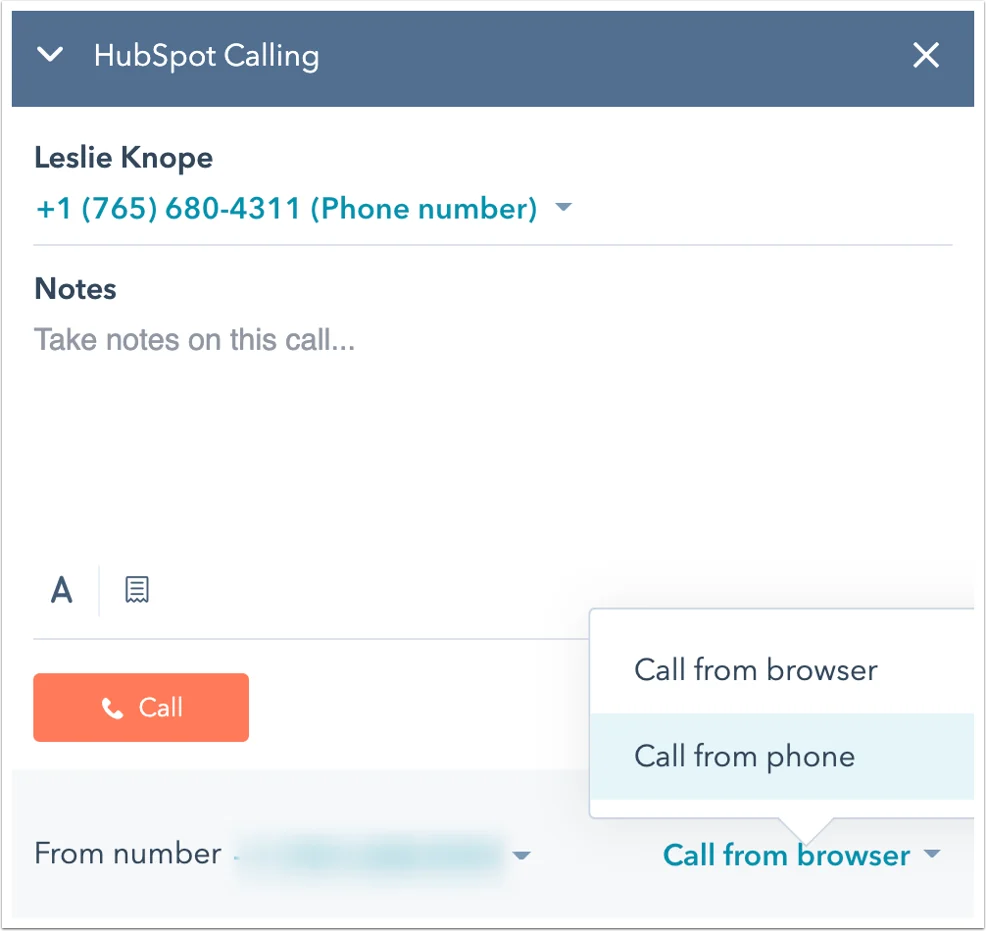
- Twilio Integration: If using Twilio in HubSpot, integrate it with Chat To Clients CRM for calling and SMS. Go to Settings > Phone Numbers in Chat To Clients CRM to set up your Twilio account.
- Configure Communication Workflows: Set up SMS and call automation workflows in Chat To Clients CRM under Automation > Workflows. Ensure all client communication is appropriately logged and tracked.
Step 2: Setup Conversations Inbox
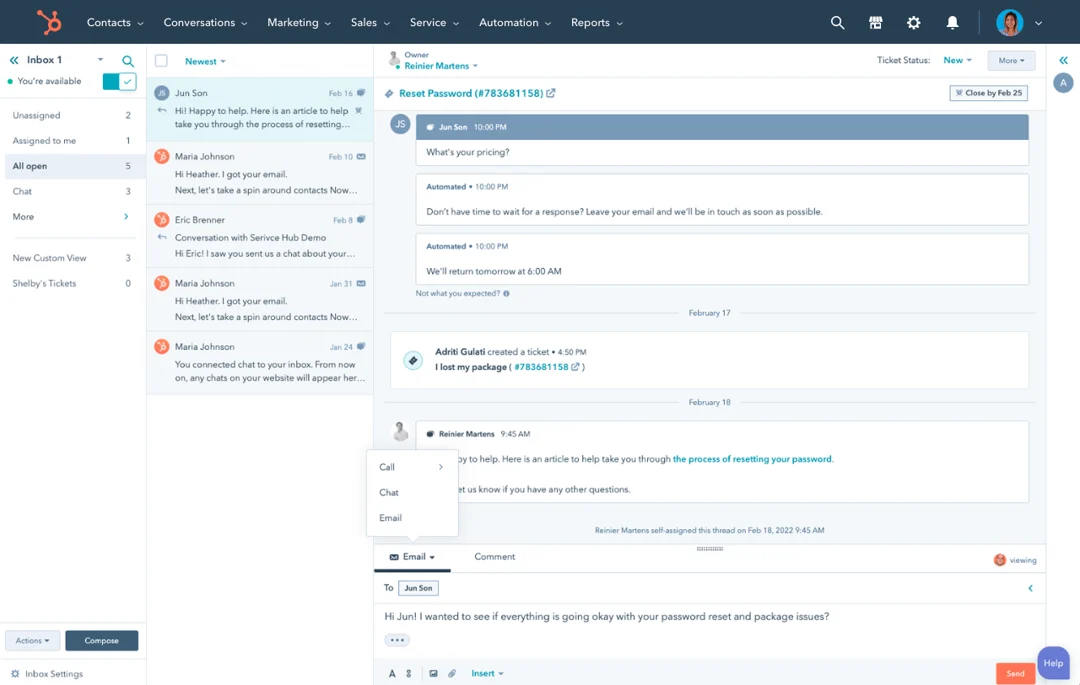
- Configure Inbox: In Chat To Clients CRM, navigate to Conversations > Inbox. Set up your default inbox and connect communication channels such as email, SMS, and Facebook Messenger.
- Test Communication Channels: Ensure all channels are functioning correctly and that messages are properly routed to the appropriate inbox.
Final Checks and Training
Step 1: Perform Final Data Validation
- Cross-Check Data: Ensure that all data has been successfully migrated and that there are no discrepancies between HubSpot and Chat To Clients CRM records.
- Validate Workflows and Campaigns: Confirm that all workflows, automations, and campaigns are operational.
Step 2: Train Team Members
- Chat To Clients CRM Training: Provide training to your team on how to use Chat To Clients CRM, focusing on the differences from HubSpot.
- Utilize Chat To Clients CRM Support: Encourage team members to leverage Chat To Clients CRM’s support resources and community forums for ongoing learning.
Step 3: Monitor and Optimize
- Monitor Performance: Track the performance of your new setup in Chat To Clients CRM, making adjustments as necessary.
- Continuous Improvement: Regularly review and refine workflows, automations, and campaigns to ensure they align with business goals.
Decommissioning HubSpot
Step 1: Transition Period
- Run in Parallel: Consider running HubSpot and Chat To Clients CRM in parallel during the transition phase to ensure no critical operations are missed.
- Gradual Phase-Out: Gradually reduce reliance on HubSpot as Chat To Clients CRM becomes fully operational.
Step 2: Cancel HubSpot Subscription
- Final Data Backup: Before canceling your HubSpot subscription, ensure all data is securely backed up.
- Official Cancellation: Follow HubSpot’s process to cancel your subscription and terminate services.
Step 3: Post-Migration Review
- Review Success: Evaluate the success of the migration process and document any lessons learned.
- Continuous Monitoring: Keep monitoring the system post-migration for any potential issues.
Frequently Asked Questions
How should I prepare for migrating from HubSpot to Chat To Clients CRM?
Start by reviewing your current HubSpot setup, identifying key features you use (CRM, automation workflows, marketing campaigns, calling, SMS messaging, e-commerce tools), documenting existing workflows and pipelines, and assessing your data volume. Define clear migration objectives, prioritize which features to migrate first, and export all necessary data from HubSpot as a secure backup before beginning the migration process.
How do I export my data from HubSpot?
For contacts and companies, navigate to Contacts > Contacts and CRM > Companies and export as CSV files. For deals and pipelines, go to Sales > Deals and export your pipelines and associated deals. Export marketing assets including emails, landing pages, forms, and workflows. For products and invoices, export your product catalog and any invoices generated through HubSpot's payment tool.
How do I import contacts and companies into Chat To Clients CRM?
In Chat To Clients CRM, navigate to Contacts > Import Contacts, upload the CSV files exported from HubSpot, and map fields appropriately (e.g., first name, last name, email). After importing, verify that all contact and company data has been correctly transferred and that relationships between records are maintained.
How do I recreate my HubSpot deals and pipelines in Chat To Clients CRM?
Set up new pipelines in Chat To Clients CRM under Opportunities > Pipelines to match your HubSpot pipeline structure. Then either manually recreate deals or import them if possible. Ensure all deal stages, properties, and associated data are accurately configured to maintain your sales process.
How do I migrate my email campaigns from HubSpot to Chat To Clients CRM?
Save HTML copies of your HubSpot email templates. Then navigate to Marketing > Email Campaigns in Chat To Clients CRM to recreate or import your email templates, configuring them to match your existing designs. Test the emails to ensure proper formatting and functionality before sending to your contact list.
How do I rebuild my HubSpot landing pages and forms in Chat To Clients CRM?
Download the HTML for your HubSpot landing pages, then use Chat To Clients CRM's Sites > Landing Pages builder to recreate them. Ensure all forms and CTA buttons are linked to your Chat To Clients CRM workflows. Test each landing page and form to verify functionality and proper data capture.
How do I recreate my HubSpot workflows in Chat To Clients CRM?
Identify and document all active workflows in HubSpot, including triggers, actions, and delays. In Chat To Clients CRM, navigate to Automation > Workflows, set up equivalent triggers (e.g., form submissions, contact updates), rebuild actions (sending emails, SMS, tagging contacts, updating deal stages), and configure necessary delays and conditional logic. Run tests before activating workflows to ensure they function as intended.
How do I migrate my calling and SMS capabilities from HubSpot to Chat To Clients CRM?
If using Twilio in HubSpot, integrate it with Chat To Clients CRM for calling and SMS by going to Settings > Phone Numbers to set up your Twilio account. Then set up SMS and call automation workflows in Chat To Clients CRM under Automation > Workflows, ensuring all client communication is appropriately logged and tracked. Configure your Conversations Inbox in Chat To Clients CRM to manage all communications channels.
What final checks should I perform after migrating from HubSpot to Chat To Clients CRM?
Cross-check all data to ensure it has been successfully migrated and there are no discrepancies between HubSpot and Chat To Clients CRM records. Validate that all workflows, automations, and campaigns are operational. Test communication channels to verify functionality. Provide training to your team on using Chat To Clients CRM, focusing on differences from HubSpot. Monitor performance and make adjustments as necessary.
Should I immediately cancel my HubSpot subscription after migration?
No, consider running HubSpot and Chat To Clients CRM in parallel during a transition phase to ensure no critical operations are missed. Gradually reduce reliance on HubSpot as Chat To Clients CRM becomes fully operational. Before canceling your HubSpot subscription, ensure all data is securely backed up. After cancellation, continue monitoring the system for any potential issues and document lessons learned from the migration process.