
Workflow Action - Update Custom Values
The Update Custom Value workflow action in Chat To Clients CRM allows you to dynamically update or replace existing custom values within workflows. This action is a powerful tool for automating processes, personalizing campaigns, and maintaining accurate data across your CRM. Whether you're updating loyalty tiers, synchronizing data from external APIs, or managing automation triggers, this feature enhances flexibility and efficiency in your workflows.
TABLE OF CONTENTS
- What is the Update Custom Value Action?
- Key Use Cases
- How to Set Up the Update Custom Value Action
- Field Descriptions
- Advanced Use Cases
- Suggested Triggers
- FAQs
- Related Resources
What is the Update Custom Value Action?
The Update Custom Value action enables you to dynamically modify custom values in workflows. It allows you to set, update, or replace existing values in custom values based on current/specific conditions.
- Update CRM data dynamically based on real-time triggers.
- Use variables to set dynamic values.
- Maintain accurate and consistent data across your CRM.
Key Use Cases
- Dynamic Personalization in Campaigns: Automatically update customer loyalty tiers after purchase milestones.
- Data Synchronization: Update CRM fields dynamically with external API data.
- Real-Time Automation: Adjust discount codes or loyalty points dynamically in response to customer actions.
- Trigger-Based Updates: Automatically change status fields based on user interactions.
- Example Scenario: "When a user makes a purchase above $500, update their loyalty tier from 'Bronze' to 'Gold' using the Update Custom Value action."
In this example, when the "VIP" tag is added to a contact, the discount rate custom value is updated from 10% to 15%, enabling the contact to receive a higher discount during future interactions.
- Trigger: Contact Tag Added, Condition is a tag "VIP" is added to a contact.
- Action: Update Custom Value
- Custom Value: Discount Rate (created previously)
- Current Value: 10%
- New Value: 15%
How to Set Up the Update Custom Value Action
Follow these steps to configure the Update Custom Value action in a workflow.
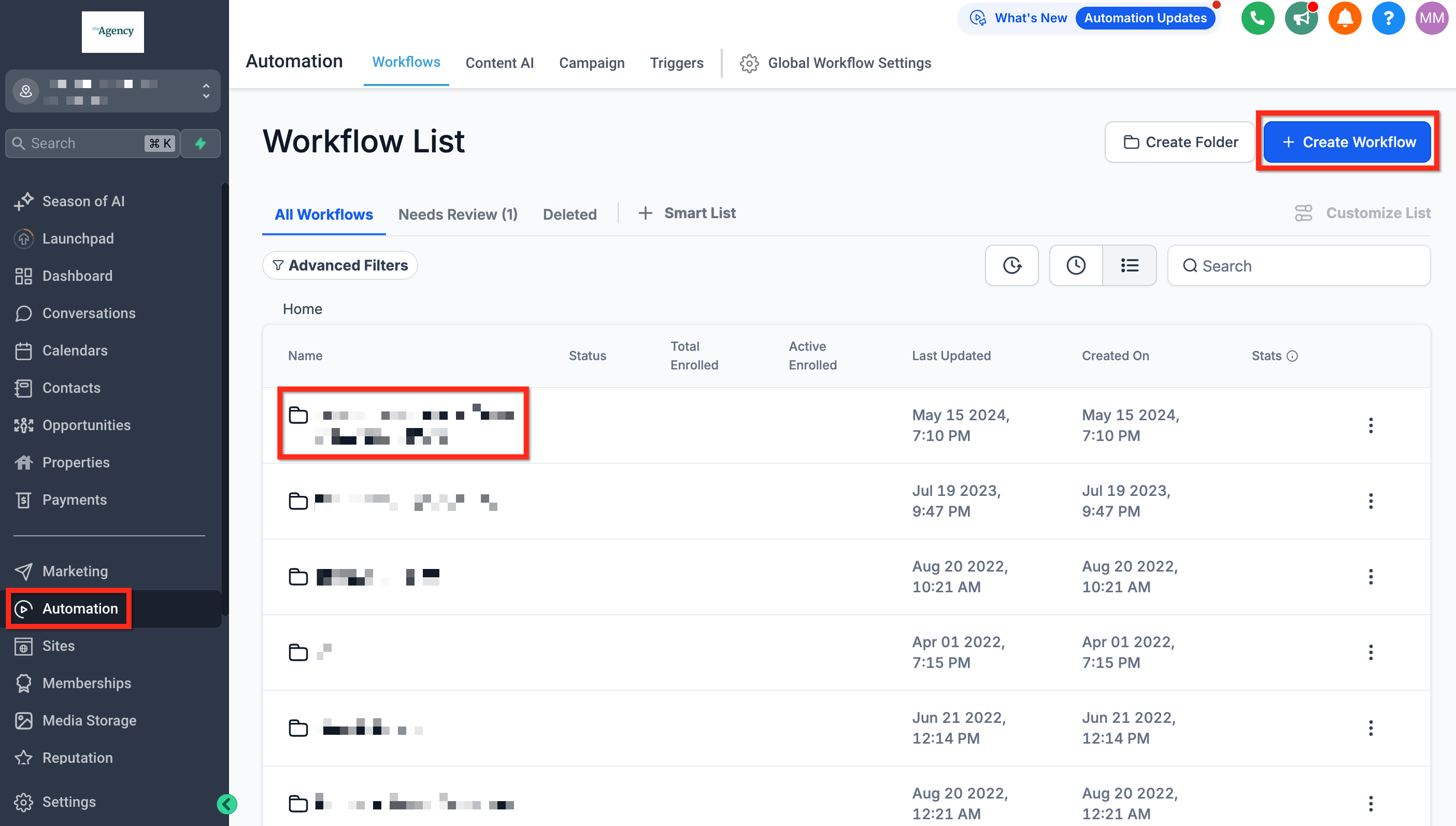
Step 1: Navigate to Automation > Workflows. Add a new workflow or edit an existing one.
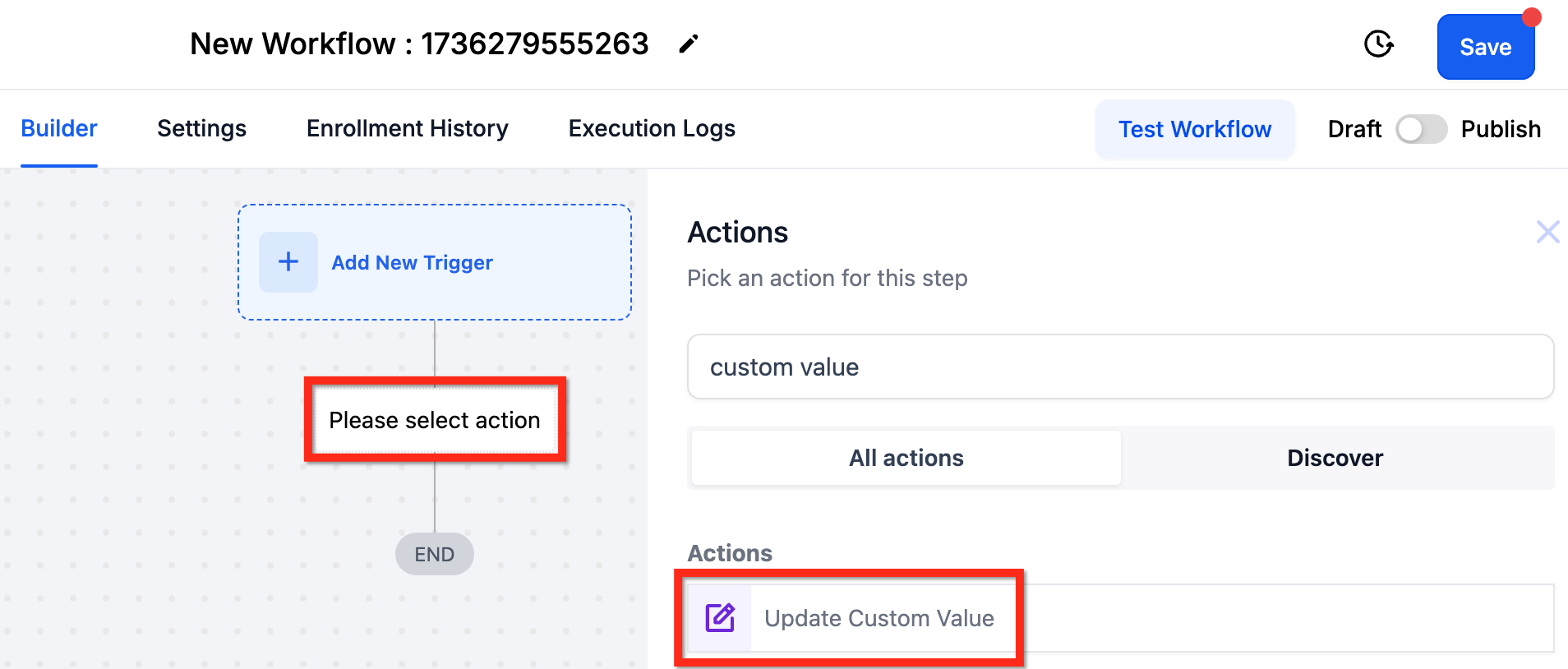
Step 2: Click the "+" button to add an action. Browse or search any part of the name "update custom value."
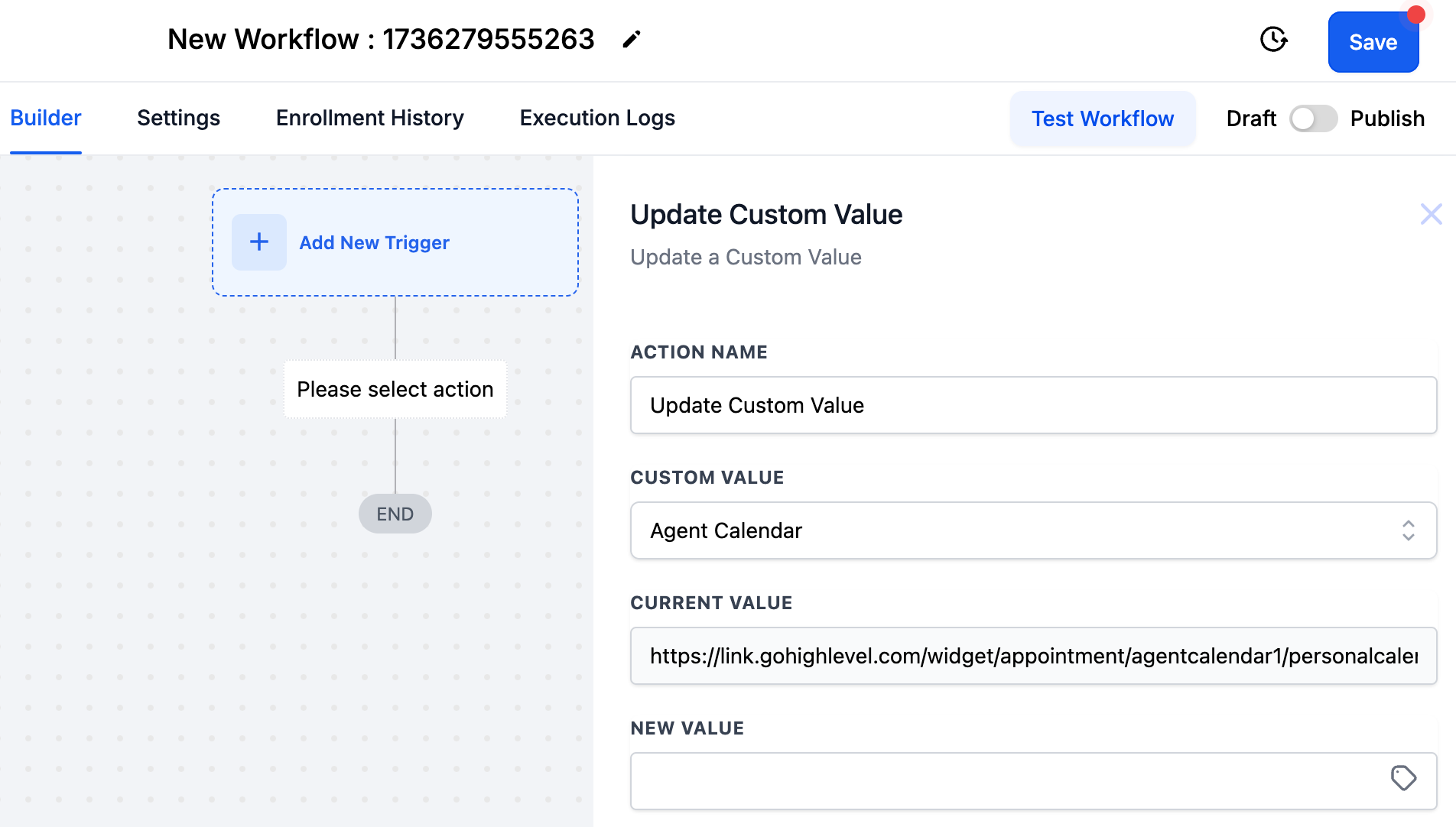
Step 3: Configure the fields by selecting the custom value to change and selecting the new value. For example, if a custom value is the link to a specific calendar, you can change that to a different link.
Step 4: Save and test the action and workflow. If you want to refer to the new value in the custom value it will be available immediately after that action runs in a workflow, just pull up the same custom value and it will have the new data in it.
Field Descriptions
| Field | Description | Example |
|---|---|---|
| Action Name | A descriptive name for the action displayed in the workflow. | Update Loyalty Tier |
| Custom Value | Choose the specific custom value to update. | Loyalty Level |
| Current Value | Displays the current value, if available. | Bronze |
| New Value | Set a static value or dynamic variable. | Gold |
Advanced Use Cases
- Using Conditional Logic (If/Else Action): Adjust a field only if certain conditions are met. Example: Update loyalty tiers only if the current value is "Bronze."
- Integrating with APIs: Automatically update custom values using incoming data from external APIs. Example: Update a "Last API Sync Date" custom field dynamically.
- Math Operations Integration: Use math operations to dynamically calculate and update numeric custom values. Example: Add 50 points to a user's reward balance dynamically.
- Dynamic Discount Codes: Change a discount code dynamically in real-time workflows. Example: "When a user completes three purchases in a month, automatically update their discount tier to '10% Off Next Purchase'."
Suggested Triggers
- Contact Tag Added: When a new tag is added to a contact (e.g., "VIP", "High Priority"), you can update a related custom value to reflect the importance of that contact.
- Example: If the "VIP" tag is added, update the custom value for Discount Rate to offer a higher percentage.
- Contact Updated: Trigger the action when specific contact fields are updated. For example, if a customer’s preferences or contact information changes, you can update a corresponding custom value.
- Example: If the Email Subscription field is updated to "Subscribed", update a custom value Email Frequency to "Weekly".
Form Submitted: After a form submission, you can update custom values based on the data provided in the form.
- Example: A form submission triggers the workflow to update the custom value Survey Score or Preferences.
Appointment Booked: After an appointment is successfully booked, you can update custom values based on the type of appointment or other related criteria.
- Example: When a contact books a high-ticket appointment, update the Appointment Importance custom value to “High”.
Opportunity Status Changed: When the status of an opportunity changes in the pipeline (e.g., from "Qualified" to "Won"), you can update a custom value that helps manage customer expectations.
- Example: If the opportunity status changes to "Won", update the custom value Client Tier to "Platinum".
Survey Submitted: When a contact submits a survey, their responses can be used to dynamically update custom values that inform future interactions.
- Example: If a customer survey response indicates a high satisfaction score, update a custom value Customer Satisfaction to reflect that score.
Order Fulfilled: After an order is fulfilled, you can update the contact's custom value to track their order history or customer status.
- Example: When an order is fulfilled, update the custom value Last Order Date to the current date.
Link Clicked: When a contact clicks a link in an email or SMS, the workflow can dynamically update a custom value based on their behavior.
- Example: If a link for a new product is clicked, update a custom value Product Interest to reflect the interest in the clicked product.
Frequently
Q: Can I use variables in the Update Custom Value action?
Yes, variables like {{contact.custom_field}} can be used for dynamic updates.
Q: Can this action trigger other workflows?
A: Yes, updates can serve as triggers for additional workflows.
Q: Is there a limit to the number of Update Custom Value actions in a workflow?
A: No, you can use multiple actions as needed.
Q: What happens if the current value doesn’t match the condition?
A: The update will not proceed unless the current value matches the specified condition (if one is set).
Q: Can I use Update Custom Value in If/Else actions?
A: Yes, you can combine it with conditional logic for more advanced workflows.
Q: Can I update multiple Custom Values or bulk Custom Values?
A: One Update Custom Value action can update one Custom Value one time. Use more actions to update more Custom values or to update the same Custom Value again.
Q: Can I use Update Custom Value to update a Custom Value in another subaccount?
A: The custom value that is being updated must be in the same subaccount as the workflow that is running.
Q: Can I undo an update after it's done?
A: No, there is no "undo" function for the Update Custom Value action.
Related Resources
For more advanced scenarios and integrations, check out these resources: