Zoho to Chat To Clients CRM (Migration Guide)
This guide provides detailed instructions for migrating data and functionalities from Zoho’s suite of applications to Chat To Clients CRM. The objective is to ensure a smooth transition by retaining key data, automations, and workflows while taking full advantage of Chat To Clients CRM’s integrated marketing and CRM capabilities.
IMPORTANT: Make sure you migrate all of the following components when switching over from Zoho to Chat To Clients CRM.

1. Contacts
2. Users
3. Calendars
4. Opportunities
5. Forms
6. Contracts
7. Sites
8. Automations
9. Analytics
TABLE OF CONTENTS
- Migrate Contacts
- Migrate Users
- Migrate Calendars
- Migrate Opportunities & Pipelines
- Migrate Forms
- Migrate Contracts and Documents
- Migrate Websites
- Migrate Automations
- Migrate Analytics
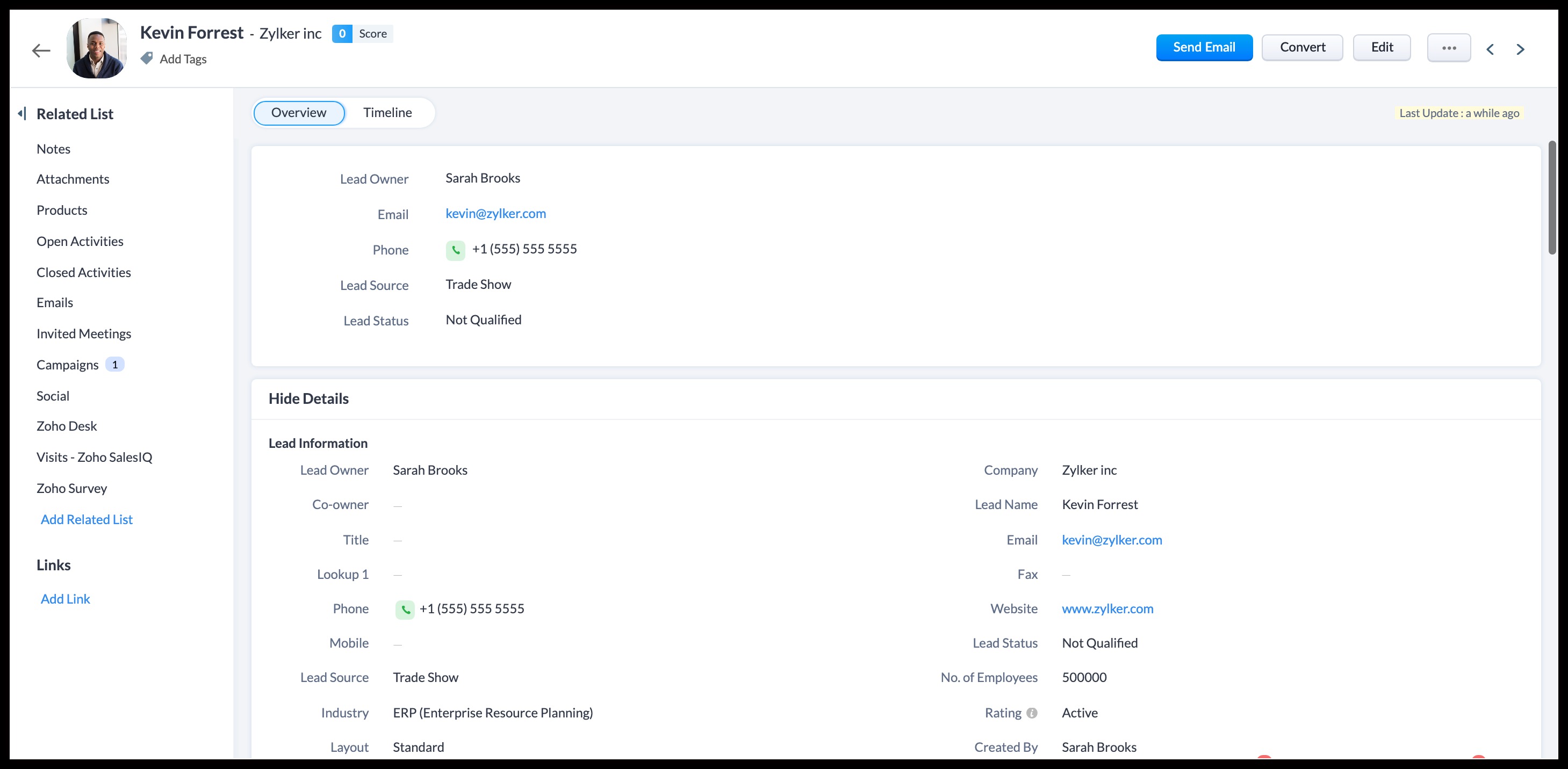
Migrate Contacts
Users can export a maximum of 200,000 contact records in one go as a CSV. These will be 200,000 of the oldest records. These records (in the CSV format) will be zipped. The download link for an export will be available for 7 days.
Step 1: Export Contacts
- Prep Contact Data for Export: Recreate mailing lists and segments into tags for migrations to Chat To Clients CRM. These are your migration specific tags.
- Export Zoho Data: Go to Setup (
 ) near the top-right corner, then click Data Administration section and select Export. Click Start an Export > Module > Contacts on the Export Data page.
 - Select Fields to Export: You can choose to export Fields from Custom View, All fields, or Choose fields to be exported. Fields should include either email or phone number to migrate to Chat To Clients CRM.
- Download Data: Click Export. The export will be added to the Export History table with the status 'In progress'. When the status changes to Completed, hover over the entry and click the Download link (
 )
)
Step 2: Prepare CSV for Chat To Clients CRM Import
- Check Date Formats: Ensure all date fields in the CSV are in the YYYY-MM-DD format. This is essential for compatibility with Chat To Clients CRM.
- Encode Special Characters: Make sure the CSV file uses UTF-8 character encoding to properly handle special and accented characters.
- Clean Up Data: Remove any line breaks, emojis, and unnecessary special characters from the file. This step helps prevent import errors.
- Recreate Custom Fields: Log in to Chat To Clients CRM and navigate to Contacts > Settings > Custom Fields. Add custom fields to store contact data in a similar way to how they were stored in Zoho.
Step 3: Import Contacts into Chat To Clients CRM
- Log in to Chat To Clients CRM: Navigate to the Contacts section using the left-hand menu.
- Start Import Process: Click the Import Contacts button.
- Upload CSV File: Select and upload the prepared CSV file.
- Map Fields: Chat To Clients CRM will prompt you to map the fields from the CSV file to the corresponding fields in Chat To Clients CRM. For example, map “First Name” in the CSV to “First Name” in Chat To Clients CRM.
Field Mapping Tip: Ensure all required fields are correctly mapped. If a field in your CSV does not have a corresponding field in Chat To Clients CRM, you may need to create a custom field in Chat To Clients CRM before proceeding.
- Assign Tags and Lists: During the import process, you can assign contacts to specific lists and apply tags. Consider applying a tag that indicates the source of the contacts, such as “Zoho Import.”
- Complete Import: After mapping all fields and setting tags/lists, click Import. Chat To Clients CRM will process the import, and the contacts will be added to your account.
Step 4: Review Imported Data
- Review: Check that all data imported into Chat To Clients CRM, including contacts and form submissions, is accurate and complete.
- Create Smart lists: Recreate smartlists and mailing lists based on your migration specific tags.
- Cross-Check with Zoho Data: Compare the data in Chat To Clients CRM with the original Zoho data to ensure no discrepancies.
Migrate Users
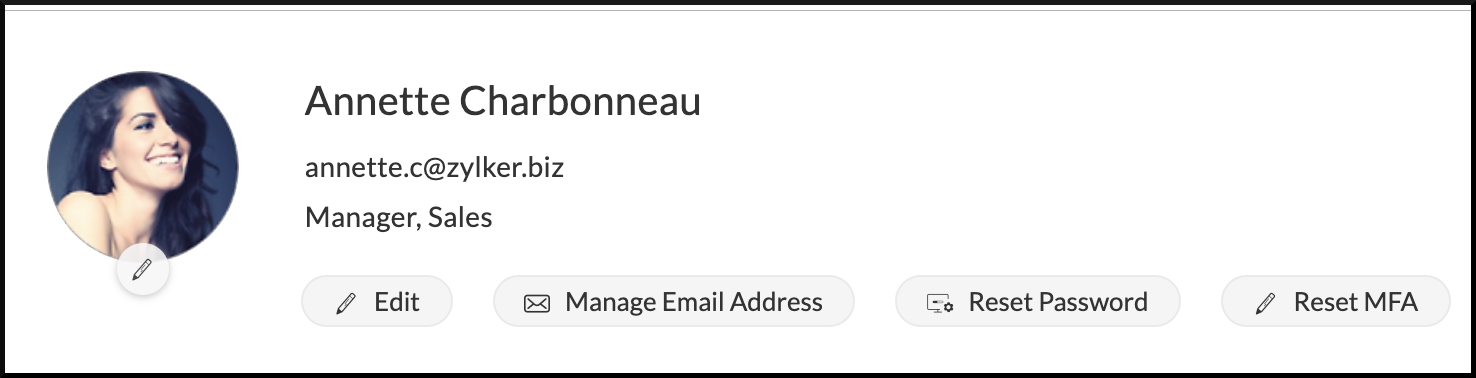
Zoho can export a maximum of 200,000 user records in one go as a CSV; We need to manually add users Chat To Clients CRM and configure user settings. Zoho User Management provides tools for managing user accounts, roles, and permissions across Zoho applications.
It includes features such as role-based access control, multi-factor authentication, and the ability to organize users into groups for streamlined management. Zoho User Management also offers integration with third-party identity providers and supports detailed audit logs to track user activity and ensure compliance.
Step 1: Export Users
- Export Zoho Data: Go to Setup (
 ) near the top-right corner, then click Data Administration section and select Export. Click Start an Export > Module > Users on the Export Data page.
 - Select Fields to Export: You can choose to export Fields from Custom View, All fields, or Choose fields to be exported. Fields should include either email or phone number to migrate to Chat To Clients CRM.
- Download Data: Click Export. The export will be added to the Export History table with the status 'In progress'. When the status changes to Completed, hover over the entry and click the Download link (
 )
)
Step 2: Prep CSV for Chat To Clients CRM Migration
- Check User Data: Open the CSV as a spreadsheet and ensure all users in the CSV have unique email ids.
- Breakdown Users By Teams: Determine each teams permission. Breakdown the users by their teams in the spreadsheet and whether you wish to recreate the user for the agency or a specific sub-account. This allows us to efficiently copy permissions across users in Chat To Clients CRM at the next step.
Step 3: Manually Add Users to Chat To Clients CRM
- Add User: Navigate to Settings > Team. Click + Add Employee.
- Set the User Type and Role for the User: Select whether you wish to create the user for the agency or a specific sub-account. Select whether the user is an admin or a user.
- Assign Permissions and subaccount(s): Configure the permissions for each Chat To Clients CRM feature and assign the user to subaccount(s).
- Add Remaining Users and Copy Permissions: Clone user permissions for users on the same team, saving time and consistency.
Migrate Calendars
Appointments will need to be exported from ZohoBookings and the calendars will need to be manually recreated in Chat To Clients CRM. Zoho Bookings is an online scheduling tool that allows users to manage appointments and bookings with customizable booking pages and calendars.
It includes features such as automated reminders, integration with Zoho apps and third-party services, and payment processing options. Zoho Bookings also offers tools for managing staff availability, customer notifications, and real-time booking updates to streamline scheduling workflows.
Step 1: Export Appointments for Safekeeping
- Export Zoho Data: Go to Setup (
 ) near the top-right corner, then click Data Administration section and select Export. Click Start an Export > Module > Appointments on the Export Data page.
 - Select Fields to Export: You can choose to export Fields from Custom View, All fields, or Choose fields to be exported.
- Download Data: Click Export. The export will be added to the Export History table with the status 'In progress'. When the status changes to Completed, hover over the entry and click the Download link (
 )
)
Step 2: View All Calendars in ZohoBookings in Chat To Clients CRM
- Log into ZohoBookings: Click on the Manage Business (
 ) icon in the top right corner, then click Workspaces. Click your desired workspace in the Workspaces section.
 - Document the services (calendars) in each workspace: Click your desired workspace in the Workspaces section. Document the calendar setup, integrations and users for each calendar.
Step 3: Recreate Zoho Calendars in Chat To Clients CRM
- Create Chat To Clients CRM Calendars: Go to Sub-account Settings > Calendars. Calendar reminders, calendar settings, users, and meeting locations will need to be created similarly to ZohoBookings. For recurring appointments, you will need to manually set the recurrence rules in Chat To Clients CRM.
- Add Calendar Integrations: Go to Subaccount Settings > Calendars > Connections to add Calendar Syncing.
- Preview and Test: Test the created calendars ensuring they match the current booking setup in Zoho.
Migrate Opportunities & Pipelines
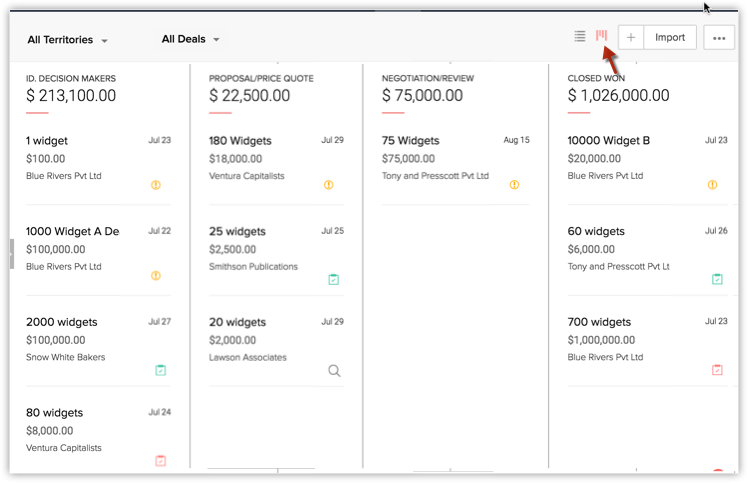
Zoho Deals and Pipelines help manage sales information. A deal tracks the sales cycle, sales volume, sales status, probability for each stage, reasons for the status, competitors, and provides a forecast for future sales.
Step 1: Export Deals from Zoho
- Export Zoho Data: Go to Setup (
 ) near the top-right corner, then click Data Administration section and select Export. Click Start an Export > Module > Deals on the Export Data page.
 - Select Fields to Export: You can choose to export Fields from Custom View, All fields, or Choose fields to be exported. Fields should include either email or phone number to migrate to Chat To Clients CRM.
- Download Data: Click Export. The export will be added to the Export History table with the status 'In progress'. When the status changes to Completed, hover over the entry and click the Download link (
 )
)
Step 2: Recreate Pipelines in Chat To Clients CRM
- Log in to Chat To Clients CRM: Go to Opportunities > Pipelines > + Add Pipeline. Create pipelines and stages simliar to the Zoho Deals and Pipelines.
- Add Custom Opportunity Fields: Add fields simliar to the Zoho Deals and Pipelines.
Step 3: Import Opportunities
- Prep CSV data: Ensure it meets Chat To Clients CRM requirements for importing opportunities.
- Add Opportunities to Chat To Clients CRM: Go to Opportunities > Select the desired pipeline. Click the 3 dots at the top right to import opportunities. Map the fields from the Zoho file to the corresponding fields in Chat To Clients CRM.
Step 4: Verify Data
- Review Data: Review the imported data in Chat To Clients CRM to ensure accuracy. Check for any issues, such as incorrect field mapping or missing data.
Migrate Forms
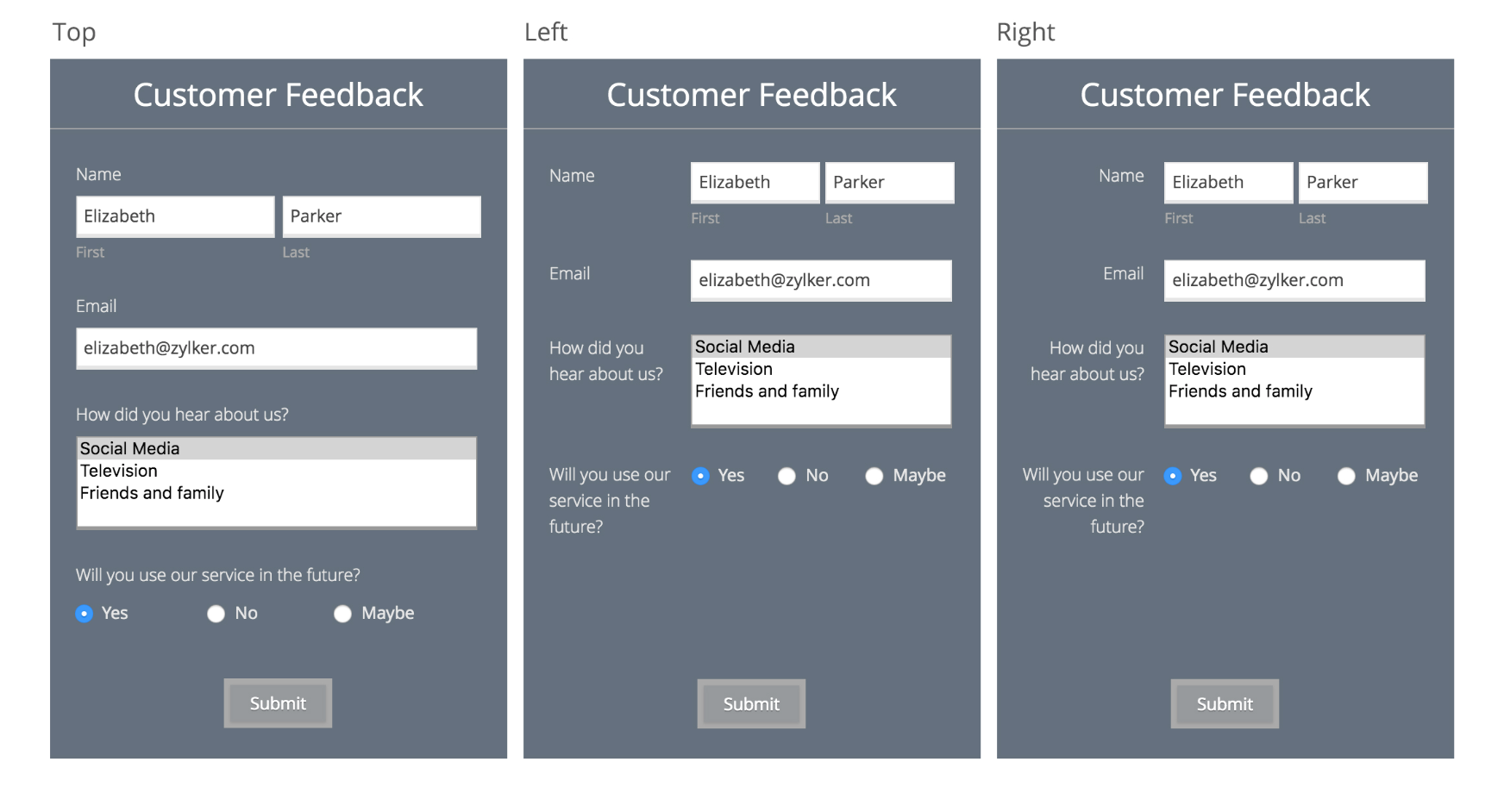
Zoho Forms is an online form builder that enables users to create and customize forms with various field types, templates, and design options. It includes features such as conditional logic, multi-page forms, and integration with Zoho apps and third-party services. Zoho Forms also offers data collection, analytics, and collaboration tools to support workflows and gather insights.
Step 1: Export Forms from Zoho
- Log in to Zoho Forms: Access your Zoho Forms account.
- Export Form Responses: Go to each form and manually export the form structure (if available). Export form responses in CSV format for backup.
Step 2: Recreate Forms in Chat To Clients CRM
- Create Forms in Chat To Clients CRM: Log in to Chat To Clients CRM, navigate to Sites > Forms and create a new form. Rebuild the form by adding custom fields and labels that match those from your Zoho forms.
- Configure Form Actions: Set up automated actions in Chat To Clients CRM, such as form notifications or conditional logic in forms, to replicate the functionality from Zoho.
Migrate Contracts and Documents
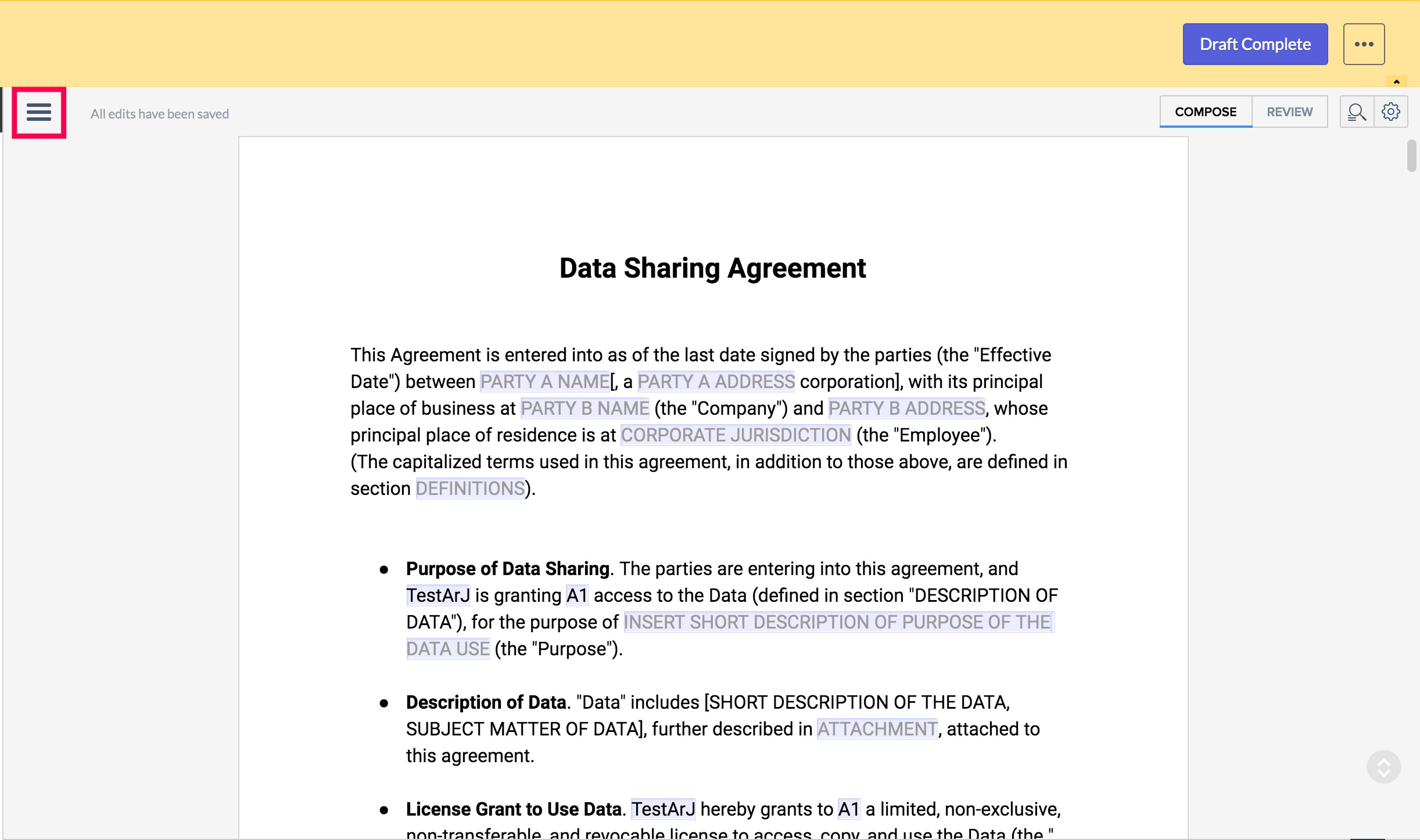
Zoho Contracts is a digital contract management tool that allows users to create, manage, and store contracts with customizable templates and clauses. It includes features such as e-signatures, contract lifecycle management, and compliance tracking. Zoho Contracts also provides tools for collaboration, negotiation, and analytics to streamline contract workflows and ensure compliance.
Step 1: Export Documents from Zoho
- Log in to Zoho: Select the Contracts tab at the top of the page.
- Download Contracts: Go to each form and manually download copies of the contract structure (if available).
Step 2: Recreate Contracts in Chat To Clients CRM
- Create Contracts in Chat To Clients CRM: Log in to Chat To Clients CRM, navigate to Payments > Documents & Contracts and create a new document. Rebuild the document by adding custom fields, text and signatures that match those from your Zoho Contracts.
- Configure Document Actions: Set up automated actions in Chat To Clients CRM, such as sending documents, notifications, or signing order in documents, to replicate the functionality from Zoho.
Migrate Websites
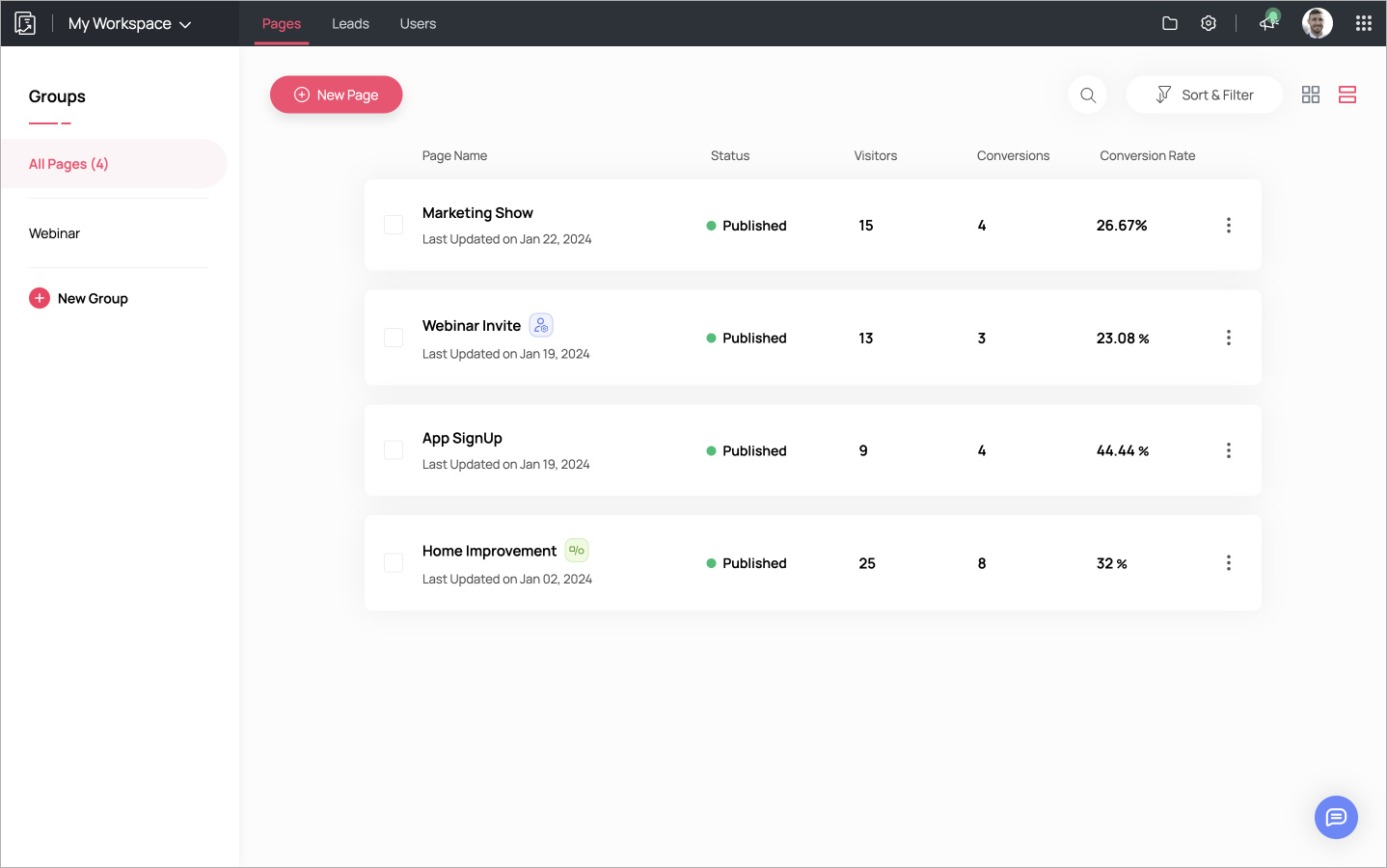
Zoho Sites is a website builder that allows users to create and customize websites using drag-and-drop elements, pre-designed templates, and design tools. It includes features such as mobile optimization, SEO tools, and integration with Zoho apps and third-party services. Zoho Sites also provides options for e-commerce, blog management, and analytics to help users manage and optimize their online presence. You will need to manually copy text, images, and other media files to rebuild sites, pages, and online stores in Chat To Clients CRM.
Step 1: Exporting Website Content from Zoho Sites
- Log in to Zoho Sites: Navigate to your Zoho Sites account.
- Export Website Content: There isn’t a direct export option for site structure; you may need to copy content manually. Save HTML/CSS files or download media files manually. Document SEO and page names.
Step 2: Rebuilding Website in Chat To Clients CRM
- Rebuild Site in Chat To Clients CRM: Log in to Chat To Clients CRM and navigate to Sites > Funnels or Sites > Websites. Manually recreate each page and SEO using the content and media exported from Zoho Sites.
Step 3: Disconnect your Domain(s) from Zoho
- Log in to Zoho: Sign in to Zoho Directory, then click Admin Panel in the left menu. Click the Custom Domain tab. Click Delete under the required custom domain name.
Step 4: Connect your Domain to Chat To Clients CRM
- Login to Chat To Clients CRM: Go to Settings > Domains > Add Domain. Enter the domain(s) you need for your newly created site.
Migrate Automations
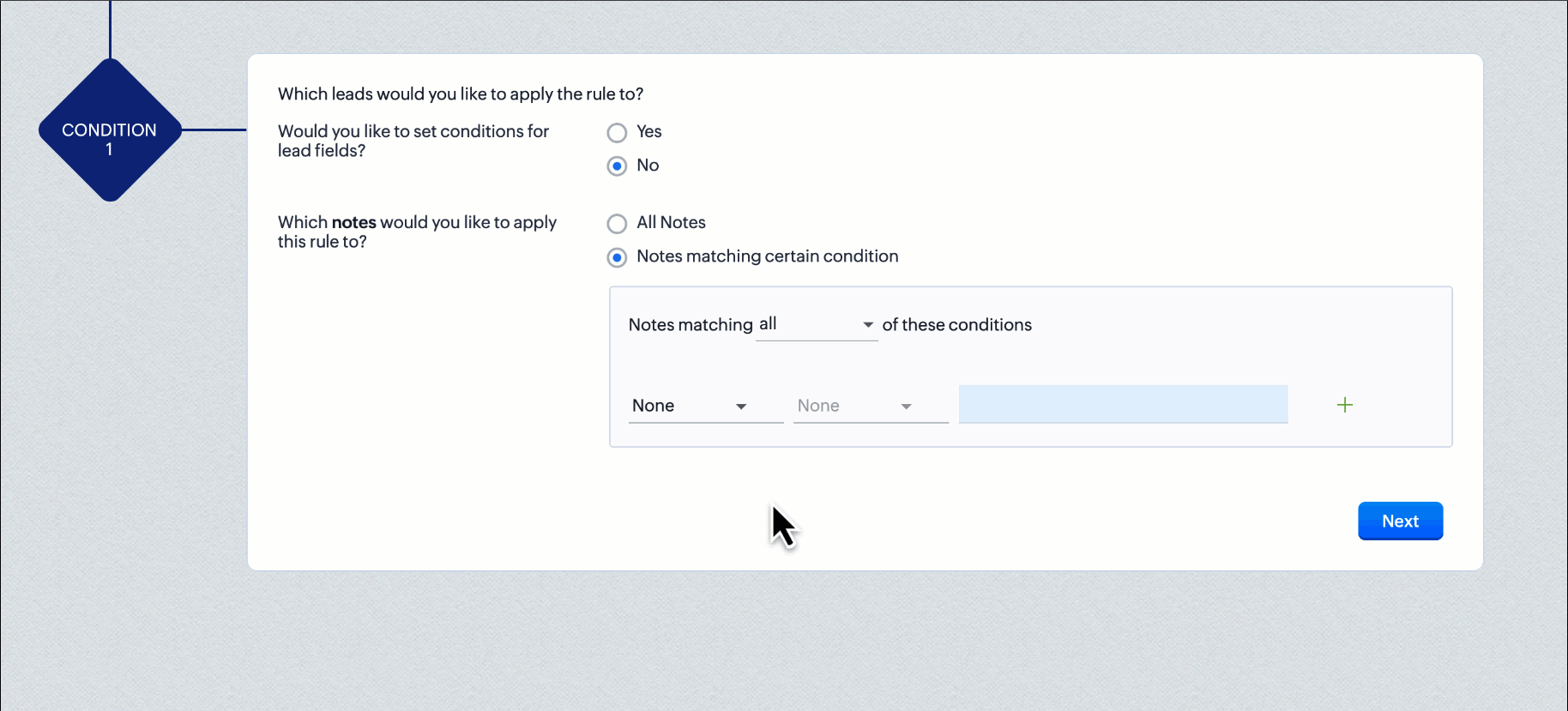
Zoho Automation includes rule based-triggers, autoresponders, lead scoring, custom workfows, and integration with other applications on Zoho. Zoho workflows support conditional logic and time based actions. We must document the automation structure and recreate it within Highlevel workflows.
Step 1: Document Automation in Zoho
- Document Workflow Rules: Go to Setup > Automation > Workflow Rules. On the Workflow Rules page. View all active rules.
- Document Automated Responders: Click the Leads/Contacts tab. In the Leads/Contacts Home page, click More Actions (3 dots)> Autoresponders.
- Document Lead Scoring Rules: Go to Setup > Automation > Scoring Rule.
Step 2: Recreate Engagement Scoring in Chat To Clients CRM
- Replicate Lead Scoring: Go Subaccount Settings > Manage Scoring > + Add New Rule. Match the calculation to match the setup in Zoho.
Step 3: Recreate Triggers and Actions in Chat To Clients CRM
- Log in to Chat To Clients CRM: Go to Automation > Workflows.
- Set up Triggers and Actions: Configure similar triggers and actions in Chat To Clients CRM using the Workflow feature, ensuring that all essential automations, such as autoresponders, email sequences and task assignments, are replicated. Leverage workflow edit engagement scoring actions to fully replicate remaining engagement scoring rules.
Migrate Analytics
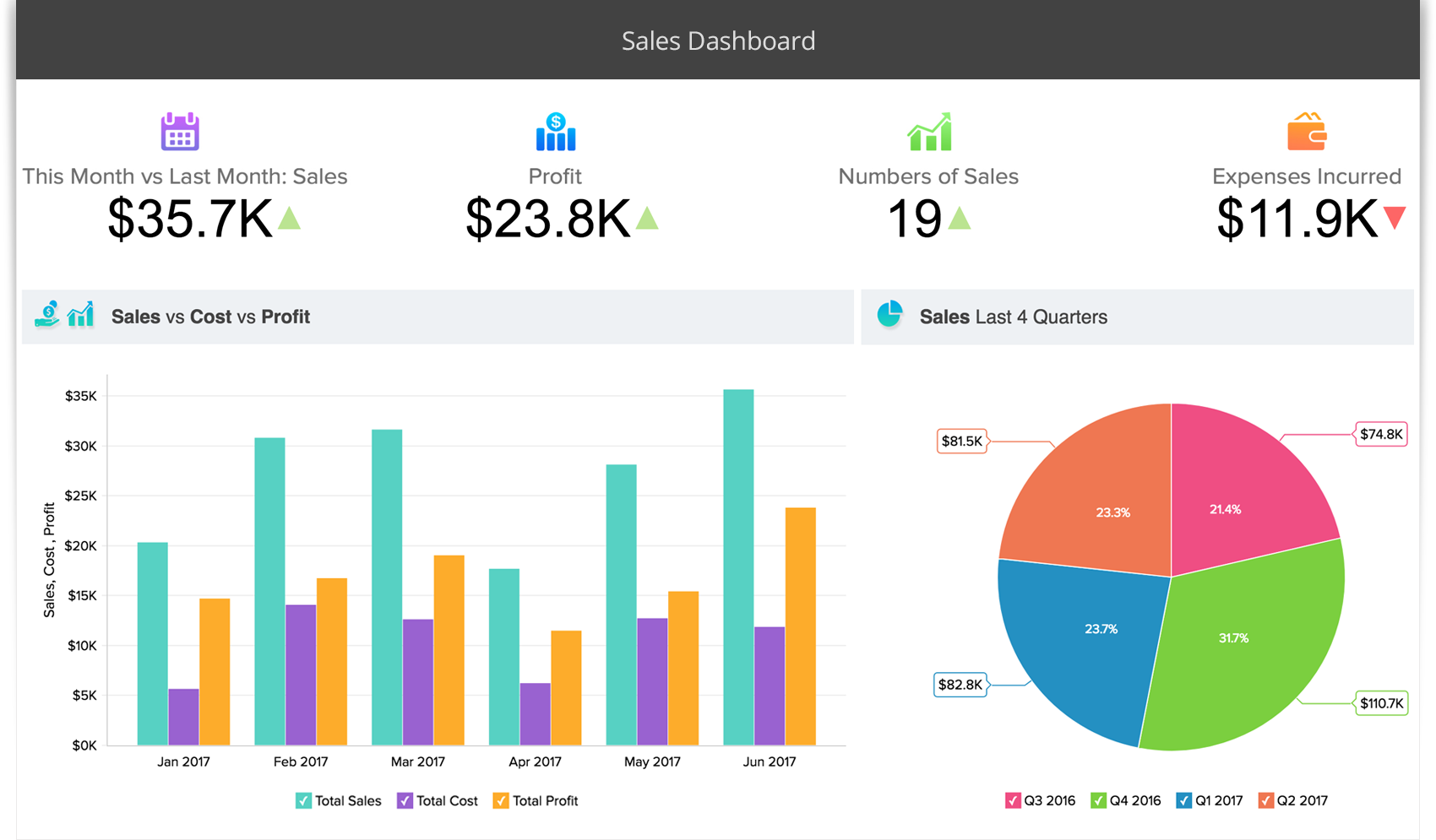
Zoho Analytics provides data analysis and reporting across Zoho apps. It supports drag and drop report building and data visualization with charts and dashboardings. It supports sharing and exporting crafted data. As a last step, help the client export data from Zoho and walkthrough Chat To Clients CRM Reporting Features!
Step 1: Export Zoho Analytics
- Export: Manually export or copy any additional data or configurations from Zoho, such as analytics data.
Step 2: Walkthrough Chat To Clients CRM Reporting Features
- Custom Widgets: Recreate Reporting in Dashboard Widgets to match Zoho analytics (Pro Plan Users Only)
- Chat To Clients CRM Reporting FAQs