
ActiveCampaign to Chat To Clients CRM (Migration Guide)
This is a comprehensive guide to migrating key components from ActiveCampaign to Chat To Clients CRM. The goal is to ensure a smooth transition, minimize data loss, and maintain the integrity of your marketing and sales processes.
IMPORTANT: Make sure you migrate all of the following components when switching over from ActiveCampaign to Chat To Clients CRM.

1. Contacts
2. Deals (Opportunities)
3. Email Templates
4. Landing Pages
5. Forms
6. Automations
- Migrate Contacts
- Migrate Deals (Opportunities)
- Migrate Email Templates
- Recreate Landing Pages
- Migrate Forms
- Recreate Automations
- Additional Migration Considerations
- Frequently Asked Questions
Migrate Contacts
Contacts are the core of your marketing and CRM efforts. Migrating contacts involves exporting data from ActiveCampaign and importing it into Chat To Clients CRM. This process includes ensuring the data format is compatible, mapping fields correctly, and handling any potential errors.
Step 1: Export Contacts from ActiveCampaign
- Access Contacts: Log in to ActiveCampaign and navigate to the Contacts section via the left-hand menu.
- Initiate Export: Click the Export button located at the top right of the Contacts page.
- Select Fields: In the export options, select the fields you wish to include in the CSV file. Typically, you should include fields such as Email, First Name, Last Name, Phone Number, Tags, and any relevant custom fields.
- Name the Export: Enter a name for the export file. Important: Avoid using special characters (e.g., !, #, $) as these may cause issues when importing into Chat To Clients CRM.
- Download Export: Click Export. ActiveCampaign will generate a CSV file which you can download once it’s ready. This file will contain all the selected contact information.
Step 2: Prepare CSV for Chat To Clients CRM Import
- Check Date Formats: Ensure all date fields in the CSV are in the YYYY-MM-DD format. This is essential for compatibility with Chat To Clients CRM.
- Encode Special Characters: Make sure the CSV file uses UTF-8 character encoding to properly handle special and accented characters.
- Clean Up Data: Remove any line breaks, emojis, and unnecessary special characters from the file. This step helps prevent import errors.
- Verify Email Addresses: Confirm that each contact in the CSV has a valid email address, as this is a required field for importing into Chat To Clients CRM.
Step 3: Import Contacts into Chat To Clients CRM
- Log in to Chat To Clients CRM: Navigate to the Contacts section using the left-hand menu.
- Start Import Process: Click the Import Contacts button.
- Upload CSV File: Select and upload the prepared CSV file.
- Map Fields: Chat To Clients CRM will prompt you to map the fields from the CSV file to the corresponding fields in Chat To Clients CRM. For example, map “First Name” in the CSV to “First Name” in Chat To Clients CRM.
- Assign Tags and Lists: During the import process, you can assign contacts to specific lists and apply tags. Consider applying a tag that indicates the source of the contacts, such as “Imported from ActiveCampaign.
- Complete Import: After mapping all fields and setting tags/lists, click Import. Chat To Clients CRM will process the import, and the contacts will be added to your account.
Step 4: Review Imported Data
- After the import is complete, review the data in Chat To Clients CRM to ensure all contacts and associated fields have been imported correctly.
Field Mapping Tip: Ensure all required fields are correctly mapped. If a field in your CSV does not have a corresponding field in Chat To Clients CRM, you may need to create a custom field in Chat To Clients CRM before proceeding.
Migrate Deals (Opportunities)
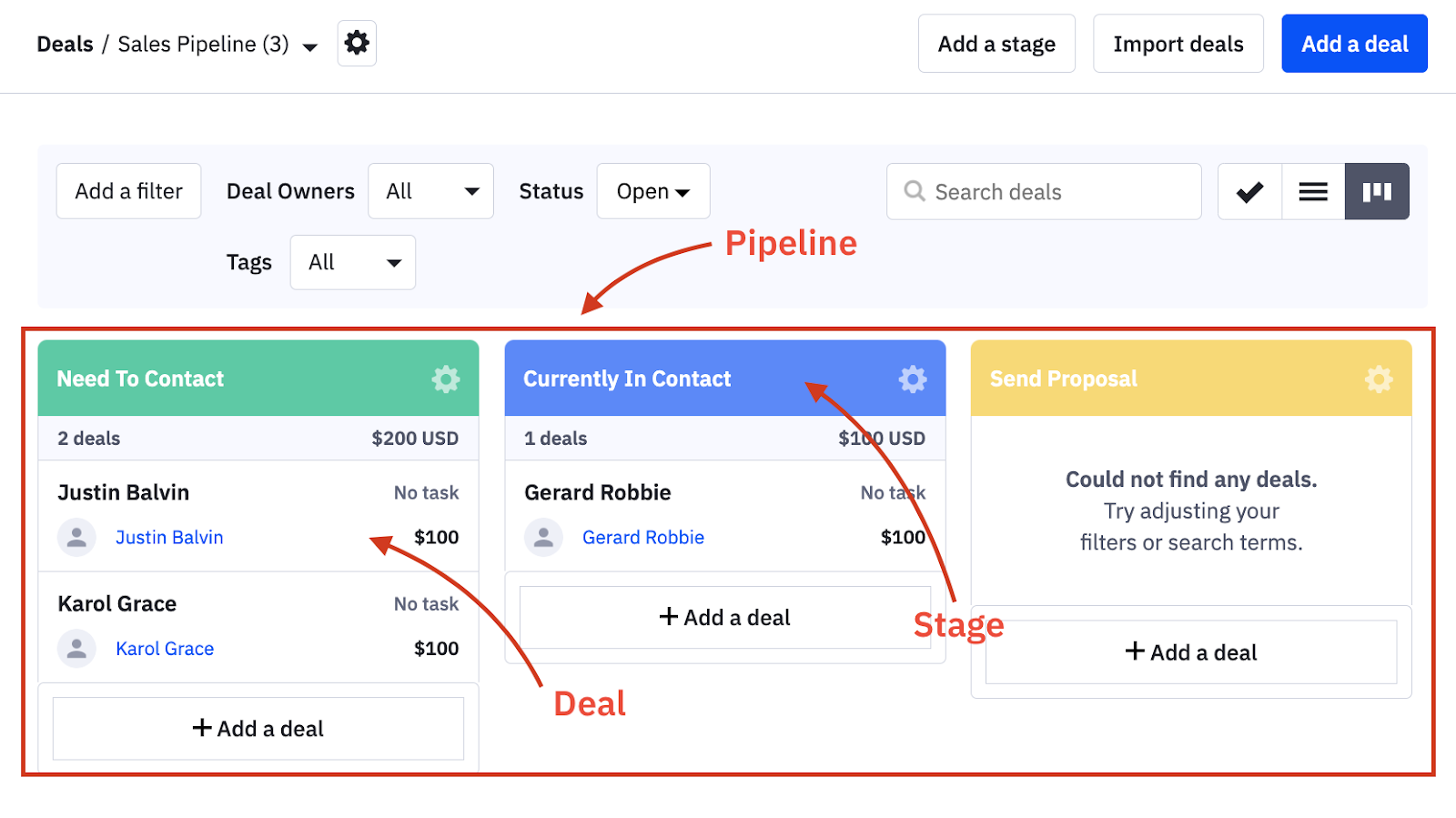
Deals (referred to as Opportunities in Chat To Clients CRM) represent potential sales or transactions. Migrating deals involves exporting deal data from ActiveCampaign and importing it into the appropriate pipeline in Chat To Clients CRM.
Step 1: Export Deals from ActiveCampaign
- Access Deals: In ActiveCampaign, navigate to the Deals section via the left-hand menu.
- Filter Deals: Use filters at the top of the Deals page to narrow down the deals you wish to export. You can filter by status (Open, Won, Lost), pipeline, and other criteria.
- Initiate Export: Click the Export button, typically located in the gear icon menu at the top right.
- Download CSV: The system will generate a CSV file containing the deal data. Download this file for use in Chat To Clients CRM.
Step 2: Prepare CSV for Chat To Clients CRM Import
- Review Required Fields: Ensure that each deal has a corresponding contact in the Chat To Clients CRM system. The CSV should include fields such as Deal Title, Value, Pipeline, Stage, Contact Name, and Deal Owner.
- Data Consistency: Confirm that the data is consistent, especially for fields like Pipeline and Stage, which must align with the structures in Chat To Clients CRM.
Step 3: Import Deals into Chat To Clients CRM
- Navigate to Opportunities: In Chat To Clients CRM, go to Opportunities via the left-hand menu.
- Start Import Process: Click the Import Opportunities button.
- Upload CSV File: Select and upload the CSV file.
- Map Fields: Map the CSV fields to the corresponding fields in Chat To Clients CRM. For example, map “Deal Title” to “Opportunity Title.”
- Pipeline and Stage: Ensure that each deal is assigned to the correct pipeline and stage within Chat To Clients CRM.
- Complete Import: After mapping the fields, click Import. The deals will be added to the specified pipeline in Chat To Clients CRM.
Step 4: Post-Import Check
- After import, review the opportunities in Chat To Clients CRM to ensure all deals have been accurately imported, including their stage and assigned owner.
Migrate Email Templates
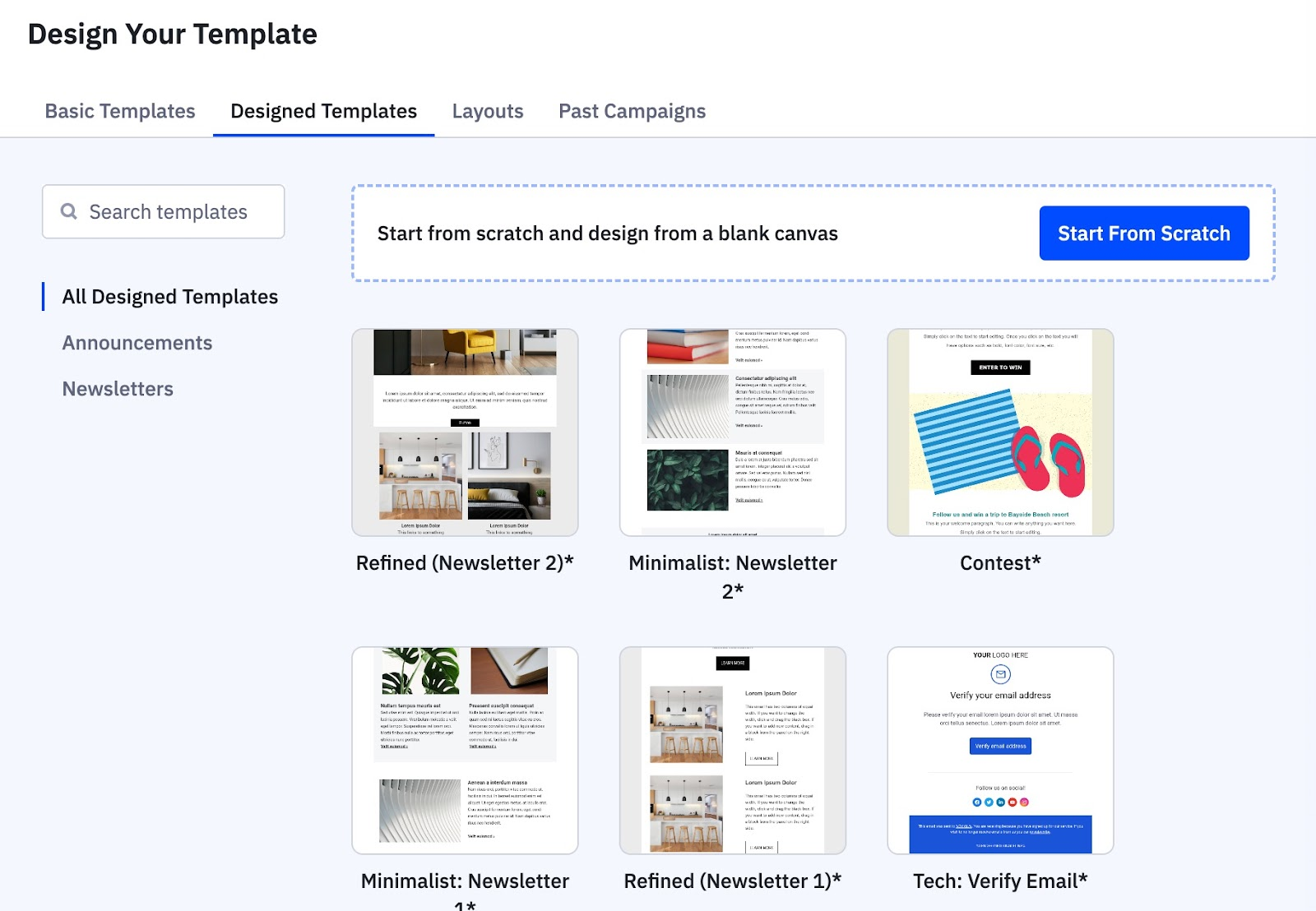
Email templates are pre-designed emails used in campaigns and automations. These can be transferred from ActiveCampaign to Chat To Clients CRM using a share link.
Step 1: Share Email Template from ActiveCampaign
- Access Email Templates: Navigate to Campaigns > Campaign Templates in ActiveCampaign.
- Locate Template: Find the template you wish to migrate.
- Generate Share Link: Hover over the template, click the gear icon, and select Share. A window will appear with a share link. Copy this link.
Step 2: Import Email Template into Chat To Clients CRM
- Navigate to Email Templates: In Chat To Clients CRM, go to Marketing > Emails > Email Templates.
- Start Import Process: Click Create New Template and select Import Template.
- Paste Share Link: Paste the ActiveCampaign template share link into the provided field.
- Name the Template: Give the template a name in Chat To Clients CRM and click Create Template.
Step 3: Post-Import Check
- After importing, review the template in Chat To Clients CRM. Make any necessary customizations to align with your branding and campaign needs.
Recreate Landing Pages
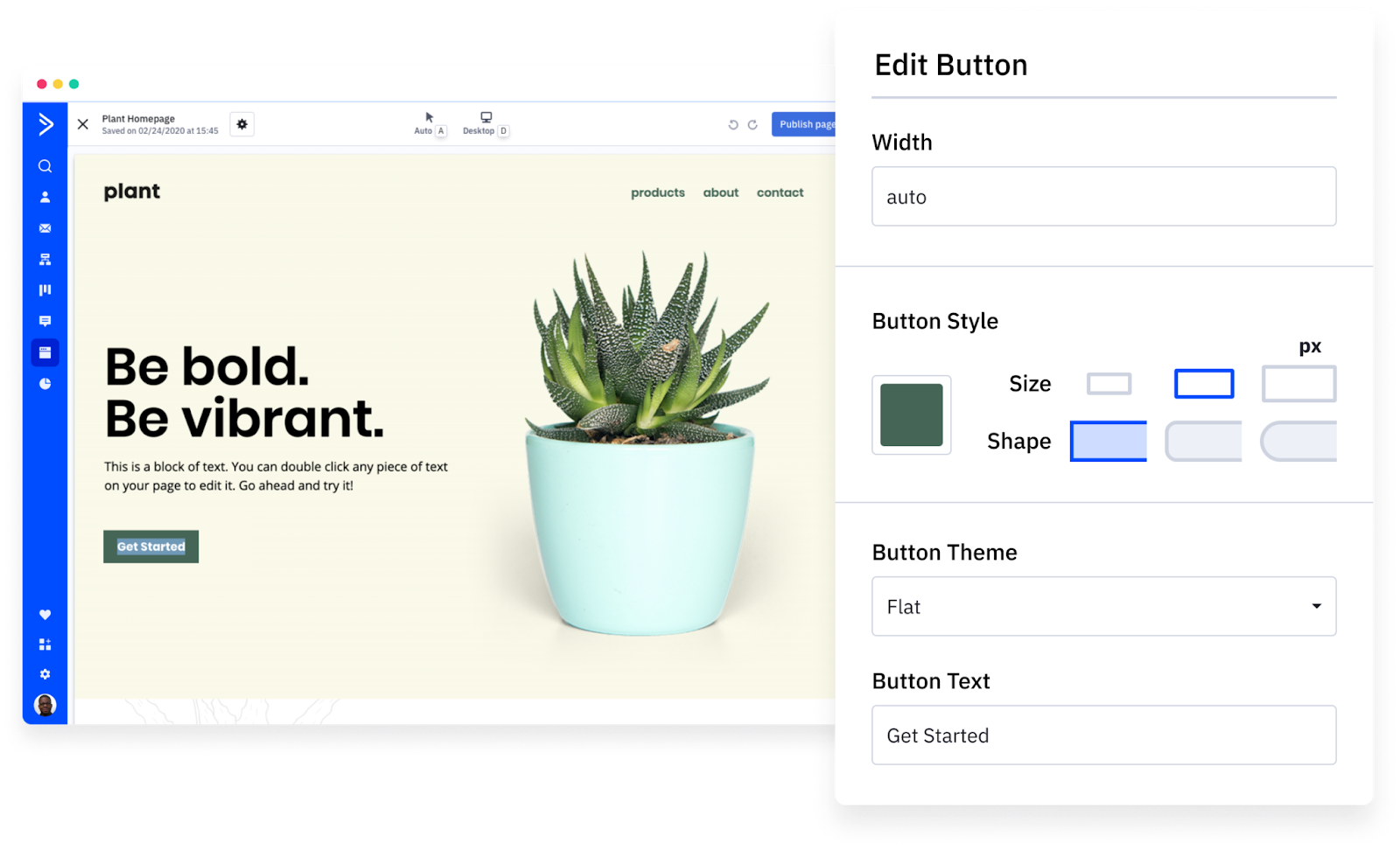
Landing pages are standalone web pages designed to capture leads or promote specific offers. While Chat To Clients CRM does not support direct import of landing pages, they can be manually recreated using Chat To Clients CRM’s page builder.
Step 1: Document Landing Page Details
- Export Content: Review the landing page in ActiveCampaign and note down its structure, content, and any tracking codes (e.g., Google Analytics, Facebook Pixel).
- Take Screenshots: Capture screenshots of the landing page layout for reference during the rebuild process.
Step 2: Rebuild Landing Page in Chat To Clients CRM
- Navigate to Page Builder: In Chat To Clients CRM, go to Sites > Funnels/Websites.
- Create New Page: Select Create New Funnel/Website and choose a template or start with a blank page.
- Recreate Structure: Using Chat To Clients CRM’s drag-and-drop builder, recreate the structure of the ActiveCampaign landing page. Add the content, images, and forms as needed.
- Add Tracking Codes: Go to Settings > Tracking Codes and add any necessary tracking codes (e.g., Google Analytics ID, Facebook Pixel).
- Customize and Publish: Customize the page’s theme, layout, and SEO settings. Once satisfied, click Publish.
Step 3: Post-Publish Check
- Ensure all links, forms, and tracking codes work correctly on the published page.
Migrate Forms
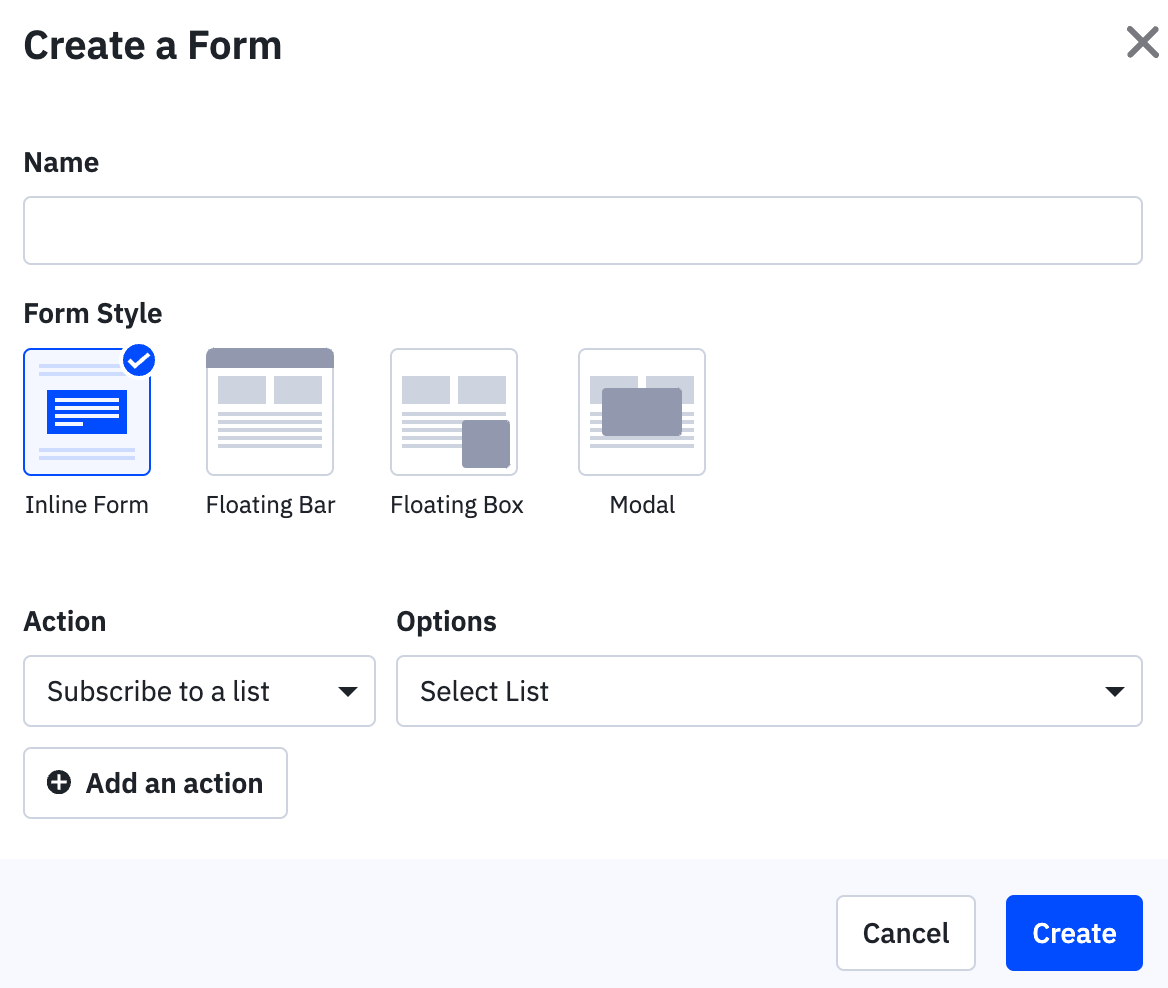
Forms are used to collect information from leads and trigger automations. Forms from ActiveCampaign need to be recreated in Chat To Clients CRM’s form builder.
Step 1: Document Form Details
- Review Form Fields: In ActiveCampaign, note down the form fields, actions (e.g., add to list, apply tag), and any integrations.
- Capture Form Settings: Document any specific settings, such as form visibility, custom CSS, or conditional logic.
Step 2: Recreate Forms in Chat To Clients CRM
- Navigate to Form Builder: In Chat To Clients CRM, go to Sites > Forms.
- Create New Form: Click Create New Form and start adding fields that match those from the ActiveCampaign form.
- Configure Actions: Set up form actions such as adding contacts to a list, applying tags, or triggering workflows in Chat To Clients CRM.
- Embed Form: Once the form is built, you can embed it on a Chat To Clients CRM landing page or website by copying the embed code.
Step 3: Post-Implementation Check
- Test Form Submission: Submit a test entry through the form to ensure that all actions (e.g., adding to lists, applying tags) are working correctly.
- Verify Data Capture: Check that the form data is captured accurately in Chat To Clients CRM, including any custom fields or tags.
- Review Embedded Forms: If the form is embedded on a landing page or website, ensure it displays correctly across different devices (desktop, tablet, mobile).
Recreate Automations
Automations in ActiveCampaign are sequences of actions triggered by specific events (e.g., form submission, tag application). Migrating automations involves manually recreating these workflows in Chat To Clients CRM using its Workflows feature.
Step 1: Document ActiveCampaign Automations
- Export Automation Details: If possible, export a visual representation or detailed breakdown of each automation from ActiveCampaign. If this is not available, manually document the triggers, actions, conditions, and end goals of each automation.
- Identify Key Elements: For each automation, identify key components such as entry triggers (e.g., contact added to a list), actions (e.g., send email, add tag), and any conditional logic (e.g., if/else branches).
Step 2: Recreate Automations in Chat To Clients CRM
- Access Chat To Clients CRM Workflows: In Chat To Clients CRM, navigate to Automation > Workflows.
- Create New Workflow: Click Create New Workflow and start by setting the entry trigger that matches the one in ActiveCampaign (e.g., form submission, tag added).
- Add Actions and Conditions: Recreate the sequence of actions from the ActiveCampaign automation. This may include sending emails, adding/removing tags, updating contact records, or moving deals through a pipeline.
- Use Conditional Logic: Chat To Clients CRM allows you to add conditional logic similar to ActiveCampaign’s if/else branches. Ensure that these conditions are correctly set up to guide contacts through different paths based on their behavior or attributes.
- Configure Timing: If the automation involves timed delays (e.g., wait for 1 day), ensure these are set up accurately in Chat To Clients CRM.
Step 3: Test and Validate
- Run Test Contacts: Create a test contact or use a segment of existing contacts to run through the newly created workflow. Monitor the process to ensure all actions are executed correctly.
- Check Workflow Reports: After the test run, review the workflow reports in Chat To Clients CRM to verify that the automation is performing as expected.
- Adjust as Necessary: If any part of the workflow does not behave as intended, make adjustments and re-test until the automation is functioning smoothly.
Additional Migration Considerations
Training and Documentation
- Internal Training: Provide training for your team on how to use Chat To Clients CRM effectively, especially focusing on differences from ActiveCampaign.
- Create Internal SOPs: Document any internal processes that have changed as a result of the migration to Chat To Clients CRM.
Data Integrity
- Double-Check Data: After all components have been migrated, double-check that all data (contacts, deals, email templates, etc.) has been transferred accurately and is complete.
- Backup Data: Ensure you have backups of all original data from ActiveCampaign before deleting or archiving it.
Customer Communication
- Notify Contacts: If the migration impacts your customer-facing processes (e.g., changes to email templates or form submissions), consider notifying your contacts about the transition to avoid confusion.
Ongoing Monitoring
- Monitor Performance: Regularly monitor the performance of workflows, email campaigns, and other automated processes in Chat To Clients CRM to ensure they are working as intended.
- Optimize: Use Chat To Clients CRM’s analytics and reporting tools to identify areas for optimization post-migration.
Frequently Asked Questions
How do I export my contacts from ActiveCampaign?
To export your contacts from ActiveCampaign, you need to log in to your ActiveCampaign account, navigate to the Contacts section, click the Export option, select which fields you want to include in the export such as Email, First Name, and Last Name, name your file while avoiding special characters, and download the resulting CSV file.
What do I need to do to prepare my contact data for import into Chat To Clients CRM?
Ensure dates are in YYYY-MM-DD format, use UTF-8 encoding for the CSV, remove line breaks and emojis, and confirm each contact has a valid email address.
How do I import contacts into Chat To Clients CRM and map the fields correctly?
In Chat To Clients CRM, navigate to Contacts, click Import Contacts, upload your CSV, map the fields (e.g., “Email” to “Email”), assign tags or lists, and click Import.
How can I migrate my deals (opportunities) from ActiveCampaign to Chat To Clients CRM?
Export deals from ActiveCampaign via Deals > Export, preparing a CSV with fields like Deal Title, Value, and Stage. In Chat To Clients CRM, go to Opportunities, click Import Opportunities, upload the CSV, map fields, and import into the correct pipeline.
Is there a way to transfer email templates directly from ActiveCampaign to Chat To Clients CRM?
Yes, in ActiveCampaign, go to Campaigns > Campaign Templates, select a template, click the gear icon, choose Share, and copy the link. In Chat To Clients CRM, go to Marketing > Emails > Email Templates, select Import Template, paste the link, and create.
How do I recreate my landing pages in Chat To Clients CRM since direct import isn’t possible?
Document your ActiveCampaign landing page’s layout and tracking codes. In Chat To Clients CRM, go to Sites > Funnels/Websites, create a new page, use the drag-and-drop builder to rebuild it, add tracking codes in Settings > Tracking Codes, and publish.
What steps should I take to migrate my forms to Chat To Clients CRM?
Note your ActiveCampaign form’s fields and actions. In Chat To Clients CRM, go to Sites > Forms, create a new form, add matching fields, set actions (e.g., apply tags), and embed it on your pages.
How do I migrate my automations from ActiveCampaign to Chat To Clients CRM?
Document your ActiveCampaign automation’s triggers and actions. In Chat To Clients CRM, go to Automation > Workflows, create a new workflow, set the trigger, add actions and conditions, and test it.
Are there any differences between ActiveCampaign automations and Chat To Clients CRM workflows that I should know about?
Both systems support similar automation features, but Chat To Clients CRM uses workflows with a different interface and potentially unique triggers or actions. Review both platforms’ documentation and adapt your automations.
What are some best practices to ensure data integrity during the migration?
Follow the SOP’s steps, verify data formats and mappings, back up all ActiveCampaign data, review imported data for accuracy, and monitor workflows post-migration.