
Email Tracking for Chat To Clients Email
Email tracking is ONLY available if you are using Chat To Clients Email. This feature is not available for any other email provider, such as Mailgun, Gmail, or others.
What is Email Tracking?
Email tracking refers to the ability to monitor and record specific actions recipients take when they interact with your emails. This includes tracking when an email is opened (open tracking) and when links within the email are clicked (click tracking).
By enabling these features, you gain valuable insights into the effectiveness of your email campaigns — understanding recipient engagement and optimizing your marketing strategies based on real-time data.
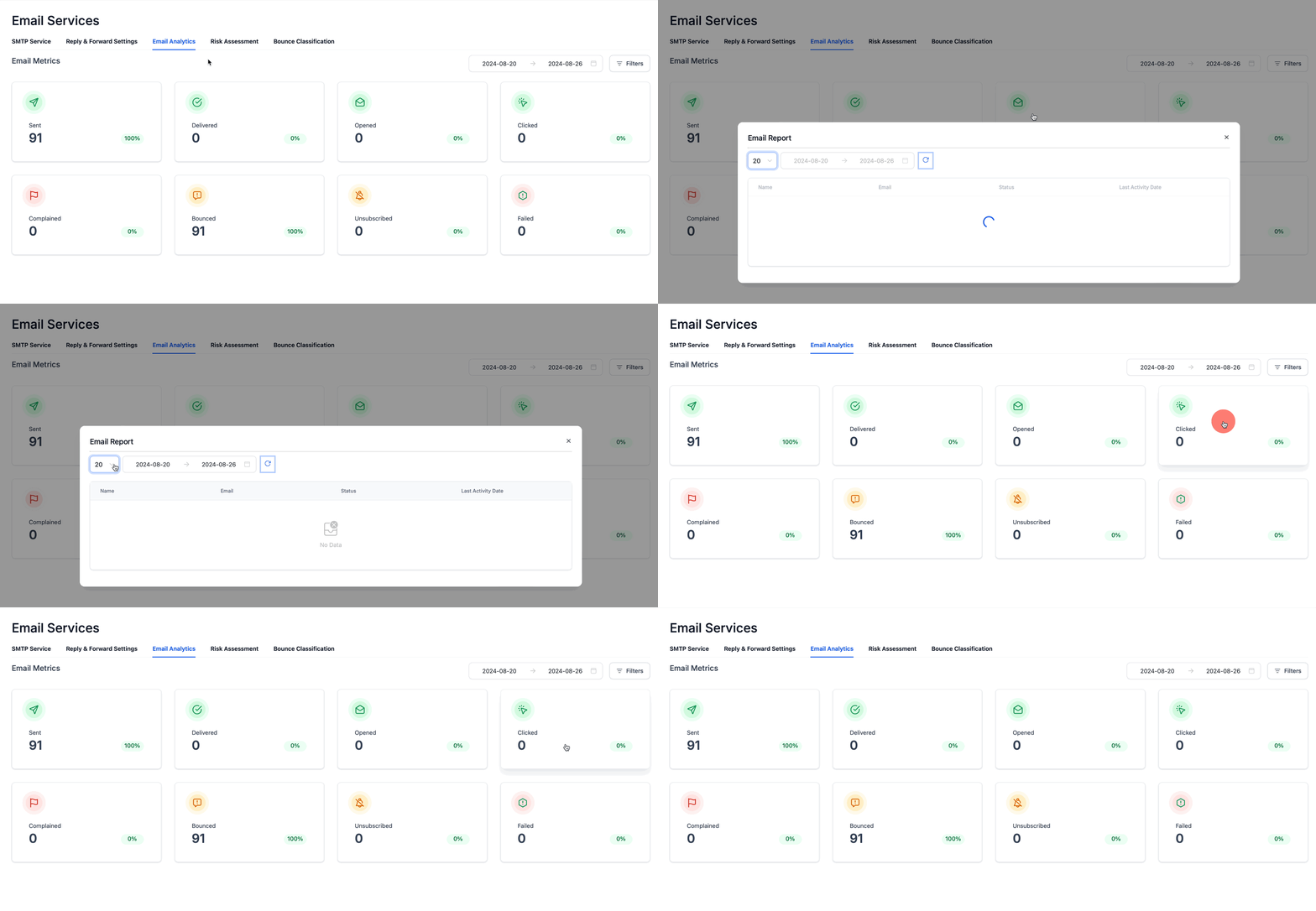
Why You Should Use Email Tracking
Email tracking provides valuable insights into how your audience engages with your emails, allowing you to refine your marketing strategies and improve overall campaign performance. By tracking opens and clicks, you can identify which content resonates most, optimize your messaging, and increase conversions.
Imagine you're running an email campaign to promote a new product launch:
With email tracking enabled, you can see which recipients opened your email and clicked on the product link. If a significant number of people clicked the link but didn't complete the purchase, that data prompts you to follow up with a targeted email — perhaps offering a limited-time discount or additional information — ultimately driving more sales.
Without email tracking, you'd be left guessing about your audience's behavior, missing opportunities to optimize your campaign.
Where To Find Email Tracking
Open the platform and navigate to your sub-account dashboard.
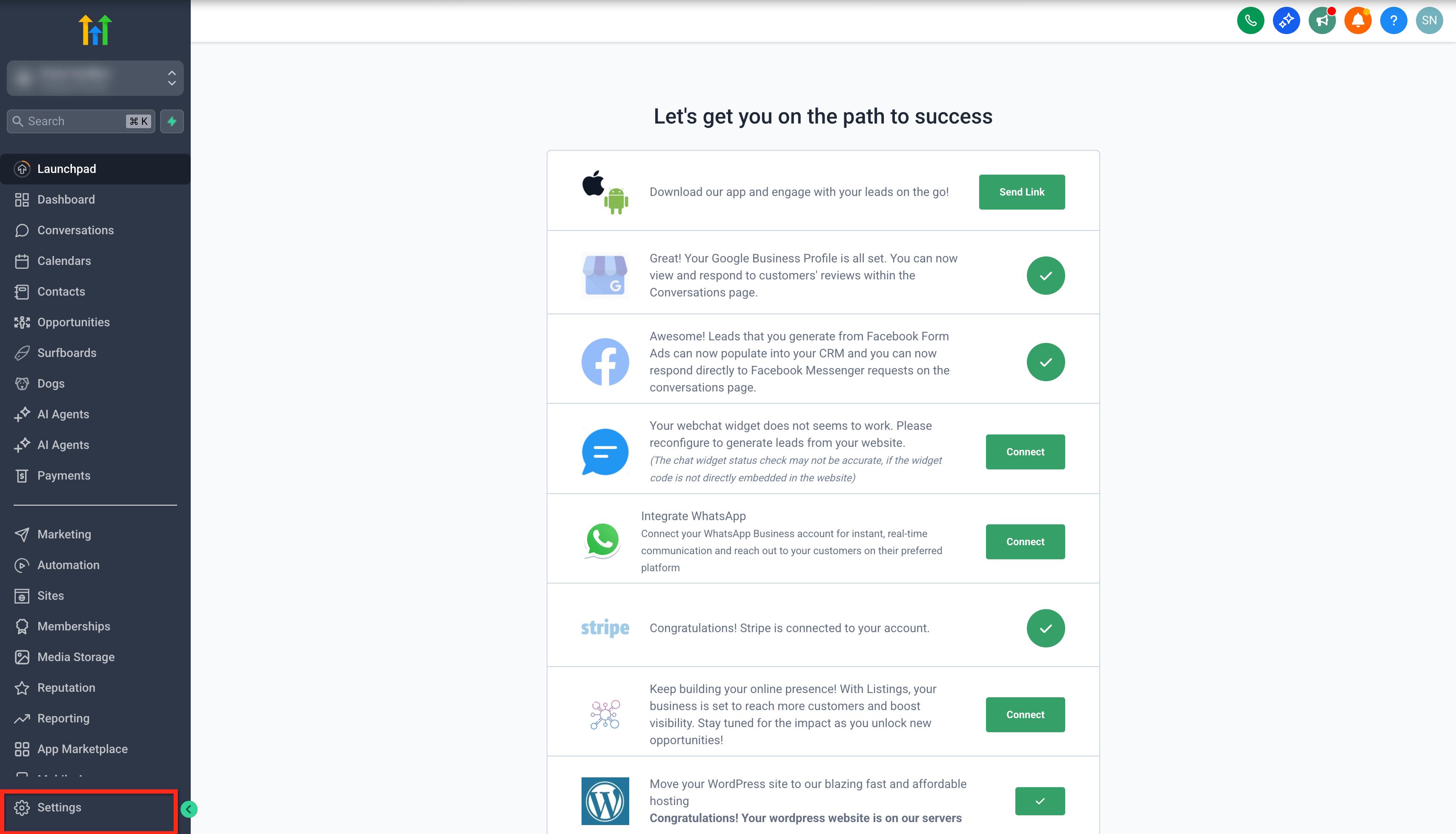
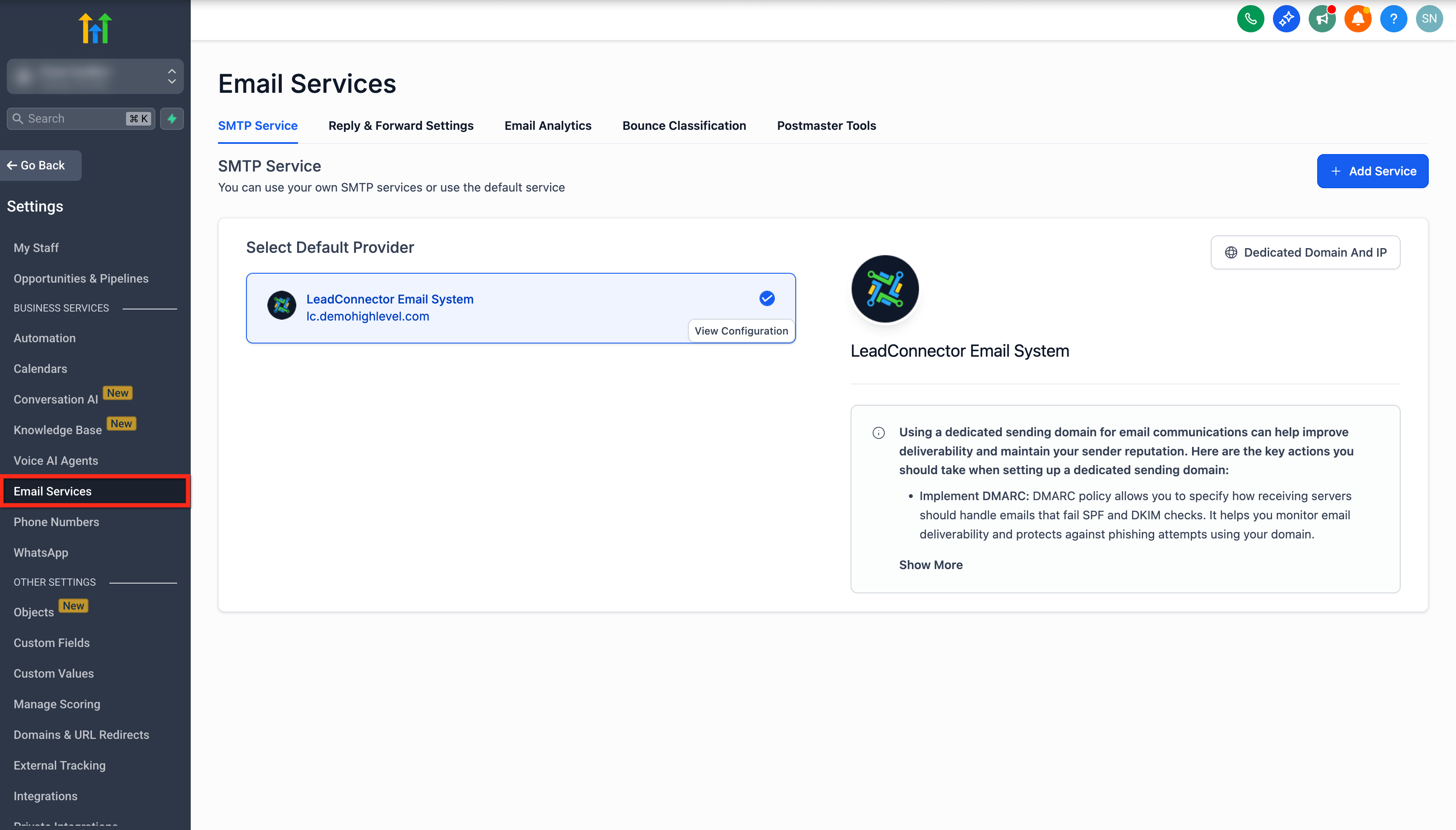
How To Setup Email Tracking
Setting up email tracking is just a few clicks. Follow the steps below to enable or disable open and click tracking for your Chat To Clients Email dedicated sending domain.
To set up email tracking, you'll need to have already configured a dedicated Chat To Clients Email sending domain.
Learn how to set up a dedicated Chat To Clients Email sending domain →Navigate to the Email Services tab in your sub-account settings. Make sure you have Chat To Clients Email selected, then click the Dedicated Domain and IP button.
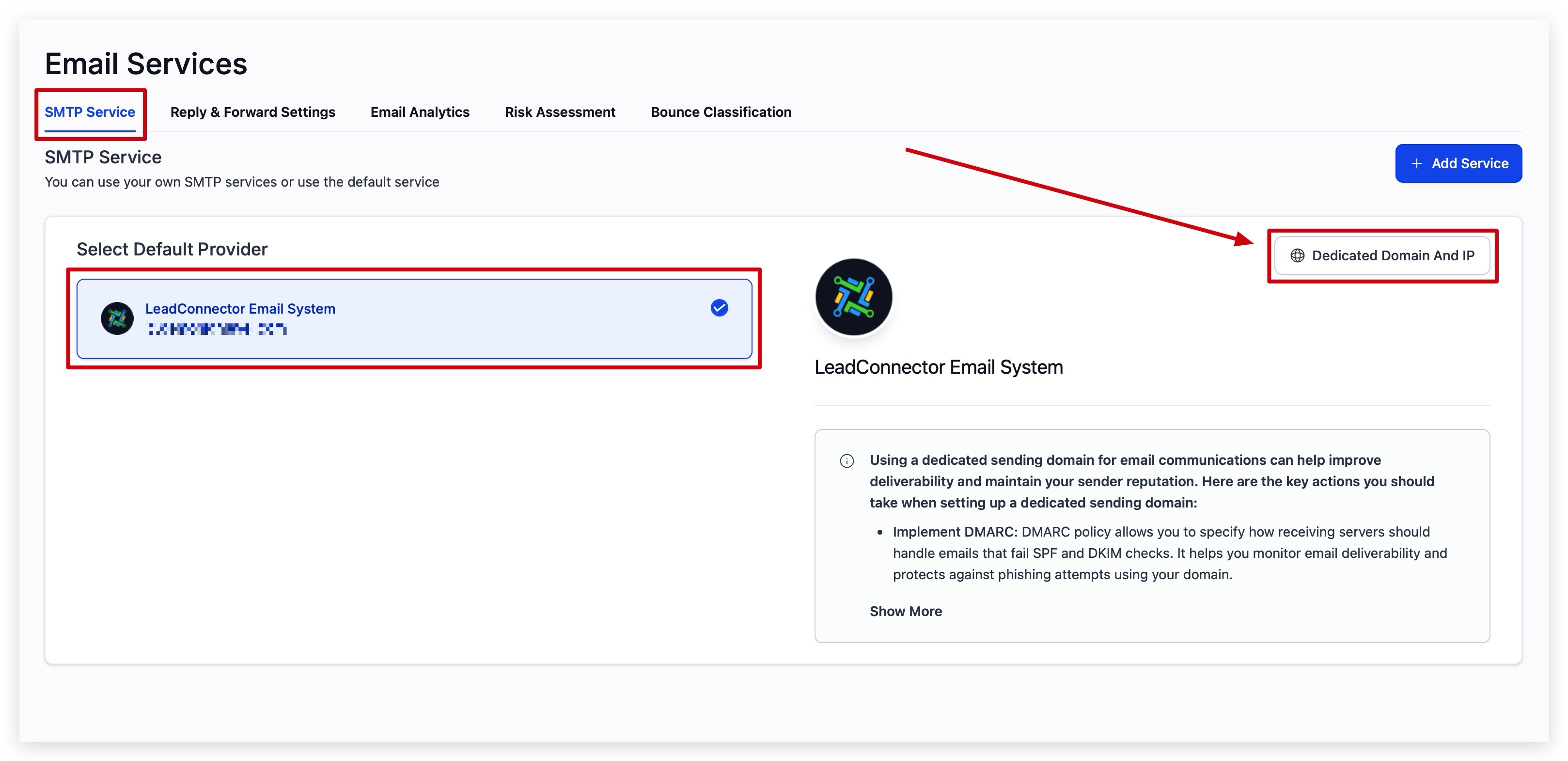
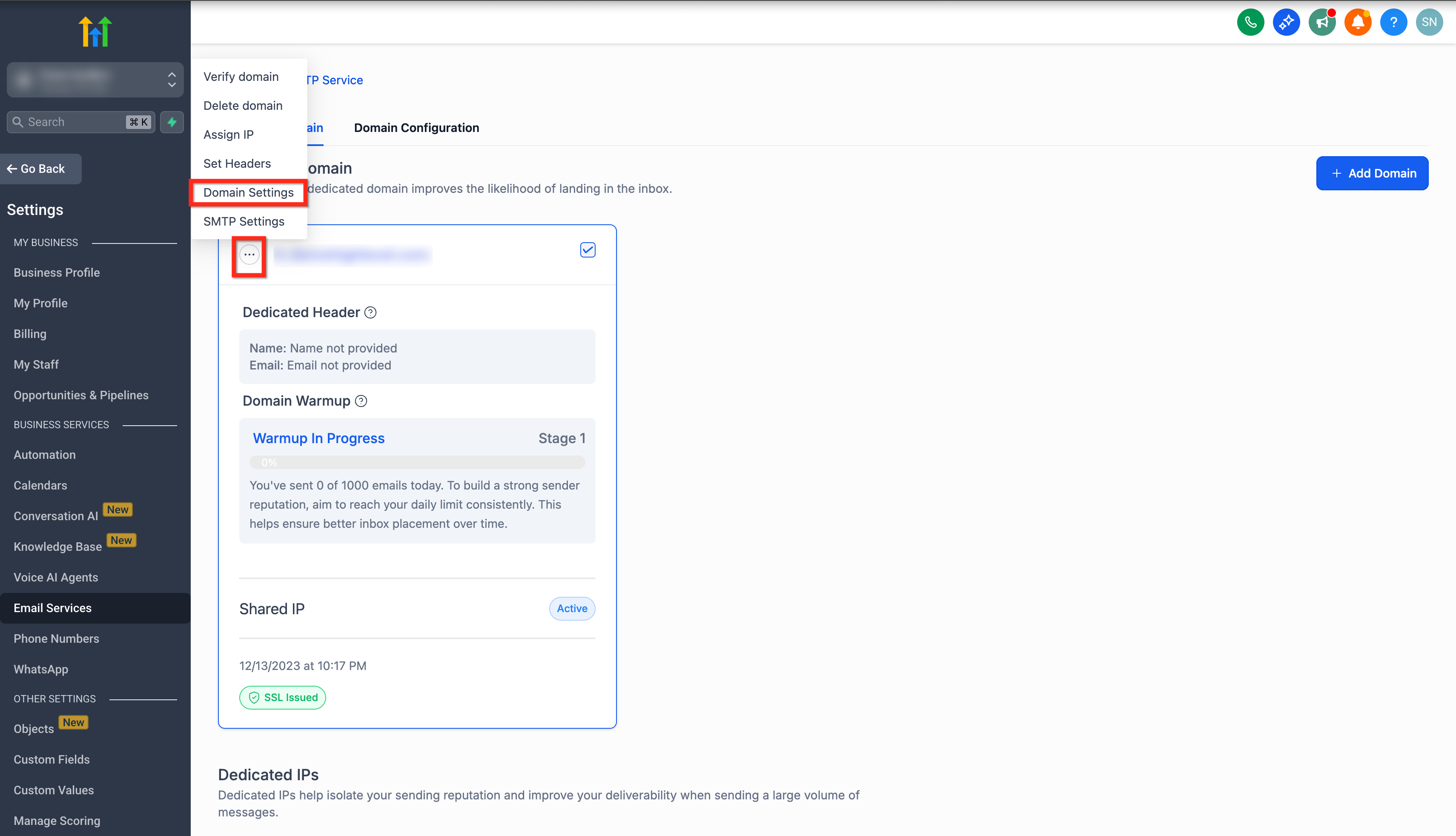
Click the three-dot menu (⋯) in the top corner of your Chat To Clients Email dedicated sending domain card. From the dropdown, select Domain Settings.
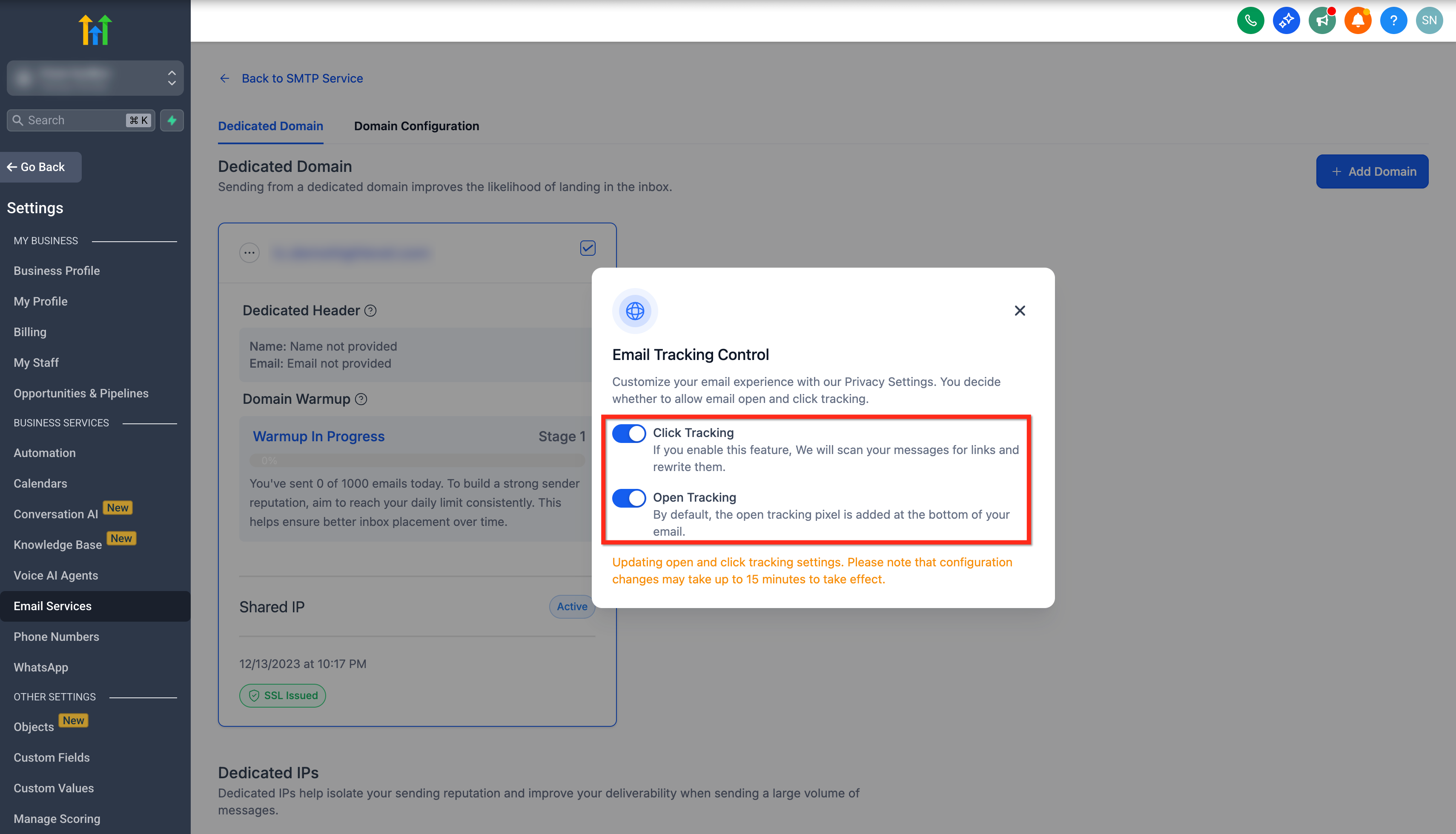
From the Domain Settings pop-up, toggle Click Tracking and Open Tracking on or off according to your preference. Changes apply immediately to emails sent through that domain.
Frequently Asked Questions
Engagement data is collected and attributed to contacts in your sub-account records. Within email tracking analytics, you'll see the following event types per contact:
Email Sent, Email Delivered, Email Opened, Email Clicked (link inside the email), Email Bounced, Complained (marked as spam), Unsubscribed, and Email Failed to Send.