
How to Use SEO Heatmaps in Chat To Clients CRM’s Prospecting Tool
The SEO Heatmap feature in the Prospecting Tool provides a visual representation of your prospect’s search engine rankings. This feature allows agencies and businesses to quickly understand where their website stands in search results for specific keywords and locations, helping improve visibility and optimise SEO efforts.
Note: This feature requires Premium Prospecting subscription for both Agencies & Locations.TABLE OF CONTENTS
- What is an SEO Heatmap?
- Key Benefits of the SEO Heatmap Tool
- How does the SEO Heatmap Tool Work?
- How to Use the SEO Heatmap Tool
- Best Practices
- Related Articles
What is an SEO Heatmap?
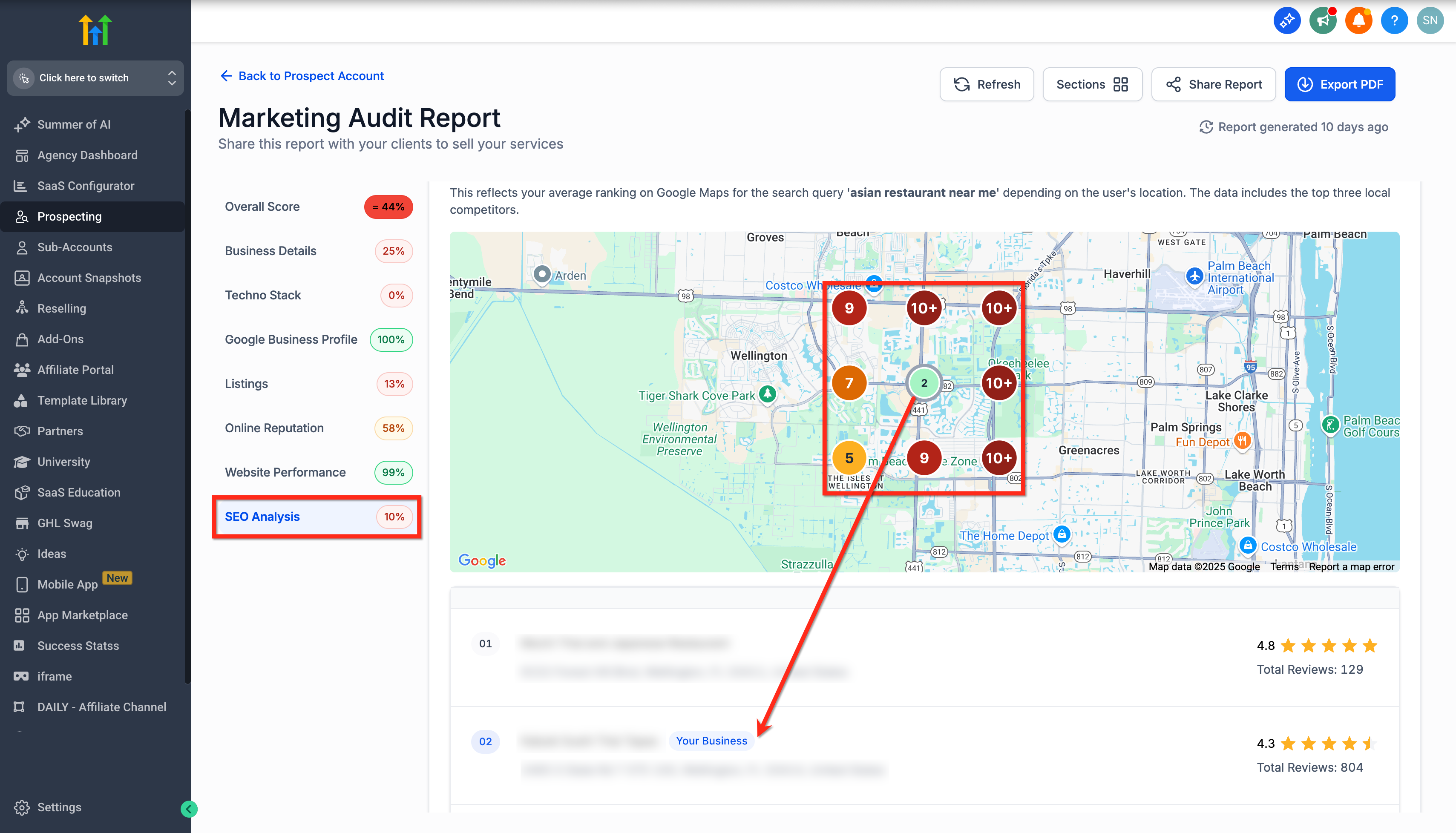
The SEO Heatmap is a tool that plots search rankings across nine key points on a map, giving a geographic view of how well a website ranks in different locations. Each point on the heatmap corresponds to a specific location around the prospect's business, helping to identify areas where the business has strong visibility versus areas that need improvement.
Key Benefits of the SEO Heatmap Tool
- Geographic Insights: It helps you visualize your ranking performance across different areas, providing a clear picture of where SEO efforts are succeeding or need improvement.
- Targeted Optimizations: Use the heatmap to identify specific geographic areas where visibility is lacking and optimize your SEO strategy to boost rankings in those locations.
- Improved Local Search Strategy: For businesses relying on local search, this heatmap can reveal how well they are performing in nearby areas, helping them adjust their local SEO strategies accordingly.
How does the SEO Heatmap Tool Work?
The SEO Heatmap evaluates search visibility based on rankings across multiple points:
- Central Point (20% Weight): The central location of the business. This point receives the highest weight in the overall score and reflects the visibility of the business in its immediate area.
- Outer Points (10% Weight Each): Eight surrounding points that represent nearby areas. These points help provide insight into how well the business ranks in neighboring locations.
Each point is assigned a rank based on the business’s position in search results for the selected keyword or keyword set. The higher the rank of a point, the better the visibility in that location, and the stronger the overall SEO performance.
How to Use the SEO Heatmap Tool
Note:

SEO Heatmap category data now aligns more closely with the prospect’s Google Business Profile categories. This helps the heatmap reflect how the business is listed on Google with better accuracy.

If you are reviewing an older report, refresh it first to load the latest heatmap data.
For Agency Accounts
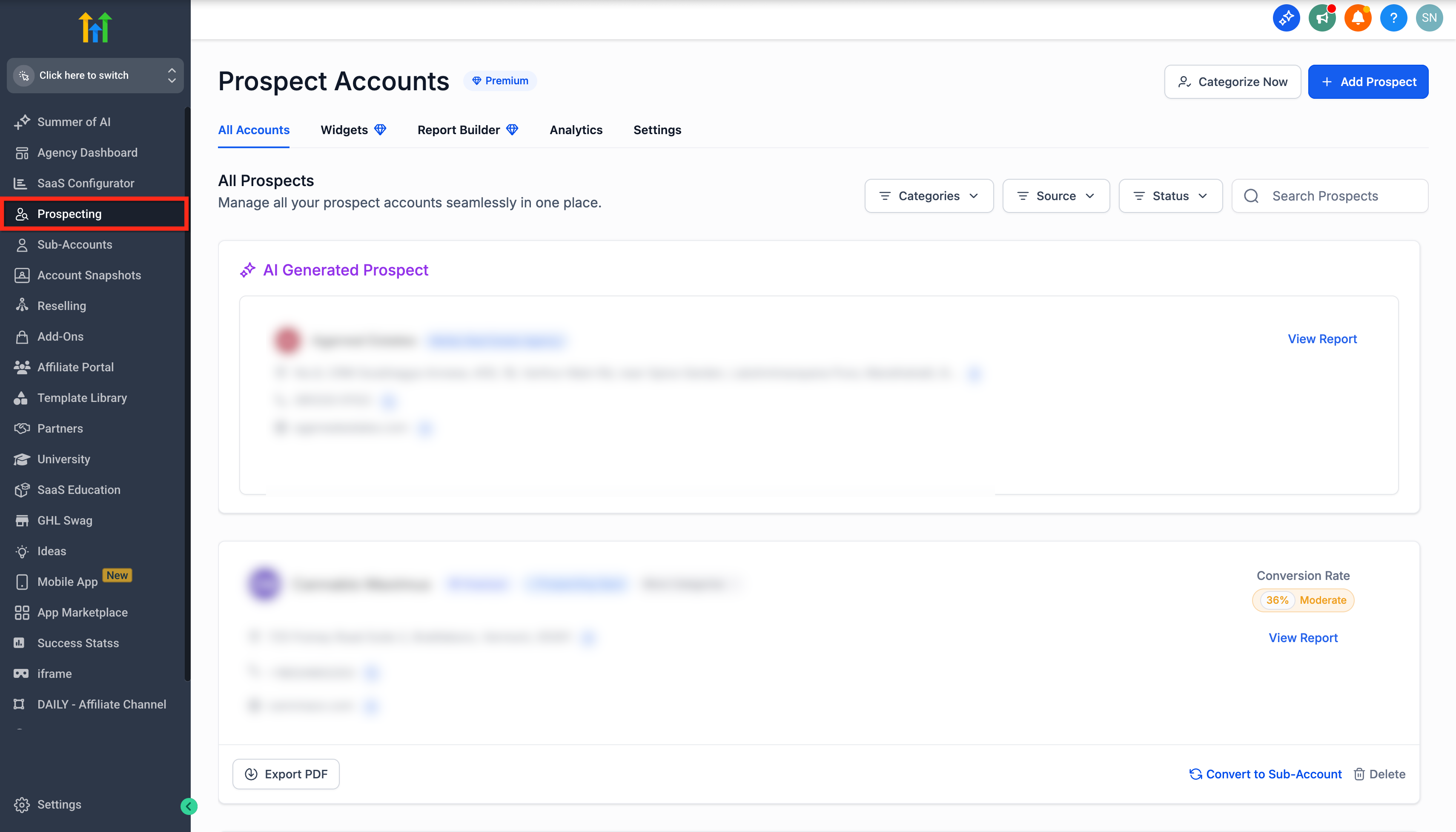
Step 1: Open Prospecting Tool
- Sign in to your Chat To Clients CRM Agency account.
- From the left-hand menu, click on the Prospecting tab.
Step 2: Open a Prospect Report
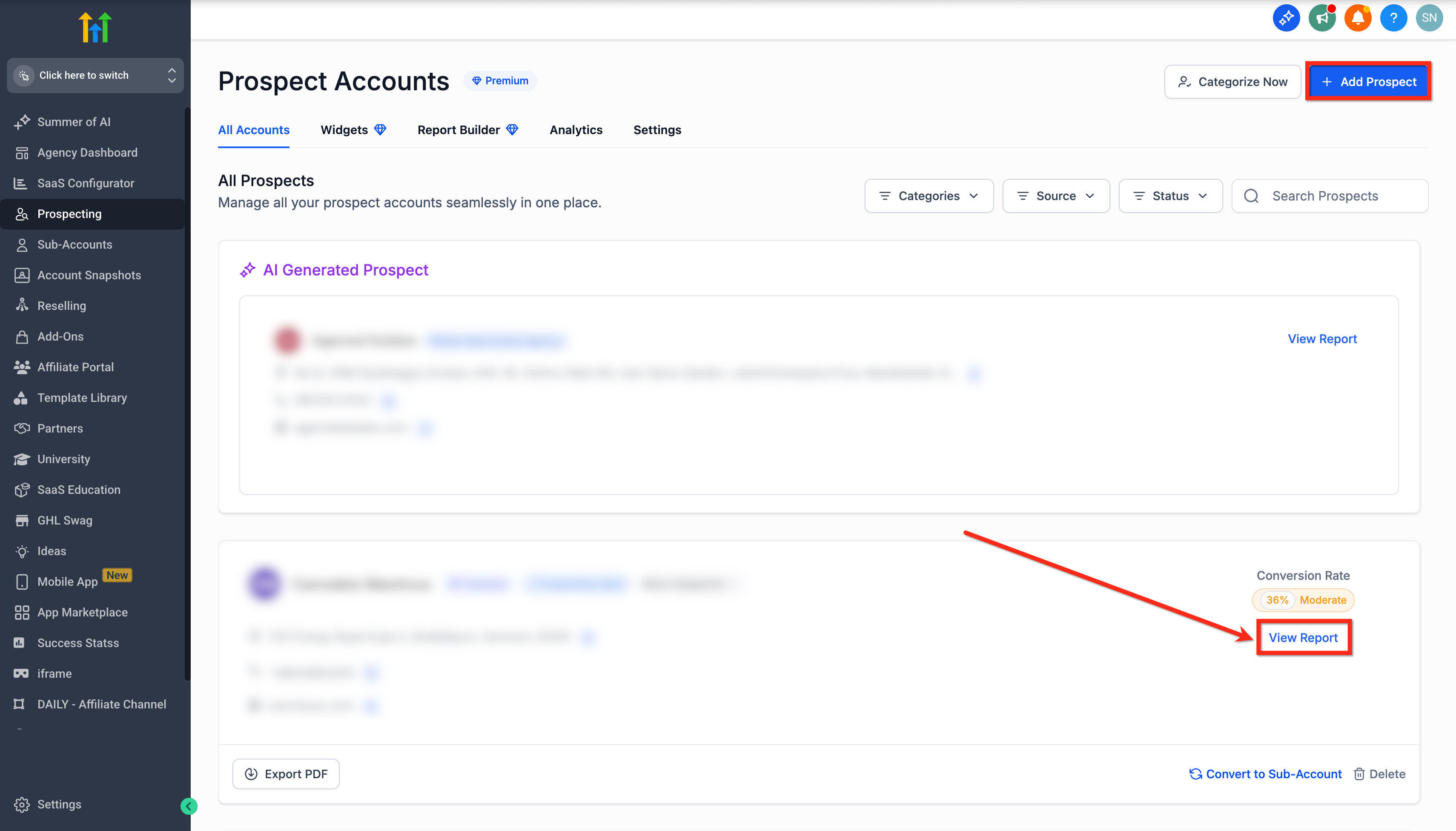
- Click Add Prospect to create a new one or select an existing prospect.
- Click the View Report button.
Step 3: View the SEO Heatmap
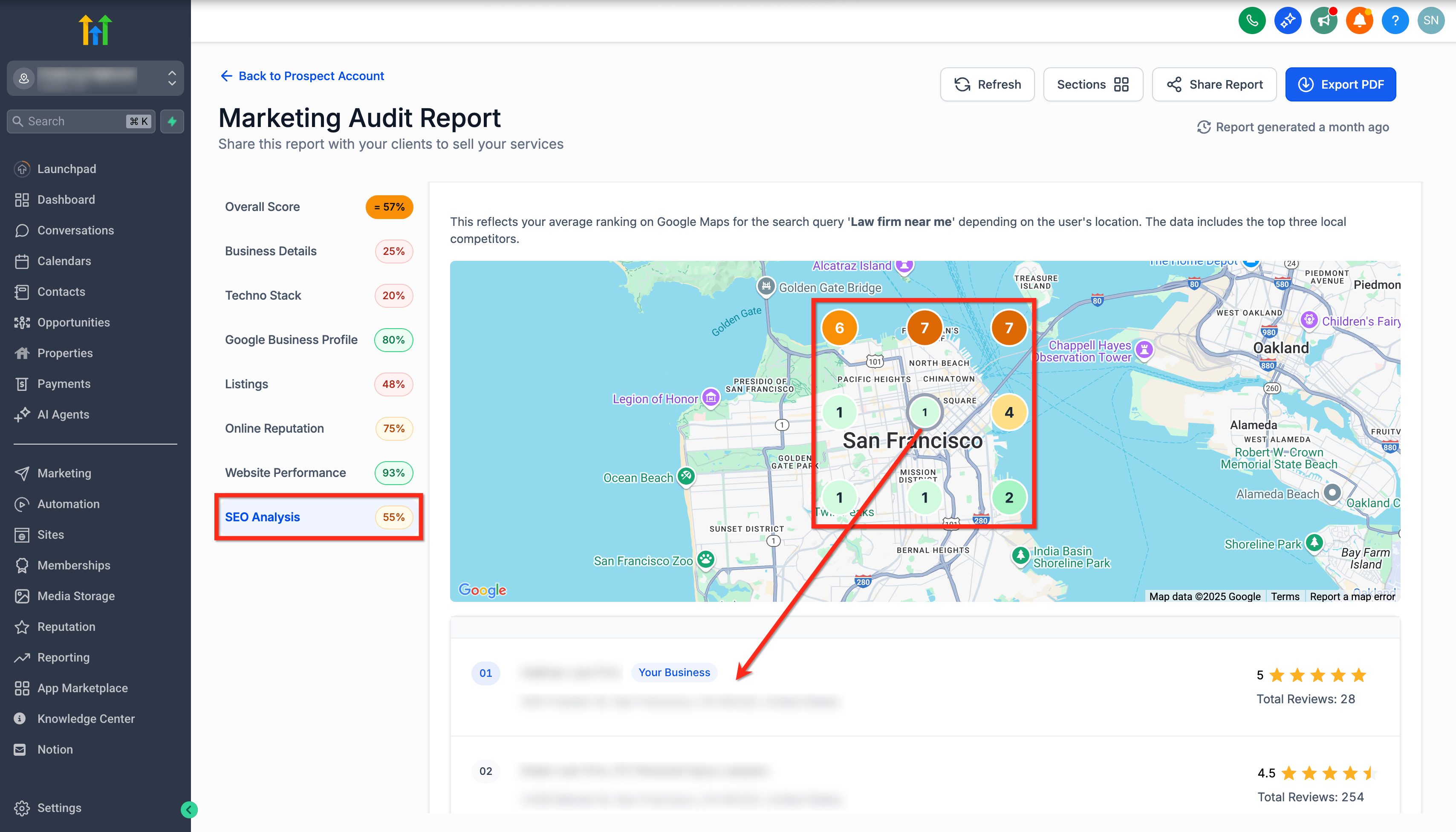
- When the report loads, click on the SEO Analysis tab in the left sidebar.
- Scroll to see the Heatmap displaying the keyword performance.
- Each dot on the map represents a local search result from a different nearby location.
- The center dot reflects the immediate area of the business.
- Rankings are shown for a defined keyword (e.g., “asian restaurant near me”).
- The data also highlights the top 3 local competitors.
For Sub-Accounts
Step 1: Navigate to Prospecting
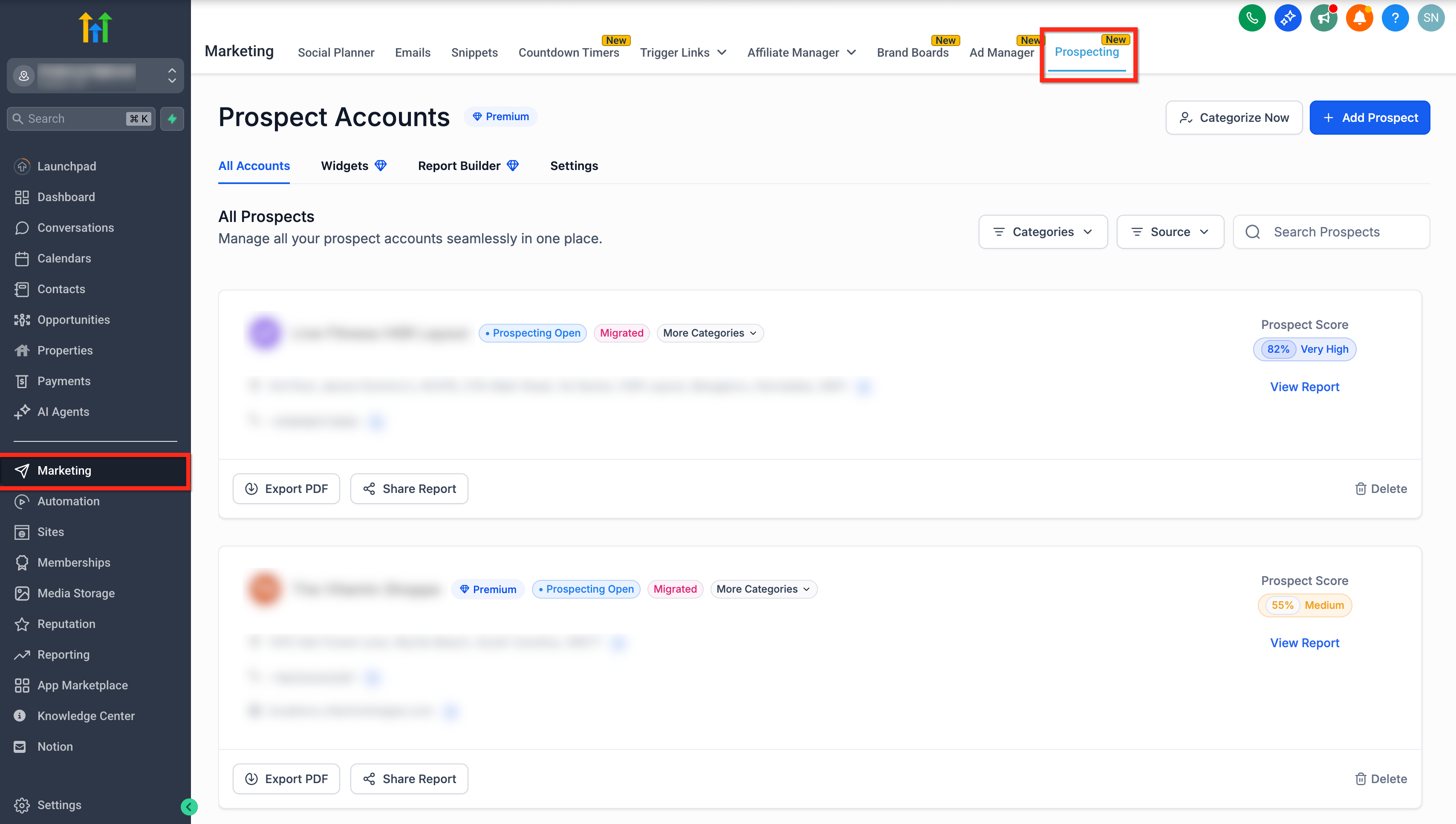
- Login to your sub-Account where Premium Prospecting is enabled.
- Click on Marketing in the left-hand menu.
- Then select the Prospecting tab in the top menu.
Step 2: Open a Prospect Report
- Click Add Prospect to create a new one or select an existing prospect.
- Click the View Report button.
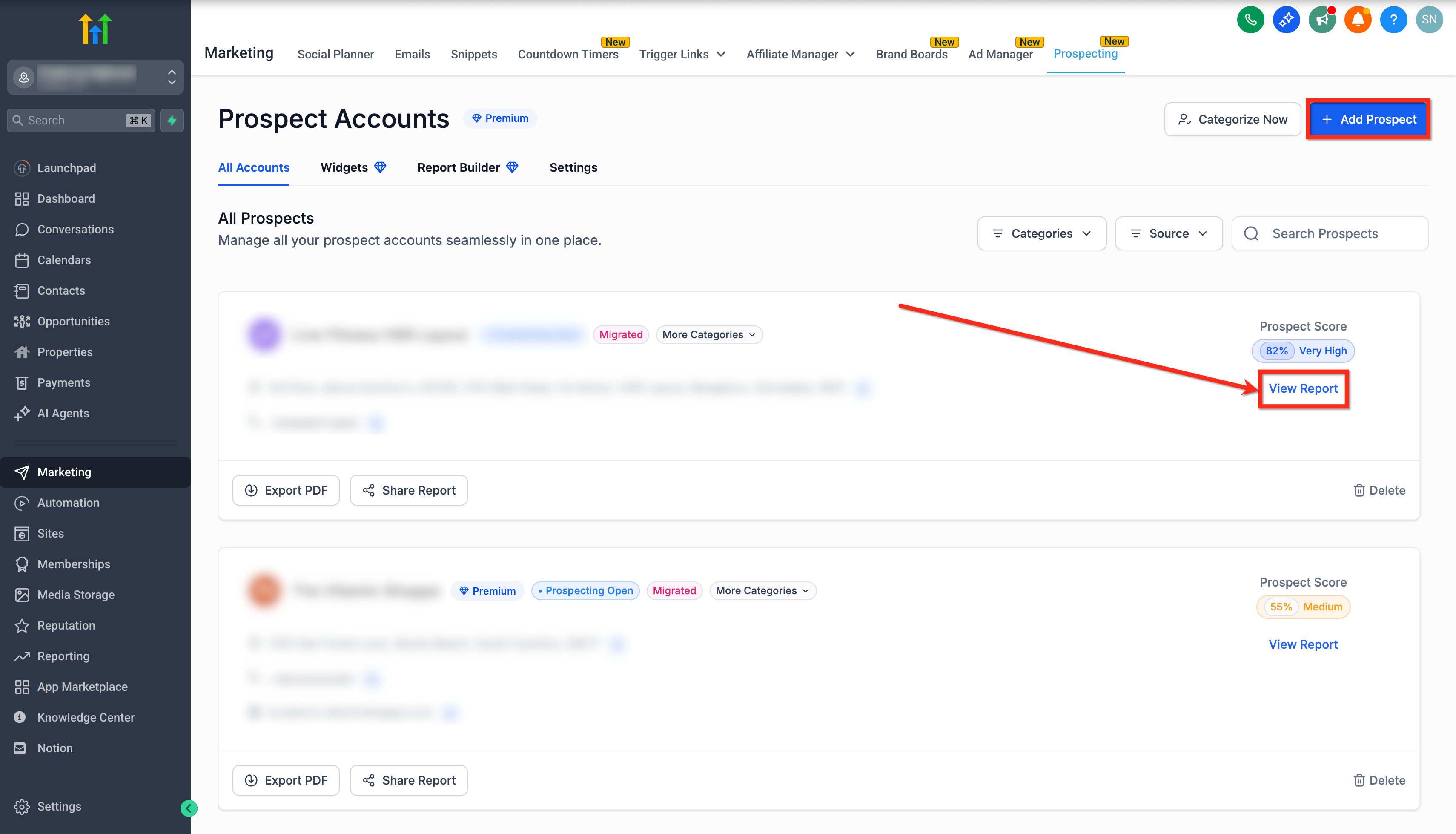
Step 3: View the SEO Heatmap
- When the report loads, click on the SEO Analysis tab in the left sidebar.
- Scroll to see the Heatmap displaying the keyword performance.
- Each dot on the map represents a local search result from a different nearby location.
- The center dot reflects the immediate area of the business.
- Rankings are shown for a defined keyword (e.g., “law firm near me”).
- The data also highlights the top 3 local competitors.
Best Practices
- Regularly check the SEO Heatmap to monitor changes in search rankings.
- Use the data to focus on improving rankings in areas with lower visibility.
- Combine heatmap insights with other SEO tools to refine your strategy and boost overall online presence.