
How to Use Brand Boards in Email Campaign/Templates
Brand Boards make it easy to apply your saved brand colors, fonts, and logos while designing emails. This article shows you how to use Brand Board assets in email templates and campaigns.
TABLE OF CONTENTS
- What are Brand Boards in Emails?
- Key Benefits of Using Brand Boards in Emails
- How to Use Brand Boards in Emails
- Frequently Asked Questions
- Related Articles
What are Brand Boards in Emails?
Brand Boards store your brand assets, including colors, fonts, and logos, so they can be quickly accessed while designing emails. Instead of manually entering colors, searching for fonts, or uploading logos each time, you can select your saved brand assets directly from the email editor.
Key Benefits of Using Brand Boards in Emails
- Keep email templates and campaigns consistent with your brand.
- Quickly access saved brand colors and fonts from the email editor.
- Easily insert your brand logos from the Media Library.
- Reduce repetitive setup when creating new emails.
How to Use Brand Boards in Emails
Before you begin, make sure you already have a Brand Board set up with your brand colors, fonts, and logos.
Note: You can change the default brand board to see the color palette and fonts from different brand boards. However, remember that there can only be one default brand board at a time.
Step 1: Open an email template or campaign
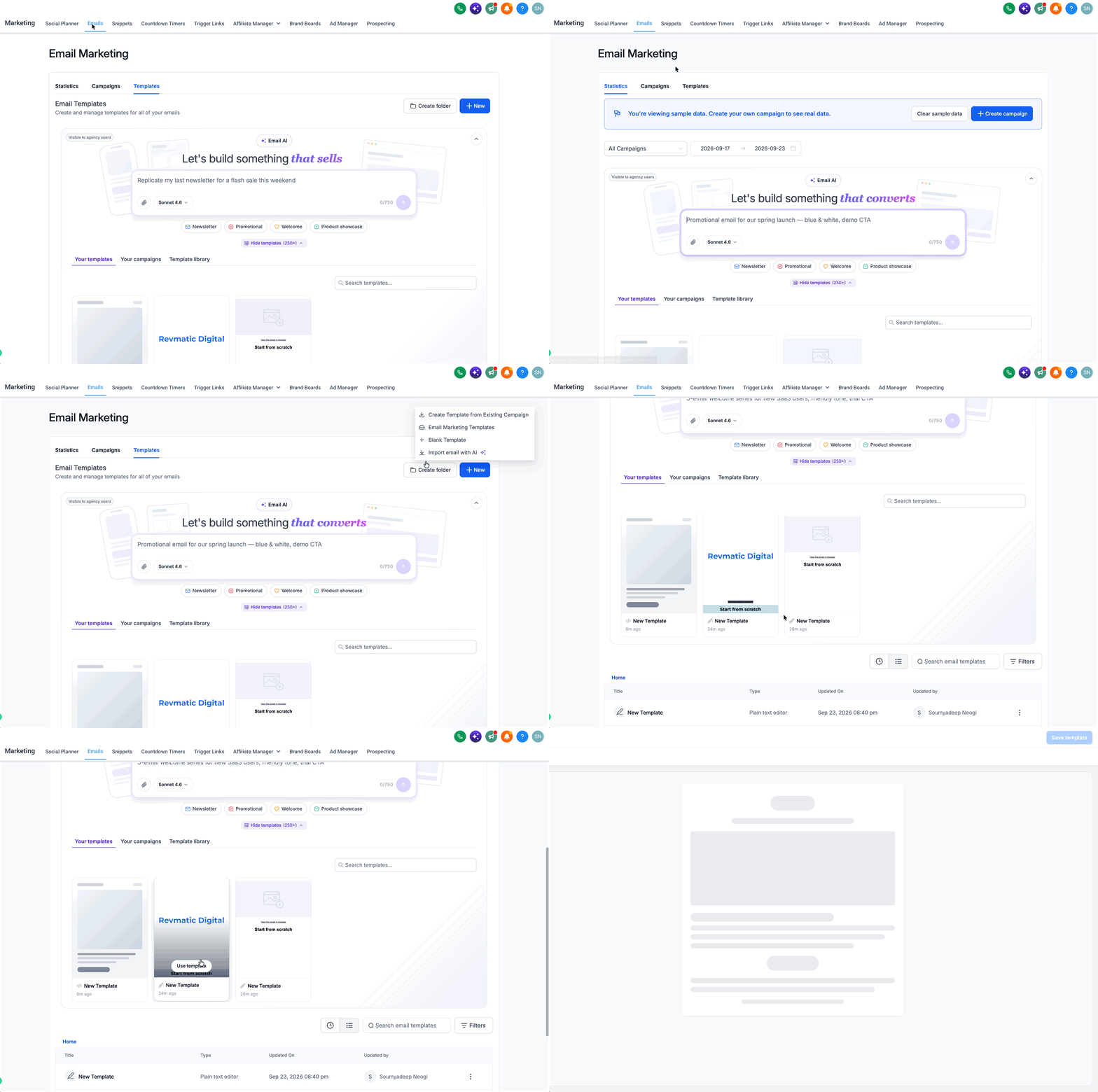
- Go to Marketing > Emails.
- Create a new email template or campaign, or edit an existing one.
- Switch to Design Editor for more editing options and controls.
Step 2: Apply a brand color
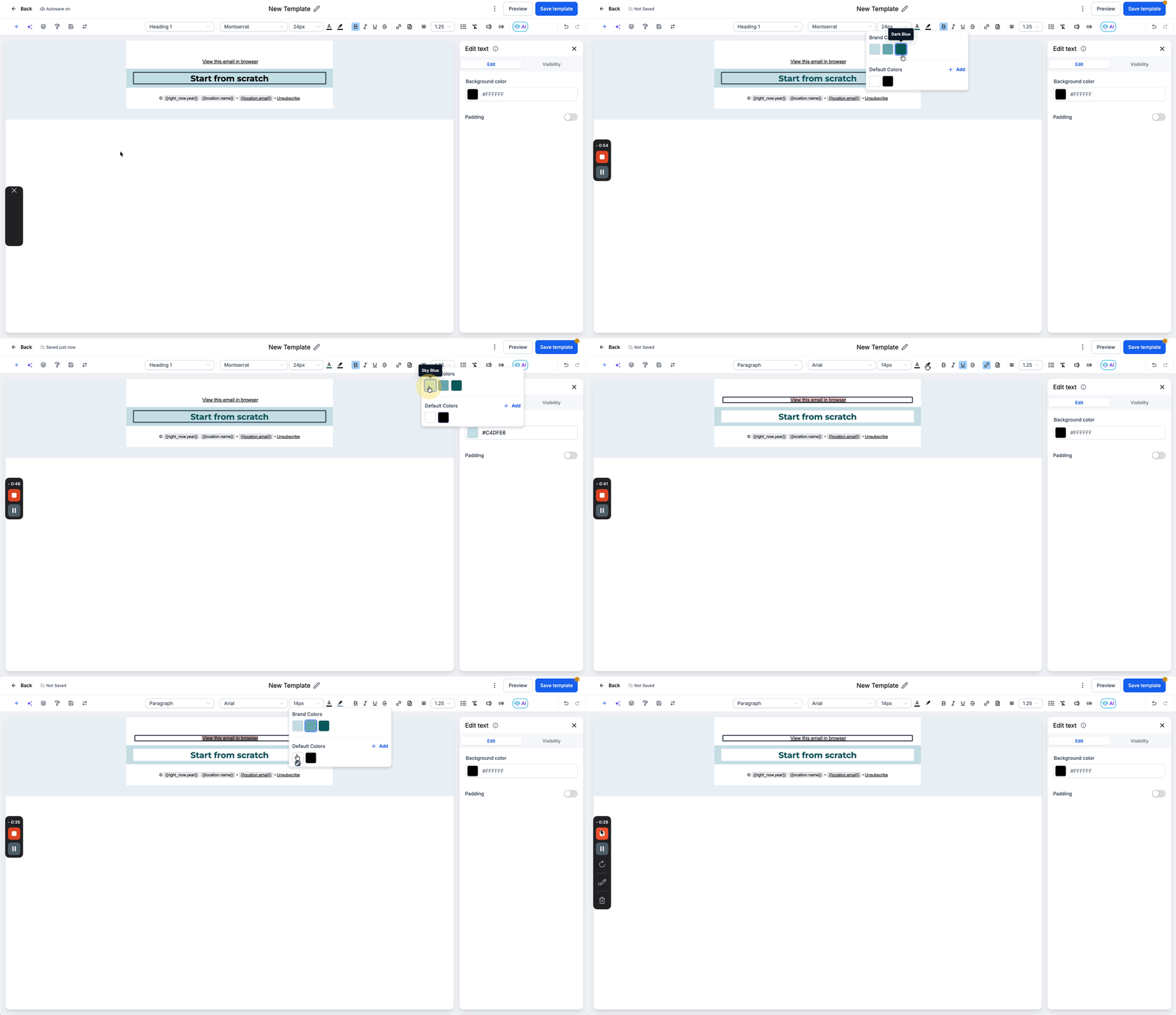
Brand colors are available wherever the supported color picker is used in the email editor.- Select the text, section, button, or other element you want to customize.
- Open the color picker for the applicable text, background, or element color.
- Select the desired color from Brand Colors.
Step 3: Apply a brand font
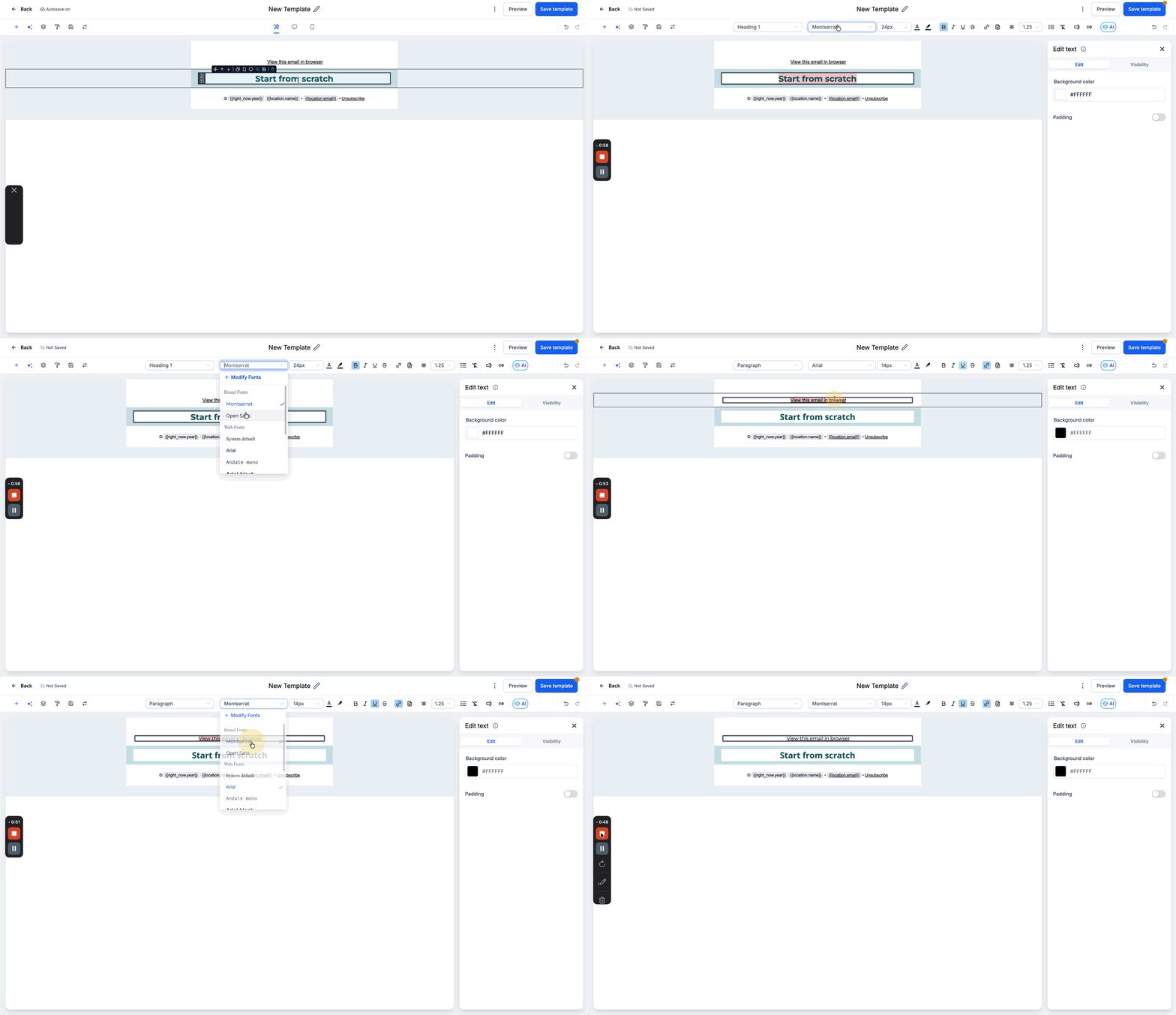
- Select the text you want to customize.
- Open the Font dropdown.
- Select the desired font from Brand Fonts.
Step 4: Add your brand logo
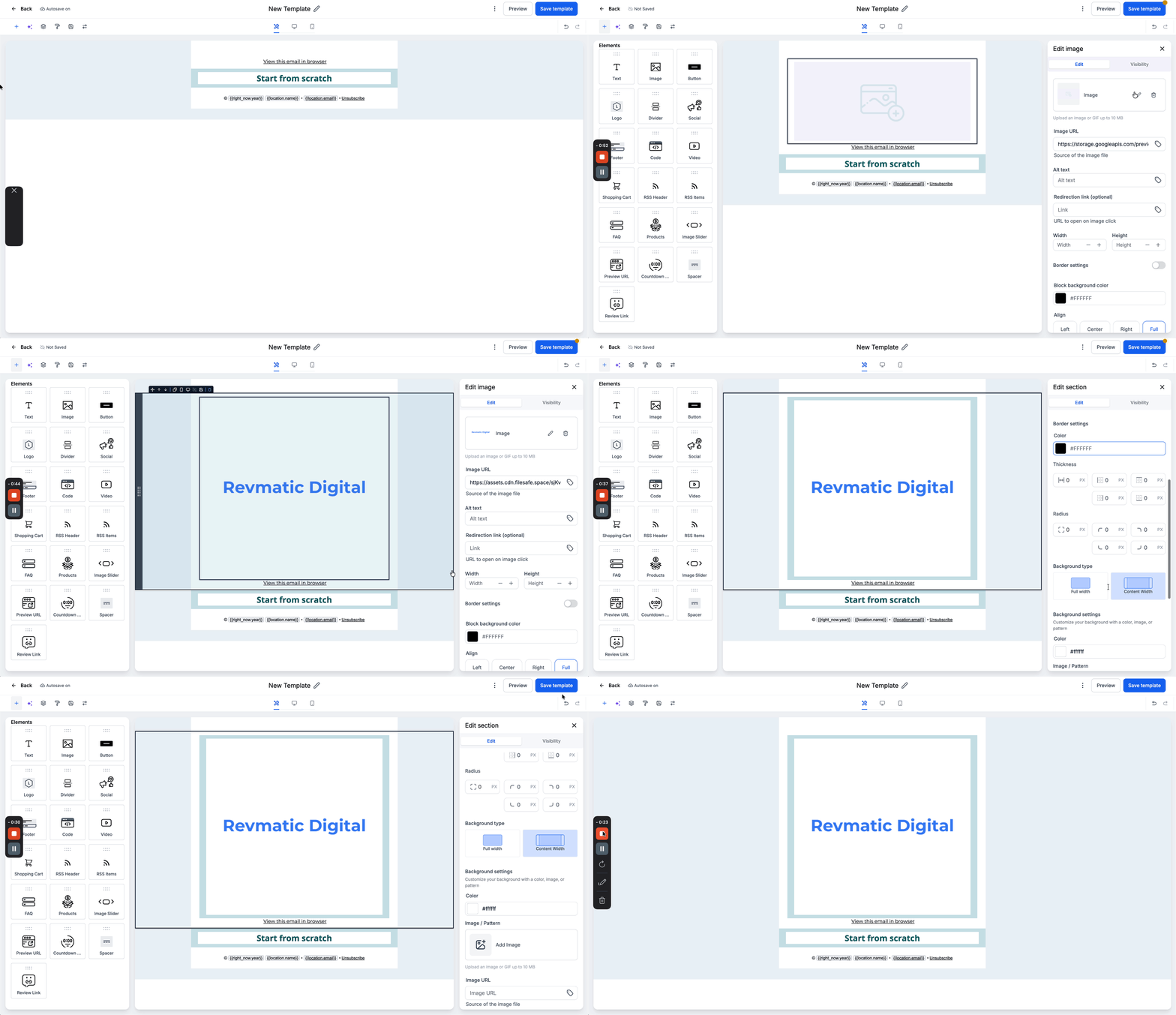
- Add an Image element to your email or select an existing image.
- Click the option to select an image from the Media Library.
- Locate the logo saved through your Brand Board.
- Select the logo and click Insert.
Frequently Asked Questions
Q: Can I use Brand Boards in both email templates and campaigns?
Yes. Brand Board colors, fonts, and logos can be used when designing both email templates and campaigns.
Q: Why don't I see my Brand Board colors or fonts in the email editor?
Only the colors and fonts from the default Brand Board appear in the email editor's color and font pickers. If the expected assets are missing, make sure the correct Brand Board is set as the default.
Q: Can I access logos from my Brand Boards in the Media Library?
Yes. Logos added to your Brand Boards are available in the Media Library and can be inserted into your emails.