Using Countdown Timers in Emails
Countdown timers in emails are dynamic elements that create urgency by counting down to a specific deadline. They help convey the sense of exclusivity and prompt users to act quickly.
TABLE OF CONTENTS
- What are Countdown Timers in Emails?
- Key Benefits of Using Countdown Timers in Emails
- Countdown Timer Behavior in Emails
- Dynamic Countdown Timers in Emails
- How to Use Countdown Timers in Emails
- Related Articles
What are Countdown Timers in Emails?
Countdown timers in emails display a live visual countdown inside an email campaign or template. They are commonly used to highlight deadlines, encourage faster action, and guide contacts toward a timely next step, such as registering for an event, claiming an offer, or completing a purchase.
A countdown timer can be added to an email using the Email Builder. After the timer is inserted, you can select an existing countdown timer, adjust its alignment, and connect buttons or calls-to-action to the timer’s destination link.
Key Benefits of Using Countdown Timers in Emails
- Enhances Aesthetics: Adds a visually appealing and engaging element to your emails.
- Creates Urgency: Encourages users to make decisions faster and not delay their actions.
- Higher engagement: Make launches, promotions, events, and limited-time offers feel more time-sensitive.
- Improved clarity: Show contacts exactly how much time remains instead of relying only on written deadline reminders.
Countdown Timer Behavior in Emails
Countdown timers in emails are designed to display a time-sensitive visual countdown when the recipient opens the message. Understanding how they render in different email clients helps set the right expectations before sending a campaign.
Countdown timers are displayed in emails as animated images. When a recipient opens the email, the timer generates based on the countdown configuration and the contact’s email experience. The timer can continue updating briefly while the email remains open, but email clients may cache images or limit how often animated content refreshes.
Important behavior to keep in mind:
- Countdown timers in emails are generated dynamically when the email is opened.
- Timer display can depend on the recipient’s email client.
- Some email clients may cache the timer image instead of refreshing it continuously.
- Apple Mail may show a cached version of the countdown timer, which can prevent the timer from updating as expected.
Note: Always preview and test your email before sending it to a larger audience.Dynamic Countdown Timers in Emails
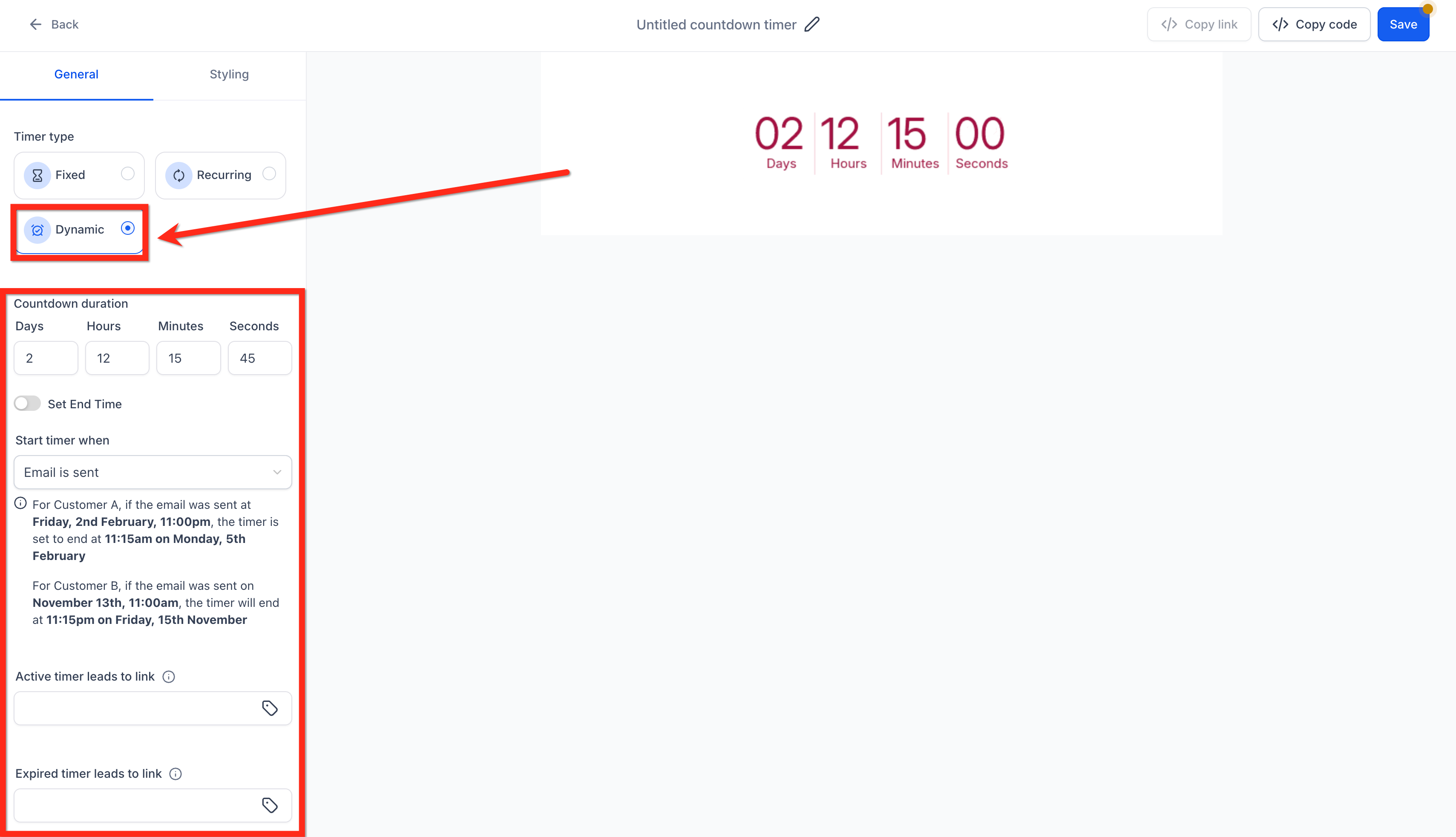
Dynamic countdown timers allow the countdown experience to be personalized based on contact behavior, such as when an email is opened or sent. This is helpful when each recipient should receive their own deadline instead of sharing one fixed expiration date.
Example: If your timer is set to end at midnight on December 25th and a user opens the email on December 24th, the timer will show "24 hours left." It will then count down to "23 hours 59 minutes left" and stop updating as long as the email is open. If the email is opened again after closing, the timer refreshes the timer to take the latest time stamp and counts down to next 60 seconds.
Use a Dynamic timer when:
- Each contact should receive their own countdown window.
- The deadline should be based on when the email is opened or sent.
- The offer is evergreen rather than tied to one fixed calendar date.
- You want the email timer to stay aligned with a destination page timer.
How to Use Countdown Timers in Emails
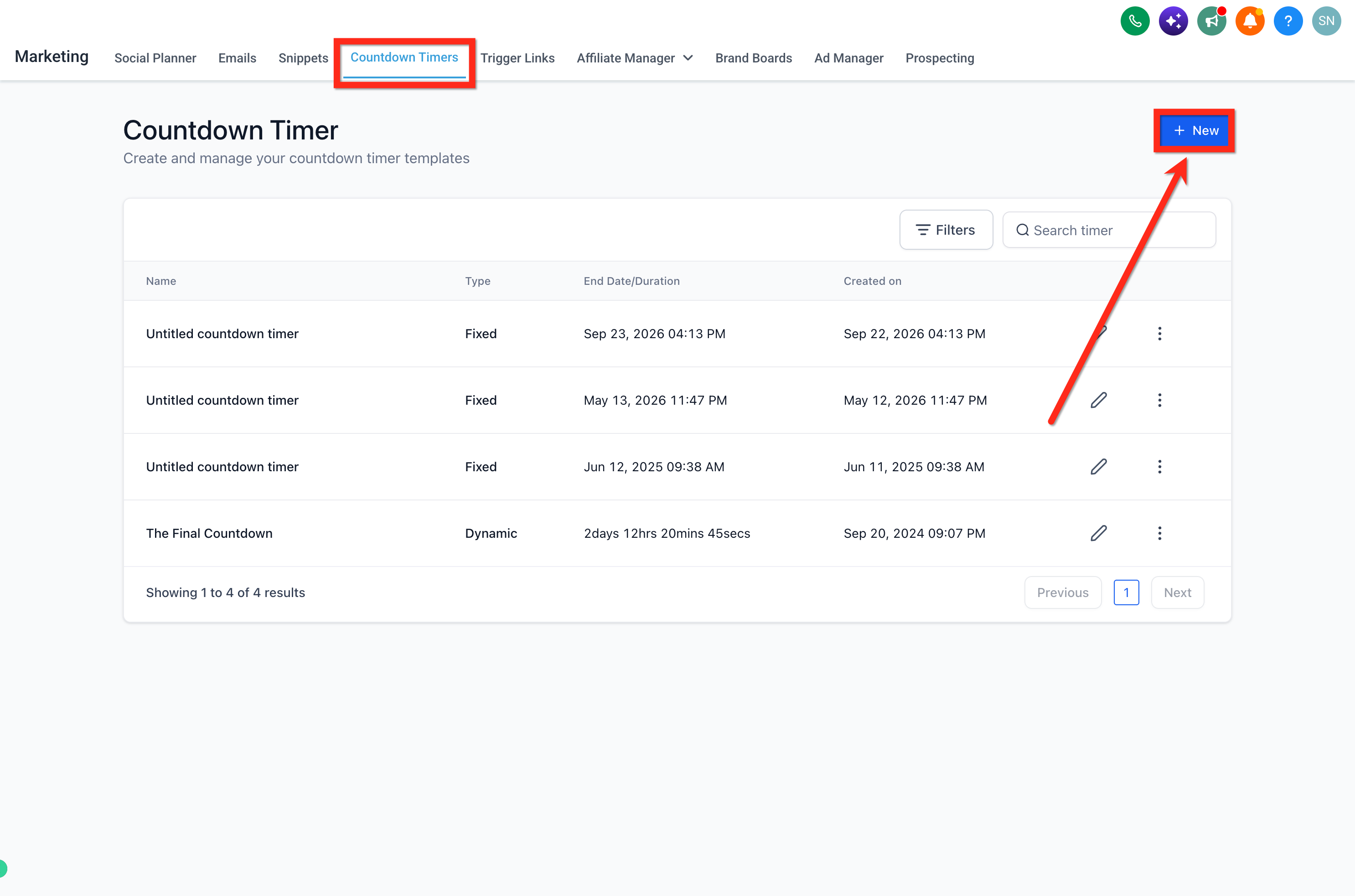
Create a Countdown Timer: Go to Marketing from the left navigation > then Countdown Timer and create your timer.
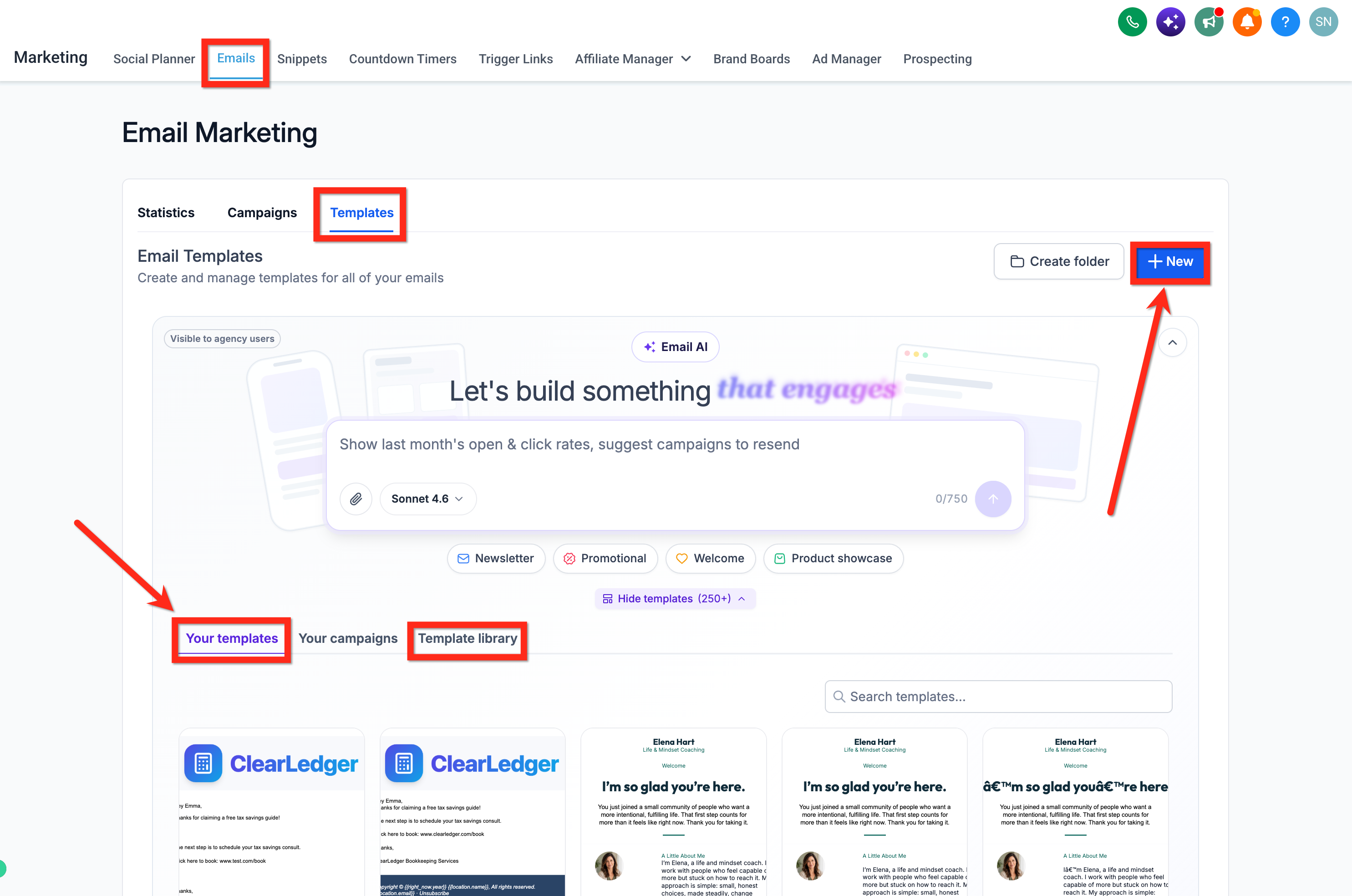
Go to Marketing from the left navigation > then Emails > Templates.
Create a New Template or edit an existing one.
Make sure you are in design editor or switch to it.
Add the countdown timer element into your email.
Choose the desired timer by viewing its design and details.
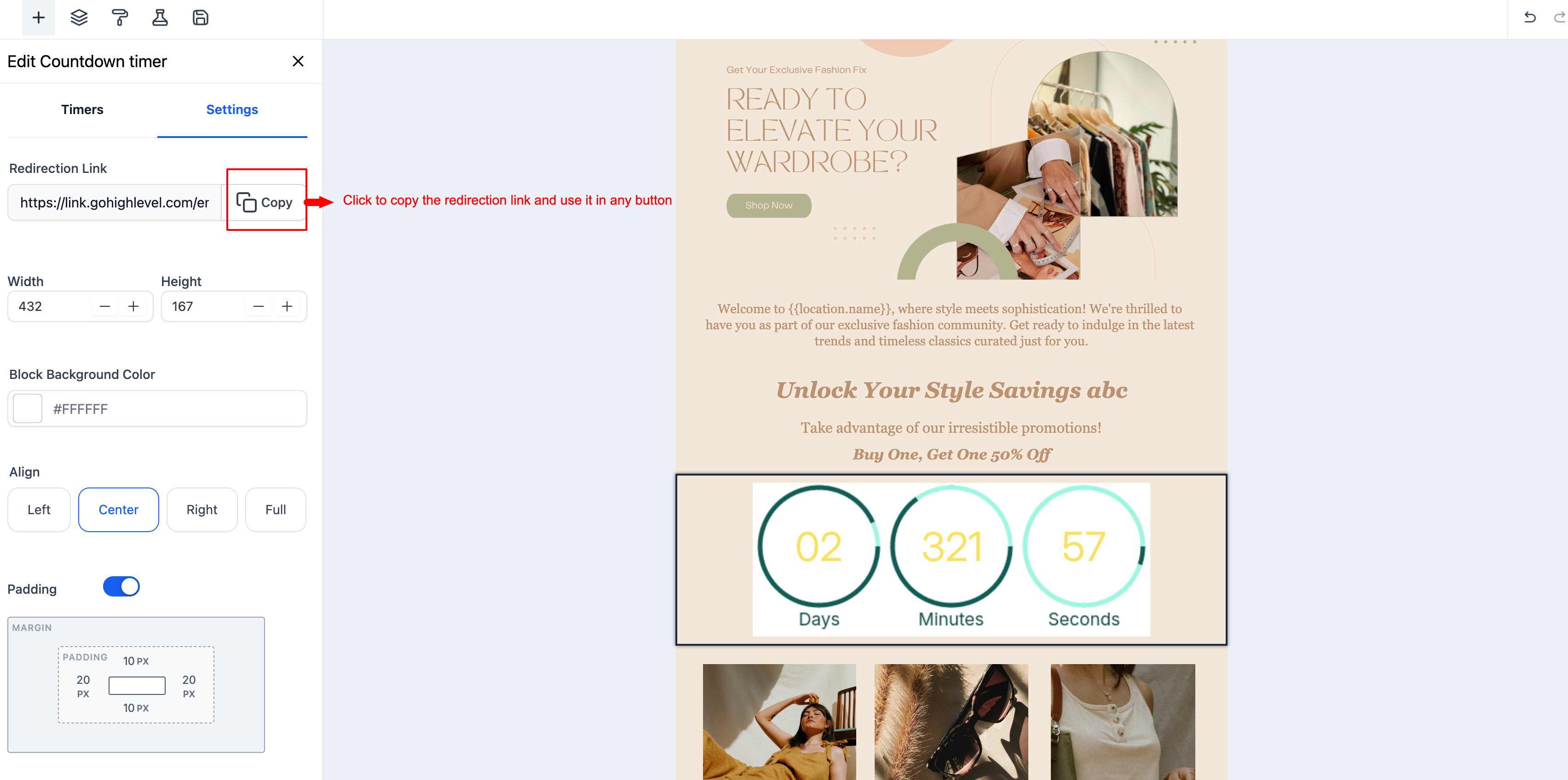
Enable Adapt to Contact Time Zone so each recipient sees the correct local deadline. To learn more, see: Timezone Adaptation in Countdown TimersAdjust Timer Settings: Click on settings to align the timer within your email.
Customize Appearance: Set the background color and adjust padding as needed.
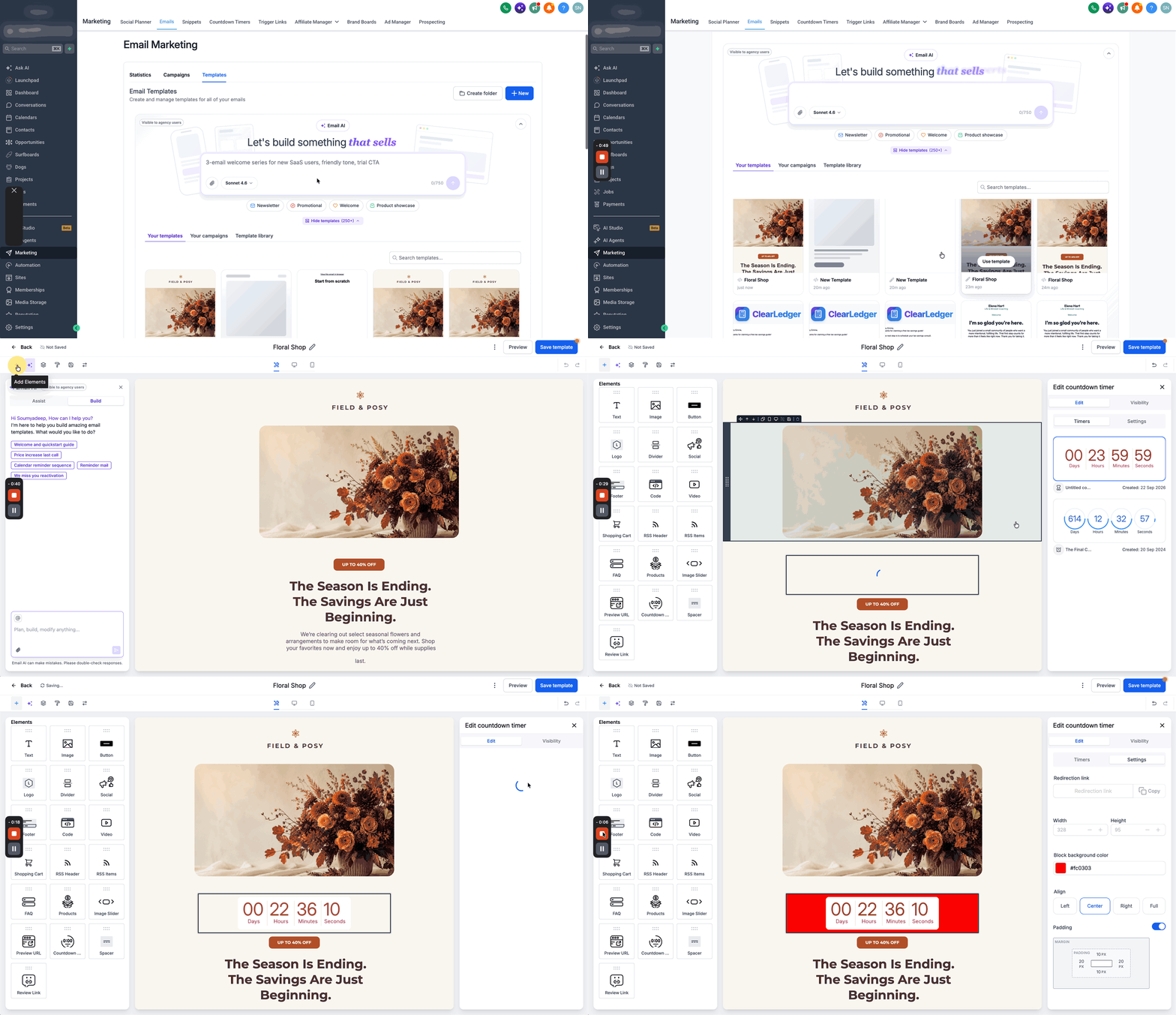
Configure Redirection: Copy the redirection link and use it for your email buttons or calls-to-action.