
Workflow Action - Log External Call
The Log External Call workflow action lets you add calls handled by a third-party calling system to a contact's activity in Chat To Clients CRM. External call data can be mapped into the action so details such as call direction, date, phone numbers, call status, and an available recording reference appear with the contact's call history. This helps keep externally handled calls visible alongside other contact activity in Chat To Clients CRM.
What Is the Log External Call Workflow Action?
Log External Call is useful when your business uses a calling provider outside Chat To Clients CRM but still needs the resulting call activity associated with the correct CRM contact. An Inbound Webhook is a common way to receive this external call data, although the action can use values available from the applicable workflow context.
Key Benefits of Log External Call
Logging third-party calls in Chat To Clients CRM gives your team a more complete view of contact activity without requiring every call to originate from Chat To Clients CRM's native calling system. Mapping external call information into the CRM can also make it easier to review call outcomes and recordings from the contact's history.
Centralized Call History: Keep externally handled call activity associated with the appropriate Chat To Clients CRM contact.
Third-Party Call Visibility: Bring relevant call information from an external calling provider into Chat To Clients CRM.
Call Detail Mapping: Store available call information such as direction, date, From and To numbers, and call status.
Recording Access: Include an available recording reference so supported call recordings can be accessed with the logged call.
Flexible Workflow Integration: Use workflow data, including values received through an Inbound Webhook, to populate the external call record.
How Log External Call Works
Log External Call uses call information available within a workflow and associates it with a Chat To Clients CRM contact. Understanding the data flow is important because external call data must reach the workflow and the correct contact must be identified before the call can be added to that contact's history.
A common implementation follows this flow:
Third-party calling system → Inbound Webhook → identify or create the contact → Log External Call → contact Conversations
For example, a third-party calling provider can send call information to a Chat To Clients CRM Inbound Webhook after a call occurs. The workflow can determine whether the call was inbound or outbound, identify the external caller or recipient, and map the call information into Log External Call.
Note: Inbound Webhook is a common way to supply third-party call data, but it should not be treated as the definition of the Log External Call action itself.
Log External Call Field Reference
Each Log External Call field represents a different part of the external call record. Mapping the correct source data helps ensure the activity displayed for the contact accurately reflects the call handled by the third-party system.
| Field | Purpose | Mapping guidance |
|---|---|---|
| Direction | Identifies whether the external call was inbound or outbound. | Map the source value representing the direction of the call. |
| Date | Represents when the call occurred. | Map the date/time value supplied for the external call. |
| To | Represents the destination phone number. | Map the destination number supplied by the calling system. |
| From | Represents the originating phone number. | Map the originating number supplied by the calling system. |
| Call Status | Represents the system-recorded outcome or status of the call. | Map the external value that represents the call outcome. |
| Attachment | Allows available recording information to be associated with the logged call. | Map the compatible recording reference provided by the external calling system when available. |
Important: The exact value format expected for fields such as Direction, Date, Call Status, and Attachment should match the values supported by the current Log External Call action and your integration. Do not assume that a third-party provider's custom disposition or proprietary status automatically maps to the equivalent Chat To Clients CRM field.
For phone-number consistency and contact matching, use international E.164-style formatting where possible, such as +15551234567.
How to Set Up Log External Call Using an Inbound Webhook
An Inbound Webhook provides a practical way for an external calling system to send call information into a Chat To Clients CRM workflow. Using representative sample data during setup makes the incoming fields available for mapping and helps you validate the workflow before processing live calls.
1. Create the Workflow and Add an Inbound Webhook
Go to Automation > Workflows.
Create a new workflow or open the workflow you want to use.
Add the Inbound Webhook workflow trigger.
Copy the webhook URL provided by Chat To Clients CRM.
Configure your external calling system to send the applicable call data to that webhook.
Your payload should contain the information you intend to use in the workflow, such as:
Call direction
From number
To number
Call date/time
Call status
Recording reference, when available
Note: Use a valid payload structure supported by the Inbound Webhook trigger. If the external system's payload structure changes later, refresh the webhook mapping/reference data so the updated fields are available for workflow mapping.
2. Send Representative Sample Call Data
Sample data allows Chat To Clients CRM to identify the incoming fields you will use later in the workflow. Use a representative payload that includes the same fields your external calling system will send during normal operation.
Send a sample request from the external system to the Inbound Webhook.
Confirm that Chat To Clients CRM receives the sample.
Review the available webhook values.
Verify that the call fields you need are present before continuing.
3. Separate Inbound and Outbound Calls
Inbound and outbound calls use different external phone numbers to identify the CRM contact. Separating the two directions helps ensure the workflow matches the caller for an inbound call and the recipient for an outbound call.
Add an If/Else action after the webhook trigger.
Configure the condition using the incoming call-direction value.
Create one branch for inbound calls.
Create another branch for outbound calls.
4. Identify or Create the Contact
Log External Call should be associated with the correct CRM contact. Map the external party's phone number into the appropriate contact action before attempting to log the call.
Use the following mapping:
| Call direction | Number used to identify the contact | Why |
|---|---|---|
| Inbound | From Number | The external caller is calling your business. |
| Outbound | To Number | Your business is calling the external contact. |
For the inbound branch, map the webhook's From Number into the applicable Phone field.
For the outbound branch, map the webhook's To Number into the applicable Phone field.
You can use Create Contact when the workflow should create or update/match the contact using the mapped information according to Chat To Clients CRM's applicable contact-matching behavior.
Important: Contact matching can be affected by the values you provide and your applicable deduplication settings. Test the workflow with representative records before processing live call data.
If you need more explicit control over whether a contact already exists, consider using Find Contact. You can then branch based on Contact Found or Contact Not Found and decide whether a new contact should be created.
5. Add the Log External Call Action
Once the workflow has the correct contact context, add Log External Call and map the incoming call information. Each field should use the corresponding value supplied by your external calling system.
Add a workflow action after the contact-identification step.
Select Log External Call.
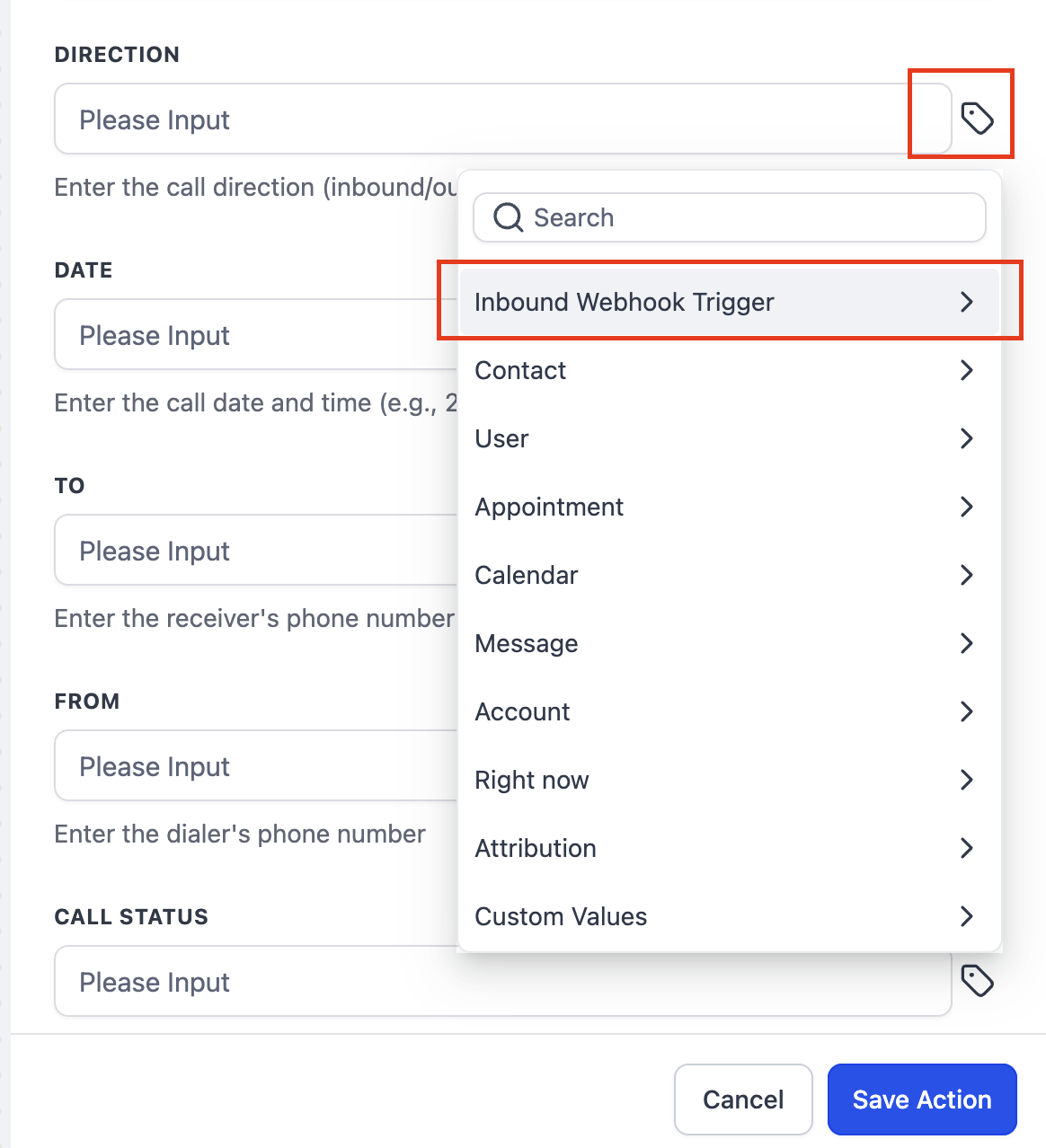
Locate the custom-value/mapping control for each field.
Select the applicable values received from the Inbound Webhook.
Map the available call data into:
Direction
Date
To
From
Call Status
Attachment, when a compatible recording reference is available
Save the action.
Repeat the applicable configuration in both the inbound and outbound branches.
Call Status: Map the value representing the system outcome of the call. Do not automatically map an agent-selected custom disposition unless your integration specifically translates that value into the intended call-status field.
Recording: When the external calling system provides a compatible recording reference, map it into Attachment. Verify the resulting call entry to confirm that the recording is accessible from Chat To Clients CRM.
Test and Verify the Logged Call
Testing confirms that the external payload, contact matching, branching, and call-field mappings work together as intended. A successful webhook request alone does not guarantee that the call will be logged against the correct contact, so validate the complete workflow before relying on it for live calls.
Before publishing the workflow for production use:
Send a representative inbound call payload.
Confirm the inbound branch executes.
Verify that the From Number identifies the intended contact.
Confirm the call is logged against that contact.
Send a representative outbound call payload.
Confirm the outbound branch executes.
Verify that the To Number identifies the intended contact.
Open the applicable contact in Chat To Clients CRM.
Review the logged call in the contact's Conversations area.
Confirm the available details are correct, including:
Direction
Date/time
From number
To number
Call status
Recording, when provided
Publish the workflow after the test results match your intended behavior.
If the call is not logged correctly, review the workflow's Execution Logs or applicable execution history. Confirm that:
The webhook received the expected data.
The If/Else condition selected the correct branch.
The correct contact was found or created.
Required mapped values were present when Log External Call ran.
The external payload structure still matches the fields configured in the workflow.
Frequently Asked Questions
Q: Is an Inbound Webhook required to use Log External Call?
Inbound Webhook is a common way to receive third-party call data for Log External Call, but the action itself uses the values available in the applicable workflow context. Use the data source that provides the call information required by your implementation.
Q: Does Log External Call need a contact?
The external call is logged against a contact's CRM activity, so the workflow should have the correct contact context before Log External Call runs. When call data enters through an Inbound Webhook, you can identify, find, or create the appropriate contact before logging the call.
Q: Should I use Create Contact or Find Contact?
Use Create Contact when the workflow should create or update/match the contact according to the applicable matching behavior. Use Find Contact when you want explicit control over what happens when a matching contact is or is not found.
Q: How can I reduce the risk of creating duplicate contacts?
Map consistent identifying information, review your contact deduplication settings, and test the workflow with representative contact records. Find Contact can also be useful when you want to check explicitly for an existing record before creating one.
Q: Can I include a third-party call recording?
Yes. Log External Call supports an Attachment field for available recording information. Map the compatible recording reference supplied by the external calling system and test the resulting call entry to confirm the recording can be accessed.
Q: What should I map into Call Status?
Map the third-party value that represents the system outcome or status of the call. Do not assume an agent-selected custom disposition is equivalent to Call Status unless your integration intentionally maps those values.
Q: Why isn't the external call appearing in Conversations?
Review the workflow execution to confirm the webhook received the expected values, the correct branch ran, the intended contact was identified, and the Log External Call fields were populated. If the external payload changed after the workflow was configured, refresh the webhook mapping reference and verify the field mappings again.
Related Articles
SEO Meta Title:
SEO Meta Description:
This document explains how to use the workflow action - Log External Call, to log calls from third-party calling tools into the CRM.
Covered in this Article:
- What is the Workflow Action - Log External Call?
- How to use this action?
What is the Workflow Action - Log External Calls?
Using this workflow action, you can post your external calls, that take place from third-party calling tools, to the CRM. This ensures that all your communication details are centralized within the CRM for better tracking and management. You can also pass the call recordings using this action and this will be visible on the Conversations section of contact.
How to use this action?
You can effectively use this action with the Inbound Webhook Trigger. This trigger provides you with a webhook URL that you can call to share the call details, whenever a call takes place in your calling system.
Configuring the Inbound Webhook Trigger: Help Document
Once the trigger is configured, add the If/Else brach with direction field to separate inbound and outbound flows.
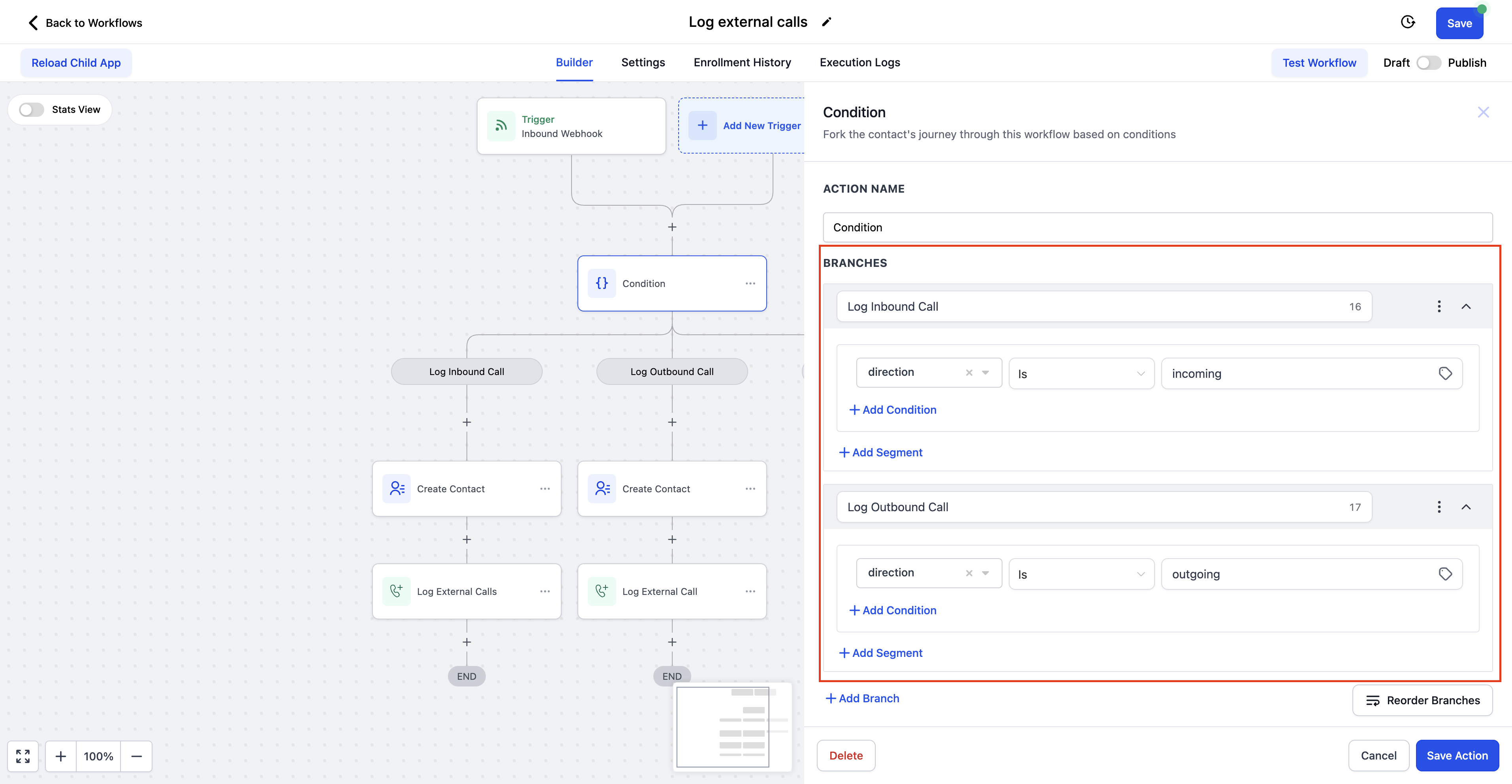
Note: direction field can be accessed from Inbound Webhook Trigger option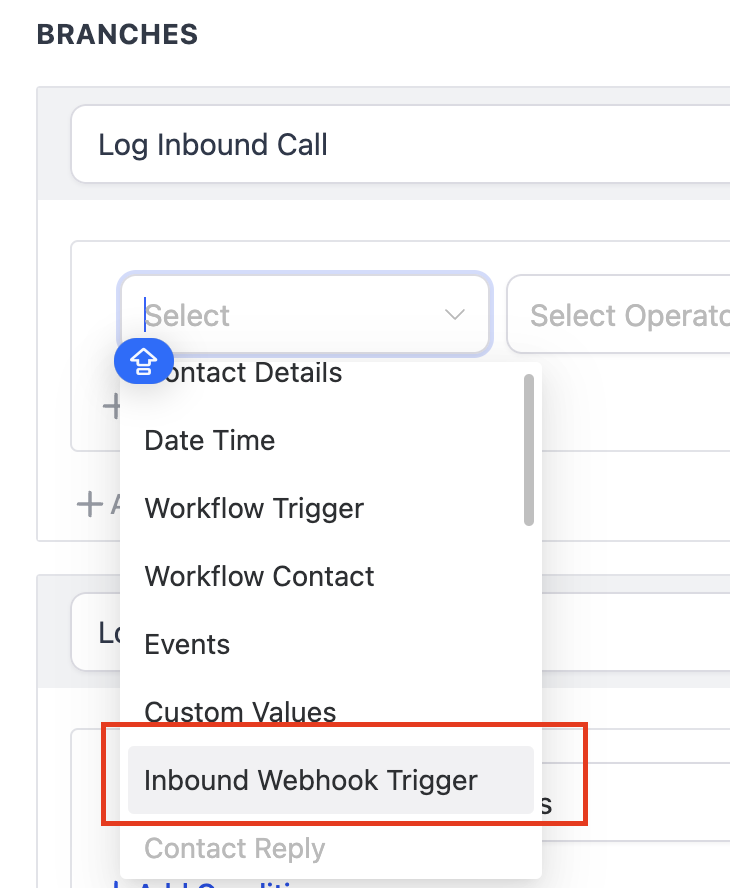
After creating two branches for Inbound calls and Outbound calls, Add "Create Contact Action. This will identify the contact on which the call should be posted using the phone numbers that you pass in the webhook.
In Create Contact Action, map the Phone field to "From Number" in Inbound call flow and "To Number" in the Outbound call flow. This will create/identify the contact associated with the given phone number.
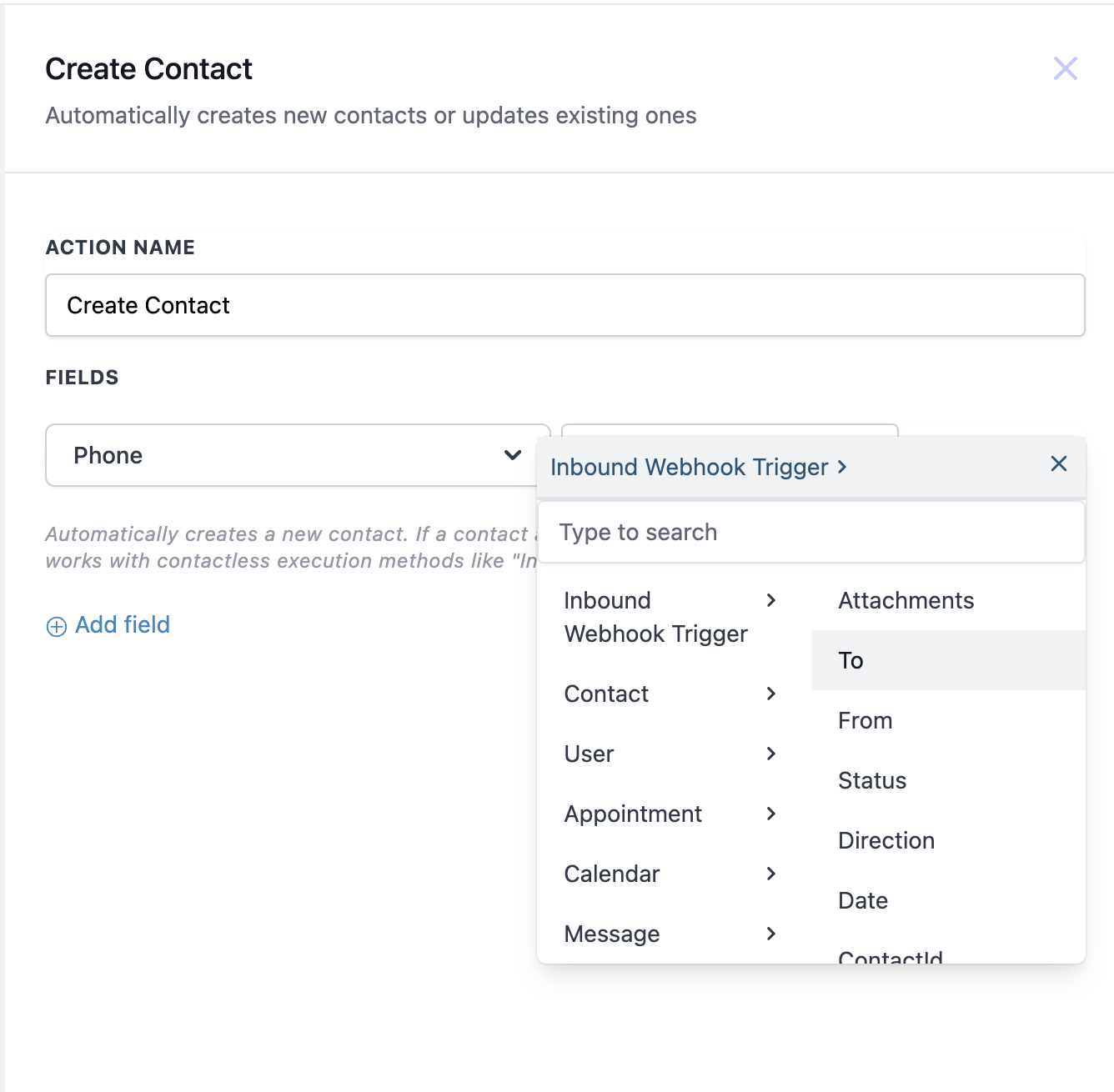
Post this, Add the Log External Call action.
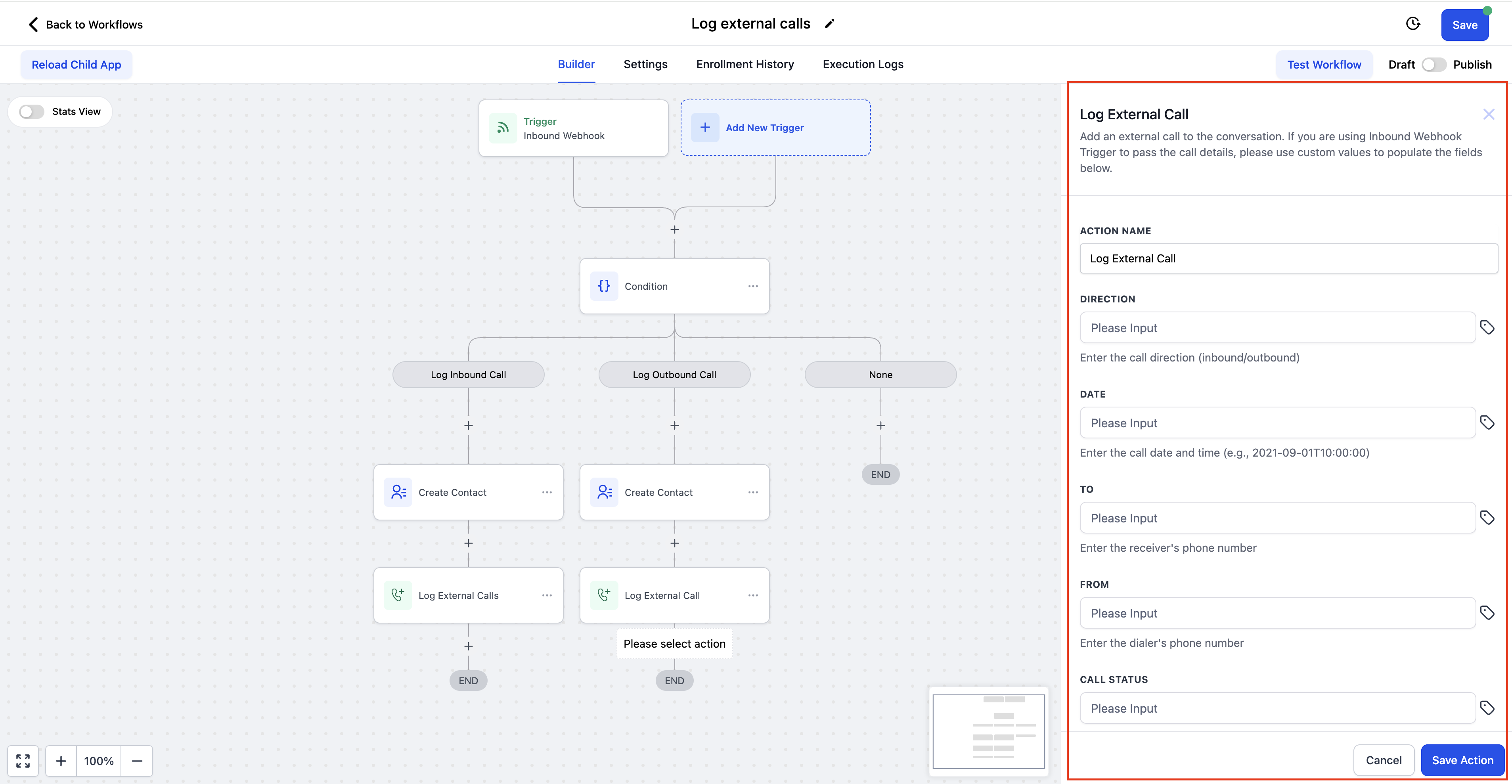
For each field, Direction, Date, To, From, Call Status and Attachment, update the related values by clicking on custom values icon > Inbound Webhook Trigger.
Once the workflow is published, external calls will be logged in the CRM and visible in Conversation section of the contact.
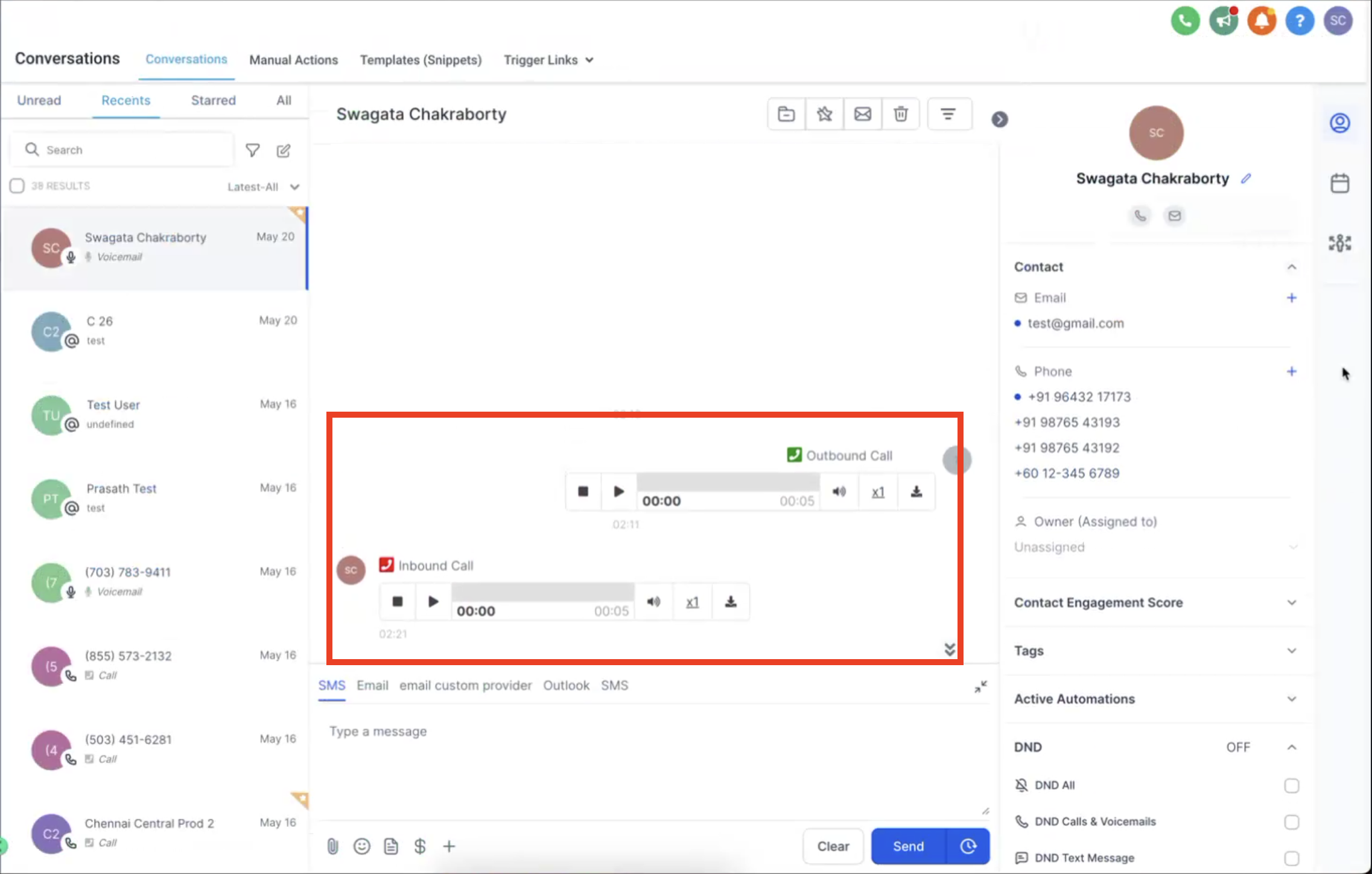
Call recordings can also be passed to the CRM and will be shown within the Conversation.