
How to Use the Printful Integration with Chat To Clients CRM
How to Use the Printful Integration with Chat To Clients CRM
This guide walks you through setting up the Printful integration in Chat To Clients CRM, syncing your print-on-demand products to your e-commerce store, and automating order fulfillment.
You'll learn how to install the Printful app, import product templates, manage variants and pricing, and handle customer data and order synchronization.
What is the Printful Integration?
The Printful integration allows you to connect your Printful print-on-demand account directly with Chat To Clients CRM's e-commerce platform. Printful is a Drop Shipping company that handles printing and fulfillment of custom apparel, accessories, and other products featuring your own designs and logos.
This integration enables you to sell Printful products through your Chat To Clients CRM website or funnel without manually managing inventory, order processing, or shipping. When customers purchase products from your Chat To Clients CRM store, orders automatically sync to Printful for fulfillment.
The integration is available through Chat To Clients CRM's Integrations section and can also be discovered in the Chat To Clients CRM Marketplace at marketplace.Chat To Clients CRM.com, where you can explore apps from external developers and private companies.
Key Benefits of Printful Integration
How to Install the Printful Integration
Follow these steps to connect your Printful account to your Chat To Clients CRM sub-account:
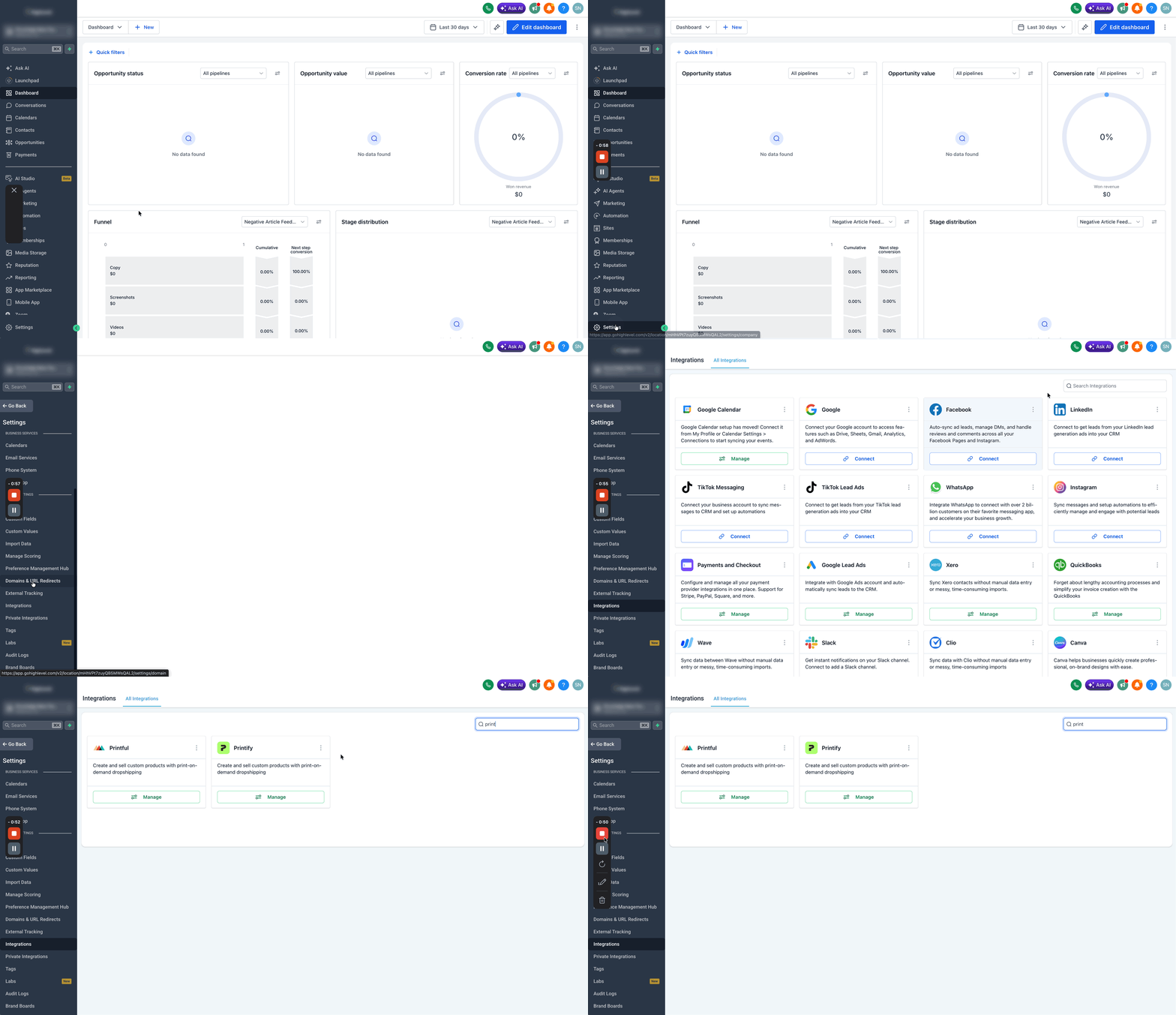
In your Chat To Clients CRM sub-account, go to Settings > Integrations. Scroll to locate the Printful option or search for it.
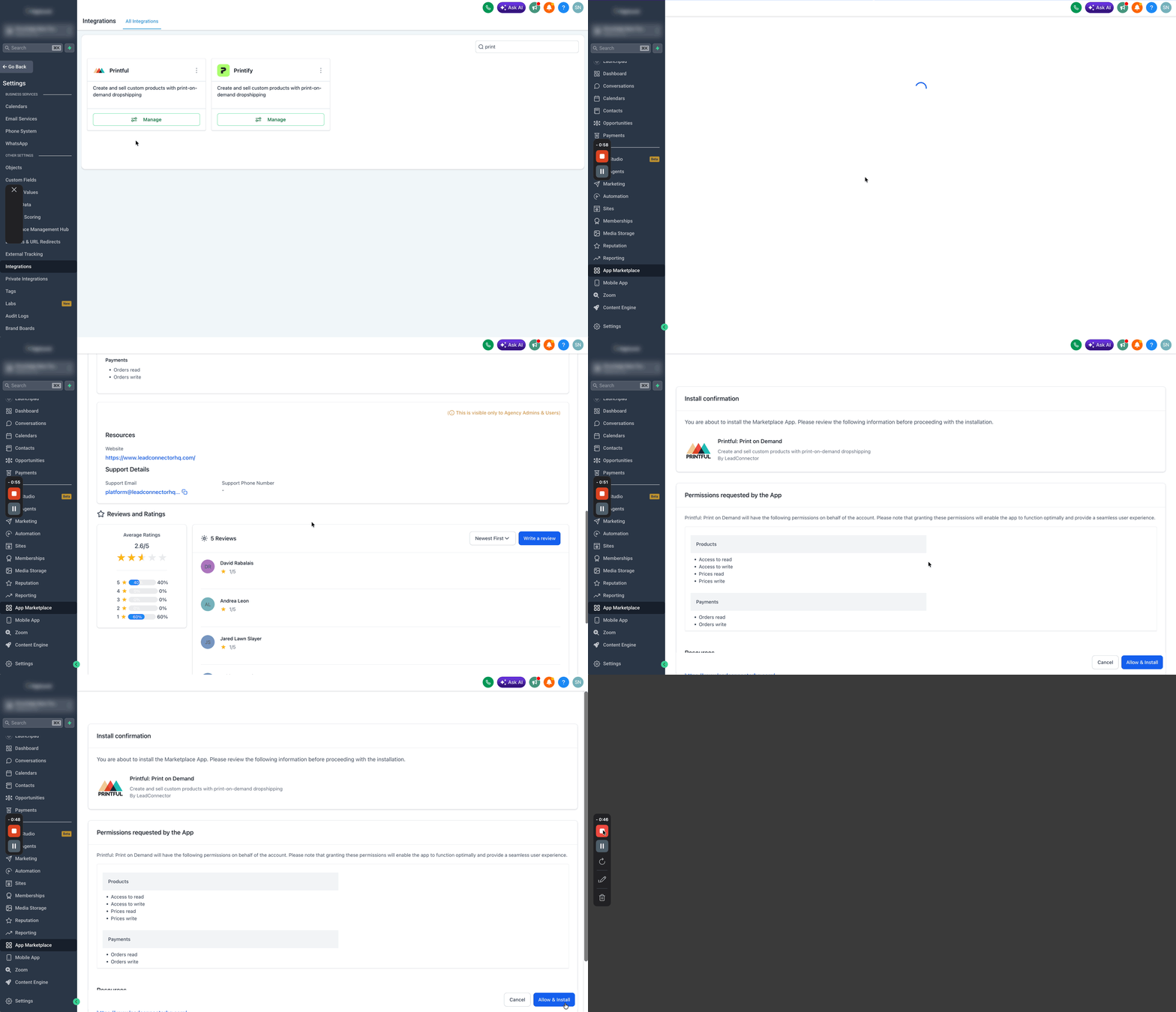
Click Manage, then click Install. Review the permissions the app is requesting for your sub-account and click Allow and Install.
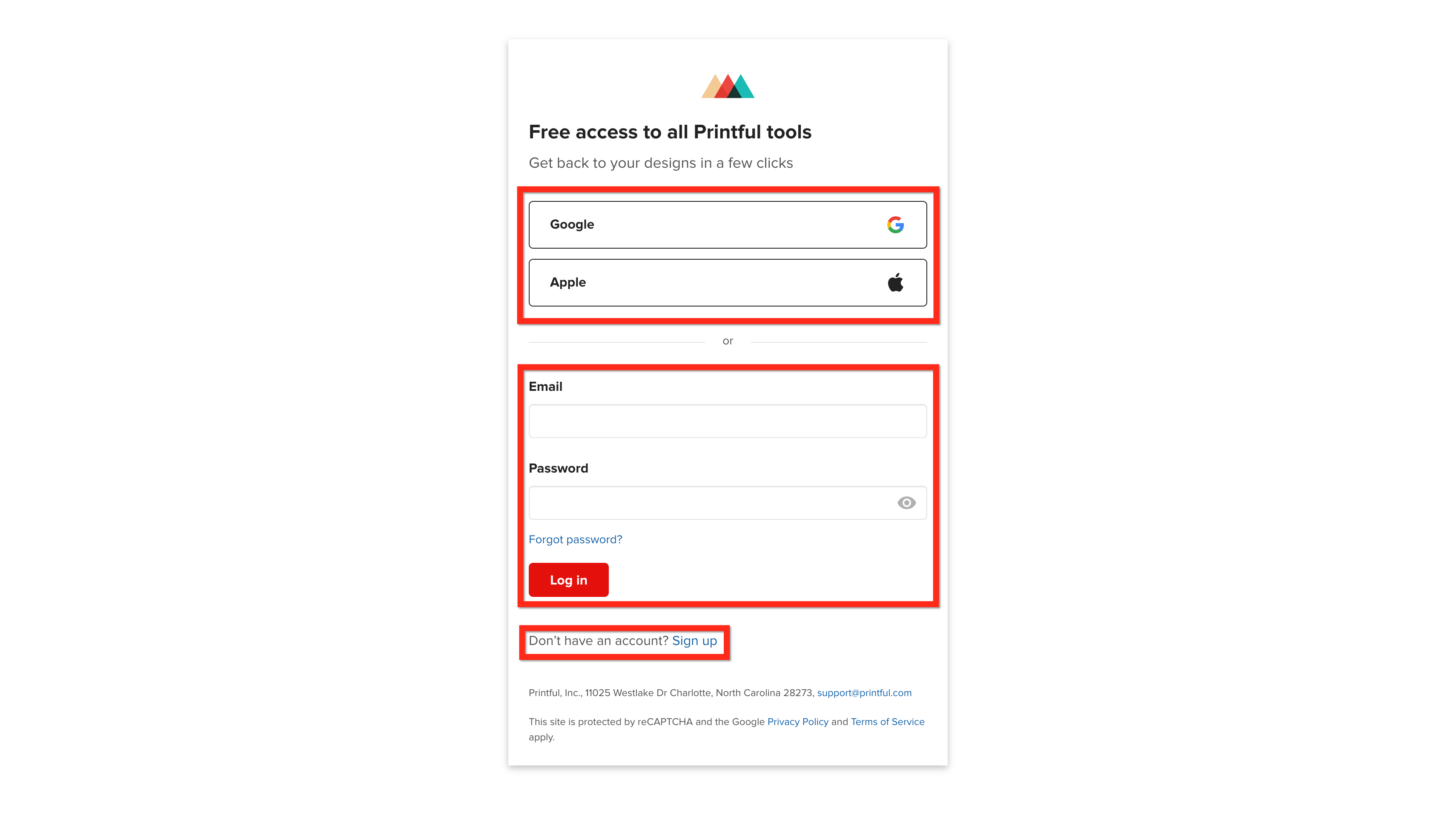
You'll be redirected to printful.com. Login to your Printful account or Sign up and create a new account.
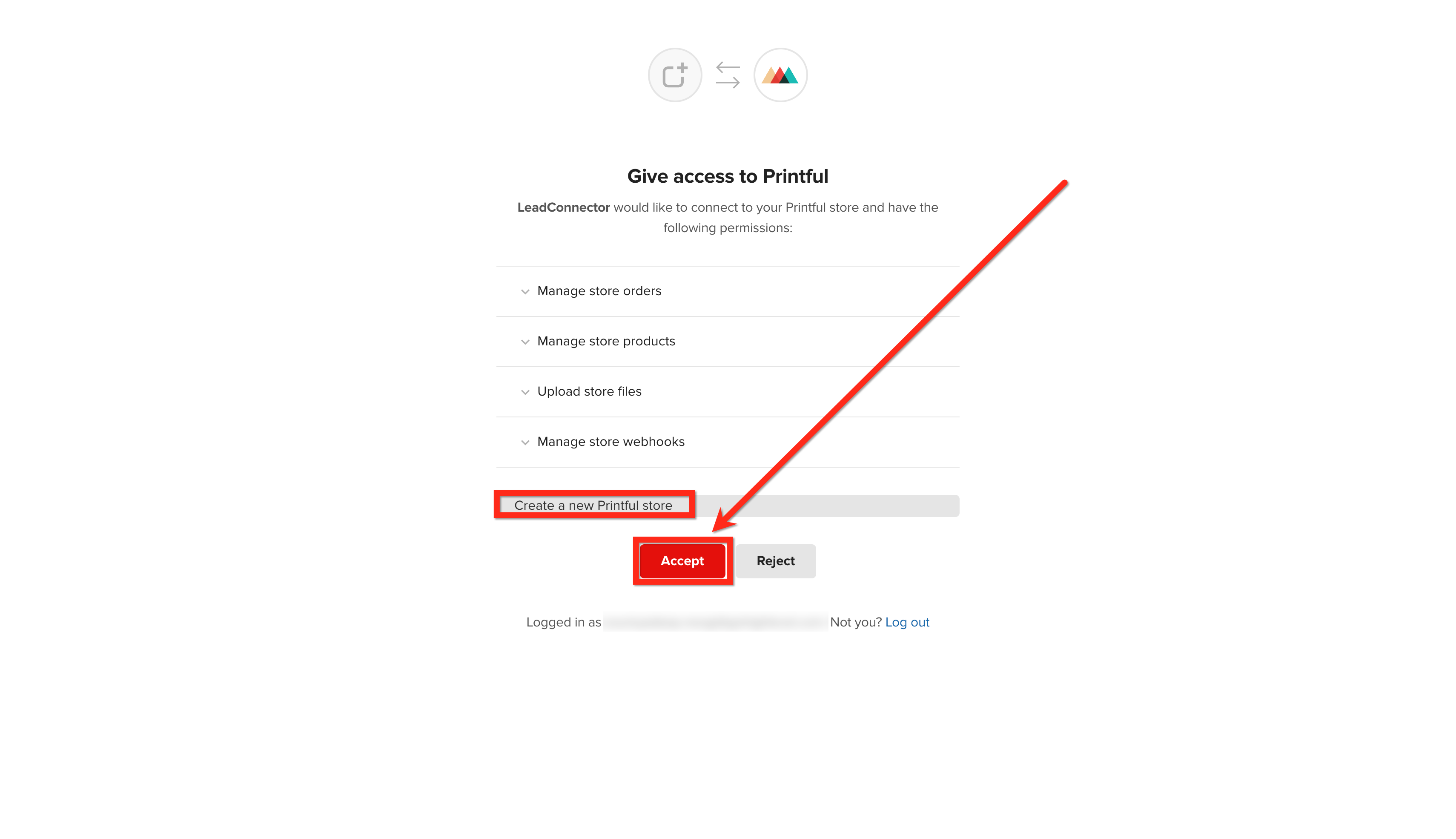
Choose whether to create a new Printful store or connect an existing store then click Accept. Your Chat To Clients CRM account will now have access to Printful, and a new store named "Chat To Clients CRM" will be created in Printful.
How to Add Products to Your Chat To Clients CRM Store
Once the integration is active, you can add Printful products that will automatically sync to your Chat To Clients CRM product catalog:
In Printful, go to the Stores section in the left sidebar. You'll see your new Chat To Clients CRM store listed. Click on the three dots and then on View Products for this specific Chat To Clients CRM integration.
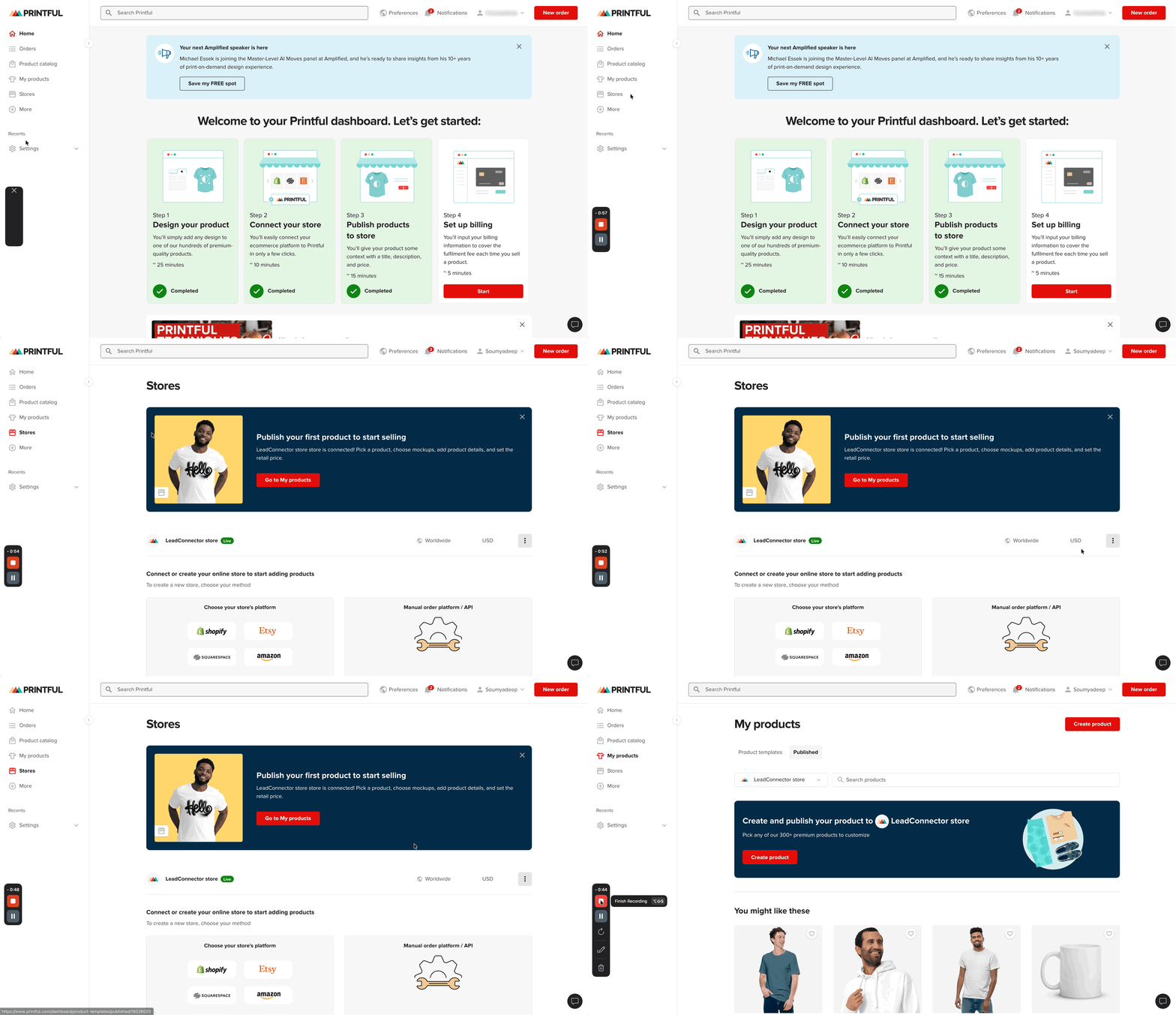
Click Add Product, then select Create New Products to design a product from scratch using Printful’s catalog of apparel, accessories, home goods, and more.
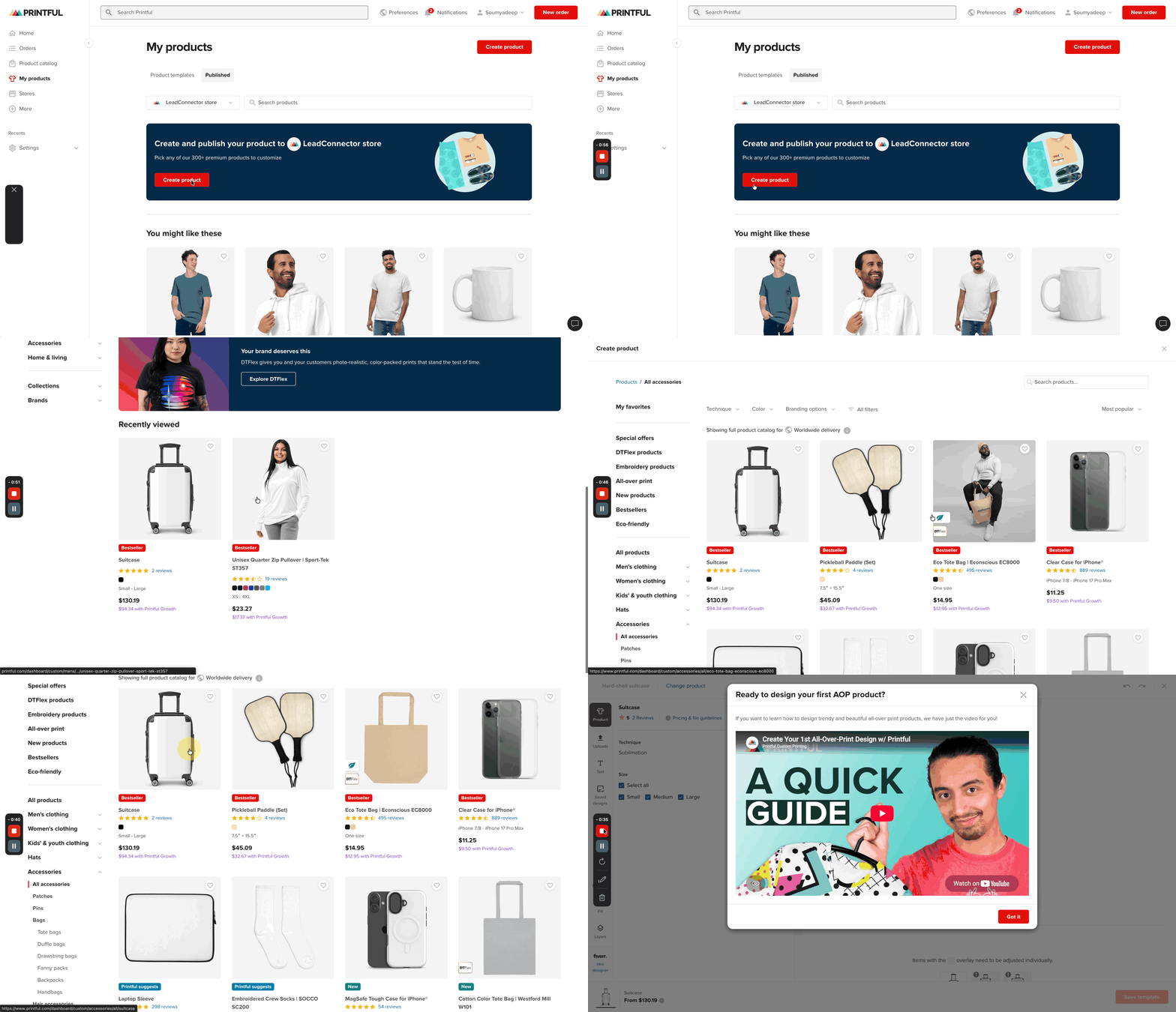
After selecting a product or template, proceed through Printful's product setup flow. You'll generate mockup images, and configure variants (sizes, colors, etc.). Once done, click on Save Template.
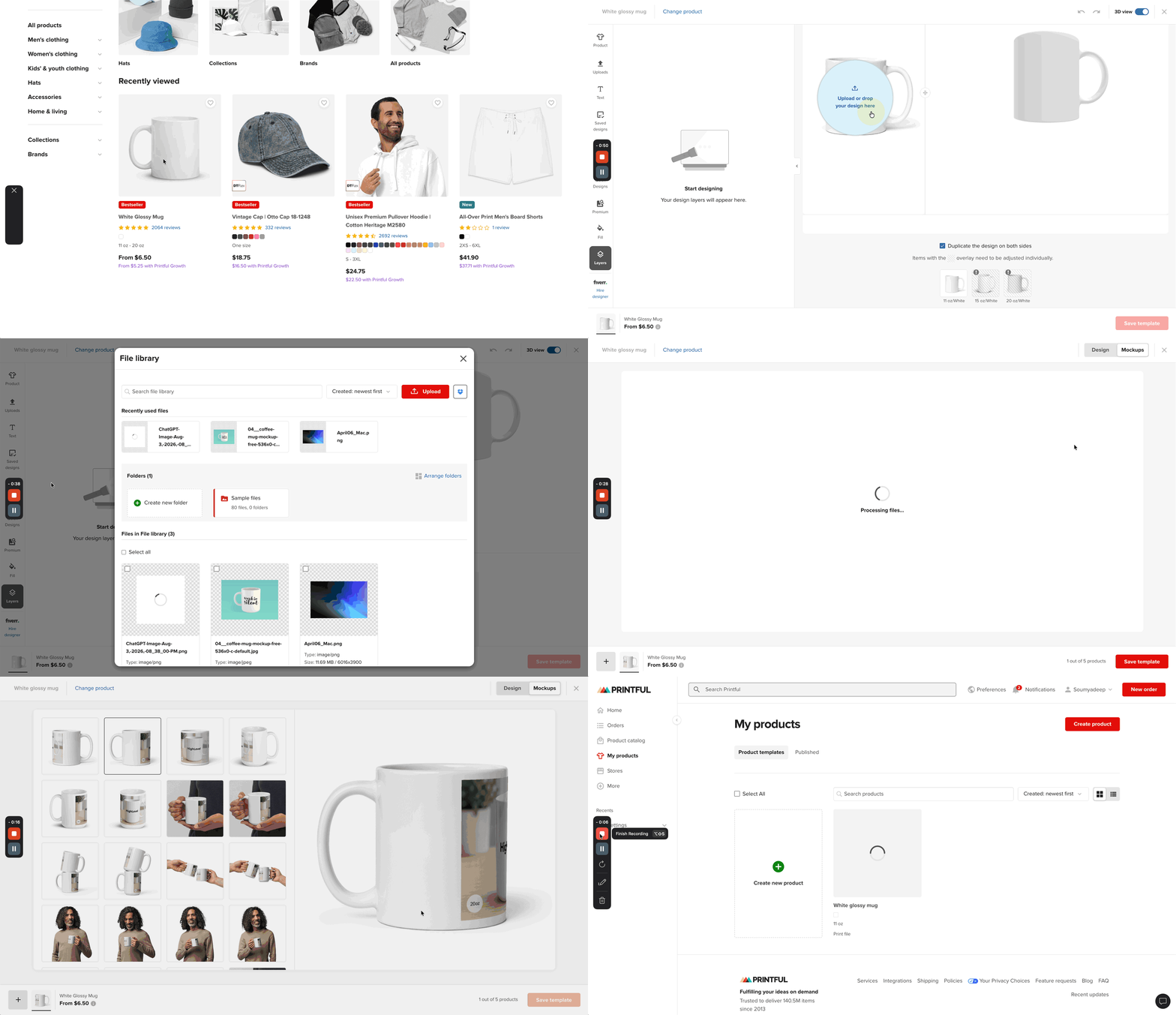
Choose mockup images to display, pricing and product name then click on Publish.
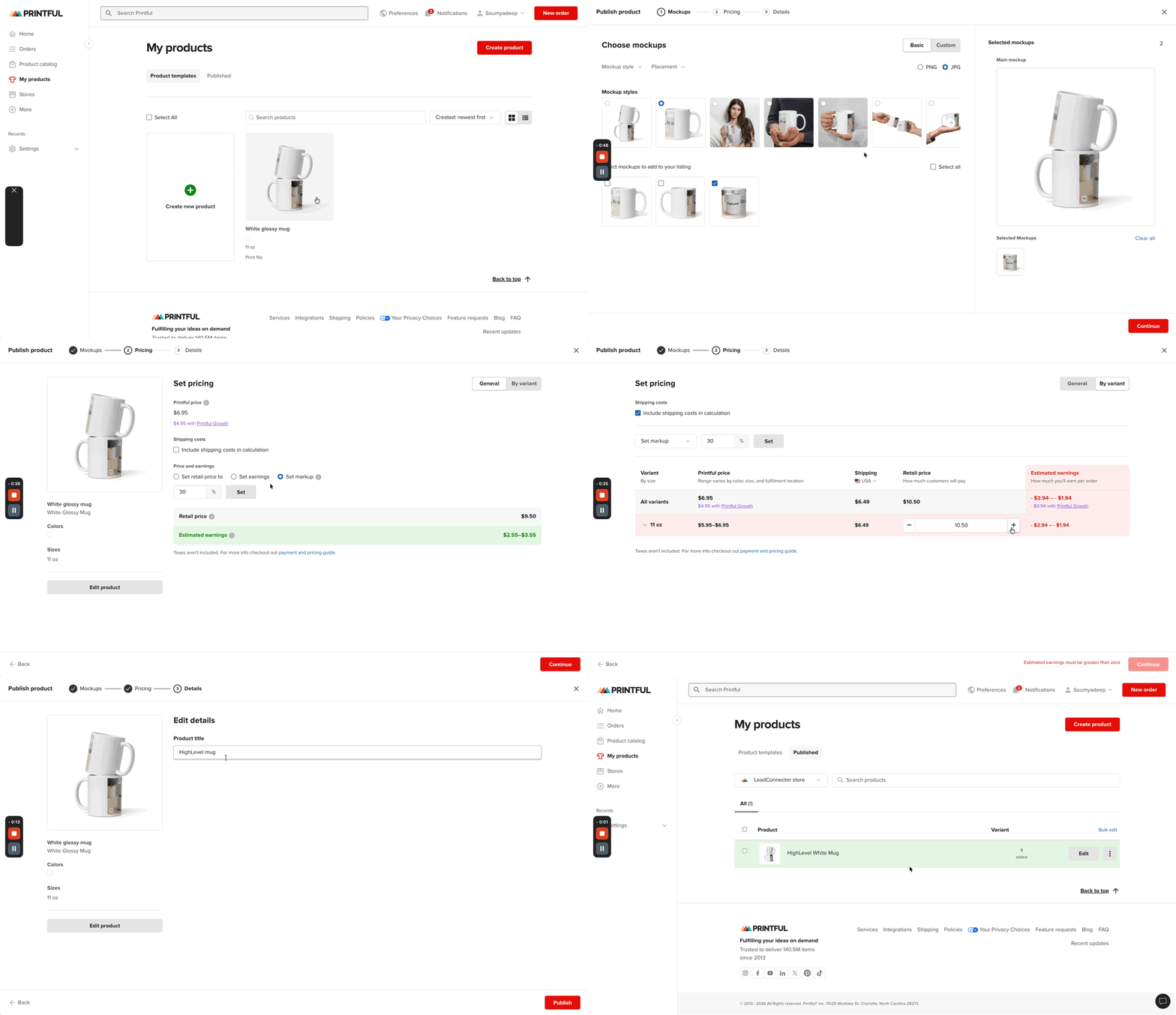
Your product is now synced between Printful and Chat To Clients CRM. Any changes you make to titles, pricing, or variants in Printful will automatically update in Chat To Clients CRM.
Managing Product Sync and Pricing
Once products are added in Printful, they automatically appear in your Chat To Clients CRM product catalog with most details intact:
In Chat To Clients CRM, navigate to Payments > Products. You'll see your Printful product(s) listed with the same names, images, variants, and pricing you configured in Printful.
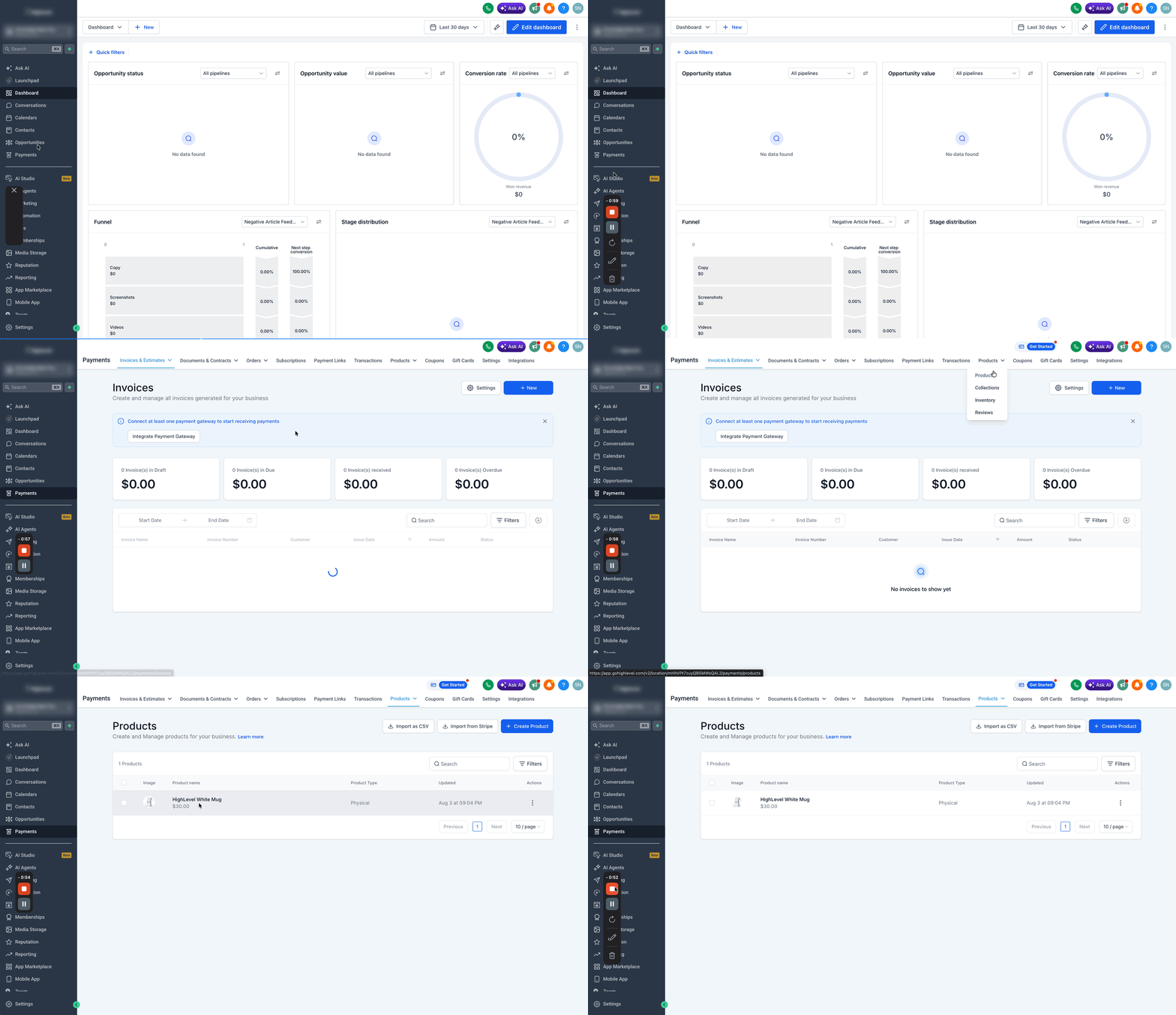
Click the three dots next to any product and select Edit. You can modify details just like any other Chat To Clients CRM product. Note that product descriptions do not currently sync from Printful, so you'll need to add those manually in Chat To Clients CRM.
To make a product available on your Chat To Clients CRM e-commerce site, toggle on Include in Online Store in the product settings. This ensures the product appears on your live storefront.
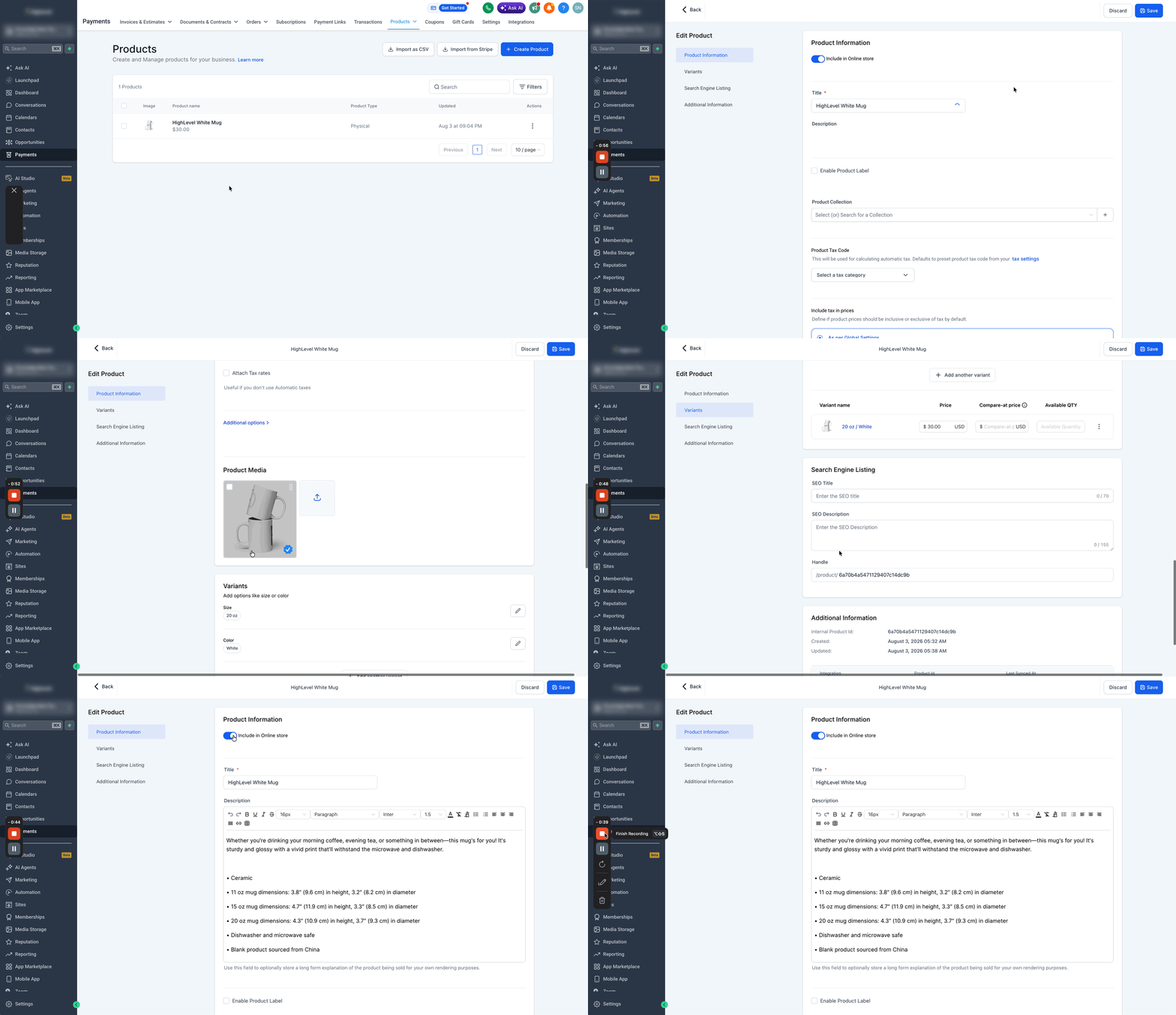
Product descriptions are not synced from Printful. You must manually add descriptions in Chat To Clients CRM's product editor before publishing to your store.
The following product data syncs automatically from Printful to Chat To Clients CRM:
- Product titles
- Product images and mockups
- Variants (sizes, colors, etc.)
- Pricing for each variant
Order Fulfillment and Customer Data Sync
One of the most powerful aspects of this integration is automated order fulfillment and customer data synchronization:
When a customer purchases a Printful product from your Chat To Clients CRM store, the order automatically syncs to your Printful account. Depending on your Printful subscription settings, orders may be fulfilled automatically or require manual approval before production begins.
Customer information such as shipping addresses and email addresses is imported into your Chat To Clients CRM CRM. This allows you to manage customer relationships, send follow-up communications, and track order history directly within Chat To Clients CRM.
All synced orders appear in your Printful dashboard under the Chat To Clients CRM store. You can view order details, fulfillment status, and shipping tracking information from within Printful.
Check your Printful subscription plan to understand whether orders are fulfilled automatically or require manual confirmation. This ensures you maintain control over quality and timing.
Shipping Profiles and Live Rates at Checkout
To enable live shipping rates for Printful products at checkout, the system automatically manages a dedicated Printful shipping profile.
- A system-generated Printful shipping profile is created and configured automatically.
- For existing installations, syncing or updating Printful products can activate the shipping profile and start showing live rates at checkout.
- Products must stay assigned to the Printful shipping profile. Removing them disables live rate calculation for those products.
- If the Printful shipping profile is deleted, it is not recreated automatically. Reinstall the Printful integration to restore it.
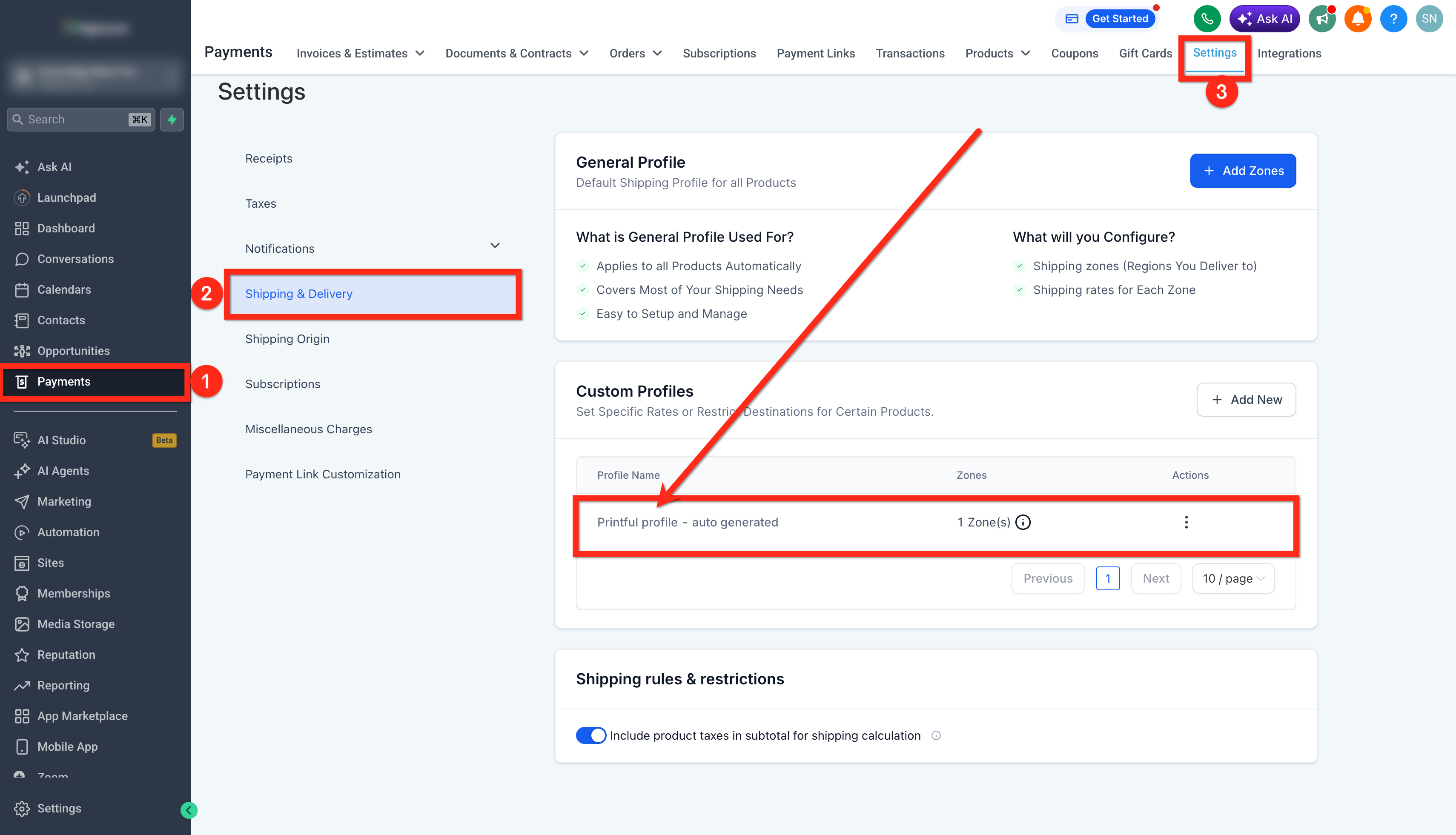
Live shipping rates are calculated based on customer location and product specifications. Ensure your Printful products remain assigned to the correct shipping profile to maintain accurate checkout pricing.