
How to add attribution and UTM parameters as filters on custom widgets
Attribution and UTM filters let you analyze Contact and Opportunity data based on how people first discovered or most recently interacted with your business. In supported Chat To Clients CRM dashboard widgets, you can filter records using attribution properties, segment charts by traffic source or medium, display UTM values as table columns, and review detailed attribution data. This helps you build reporting views around traffic sources, campaigns, and marketing touchpoints.
What Are Attribution and UTM Filters in Custom Widgets?
Attribution filters use either First Attribution or Latest Attribution as the starting point. After selecting an attribution type, additional fields such as Medium, Session Source, UTM Source, UTM Campaign, and other UTM parameters become available for supported widget configurations.
Availability: Attribution and UTM filters are supported on Contact and Opportunity widgets. They are not available across every dashboard widget type.
Important: Add First Attribution or Latest Attribution to the widget's Conditions before configuring the related attribution and UTM fields.
Key Benefits of Attribution and UTM Filtering
Attribution and UTM filtering helps connect dashboard results with the marketing touchpoints captured for Contacts and Opportunities. Choosing the appropriate attribution type and campaign fields lets you create more focused reporting views without changing the underlying CRM records.
Source Analysis: Filter records based on attribution information to understand which sources are associated with Contacts or Opportunities.
Campaign Segmentation: Use captured UTM parameters to narrow widget results to specific campaigns, ads, keywords, or content.
First and Latest Touchpoint Reporting: Choose whether a widget evaluates the first recorded attribution or the most recent attribution.
Flexible Visualization: Group supported charts using attribution dimensions such as Session Source or Medium.
Detailed Reporting: Display attribution and UTM fields in supported table widgets and granular record views.
Exportable Insights: Review and export detailed widget records when deeper analysis is needed.
Before You Begin
Attribution filters depend on both the widget type and the attribution data captured on the underlying records. Confirming these requirements first helps prevent situations where an expected UTM field or grouping option does not appear in the widget builder.
Before configuring attribution reporting:
Use a Contact or Opportunity widget.
Make sure the records you want to analyze contain applicable attribution data.
Decide whether you want to report against First Attribution or Latest Attribution.
Add the applicable Attribution Type to the widget's Conditions before looking for related UTM fields.
Use the current widget filter builder to combine conditions using AND or OR logic as needed.
Note: Some built-in Contact widgets already use Latest Attribution. Create custom attribution conditions when you need different touchpoint logic, campaign-specific filtering, or additional segmentation.
First Attribution vs Latest Attribution
First and Latest Attribution represent different points in a contact's recorded journey. Selecting the appropriate attribution type is important because the same contact can have different source and UTM information associated with their first and most recent interactions.
First Attribution: Uses the contact's first recorded attribution touchpoint.
Latest Attribution: Uses the contact's most recently recorded attribution touchpoint.
For example, suppose a contact first reaches your business through a Google Ads campaign and later returns through an email campaign.
A widget configured with First Attribution evaluates the first recorded attribution information associated with the Google Ads interaction.
A widget configured with Latest Attribution evaluates the most recent recorded attribution information associated with the later interaction.
Choose the attribution type that matches the reporting question you are trying to answer.
For a deeper explanation of how Chat To Clients CRM captures attribution data, see Understanding Attribution Source.
Supported Attribution and UTM Fields
Each attribution field represents a different part of the recorded source or campaign information. Chat To Clients CRM provides different operators depending on whether the field contains a predefined attribution category, a text-based UTM value, or an identifier.
| Field | What it represents | Available operators |
|---|---|---|
| Medium | Chat To Clients CRM attribution interaction type | Is, Is not, Is one of, Is none of |
| Session Source | Traffic/source channel classification | Is one of, Is none of |
| UTM Medium | Captured utm_medium value | Contains |
| UTM Source | Captured utm_source value | Contains |
| UTM Campaign | Captured utm_campaign value | Contains |
| UTM Campaign ID | Captured campaign identifier | Is, Is not |
| UTM Keyword | Captured keyword value | Contains |
| UTM Content | Captured content value | Contains |
| UTM Matchtype | Captured match-type value | Contains |
| UTM Ad ID | Captured advertisement identifier | Is, Is not |
| UTM Ad Group ID | Captured ad-group identifier | Is, Is not |
Medium vs Session Source vs UTM Source
These fields describe different parts of attribution and should not be treated as interchangeable values.
Medium: Describes the interaction type captured by Chat To Clients CRM, such as a form, survey, calendar, API, social source, or another supported medium.
Session Source: Categorizes the traffic channel, such as direct traffic, organic search, paid search, social media, referral, or another supported source category.
UTM Source: Stores the captured
utm_sourcevalue associated with the attribution record.
Choose the field that matches the level of attribution detail you want to analyze.
How to Filter a Custom Widget by Attribution or UTM
Adding Attribution to the Conditions first establishes whether the widget should evaluate First or Latest Attribution. Once that context exists, Chat To Clients CRM makes the related attribution and UTM fields available for additional filtering.
Go to Dashboard in your Chat To Clients CRM sub-account.
Open the dashboard you want to customize and enter Edit mode.
Add a new Contact or Opportunity widget, or edit an existing supported widget.
Open the widget's Conditions tab.
Click Add Filter.
Select Attribution.
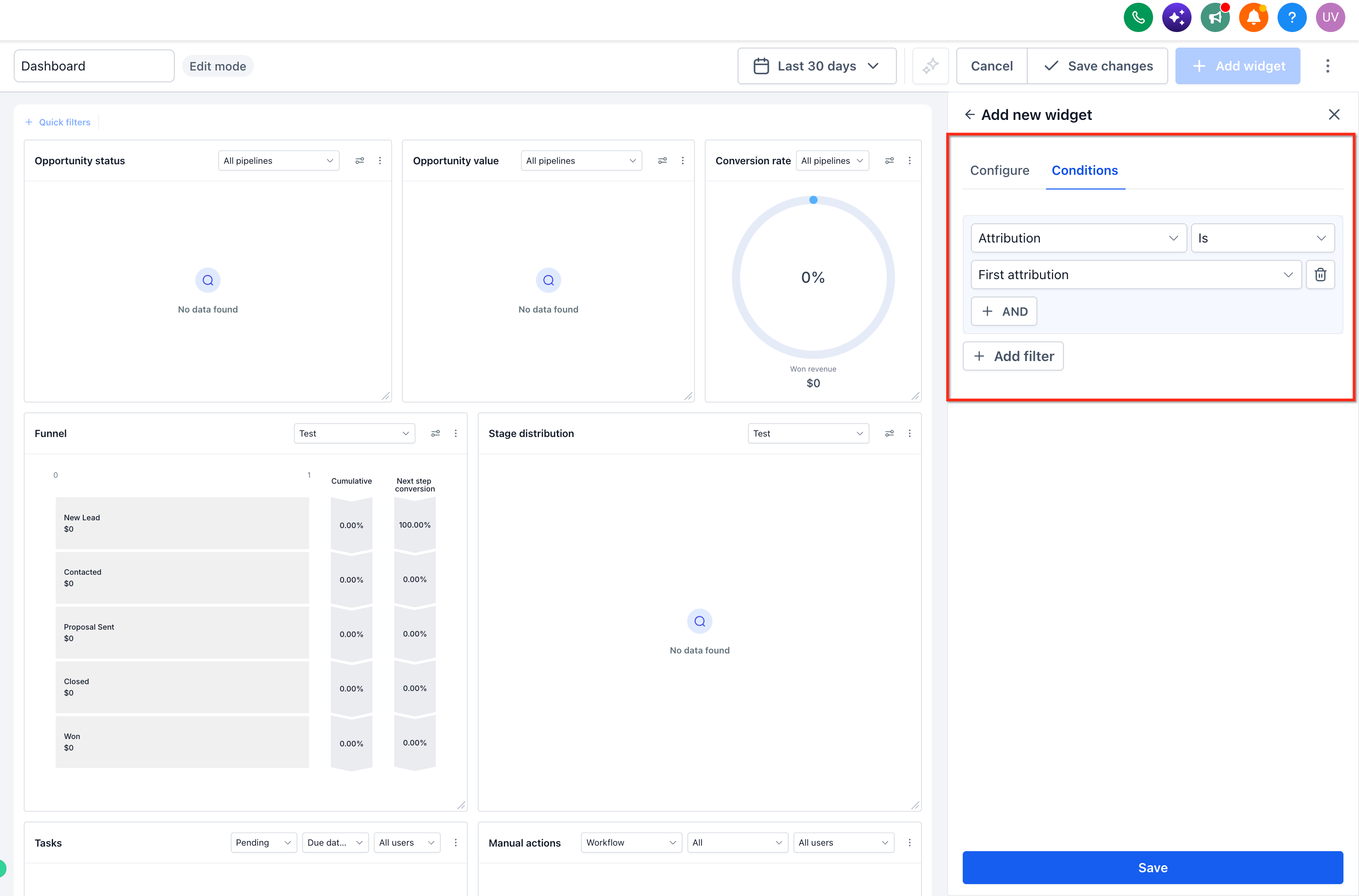
Choose either:
First Attribution, or
Latest Attribution.
Within the same filter group, click +AND to add another condition.
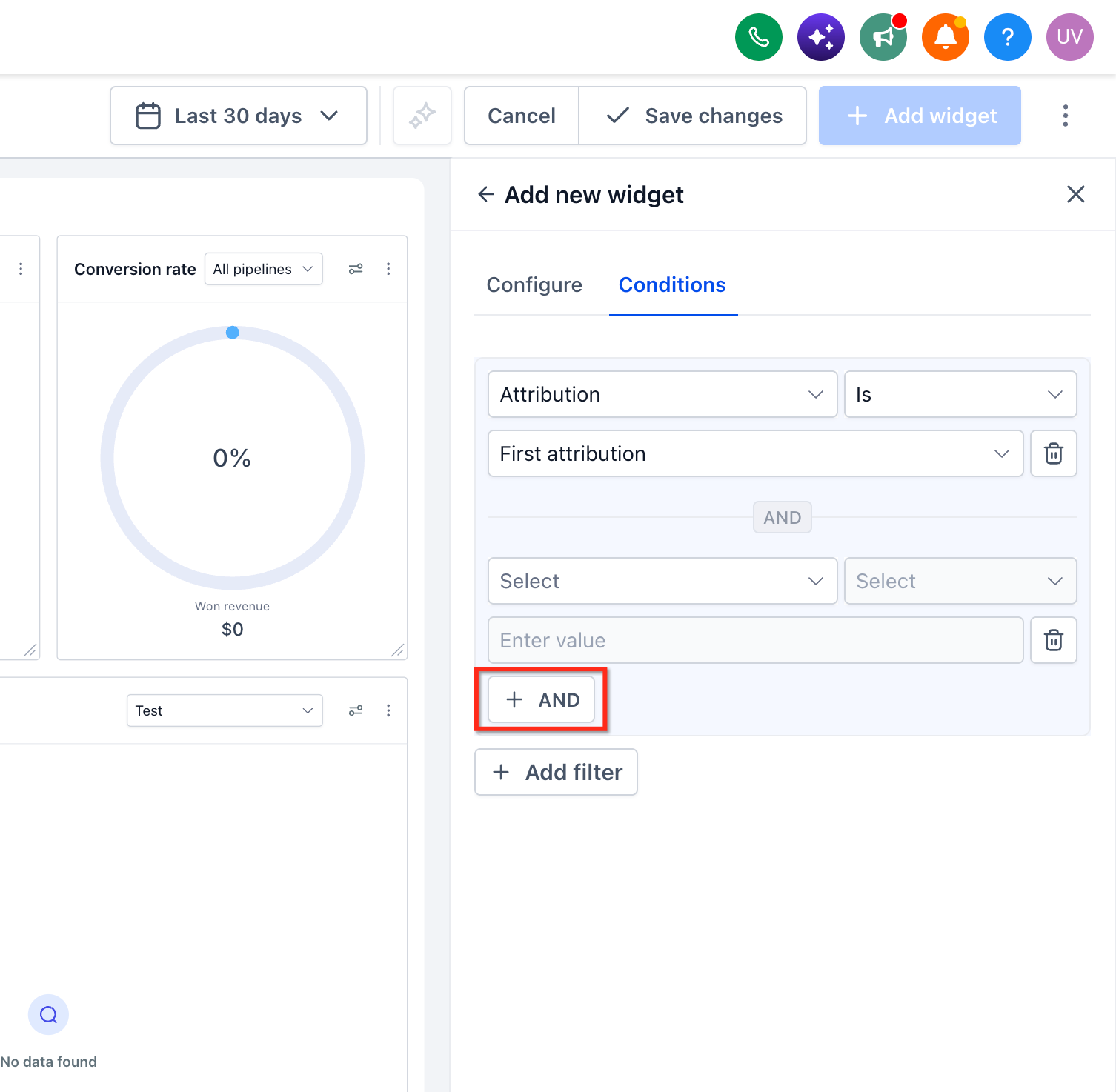
Select the attribution or UTM field you want to use, such as:
Medium
Session Source
UTM Source
UTM Medium
UTM Campaign
UTM Campaign ID
UTM Keyword
UTM Content
UTM Matchtype
UTM Ad ID
UTM Ad Group ID
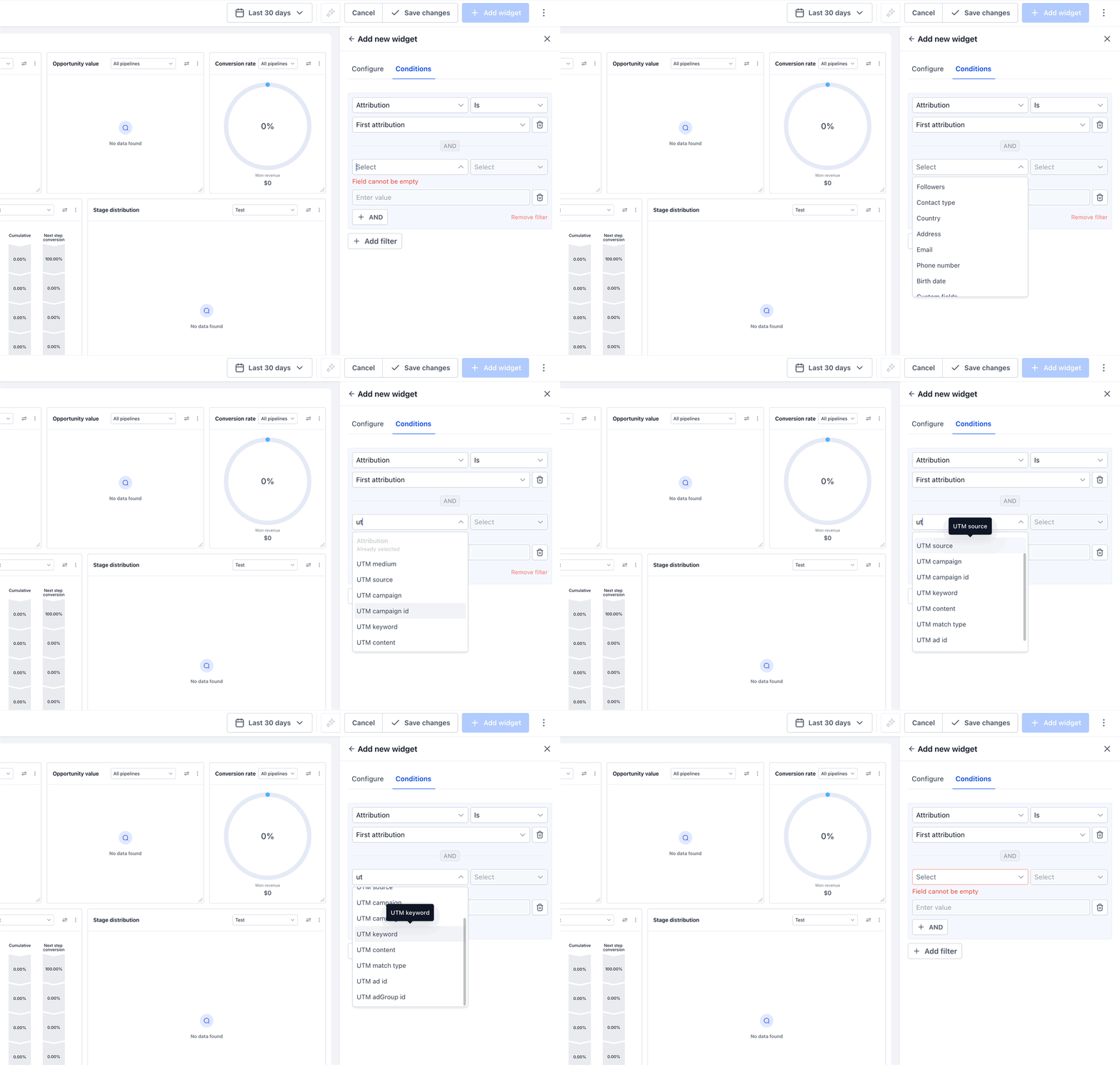
Select the available operator for that field.
Enter or select the value you want the widget to evaluate.
Add additional
+ANDconditions when all criteria should apply together.Review the widget results and save your changes.
How AND and OR Logic Works
Filter groups determine how multiple conditions are evaluated. Understanding this logic is especially important when combining several UTM parameters.
Conditions inside the same filter group use AND logic.
For example:
Attribution = First Attribution
AND UTM Source contains
googleAND UTM Campaign contains
summer
A record must satisfy all conditions in that group to match. Creating another filter group introduces OR logic between the groups.
For example:
Group 1: First Attribution AND UTM Source contains google
OR
Group 2: Latest Attribution AND UTM Source contains facebook
Important: Multiple filter groups can affect the availability of attribution-based grouping options such as Session Source and Medium. If you intend to group the widget by one of those fields, review the grouping requirements below before creating additional filter groups.
How to Group a Widget by Session Source or Medium
Grouping lets you compare widget results across attribution categories instead of viewing only a combined total. Session Source and Medium become available as grouping dimensions only when the widget's attribution conditions meet the required configuration.
Before grouping:
Use a supported widget/chart that provides grouping.
Add Attribution = First Attribution or Attribution = Latest Attribution.
Keep the Attribution Type inside a single compound filter group.
Do not add multiple filter groups if you need Session Source or Medium to remain available for grouping.
To configure the grouping:
Open the supported Contact or Opportunity widget in Edit mode.
Go to Conditions.
Add Attribution and choose First or Latest Attribution.
Keep all required conditions within the same filter group.
Open the applicable Group By/View By control for the widget.
Select Session Source or Medium.
Review the visualization and save the widget.
Important: If you create multiple filter groups, Session Source and Medium may no longer be available in the grouping dropdown. Return to a single filter group containing the Attribution Type if these options disappear.
How to Add Attribution and UTM Columns to a Table Widget
Table widgets make attribution data visible at the record level by displaying selected fields as columns. Attribution and UTM columns become available after First or Latest Attribution has been added to the widget's Conditions.
Edit a supported Contact or Opportunity widget.
Open Conditions.
Add Attribution.
Select First Attribution or Latest Attribution.
Switch the supported widget visualization to Table.
Open Select Columns.
Select the attribution and UTM fields you want to display.
Arrange the columns as needed.
Save the widget.
If the expected attribution fields do not appear in Select Columns, return to Conditions and confirm that First or Latest Attribution has been added.
View and Export Attribution Data from Granular Insights
Granular data lets you inspect the records behind a dashboard widget rather than relying only on the summarized visualization. When attribution is configured for the widget, the detailed record view can provide additional attribution and UTM context for analysis and export.
To review the underlying data:
Save the configured widget.
Return to the dashboard's normal viewing mode.
Click the applicable widget to open its granular record data.
Review the available attribution and UTM information.
Use the available Export option when you need to analyze the detailed records outside the dashboard.
The fields available in the detailed view depend on the widget configuration and the attribution data captured for the underlying records.
Troubleshooting Attribution and UTM Filters
Attribution fields depend on the widget type, attribution condition, filter-group structure, and data captured for the underlying Contacts or Opportunities. Checking these areas can resolve most cases where expected fields or results are missing.
UTM fields do not appear in Conditions
Confirm that:
You are editing a Contact or Opportunity widget.
You added Attribution first.
You selected either First Attribution or Latest Attribution.
Session Source or Medium does not appear in Group By/View By
Confirm that:
Attribution Type is present in the filter group.
You are using a single compound filter group.
You have not added additional OR filter groups.
The widget returns no results after adding a UTM filter
Check:
Whether the underlying records contain the UTM value.
Whether you selected the intended First or Latest Attribution.
Whether the entered value matches the captured campaign/source information.
Whether the operator used by that field matches your reporting goal.
Remember that text-based UTM fields such as UTM Source and UTM Campaign use Contains, while identifier fields such as UTM Campaign ID use Is/Is not.
Attribution columns do not appear in a Table widget
Return to Conditions and confirm that First or Latest Attribution has been added before opening Select Columns.
The report shows a different source than expected
Check whether the widget uses First Attribution or Latest Attribution. A contact can have different attribution information associated with their first and most recent recorded interactions.
Frequently Asked Questions
Q: What is the difference between First Attribution and Latest Attribution?
First Attribution represents the contact's first recorded attribution touchpoint, while Latest Attribution represents the most recently recorded attribution touchpoint. Choose the one that matches the marketing interaction you want the widget to evaluate.
Q: Which widget types support attribution and UTM filters?
Attribution and UTM condition fields are supported on Contact and Opportunity widgets.
Q: Why are UTM fields missing from my widget?
First confirm that you are using a supported Contact or Opportunity widget. Then add Attribution and choose First or Latest Attribution. The related UTM fields become available after the attribution context has been added.
Q: Why can't I group my widget by Session Source or Medium?
Session Source and Medium grouping requires a single compound filter group containing First or Latest Attribution. Adding multiple filter groups can cause those attribution-based grouping options to become unavailable.
Q: How do AND and OR conditions work?
Conditions added with +AND inside one filter group must all match. Creating another filter group introduces OR logic between the groups.
Q: What is the difference between Medium, Session Source, and UTM Source?
Medium represents Chat To Clients CRM's attribution interaction type, Session Source represents a traffic-channel classification, and UTM Source contains the captured utm_source value. They provide different levels of attribution information.
Q: Can I export attribution and UTM data from a widget?
Supported dashboard widgets provide granular record data with an Export option. The attribution information available in the detailed view depends on the widget configuration and the data captured for the underlying records.