
How to Send Meta Conversion Data from Chat To Clients CRM Ad Manager
Sending conversion data from Chat To Clients CRM to Meta helps improve campaign measurement, attribution, and optimization by connecting meaningful customer actions back to your ads. Chat To Clients CRM Ad Manager lets you create and manage conversion pixels that can be used with Meta Conversion API workflows. This guide explains how to create a conversion pixel, understand the available event types, and prepare it for use with your Meta advertising workflows.
TABLE OF CONTENTS
- What is an Ad Manager Conversion Pixel?
- Key Benefits of Ad Manager Conversion Pixels
- Funnel Events and Lead Events
- How Conversion Pixels Work With Meta CAPI Workflows
- How To Setup an Ad Manager Conversion Pixel
- Frequently Asked Questions
- Related Articles
What is an Ad Manager Conversion Pixel?
Ad Manager conversion pixels help connect actions that occur in Chat To Clients CRM with your Meta advertising activity. Creating the conversion pixel gives Chat To Clients CRM the information needed to identify the conversion source when a supported Meta Conversion API event is sent through a workflow.
A conversion pixel created in Chat To Clients CRM Ad Manager includes a generated Pixel ID and supporting configuration that can be used when sending Funnel Events or Lead Events to Meta.
Creating the pixel is one part of the conversion-tracking process. To send the conversion event to Meta, you must also configure the appropriate Meta Conversion API action in a Chat To Clients CRM workflow.
Learn how to send a Meta Conversion API action for Ad Manager.
Key Benefits of Ad Manager Conversion Pixels
Improved Conversion Tracking: Connect supported customer actions in Chat To Clients CRM with your Meta advertising activity.
Better Attribution: Provide Meta with additional conversion signals that can help associate customer actions with advertising interactions.
Campaign Optimization: Give Meta more conversion data to use when optimizing campaigns toward meaningful customer actions.
Lead Journey Visibility: Track events that occur as leads submit forms, book appointments, or move through pipeline stages.
Flexible Event Tracking: Use the same conversion pixel with supported Funnel Events and Lead Events.
Simplified Workflow Setup: When using the Ad Manager connection type in the Meta Conversion API workflow action, eligible Ad Manager pixels are available for selection and Chat To Clients CRM manages the access token.
Audience and Retargeting Support: Conversion and audience data can support broader Meta advertising strategies when configured appropriately.
Funnel Events and Lead Events
Funnel Events are generally used for customer actions that originate from a Chat To Clients CRM funnel, website, form, survey, appointment booking, or order form.
Supported workflow triggers can include:
Form Submitted
Survey Submitted
Customer Booked Appointment
Order Form Submission
For more detailed Funnel Event configuration, see How to set up a Funnel Event Pixel for Facebook Conversion API.
Lead Events
Common supported triggers include:
Facebook Lead Form Submission
Pipeline Stage Change
Lead Events can be useful for sending later-stage outcomes—such as qualification or pipeline progression—back to Meta.
Other contact-based workflow triggers may also be used when the contact has the Meta attribution data required to match the event.
For detailed Lead Event requirements and attribution setup, see Facebook Conversion Leads Walkthrough.
Important: Successful attribution depends on the contact having the required Meta attribution information. Depending on the event and configuration, this may include FBCLID/FBC, Paid Social (Facebook) attribution, or Facebook Lead ID.
How Conversion Pixels Work With Meta CAPI Workflows
Creating a conversion pixel in Ad Manager prepares the conversion asset, while the Meta Conversion API workflow action determines when conversion data is actually sent to Meta.
When configuring a Meta Conversion API action in a workflow, Chat To Clients CRM provides two connection types:
Integrations
Ad Manager
Using the Ad Manager connection type simplifies setup because conversion pixels available in Ad Manager are pre-populated for selection. Chat To Clients CRM also manages the access token, so you do not need to manually generate and paste one into the workflow action.
The workflow trigger and Event Type must match the customer activity you want to report. For example, a form submission may be configured as a Funnel Event, while movement through a pipeline stage for a Meta lead may be configured as a Lead Event.
Learn more about configuring the Meta Conversion API action for Ad Manager.
How To Setup an Ad Manager Conversion Pixel
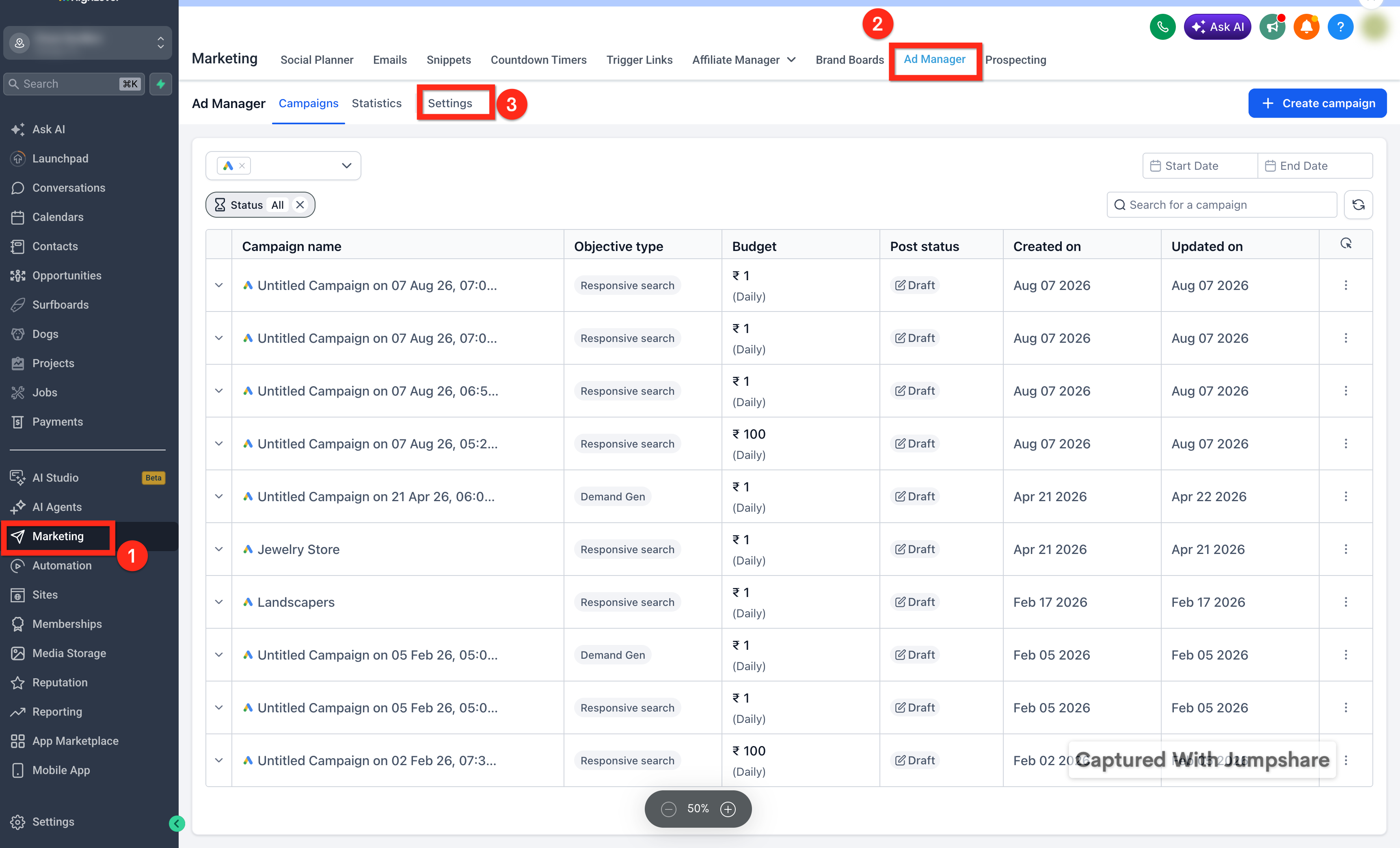
Navigate to Marketing → Ad Manager in your Chat To Clients CRM sub-account, then click the Settings button to open Ad Manager Settings.
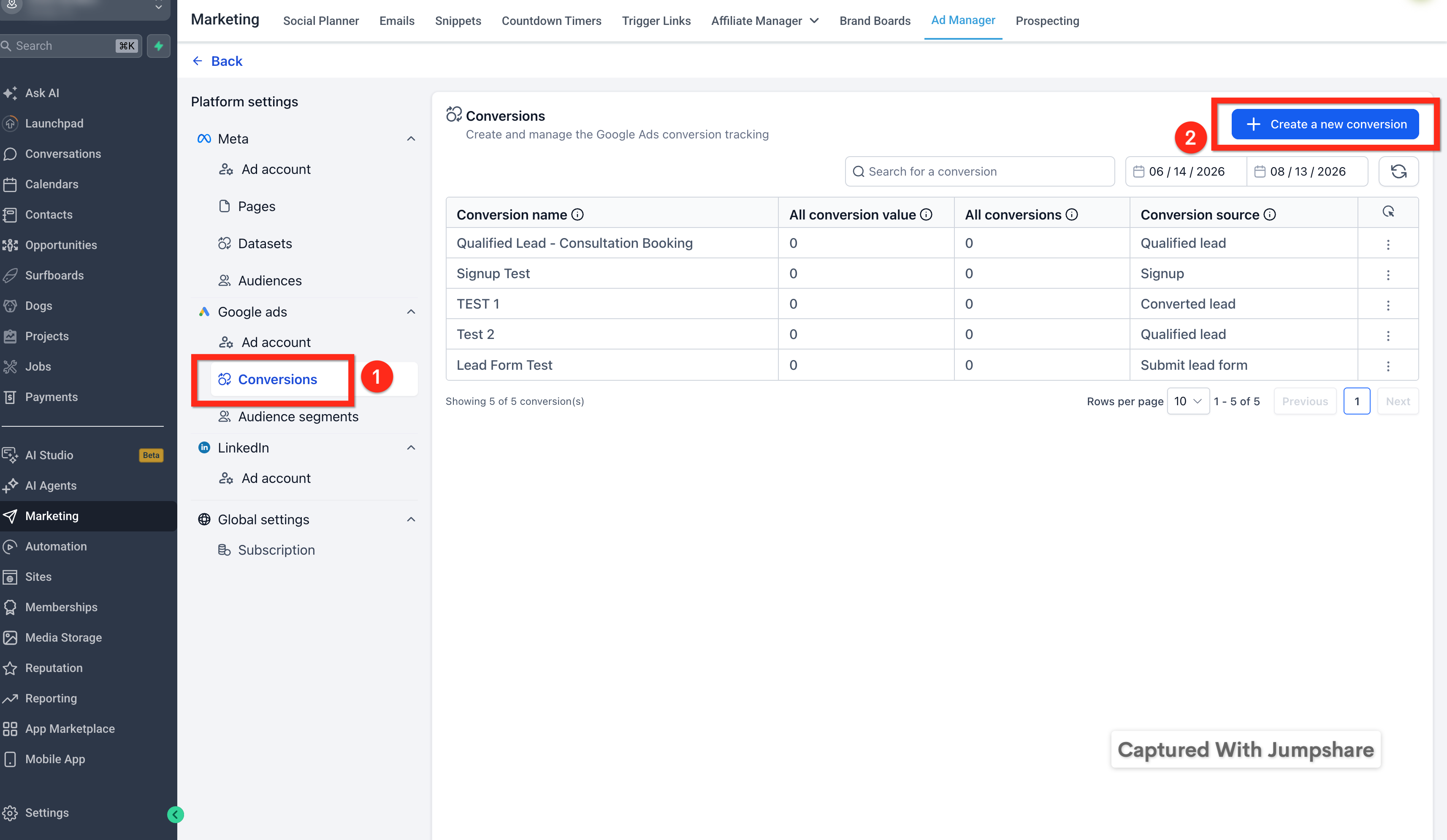
2. Select the Conversions tab, review the available conversion pixels, then click Create new conversion pixel.
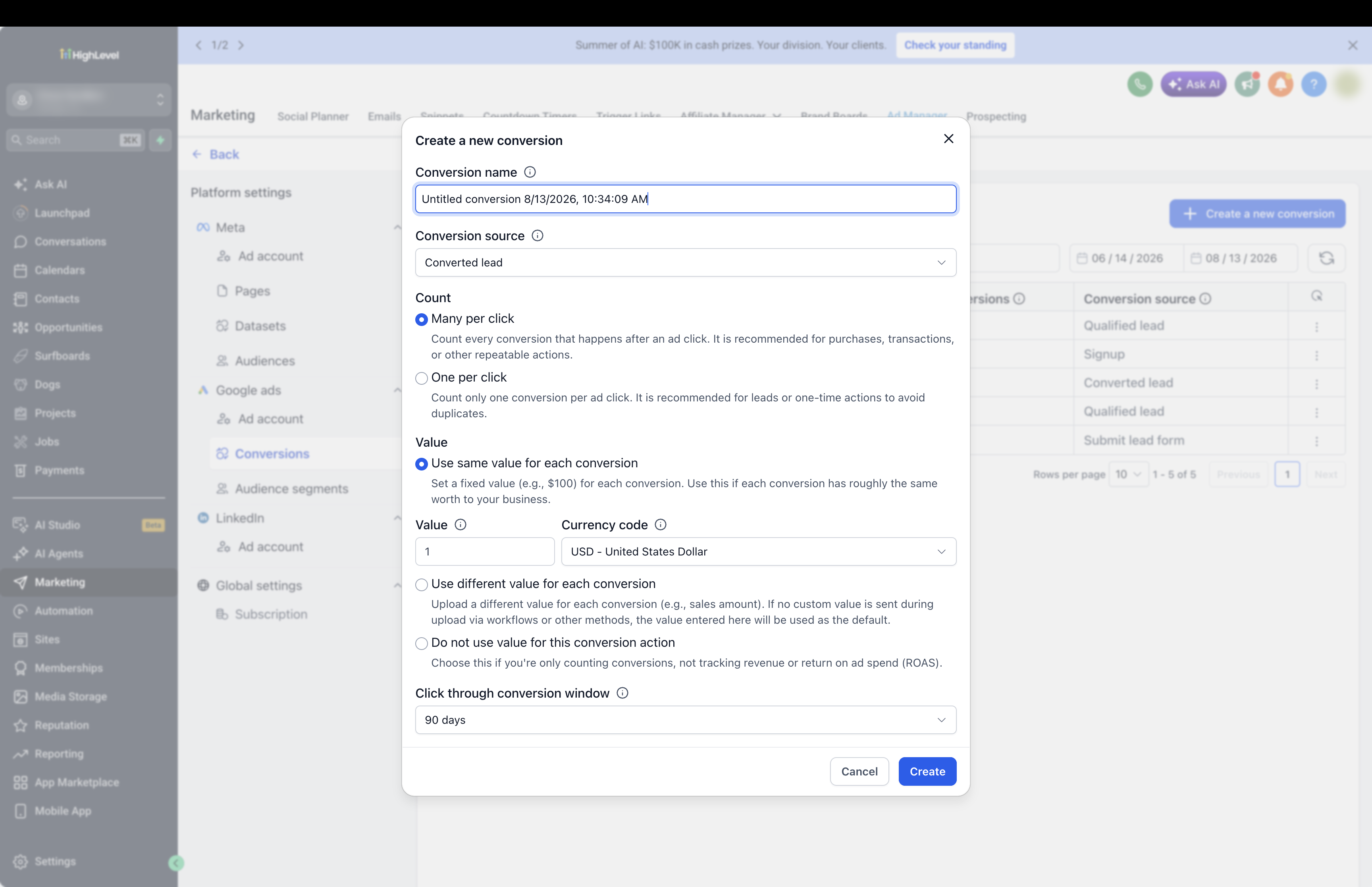
3. Enter a name for the conversion pixel. Complete the creation process.
Confirm that the new pixel appears under the Conversions tab.
Newly created conversion pixels initially display their available conversion information in Ad Manager and can then be selected when configuring supported Meta Conversion API workflows.
Chat To Clients CRM manages the access token when the Ad Manager connection type is selected.
For complete workflow instructions, see How to Configure the Meta Conversion API Action for Ad Manager.
Note: Custom Mapping is available when configuring the Meta Conversion API workflow action. See How to Configure the Meta Conversion API Action for Ad Manager for supported mappings and setup.

Compliance Note: Meta applies restrictions to custom audiences and custom conversions that contain or imply certain prohibited or sensitive information. Review your conversion names and configurations to make sure they comply with Meta requirements. See Meta: Custom Audiences and Conversions restrictions for additional details.
Frequently Asked Questions
Q: Does creating a conversion pixel automatically send data to Meta?
No. You also need to add the Meta Conversion API action to a workflow so Chat To Clients CRM can send the conversion event to Meta.
Q: Do I need to create a Meta access token?
No. If you select Ad Manager as the connection type, Chat To Clients CRM manages the access token for you.
Q: Can I use the same pixel for different event types?
Yes. The same conversion pixel can be used for supported Funnel Events and Lead Events.
Q: Why is my conversion not showing in Meta?
The contact may be missing the Meta tracking information needed to match the conversion to the original ad interaction.
Q: Should I choose a Funnel Event or Lead Event?
Choose a Funnel Event for actions such as form submissions, surveys, appointments, or order forms. Choose a Lead Event for Meta lead form submissions or lead progress through your CRM.