
How to create a Facebook Lead Form in Ad Manager
Facebook Lead Forms let you collect prospect information from Meta Lead Generation campaigns and sync submitted data into Chat To Clients CRM. You can create a new form while building a campaign or select an existing Facebook Lead Form.
Mapping the Facebook form fields to the appropriate Chat To Clients CRM contact fields helps submitted information reach the correct CRM fields. This guide explains how to create, map, review, and manage Facebook Lead Forms from Ad Manager.
TABLE OF CONTENTS
- What is a Facebook Lead Form in Ad Manager?
- Key Benefits of Facebook Lead Forms
- Prerequisites and Limitations
- How to create Facebook Lead Form in Ad Manager?
- How to use custom fields in Ad Manager?
- How to review, map and duplicate existing Facebook lead forms?
- Frequently Asked Questions
What is a Facebook Lead Form in Ad Manager?
A Facebook Lead Form collects information from people who respond to a Meta Lead Generation campaign. In Chat To Clients CRM Ad Manager, you can select an existing Facebook Lead Form or create a new form while configuring the campaign.
Form creation determines what information the person submits. Form Field Mapping determines where those submitted values are stored in Chat To Clients CRM.
When Facebook form fields are mapped to the appropriate Chat To Clients CRM contact fields, lead information can be organized in the CRM for follow-up and automation.
Key Benefits of Facebook Lead Forms
Facebook Lead Forms let you collect lead information through Meta campaigns and connect the submitted data with Chat To Clients CRM contact records.
- Lead capture: Collect contact information and supported question responses from Meta Lead Generation campaigns.
- CRM field mapping: Map Facebook form responses to the appropriate Chat To Clients CRM contact fields.
- Custom data collection: Use supported Chat To Clients CRM contact custom fields when standard fields do not cover the information you need.
- Ongoing form management: Review and update Facebook form mappings after campaign setup.
Prerequisites and Limitations
Before creating a Facebook Lead Form, make sure the Meta campaign and required account connections are ready.
- Use a Meta campaign with the Lead Generation objective.
- Make sure your Facebook profile has access to the required Meta assets.
- Have a privacy-policy URL appropriate to your business and its data practices.
- Map Facebook form fields to the appropriate Chat To Clients CRM contact fields when you want submitted values stored in the CRM.
Facebook Lead Form creation is part of the Meta Lead Generation campaign workflow. Other campaign objectives may use different destination options.
How to create Facebook Lead Form in Ad Manager?
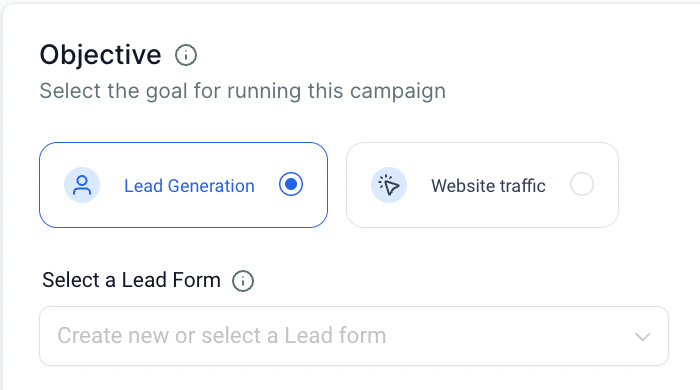
The steps to create a new Facebook lead form are as follows:
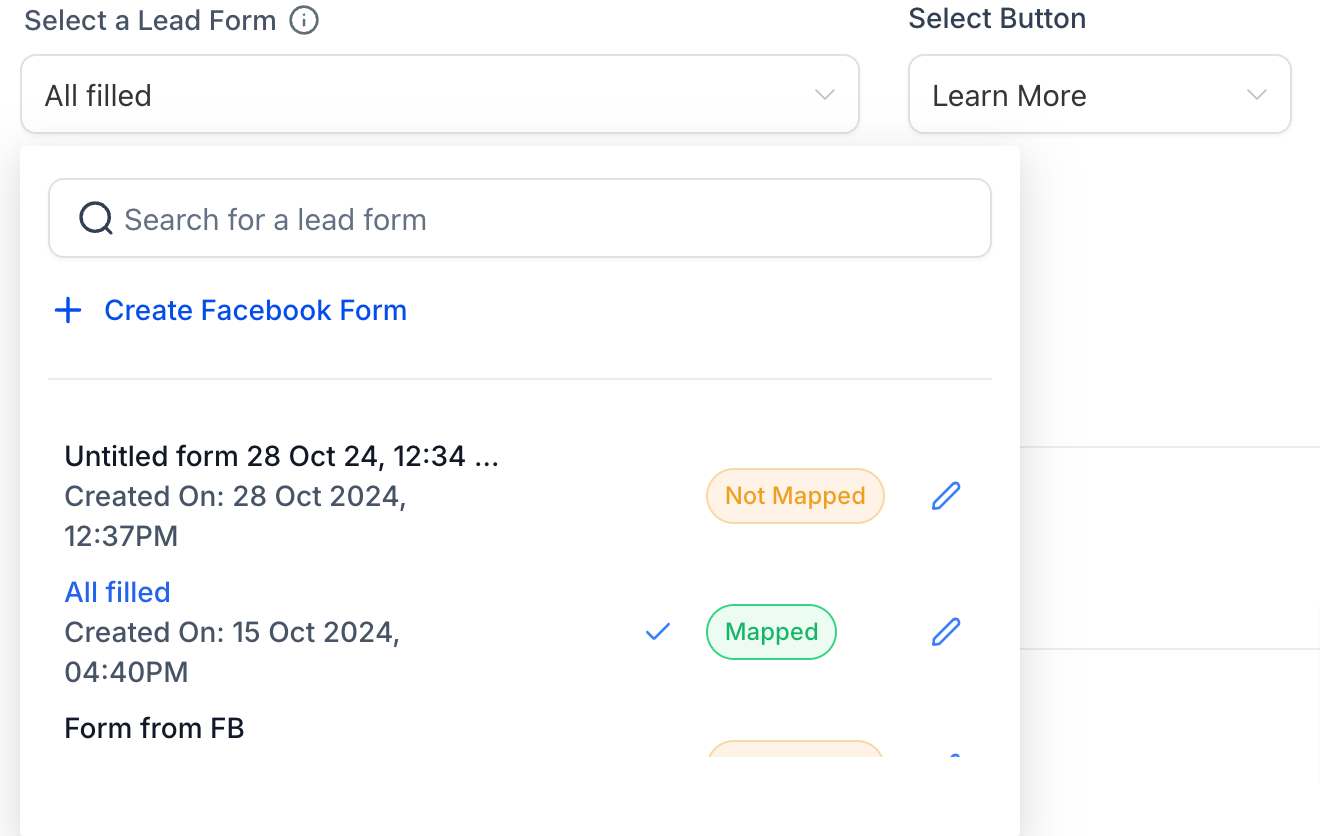
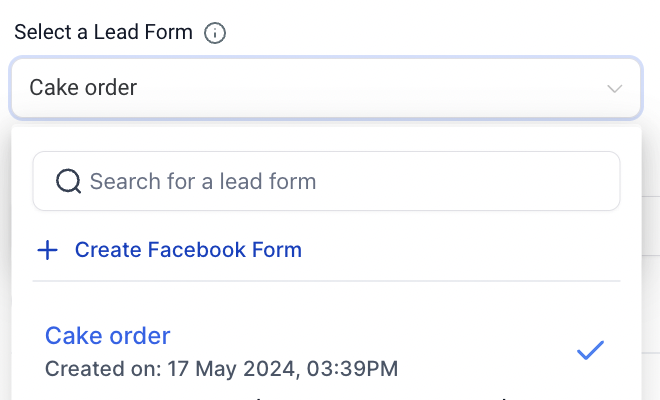
- Click on the dropdown of create new or select a Lead form
- Click on 'Create Facebook Form'
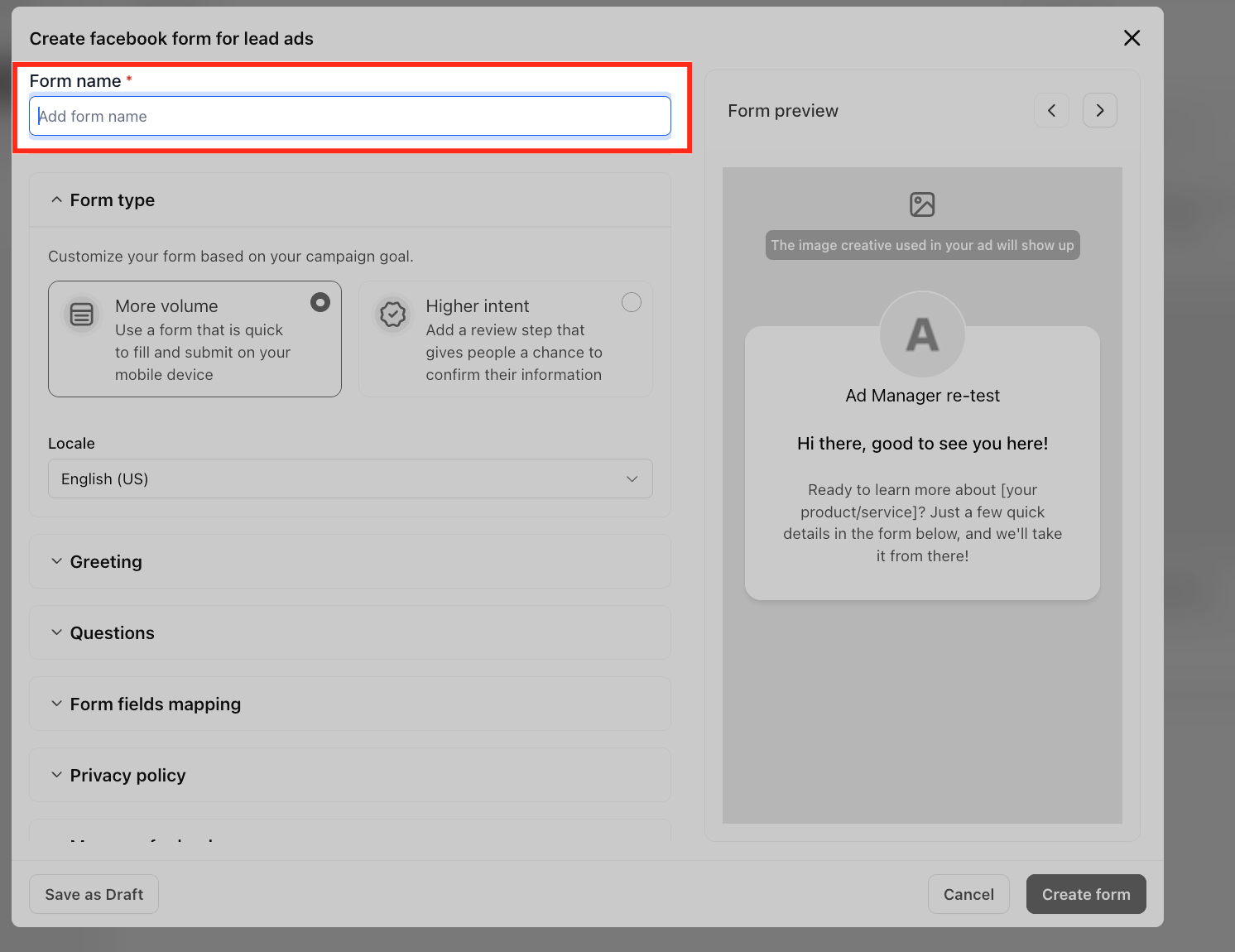
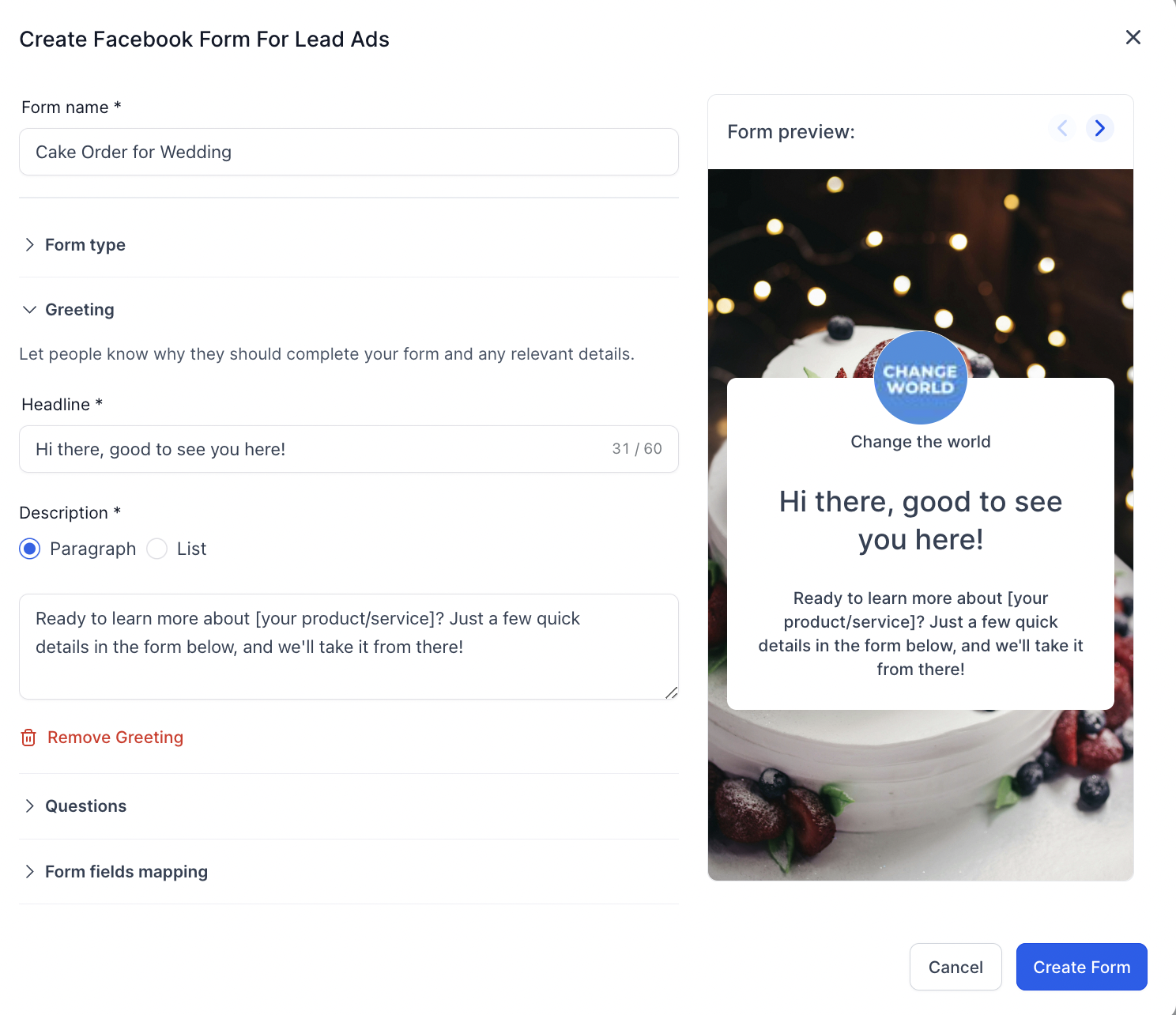
- Add the name of Facebook form
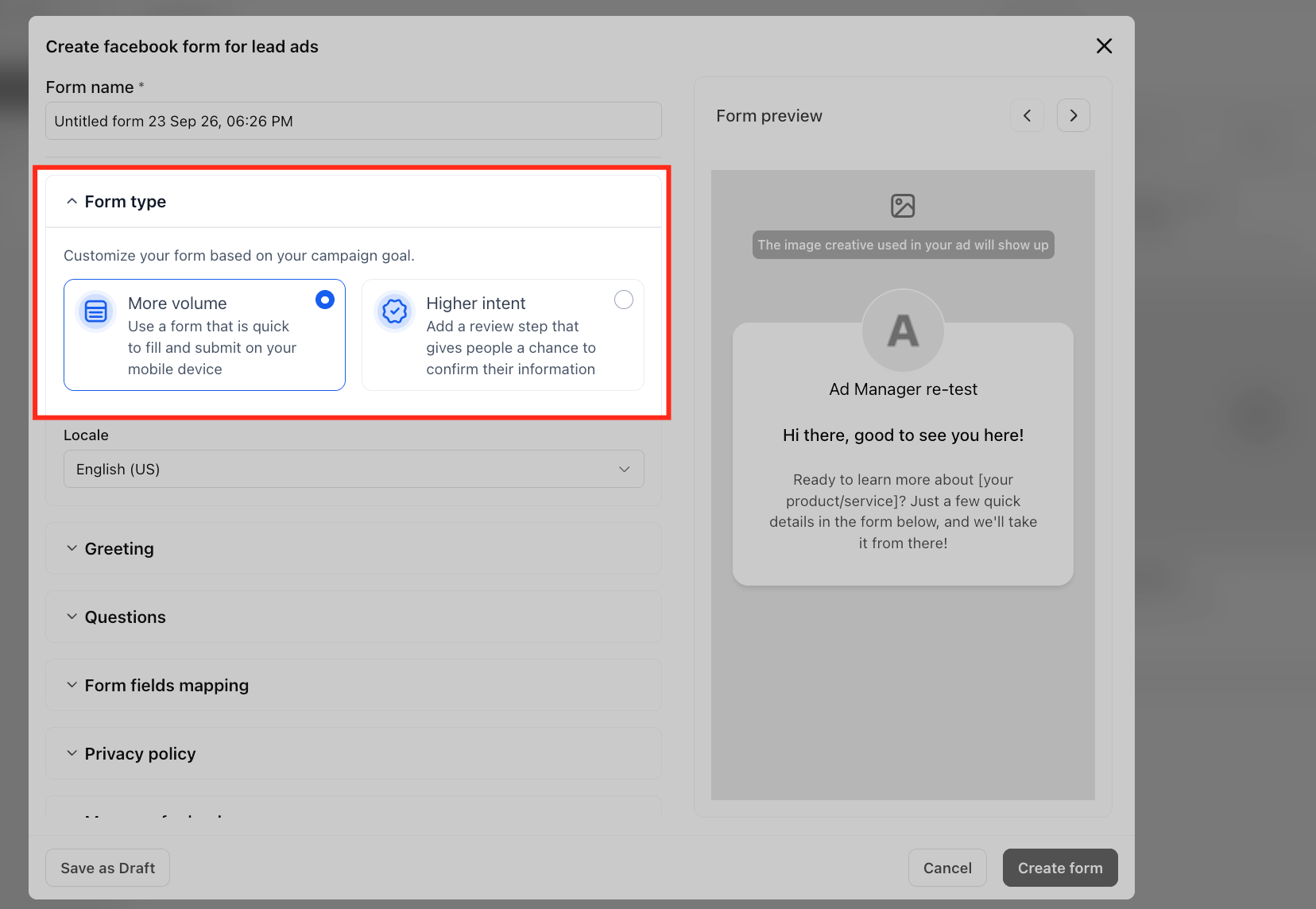
- Select the form type option off the two- More Volume and Higher Intent - Difference is that Higher Intent adds a review step to view the information for people to confirm.
- Next step is Greetings to allow the people know why they should complete your form and any relevant details. There are option to add Headline (required field) and add the paragraph or list.
- Following step has Questions option
- User can add the description
- There are option to select the type of information you need to collect from people [ This will help you understand if the contact is good or not]
- For custom question, there are option to create short description and multiple choice questions to share the information which is more relevant to your form.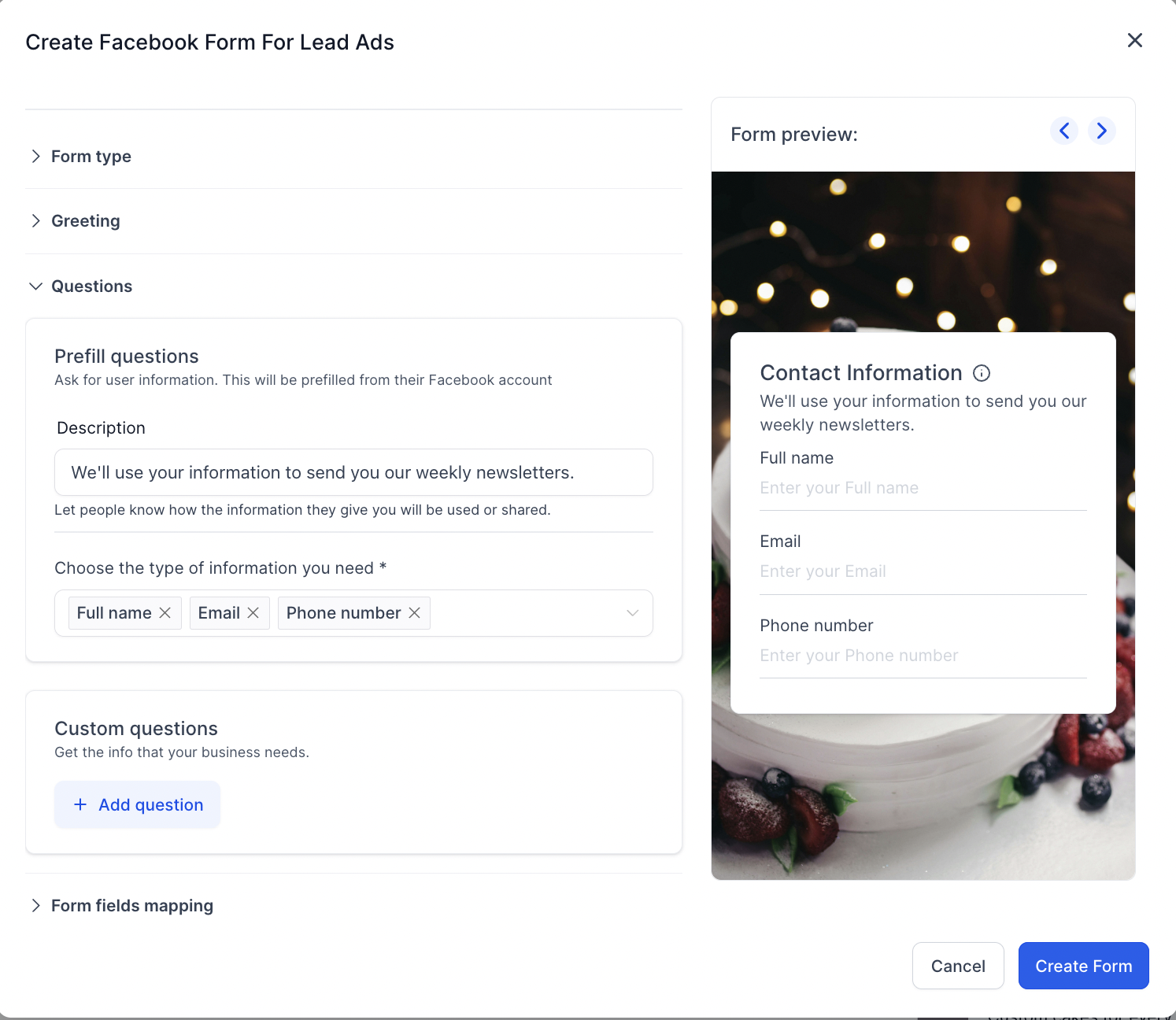
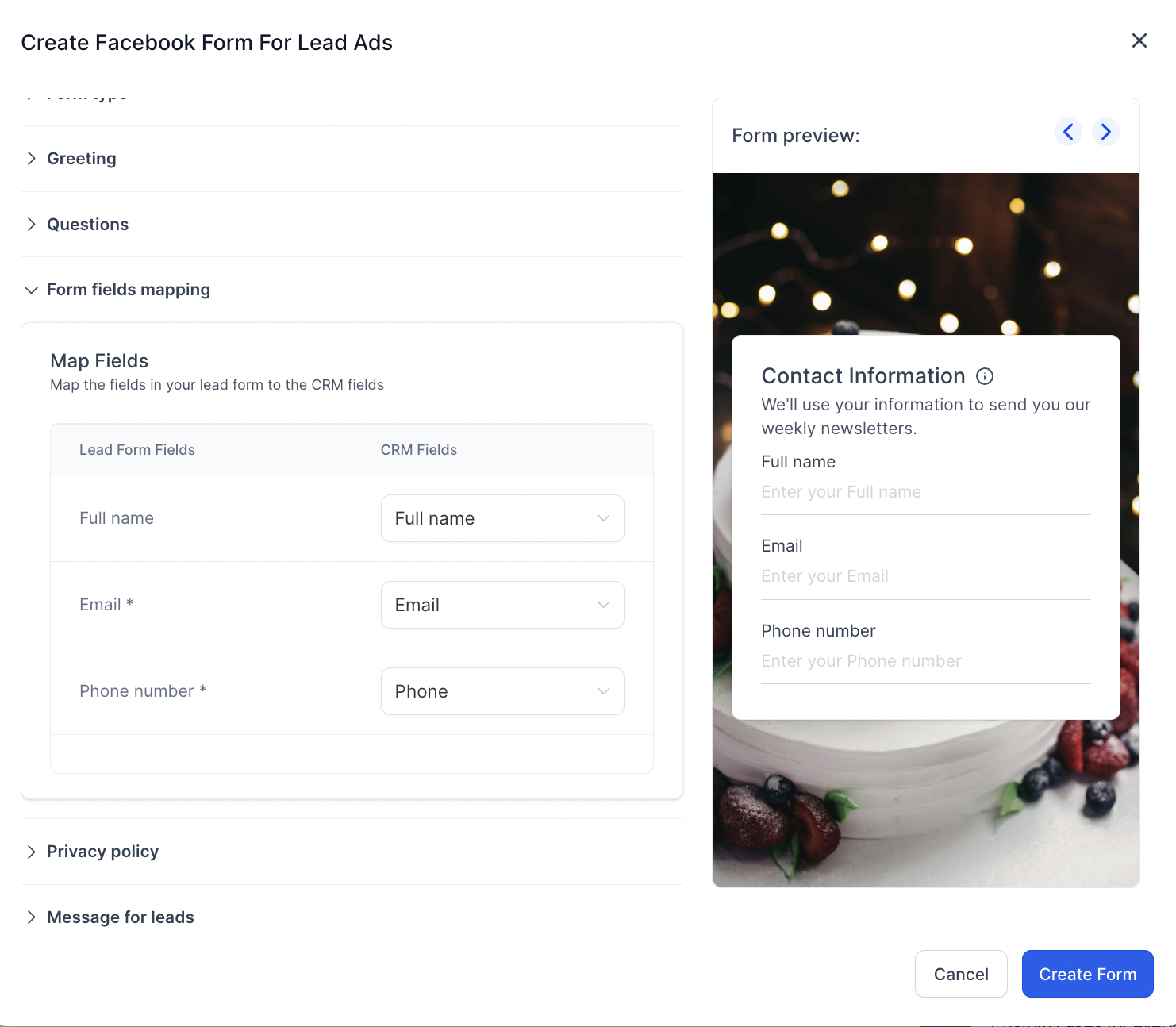
- Allow Form Field Mapping - this allows users to map the forms fields to contact fields in Chat To Clients CRM. This allows in form submission to view each field answers and also it showcases in the contact as they are mapped in.
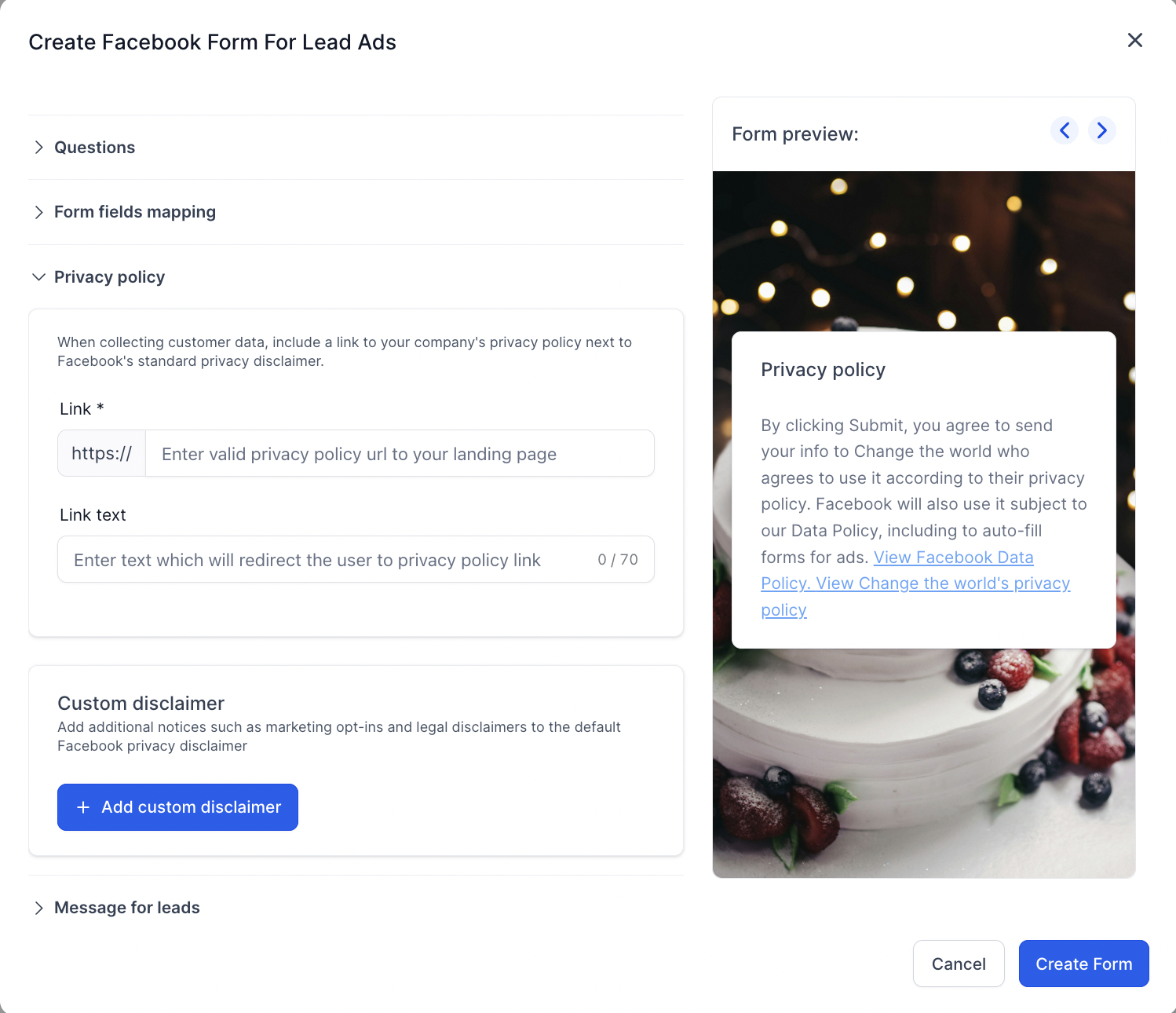
- Next form step is adding privacy policy - Add landing page link of your privacy policy of business or you could make a copy of the privacy policy of Chat To Clients CRM (https://www.leadconnectorhq.com/privacy-policy).
- Next step is message for the lead after completing the form, the form provides option to add headline, description, call to action like taking them to a website or call directly.
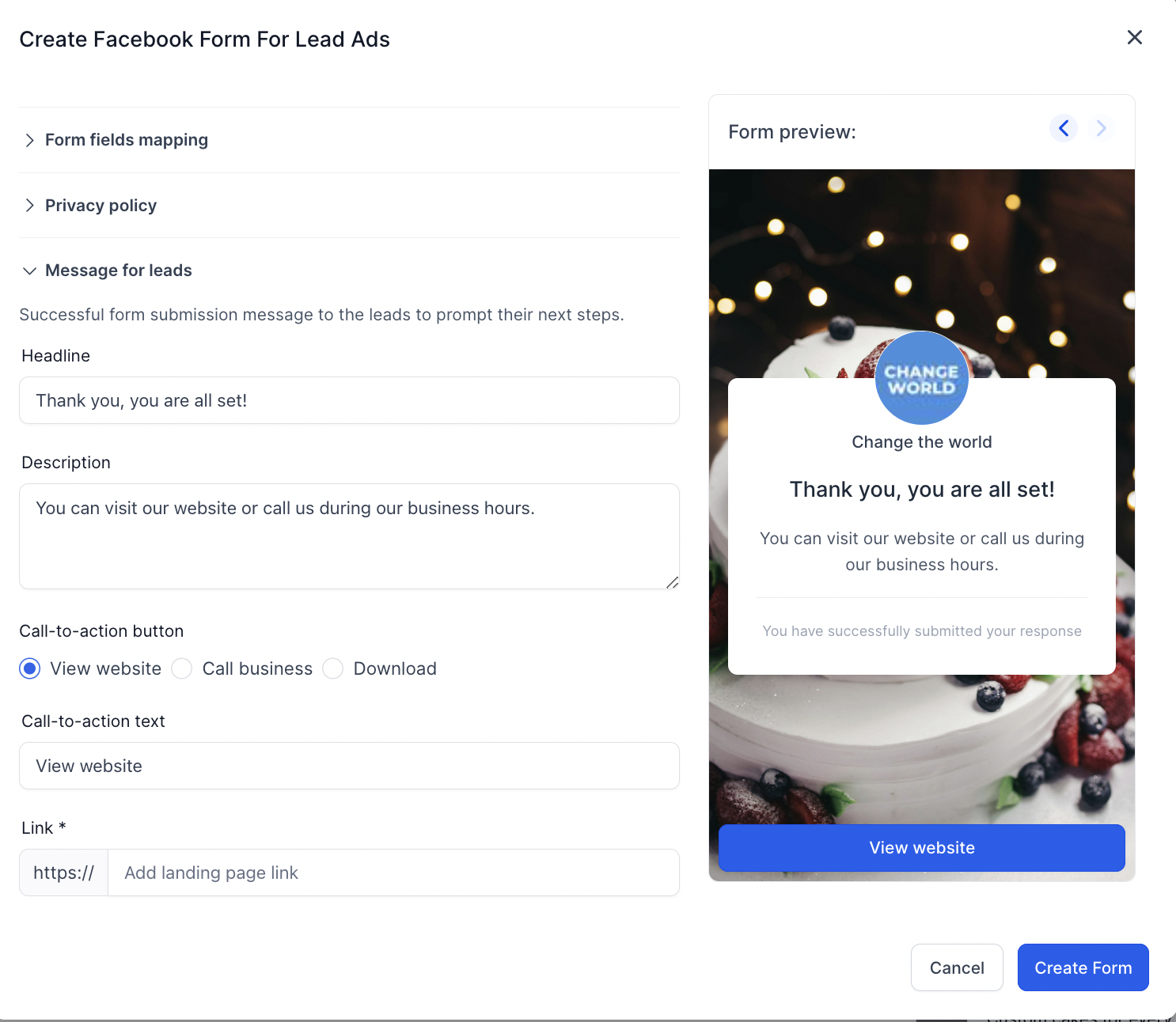
- Save the form to go and get the ad objective for Lead Generation
How to use custom fields in Ad Manager?
Below is a short video on how you can create and use custom fields in Ad Manager during Lead form creation and form field mapping.
Currently while creating a lead form on Meta, we see the additional option to add Tracking Parameters:
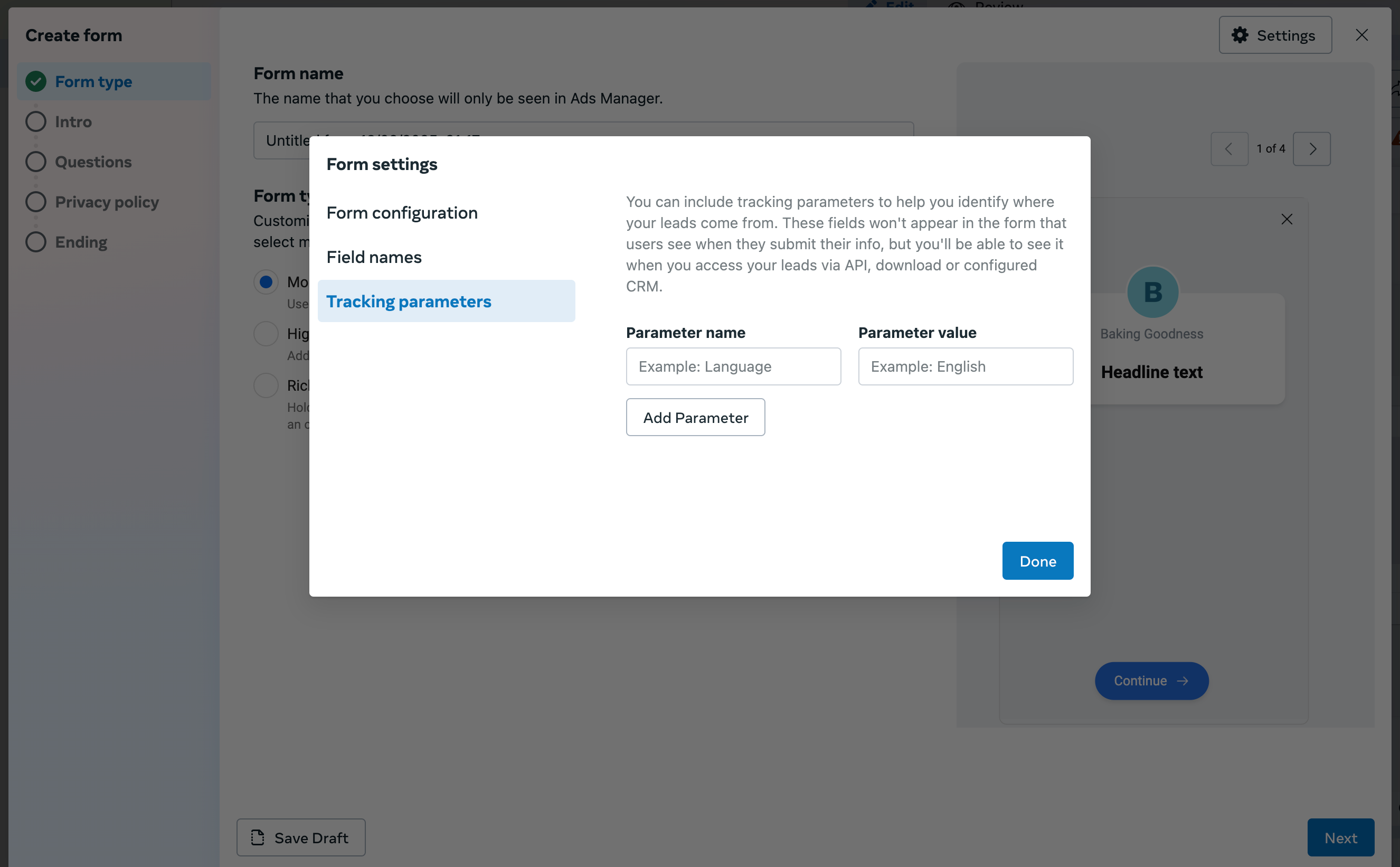
these fields are pulled in when a form created on Facebook is used in HL Ad Manager to create and publish ad campaigns. In order to sync these fields/parameters with the CRM, the form field mapping needs to be done.
The CRM fields which are custom and not present by default in the form field mapping section can be added as custom fields within HL for them to reflect as the CRM fields in the form field mapping section of the lead forms.
Steps to create a custom field and how to use it in the form field mapping is illustrated in the following video:
How to review, map and duplicate existing Facebook lead forms?
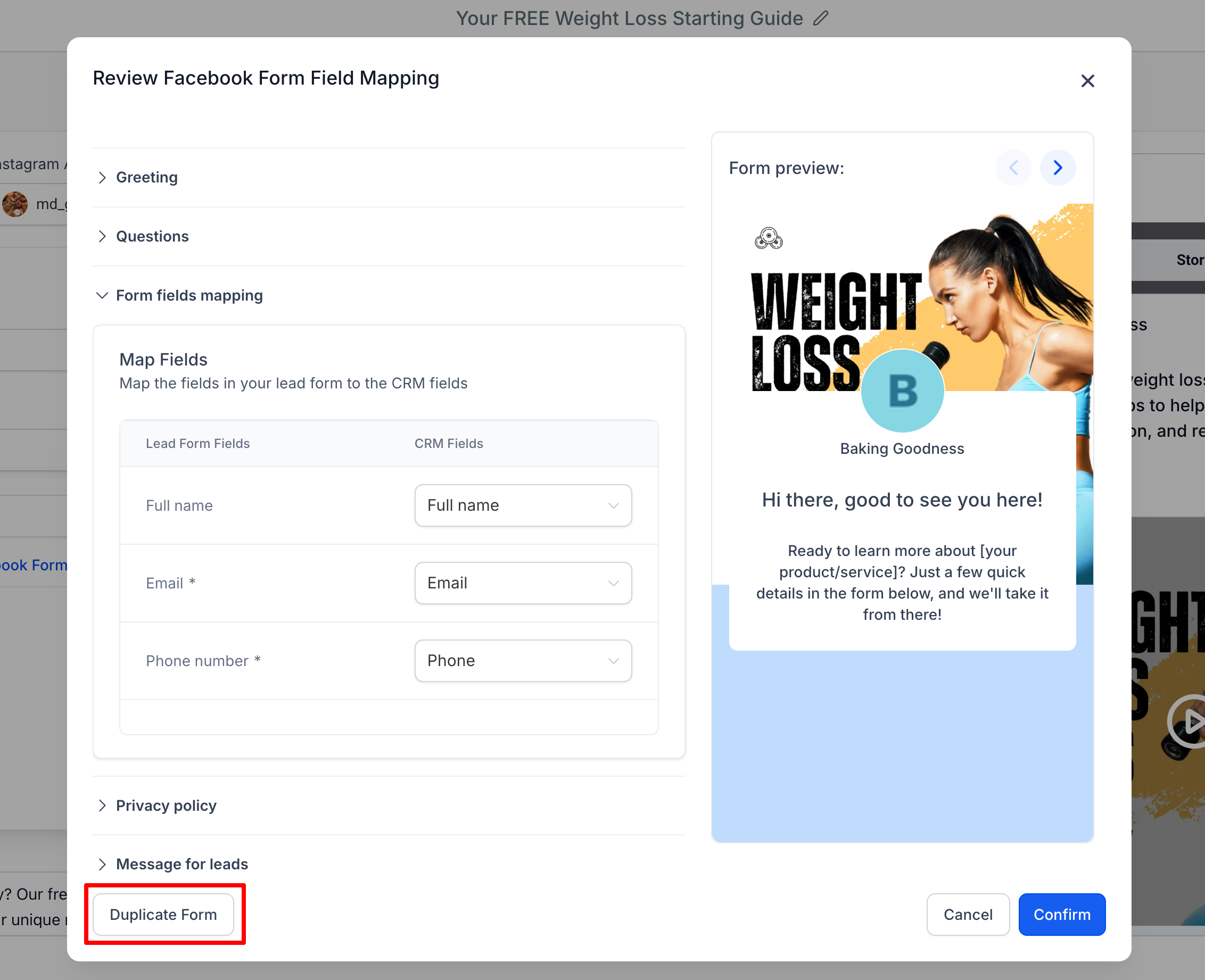
As part of enhancing the lead form management experience in Ad Manager, we’ve introduced the ability to review, map, and duplicate existing Facebook Lead Forms directly from the campaign setup interface.
Accessing Form Review & Mapping details
- When selecting a lead form inside the Lead Generation campaign setup, click the pencil/edit icon beside the form name (hover text: Map Fields / Duplicate Form).
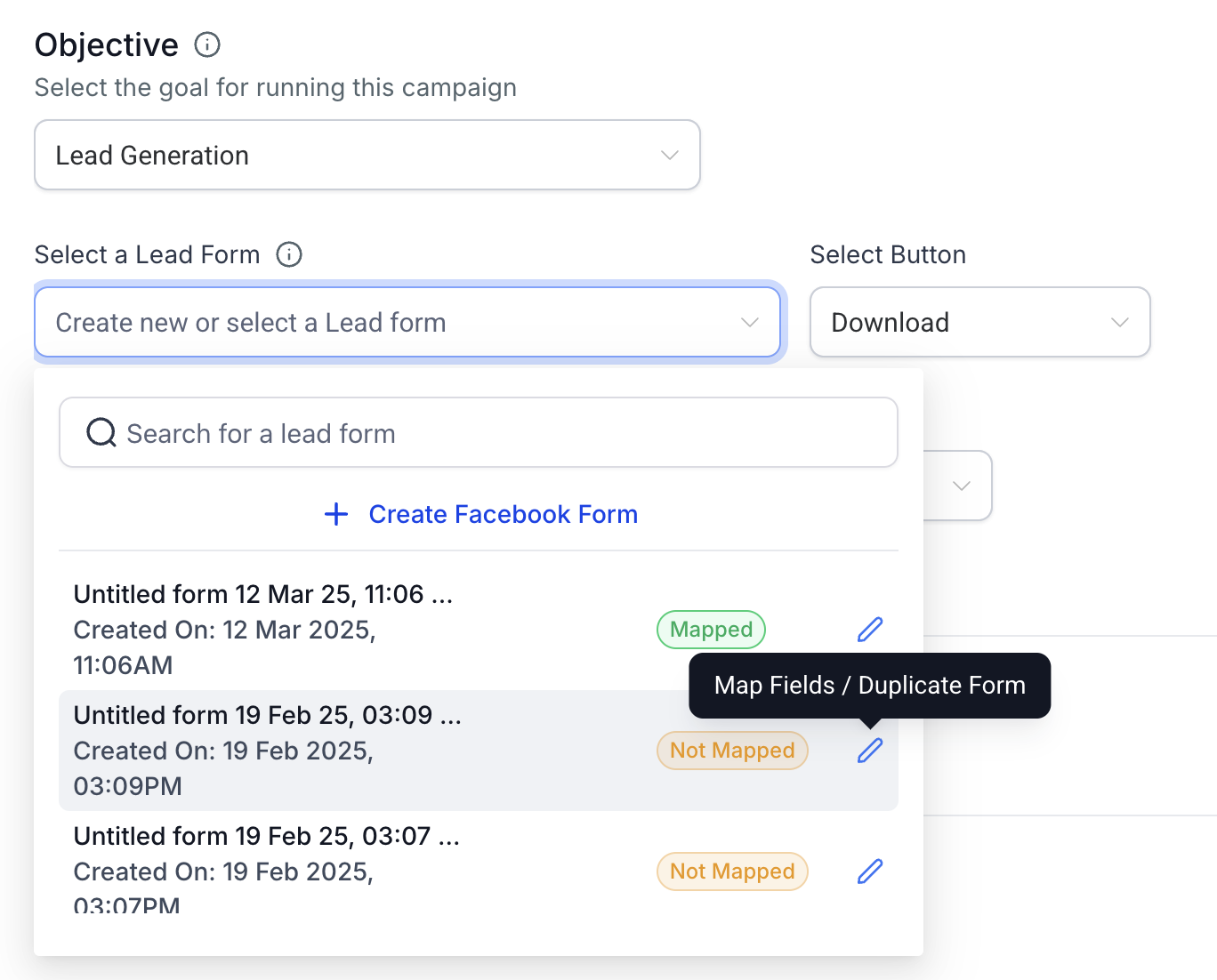
- A modal opens allowing you to:
- Preview the form content
- Map or update form fields to CRM fields
- Ensure lead syncing is accurate and complete
Duplicating a Facebook Form
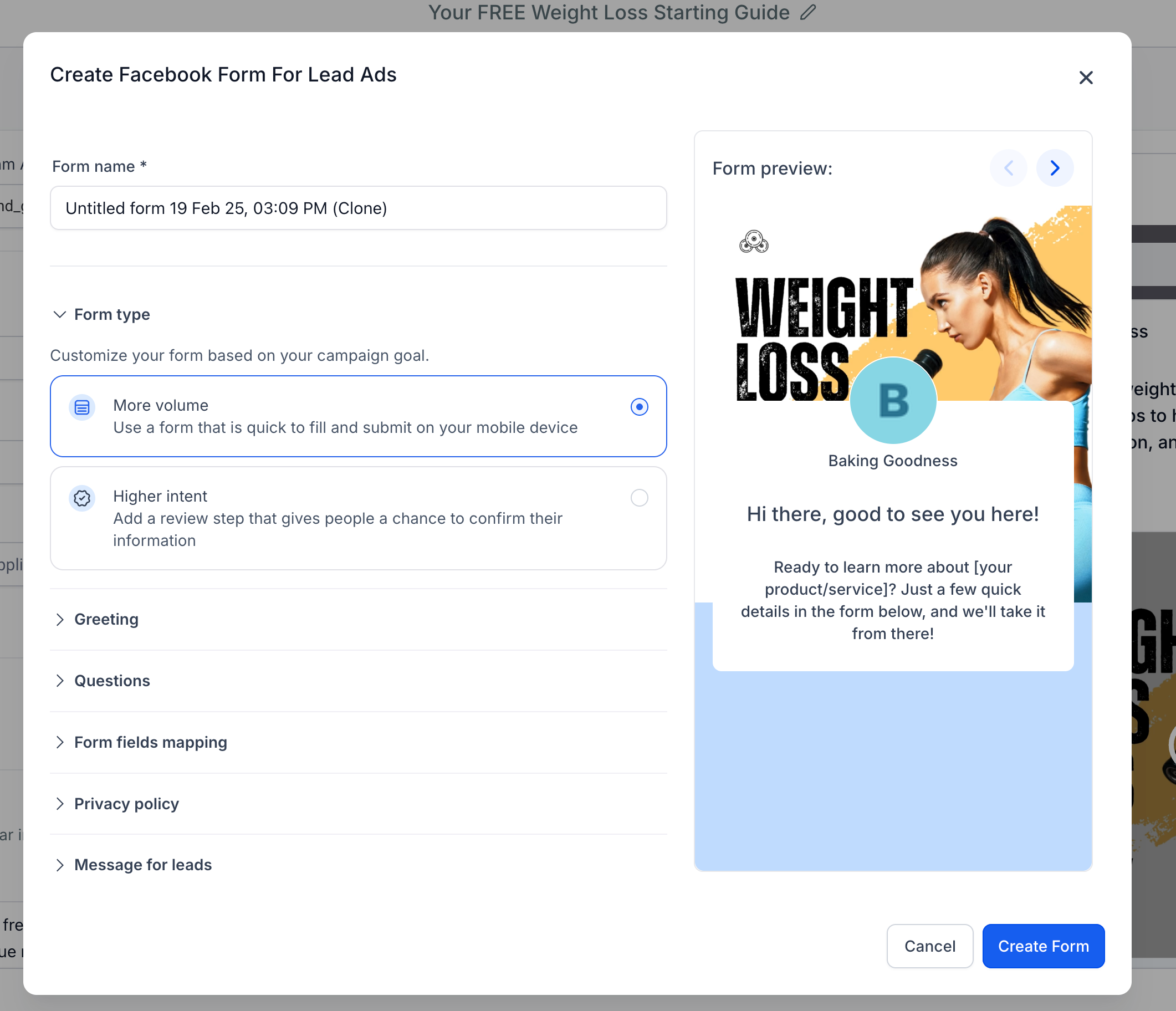
From the same modal, you’ll now see a "Duplicate Form" button at the bottom left. Clicking it opens a new view with all the fields pre-filled based on the original form.
- You can make any edits to the cloned version.
- Once satisfied, click Create Form to save it as a new Lead Form.
Field Mapping Prompt
To prevent missed data syncing, if the selected form hasn’t been mapped yet, a message will now appear just below the form selector:
“Form fields of the selected form are not mapped, map now.”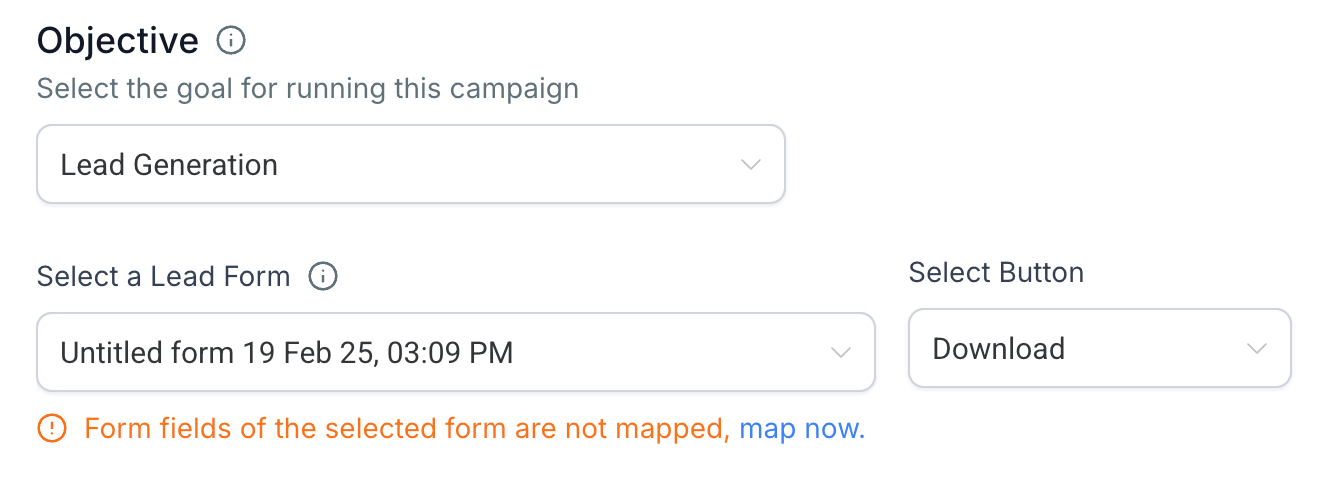
Clicking “map now” will directly open the review modal to complete the field mapping process with your CRM fields.
Frequently Asked Questions
Q: Can I create a Facebook Lead Form while creating a Meta campaign?
Yes. In a Meta Lead Generation campaign, select Facebook Lead Form at the Ad level, then select an existing form or create a new Facebook Lead Form.
Q: Why do I need to map Facebook Lead Form fields?
Field mapping connects Facebook form responses to the corresponding Chat To Clients CRM contact fields so submitted information is stored in the intended CRM fields.
Q: Can I use Chat To Clients CRM custom fields for Facebook Lead Form responses?
Yes, when a supported Contact custom field is appropriate for the information being collected. Create the Contact custom field first, then select it during form mapping.
Q: Where can I manage Facebook form mappings after campaign setup?
From the Sub-Account, go to Settings → Integrations and use the available Facebook Form Field Mapping controls.
Q: Should I use the Chat To Clients CRM privacy policy for my business's Facebook Lead Form?
Use a privacy policy appropriate to your own business and data practices. Chat To Clients CRM recommends consulting your own legal counsel about applicable requirements.