
Integrating Zoom with Chat To Clients CRM Calendars
Learn how to integrate Zoom with Chat To Clients CRM calendars to automatically generate Zoom meeting links for appointments. This integration streamlines scheduling workflows and enhances the virtual meeting experience.
TABLE OF CONTENTS
- What is Zoom Integration with Chat To Clients CRM Calendars?
- Key Benefits of Zoom Integration
- How To Set Up Zoom Integration with Chat To Clients CRM Calendars
- Check Your Connection Status
What is Zoom Integration with Chat To Clients CRM Calendars?
Zoom integration with Chat To Clients CRM calendars allows users to automate the creation of Zoom meeting links for scheduled appointments. This ensures a seamless connection between your calendar events and virtual meetings, eliminating the need to manually generate meeting links and reducing the chances of human error.
Note: Dynamic Zoom links are only available for Personal, Round Robin, Service and Collective Calendars.Key Benefits of Zoom Integration
Integrating Zoom with Chat To Clients CRM calendars offers significant productivity and user experience benefits. By automating meeting link creation, this feature reduces administrative tasks and enhances client engagement through real-time virtual interactions.
- Automatic Zoom Link Generation: Every calendar booking can automatically include a Zoom meeting link, removing the need for manual creation.
- Fewer Manual Errors: Minimizes mistakes from forgetting to include meeting details or links.
- Saves Time: Automates a previously manual process, freeing up time for users to focus on high-value tasks.
- Streamlined Scheduling: Makes appointment management more efficient and reliable.
- Professional Experience for Clients: Ensures every client receives a consistent and fully prepared meeting invite.
- Multi-Location & Multi-User Sharing: You can connect the same Zoom account across multiple locations and allow multiple users to use that same Zoom account for bookings.
To connect Zoom using the latest Connections flow, go to:
Calendars → Settings → Connections → Video Conferencing → Add New → Zoom
For step-by-step setup and admin scenarios, see “Zoom Integration for Users’ Calendar Bookings.”
How To Set Up Zoom Integration with Chat To Clients CRM Calendars
Chat To Clients CRM provides two built-in methods to connect your Zoom account, both of which allow for automated meeting link generation on calendar bookings. Whether you prefer linking Zoom through your personal profile or directly through calendar settings, each method ensures that clients receive a Zoom link without manual input.
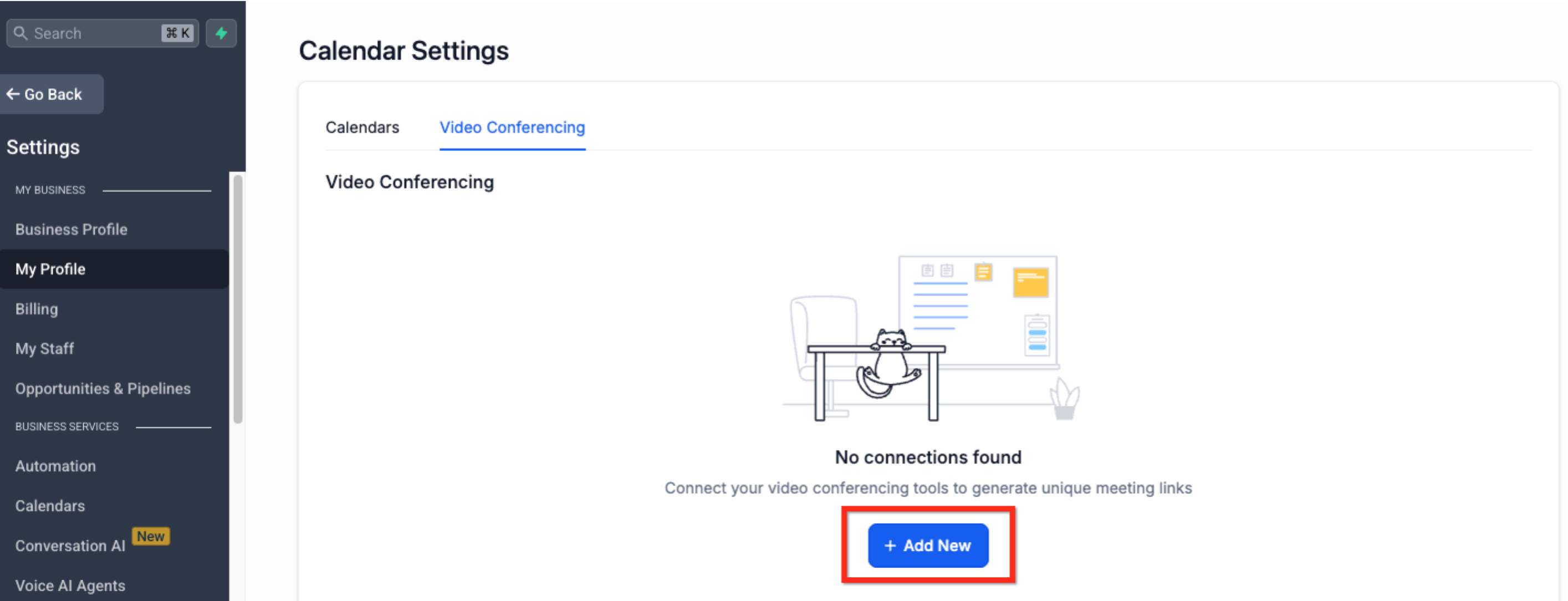
Method 1: Connect Zoom from “My Profile”
Navigate to My Profile in the Settings navigation bar
Navigate to the Calendar Section and click the tab labeled Video Conferencing in the secondary navigation ribbon.
Click the blue button labeled + Add New.
Click blue button labeled Connect next to Zoom. A Zoom login window will appear. Sign in to your Zoom account and authorize access.
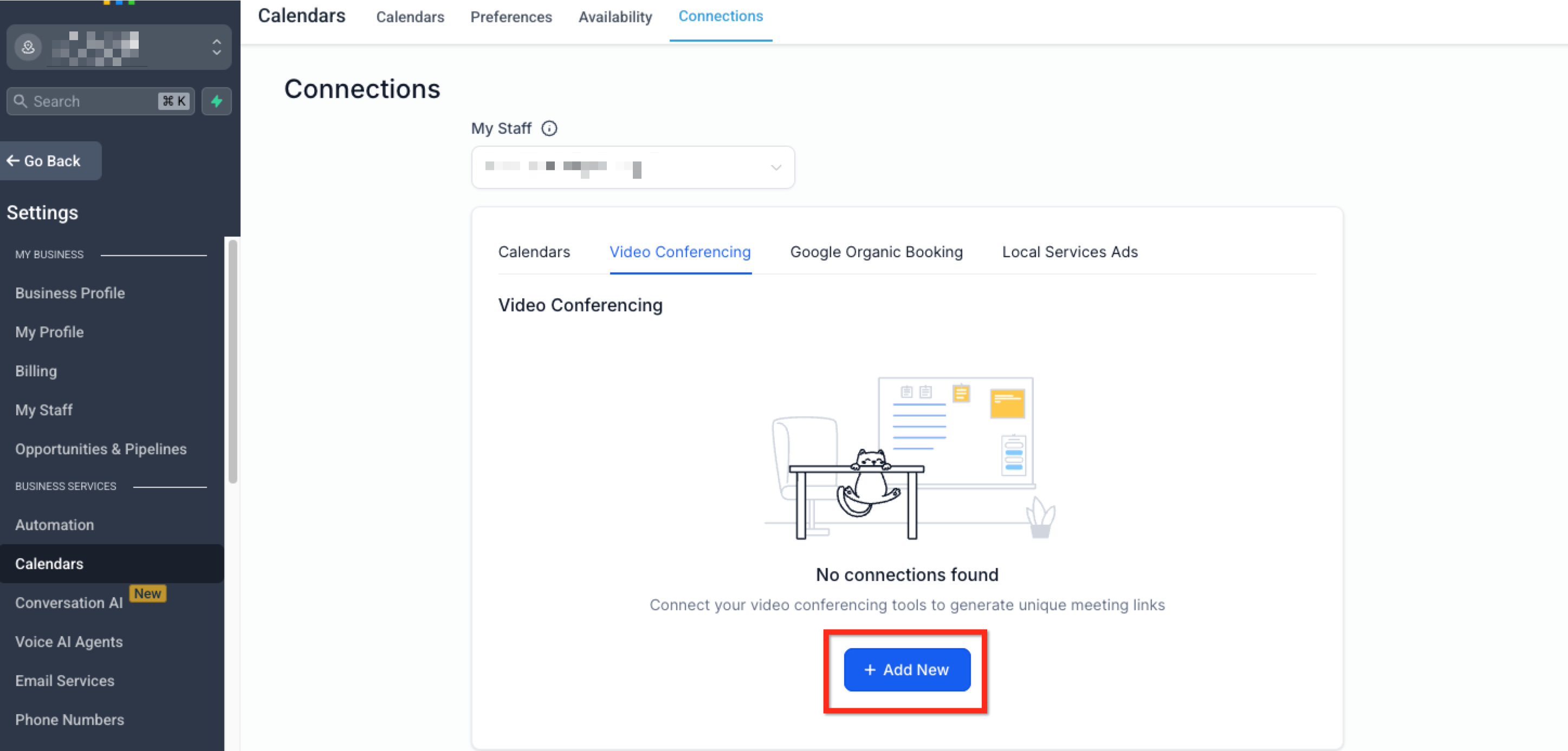
Method 2: Connect Zoom via Calendar Settings
Navigate to to Calendar Settings in the Settings navigation bar
Click on the Connections tab in the secondary navigation ribbon.
Select the Video Conferencing tab in the navigation bar under Connections
Under the Video Conferencing section, click the blue button labeled Add New.
Then click Connect next to Zoom. Sign in to your Zoom account and authorize access
Check Your Connection Status
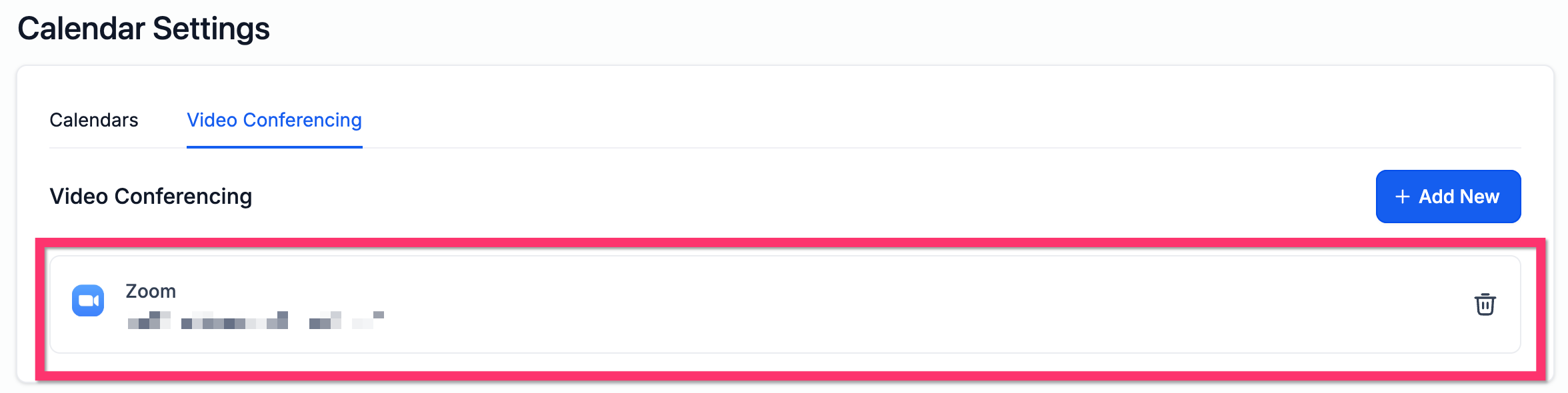
To check if your Zoom account is connected, go to My Profile > Calendar Settings > Video Conferencing. If your account is connected, it will show up here.
If Zoom is disconnected and later reconnected, Chat To Clients CRM automatically generates Zoom links for upcoming appointments that were created during the downtime and were missing links, so you don’t have to update each appointment manually.
Frequently Asked Questions (FAQs)
Q: Do I need a paid Zoom account to integrate with Chat To Clients CRM?
No, a free Zoom account is sufficient for integration, but paid plans may offer extended meeting durations and additional features.
Q: Can I assign different Zoom accounts to different calendars?
Zoom integration is tied to the user profile, so only one Zoom account can be connected per user.
Q: How do I disconnect or change my Zoom account?
Go to Calendar Settings > Connections > Video Conferencing or My Profile > Calendar Settings > Video Conferencing. Click Disconnect next to Zoom, then reconnect with a different account.
Q: Will Zoom links be included automatically in appointment emails and SMS?
Yes, if Zoom is selected as the meeting location and the notification templates use the {{appointment.location}} merge field, the link will be included.
Q: Why is my Zoom meeting link missing from confirmation emails?
Ensure the meeting location is set to Zoom and the {{appointment.location}} merge field is present in the message template.
Q: Can I use both Zoom and Google Meet at the same time?
Yes, you can use both Zoom and Google Meet at the same time provided both are connected in the integrations. Howonly one video conferencing platform can be active per user profile or calendar at a time.
Q: Is the Zoom integration available in all Chat To Clients CRM plans?
Yes, Zoom integration is available across all plan tiers.
Q: Which calendars support dynamic Zoom links?
Personal Booking, round robin, service calendars and collective calendars support Zoom integration and generate new Zoom links for each appointment booked.