
Integrating Outlook with Chat To Clients CRM Calendars
This article guides you through connecting your Outlook Account to Chat To Clients CRM Calendars for seamless event syncing and efficient calendar management.
TABLE OF CONTENTS
- What is Outlook Calendar Integration?
- Key Benefits of Integrating Outlook Calendar
- Prerequisites for Outlook Calendar Integration
- Steps to Connect Outlook Calendar
- Frequently Asked Questions
- Related Articles
What is Outlook Calendar Integration?
Integrating your Outlook calendar with Chat To Clients CRM helps you sync your bookings from Outlook Calendar to the system and vice versa. This ensures correct availability, prevents double bookings, and facilitates seamless scheduling and booking management.
Key Benefits of Integrating Outlook Calendar
- Seamless Integration: Connect your existing Outlook (Microsoft) account in just a few clicks.
- Smart Availability: Automatically reflect your Outlook calendar availability in Chat To Clients CRM scheduling.
- Avoid Double-Booking: Events from Outlook can be displayed as busy slots inside Chat To Clients CRM.
- Streamlined Management: Centralize appointment handling while staying synced with external tools.
- Automatic catch-up syncing: Appointments created while disconnected sync automatically after reconnect. Connecting a new calendar or switching the selected calendar resyncs upcoming appointments automatically.
Prerequisites for Outlook Calendar Integration
- You must have an active Outlook (Microsoft) account.
- You need to be logged into your Chat To Clients CRM user profile.
- Writer access is required to send events to Outlook.
Steps to Connect Outlook Calendar
Step 1: Navigate to Calendar Connections
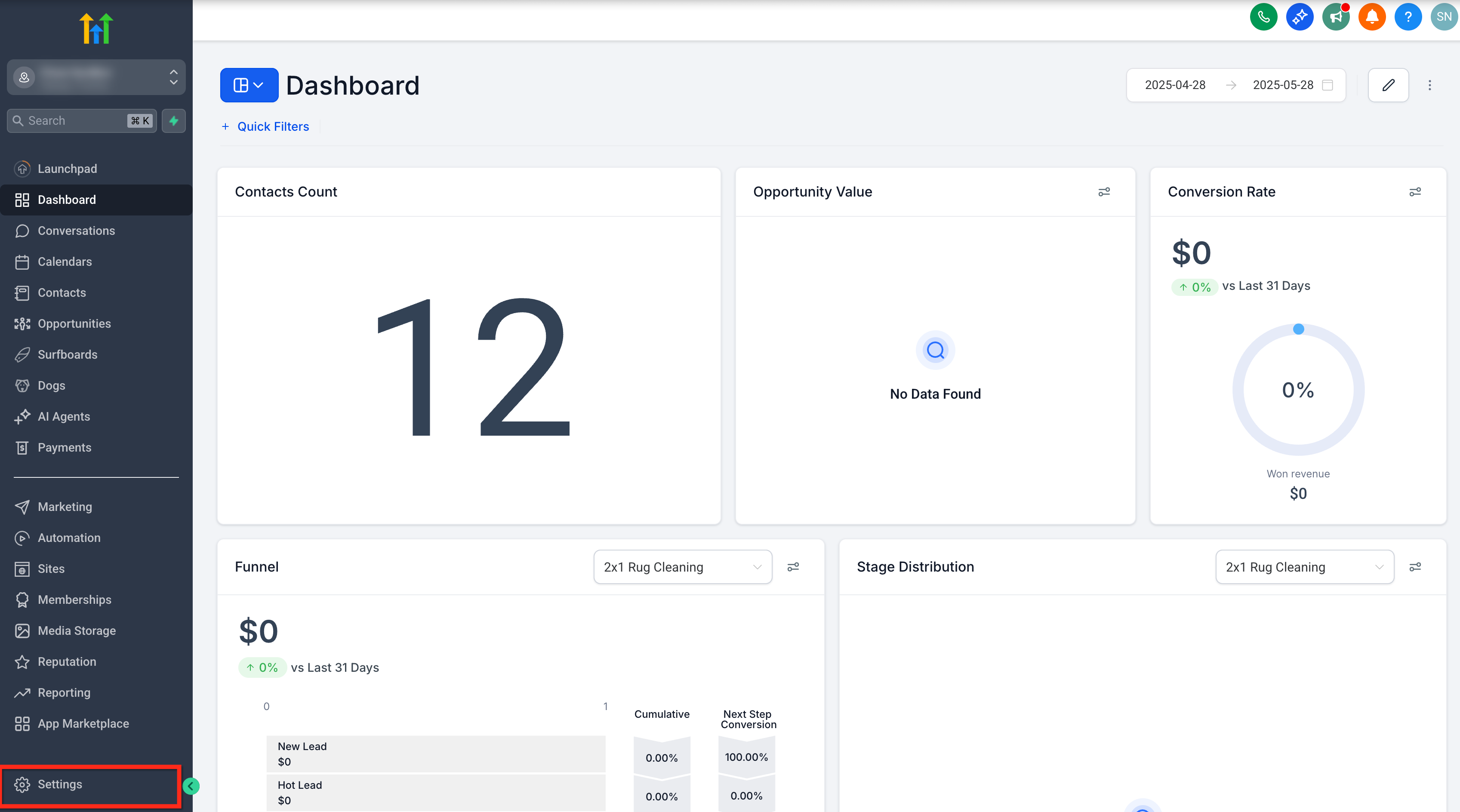
- Go to your sub-account Settings.
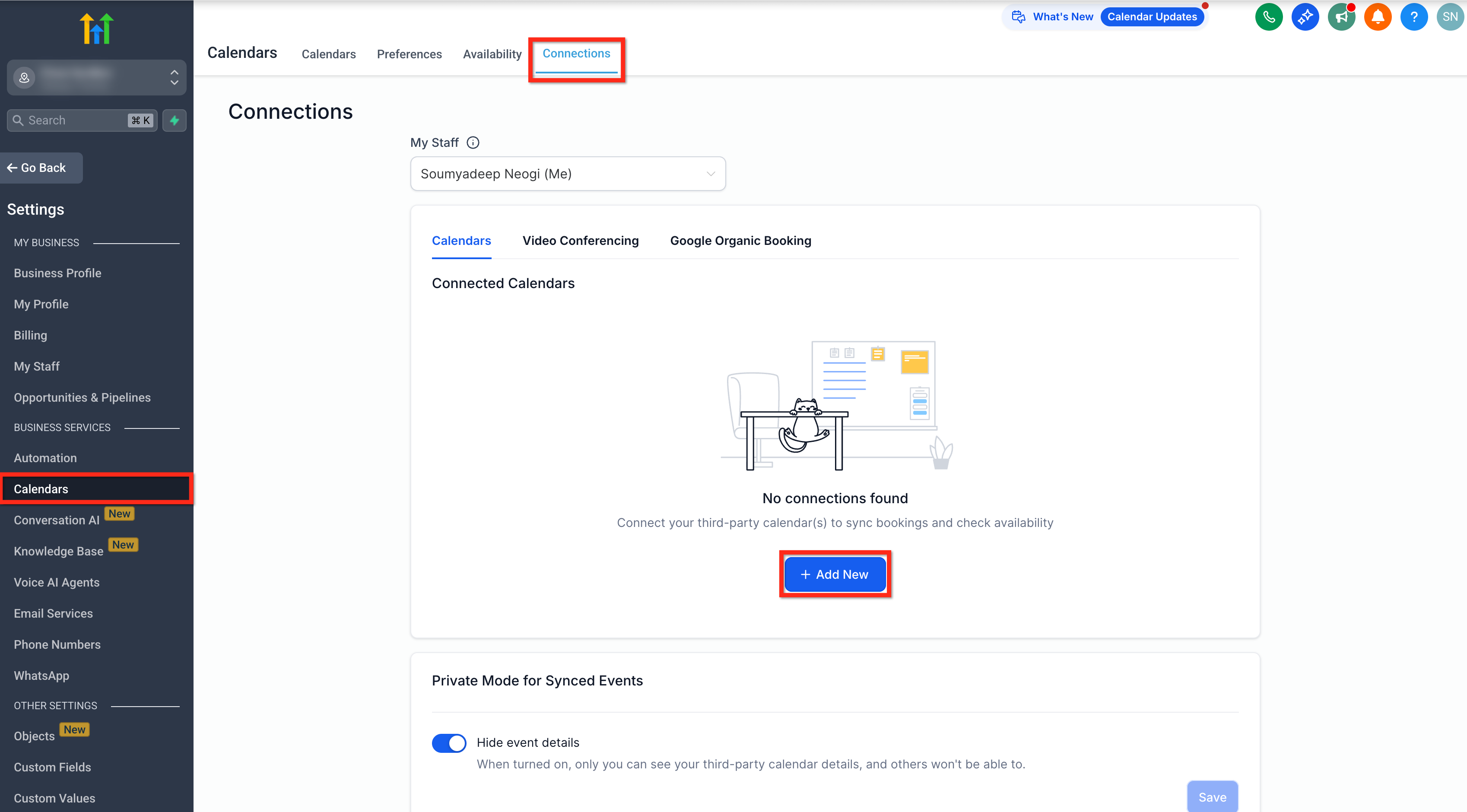
- Select Calendars under Business Services.
- Click on the Connections tab and then + Add New button to add a new calendar.
Step 2: Authenticate with Outlook
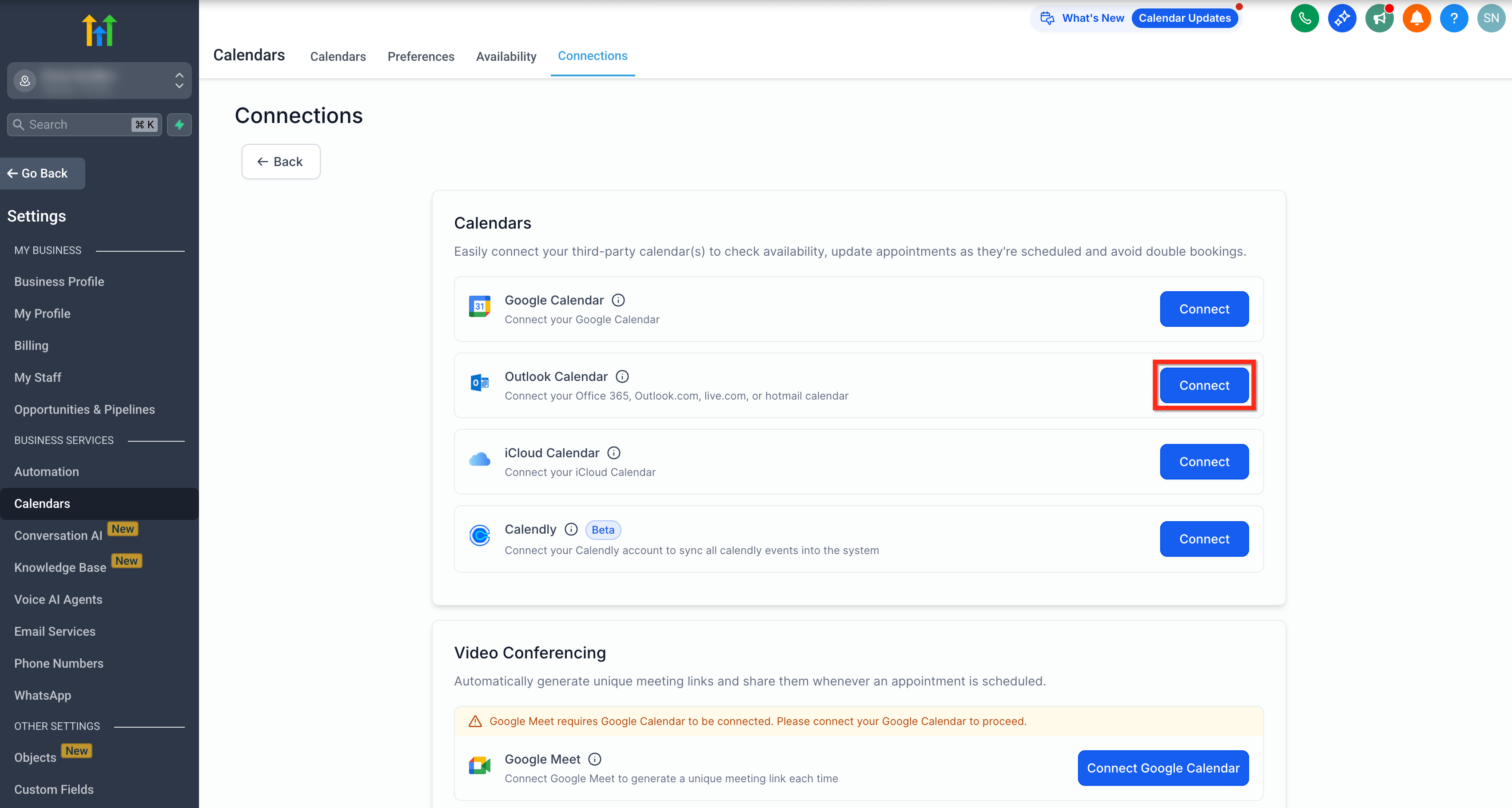
- From the Connections page, click on the Connect button beside OutlookCalendar.
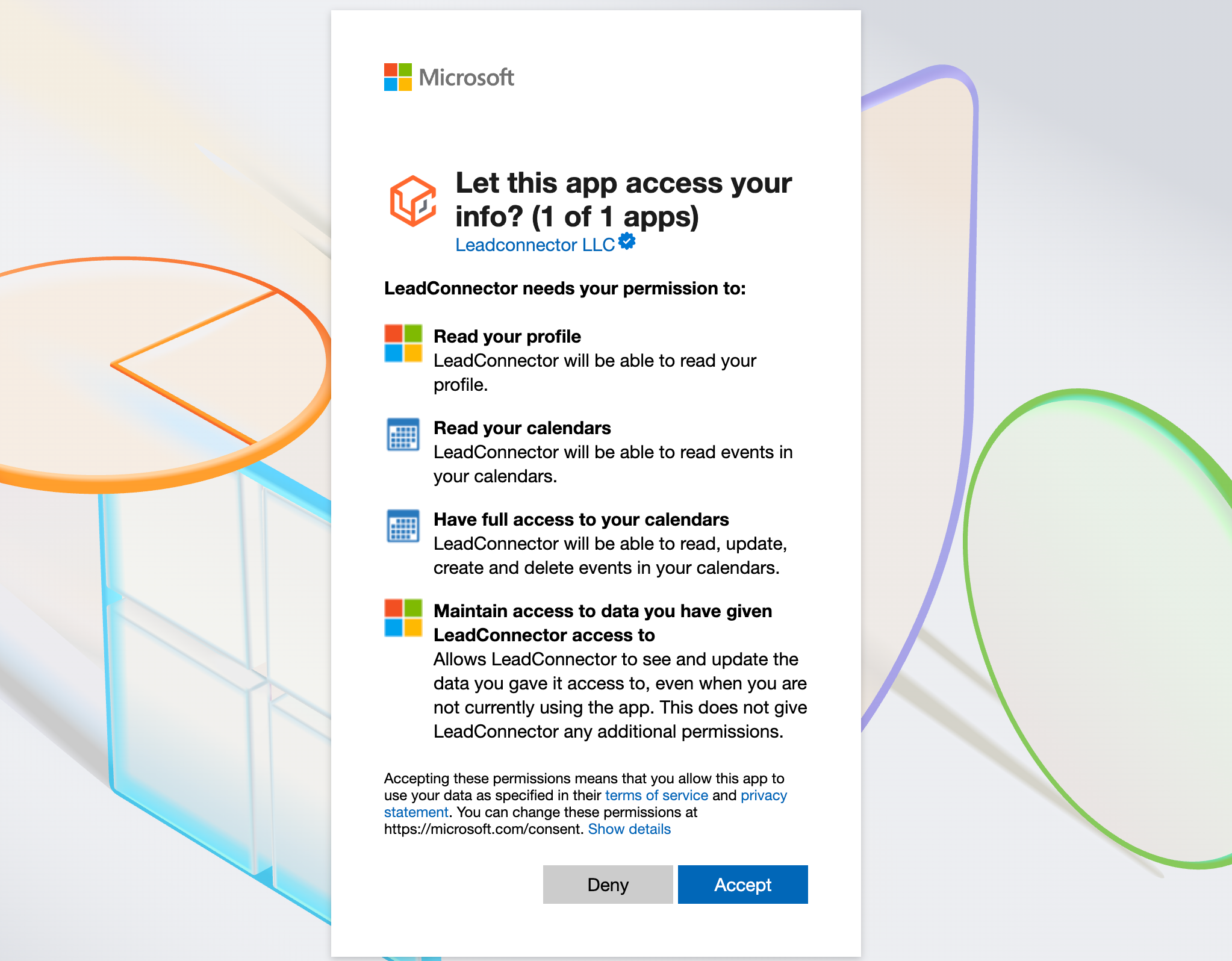
- Sign in to your Outlook Account.
- Accept the necessary permissions to complete the authentication process.
Supported: Microsoft 365 / Exchange Online accounts.
Not Supported: Stand-alone or on-premises Microsoft Exchange servers.
Seeing “Need Admin Approval” When Connecting Outlook?
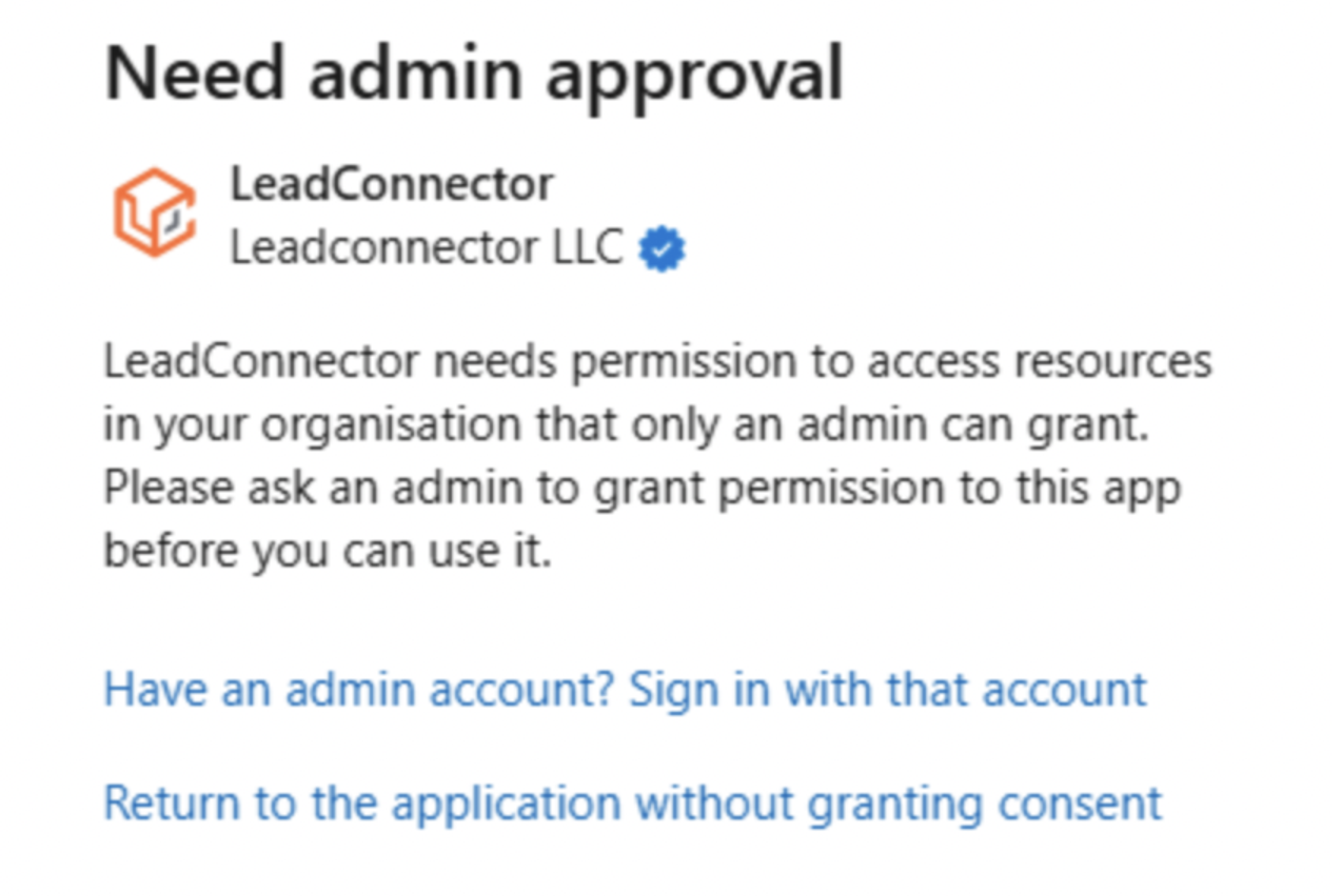
When connecting Outlook as a third-party calendar in Chat To Clients CRM, you may see a “Need admin approval” screen. This means your organization requires an administrator to approve the connection before it can be completed.
Prerequisite: Sign in to the Microsoft Entra admin center with an administrator account or as a designated reviewer with the appropriate role to review and approve the request.
For instructions on reviewing and approving the request, refer to Microsoft’s documentation:
Help Doc: https://learn.microsoft.com/en-us/entra/identity/enterprise-apps/review-admin-consent-requests
Video Tutorial: https://www.youtube.com/watch?v=8UIWEeTxaO0
Frequently Asked Questions
Q: Does Outlook integration work with event calendars?
No, Outlook integration does not work with event calendars. Event calendars support only Google Integration.
Q: Can I integrate multiple Outlook accounts?
Yes, with the latest enhancements you can integrate more than one outlook account.
Q: What happens if I disconnect Outlook?
Chat To Clients CRM will no longer receive availability or event data from Outlook, and calendar-based scheduling may be impacted.
Q: What if my Outlook calendar was deleted and Chat To Clients CRM shows an error banner?
Click Fix This on the banner to review deleted calendar instances and where they’re connected in Chat To Clients CRM. Then select Remove Deleted Calendars to remove broken connections and restore an error-free setup.
Q: Are there any limitations to Outlook integration across accounts?
No. With the latest enhancement, the same Outlook account can be connected across multiple sub-accounts.
Q: What types of Outlook accounts are supported?
Chat To Clients CRM supports Office 365, Outlook.com, live.com, and hotmail calendar.
Q: What scenarios are not supported by this integration?
If you use Outlook Desktop and your events are not synced to the cloud, those events will not be visible to Chat To Clients CRM. We also do not support Outlook accounts hosted on on-premise Exchange servers.
Related Articles
- How to sync Chat To Clients CRM Calendars With Outlook
- Two Way Email Sync for Outlook
- Setting Up Linked Calendars & Conflict Calendars