
Chat Widget - Send your leads to Whatsapp Chat
What Is the WhatsApp Chat Widget?
The WhatsApp Chat Widget lets website visitors start a WhatsApp conversation with your business directly from your site. It gives leads a simple way to move from your website into WhatsApp while keeping the conversation connected to the WhatsApp channel configured in Chat To Clients CRM.
Once the visitor sends the WhatsApp message, the conversation can be managed through Chat To Clients CRM Conversations.
Prerequisites
Before using the WhatsApp Chat Widget, make sure a WhatsApp number is configured and connected in the sub-account. The widget uses that connected number as the destination for visitor conversations.
Prerequisite: A WhatsApp number must be configured and connected in the sub-account before you can use the WhatsApp Chat Widget.
How to Set Up the WhatsApp Chat Widget
The WhatsApp Chat Widget can be configured from the Chat Widget settings in Chat To Clients CRM. You can customize its appearance, visitor-facing fields, destination number, and message experience before installing it on your site.
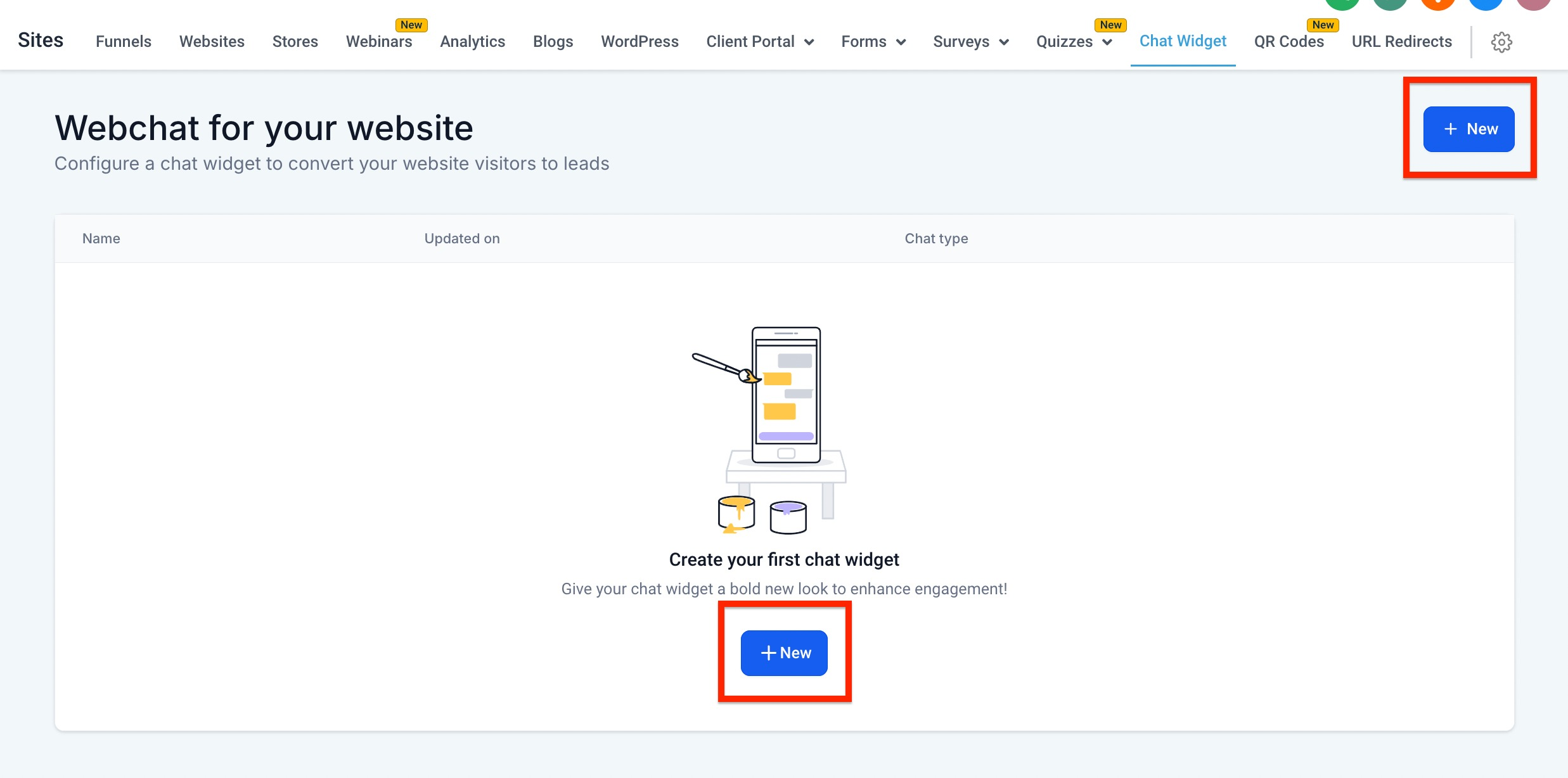
Go to Sites > Chat Widget.
Create a new Chat Widget or open an existing widget.
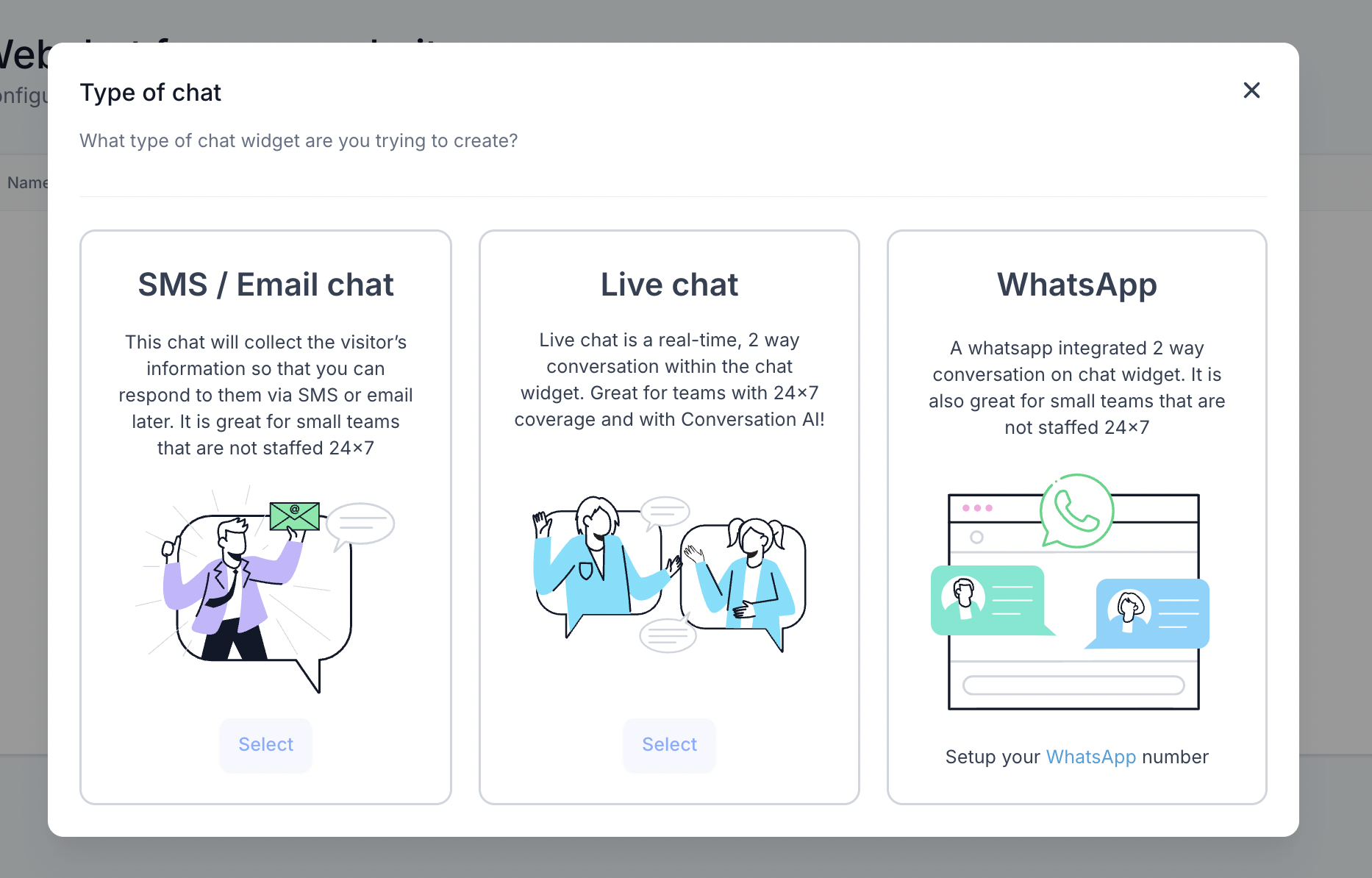
Select WhatsApp Chat as the chat type.
Choose the WhatsApp number visitors should contact.
Configure the widget's appearance and visitor experience.
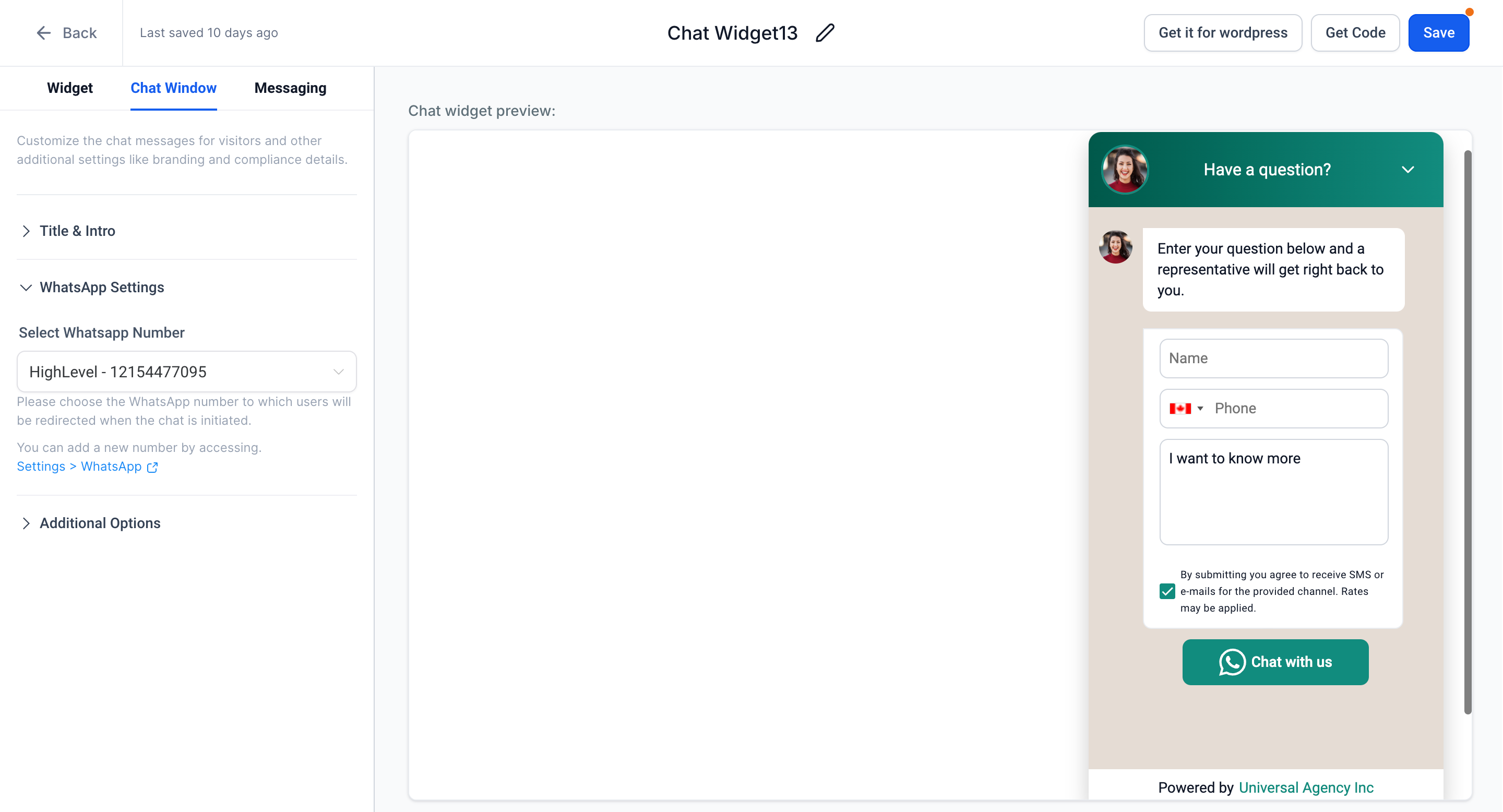
Save your changes.
Customize the Chat Window
The Chat Window controls what visitors see before they continue to WhatsApp. Use these settings to match the widget to your brand and collect the information you need before the conversation begins.
You can customize elements such as:
Heading and welcome message.
Colors and branding.
Supported visitor information fields.
The Message field.
Other available Chat Widget display settings.
Available fields can vary depending on the widget configuration.
Prefilled Message
You can configure a suggested message in the Chat Window for visitors starting a WhatsApp conversation. Visitors can use the message as provided or edit it before continuing to WhatsApp.
For example, you might prefill:
Hi, I’m interested in learning more about your services.
How the WhatsApp Chat Widget Works
The widget creates a simple handoff from your website into WhatsApp.
The typical flow is:
A visitor opens the Chat Widget on your website.
The visitor completes the applicable fields.
The visitor continues from the widget.
They are redirected to WhatsApp to start a conversation with the selected WhatsApp number.
The visitor sends the WhatsApp message.
The conversation can then be managed through the connected WhatsApp channel in Chat To Clients CRM Conversations.
Note: The exact WhatsApp experience can vary based on the visitor's device, browser, and installed applications. Avoid assuming that every visitor will always open WhatsApp Web or the mobile app.
Install the WhatsApp Chat Widget
After configuring the widget, install it based on where your website is hosted.
Chat To Clients CRM Websites and Funnels
For Chat To Clients CRM-hosted Websites and Funnels:
Open the applicable Website or Funnel.
Go to the relevant site settings.
Select or enable the Chat Widget you created.
Save and publish the site.
External Websites
For websites hosted outside Chat To Clients CRM:
Open the Chat Widget installation options.
Copy the generated embed code.
Add the code to the appropriate area of your external website.
Publish the website.
Test the widget on the live page.
Troubleshooting the WhatsApp Chat Widget
If WhatsApp is unavailable as a chat type or no destination number is available, first confirm that a WhatsApp number is properly configured and connected in the sub-account.
Also check:
The correct WhatsApp number is selected in the widget.
The widget has been saved.
The widget is installed on the intended Website, Funnel, or external site.
The site has been published after installation.
The visitor completes the applicable widget fields before continuing.
The visitor actually sends the message in WhatsApp before expecting the conversation to appear in Chat To Clients CRM Conversations.
Frequently Asked Questions
Q: Does the WhatsApp Chat Widget require a connected WhatsApp number?
Yes. A WhatsApp number must be configured and connected in the sub-account before you can use WhatsApp Chat as the widget type.
Q: Does the widget always open WhatsApp Web?
No. The resulting WhatsApp experience can depend on the visitor's device, browser, and installed applications. The widget redirects the visitor to WhatsApp without requiring a specific WhatsApp Web or mobile behavior.
Q: When does the conversation appear in Chat To Clients CRM Conversations?
The visitor needs to send the WhatsApp message. Once the message is sent through the connected WhatsApp channel, the conversation can be managed in Chat To Clients CRM Conversations.
Q: Can I prefill a WhatsApp message for visitors?
Yes. You can configure a suggested Message in the Chat Window. Visitors can use the message as provided or edit it before continuing to WhatsApp.
Q: Can I use the WhatsApp Chat Widget on an external website?
Yes. Use the generated Chat Widget embed code and add it to the appropriate area of the external website.