
Cancelling Listings for Your Sub-account in Chat To Clients CRM
To reduce the time and effort it takes to cancel Listings subscriptions, we have made it easier for our users. With the Automated Cancellations, users gain the ability to effortlessly initiate cancellations for online listings directly through our platform. This feature helps users to cancel Listings subscriptions directly from our platform, ensuring an efficient and hassle-free experience.
The automated Listings Cancellation is only applicable for users who have submitted the Listings form 30 days prior to cancellationTABLE OF CONTENTS
- How to Cancel Listings for a Sub-Account
- What Happens After You Cancel Listings
- Troubleshooting Failed Cancellations
- Frequently Asked Questions
- Related Articles
How to Cancel Listings for a Sub-Account
Follow these steps to cancel the listings feature within a sub-account:
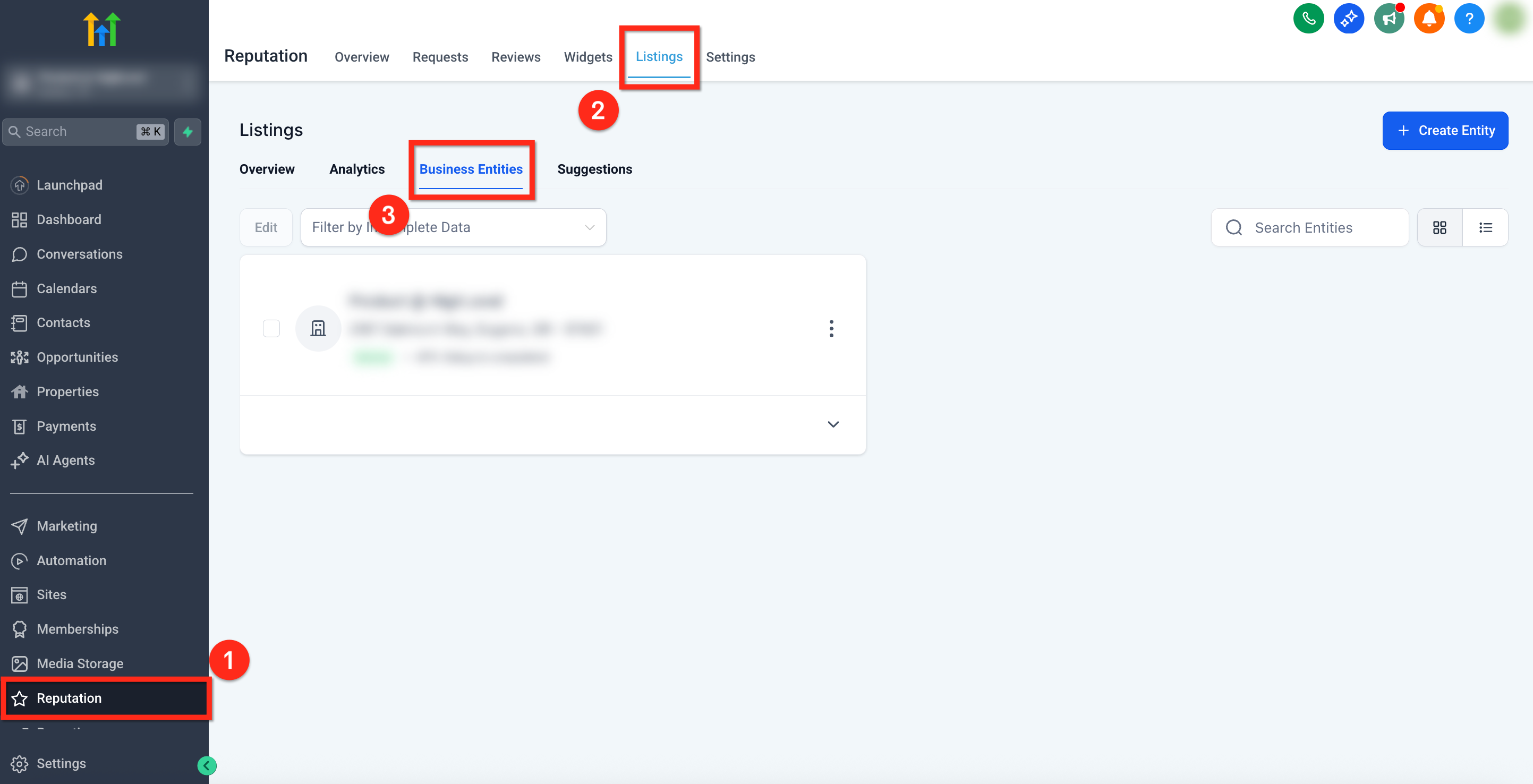
Step 1: Navigate to Business Entities
- On the left-side navigation bar, select Reputation
- Using the top navigation ribbon, select Listings
- On the secondary navigation ribbon, select Business Entities
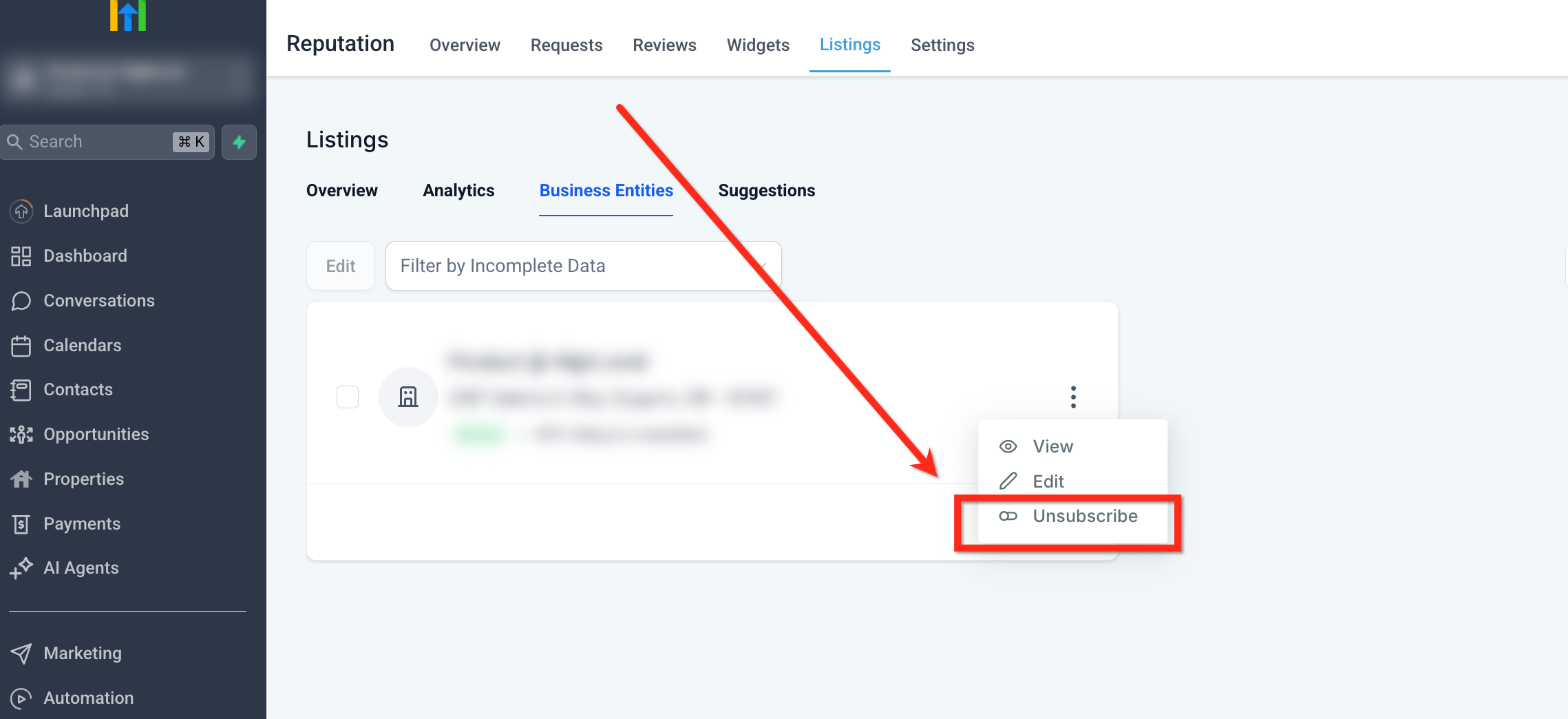
Step 2: Click Unsubscribe
- Under the Business Entities, click the 3 dots icon next to the business
- From the dropdown, select Unsubscribe
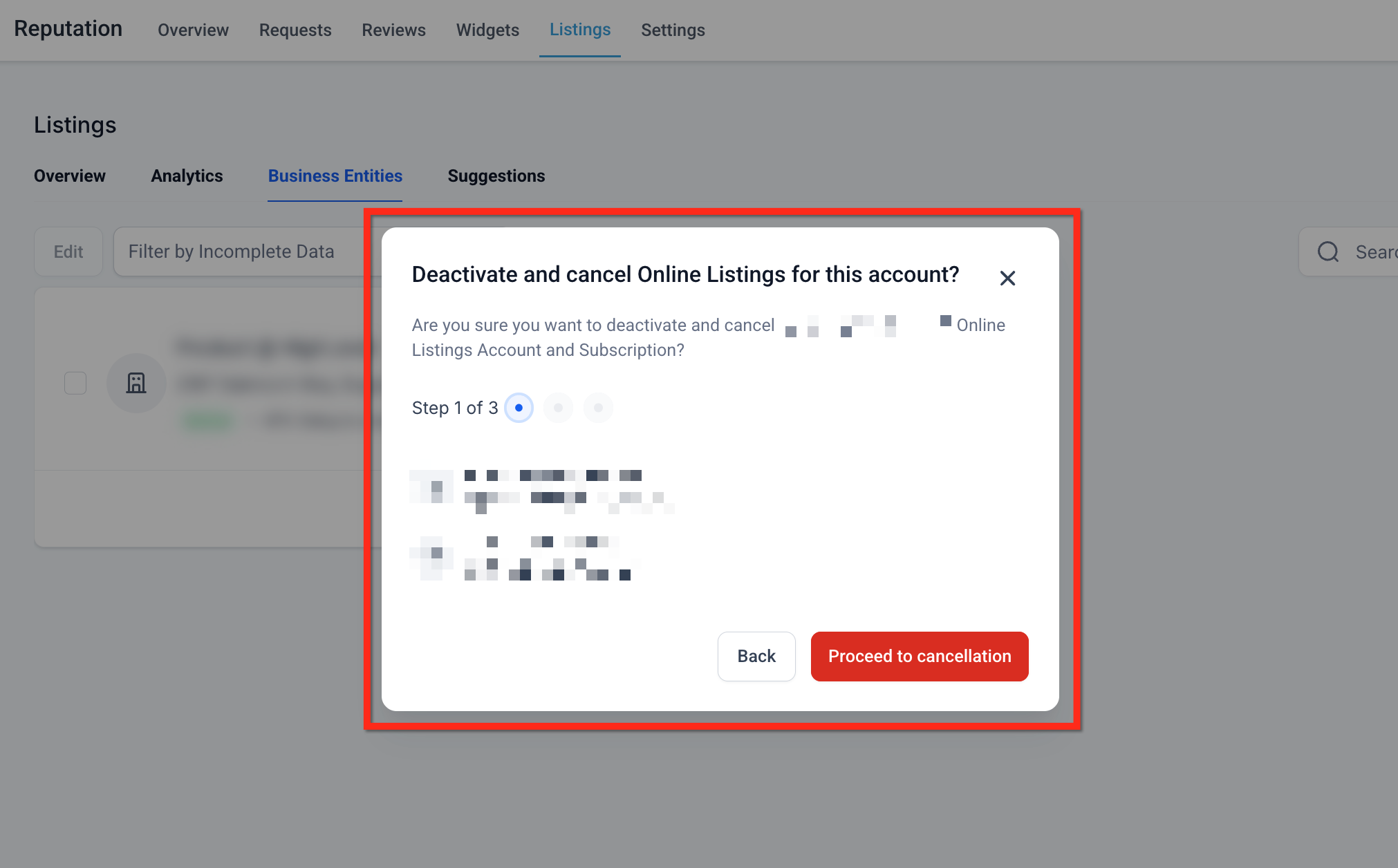
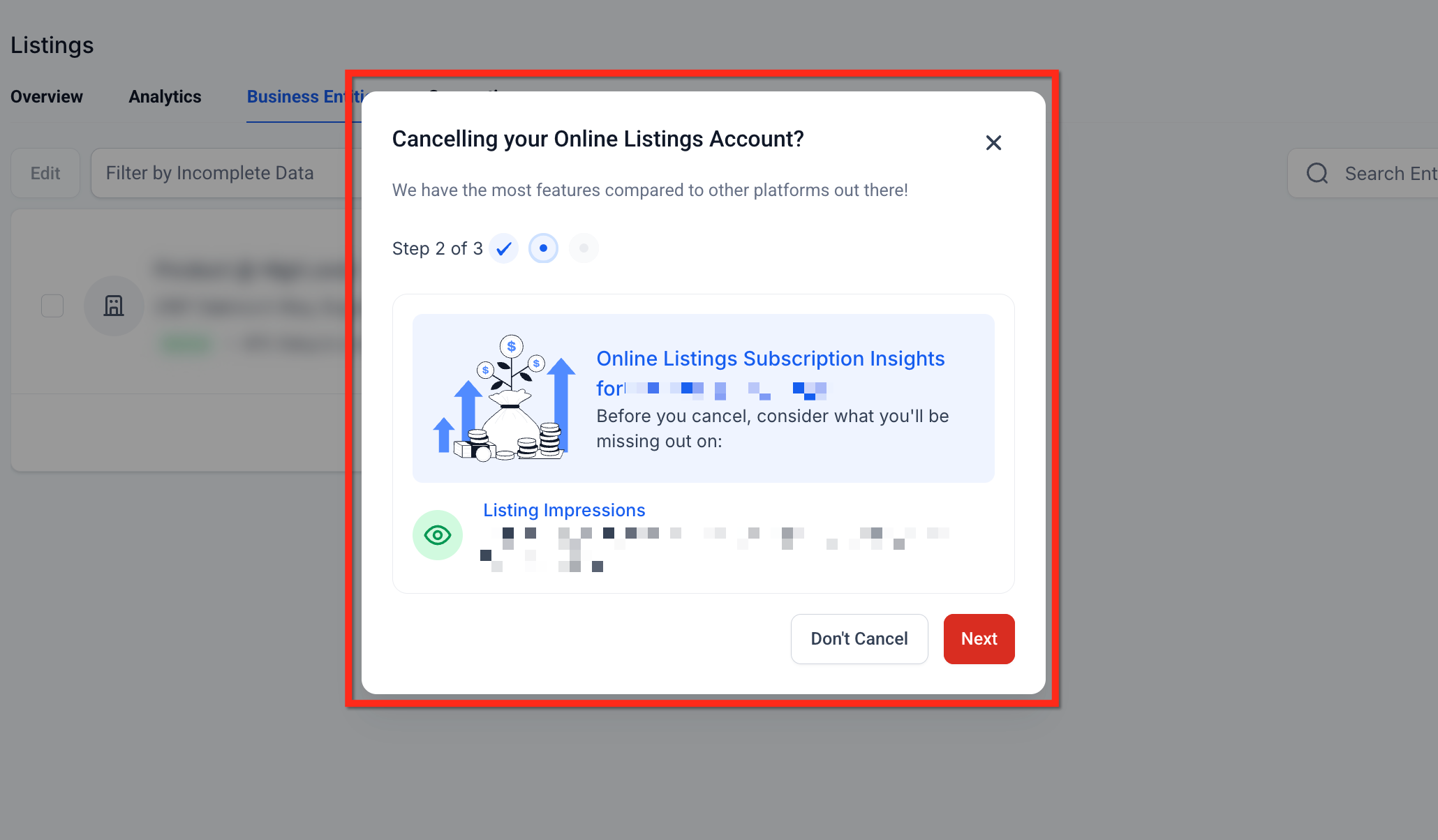
Step 3: Follow Cancellation Process
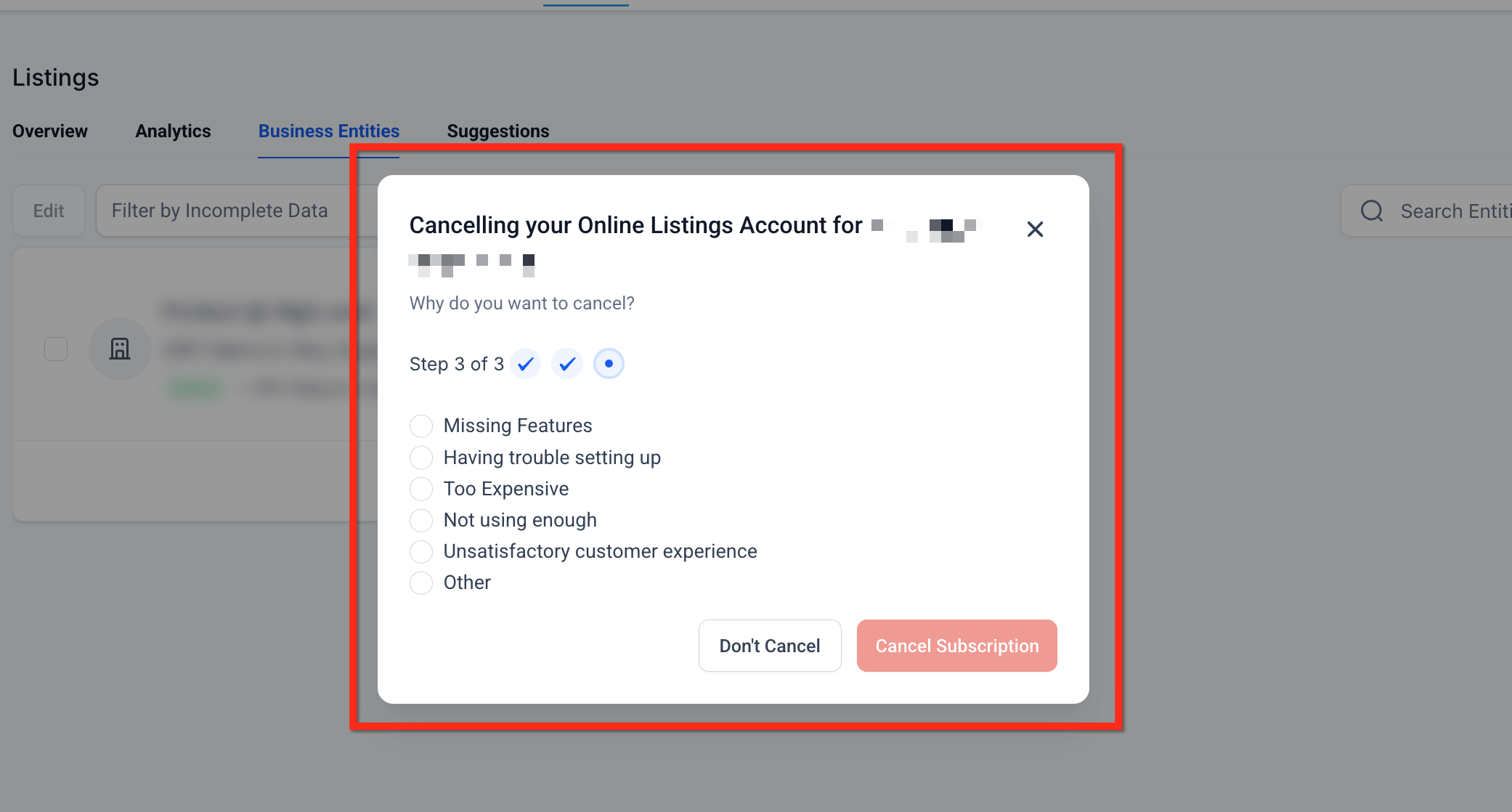
A pop-up opens to confirm the location details for Cancellation. Once confirmed, proceed to give the valid reason for your Listings cancellation and confirm. Your Listings subscription will be automatically cancelled in the backend. Once completed, you will receive a pop-up confirming the cancelation.
What Happens After You Cancel Listings
It's important to understand the implications of cancelling Listings:
Data Synchronization Stops: Your business information will no longer be updated across directories
Potential Inconsistencies: Over time, discrepancies may arise in your business information across different platforms
Impact on SEO: Your local SEO rankings may be affected due to inconsistent information.
Billing Stops: You will no longer be billed for the Listings feature
Troubleshooting Failed Cancellations
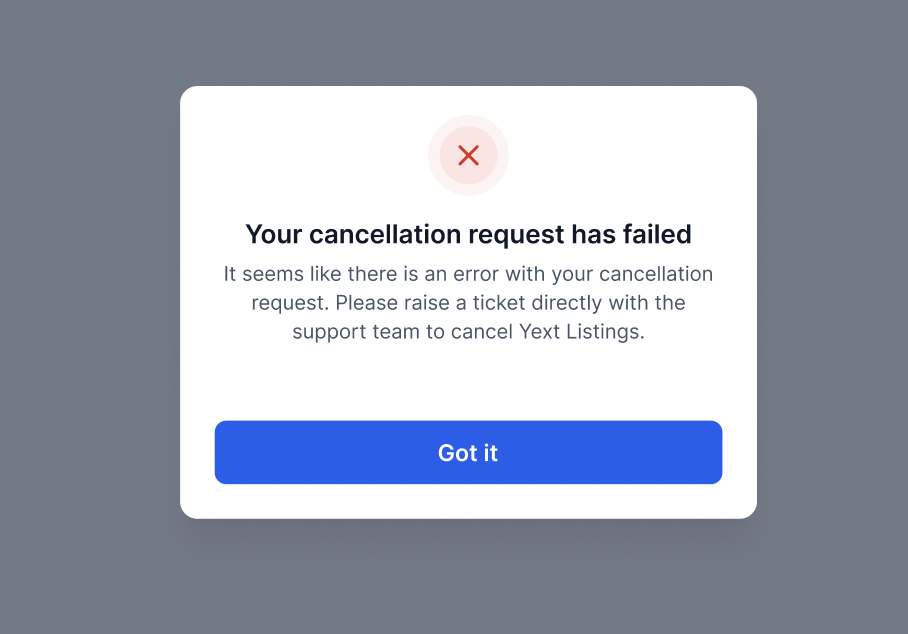
In an event when the Cancellation fails, you will get an error message as shown below. In such cases, please raise a cancellation request with the support team.
Frequently Asked Questions
Q: Can I reactivate Listings after cancellation?
Yes, you can reactivate Listings at any time by following the setup process within your sub-account.
Q: Will my business information be removed from directories after cancellation?
No, the information will remain but will no longer be actively managed or updated through Chat To Clients CRM.
Q: Is there a cancellation fee or penalty?
No. You can cancel Listings at any time with no additional fees. Billing stops immediately upon cancellation.