
How To Embed External Content On A Dashboard
You can embed webpages and media from other sites into your dashboard.
TABLE OF CONTENTS
More Tutorials from the Community
https://www.youtube.com/watch?v=JTdNRFCVldI
https://www.youtube.com/watch?v=Bs0sutIRkyU
What Is Embedding?
When you want to display data from outside your subaccount on your dashboard, that is embedding. If a different platform supports embedded content, you can display various elements like web pages, Google Data Studio reports, Google Docs, slideshows, calendars, Loom videos, YouTube videos, social media posts, feeds, and more.
Some platforms do not allow embedding of their content, they block it.Embed Content On A Dashboard
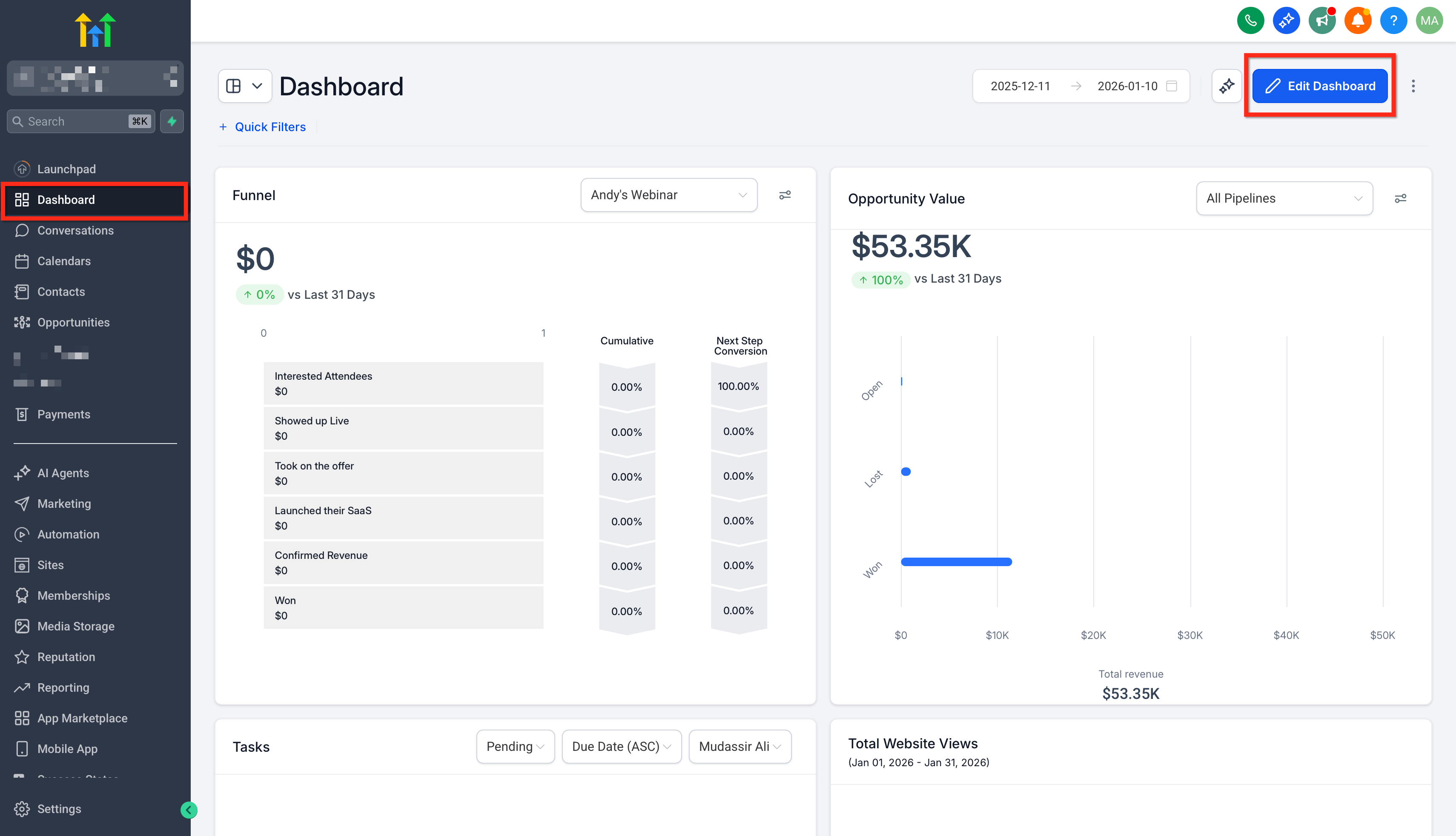
Step 1: Open The Dashboard In Edit Mode
Navigate to Subaccount > Dashboard > Edit Dashboard by clicking the pencil button.
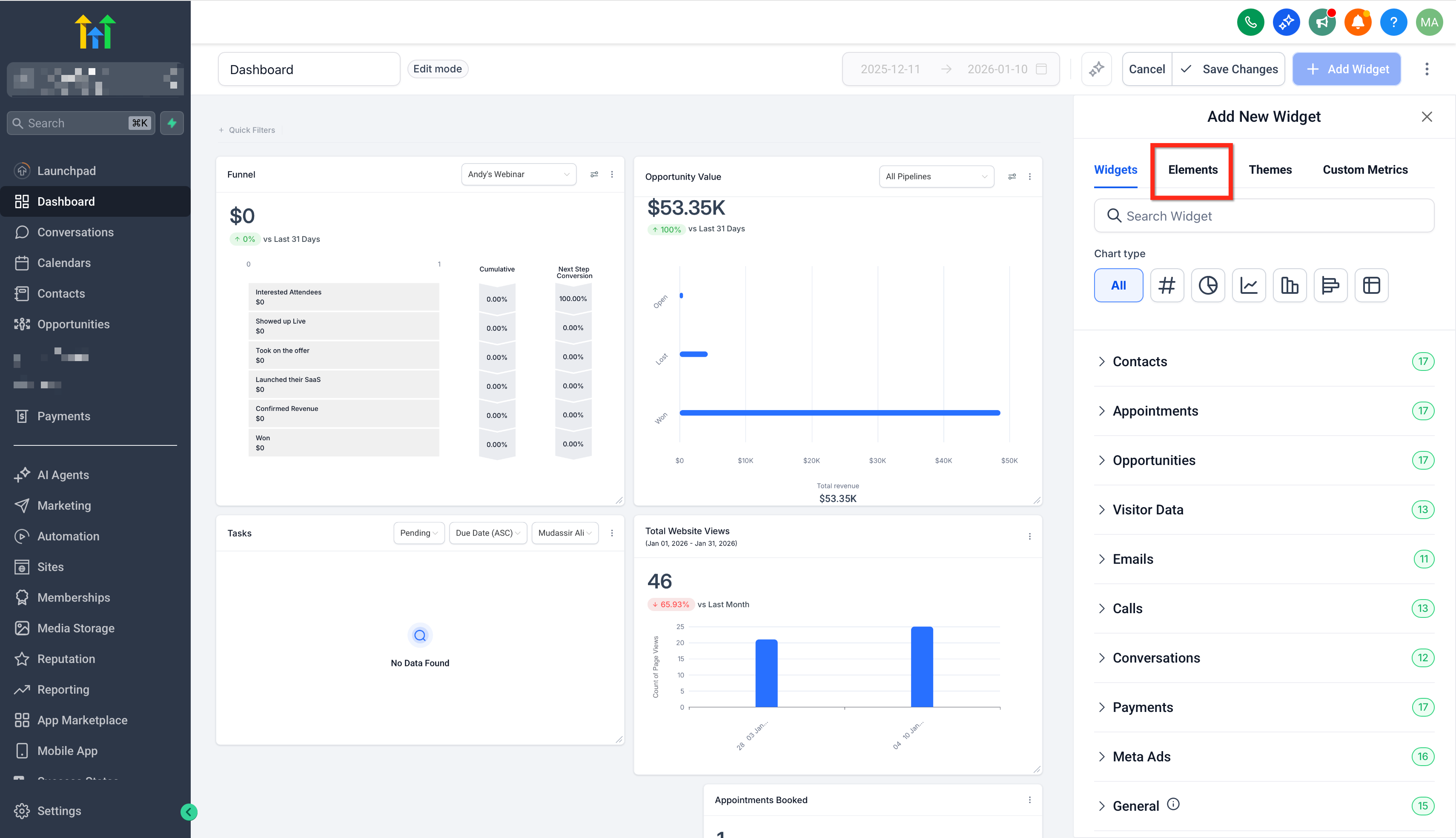
Step 2: Open The Elements Tab
Click on the Elements tab.
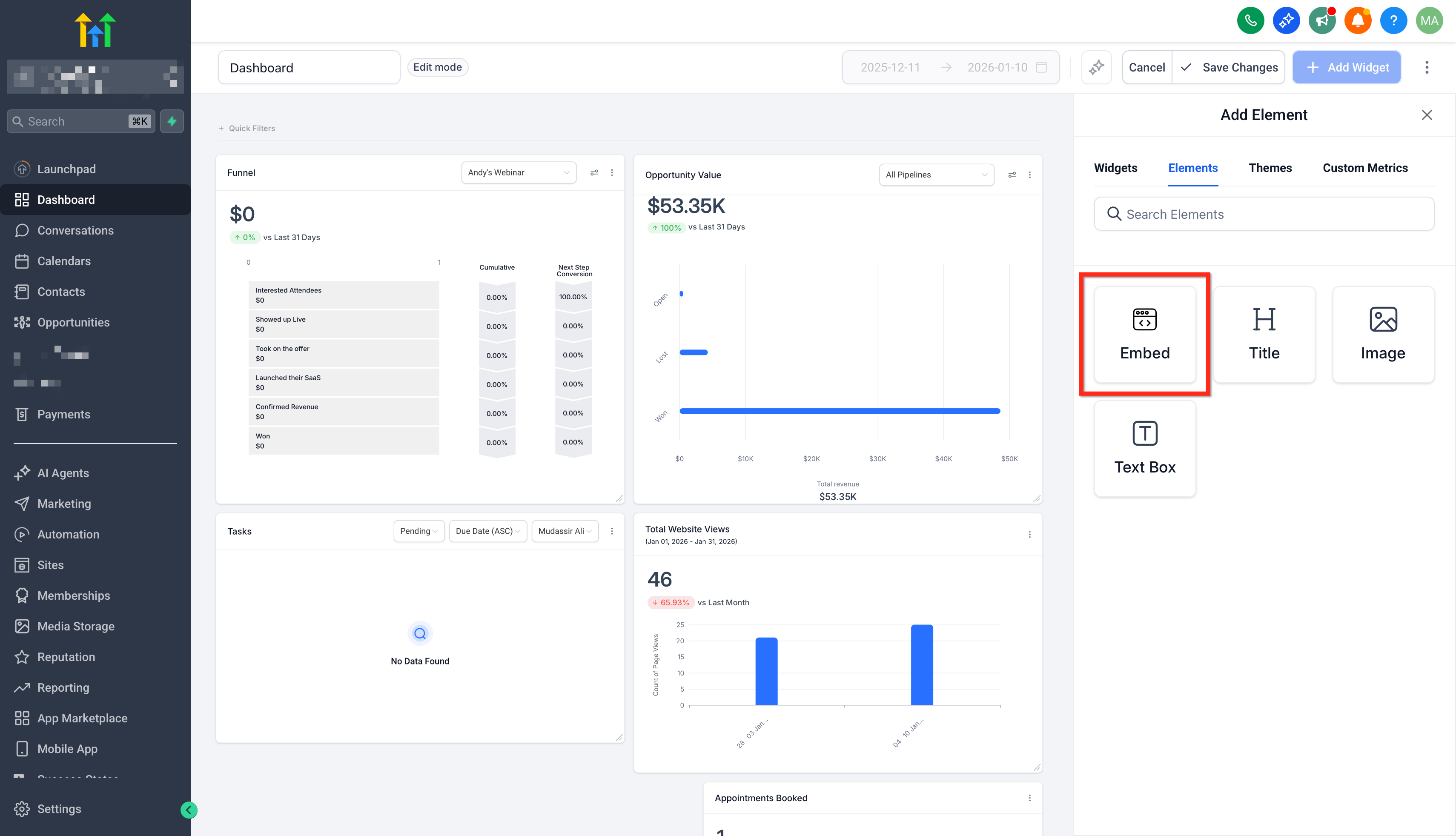
Step 3: Click The Embed Button
Click the Embed button.
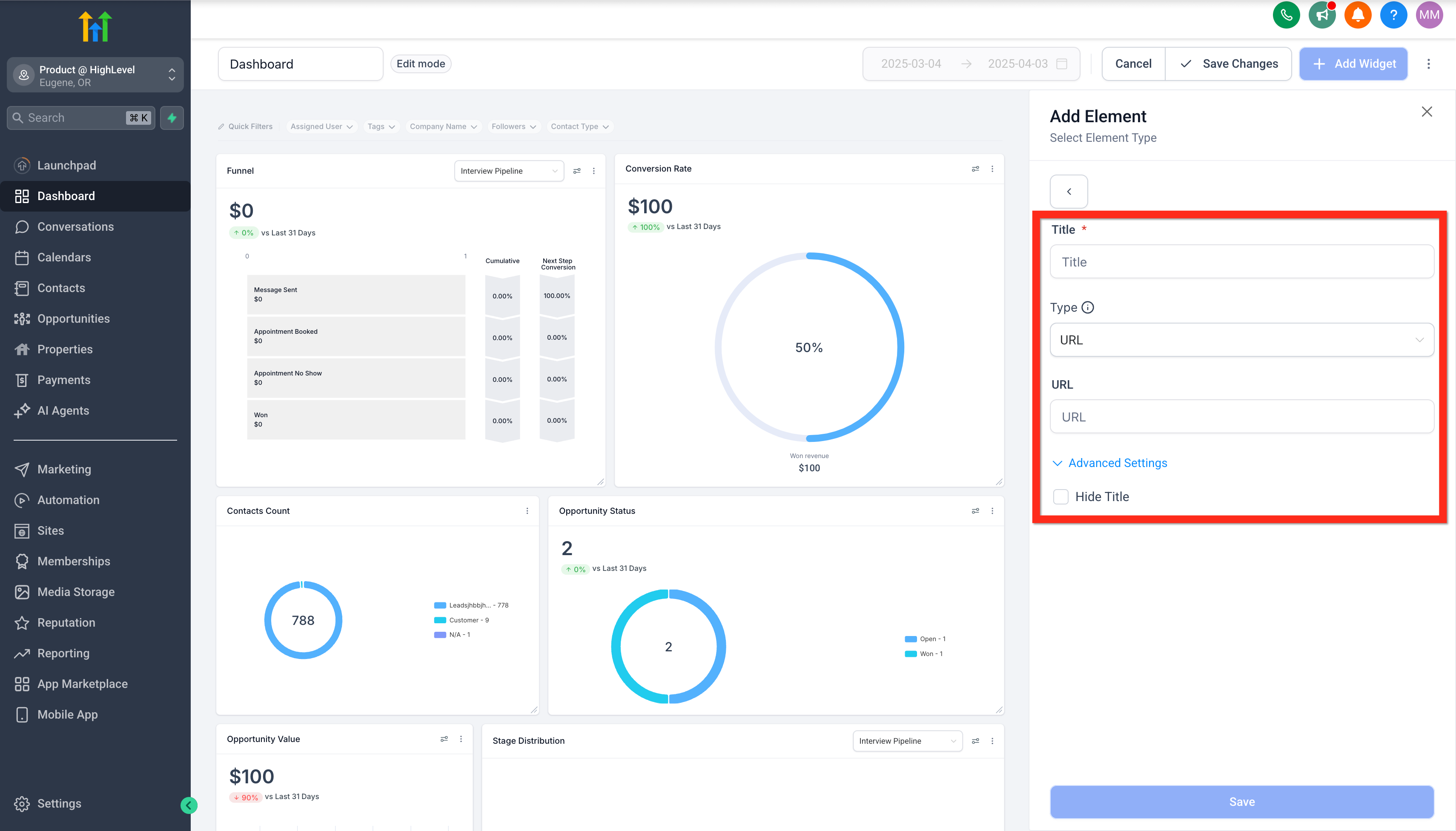
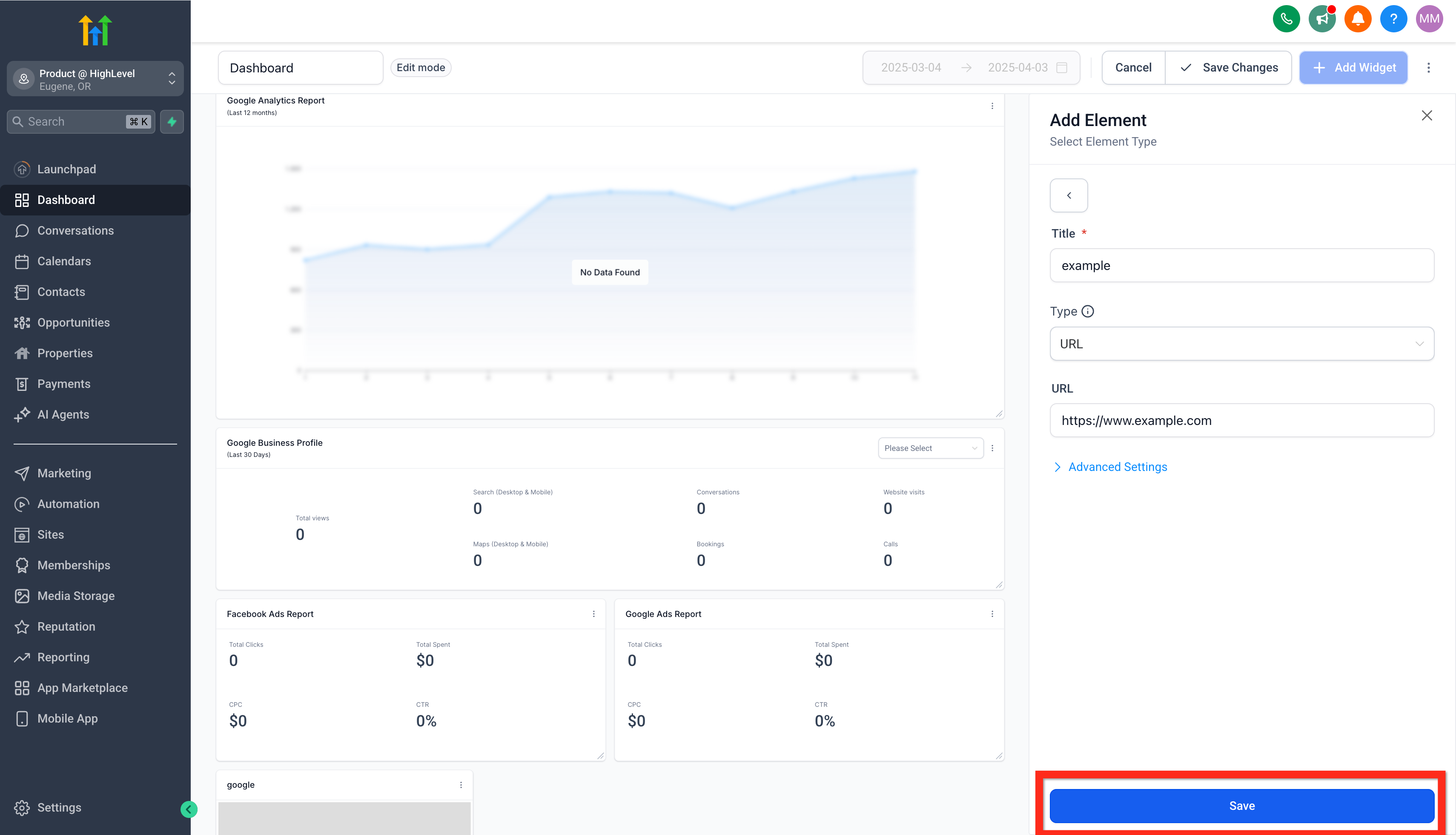
Step 4: Configure The Embed Element
Write in your desired title and set your desired type of embed.
- URL: enter only a fully qualified URL with no other content ex: https://www.instagram.com/p/C04TE0DsEkW/embed/
- IFRAME: enter a full iframe snippet ex: <iframe src="https://www.openstreetmap.org/export/embed.html?bbox=-0.004017949104309083%2C51.47612752641776%2C0.00030577182769775396%2C51.478569861898606&layer=mapnik">
Optionally, hide or show the element's title in advanced settings.
Step 5: Save Changes
Click the blue save button to save the element to the dashboard.
Types Of Embeddable Content
Youtube
- Add an Embed element, then add the video's ID number (found after /video/ in the URL) to https://www.youtube.com/embed/
- For example if your youtube URL is https://www.youtube.com/watch?v=bFTIQDCvIrc , then copy the video ID "bFTIQDCvIrc" and add it to https://www.youtube.com/embed/. So your final URL will be https://www.youtube.com/embed/bFTIQDCvIrc
TikTok videos
- Add an Embed element, then add the video's ID number (found after /video/ in the URL) to https://www.tiktok.com/embed/
Instagram Posts
- Get the sharable link for your instagram post. You'll get a link similar to this:
https://www.instagram.com/p/C04TE0DsEkW/?utm_source=ig_web_copy_link - You'll need to replace ?utm_source=ig_web_copy_link with /embed/. The URL should look like this afterward:
https://www.instagram.com/p/C04TE0DsEkW/embed/ - Add this final URL on your embed element configuration.