Create a Template
We're thrilled to introduce Certificates, a fantastic feature designed to acknowledge and celebrate user accomplishments in your community. With Certificates, you can create personalised certificates and issue them to your users. In this initial release, we've focused on making it easy to award certificates for course completion.
Here's how to get started:
In This Article
Key Features:
The Certificate Builder is rebuilt to load faster, edit smoothly, and support more professional layouts without third-party tools.
Responsive canvas: Smooth, real-time editing with instant previews.
Standard and custom sizes: Choose A4, US Letter, or set a custom canvas size.
Rich design elements: Add editable lines, shapes, graphics, and icons using drag-and-drop.
Modern templates: Start from professionally designed templates and customize for your brand.
Frames and signatures: Expanded frame options and signature fields with pre-designed font styles.
Background customization: Use a gradient background or upload an image, then zoom, pan, and crop to the exact area you want.
Tip: If you’ve used the Badge Builder, this experience is powered by the same design engine for consistent performance.
Where to find Certificates ?
To get started with certificates:
- Go to Memberships from the left bar (in a location) > Certificates
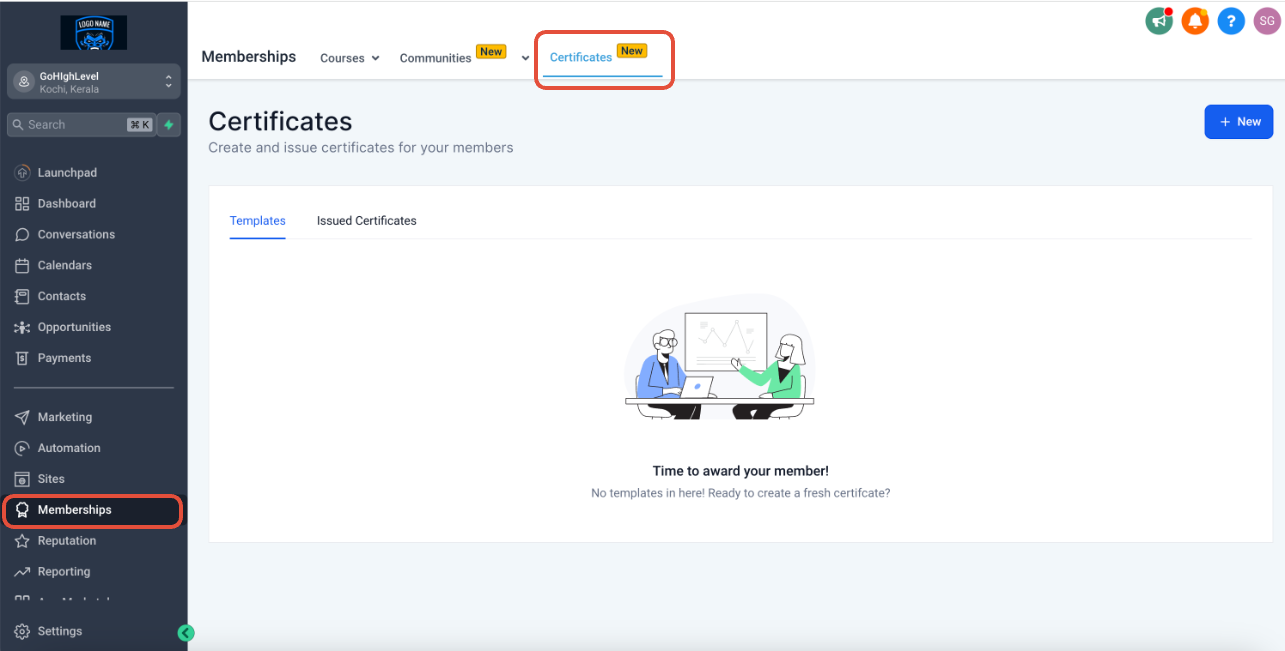
Create a template
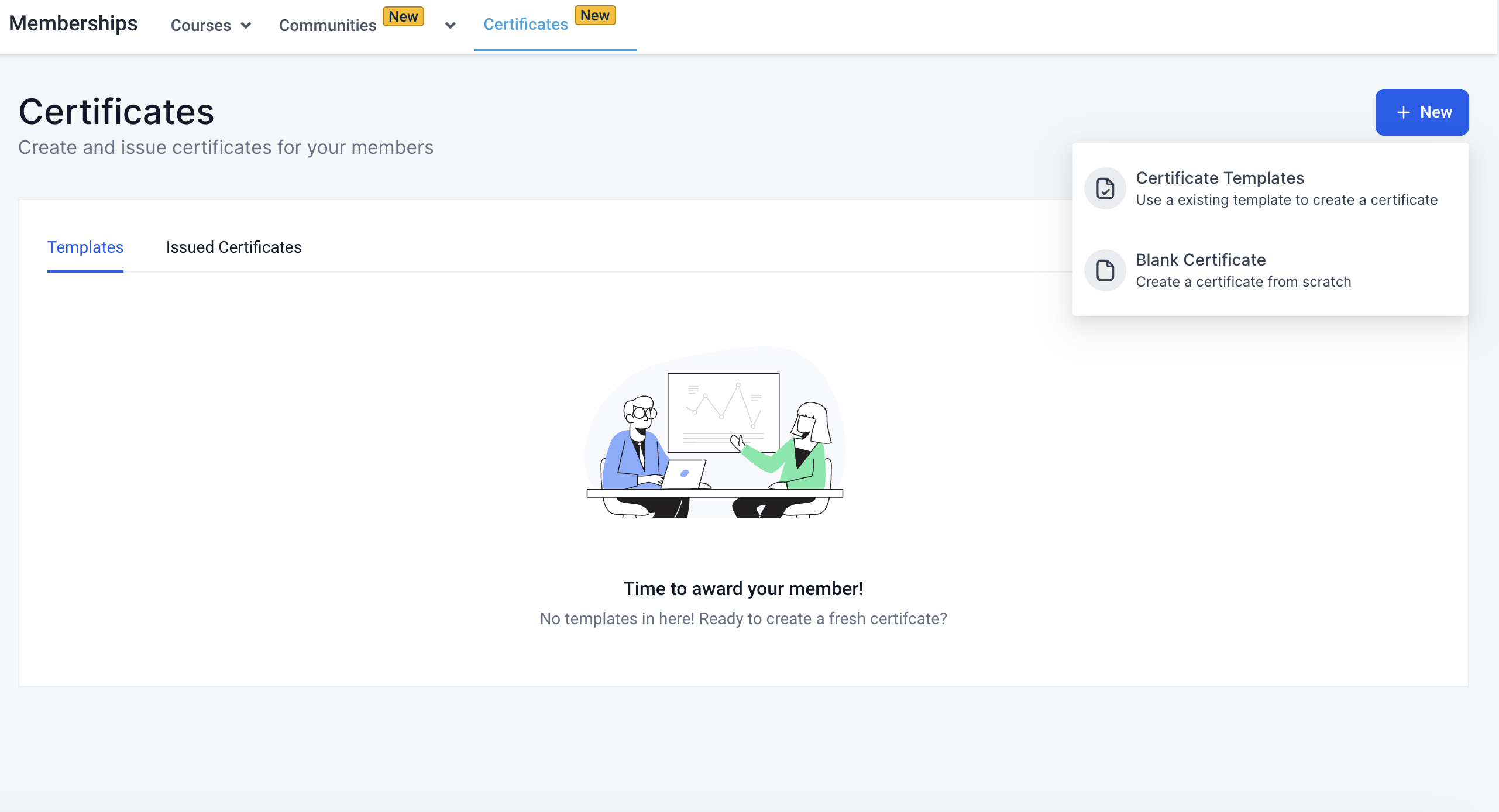
To start creating a certificate template:
- Click on New
- To create a template, choose Certificate Templates or Blank Certificates
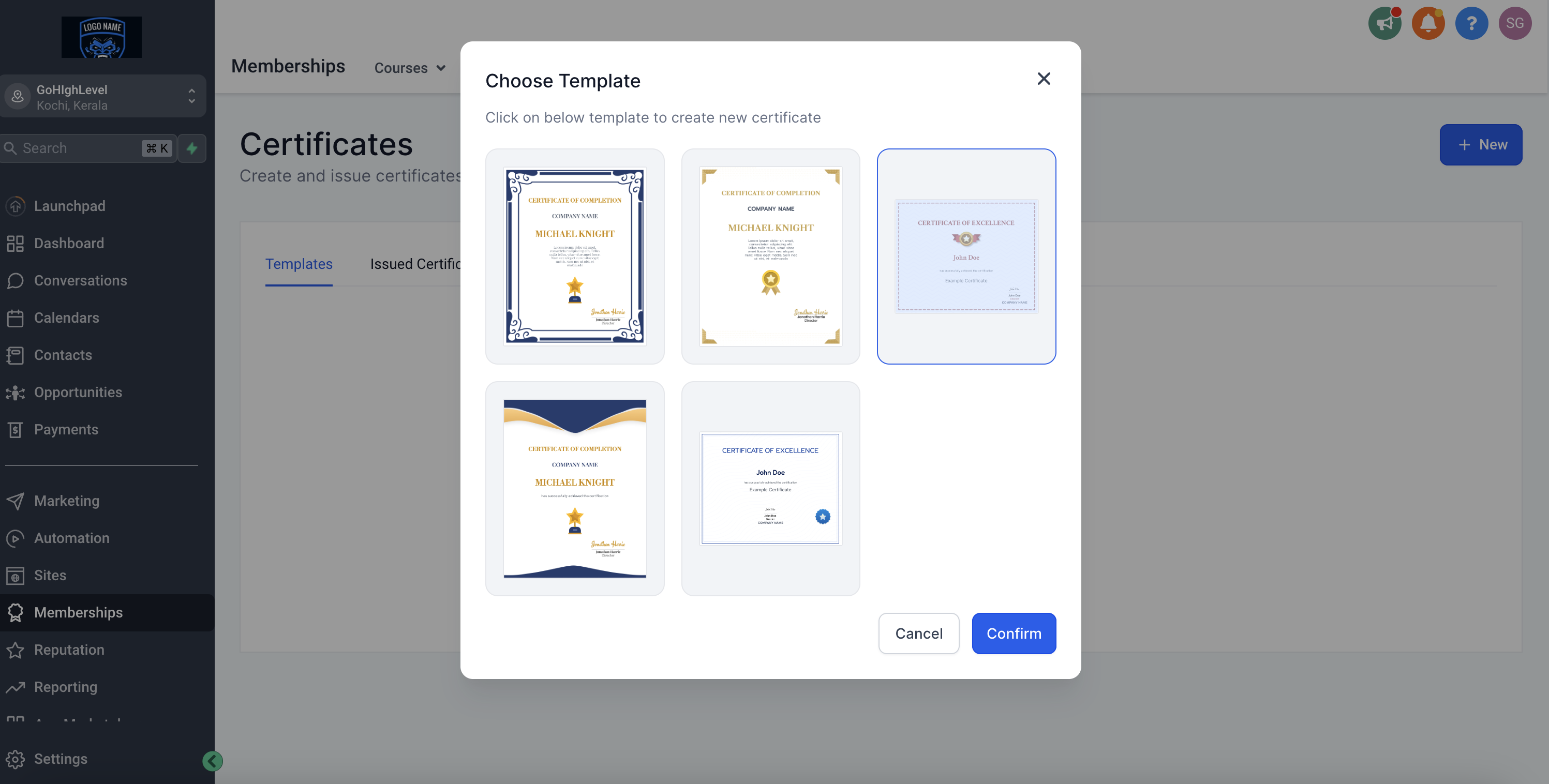
Choose an existing template
To create a template, choose from the existing templates:
- Select a template
- Click on Confirm
- Template is ready to use
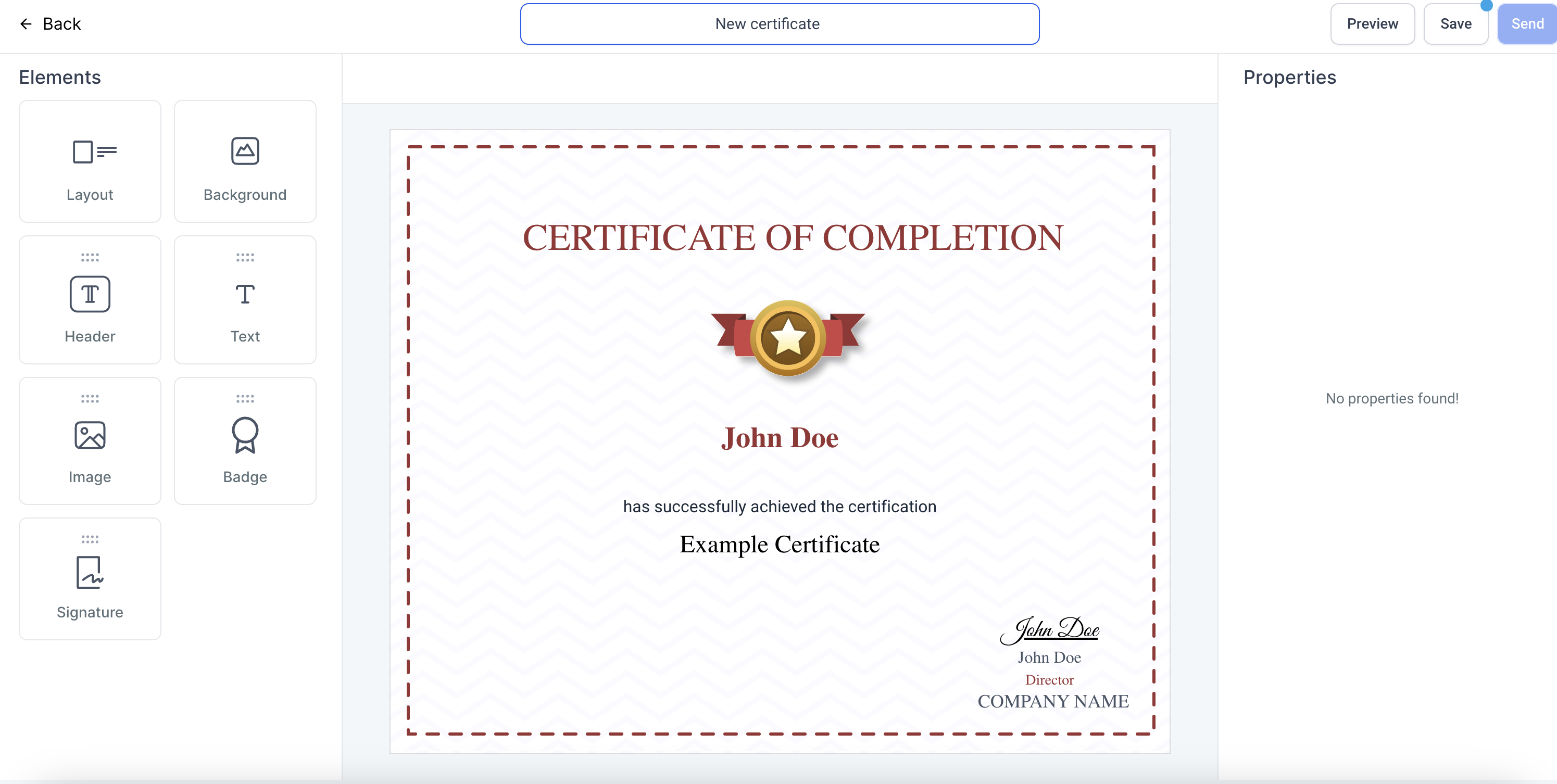
Create a template from scratch
To create a template from scratch:
- Click on Blank Certificates
- Start creating from scratch
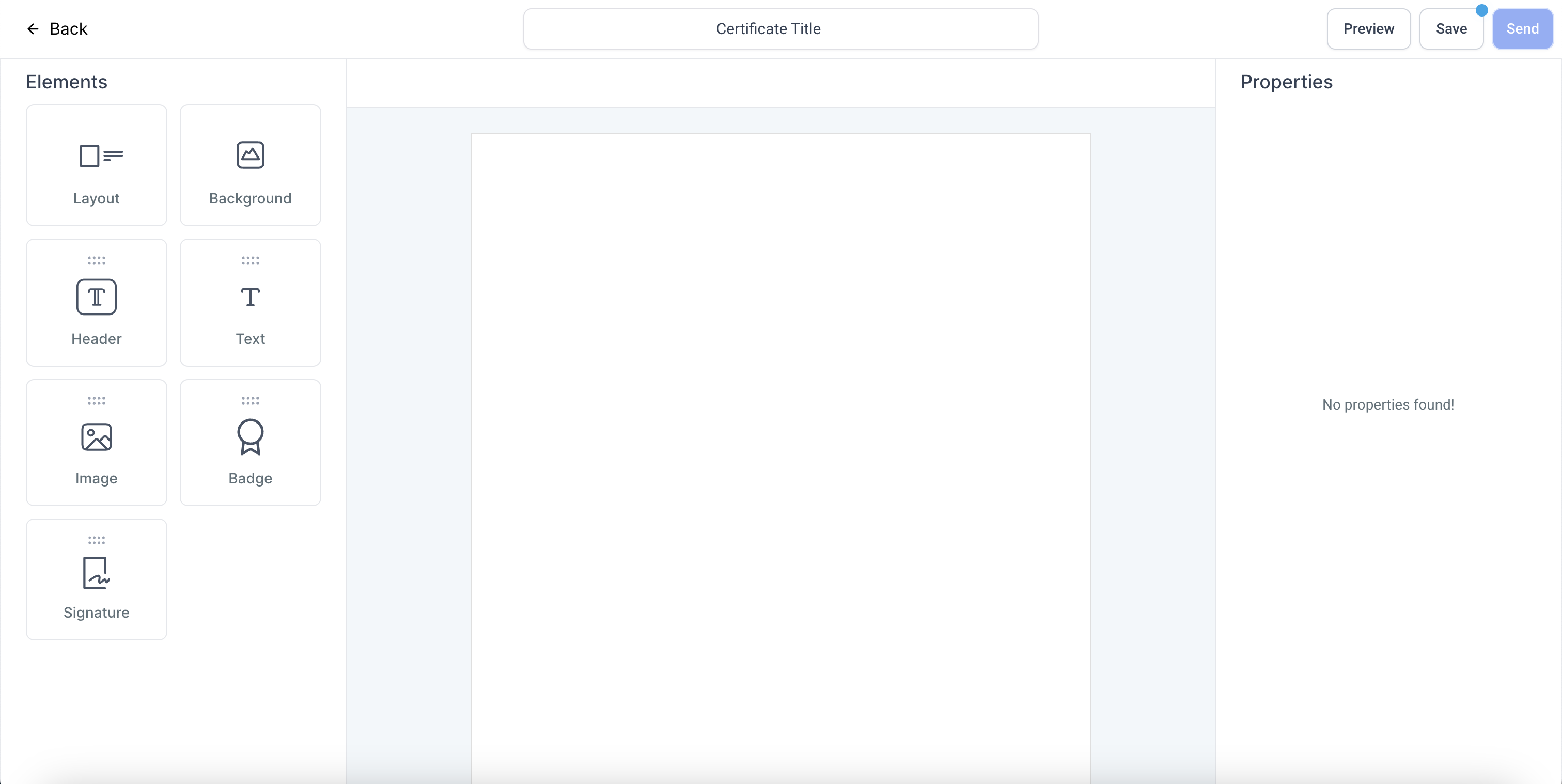
Selecting and Resizing Elements
Editing Templates
To edit a template, there are various elements to use:
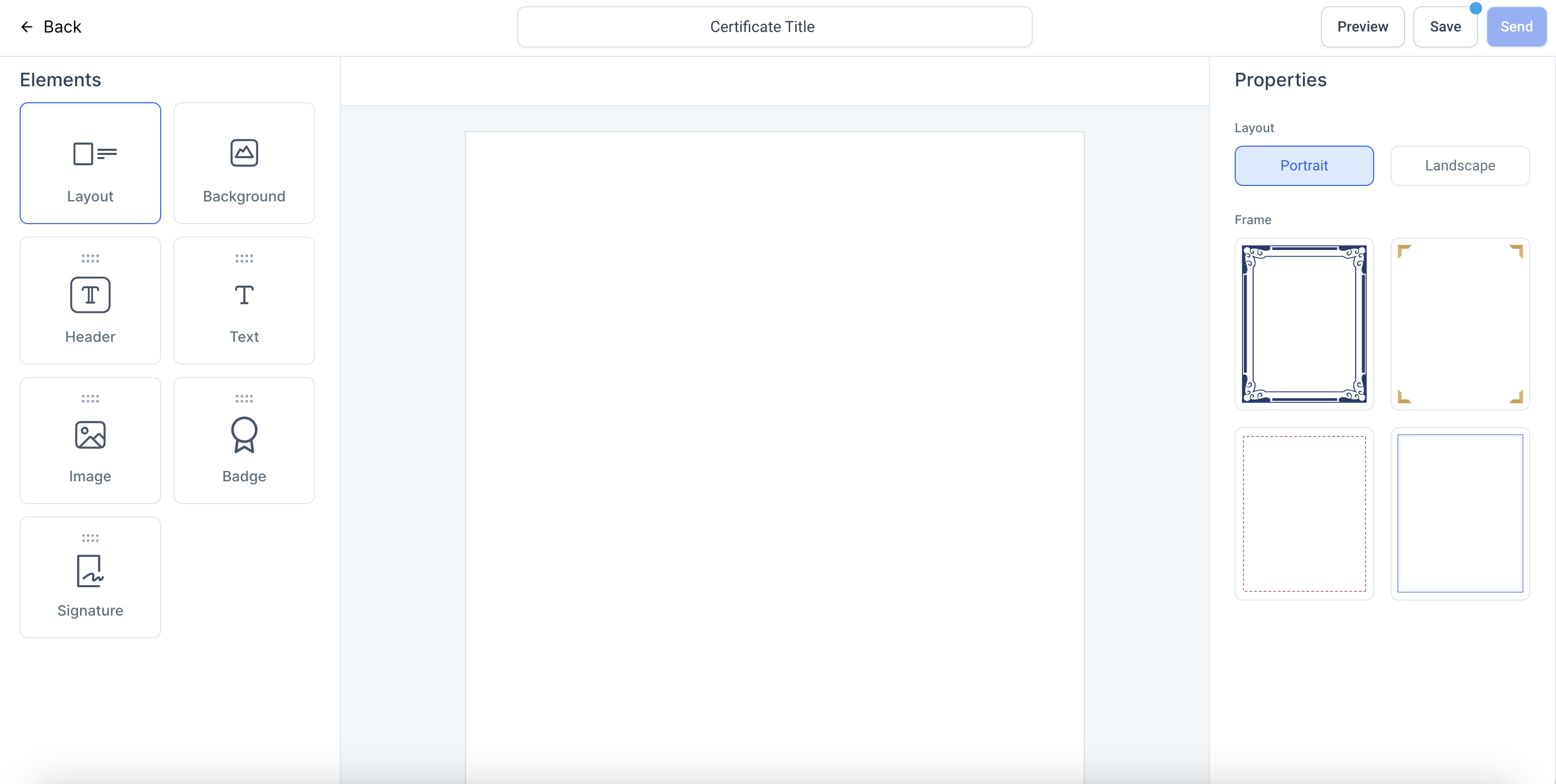
1. Layout:
To choose a layout, click on Layout, and choose between Portrait or Landscape
Once selected, you can choose frames for both the layouts, respectively
To remove a frame, click on the same frame again (from the right bar)
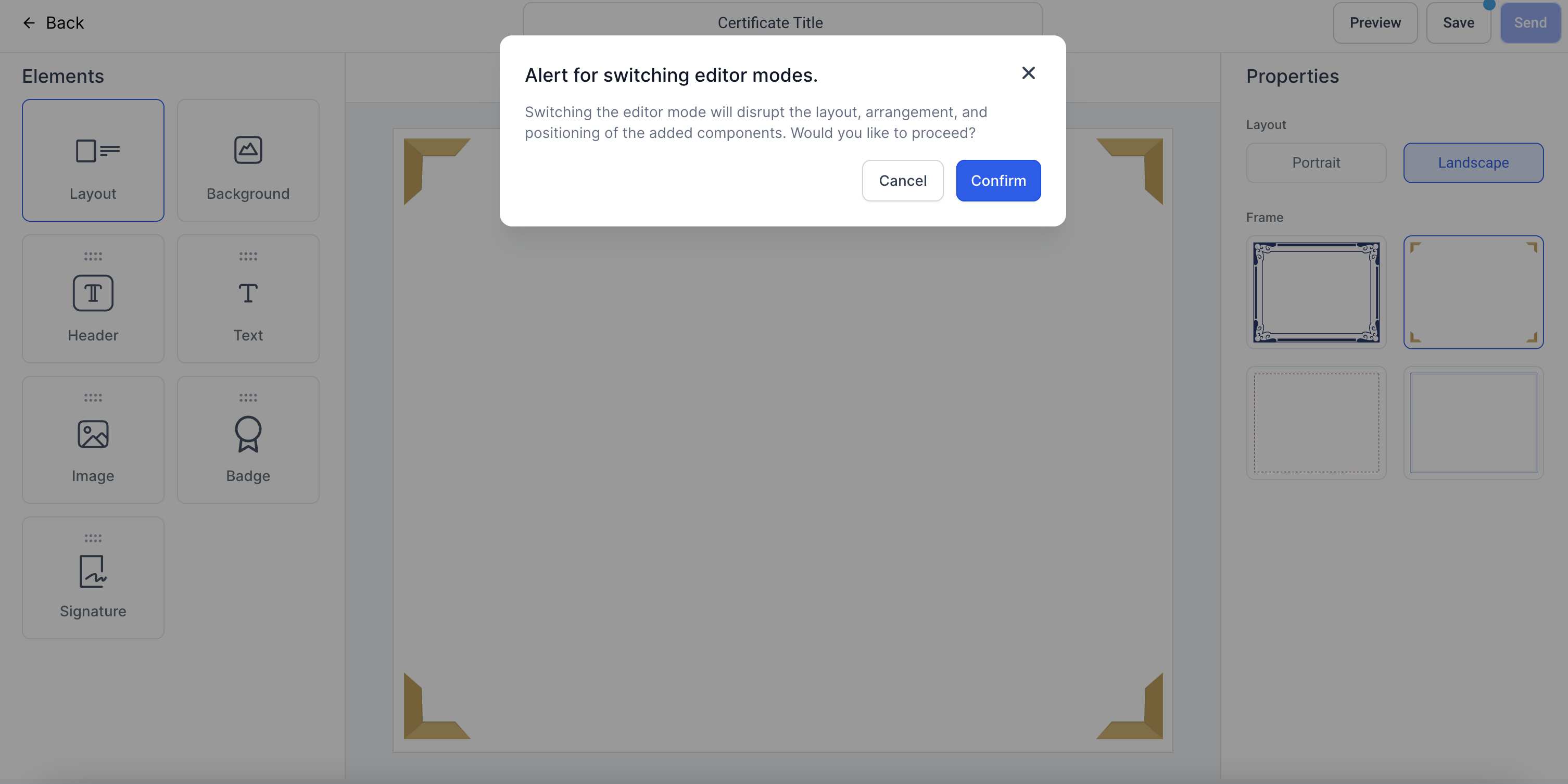
Note: Changing the layout from Portrait to Landscape or vice-versa, will disrupt the edits
2. Background:
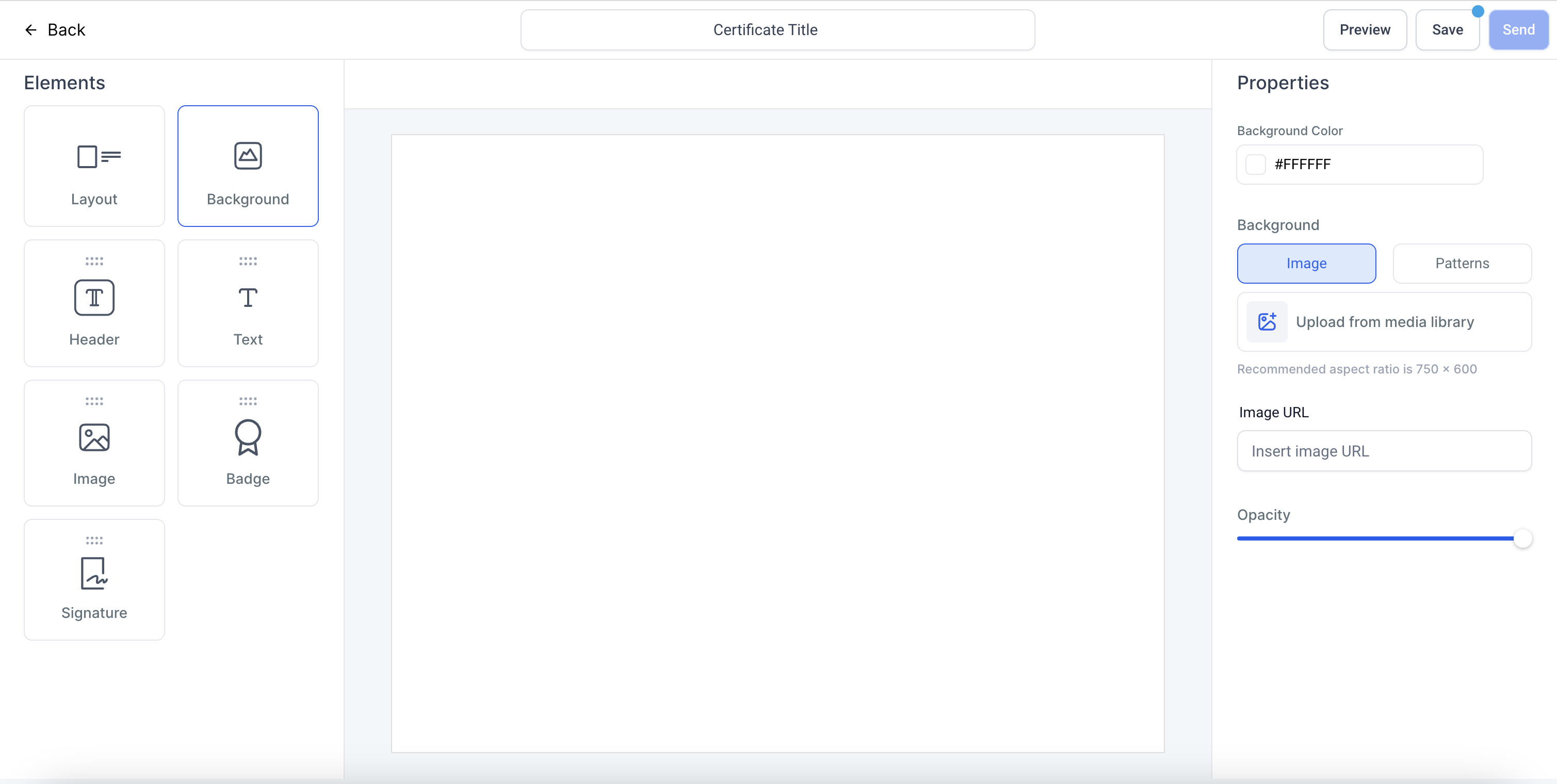
- To choose a background, click on Background
- Choose the colours
- Upload an image as background or enter image link to upload
- Choose the opacity of the background image or colour by using the opacity slider
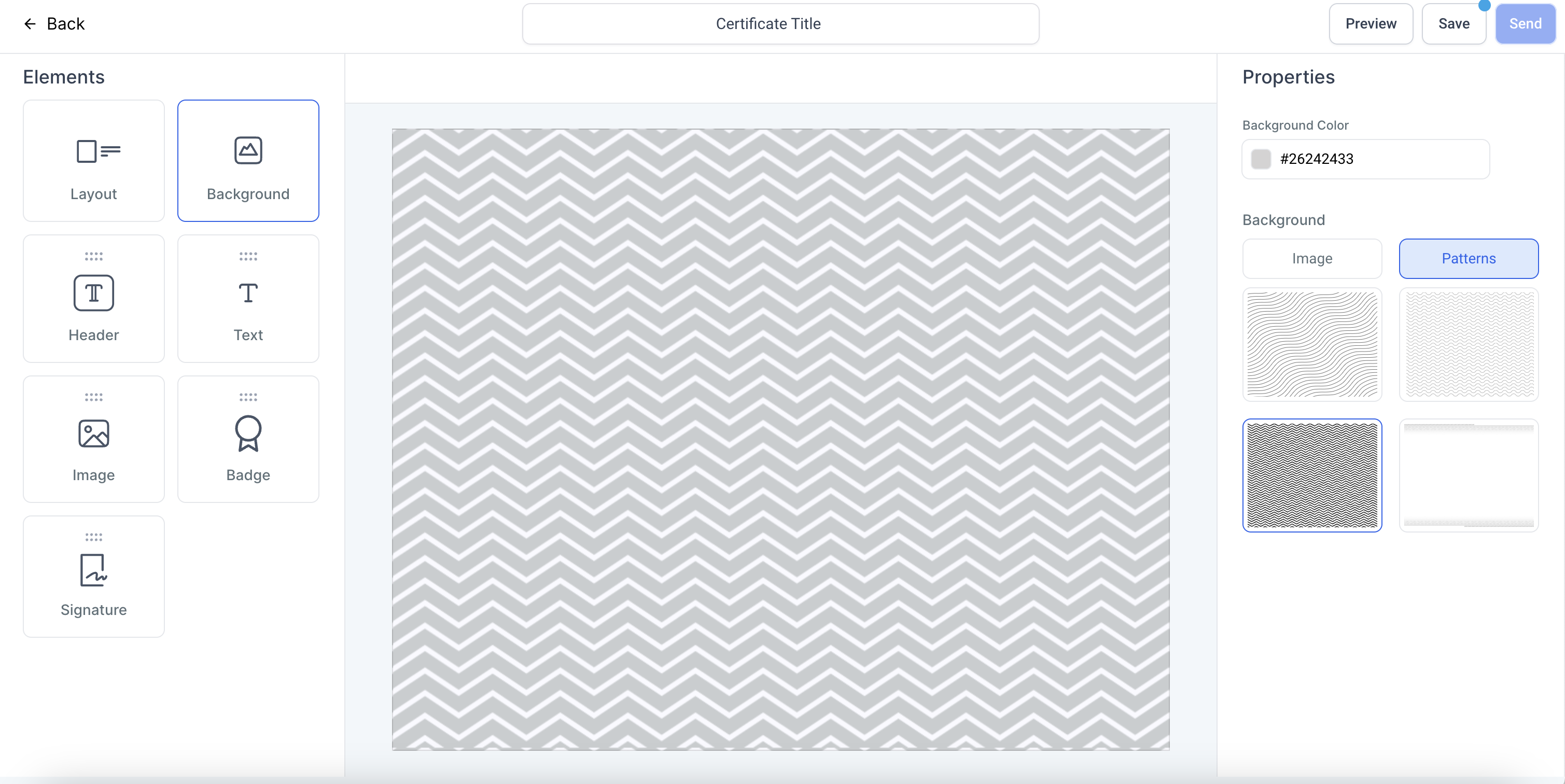
- To choose a pattern as background image, click on Patterns and choose a pattern. Further choose the colour of the pattern
3. Header
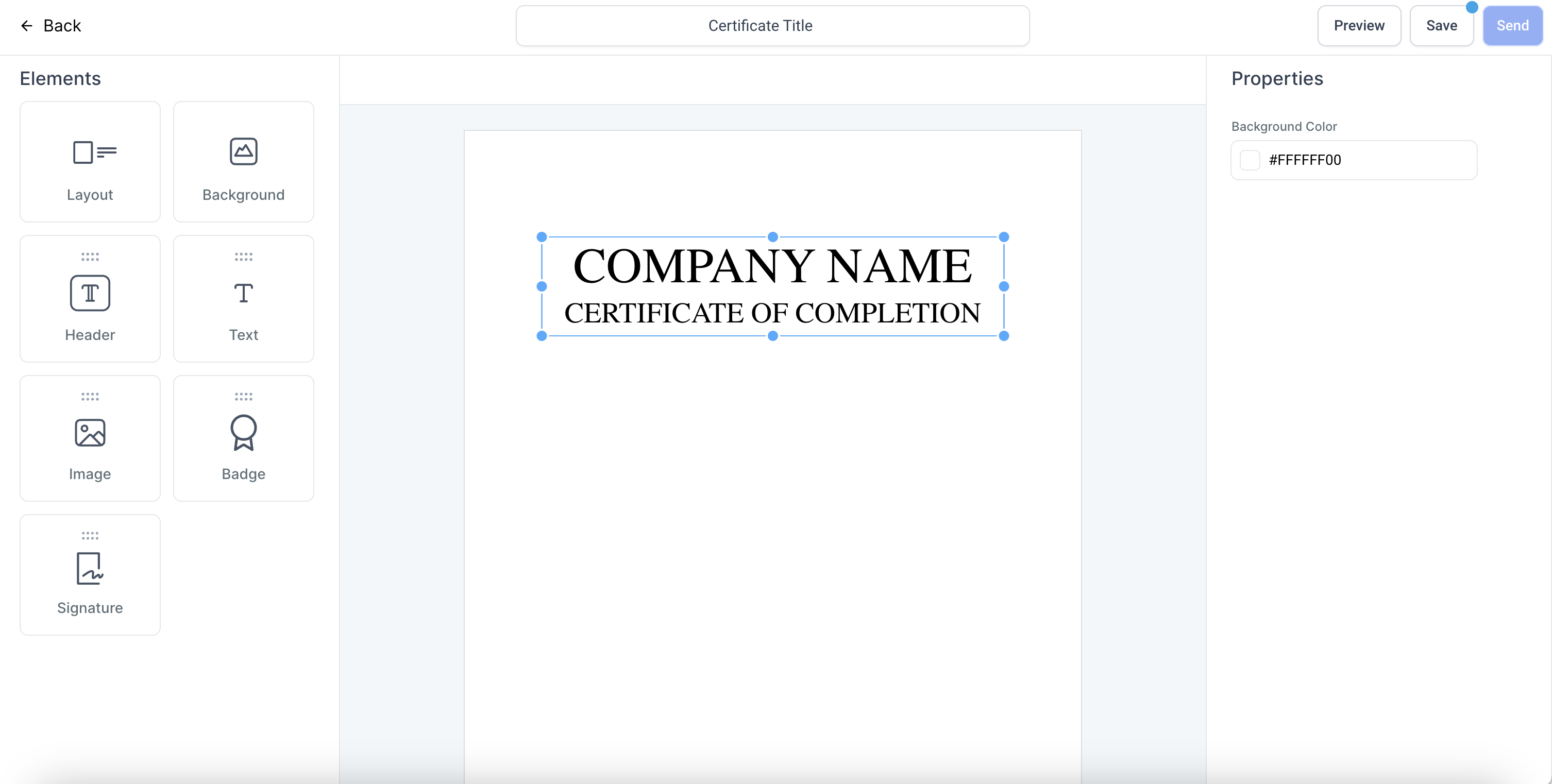
- To add a header, drag and drop the Header element to your template and start editing the text after selection
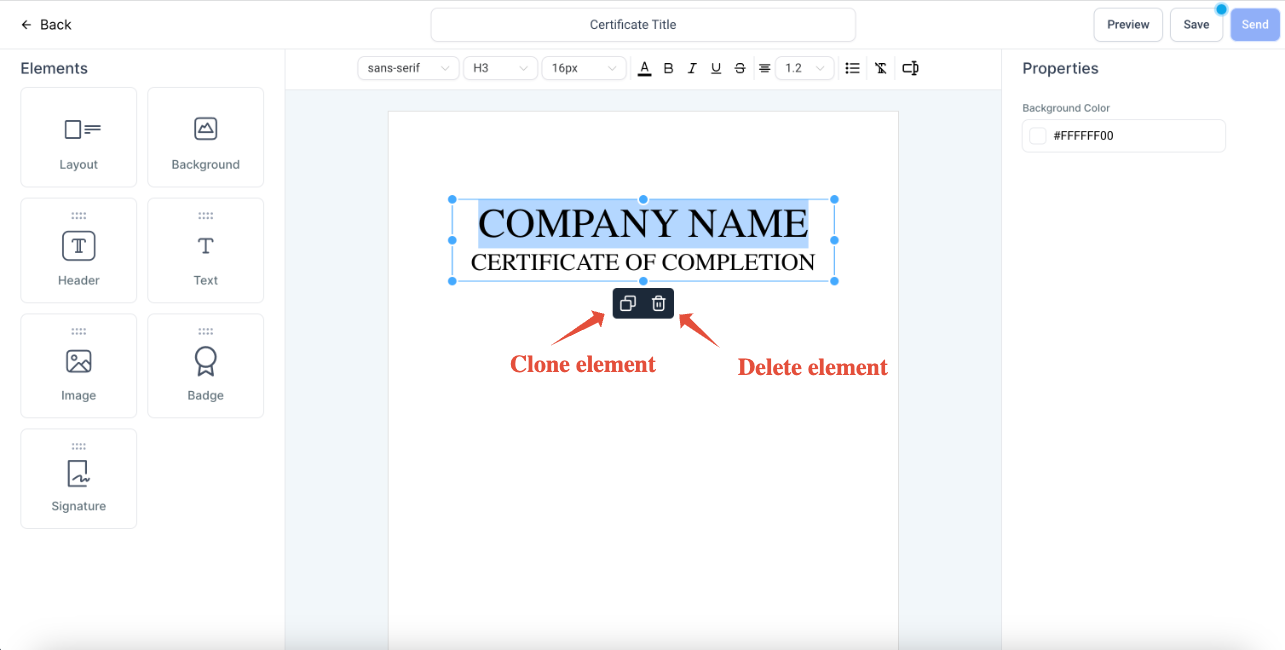
- Elements can be cloned or deleted by clicking on the copy and delete icons
- Choose Font Styles, Font Size, Font Type (Heading 1, Heading 2, etc ...), Font Colour, etc. from the top bar after selecting a text
- To resize the element, select it and drag an edge or corner to the desired size.
4. Text
- To add a text, drag and drop the Text element to your template and start editing the text after selection
- Elements can be cloned or deleted by clicking on the copy and delete icons
- Choose Font Styles, Font Size, Font Type (Headings,Paragraohs, etc..), Font Colour, etc. from the top bar after selecting a text
- To resize the element, select it and drag an edge or corner to the desired size.
- When editing text, use these keyboard shortcuts to apply formatting:
- Ctrl/Cmd + B: Bold
- Ctrl/Cmd + I: Italic
- Ctrl/Cmd + U: Underline
You can copy content from external sources and paste it into the Certificate Builder. Pasted content is handled without introducing broken formatting, making it easier to bring existing content into your design.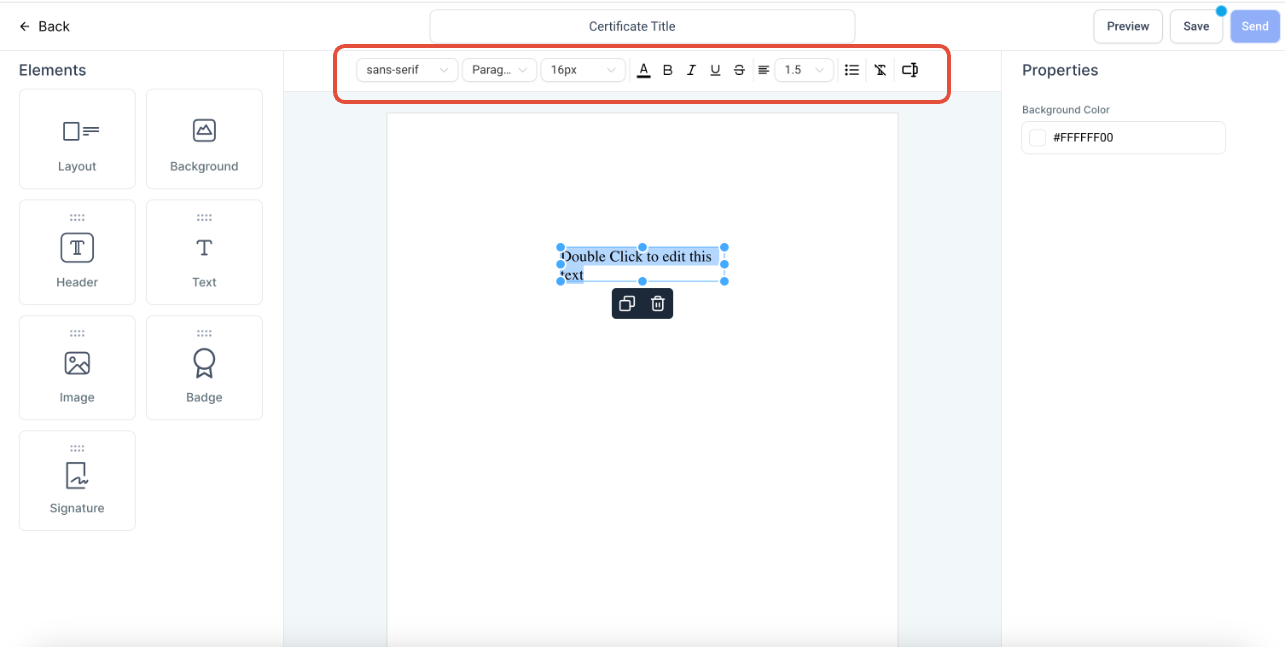
5. Image
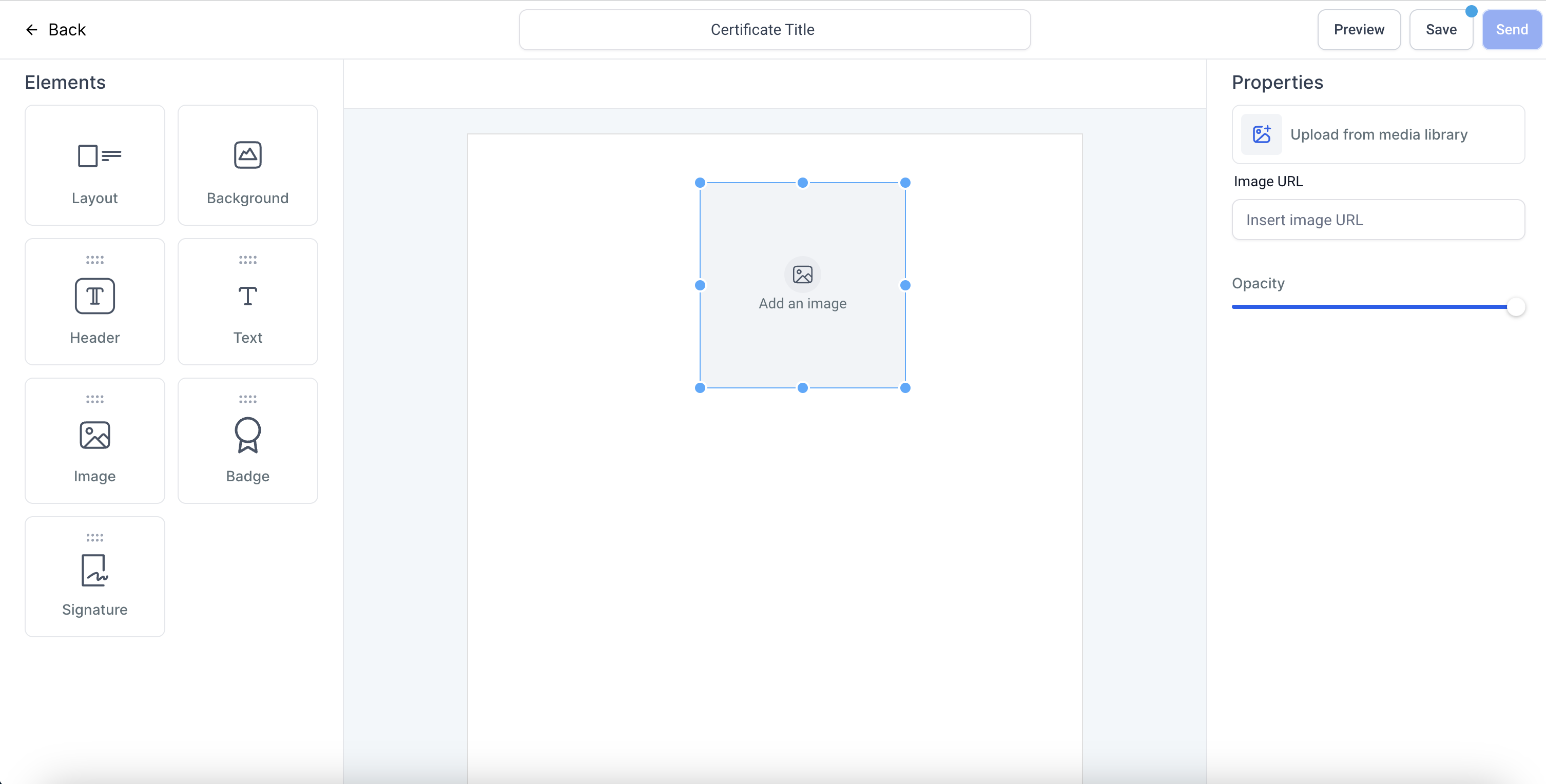
- To add an image, drag and drop the Image element to your template
- Upload an image or add the image link to upload
- Choose the opacity of the background image by using the opacity slider
- To resize the element, select it and drag an edge or corner to the desired size.
6. Badge
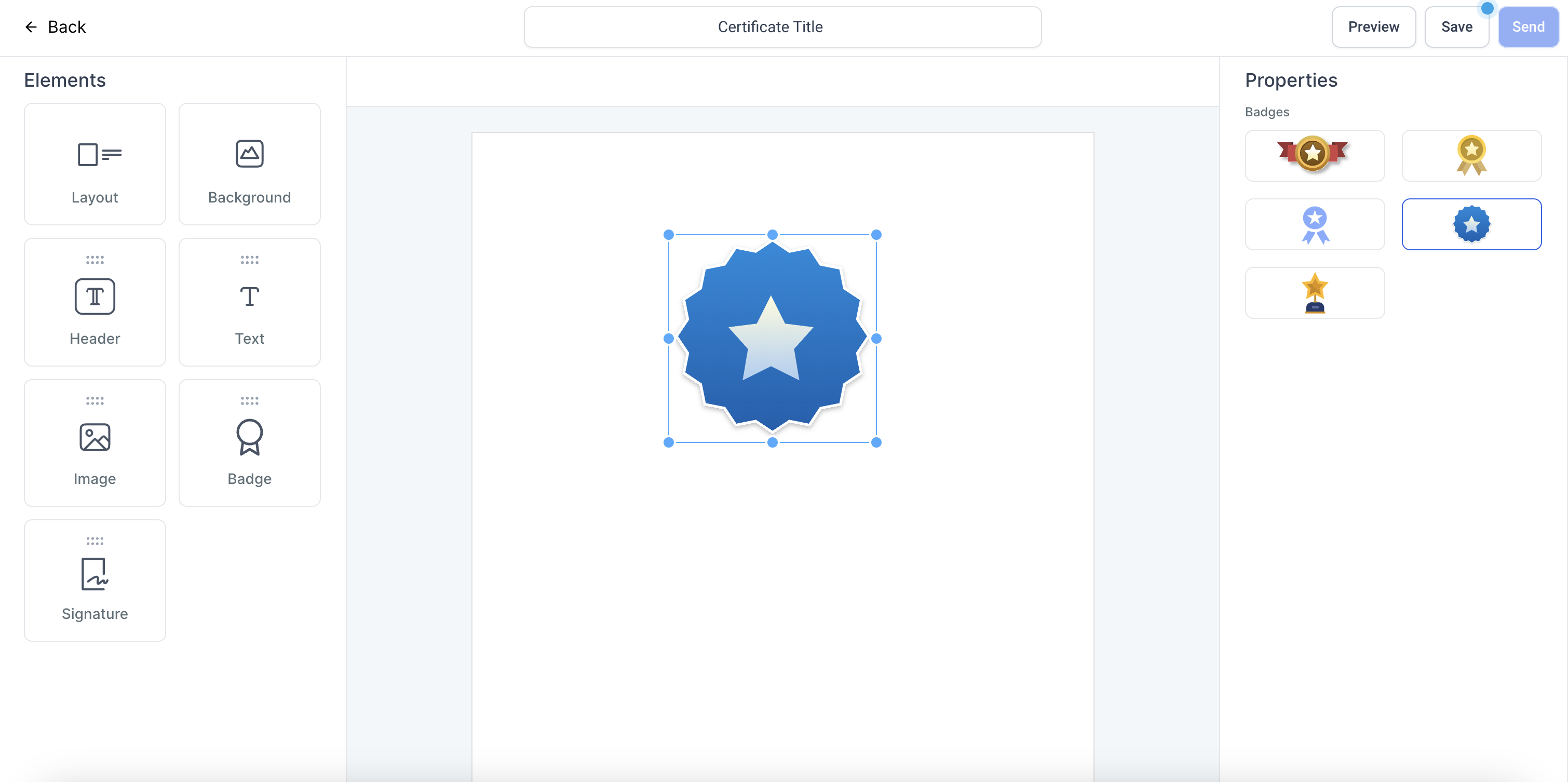
- To add a badge, drag and drop the Badge element to your template
- Choose a badge with from the options by clicking on it
- To resize the element, select it and drag an edge or corner to the desired size.
7. Signatures
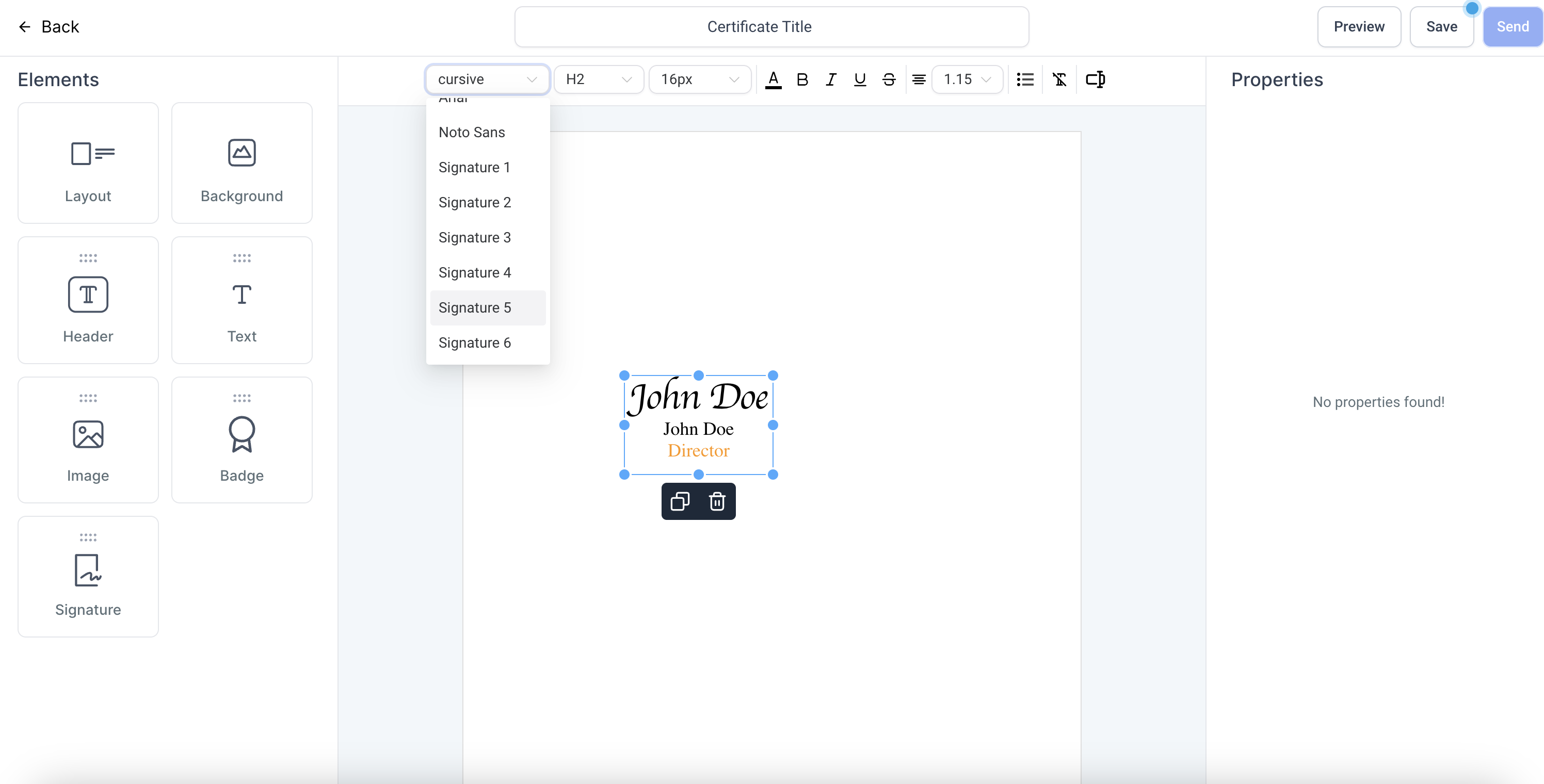
- To add a signature, drag and drop the Signature element to your template
- Choose a badge with from the options by clicking on it
- Choose the signature styles after selecting the signature
- To resize the element, select it and drag an edge or corner to the desired size.
Preview and Save a template
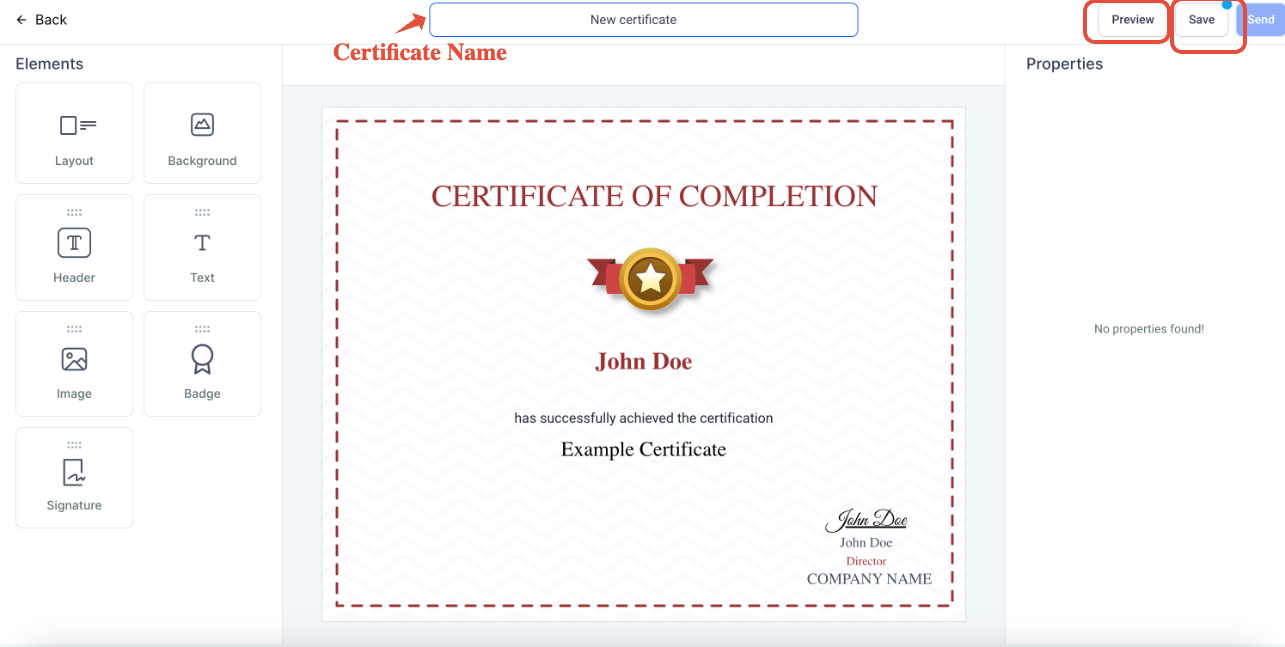
- To preview a template, click on Preview
- To save a template, click on Save
- Before saving a template, enter a relevant name for your certificate from the top section
Saved Templates
- Once saved, click on Back
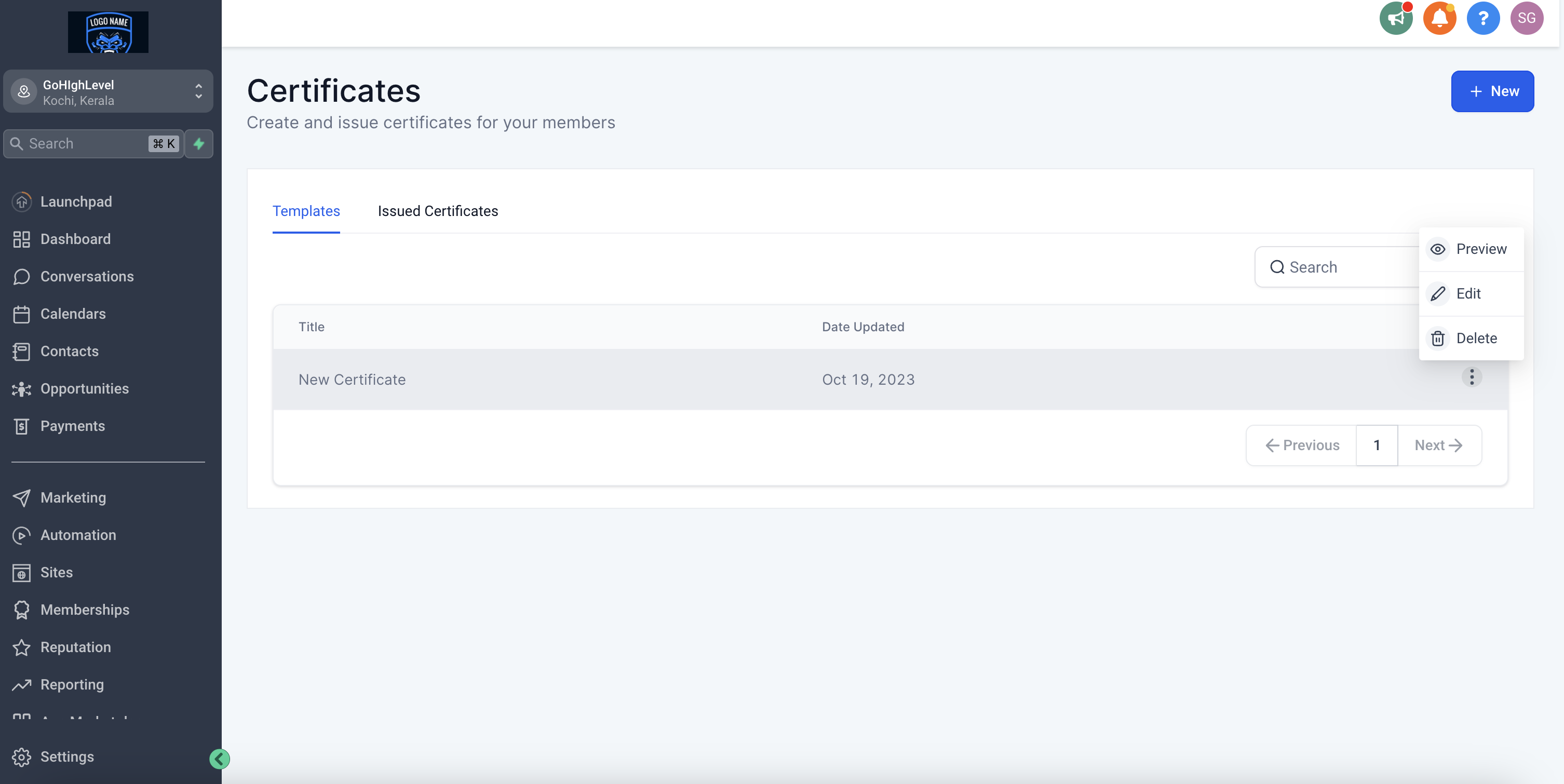
- Saved templates are visible under the Template tab
- From the three dots, choose to Preview, Edit or Delete a template