
How to Create Service Menus for Calendars
Create a unified booking experience for your clients with Service Menus. This feature allows you to display multiple services from individual calendars on a single page, helping clients book exactly what they need — quickly and conveniently.
TABLE OF CONTENTS
- What is a Service Menu?
- Key Benefits of Service Menus
- Prerequisites to Set Up a Service Menu
- How To Set Up a Service Menu
- Frequently Asked Questions
- Related Articles
What is a Service Menu?
Service Menus allow you to list multiple services in one branded interface, enabling clients to book various appointments in a single flow. Each service connects to a separate Service Calendar, giving you full control over availability, staff assignment, pricing, and duration. This is especially useful for businesses that offer several services or work with multiple providers.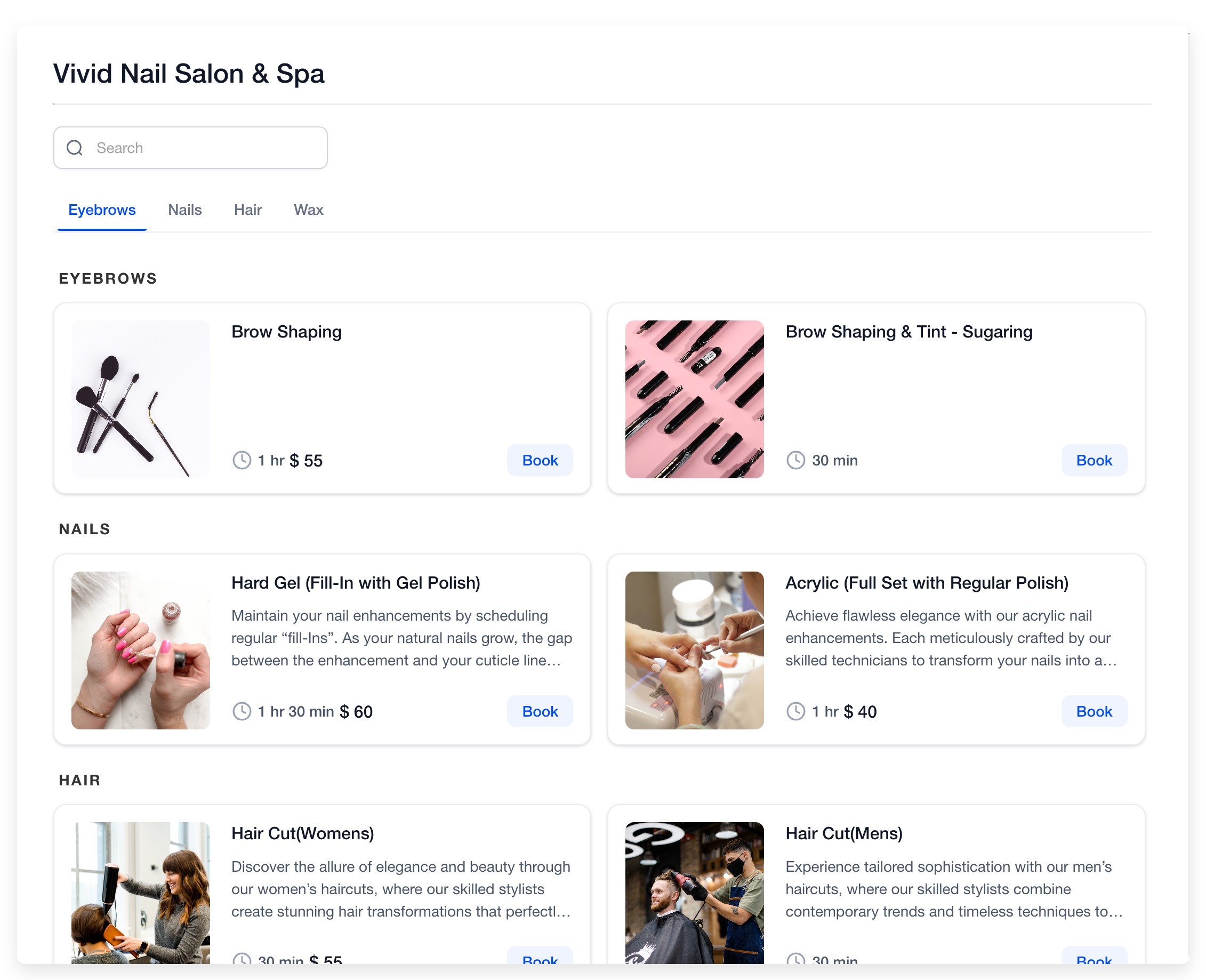
Key Benefits of Service Menus
Service Menus reduce friction in the scheduling process while providing full flexibility in how services are presented and booked.
Centralized Booking Experience: Consolidates all services into a single interface so clients can browse and book from one convenient location.
Optional Staff Selection: Allows clients to choose their preferred provider when enabled, giving them more control over their appointment experience.
Organized Service Categorization: Enables grouped service organization through Group Calendars, making it easier to manage and present related services.
Independent Calendar Configuration: Each service is tied to its own calendar, allowing you to define custom settings, staff, availability, and duration.
Flexible Booking Options: Lets clients book one or multiple services in a single session based on your configuration preferences.
Prerequisites to Set Up a Service Menu
Create a Service Calendar: Design a dedicated calendar for each service you offer and assign the calendar to its respective group.
Click here to know more about creating a Service Calendar
Create a Calendar Group: Calendar Groups are required to organize related Service Calendars under a shared category. Only calendars assigned to a group can be included in a Service Menu.
Click here to know more about creating a Calendar GroupHow To Set Up a Service Menu
Proper setup ensures that the menu shows the correct services, respects user availability, and routes bookings effectively.
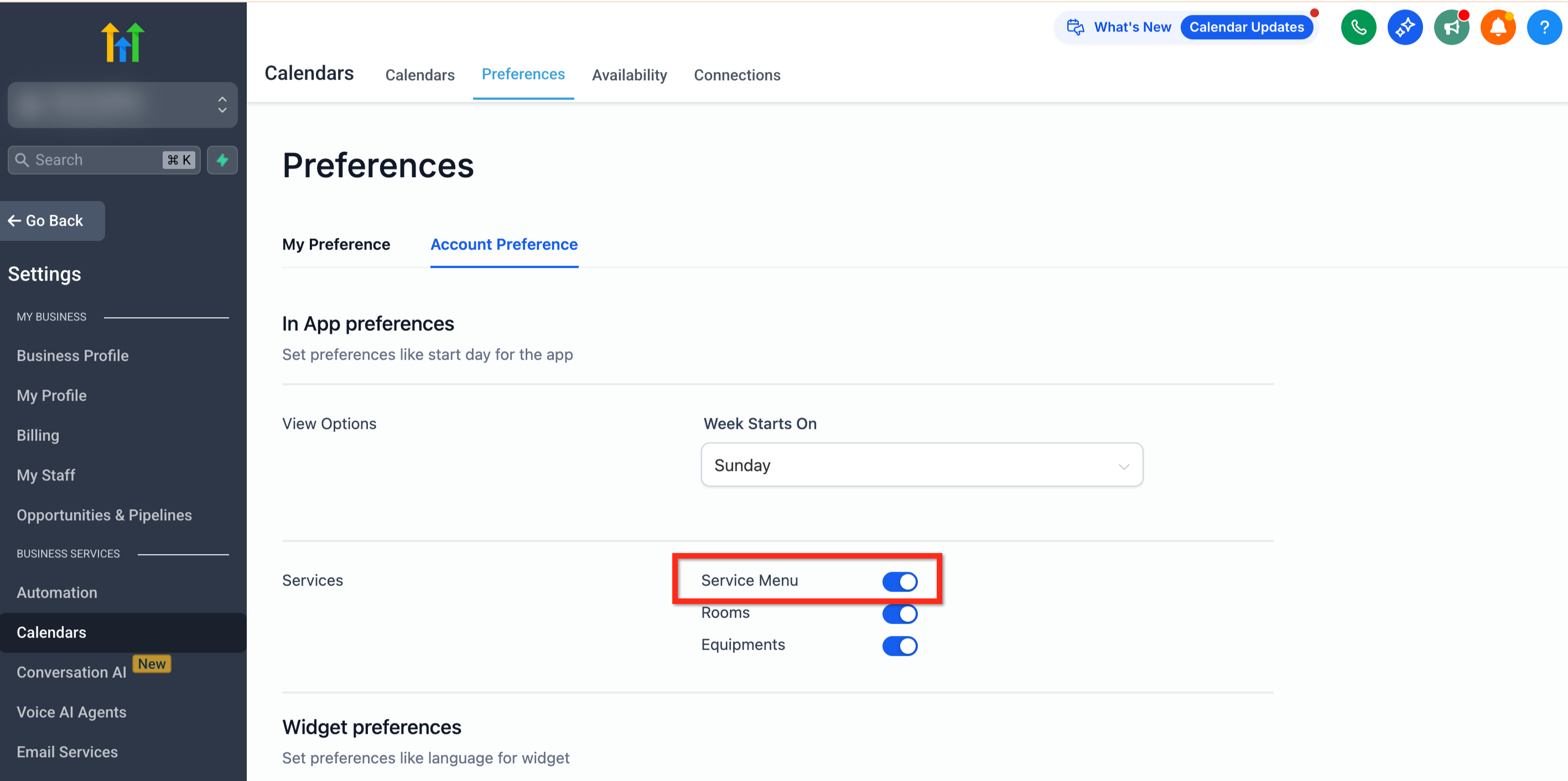
Step 1: Enable the Service Menu Feature
To activate the Service Menu functionality:
Use the main left-side navigation bar to navigate to Calendars
Click Calendar Settings then navigate to the Preferences tab in the secondary navigation menu
Navigate to the Account Preference tab located under Preferences
Locate the Services section. Turn on the blue toggle labeled Service Menu
Step 2: Create the Service Menu
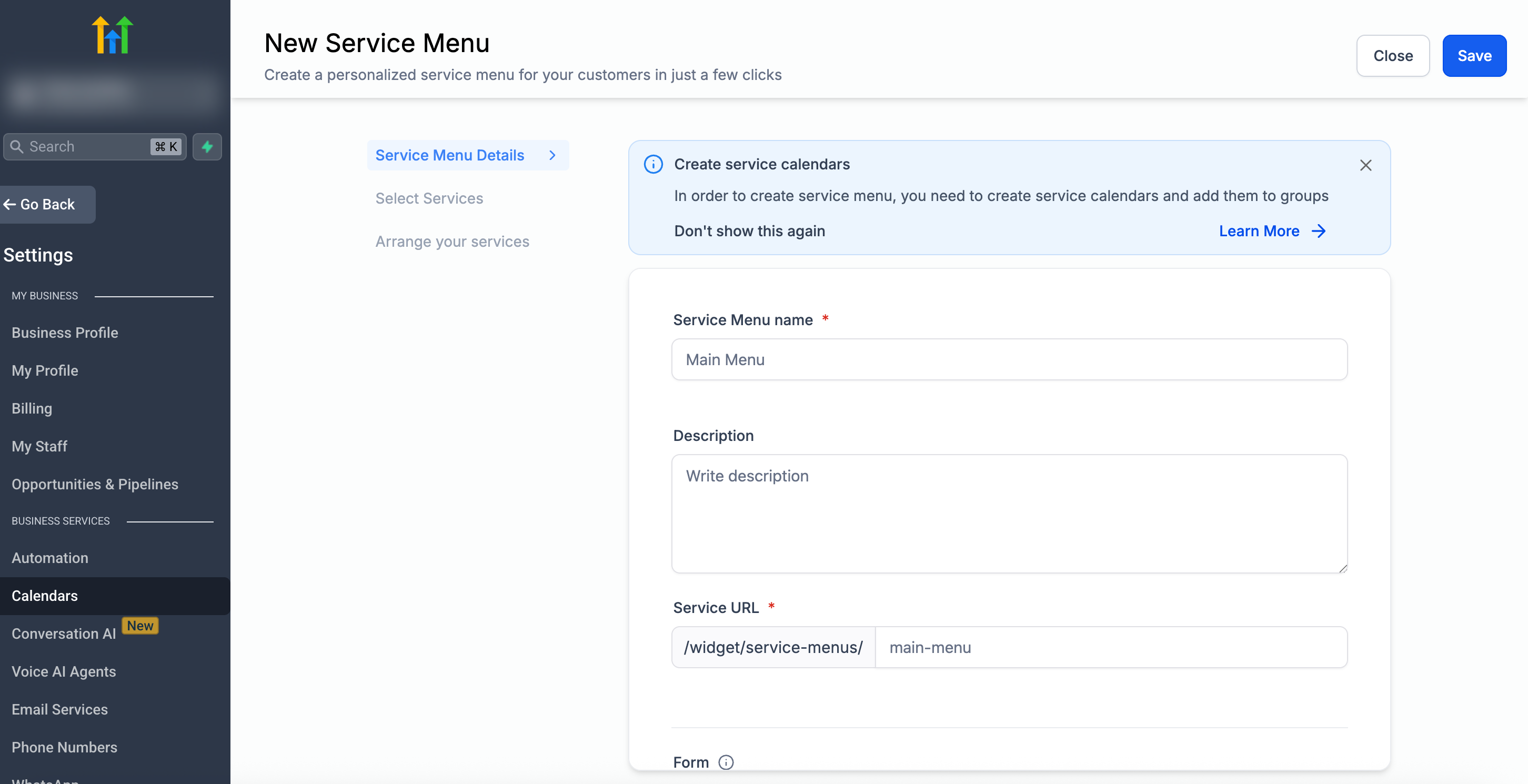
Now that the feature is enabled and your Service Calendars are ready, you can create your Service Menu.
Use the main left-side navigation bar to navigate to Settings > Calendars
Navigate to the Service Menu tab located under Calendar Settings
Click the blue button in the top right corner labelled Create Service Menu
Complete the following fields:
Name: This will appear as the title of the menu
Description: Optional summary for clients
Slug URL: This forms the menu’s custom URL
- Form: If you would like to collect more information than the standard First Name, Last Name, Email, and Phone from those who book on this calendar, select a custom form.
Step 3: Select your Services
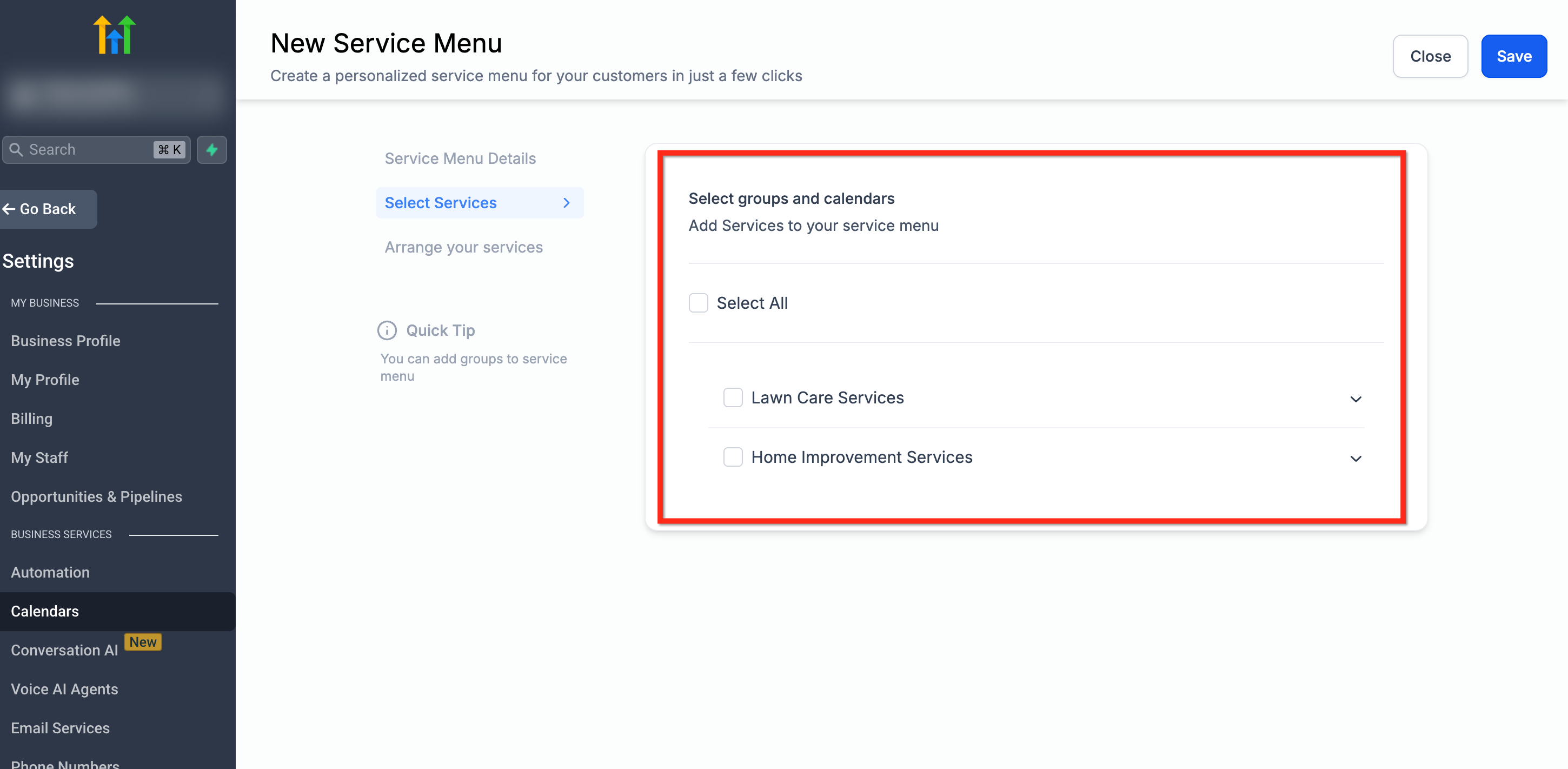
After adding details to your menu, you'll choose which services (calendars) will appear.
From the Service Menu editor, navigate to the Select Services tab
Use the checkboxes to select the services (calendars) that will show on the Service Menu
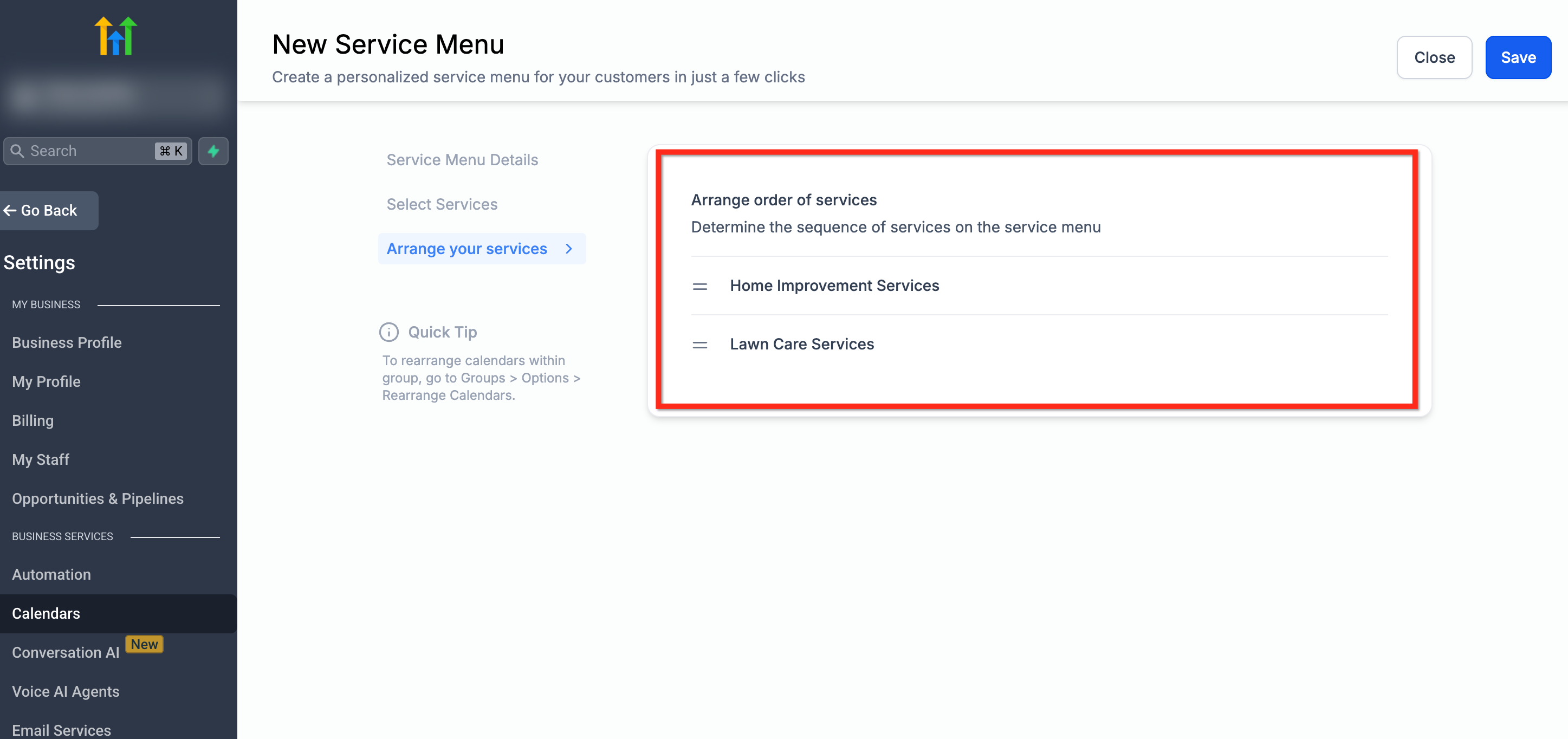
Step 4: Arrange your Services
Use drag-and-drop to organize the order of appearance
Save your changes
Limitations
The current Service Menu has the following restrictions:
Stripe only – Service Menu payments can only be collected using Stripe.
No card-on-file – Customer cards are not saved for future use when booking through the Service Menu.
No in-app payments – Payment collection inside the mobile app is not supported.
No coupon codes – Discounts and coupon codes cannot be applied at checkout.
? Upgrade to Services (v2)
To unlock the full set of features — including multiple payment options, saved cards, in-app payments, and coupon code support — you can move to the new Services (v2) experience.
Help Documentation - /
Frequently Asked Questions
Q: Can I create more than one Service Menu?
Yes, you can build multiple menus using different Group Calendars.
Q: Are Service Menus mobile-friendly?
Yes. They are fully responsive and optimized for mobile devices.
Q: Can clients choose more than one service?
Yes, unless you enable the “Limit to One Service” option.
Q: How do I reorder the services?
Drag and drop services while creating or editing the Service Menu.
Q: Can I track conversions or add analytics?
Yes. Use the custom code field to add tracking pixels or scripts.