
Schedule Posts using RSS URL
Automatically share new content from RSS or Atom feeds to your connected social media accounts using Chat To Clients CRM Social Planner. You can configure how often feeds are checked, control the number of posts published, and customize the content shared.
This guide explains how to set up and manage RSS-based social media publishing.
IMPORTANT: Posting to Twitter/X via RSS is not supported due to API restrictions. All other supported networks in Social Planner can be used with RSS.
TABLE OF CONTENTS
- What is RSS Scheduling in Social Planner?
- Key Benefits of RSS Scheduling
- Prerequisites
- How to find the RSS Feed?
- How to Create Posts using RSS Feed?
- How RSS Duplicate Protection Works
- Important Considerations
- Frequently Asked Questions
- Related Articles
What is RSS Scheduling in Social Planner?
RSS Scheduling allows Social Planner to automatically publish new content from RSS or Atom feeds to connected social media accounts. It's useful for sharing blog posts, podcast episodes, news, and other regularly updated content without creating individual social posts.
Key Benefits of RSS Scheduling
RSS (Really Simple Syndication) Scheduling helps maintain a consistent social media presence while reducing manual content publishing.
Content Curation: Aggregate content from various sources into one feed to easily discover relevant items to share.
Automated Content Sharing: Auto‑post content to your social accounts to save time and maintain a consistent flow.
Stay Updated with Industry Trends: Subscribe to industry blogs/news to create timely, relevant posts.
Reduce Information Overload: Consolidate content in one place instead of browsing many sites.
Share User‑Generated Content: Monitor community/forum feeds and share standout contributions.
Maintain a Consistent Posting Schedule: Use scheduling tools with RSS to keep a steady cadence.
Prerequisites
A valid RSS/Atom feed URL (e.g., from your blog or YouTube channel).
Social accounts connected in Marketing → Social Planner → Settings (e.g., Facebook Page, Instagram Business, LinkedIn Profile/Page, Google Business Profile, Pinterest).
How to find the RSS Feed?
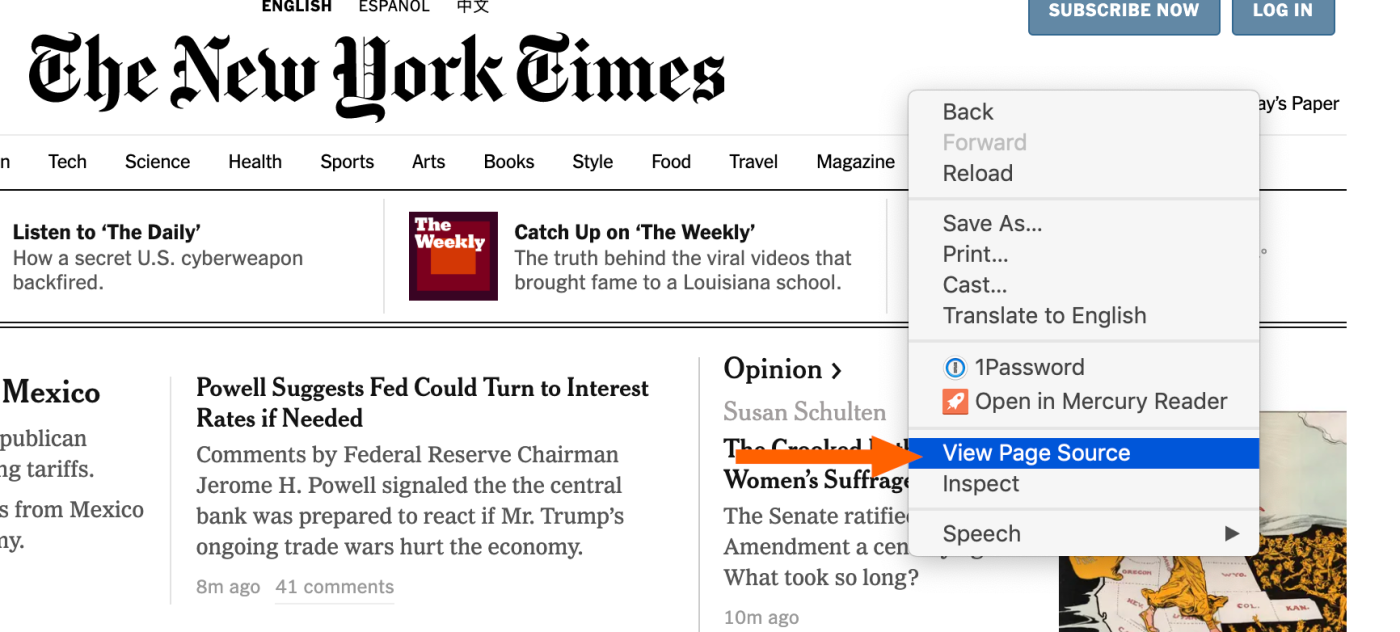
RSS feeds are still very much alive, though they may be a bit trickier to locate these days. Unlike in the past, browsers no longer highlight them, and websites don't always prominently display RSS links. However, the majority of sites do offer RSS feeds. Let's explore some quick ways to find them when a simple Google search isn't enough.
- On Blogger-hosted sites, tack on "feeds/posts/default" to the end of the URL. For example: example.blogspot.com/feeds/posts/default.
- If a publication is on Medium, insert "/feed/" before the publication's name. So, medium.com/example-site becomes medium.com/feed/example-site.
- YouTube channel pages can serve as RSS feeds. Just copy and paste the channel's URL into your RSS reader.
- You can also find an OPML file containing all your subscriptions there.

How to Create Posts using RSS Feed?
Set up an RSS-to-social flow in Social Planner so new items from your feed auto-publish to your connected channels on a schedule.
Step 1: Navigate to RSS Post
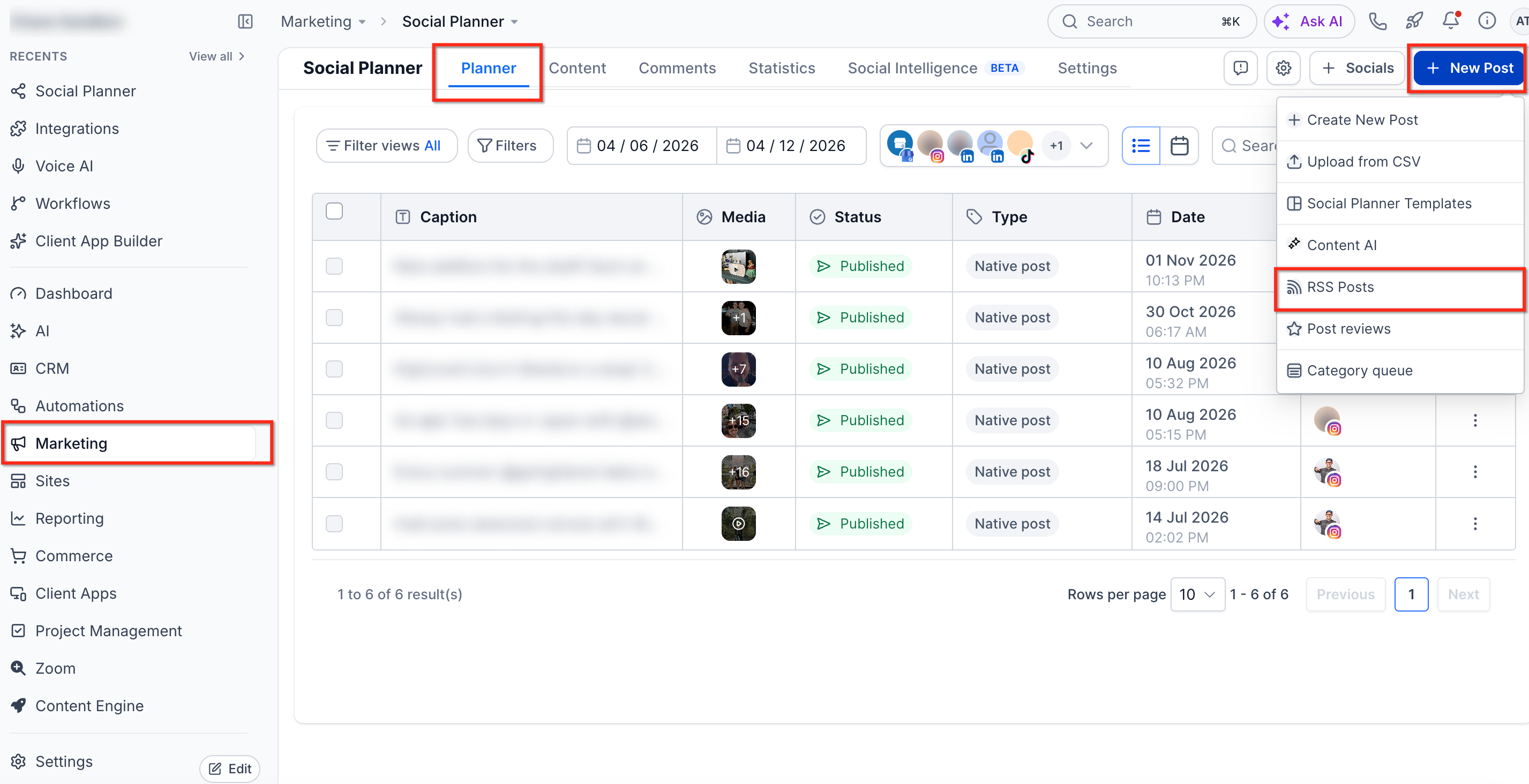
Navigate to Marketing > Social Planner. Click on "New Post", and there will be an option to select the "RSS Post"
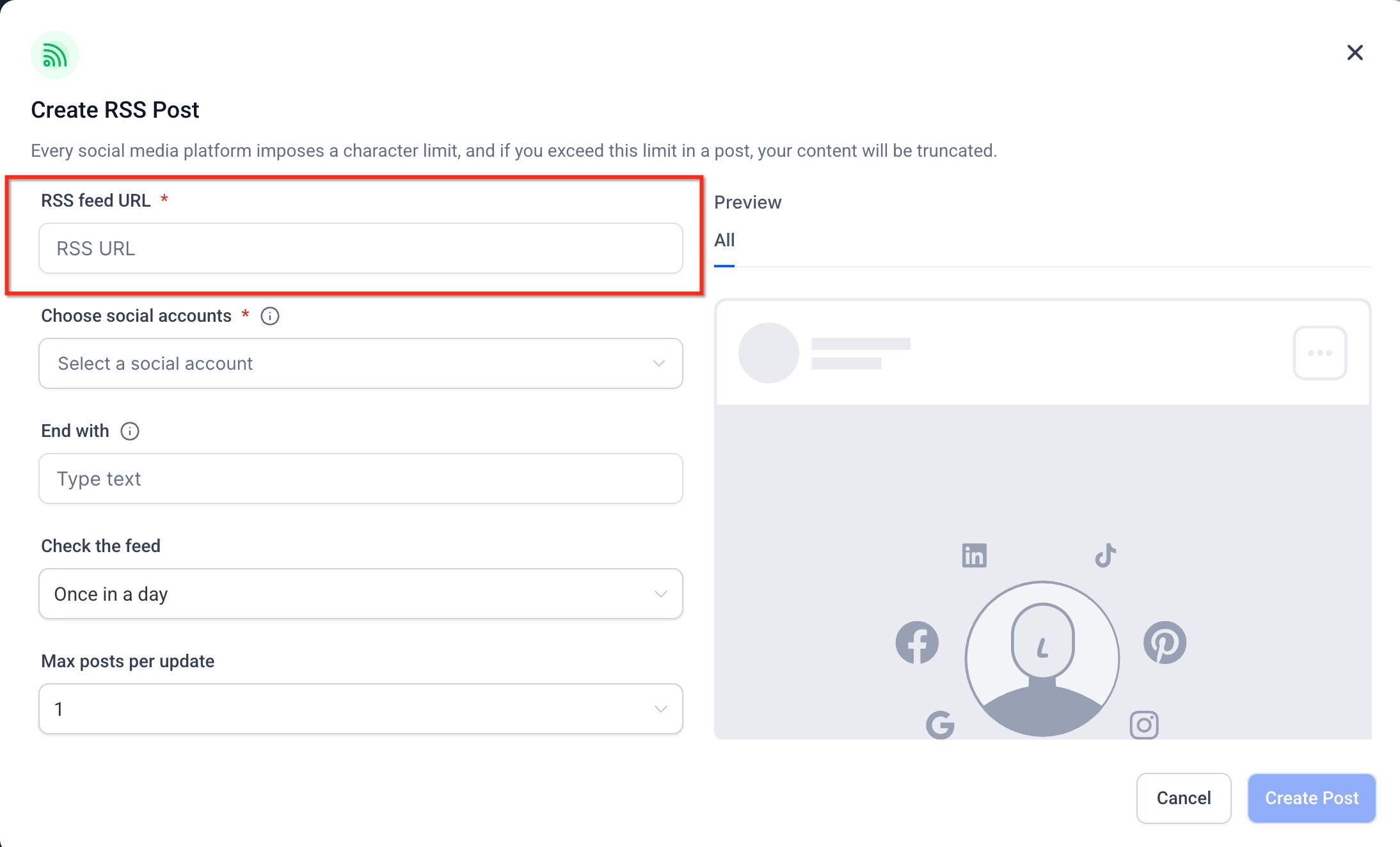
Add the URL of RSS Feed [ Check above how to find the RSS URL]
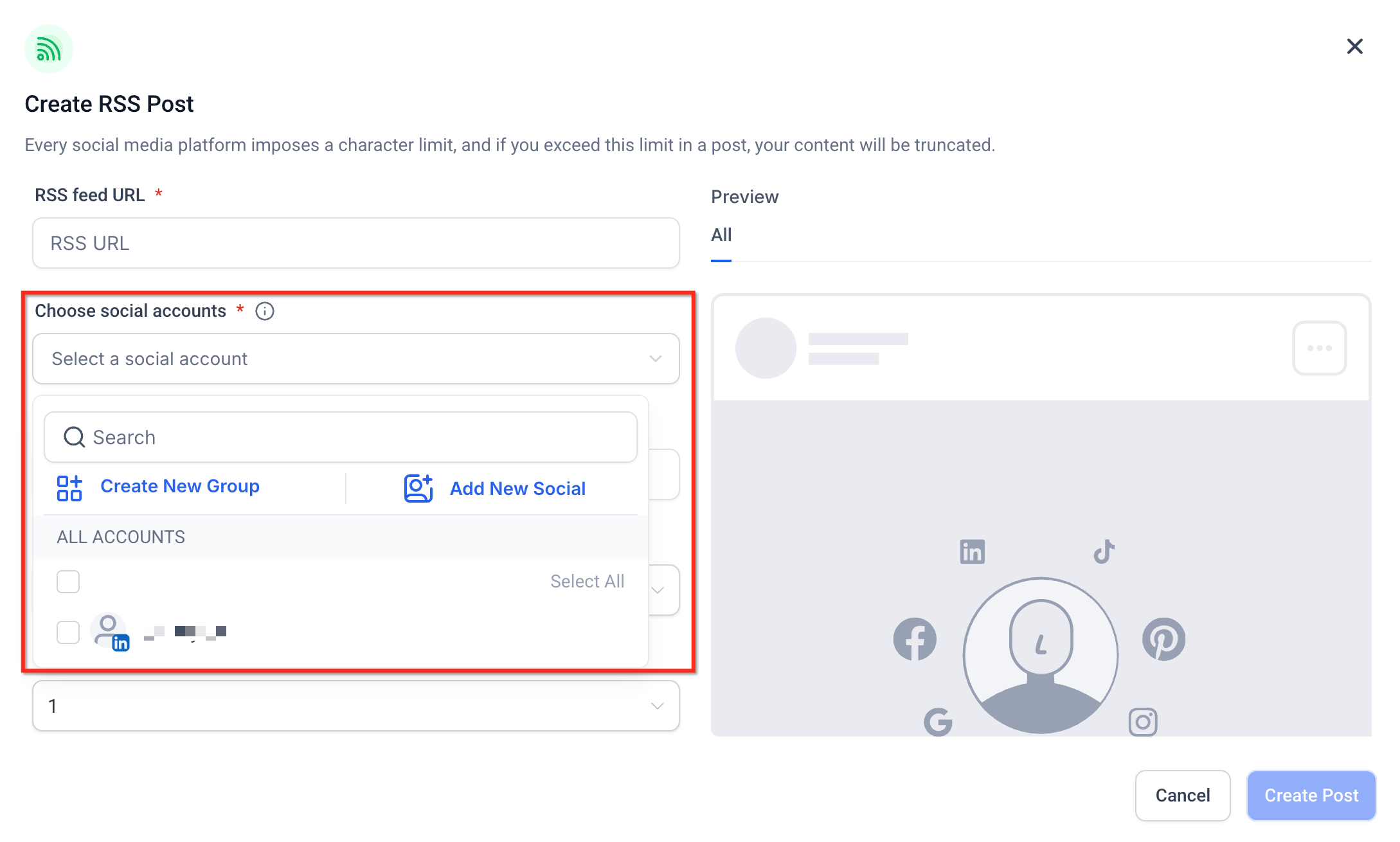
Select the socials where you would like to post.
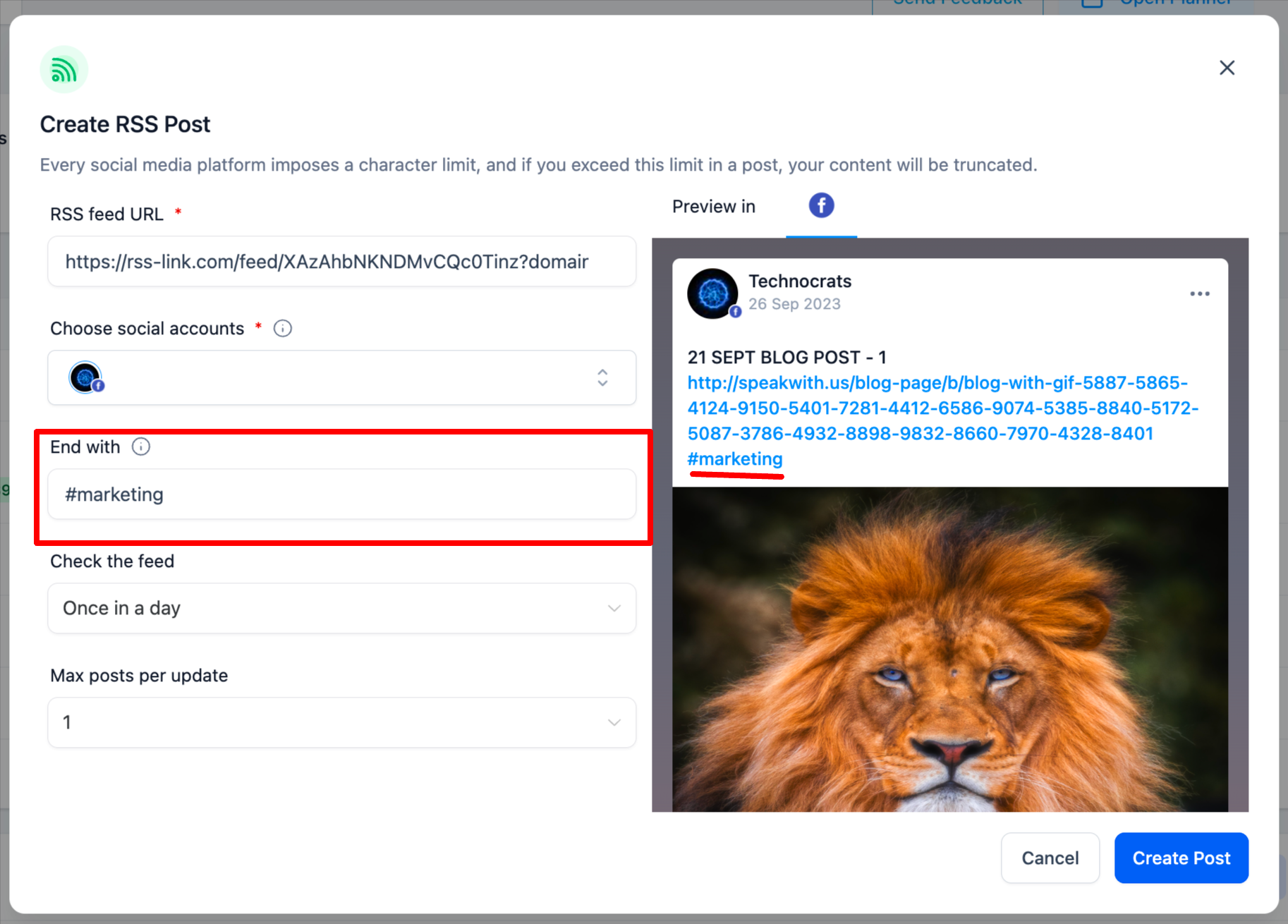
You can add "End with" option to append any text, hashtags or links.
Step 5: Update Time
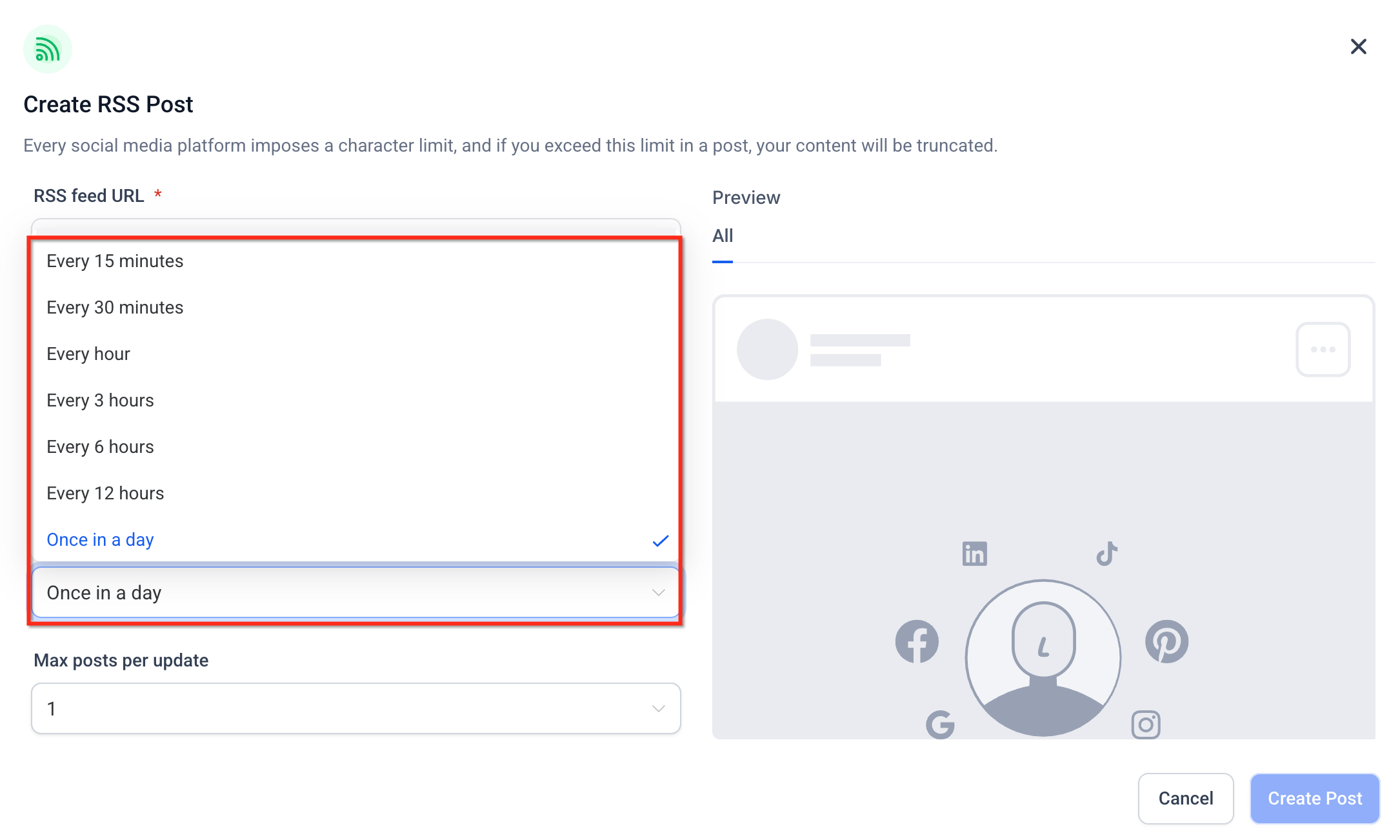
Select the option to update the feed update - from every 5 mins to once a day
Step 6: Select Maximum Posts
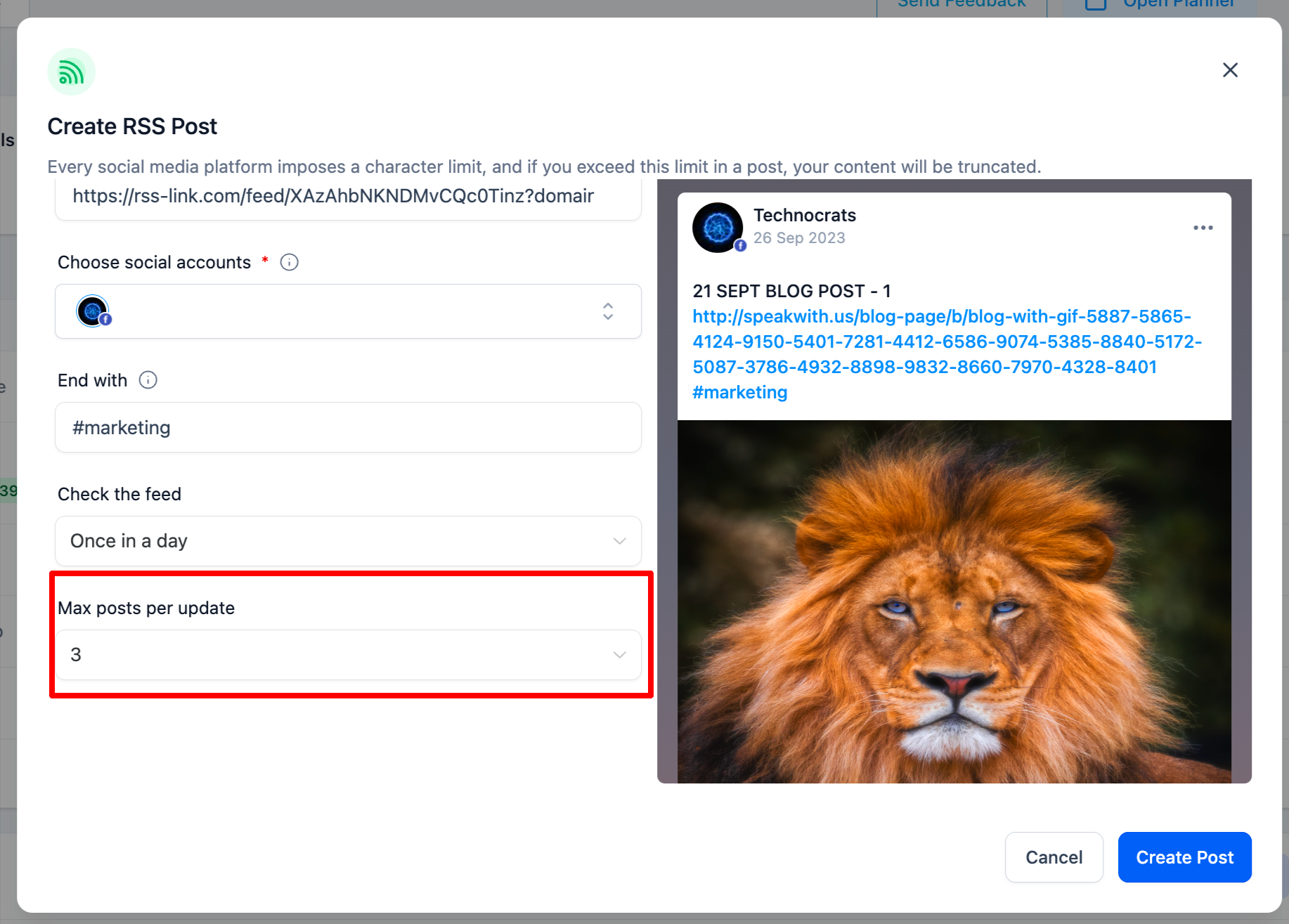
- Select how many unique posts should be fetched from your RSS feed each time it checks for new content (minimum 1 to maximum 5).
- For example, if you choose '3', the system will pull up to the 3 most recent items from the RSS feed at the time of posting.
- This does not mean the same post will be published multiple times. Each fetched item will be published once as its own social post.
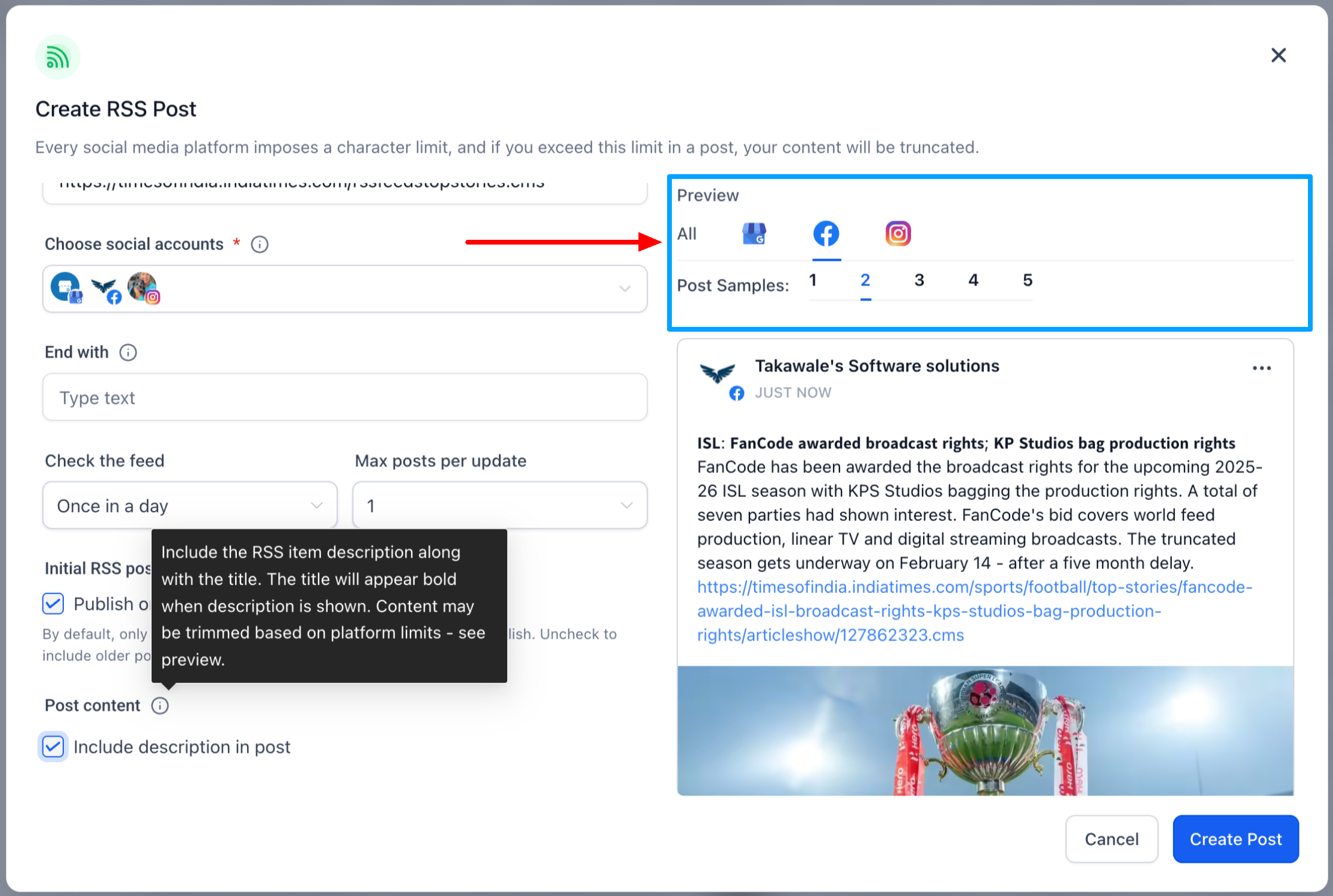
Step 7: (Optional) Include RSS Item Description in Your Posts
You can now choose whether to include the RSS item description when publishing posts.
Enable Include Description to publish posts with both the title and description from the RSS feed
Disable it to continue publishing title-only posts
Use the multi-item preview (up to 5 items) to review formatting, content length, and truncation before saving
This option helps you better control how much content is shared and ensures posts are optimized for different social platforms.
When you publish RSS posts to multiple social networks, Social Planner generates post text per platform, based on each network’s character limits. This helps reduce unexpected truncation when the same RSS item posts to different platforms.

Use the multi-item preview (up to 5 items) to confirm formatting and where truncation may occur before you save.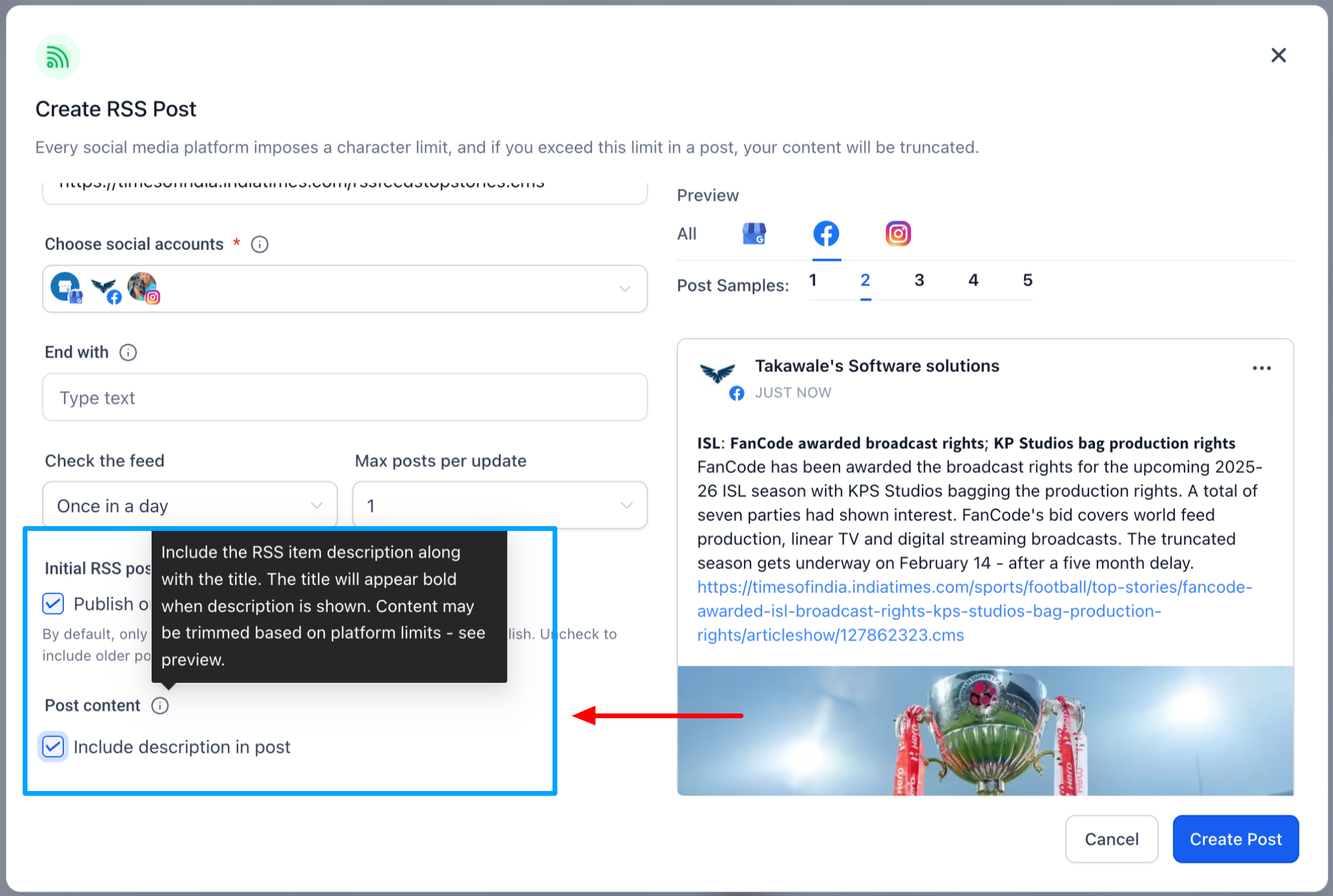
How RSS Duplicate Protection Works
Social Planner tracks previously processed RSS items to help prevent duplicate posts while ensuring new content is published.
Unique Item Detection: Feed items are identified using their RSS GUID or, when unavailable, their link and title.
90-Day Tracking: Social Planner tracks processed items for 90 days to prevent duplicate publishing.
New Content Only: If no eligible new items are found during a feed check, no new posts are generated.
Important Considerations
Understanding RSS publishing behavior helps ensure your content is shared correctly across supported social platforms.
Platform Support: RSS publishing is available on supported Social Planner networks, excluding X (Twitter).
Maximum Posts: The 1–5 post limit applies to unique feed items processed during each check.
Content Formatting: Social Planner adjusts RSS post text based on each platform's character limits.
Post Previews: Review feed items before saving to identify formatting or truncation issues.
Images: Link previews depend on the social platform. Use featured images and Open Graph metadata on the source page for more reliable previews.
Feed Availability: The source RSS URL must remain valid and accessible for automatic publishing.
Frequently Asked Questions
Q: Can I change the RSS publishing frequency after setup?
Yes. Edit your RSS configuration to update the feed-check frequency or Maximum Posts setting.
Q: Will Social Planner publish older RSS items repeatedly?
Social Planner tracks processed items for 90 days to help prevent duplicates. Previously processed items are skipped within that tracking period.
Q: What happens if my RSS feed has no new content?
No new posts are generated until Social Planner detects eligible feed items.
Q: How is RSS Scheduling different from Recurring Posts?
RSS Scheduling automatically shares new content from a feed, while Recurring Posts republish content you've already configured at selected intervals.
Q: Can I include descriptions from my RSS feed?
Yes. Enable Include Description to publish the title and description of supported RSS items.