
How to copy contacts from one sub-account to another sub-account?
Learn how to use Chat To Clients CRM's 'Copy Contact' workflow action to duplicate contacts between sub-accounts, including tags and custom fields, while maintaining data integrity.
Additional Tutorial Videos:
https://www.youtube.com/watch?v=deI0HZ2HcAQ
https://www.youtube.com/watch?v=nqCFyLRiols
https://www.youtube.com/watch?v=wZ85Ej6VnKc
Prerequisites for Using 'Copy Contact'
- Agencies must be on any High-Level plan ($97, $297, $497, or their annual equivalents).
- LC Premium Triggers & Actions must be enabled via Agency Settings.
- Existing and new sub-accounts will have 100 free executions once Premium Actions & Triggers are enabled.
- To avoid execution costs for existing sub-accounts, rebilling needs to be enabled manually for each sub-account within the Agency view.
- If premium actions are enabled on the SaaS Configurator, new sub-accounts generated will automatically be enrolled in LC Premium Actions & Triggers, requiring no further action by the agency.
Steps for Copying a Contact
1. Navigate to the Workflow Builder in your Chat To Clients CRM dashboard and create a new workflow or edit an existing one.
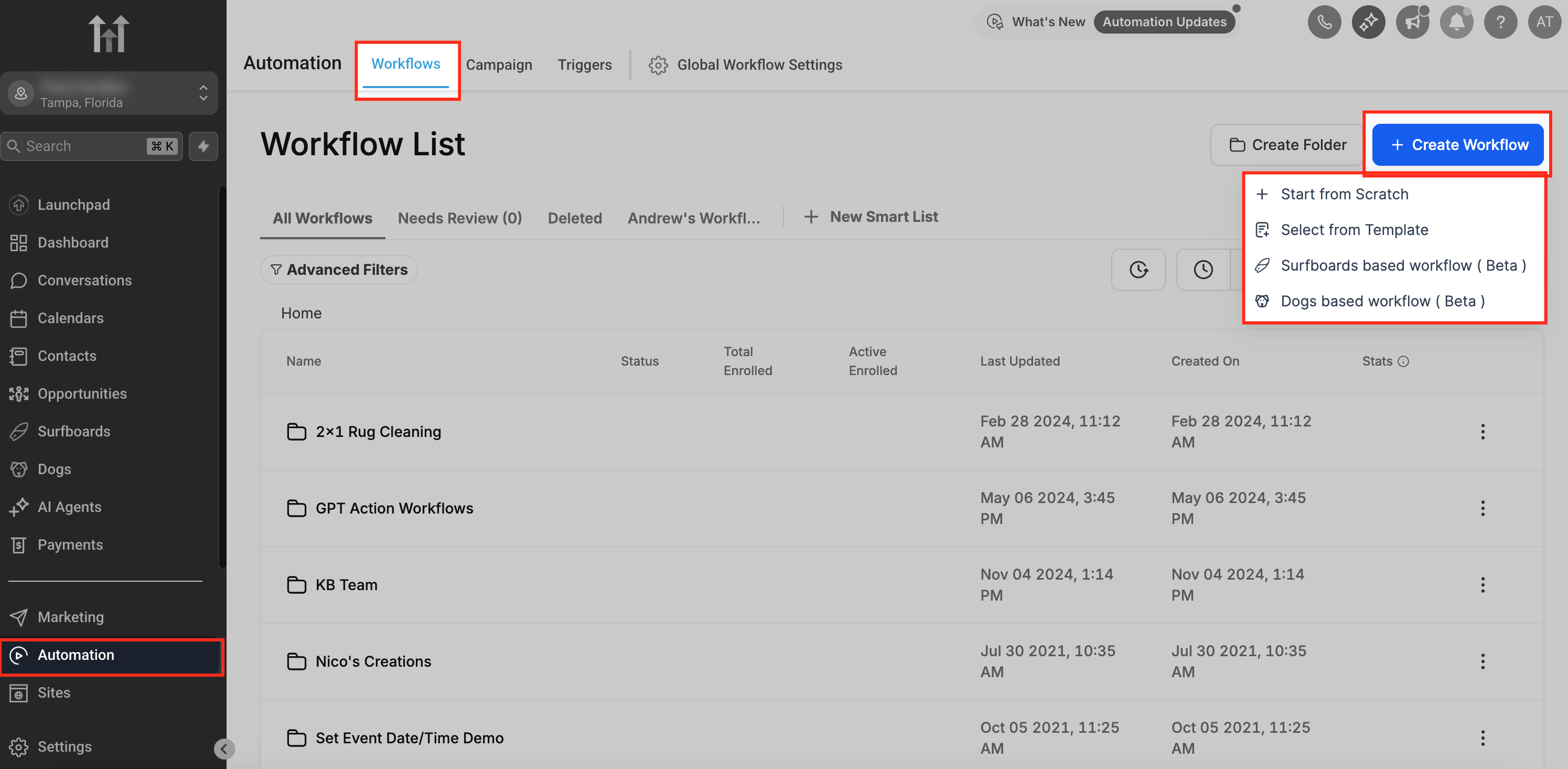
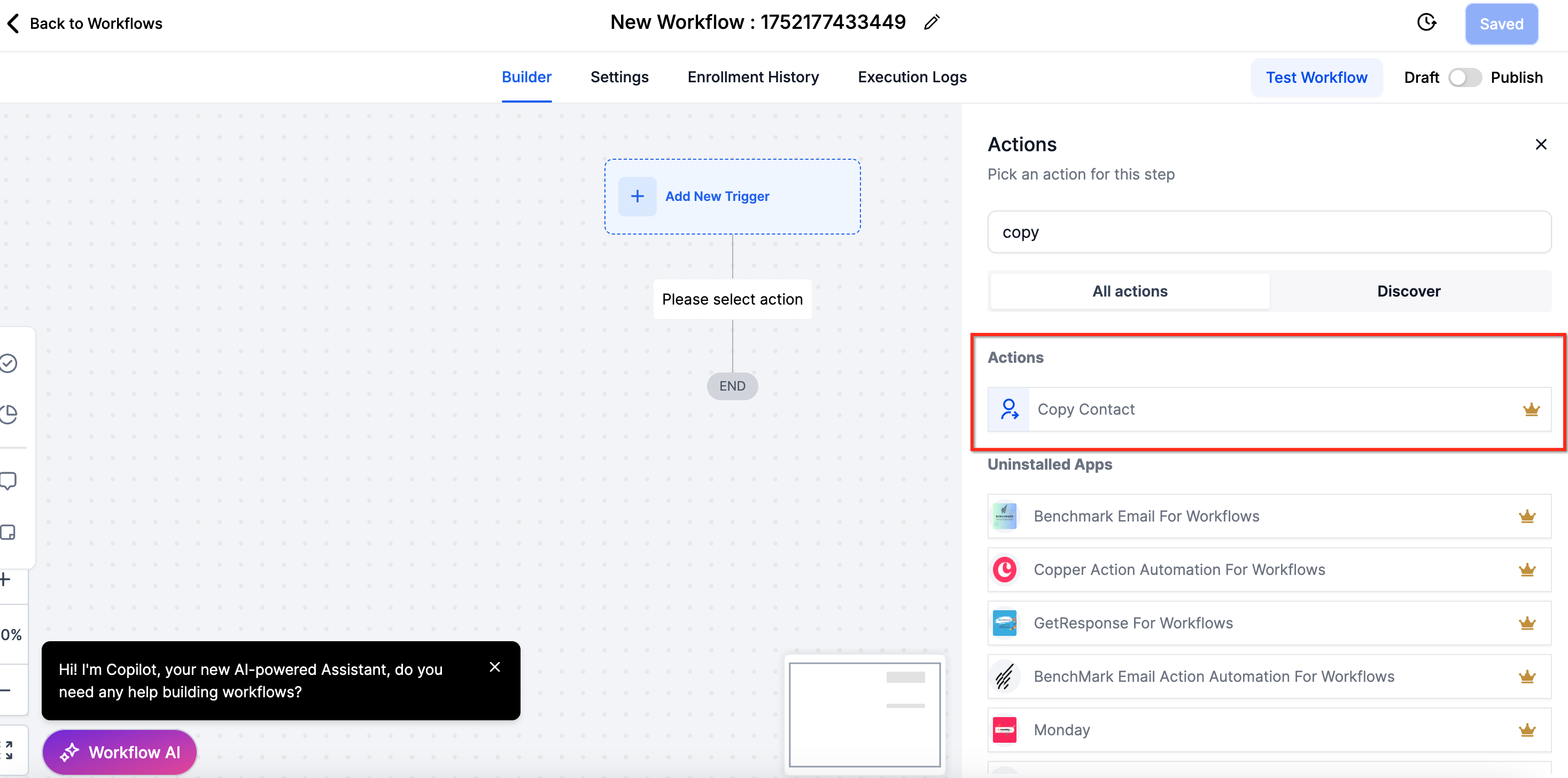
2. Add the 'Copy Contact to Sub-Account' workflow action.
3. Configure the action by selecting the target sub-account.
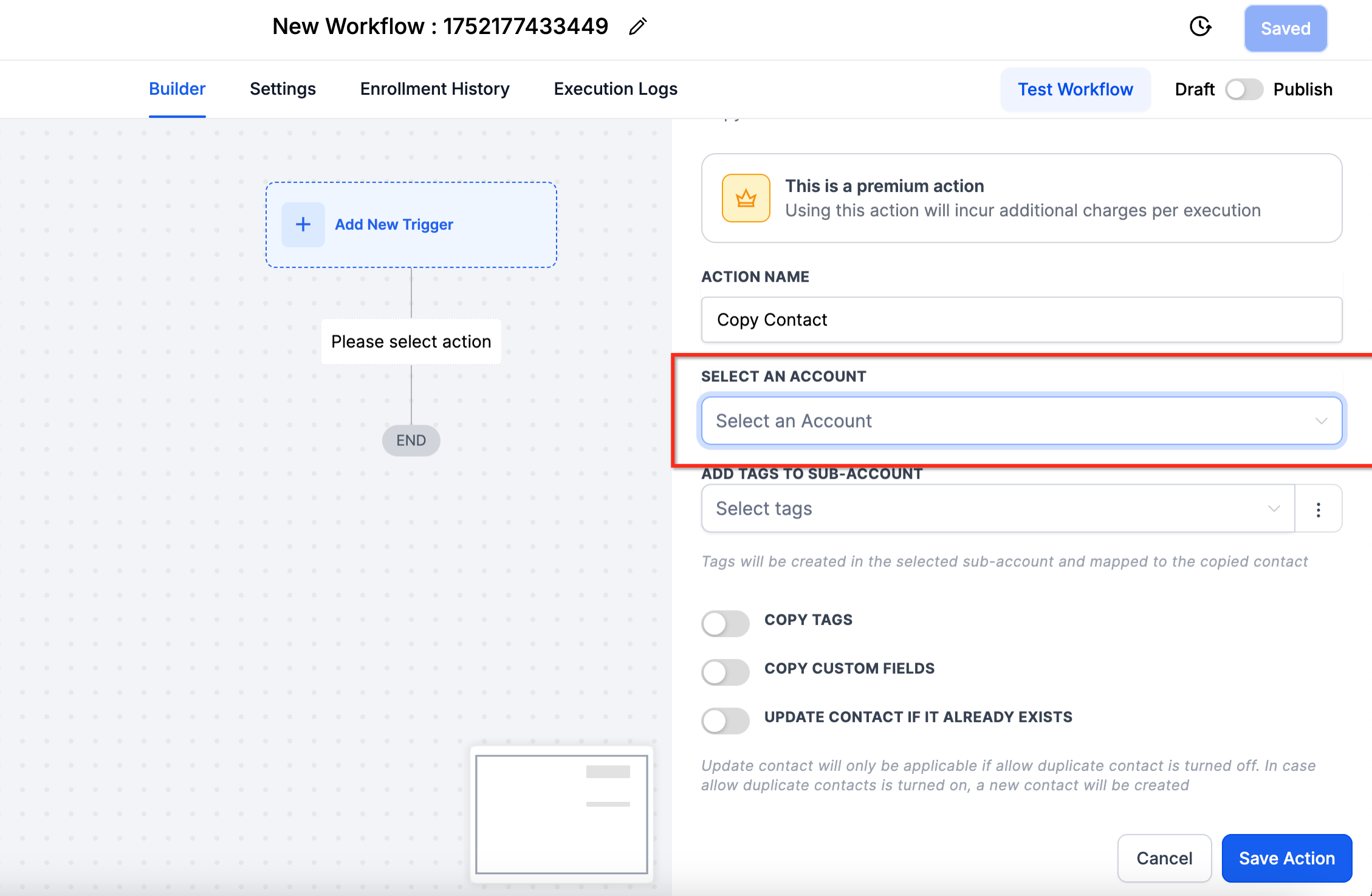
4. Optionally, enable the following settings:
Copy Tags: To duplicate tags from the source contact. Organize your contacts effectively by adding multiple tags to newly copied contacts in your selected sub-account. You can choose tags from the source contact information or even create new ones manually.
Copy Custom Fields: To duplicate custom fields, provided they exist in the target sub-account.
Update Contact if it Already Exists: To update existing contacts in the target sub-account.
Skip Copy if Contact Lacks Email and Name: To prevent copying incomplete contacrecords.
Copy Custom Fields
If enabled, contact custom fields will be copied to the selected account. The custom field value will be copied only if that field exists in the selected account.
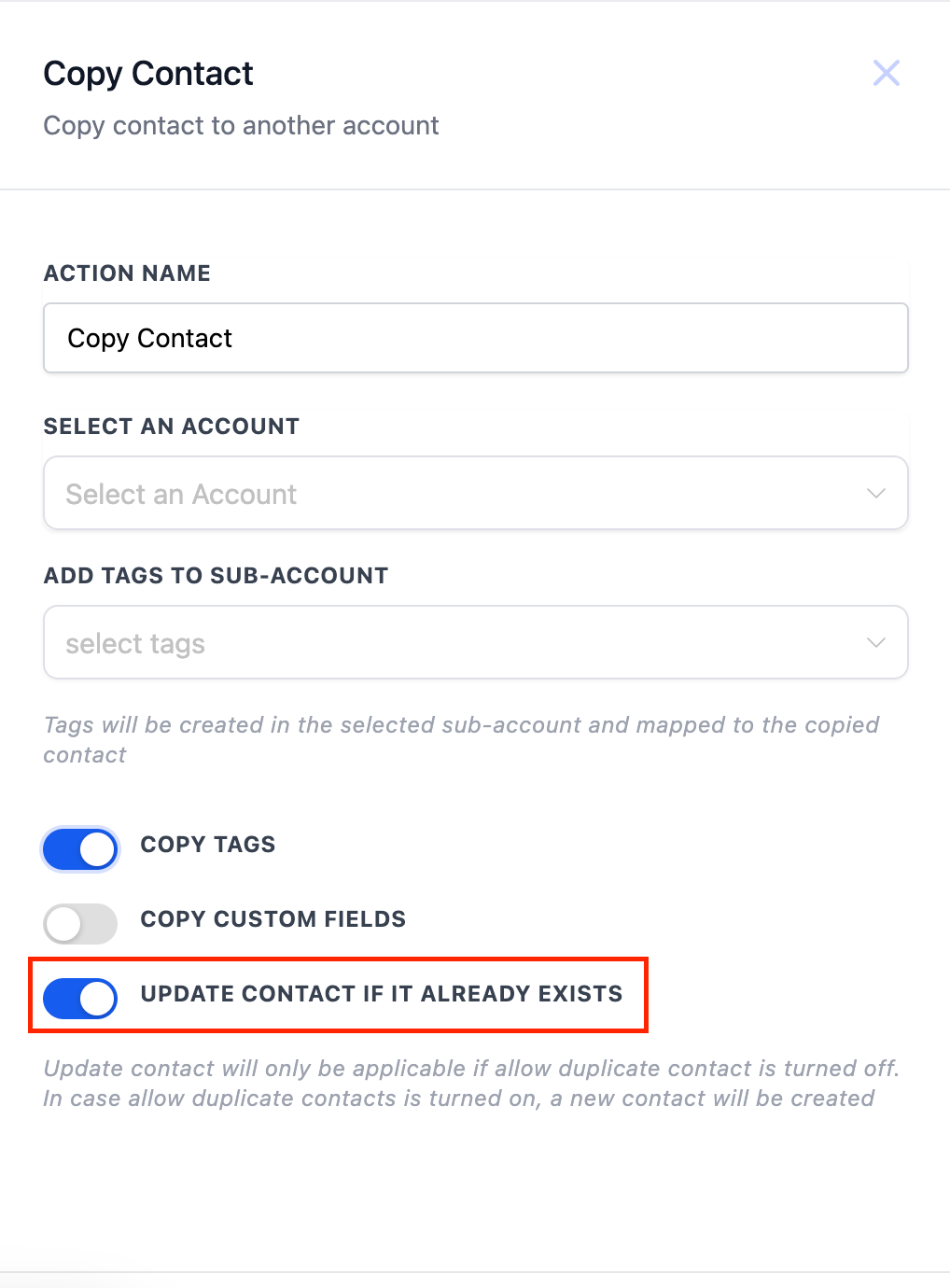
Toggle : Update contact if it already exists
If this is enabled and if the contact already exists in the selected sub-account then the contact will be updated in the sub account.
If the contact is not existing in the sub account then new contact will be created.
Skip Copy Contact if Contact does not have Email and Name
If a contact does not have an Email or a Name then the contact won’t be copied and will be skipped.
What will be copied?
Below fields will be copied when Copy Contact action is used -
- Contact info
- General info
- Tags (Copy tags toggle must be turned on in the Copy contact action)
- Custom fields (Copy Custom fields toggle must be turned on in the Copy contact action and same custom field should be available in the sub account) (The custom field type should be same in both accounts)
What will not be copied?
Details such as Conversations, Activity, Notes, Tasks, Appointments, Payments, and independently transferred Documents/Files will not be copied.
- Documents / Files - File and document transfer is not supported as part of the Copy Contact action. Files are not migrated to the destination sub-account as standalone assets. In some cases, file references associated with the copied contact may still depend on the original contact or source record. If the original contact is deleted from the source account, those associated files may become inaccessible. If you need to preserve access to important files, keep the original contact in the source account.