
How to Export a List of Sub-Accounts
Easily export your Sub-Accounts List from Chat To Clients CRM to a CSV for simple reporting and sharing. This article explains what’s included in the exported CSV file, how email delivery works and the steps to get started.
TABLE OF CONTENTS
Overview of Exporting Sub-Accounts List
The Sub-Accounts List Export feature enables agency teams to quickly generate CSV reports that include key details about all sub-accounts. This feature streamlines the process of obtaining comprehensive sub-account data, providing users with a simple solution to access and analyze vast amounts of information that would otherwise be time-consuming to gather manually.
It honors filters applied on the Sub-Accounts list, processes the file off-screen, and emails it to selected users once ready. By removing the need to keep your browser open and delivering a complete snapshot of your filtered view, it’s built for scale, accuracy, and team-wide sharing.
Key Benefits of the Sub-Accounts Export Feature
These benefits make the Sub-Accounts List Export feature a valuable tool for teams needing detailed analysis across multiple sub-accounts:
Filtered Exports: The CSV reflects exactly what you filtered on the Sub-Accounts list before exporting
Comprehensive Export Details: Provides a wide range of useful account-level data in one centralized file
Off-Screen Processing: Runs in the background meaning you can safely navigate away while the file is being prepared
Targeted Email Delivery: Send the download link directly to selected teammates, no manual forwarding required
Built for Volume: Handles thousands of records efficiently, even for complex SaaS setups
Data Fields Included
The exported Sub-Accounts List provides both high-level and detailed views of each sub-account’s status and activity. These fields make it easy to analyze, reconcile, and share key information across teams. Below is a grouped list of the fields included in the file:
- Identifiers & Basic Info: ID, Name, SaaS Enabled, Date Added
- User & Contact Data: Active Users, Contacts, Number of Appointments Booked
- Email Activity: Total Emails, Inbound Emails, Outbound Emails
- Text Message Activity: Total Text Messages, Inbound Text Messages, Outbound Text Messages
- Call Activity: Total Calls, Inbound Calls, Outbound Calls, Inbound Call Duration (hours), Outbound Call Duration (hours)
- Form & Survey Engagement: Form Submissions, Survey Submissions, Facebook Lead Form Submissions
- Google Business Profile Messages: GBP Messages, Inbound GBP Messages, Outbound GBP Messages
- Instagram Messages: Total Instagram Messages, Inbound Instagram Messages, Outbound Instagram Messages
- Facebook Messages: Total Facebook Messages, Inbound Facebook Messages, Outbound Facebook Messages
- Reviews: Reviews, Google Reviews, Facebook Reviews, Positive Reviews, Negative Reviews
- Sites & Funnels Created: Sites Created - Funnels, Sites Created - Active Funnels, Sites Created - Websites, Sites Created - Active Websites, Sites Created - Forms, Sites Created - Active Forms, Sites Created - Surveys, Sites Created - Active Surveys
Filtering Data Included in Export
Filters allow you to narrow the export to exactly the accounts you need, removing irrelevant data and ensuring the CSV matches your current view. When you start an export, any filters you’ve applied (such as SaaS mode, Subscription Status, or Assigned Snapshot) will be reflected in the final file.
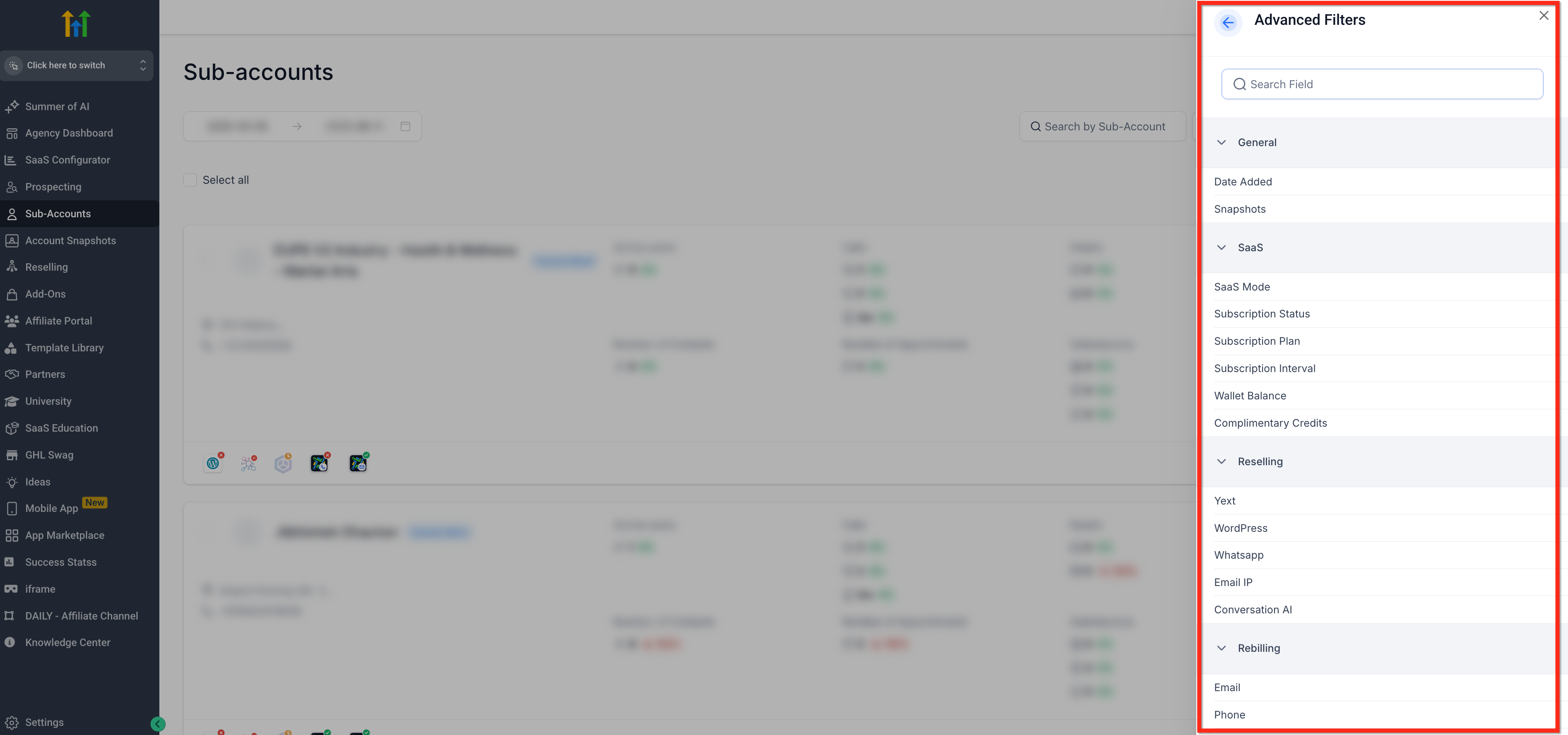
For guidance on using and combining filters, see New Sub-Accounts List UI for $97 & $297 Agency Plans
How to Export a Sub-Account's List
Follow the steps below to generate a CSV file with your sub-account information:
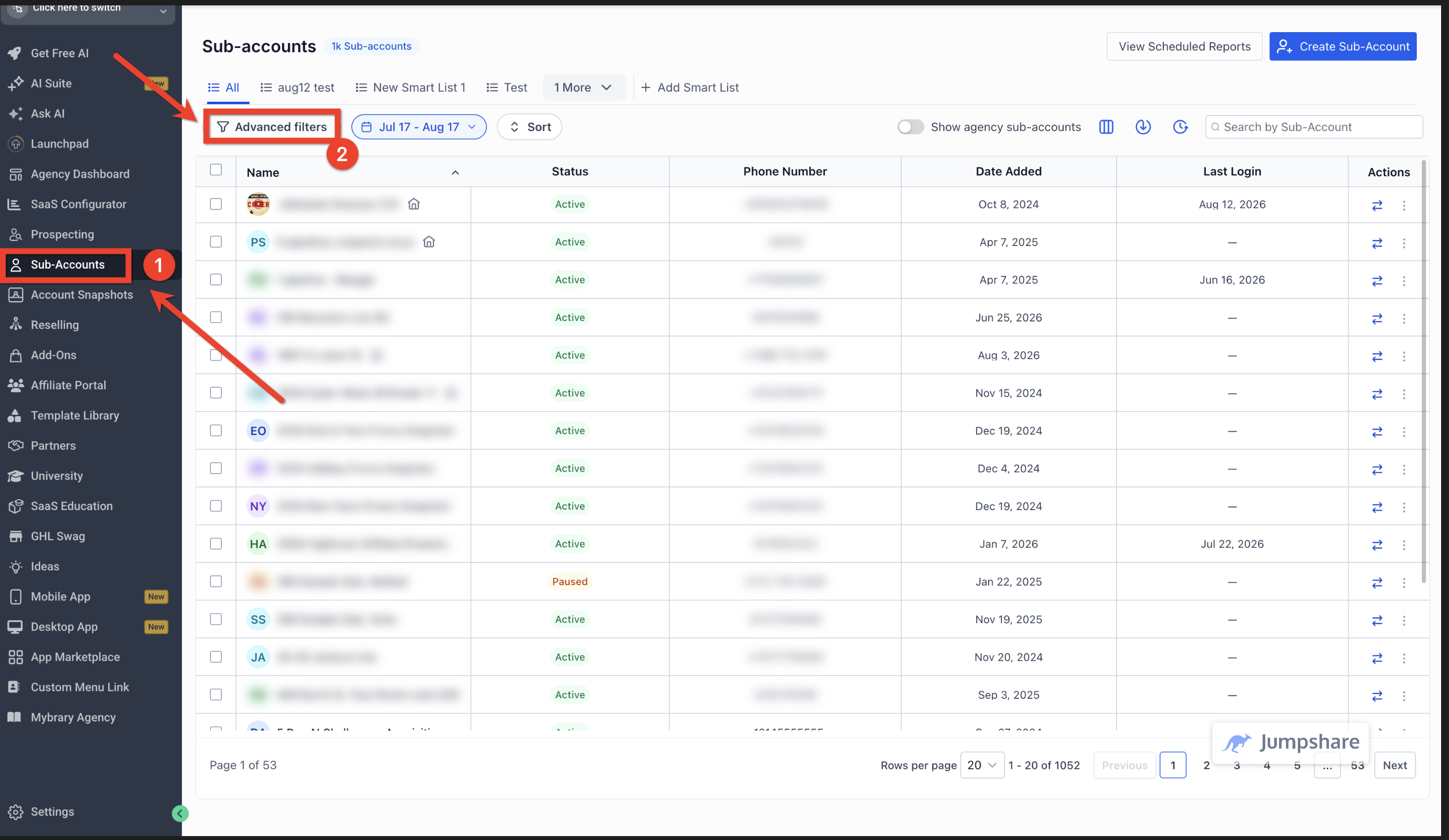
Step 1: Navigate to Sub-Accounts
- From the Agency Dashboard, select Sub-Accounts in the main navigation bar on the left
- Apply filters to match the dataset you want
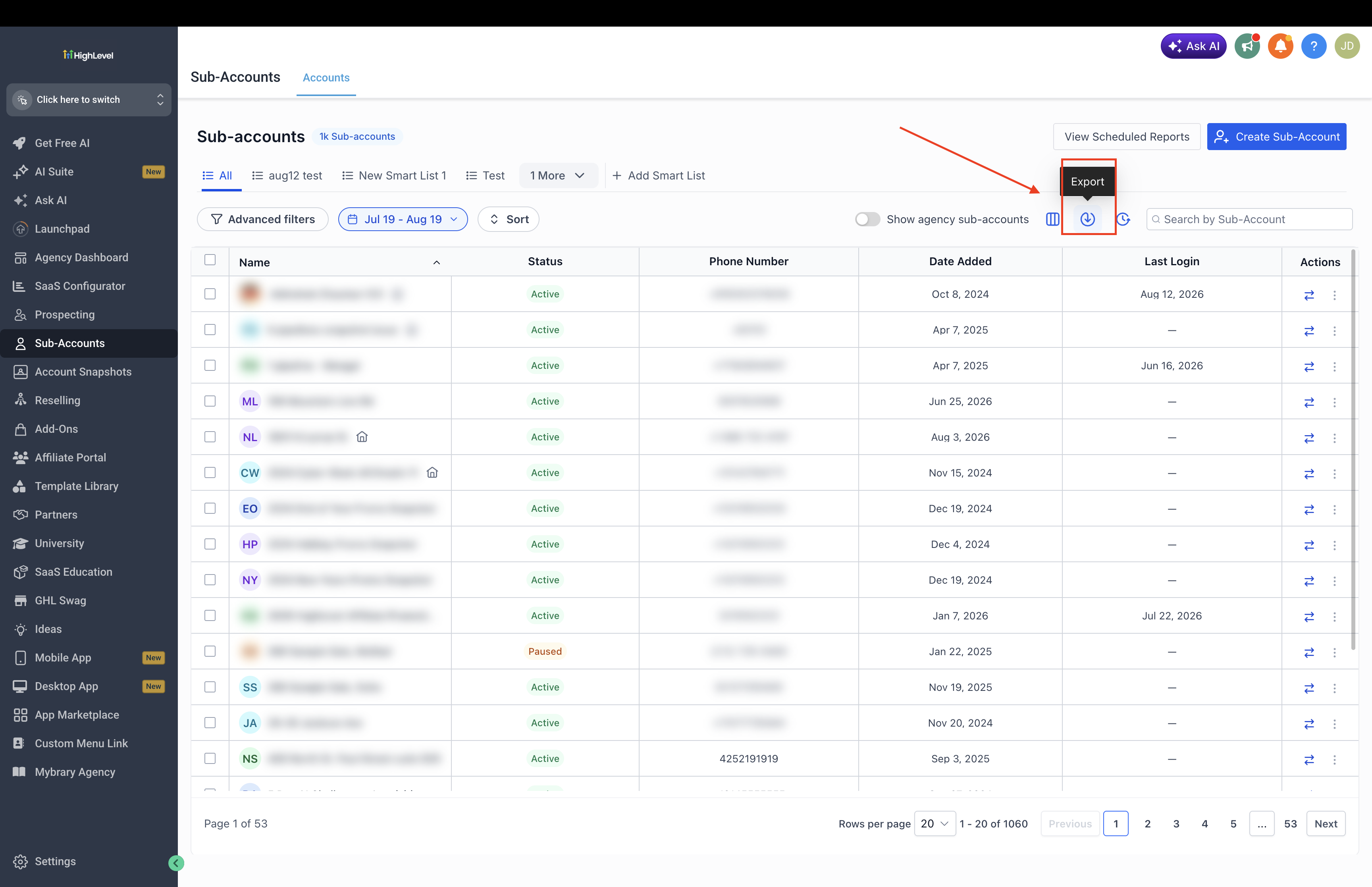
Step 2: Select Export Report
Click the Export Report button in the upper-right hand corner
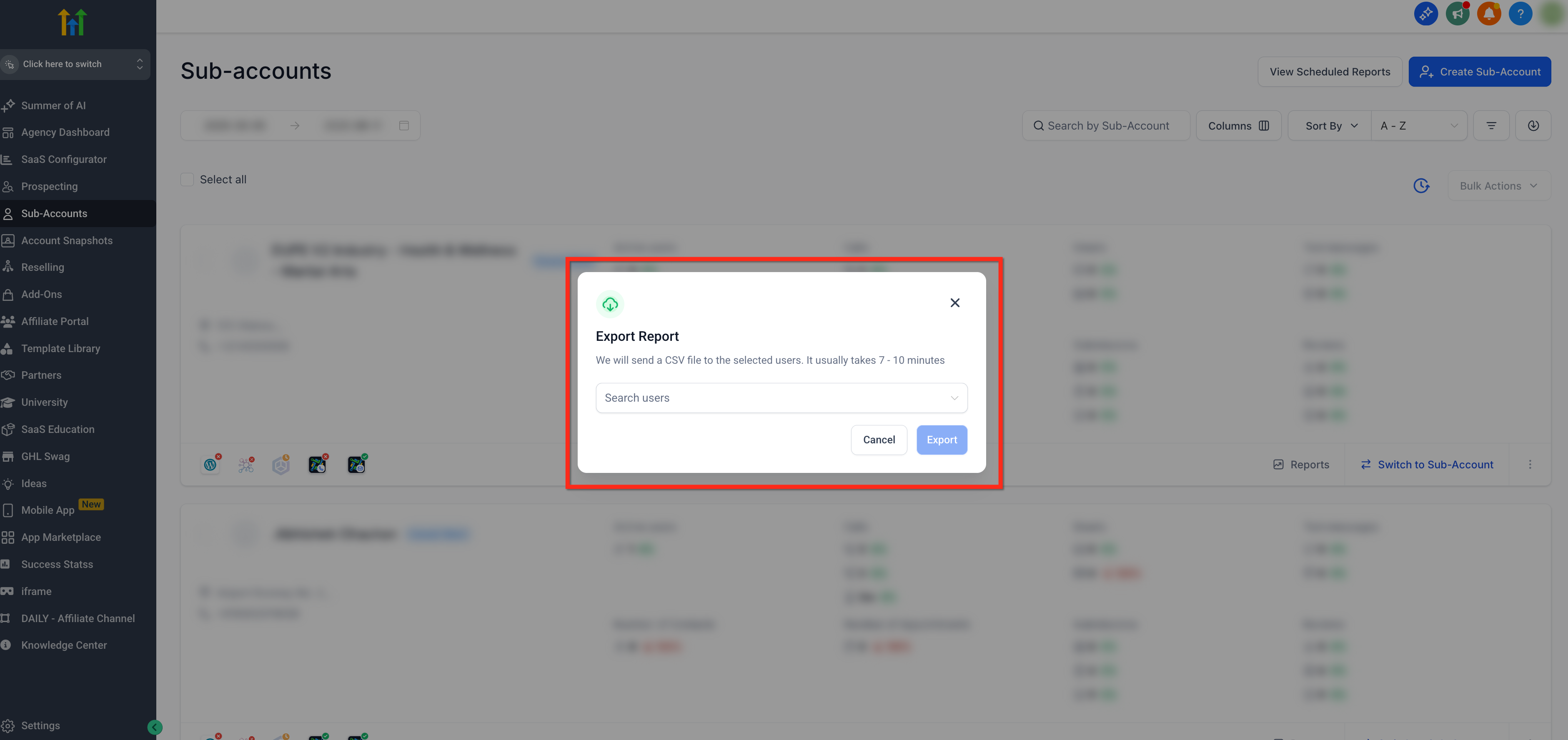
Step 3: Select Recipients
- Using the dropdown in the popup, select the recipients (teammates who should receive the CSV)
- Once recipients are selected, click the blue Export button
Step 4: Confirmation
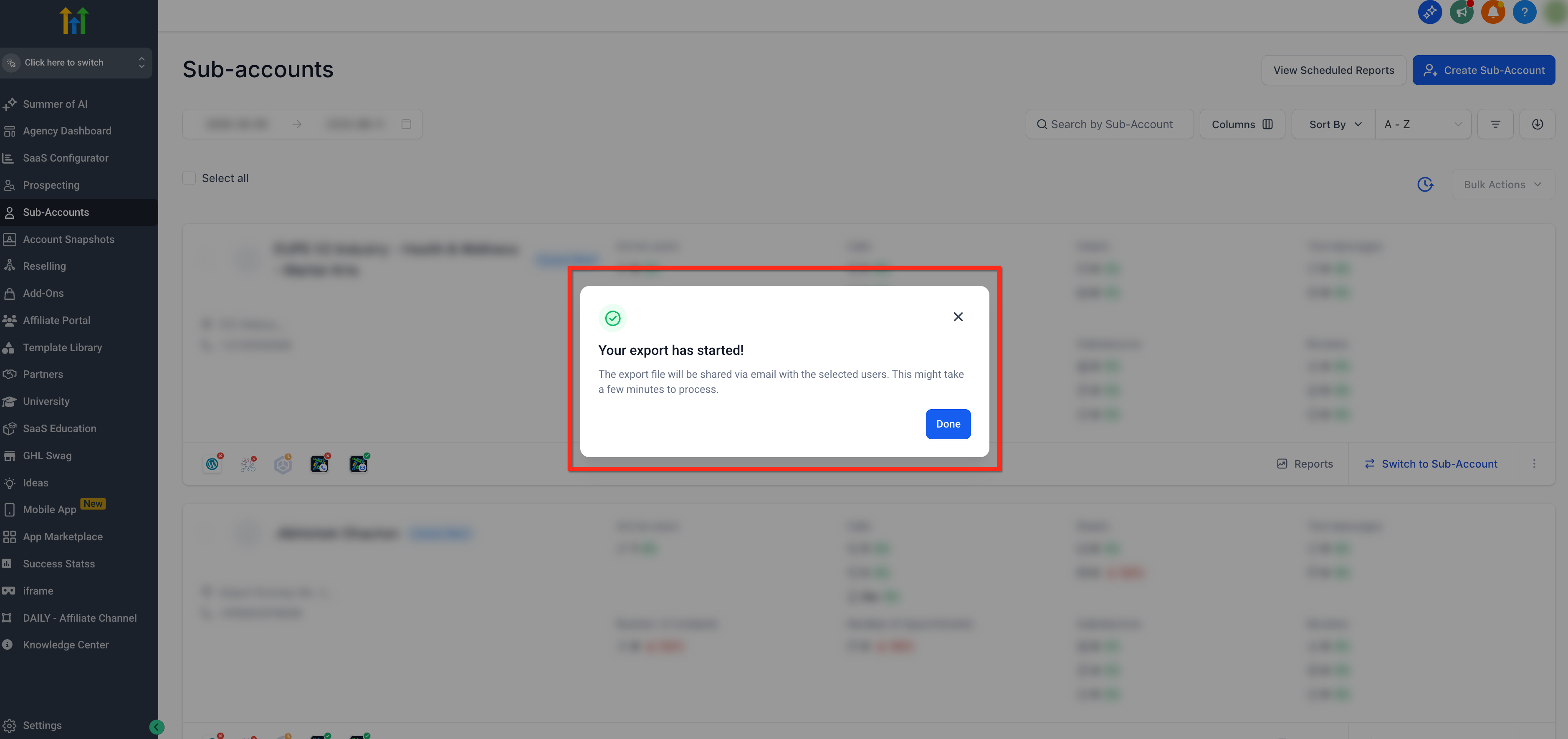
- A confirmation modal will appear: “Your export has started!”
- You may close the tab or continue working; the export will process in the background. The file will be emailed to the selected recipients once processing is completed.
Step 5: Download the File
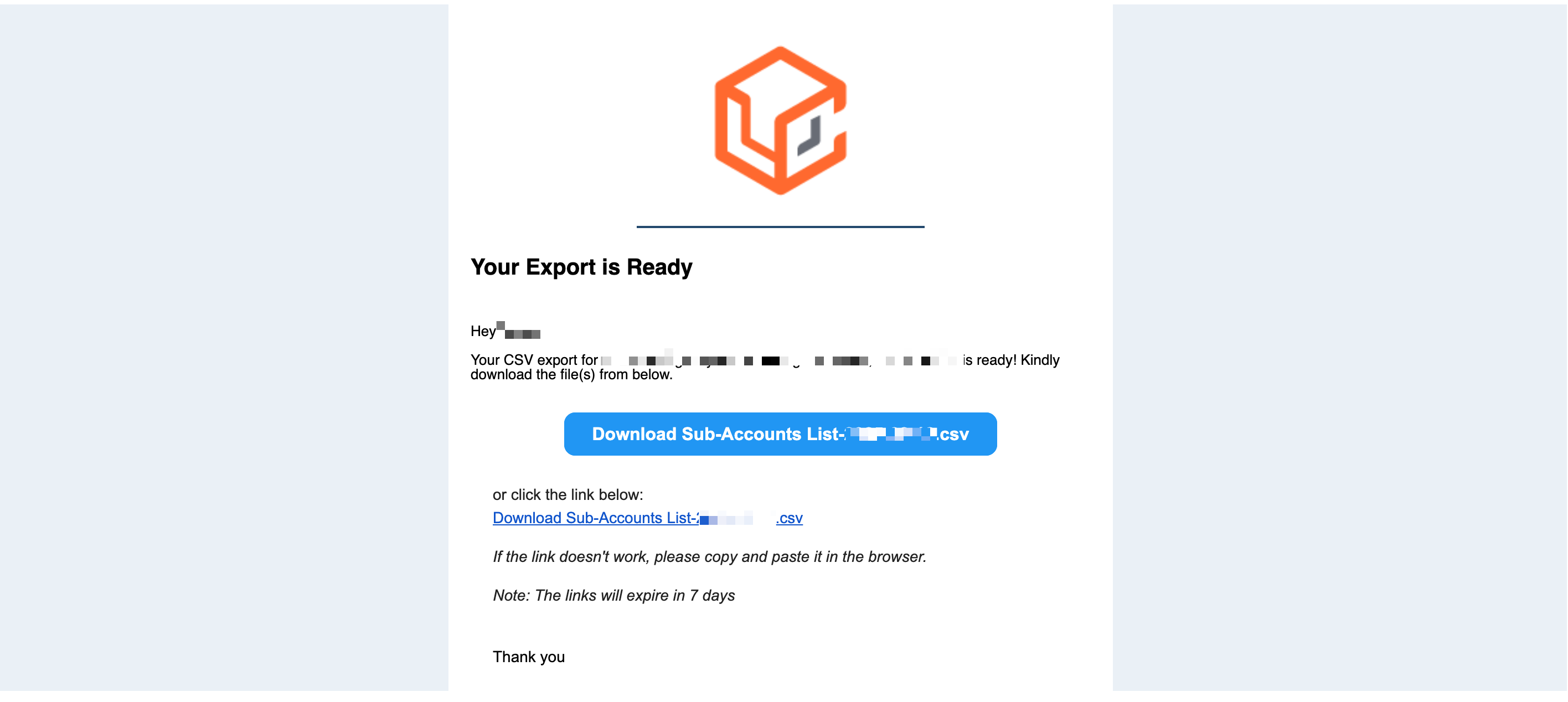
When the email arrives, click the blue button named Download Sub-Accounts List-YYYY-MM-DD.csv to download the file
If the link has expired (7 days), re-run the export with the same filters
- Open the file using any spreadsheet software to access your data
Use Cases
- Client Reporting: The exported data can be used to create comprehensive reports for clients, demonstrating the effectiveness of your strategies. This includes metrics like appointments booked, forms submitted, inbound and outbound communications, and more.
- Strategizing Client Campaigns: With details about social media engagement and customer interactions, you can better understand how audiences respond to your client's marketing efforts. This can guide improvements and adjustments to campaign strategies.
- Resource Management: Detailed metrics can reveal which clients or campaigns require the most resources, such as increased communications or appointments. This can help you better allocate your team's time and efforts.
- Performance Analysis: By tracking metrics like survey submissions, form submissions, and the number of active users, you can monitor the effectiveness of your marketing strategies for each client and adjust accordingly.
- Identifying Client Opportunities: The data export feature can help you identify opportunities for upselling or expanding services for existing clients. For example, if a client sees significant engagement on Facebook but less on Instagram, there could be an opportunity to offer additional social media marketing services.
- Monitoring Online Reputation: You can monitor your clients' online reputation with reviews from Google and Facebook. This can inform strategies for managing reviews and improving the client's online presence.
- Lead Generation and Conversion: Analyzing the sources of your leads (Facebook, Messenger, Instagram) allows you to focus your marketing efforts where they yield the best results, optimizing lead generation and conversion for your clients.
- Team Meetings & Client Reviews: This data can be valuable for team meetings and client reviews, providing clear, data-driven insights into the current status of marketing efforts. This helps in setting realistic expectations and creating informed strategies for the future.
Frequently Asked Questions
Q: Do exports include only the filtered sub-accounts?
Yes. The CSV respects all filters applied on the Sub-Accounts list at the time you start the export.
Q: How long do exports take?
Typical processing is 7–10 minutes, but large exports (thousands of sub-accounts) may take longer. You’ll receive an email when it’s ready.
Q: What happens if the email link expires?
Links expire after 7 days. Run the export again to generate a fresh link.
Q: Can I still download the file directly in the browser?
No. The export is processed asynchronously and delivered by email to selected recipients.
Q: How is this different from exporting contacts?
Contacts export is an in-app download scoped to a single sub-account. A sub-accounts list export is an agency-level CSV delivered by email and has information covering multiple sub-accounts