
Instagram Reels Publishing Guide for the Social Planner
Schedule and publish Instagram Reels directly from Chat To Clients CRM Social Planner without switching between platforms. Social Planner helps you prepare Reel content, choose a connected Instagram account, and publish immediately or schedule content for later. Following the supported account and media requirements helps reduce publishing errors and keeps your social content workflow organized.
TABLE OF CONTENTS
Overview of Publishing Instagram Reels in the Social Planner
Instagram Reels publishing allows you to create and schedule Reel posts for supported Instagram Professional accounts directly from Chat To Clients CRM Social Planner. Instagram Business and Creator accounts are supported, while personal Instagram accounts are not supported. Reels can be scheduled alongside your other social content, helping you manage publishing from one centralized calendar.
Key Benefits of Publishing Instagram Reels from the Social Planner
- Increased visibility: Instagram Reels allow users to reach a wider audience. When you create a Reel, it has the potential to be featured on the Explore page, where people who don't follow you can discover your content. This exposure can help individuals, influencers, and businesses gain more visibility and attract new followers.
- Creative expression: Reels offer a platform for users to showcase their creativity and talent. With various editing tools, effects, filters, and audio options, people can experiment and create engaging visually appealing short videos.
- Discoverability: Instagram Reels' algorithm shows users content based on their interests, preferences, and engagement patterns. This means that if you consistently create engaging Reels, your content is more likely to be recommended to users likely to enjoy it. This can help individuals and brands increase their reach and attract more followers.
- Business promotion: Reels also allow businesses to humanize their brand and connect with their audience more personally.
- Bite-sized content consumption: Short-form content is popular in today's fast-paced digital environment due to its quick and easily consumable nature. Users can scroll through Reels quickly, making it a convenient way to discover and engage with content.
Supported Instagram Accounts
Instagram account type determines whether Chat To Clients CRM can publish your Reel. Using a supported Professional account ensures Social Planner can connect to Instagram and access the publishing permissions required for Posts, Stories, and Reels.
Supported account types include:
- Instagram Business accounts
- Instagram Creator accounts
Instagram personal accounts are not supported for Social Planner publishing.
Chat To Clients CRM supports both Facebook-linked Instagram connections and Direct Instagram Integration. Direct Instagram Integration allows supported Business or Creator accounts to connect through Social Planner without requiring the Facebook-linked setup workflow inside Chat To Clients CRM.
For connection requirements and differences between the two methods, see Connect Instagram: Facebook-Linked vs. Direct Instagram Integration.
Supported Content for Instagram Reels
Preparing media within Instagram's supported limits helps prevent upload or publishing failures.
- Suggested video size upto 1GB and for thumbnail is 8MB.
- Aspect Ratio - The dimension should be recommended of 9:16.
- Duration: 15 mins maximum and 3 seconds minimum
- Format : MOV or MP4
For the latest media specifications, see Social Planner Content Guidelines - Image, Video, and Text.
How to make an Instagram Reel using the Social Planner
- Navigate to the Marketing > Social Planner > New Post
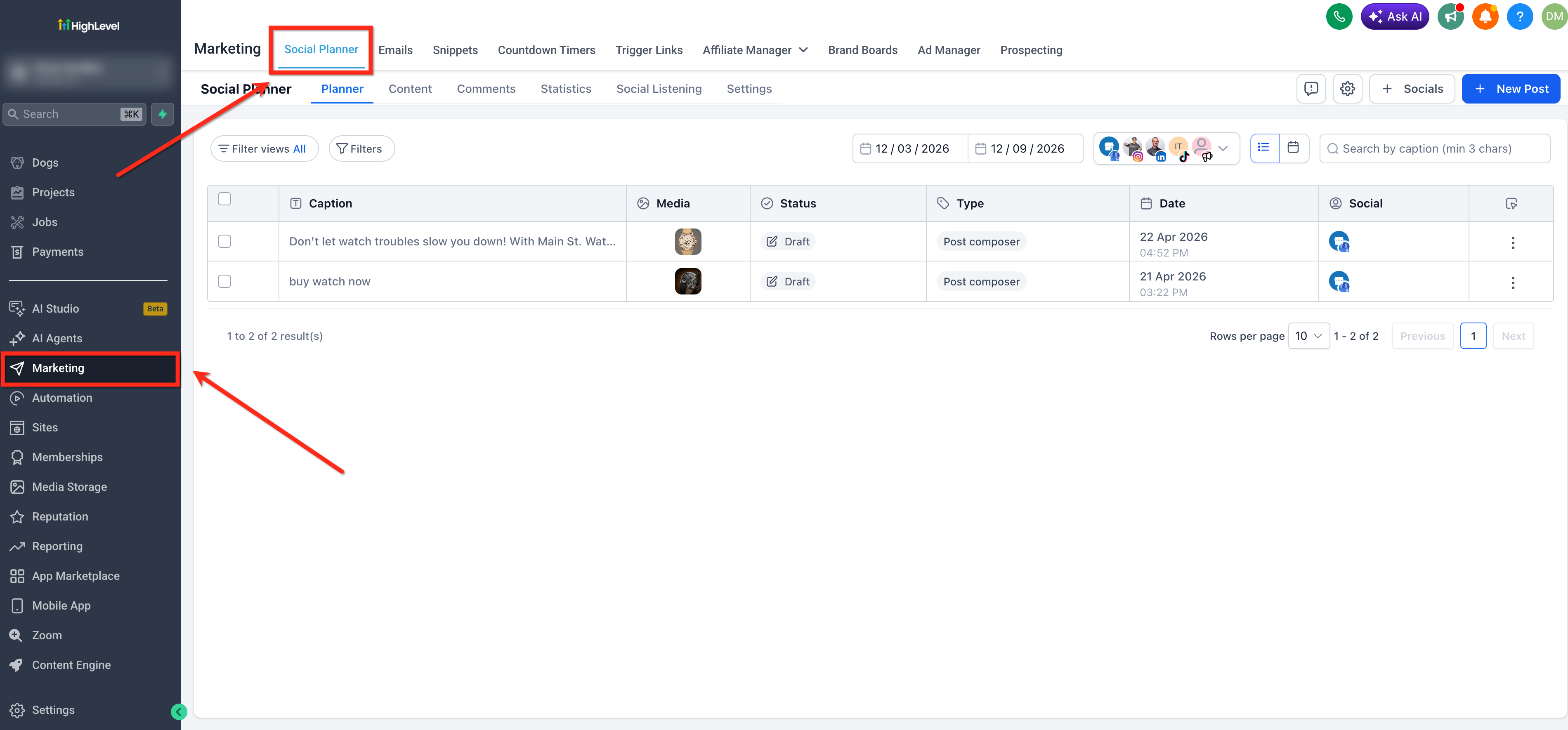
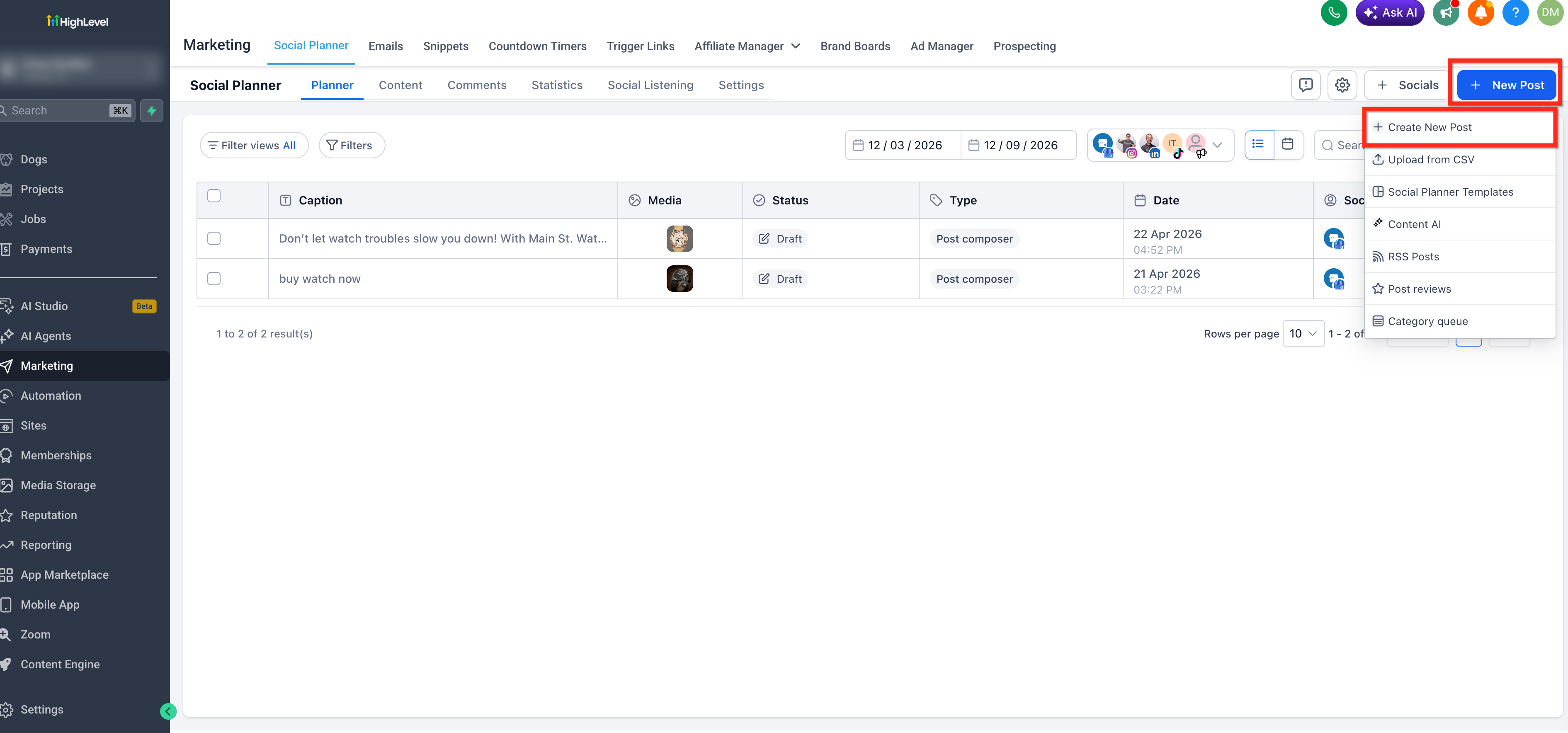
- Click + New Post then from the dropdown, select + Create New Post to open the Social Planner post composer.
- Under Post To, select your Instagram Business or Creator account.
If the account is not connected, open Social Planner settings and add your Instagram account.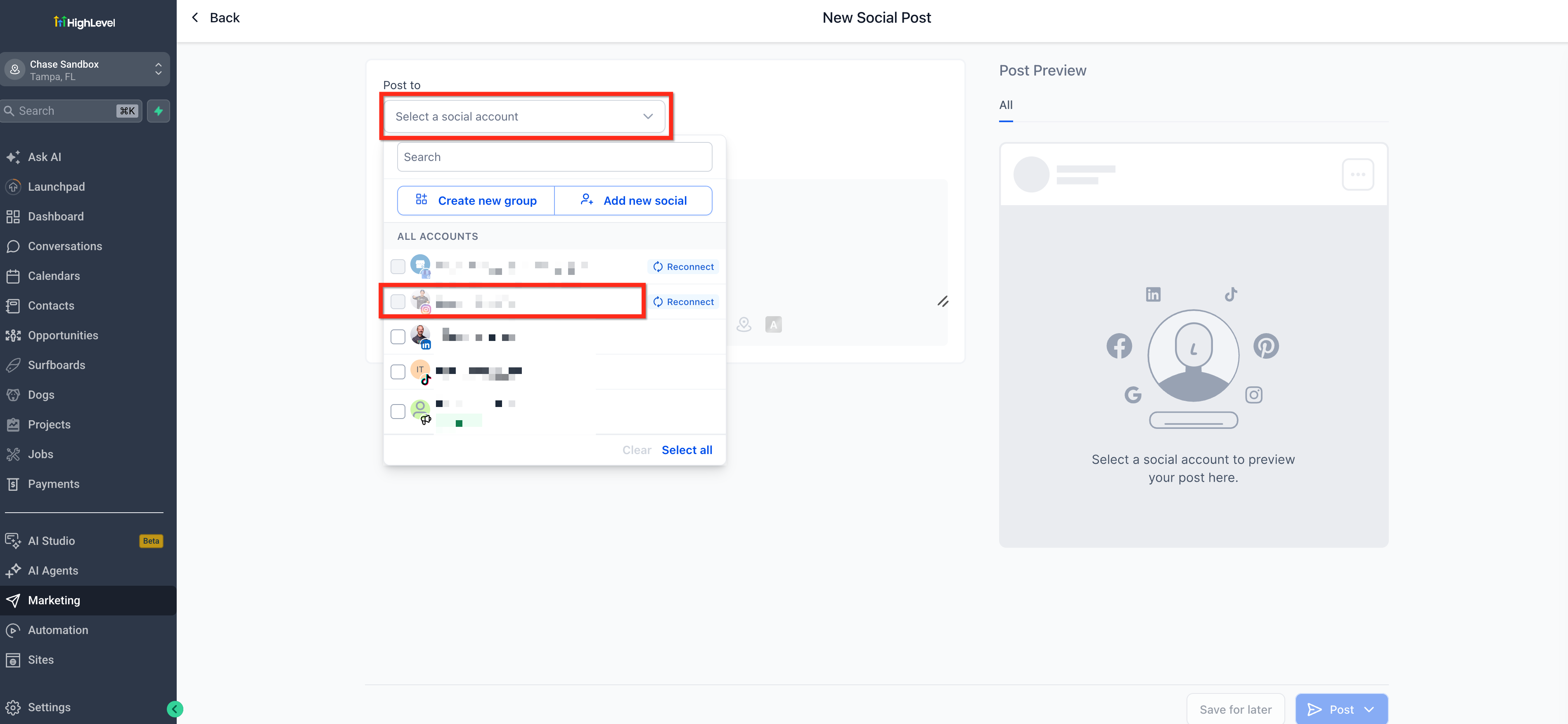
- Choose Reel as the Instagram post typeSelect Reels as your Instagram content type (See image below)
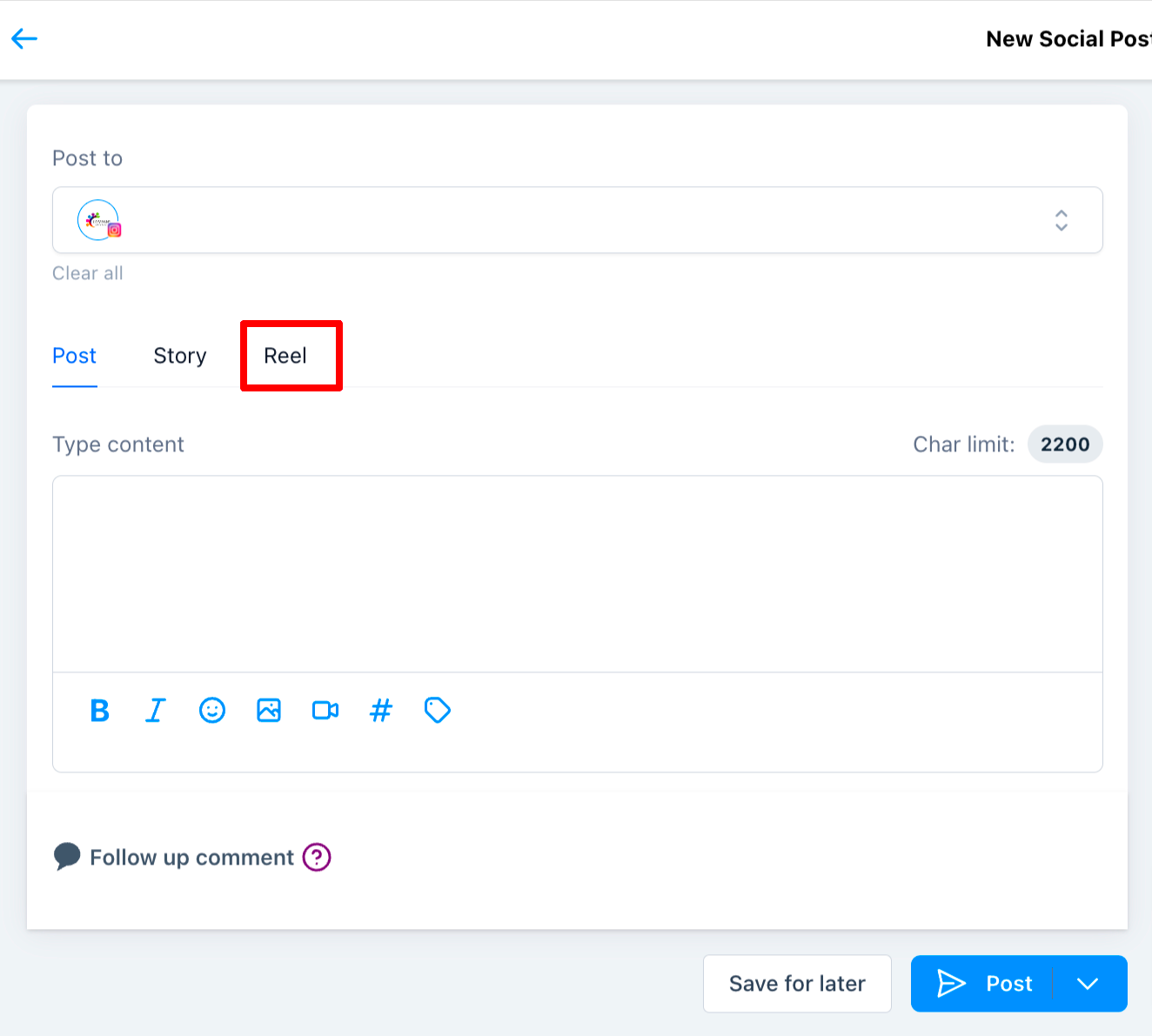
- Upload one supported video. Add your caption and any other supported post details.
Note: Instagram APIs calculate caption length based on URL-encoded characters, which means some special characters and emojis may count as more than one character and hence, even if the character count is under the limit in our platform, it may fail in the native app due Meta's URL-encoded characters Logic as character limit exceeded.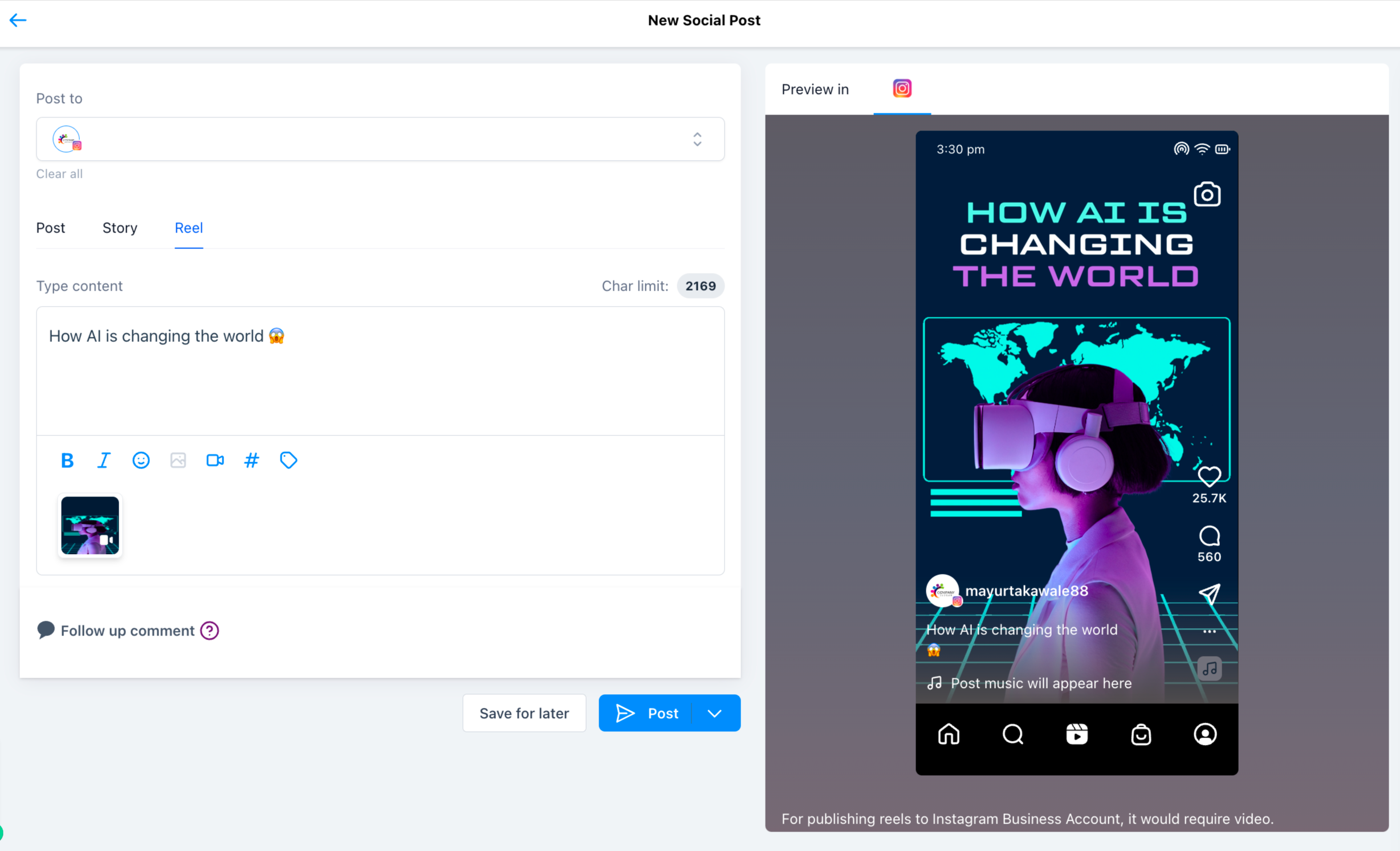
- Select "Post Now" or "Schedule for Later". You can also save your story as a draft. If your post was scheduled, you will see your reel under the "schedule posts" tab.
By default, Reels publish to both the Instagram Feed and the Reels tab. To publish to the Reels tab only, turn OFF the composer option for sharing to the Feed (see steps below).
Frequently Asked Questions
Q: Can I publish a Reel from a personal Instagram account?
No. Personal Instagram accounts are not supported. The account must be an Instagram Business or Creator account.
Q: Do I need to connect a Facebook Page before I can publish Instagram Reels?
Not necessarily. Chat To Clients CRM supports Direct Instagram Integration as well as the Facebook-linked connection method. The appropriate connection method depends on your account and the features you need.
Q: Can I create a Reel using several images in Social Planner?
No. Current Social Planner content guidelines list images as unsupported for Instagram Reels. Use one supported video for each Reel.
Q: Can I upload multiple videos to one Instagram Reel?
No. Current Social Planner guidelines support one video per Instagram Reel.
Q: Why is my Reel video being rejected during upload or publishing?
Check that the video meets the current Social Planner Reel requirements, including the 300 MB maximum file size and duration between 3 seconds and 15 minutes. Also confirm that your Instagram account is still connected and has the required permissions.
Q: Can I add a custom thumbnail to an Instagram Reel?
Yes. Thumbnail support is available for Instagram Reels, with a maximum thumbnail size of 8 MB.