
How to Enable and Rebill Workflow - External AI Models?
This help article provides a clear, step-by-step guide on how to enable and rebill External AI Models within the Chat To Clients CRM platform. Workflow - External AI Models are designed to enhance automation by using artificial intelligence to streamline workflows, and the article explains how to activate this feature and manage its billing effectively.
TABLE OF CONTENTS
- What is Workflow - External AI Models?
- How to enable External AI Models at the Agency level?
- Workflow - External AI Models Pricing
- Re-billing the costs to your clients and making a profit
- How to turn on re-billing for my clients?
- How does re-billing work?
- Frequently Asked Questions
- Related Articles
- Related Articles
- Agencies on Any Plan  ($97, $970, $297, $2970, $497, $4970) can access Workflow - External AI Models.

- Once Workflow - External AI Models are enabled via the Agency settings, EXISTING and New Sub-Accounts will have 100 free executions.

- For agencies to avoid accruing execution costs for EXISTING Sub-Accounts, rebilling will need to be enabled manually for each Sub-Account within the Agency view (more info).

- If Workflow - External AI Models are enabled on the SaaS Configurator, new Sub-Accounts generated will automatically be enrolled in External AI Models, no further action is required by the agency.
What are Workflow - External AI Models and Rebilling?
Workflow- External AI Models is a built-in assistant in Chat To Clients CRM that helps you create and optimize workflows faster using AI-powered suggestions.
Usage incurs costs while using External AI Models. Rebilling allows your agency to pass these charges to clients or sub-accounts, helping you recover expenses and optionally add profit margins.
Click here to learn more about the Workflow AI Assistant.
How to enable External AI Models at the Agency level?
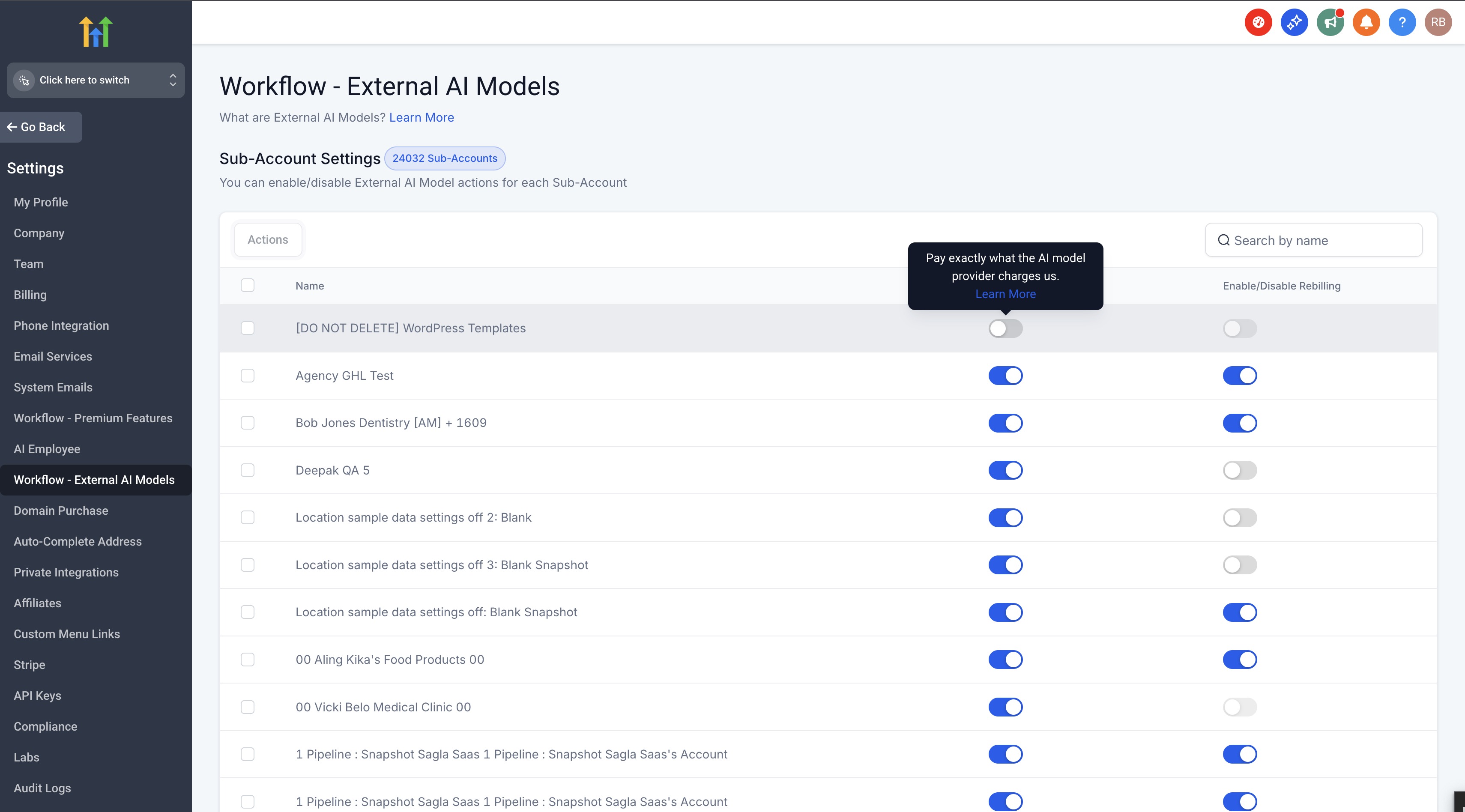
- To enable External AI Models for your whole Agency (including all your Sub-Accounts), head into your AgencyLevel > Settings > Company > Workflow - External AI Models and enable the toggle.
- Check the box "I confirm that I agree to the Workflow - External AI Models terms." And then hit Enable.
- You can enable or disable the Workflow - External AI Models feature or rebill for each Sub-Account in Agency Settings > Workflow - External AI Models. You can access Sub-Account Settings only if External AI Models are enabled at the Agency Level.
Please Note:
Agencies on Any Plan ($97, $970, $297, $2970, $497, $4970) can access Workflow - External AI Models.
Workflow - External AI Models Pricing
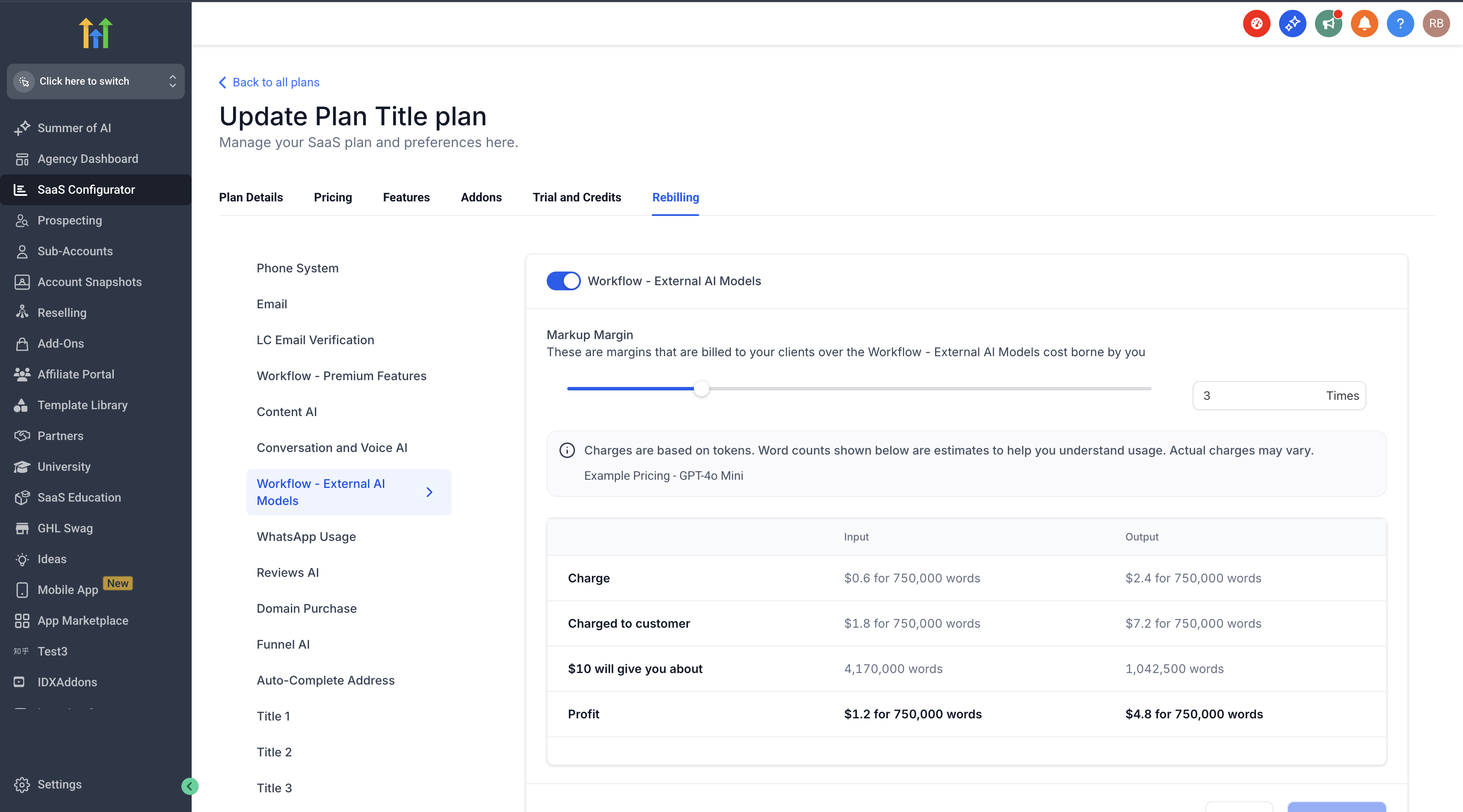
- Users will be charged what OpenAI charges us. No charges/commission will be added. If re-billing is enabled then charge will be inclusive of rebilling multiplier(see below for more info).
- You will be charged based on the input and output tokens used by you. It is transparent, we charge you what Open AI charges us. No hidden charges.
GPT-4o (per million tokens)
Input - $5
Output - $20.00
GPT-4o-mini (per million tokens)
Input - $0.60
Output - $2.40
Re-billing the costs to your clients and making a profit
(only for 497 SaaS Agencies)
Once you have enabled Workflow - External AI Models in your agency account, it will be automatically enabled for all your clients to use.
You can bill your clients at cost or add markup.
How to turn on re-billing for my clients?
- Ensure you have enabled Workflow - External AI Models for your Agency first. (see instructions)
- If the sub-account isn't in SaaS Mode already, switch the sub-account into SaaS Mode by going into your Agency account > Accounts tab > Scroll to the sub-account > Click the three dots icon and select "Switch to SaaS." How to convert a location to SaaS.
- In Agency account > Accounts tab > Scroll to the Sub-Account > Click the View Details link > Scroll to the Workflow - External AI Models Re-Sell Settings section and toggle it on.
- Use the slider to set the amount of markup you like to make and hit save!
- Rinse and repeat for all your Sub-Accounts where you wish to rebill for usage.
How does re-billing work?
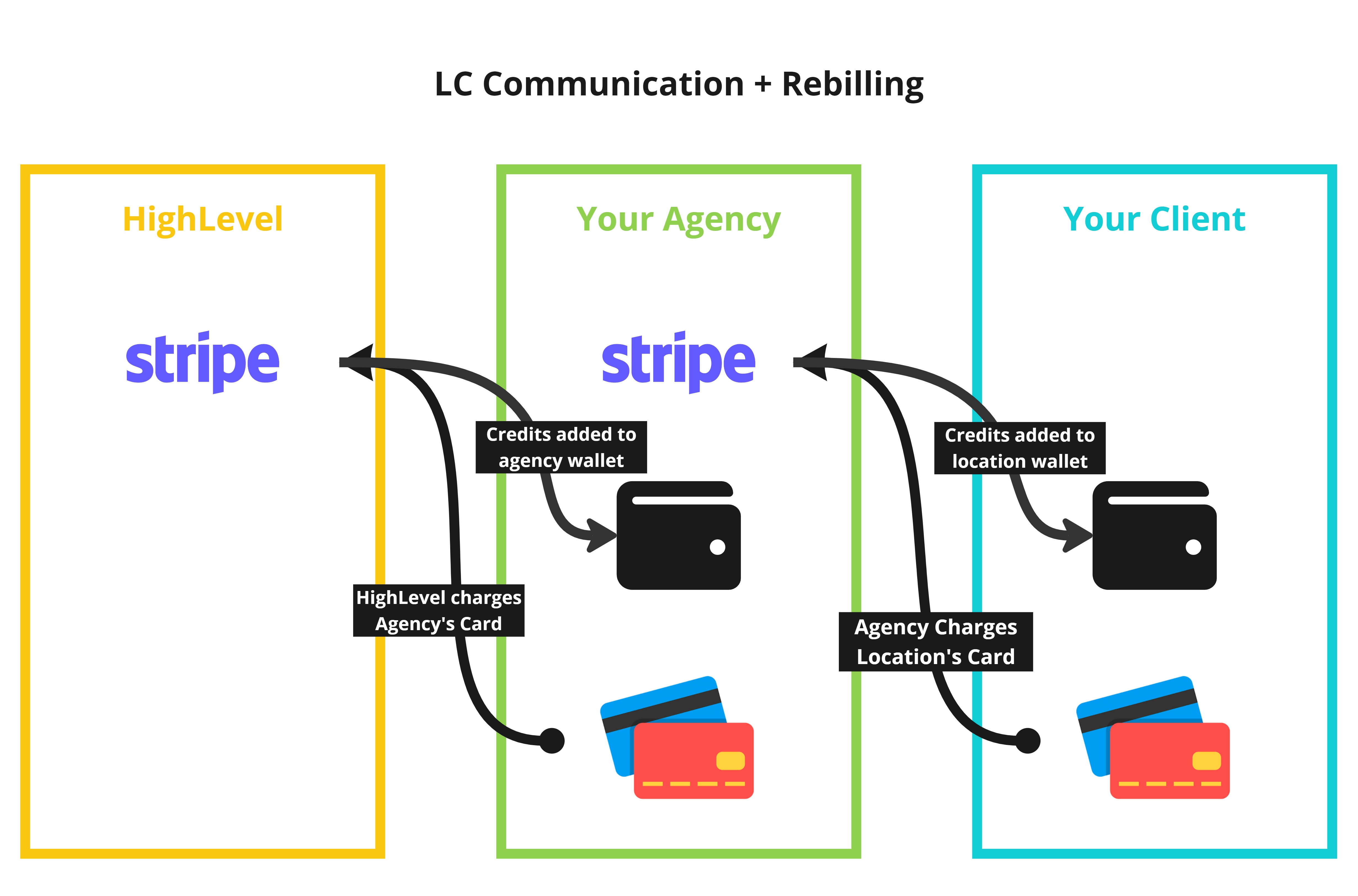
- Agencies pay Chat To Clients CRM and get invoices with high-level branding
- Sub-accounts (your clients) pay you (the agency) and get invoices with your branding. The money is deposited in your Stripe account connected to your agency level. How do I connect my agency's Stripe account to collect client payments?
This is very similar to other products that use re-billing or reselling models in the platform. Just like Chat To Clients Phone or Chat To Clients Email re-billing, re-billing of the Premium Workflow actions also utilizes "credits" from the agency wallet & the location wallet, respectively.
Frequently Asked Questions
Q: Can I customize the billing settings for Workflow - External AI Models to fit specific needs or usage patterns?
The article provides general guidelines for enabling and rebilling External AI Models, but specific customization options for billing settings might not be covered. If you need to tailor billing based on usage patterns or other factors, reach out to Chat To Clients CRM support to explore available customization options and ensure they meet your specific requirements.
Q: How do I handle billing discrepancies or disputes related to Workflow - External AI Models charges?
If you encounter billing discrepancies or disputes related to Workflow - External AI ModelsI charges, start by reviewing your billing reports and comparing them to your usage data to identify any inconsistencies. Contact Chat To Clients CRM’s billing support team with detailed information about the discrepancy to resolve the issue. They can provide assistance in adjusting charges or clarifying billing details.